
It is the Channel Partner’s responsibility to ensure that Gamma are correctly informed of the details of the host location for each number being supplied. This is so that Gamma can update the emergency services databases with the correct address information in the event of a service user contacting the emergency services.
Clearly this information is potentially of paramount importance. Please ensure that you capture and specify accurate host number address details at the point of order and do not use a default or dummy address to save time.
It remains the Channel Partner’s responsibility throughout the lifetime of the numbering arrangement to inform Gamma immediately of any change to the numbers’ host address so that the emergency services databases can be maintained.
Viewing / Adding / Updating Emergency Contact Details Individually #
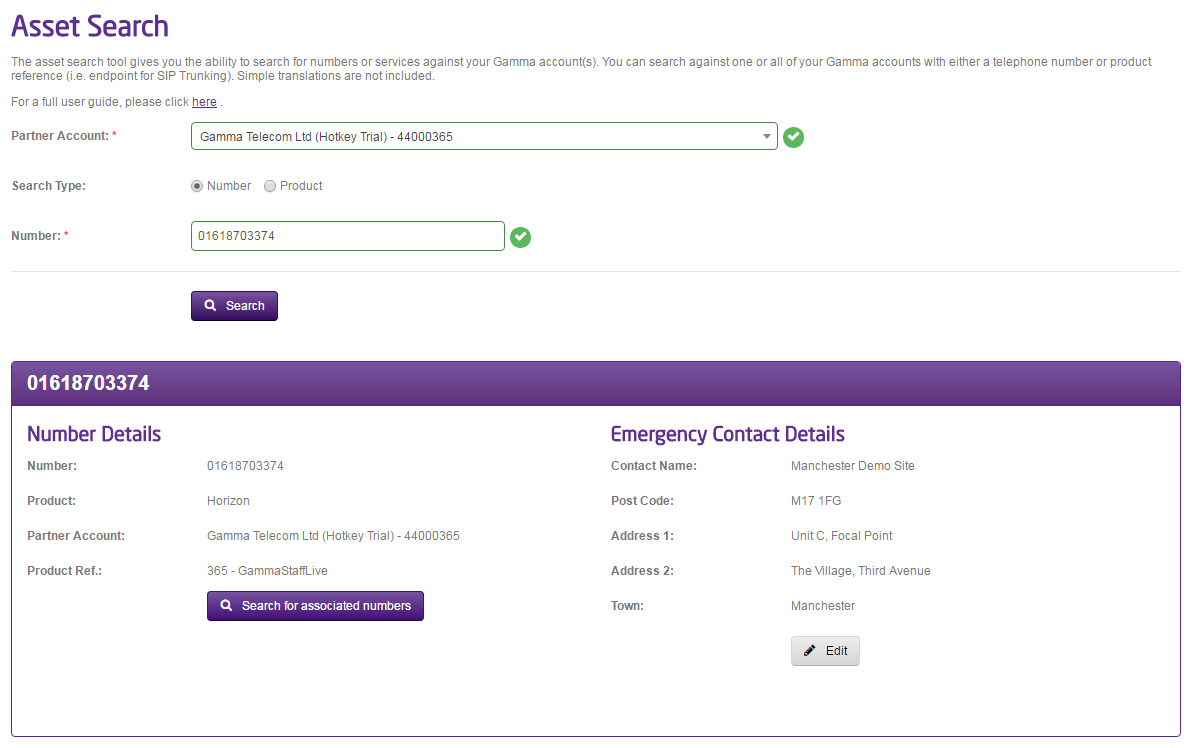
You can view the current address details registered against individual numbers on your account using the Asset Search function on the portal which can be found under the Help & Support option. You can search either by number or by Product and it will show any current address registered and there will be an option to Edit these details. Enter the required address and then click Save.
Viewing / Adding / Updating Emergency Contact Details in Bulk #
Step 1
Log into the Gamma Portal and go to Provisioning and Service Management, Contact Management and select 999 Emergency Contact.
If you don’t have this option, contact your Portal Administrator (Help and Support and Portal Administrators) or contact your Internal Account Manager.
Step 2
Select the Channel Partner Account from the list of available Accounts.
Here you’ll be presented with three spread sheets. These are:
- Invalid Emergency Service Details – these have been verified to be incorrect.
- Add Emergency Service Details – this is a list of CLIs on your account that do not have any Emergency Service contact details for.
- Modify Emergency Service Details – this is for when you want to edit Emergency Service details, such as someone moving premises etc.
Selecting the required option will open a spreadsheet of the numbers that either have an invalid address, no current address or numbers that have a valid address, depending on which option is selected. You can then view any current details and then edit the spreadsheet as required.
Step 3
To upload an amended spreadsheet, select the Choose File option and locate the spreadsheet you have just saved and then click the Upload button.
