Start by extracting as much information from the customer as possible. Understand upfront what their requirements are and why, as well as what level of tolerance / lenience they have towards meeting their precise specification.
Identifying this at the outset will allow you to prepare and plan their numbering request fully in advance and proactively highlight any potential issues / delays / additional costs before you get involved in the provisioning process.
Some key areas for consideration in your initial customer discussions are as follows.
Area Codes & Number Types #
Firstly, establish which area code(s) / number type(s) are required to fulfil your customer request (eg. 020, 0161, 0333, 0808 etc.)
Next, consider the volume of numbers required within each area code.
Regardless of whether or not your desired area codes fall within a conservation area, you may be limited to requesting a maximum volume of numbers at any one time under business as usual processes.
The volume threshold varies from product to product and can depend on your current volume of numbers reserved vs utilisation.
If you are unable to process a request for the volume of numbers you require against your chosen product, you will need to either process multiple submissions on the portal (which may result in your number ranges not being consecutive) or apply for the numbers by following the questions and submitting a request on the numbering navigator (further details to be found in stage 2 of this process).
Additionally, if you require between 300-999 numbers within a single area code, you will be asked to provide a written justification for the request for review by the Gamma Operations Manager.
If you require 1000+ numbers, you will be asked to submit a formal business case for review by the Gamma Commercial & Regulatory Team as well as Ofcom (if applicable). The business case template can be found within the Gamma Number Policy at Annex B.
Conservation Areas #
Once you have established the area code(s) / number type(s) required, you need to firstly check whether these number ranges are within either an Ofcom or Gamma specified conservation area.
Conservation areas are defined either by Ofcom or Gamma when demand for numbers within a specific area has become so great that available number stocks have been depleted to the extent that restrictions have been imposed.
If you require numbers which fall within an Ofcom or Gamma specified conservation area, you should be prepared for a number of possible issues as follows:
- You may be restricted on the volume of numbers you can request
- Large batches of uninterrupted consecutive numbers may not be available
- You may have to wait for spare numbers to be allocated by Ofcom (2 month lead-time for geographic numbers, 4 months for non-geographic numbers)
- No number selection options are available – you take the next available numbers from the pool.
- Additional charges may be levied
- You may be asked to provide a business case
A full, up to date list of both Ofcom & Gamma conservation areas can be found within the Gamma Number Policy in Annex A.
Restricted Areas #
Certain number groups are for use only by specific groups of individuals and are not open for selection by all.
Number types concerned are as follows:
|
Number type |
Availability |
|
030 |
Public sector bodies and not-for-profit organisations |
|
034 / 037 |
Created as direct replacements for 084 and 087 numbers. A Channel Partner is only eligible for these numbers if they already own the corresponding 084/087 numbers and they must agree to supply them only to the end user who currently owns the 08 number |
If your customer requests any of these number groups and does not meet the qualifying criteria, you will need to decline the request and explain the reasons why. Other 03x numbers will be available for them to request.
Specific Geographic Number Request #
If you would like to search for a specific geographic number then you can go to Gamma Number Search under Help and Support on the Gamma Portal. This will allow you to search for new available numbers and also view numbers currently allocated to your account that are not in use.
Select your account, area code, quantity of numbers required and whether you want to see numbers that are already allocated to your account but not in use with a product, or whether you want to see if the numbers are available.
You can also search for ranges by ticking the Number Range button.
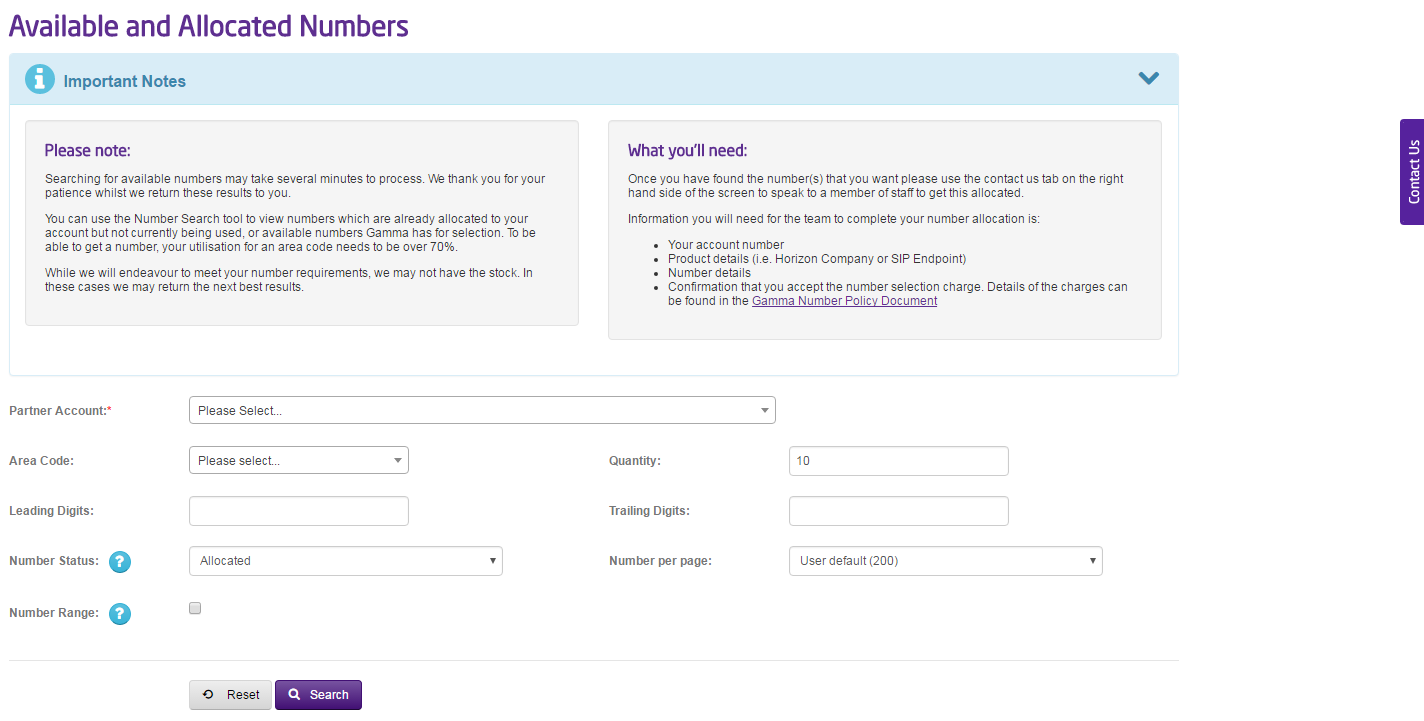
It’s worth keeping in mind that all providers are allocated number ranges so we might not have the range you’re looking for. You can see if a number is a Gamma number range (or even a valid number) by using our Range Holder Search tool.
Once you have identified the number(s) you want then you can use the “Contact Us” button and start a webchat with the team. They will allocate the number to your account. There is a charge for the numbers depending on the type and quantity of numbers. These charges can be found in the Gamma Number Policy Document
We will then submit a request to allocate the number to your account if the number is still available. Numbers are allocated on a first come first served basis.
Next Available Geographic Number Request #
If your customer is just after more telephone numbers and doesn’t required anything specific then you can add the number to the Gamma Product directly. For this you should consult the relevant Provisioning and In Life Changes guide of the product.
Directory Entries #
Ask your customer if they expect any of their new numbers to be published in the telephone directory. If so, which numbers do they want published and under what name? What typeface do they require and how prominent do they want the advertisement to be?
The default will be that no directory entry is supplied by Gamma unless specifically requested.
If a directory entry of any kind is required, this is dealt with by the Gamma Porting Team (please see latest contact details on our digital Customer Service Plan on the Gamma Portal). There are various options available, many of which will carry an additional charge. The porting team will advise options upon request.
Specific Non-Geographic Number Request #
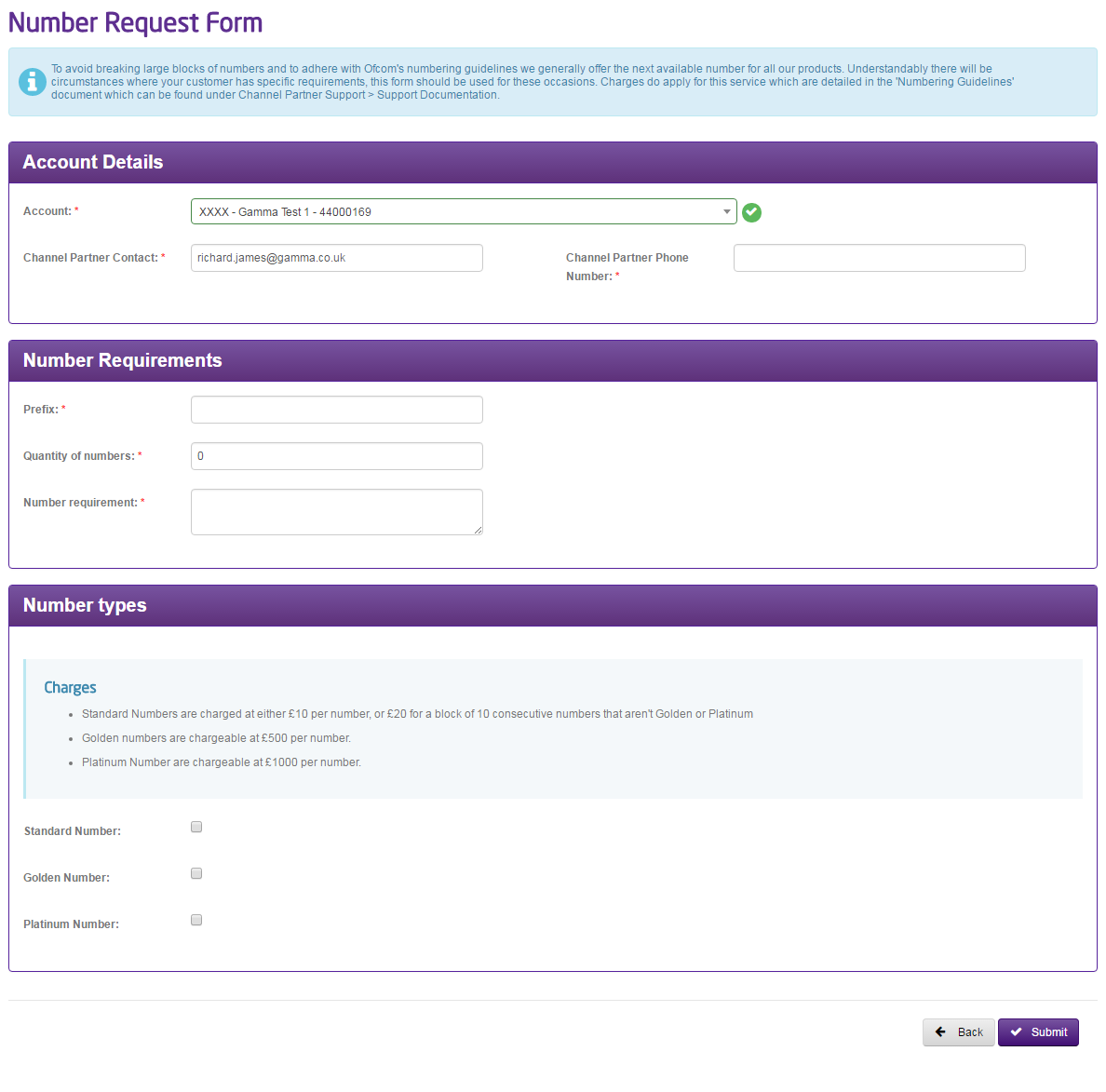
If you require a specific non-geographic number, then you should complete the Non-geographic Number Form on the Numbering Navigator. This is available by going to Help and Support and Numbering Navigator and selecting option 3 (I know what form I need) and then select the “Non-Geographic Number” form. This form can also be used for Golden and Platinum numbers as well.
Golden & Platinum numbers #
Some Non-Geographic numbers may be identified by Gamma as ‘golden’ or ‘platinum’ numbers if they are particularly attractive. These numbers will carry an additional set up cost which will be applied whether you choose to ‘cherry-pick’ them from a range or are applying to purchase the entire range including the special numbers.
If you are purchasing a whole range of numbers and wish to exclude the special numbers, you can do so hence avoiding the additional golden/platinum number charge.
Number ranges containing golden and platinum numbers will not be readily available for selection on the Gamma portal so you will not purchase them by mistake. These ranges are withheld by Gamma and are only available for purchase via the number selection process.
Golden and platinum numbers are not specified on geographic numbers. You can still apply for specific numbering formations via the number selection process but there will be no additional charges above the standard number selection cost.
Reserving Non-Geographic Numbers #
Non Geographic Numbers can be reserved to your account via the Gamma Portal free of charge. These numbers can take up to 2 hours to appear on your account. If the numbers haven’t appeared after this 2 hours, please email GammaNumbers@gamma.co.uk
If you are looking for a specific number, please follow our Specific Non-Geographic Number Request process.
Step 1
Log into the Gamma Portal and go to Provisioning and Service Management, Inbound, NTS Management and Reserve NTS Numbers.
If you don’t have this option, contact your Portal Administrator (Help and Support and Portal Administrators) or contact your Internal Account Manager.
Step 2
Make sure that your account is selected as this is the account that the numbers will be reserved to.
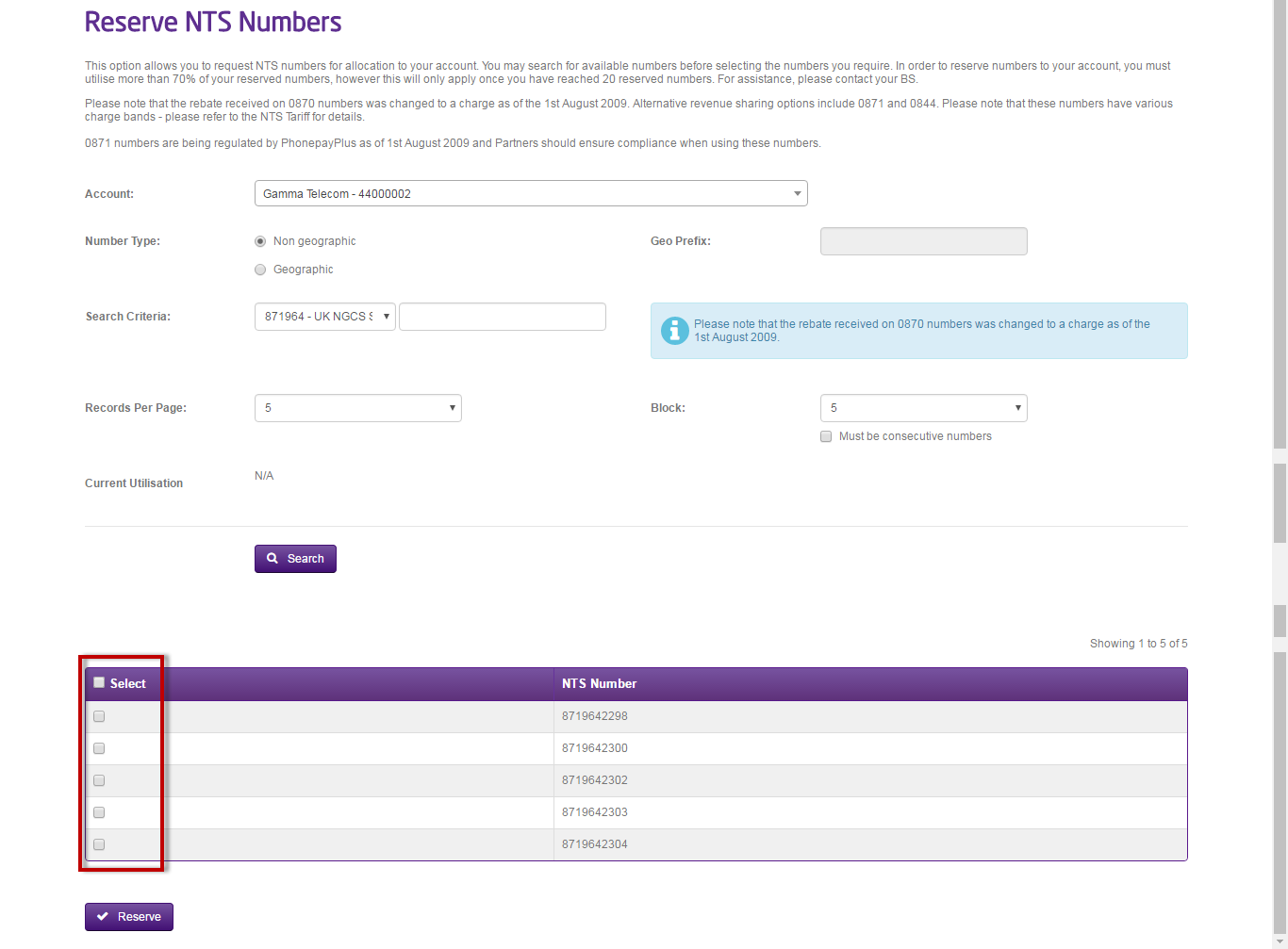
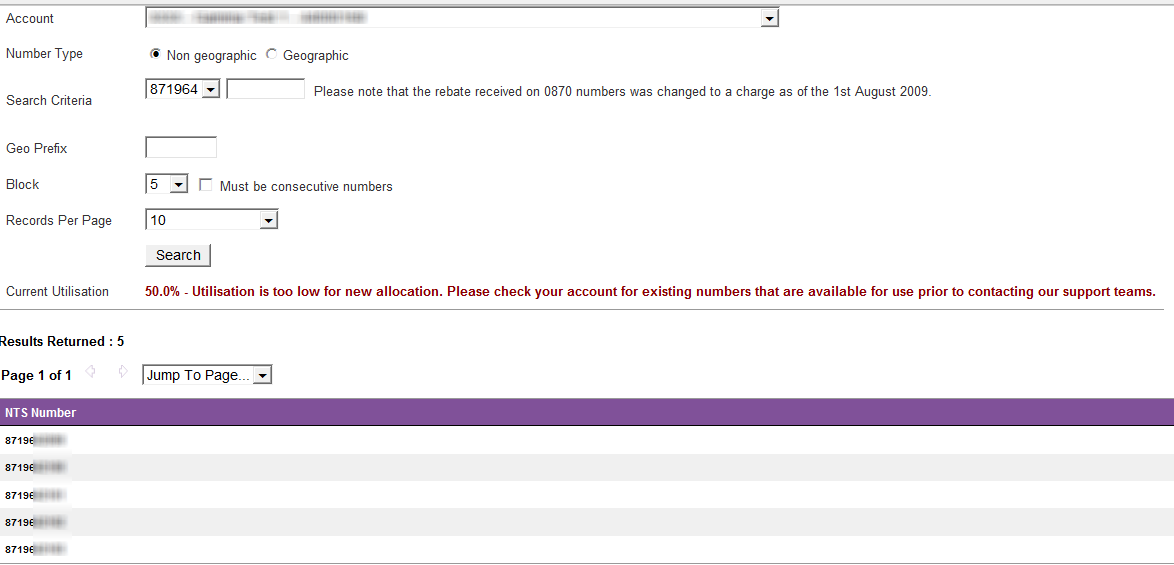
The Search Criteria text box is the beginning of the number (excluding the first zero). For example, in this screen shot we’ll be searching for numbers that begin “0871 811”.
Select how many numbers you’re wanting (this goes in blocks of five, though you can manually select individual numbers – so if you’re after one or two select “5” and then go to the next step) and if you want the numbers to be consecutive select the “Must be Consecutive Numbers” option
Click “Search”.
Step 3
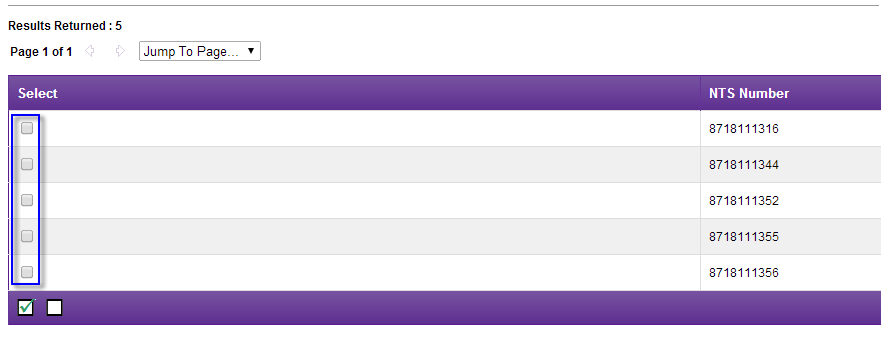
You’ll then be presented with the numbers – using the tick boxes in the results table (highlighted in image) select however many numbers you want from this and click “Reserve”.
Confirming the numbers are on your account #
Step 1
Log into the Gamma Portal and go to Provisioning and Service Management, Inbound, NTS Management and View and Translate NTS Numbers.
If you don’t have this option, contact your Portal Administrator (Help and Support and Portal Administrators) or contact your Internal Account Manager.
Step 2
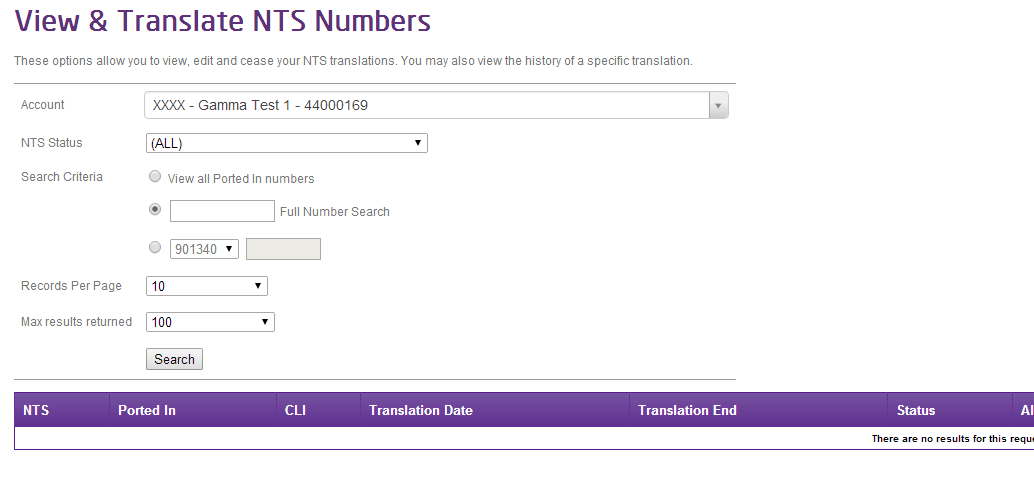
Make sure that you’ve selected the right account and then enter the full telephone number that you’ve reserved into the Full Number Search text box and click Search.
If your number has shown up in the Results Returned table then the number is reserved against your account and is ready to go. If the number hasn’t shown yet it is still in the process of being reserved and you should check again later.
Unable to Reserve NTS Numbers #
When you are trying to reserve numbers on the Gamma Portal, you’ll be informed of your current utilisation level for the area code or prefix that you’re wanting to reserve. The utilisation level is the percentage of the numbers in that dialling code or prefix already on your account that are live.
Ported in numbers are not taken into account for your utilisation level.
When your utilisation level falls below 70% then you are unable to reserve any numbers on the Gamma Portal for that dialling code or prefix. If your utilisation level is above 70% then you can reserve numbers again.
In this example you can see that there is a message saying that Utilisation is too low for the new allocation, and tells us it is at 50%, so only 50% of the numbers that they have beginning with 0871964 are being used.
From here you should either use the existing numbers you have on your account by translating them or deallocate them.
Viewing Currently Available Numbers #
To view the numbers you already have allocated to your account, go to Provisioning and Service Management, Inbound, NTS Management, View and Translate NTS Numbers.
In the Full Number Search field enter the dialling or Prefix you are trying to obtain numbers for (in the case of the above example this would be 0871964).
For Non-Geographic Numbers select the NTS status as “Available for Translation” and click the Search button. For Geographic Numbers select the NTS status as “Geographic Number, Translation Unavailable”.
The numbers that show the Ported In status as No and the Inbound Number status as No are not currently live on Inbound and are available for you to use. If you wish to remove unwanted numbers from your account, please follow the instructions for Deallocating NTS Numbers. Alternatively, you can look to use some of your existing numbers before obtaining new numbers.
Make a Non-Geographic Number Live #
Once you’ve reserved your number and it is showing on your account, you can now make your number live.
Step 1
Log into the Gamma Portal and go to Provisioning and Service Management, Inbound, NTS Management and View and Translate NTS Numbers.
If you don’t have this option, contact your Portal Administrator (Help and Support and Portal Administrators) or contact your Internal Account Manager.
Step 2
Make sure that you’ve selected the right account and then enter the full telephone number that you’ve reserved into the Full Number Search text box and click Search.
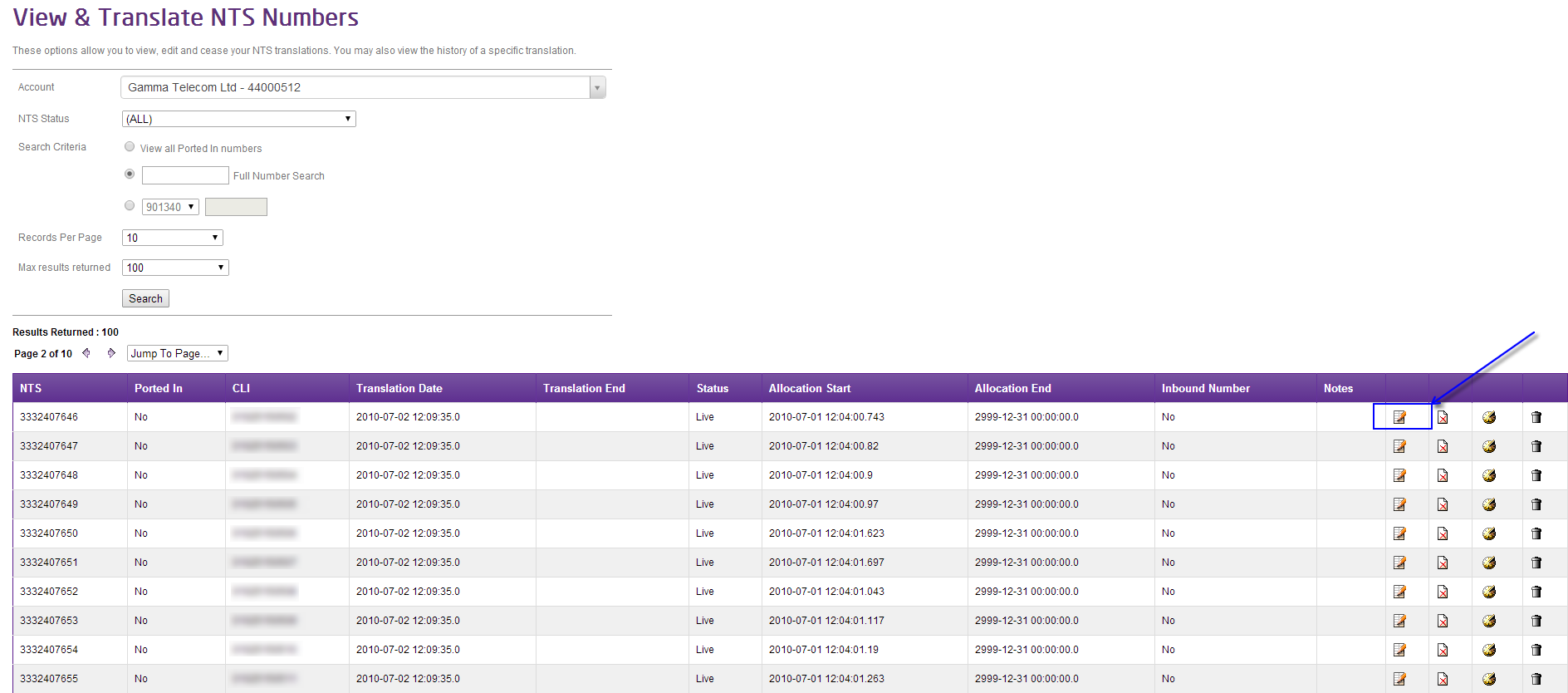
If your number has shown up in the Results Returned table and the status is “Available for Translation” and the Inbound Number status is “No” then the number is reserved against your account and is ready to be translated. Click on the “Edit NTS Translation” button, which is a icon of a piece of paper with a pencil.
Step 3
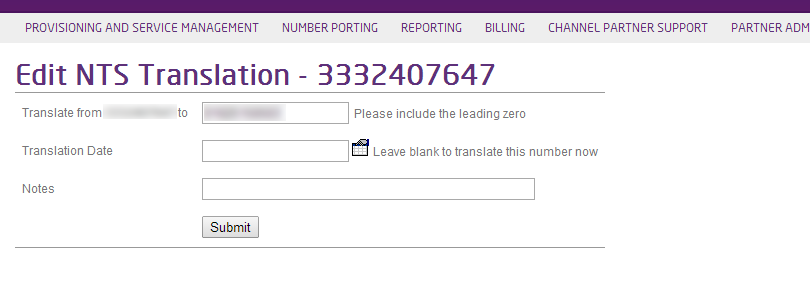
Once you’re on the Edit NTS Translation screen you can enter the number you want the non-geographic number to translate to (i.e. which number you want the call going to).
Click submit. This will take around 30 minutes to be actioned.