
Skip to content
  • Academy KB Home Redesign
  • Broadband Home
  • CCaaS
  • Channel Partner Support
  • Circle Loop Home
  • Collaborate
  • Connectivity
  • Courses
  • Documentation
  • Ethernet
  • FibreXchange
  • FUSION IoT
  • Gamma AI Concierge
  • Gamma Plus
  • Gamma SIP for Cloud Connect
  • Gamma SIP for Cloud Connect
  • Gamma SIP for Genesys Cloud
  • Gamma SIP Global Communications Enablement
  • Gamma SIP Trunks for Genesys Cloud
  • Hannah – Homepage WIP
  • Home
  • Horizon
  • Horizon Contact
  • Horizon Forms
  • Horizon Service Description Home
  • Horizon with Webex
  • Inbound
  • iPECS
  • Knowledge Base Intro
  • Knowledgebase Directory
  • LoginPress
  • Microsoft
  • Microsoft Teams Direct Routing Home
  • Microsoft Teams Operator Connect
  • Mobile
  • Multiple KB
  • My Courses
  • No Access
  • No active page
  • Numbering and Porting
  • Phoneline+
  • Product Homepage
  • Quick Download Button
  • Release Notes
  • Release Notes
  • SIP Home
  • Test
  • UCaaS
  • User Account
  • Voice
  • Voice Enablement
  • Webex for Gamma
  • Webex for Gamma Release Notes
  • Gamma Academy Knowledge Base
Gamma Academy Knowledge Base
  • Cloud Calling and Collaboration
    • Webex for Gamma
    • Horizon with Webex
    • Horizon
    • Phoneline+
    • Operator Connect
    • Direct Routing
    • Inbound
    • Akixi CX Analytics
    • Red Cactus
  • Connectivity and Networking
    • Numbering and Porting
    • Broadband
    • FibreXchange
    • Ethernet
    • SIP Trunking
    • Gamma FUSION IoT
  • CX
    • Horizon Contact
    • AI Concierge
  • Mobile Services
    • Gamma Mobile
  • CyberSecurity
    • SafeWeb
  • Partner & Portal Support
Gamma Academy Knowledge Base
  • Home
  • Home
  • Features
  • Incoming Call Settings
  • Call Barring
View Categories

Call Barring

You can control Call Barring at either Site Level, or at User Level.

There are seven call-barring options. These are:

  • Allow free phone calls
  • Allow national calls
  • Allow international calls
  • All chargeable directory services calls
  • Allow premium calls
  • Allow mobile calls
  • Allow 084 calls
  • Allow 087 calls

There are two categories that need consideration:

  • When making a call – call barring that is applied to any call the user makes directly via their calling device or software, including a consultative transfer.
  • When transferring/diverting a call – call barring that is applied to call when a user attempts to blind transfer a call to an alternative station or a divert attempt as a result of the call forwarding feature being invoked, a divert on busy for example. The call barring under this heading does not apply to consultative transfers. Consultative transfers are covered under ‘when making a call’.

You can quickly view what call bars a user has set up, both on their site and if they are overriding the site settings by using the Horizon Health Check.

Setup and Manage Site Call Barring #

Site Call Barring can only be set up by a Company Administrator.

Step 1

Log into the Gamma Portal and go to Provisioning and Service Management, Hosted, Horizon and Horizon Manage Company.

Step 2

Select your account and locate the company that you want to set up Site Call Barring for by using the “Actions” button and selecting “Login to Horizon”.

Step 3

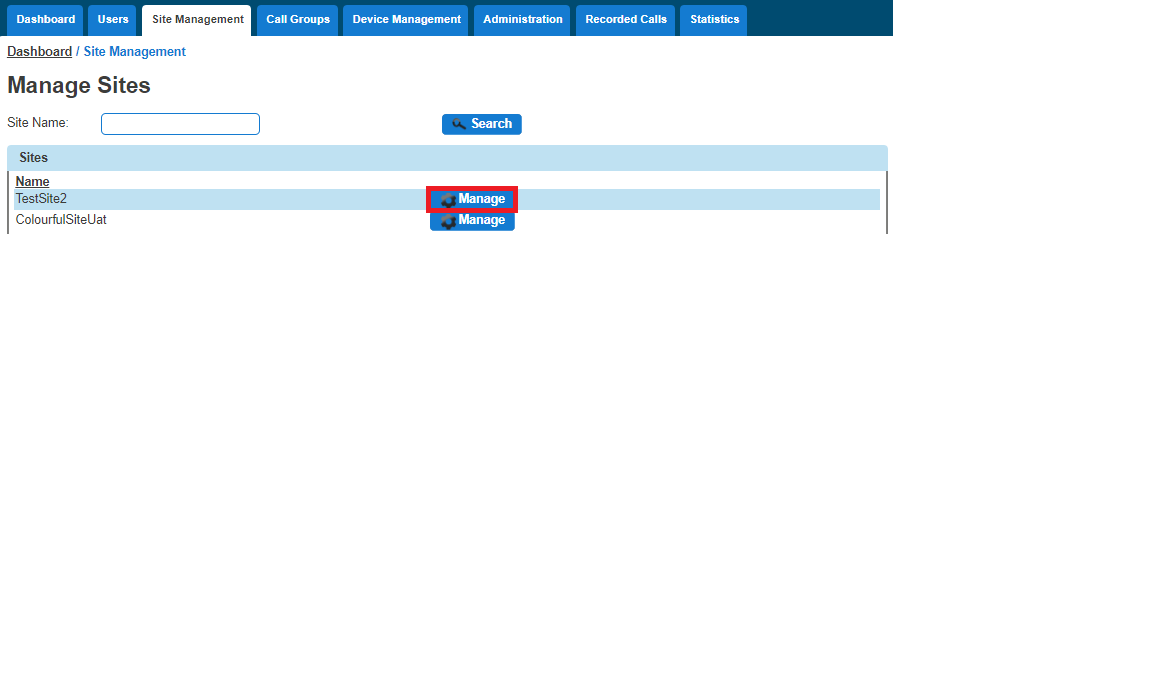
Select “Site Management” and then click the “Manage” button next to the site you want to add or manage Call Barring for.
A screenshot of a computer

Description automatically generated

Step 4

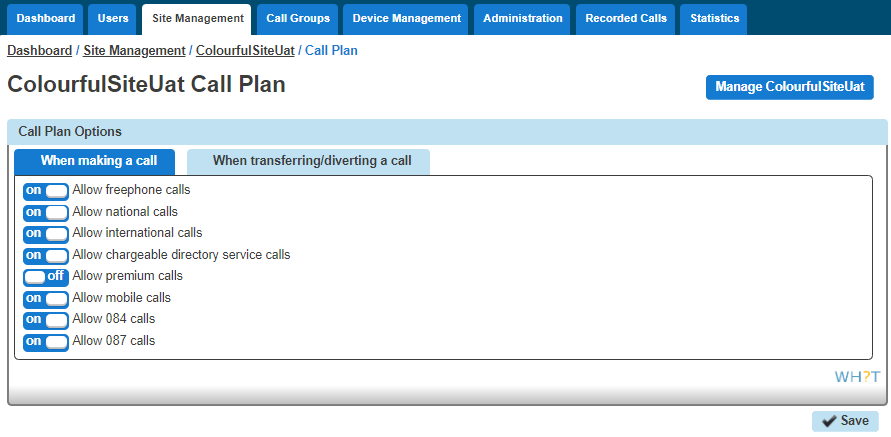
Select “Call Plan” and this will then load up the available options you have for site call barring. This can be done for making a new call or transferring a call.

Once you’ve made your changes you should click “Save”.
A screenshot of a call plan

Description automatically generated

Override Site Call Barring for a User #

Overriding Site Call Barring for a user can only be done by a Company Administrator.

Step 1

Log into the Gamma Portal and go to Provisioning and Service Management, Hosted, Horizon and Horizon Manage Company.

Step 2

Select your account and log in to the company that you want by using the “Actions” button and selecting “Login to Horizon”.

Step 3

Go to “Users” and “List Users”, then locate the user that you want to override site call barring for and then click the “Edit” button.

Step 4

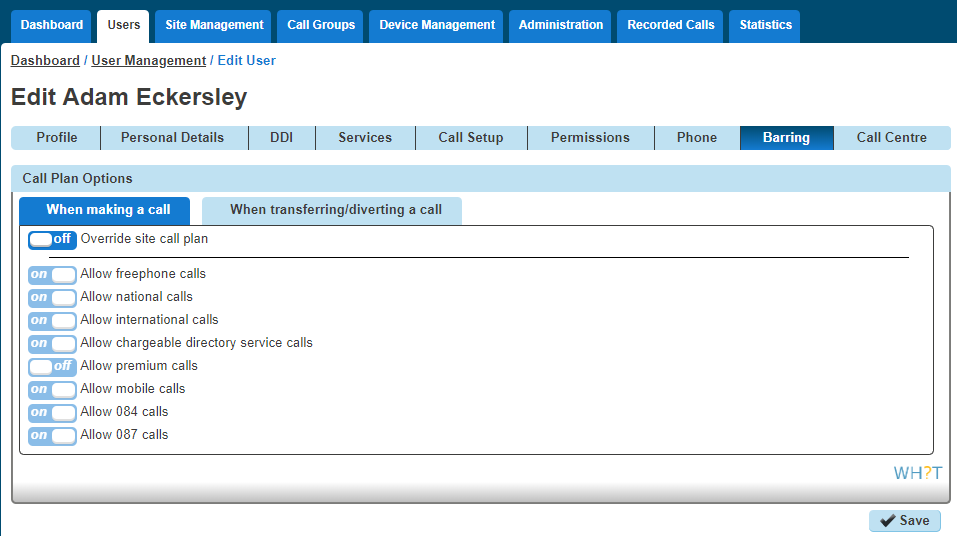
Select the Call Barring tab and then you toggle the “Override site call plan” button. The default options are what the site the user is located on has set up.

A screenshot of a call center

Description automatically generated
image_pdf
Updated on 20/12/2023
Call ForwardingAutomatic Call Back
Contents
  • Setup and Manage Site Call Barring
  • Override Site Call Barring for a User

Copyright © 2026 -  Gamma Telecom Ltd

Gamma API
We use cookies to measure performance and make improvements to this service. This includes page views, device/browser, location, and page interactions. We do not collect any information you upload to this site. By agreeing, you consent for your data to be used for this purpose.