If you call another Horizon user within your company and they are busy, Automatic Call back allows you to be notified when they are off the phone.
Once the Automatic Call Back feature is enabled, when you call an internal extension [1234 for example], and it’s busy – you will hear an announcement:
“The line you are calling is busy, please press 1 if you would like to be notified when the line becomes available”
Press 1 on the phones keypad in order to activate this. You will then hear the following announcement:
“The line will be monitored for 30 minutes; you will be notified by a special ringtone when the line becomes available”
Once the internal extension becomes available, you will shortly get a call back to your phone – the calling number will be the extension you originally contacted [the ring tone will be different from your standard one, – you cannot amend this], when you answer you will get a message:
“Call back to [dialled extension e.g. 1234], in progress, hang-up to cancel call-back. Press any key or hold the line to proceed with call-back”
Your phone will then ring the originally dialled extension [1234 in this example]
Shortcodes #
Setup Automatic Call Back for a User #
Automatic Call Back can only be set up by a Company Administrator.
Step 1
Log into the Gamma Portal and go to Provisioning and Service Management, Hosted, Horizon and Horizon Manage Company.
Step 2
Select your account and locate the company that you want to set up Automatic Call Back for by using the “Actions” button and selecting “Login to Horizon”.
Step 3
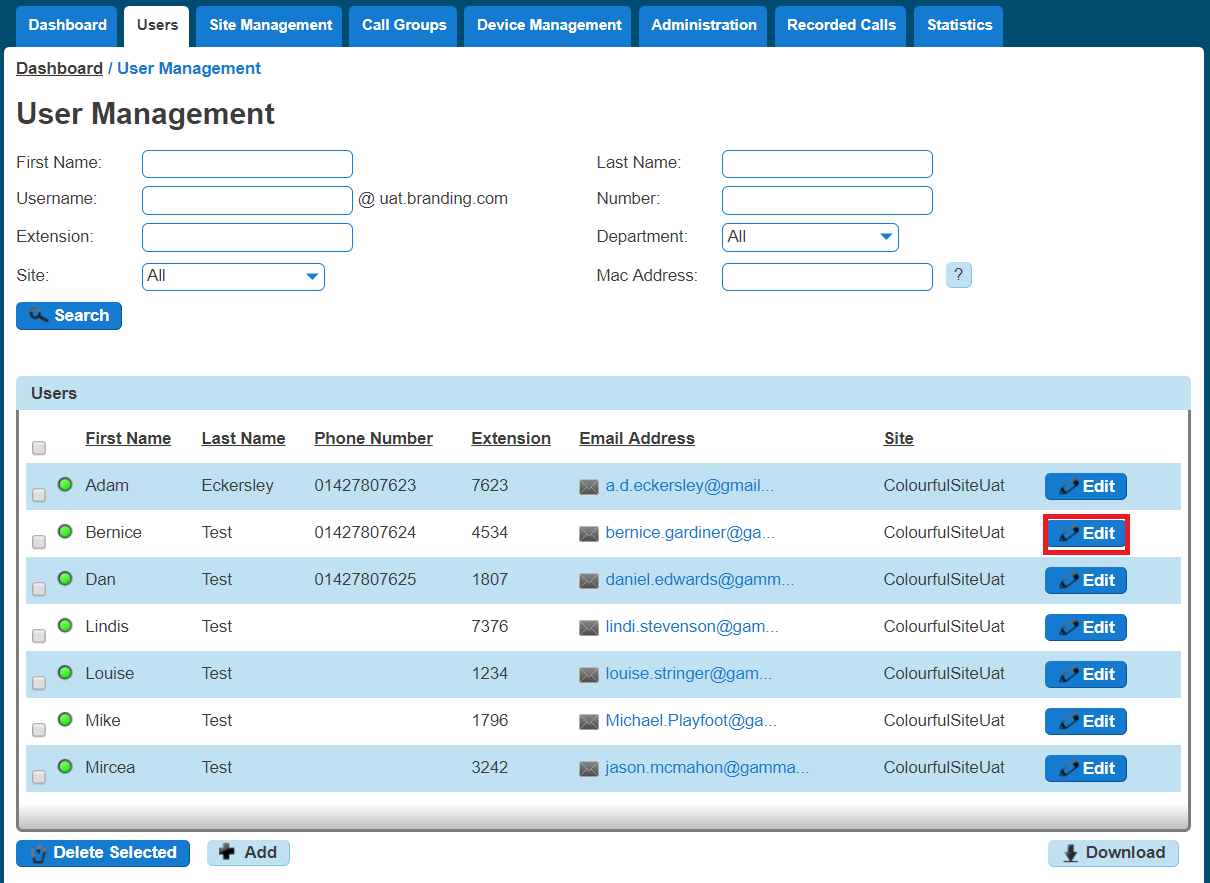
Go to “Users” and “List Users”, then locate the user that you want to add Automatic Call Back for and click the “Edit” button.
Step 4
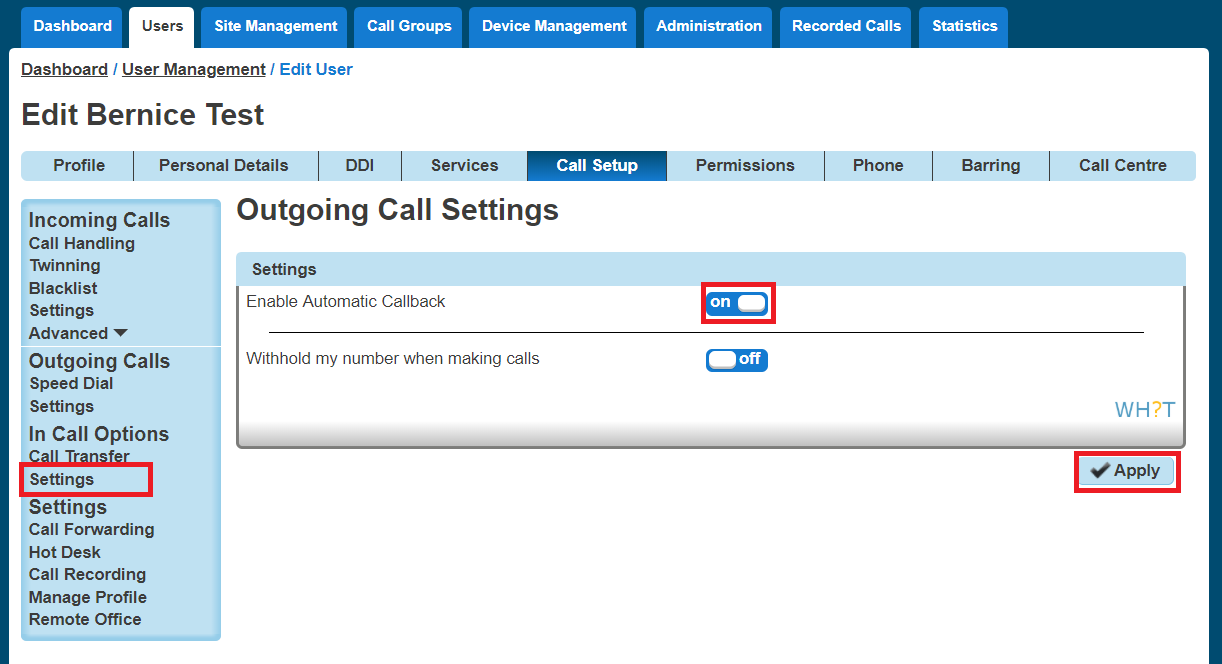
Select the “Call Setup” tab and then click “Settings” under the Outgoing Calls tab. From here you can turn Automatic Call Back on or off. Click “Apply” to save your changes.