
The Call Recording feature allows you to record your Inbound, Outbound or both Inbound and Outbound calls.
This can be done at a user level or on a whole hunt group, and you and set call recording up to record a percentage of calls, record on demand, or to not record calls at all.
For Call Recording to fully work a user or group needs to have a DDI assigned to it.
When a user is deleted or the number is unassigned from a user or call group, the administrator is limited when searching for their recordings. You are unable to search for numbers recordings using either the number or the username fields.
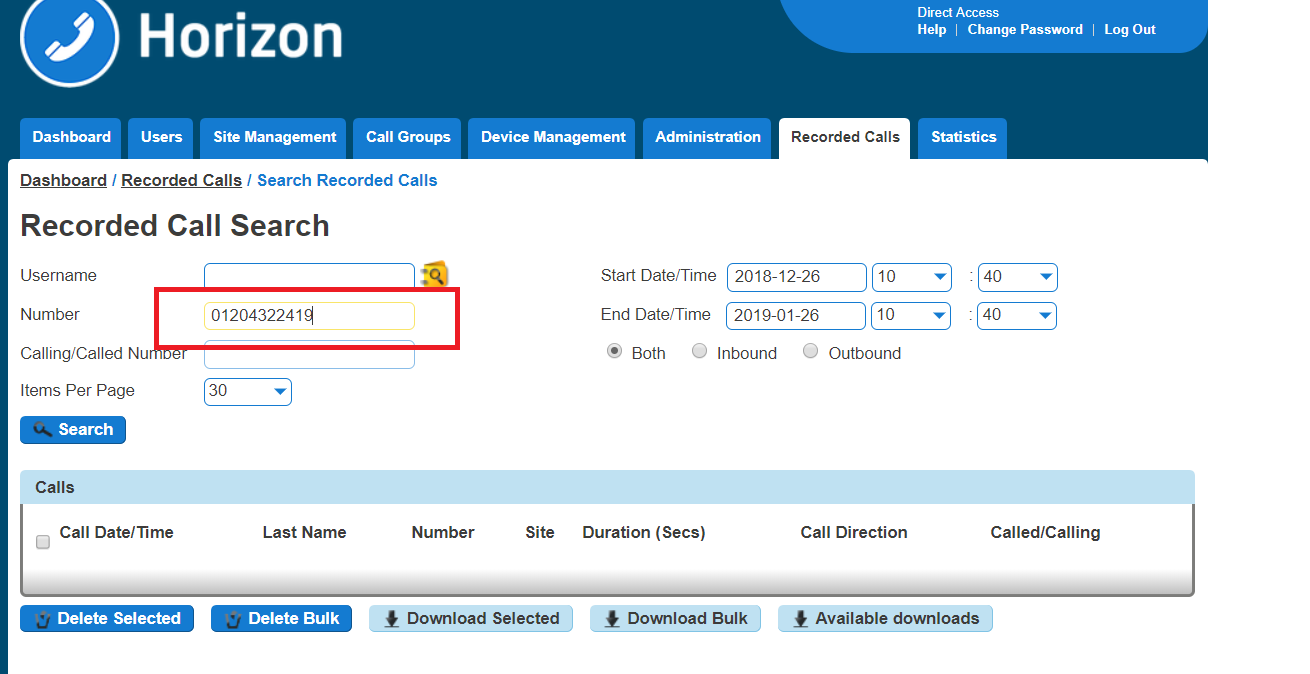
The recordings will only be visible when searching against:
- Calling/Called Number
- Start Date/Time
- End Date/Time
- Direction
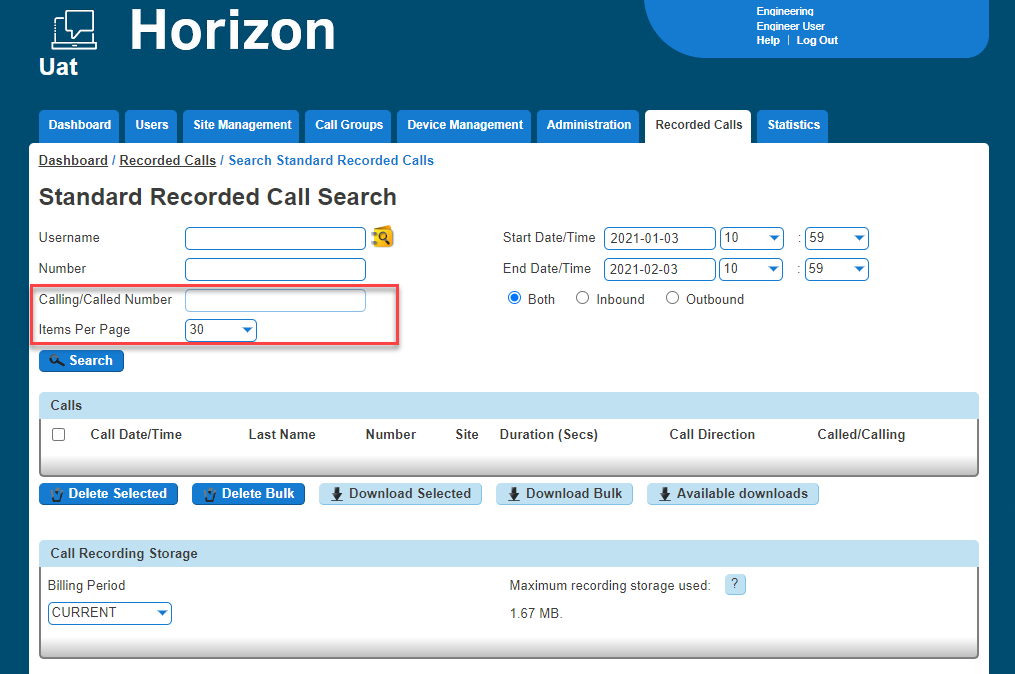
A recording of a call will take up approximately 200 kilobytes per 1 minute of recording.
Horizon to Horizon calls, including internal calls, currently are not recorded. Please see the Known Behaviours article for more information.
Advanced Call Recordings will only search for a 3-month range to help with performance. If you are looking for a full 6 months, you will have to run two 3-month searches to get all the results.
Call Recording Retention Period #
A Channel Partner will be able to set the retention period of call recordings to either 3, 6 or 12 months. The default setting of any new Horizon Company created from the 9th March 2017 will be 3 months, to modify a Company’s retention policy please follow these simple steps:
Please Note: Following the introduction of the 12-month storage facility on Horizon we are finding that some Companies are now exceeding the maximum storage threshold that we have in place for the Legacy Horizon Call Recording Storage bands. To ensure that costs are fully covered, for use beyond the 360000 meg band, we introduced a 0.14p per meg charge for storage beyond the maximum threshold. This charge came into effect from the 1st March 2018.
The 0.14p per meg rate is derived from the 360,000 band being fully utilised. (£500 / 360,000)
As an example, if a Company has stored 500,000 MB the months charge would be: £500 + (500,000-360,000)*£0.0014 = £696.00
Step 1
Log into the Gamma Portal and go to Provisioning and Service Management, Hosted, Horizon and Horizon Manage Company.
Step 2
Select your account and login to the company that you want by using the “Actions” button and selecting “Manage Company”.
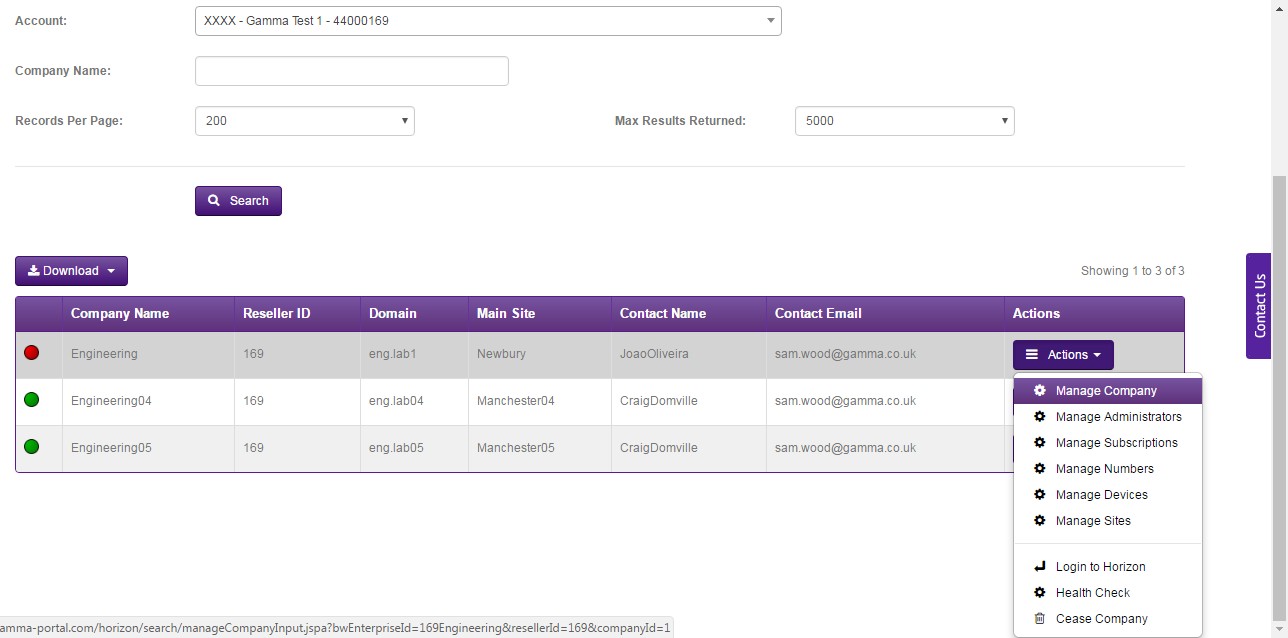
Step 3
Select the Settings tab and you will see the new retention options. Select your new retention period and click Save.
If the retention period of a Company is reduced, then any call recordings outside of the new retention period will be automatically deleted. For example, if on the 31st March 2017 a company with a call recording retention policy of 12 months was reduced to a 3-month retention policy then all call recordings prior to the 1st January 2017 would be deleted. Along with the embedded warning on the portal page, the below advice will appear to warn a user:
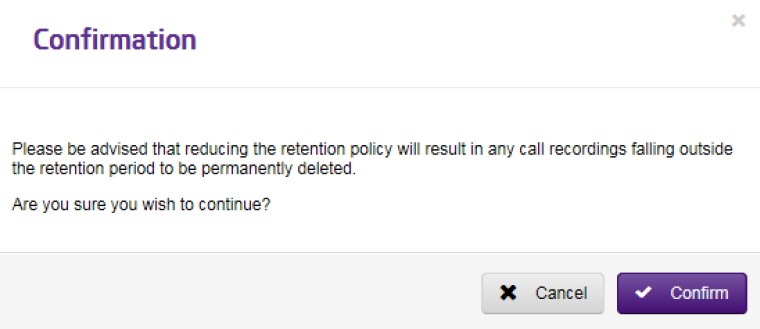
Once confirmed, a call recording cannot be easily retrieved and retrieval cannot be guaranteed. Requests to retrieve recordings that are deleted in error will carry a one-off restoration charge of £250 per company instance.
Should you need to request a restoration of call recordings in the first instance please send an email to iam@gamma.co.uk, providing the Company name and the period that you would like us to attempt to restore.
Call Recording Options #
- Record x% of calls: this will record a defined percentage of your calls at random
- Record on demand: this will allow a user to record a call whenever they deem appropriate
- Pause / Resume call recording: this will record all calls, but allow a user to pause the recording before resuming the call
- Do not record calls
Shortcodes #
- Record on demand – *1
- Pause call recording – *48
- Resume call recording – *49
Call Recording for a User #
Step 1
Log into the Gamma Portal and go to Provisioning and Service Management, Hosted, Horizon and Horizon Manage Company.
Step 2
Select your account and login to the company that you want by using the “Actions” button and selecting “Login to Horizon”.
Step 3
Click the “Users” option and then select “List Users” so you can search for the user that you want Call Recording set up for.
Locate the user and click the “Edit” button.
Step 4
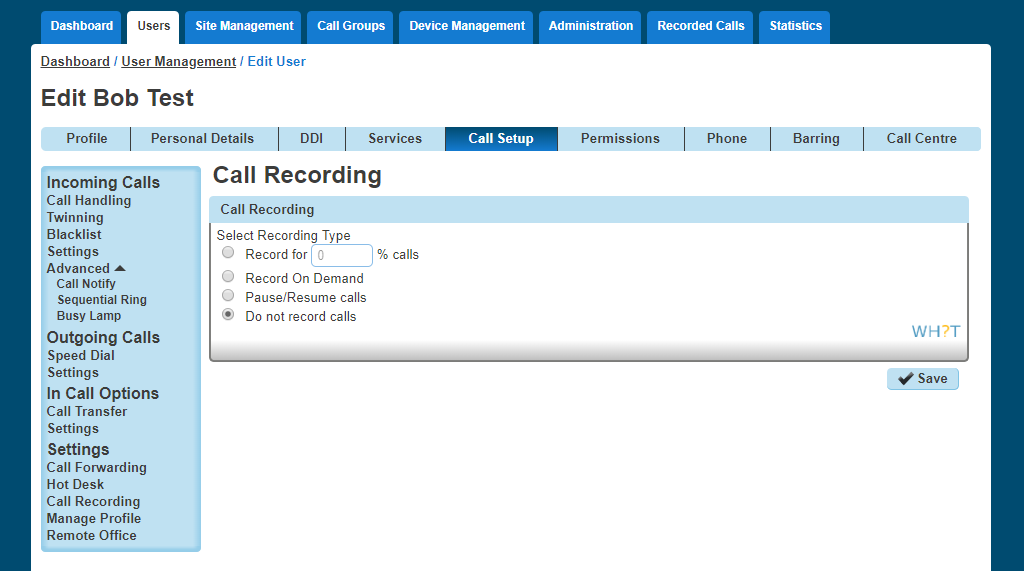
In the User Management page click “Call Setup” and then under the Settings header select “Call Recording”
From here you can select the recording type for the user. Select the recording type and click “Save” for your changes to take effect.
Call Recording for a Hunt Group #
Step 1
Log into the Gamma Portal and go to Provisioning and Service Management, Hosted, Horizon and Horizon Manage Company.
Step 2
Select your account and login to the company that you want by using the “Actions” button and selecting “Login to Horizon”.
Step 3
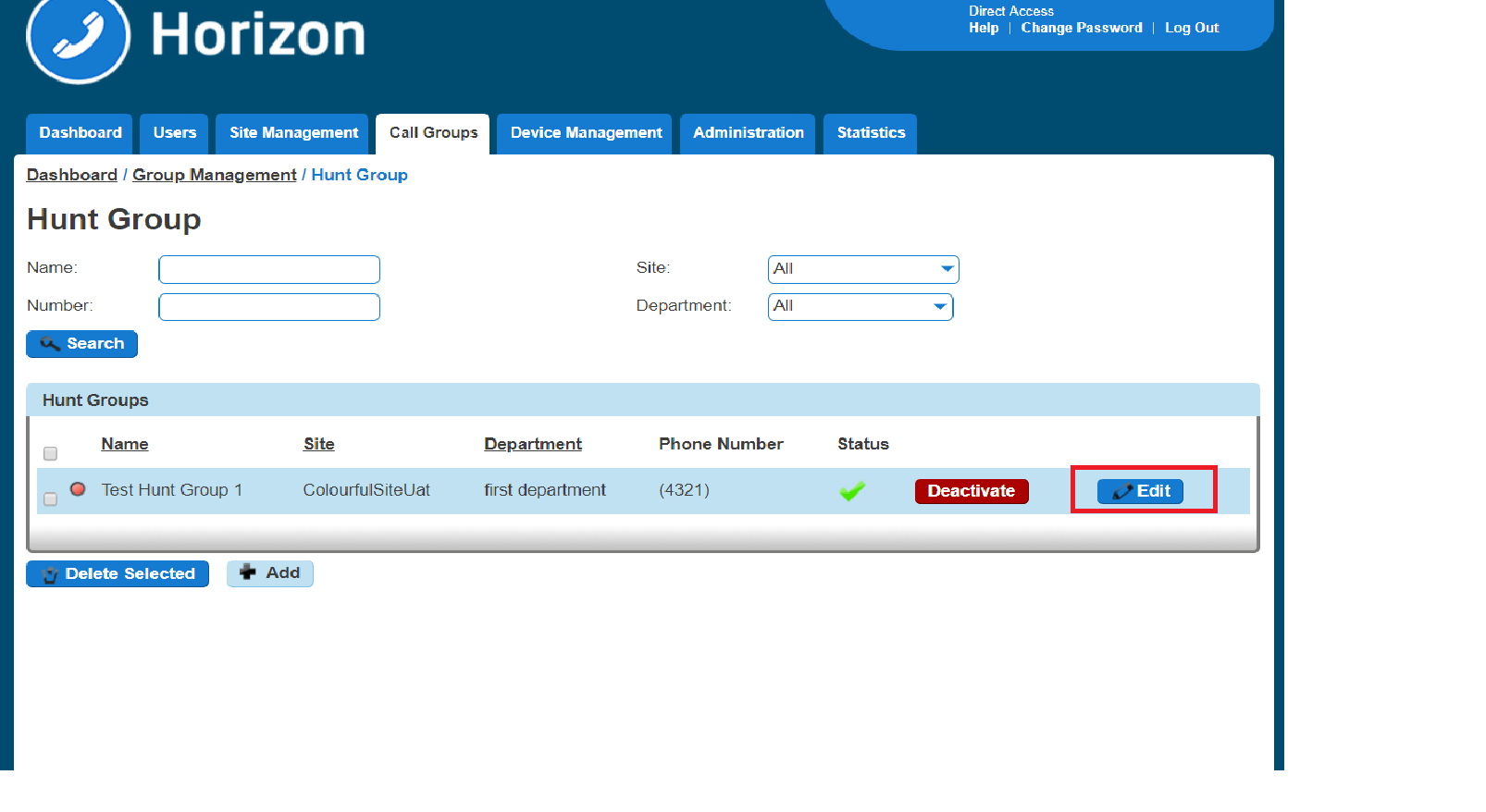
Click the “Call Groups” option and then select “Hunt Groups” so you can search for the Hunt Group that you want Call Recording set up for.
Locate the Hunt Group and click the “Edit” button.
Step 4
In the Edit Hunt Group page click “Call Recording”.
From here you can select the recording type for the user. Select the recording type and click “Save” for your changes to take effect.
Call Recording for a Call Queue Group #
Step 1
Log into the Gamma Portal and go to Provisioning and Service Management, Hosted, Horizon and Horizon Manage Company.
Step 2
Select your account and login to the company that you want by using the “Actions” button select “Login to Horizon”.
Step 3
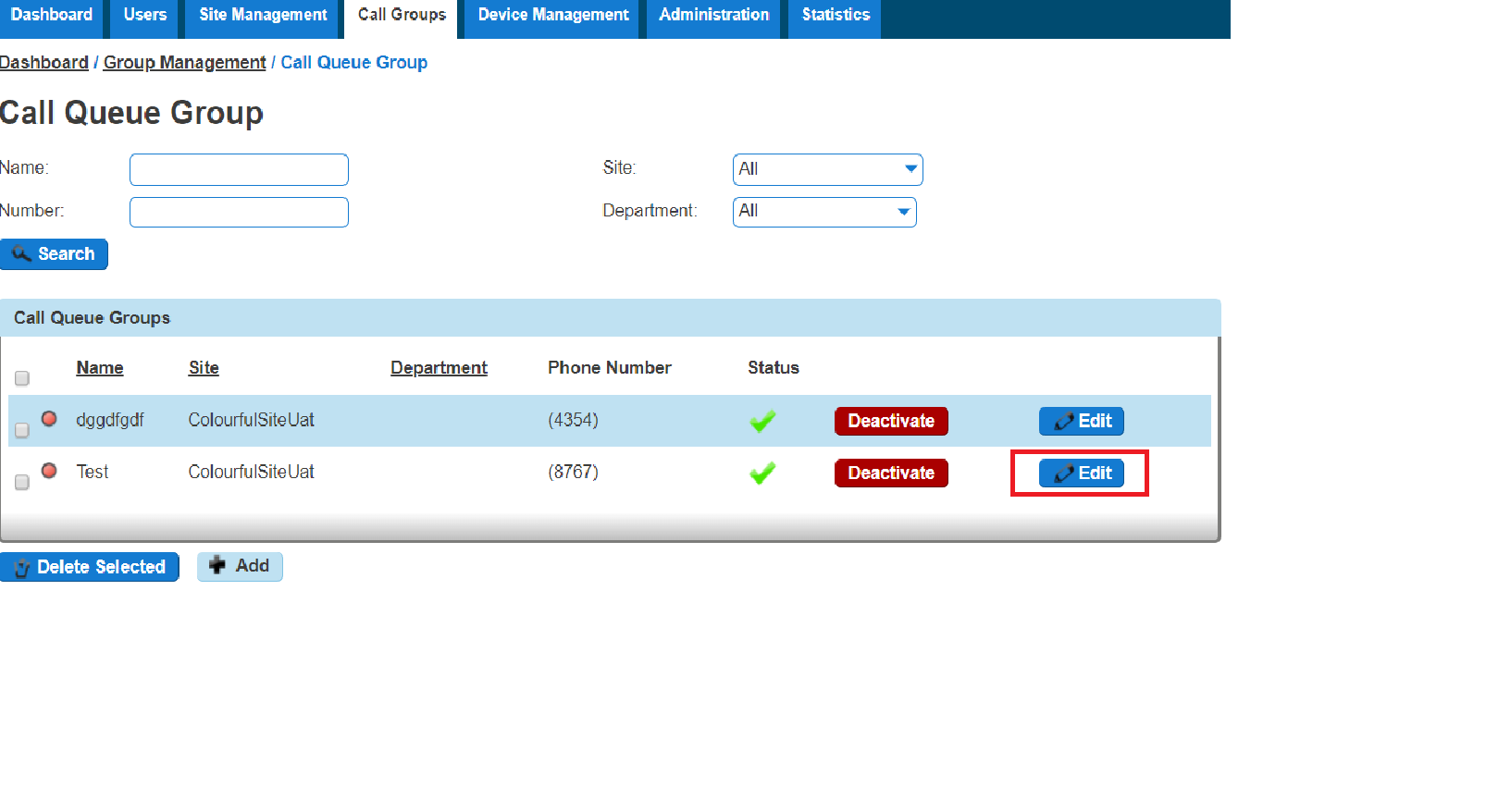
Click the “Call Groups” option and then select “Call Queue Groups” so you can search for the Call
Queue Group that you want Call Recording set up for.
Locate the Call Queue Group and click the “Edit” button.
Step 4
In the Edit Call Queue Group page click “Call Recording”.
From here you can select the recording type for the user. Select the recording type and click “Save” for your changes to take effect.
Bulk Call Recording with delete. #
Step 1
Log into the Gamma Portal and go to Provisioning and Service Management, Hosted, Horizon and Horizon Manage Company.
Step 2
Select your account and login to the company that you want by using the “Actions” button and selecting “Login to Horizon”.
Step 3
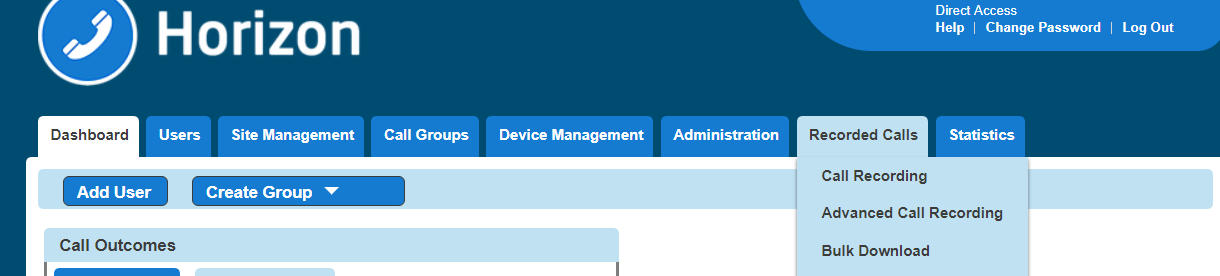
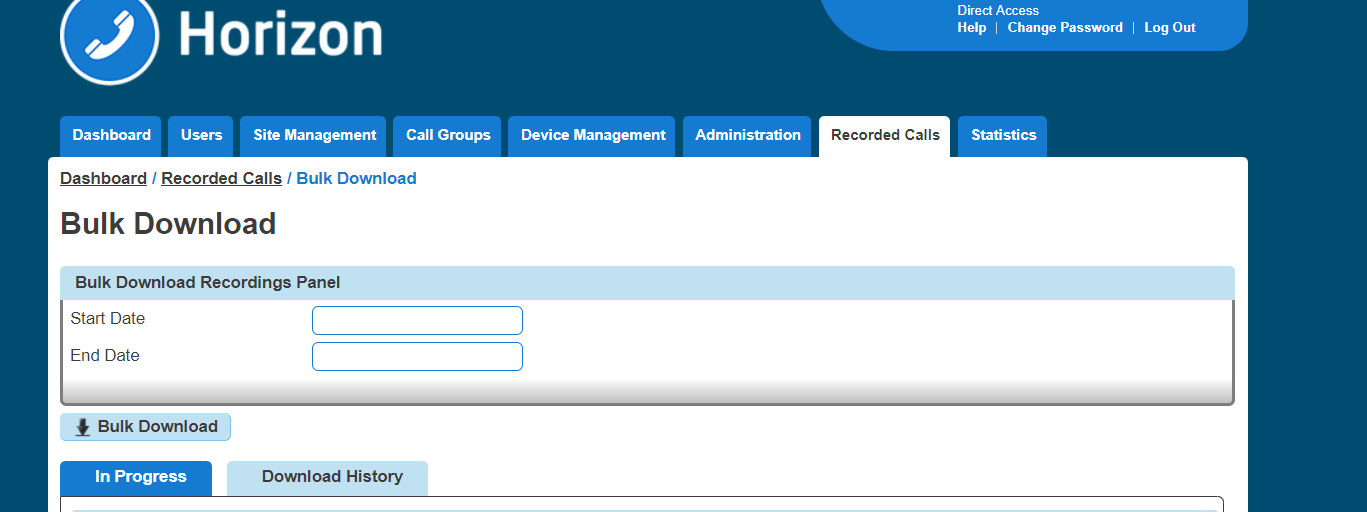
Click the “Recorded Calls” option and select “Bulk Download”
Step 4
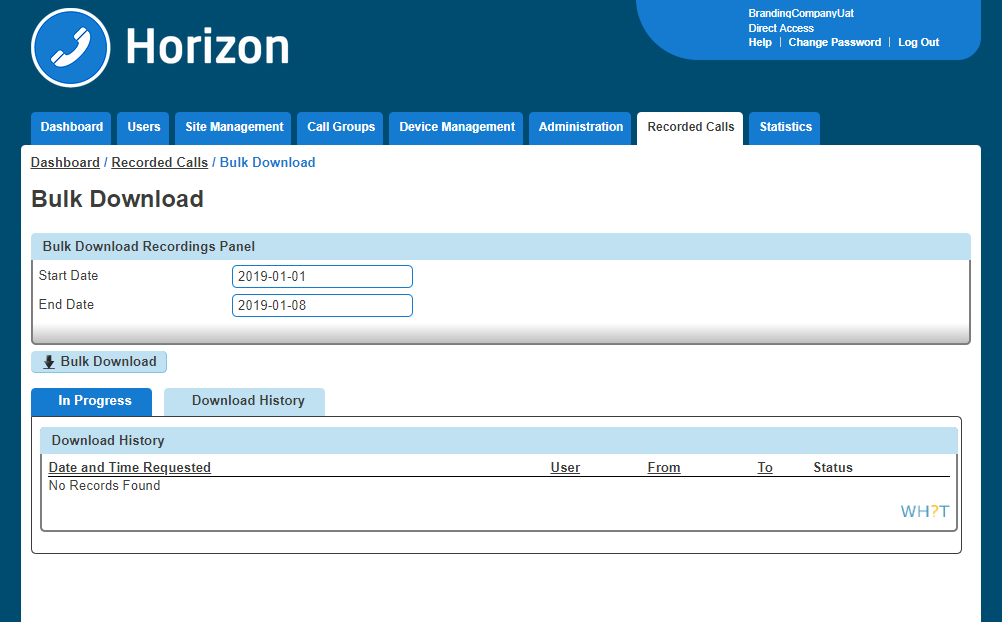
This will then take you to the main Bulk Download page where the user can request downloads. To request downloads, enter a 2-week date range and select Bulk Download. If you try to select more than a two-week date frame you will receive an error.
Please note: If during the bulk request there are missing files (technical problem at Gamma’s end), then the request would previously fail. Moving forward, there will be a dummy file with the naming convention “dummy_file_date_time.dummy” – this will let a user know that there was a call recording at that date/time but it’s not been downloaded.
Step 5
If the download is successful you will see the download start within your browser, if this doesn’t happen please select the ‘Download History’ tab.
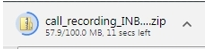
The download pop-up will provide information on the file size and the time outstanding to complete the download.
Once the downloaded has completed the ZIP file can be extracted and saved to a location of the Administrator’s choice.
Step 6
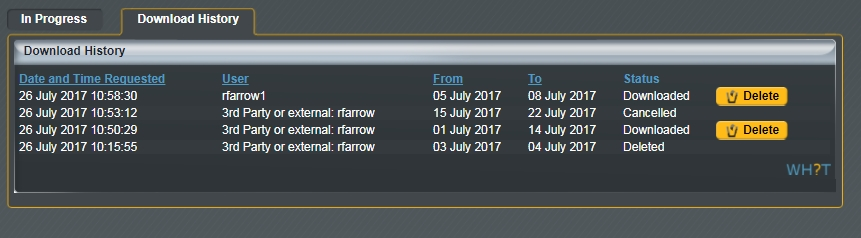
We have also provided a Download History section that will provide key information about the date and time a Bulk Download request was made, who made it, the date range selected and status. An administrator is also given the option to delete the recordings from the storage facility should they wish to. To delete recordings between the From and To dates simply click the delete button.
Step 7
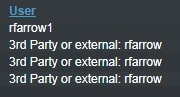
Any download that has been requested by a user parsing in via the Gamma portal will be prefixed by “3rd Party or External” followed by the user’s Gamma Portal username.
If access was directly via the Horizon GUI then only the GUI username will be displayed
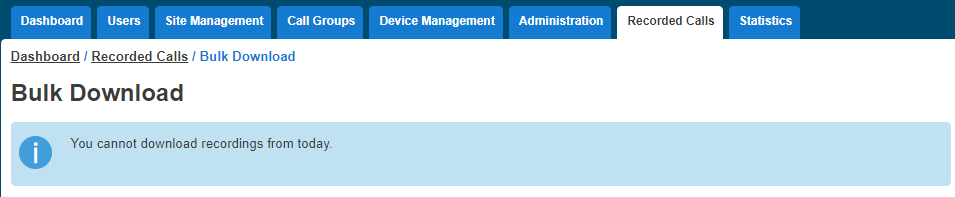
Please Note: A user will not be able to download the current-day recordings, this is to ensure that recordings that have not been downloaded and saved cannot be accidentally deleted.
To protect system performance there is a limit to the number of concurrent call recordings that will be allowed across the platform. When this limit is reached the user will receive a message stating “We are currently experiencing a high demand for call recording downloads on Horizon. Please try again later”

It is possible for a different administrator to delete a downloaded batch recording to the user who requested the original download. In this use case, the username displayed on the GUI will always be the original requestor. The backend history database will capture the details of the user who deleted the recordings and this information can be made available upon request via the IAM team.
Searching for a Call Recording #
Step 1
Log into the Gamma Portal and go to Provisioning and Service Management, Hosted, Horizon and Horizon Manage Company.
Step 2
Select your account and login to the company that you want by using the “Actions” button and selecting “Login to Horizon”.
Step 3
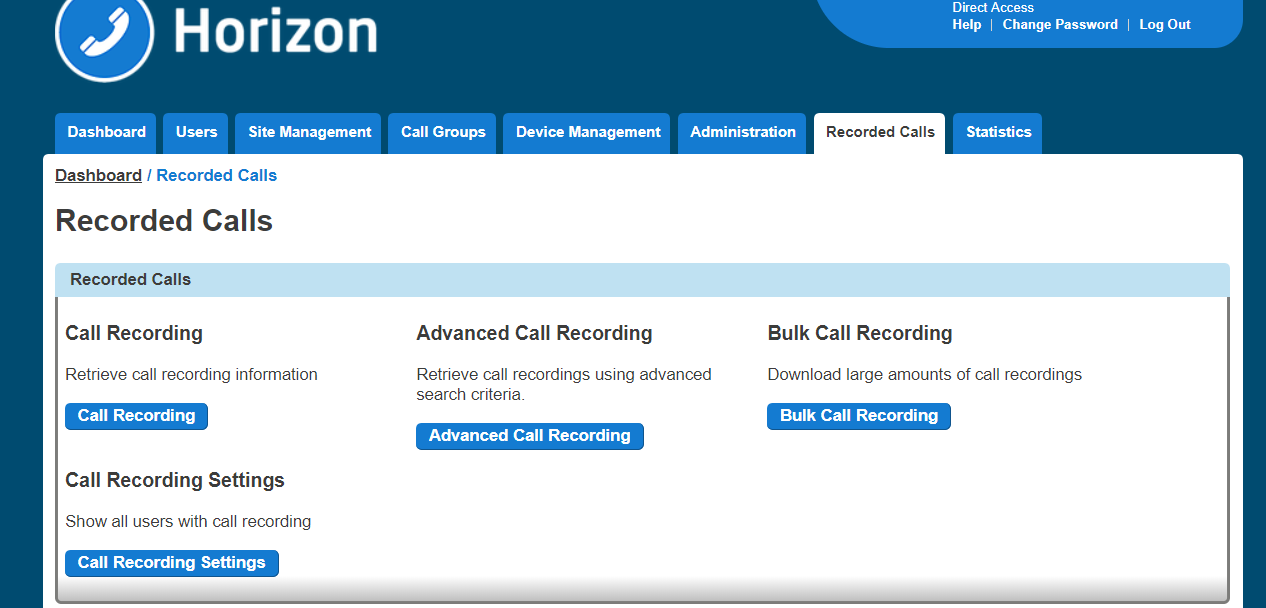
Click the “Recorded Calls” option and select “Call Recording”
Step 4
From here you can search for the user you want to listen to the calls of. You can search using one of the following criteria:
- First Name
- Last Name
- Number (this is the full telephone number and not the extension number)
- Site
A number will only appear in this list if they have call recording set up.
Searching for a Call Recording using Advanced Call Recording #
Using Advanced Call Recording you can:
- Download up to 1000 inbound calls at once
- Download up to 1000 outbound calls at once
- Delete up to 1000 calls at once.
Step 1
Log into the Gamma Portal and go to Provisioning and Service Management, Hosted, Horizon and Horizon Manage Company.
Step 2
Select your account and login to the company that you want by using the “Actions” button and selecting “Login to Horizon”.
Step 3
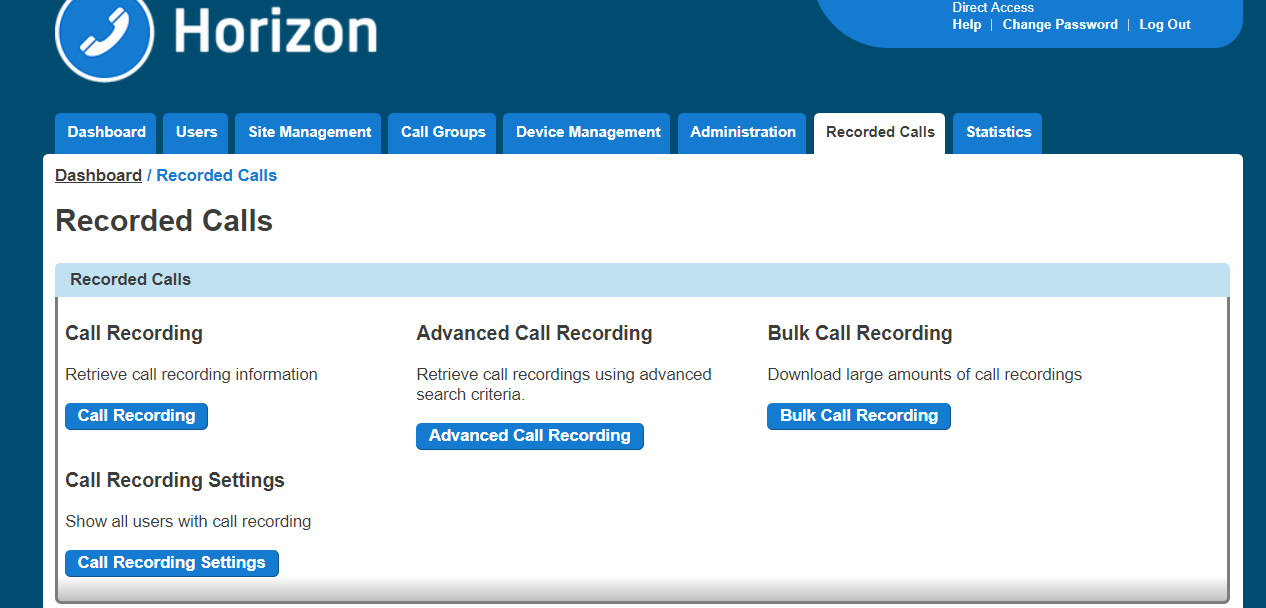
Click the “Recorded Calls” option and select “Advanced Call Recording”
Step 4
From here you can search for the user you want to listen to the calls of. You can search using one of the following criteria:
 Username (Directory search can be used by clicking the Directory icon)
- Number
- Extension
- First Name
- Last Name
- Site
- Number
- Calling / Called Number
- Start date/time
- End date/time
- Direction of call
- Both directions
- Inbound only
- Outbound only
Step 5
Select the calls you want to download and click the “Download Selected” button. Alternatively, if you want to delete calls, select the “Delete Calls” button. You can download 100 recordings at a time.
You can download call recordings in bulk or download selected files. You can also delete selected files or files in bulk.
Access and notification control to call recordings #
As a company administrator you will be able to prevent any support users from using the log into Horizon pass-through from the Gamma portal to a Companies Call Recording download and delete options. There will also be the option to notify all company administrators if a support user has entered a company’s call recording area.
Any company administrator entering a valid username and password via the Horizon portal directly will always see the Recorded Calls tab and be presented with the 3rd Party Support Permission option under the Administration drop-down.
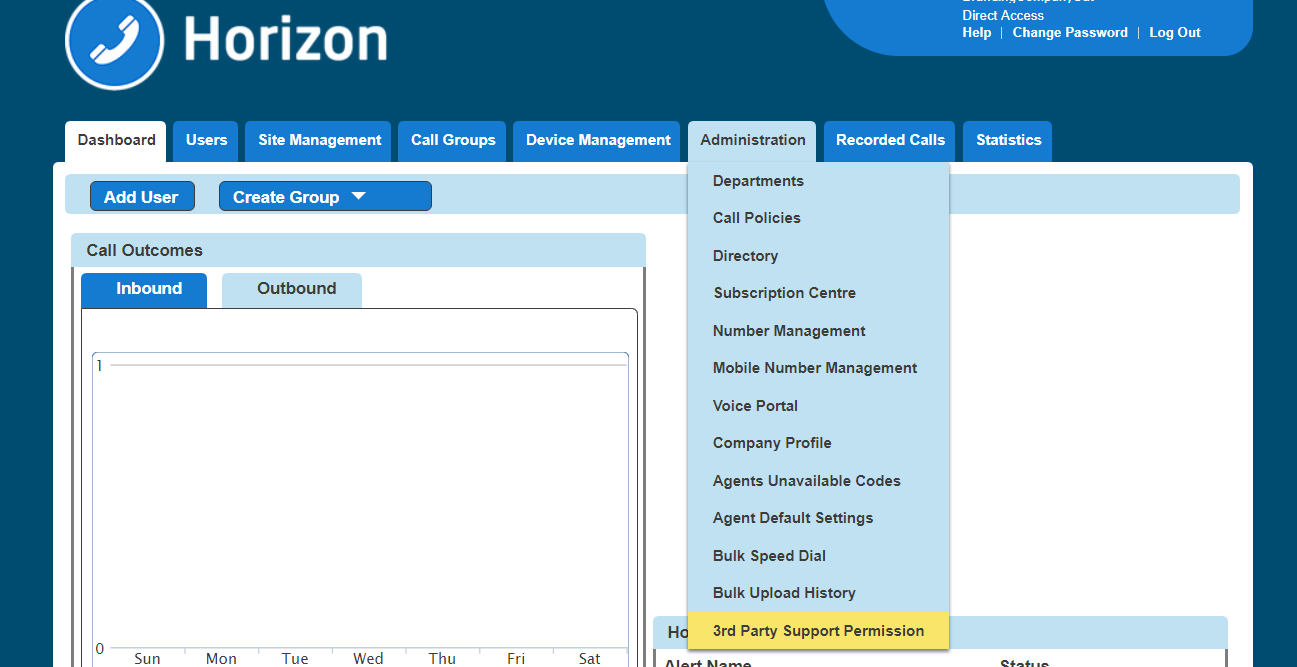
The Horizon portal will also provide an audit log of who is enabling and disabling the options.

The service will be deployed as opt-in to prevent any operational or support difficulties and unexpected emails being sent to company administrators
All existing and new companies created from the 16th November 2017 onwards will be defaulted to allow pass-through login access to call recordings from the Gamma portal and the email notification will be set to off as indicated here. Please note these options will only appear on the Horizon portal if the company has call recording enabled on the Gamma portal.

This means any pass-through login from the Gamma portal will be able to access the company’s call recordings and no notifications will be sent if they do. They will not have access to alter the 3rd party permission options, this can only be done by an administrator logging directly onto the Horizon portal. Pass-through example with these options set:
If an administrator chooses to enable the notification email, as below, then every time a support user passes through via the Gamma Portal and attempts to search, download or delete from within the call recordings area an email will be sent to all administrators as detailed below

The email will detail the Gamma portal ID of the user, what action they performed and the date it happened.
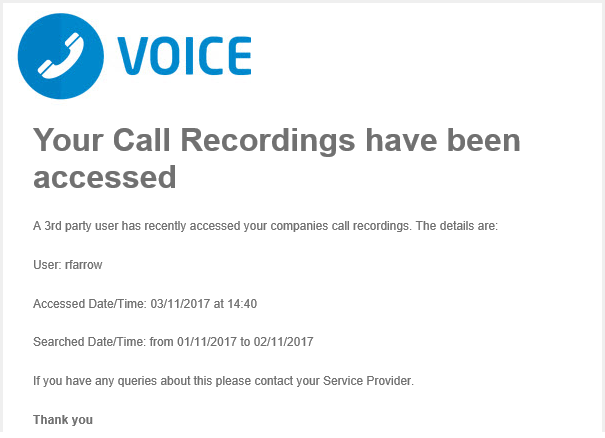
We recommend that all companies are built and handed over in a fashion that ensures your customers/end users make a conscious decision as to whether they allow access to the call recording data to support users via the Gamma portal.