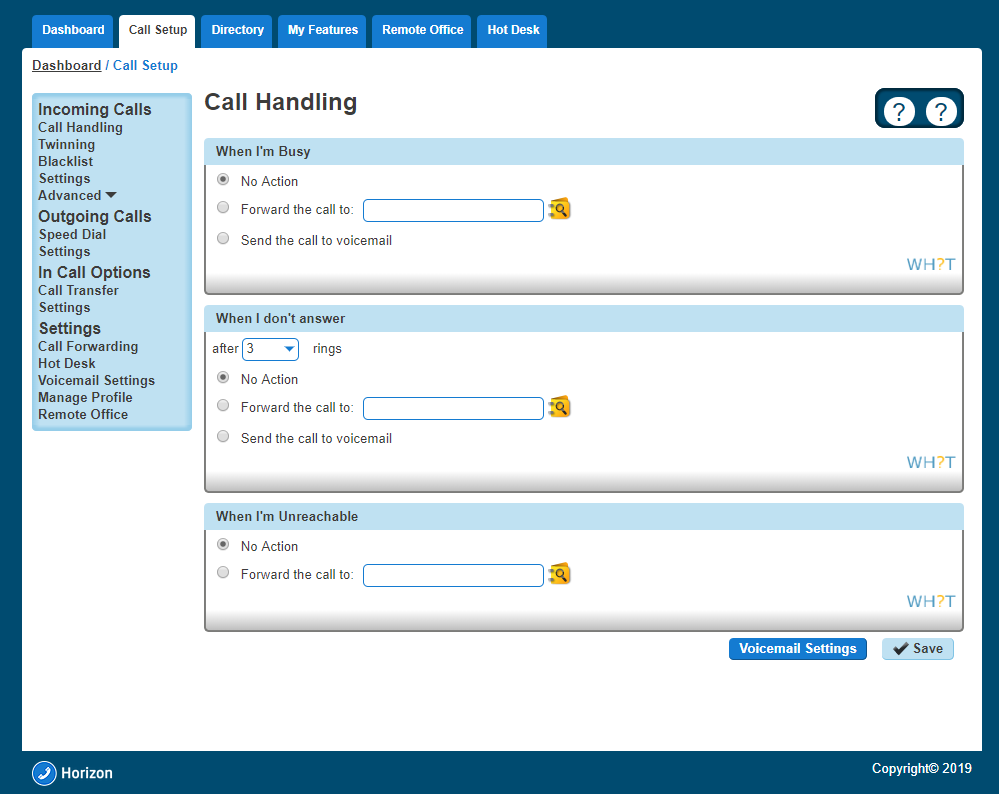
The Call Forwarding feature allows you to forward incoming calls to a number of your choice, or to a voicemail message box. Users have the option to activate and deactivate the service by dialing a feature access code or configuring the service via their web interface or simply pressing a key on the phone. If activated a user must specify the forwarding number.
If a user has Connect they will be able to control how calls are forwarded depending on whether someone called their mobile or fixed number. This is referred to as Call Forwarding Selective.
If a user is also using a soft client then the Call Forwarding button on their device will no longer work (Polycom VVXs) or disappear (Polycom SoundPoint or Cisco’s).
Call Forward Not Reachable is designed to forward a call in the event that the subscriber’s device is not registered with the Horizon platform. In the case of a call group, all devices associated with the call group need to be unregistered for the unreachable divert to be applied. The unreachable divert only occurs in the event that the device or devices become unregistered from the Horizon platform, typically due to an issue with connectivity between Horizon and the site/device being hard down. Unreachable should not be considered as a DR feature for any other scenario outside of this.
Shortcodes #
Action | Shortcode |
Call Forwarding Always Activation | *72 |
Call Forwarding Always Deactivation | *73 |
Call Forwarding Always Interrogation | *21* |
Call Forwarding Always to VM Activation | *21 |
Call Forwarding Always to VM Deactivation | #21 |
Call Forwarding Selective Activation | #76 |
Call Forwarding Selective Deactivation | #77 |
Call Forward Busy Activation | *90 |
Call Forward Busy Deactivation | *91 |
Call Forward Busy Status Check | *67* |
Call Forward Busy to VM Activation | *40 |
Call Forward Busy to VM Deactivation | #40 |
Call Forward No Answer Activation | *92 |
Call Forward No Answer Deactivation | *93 |
Call Forward No Answer Status Check | *61* |
Call Forward No Answer to VM Activation | *41 |
Call Forward No Answer to VM Deactivation | #41 |
Call Forward Not Reachable Activation | *94 |
Call Forward Not Reachable Deactivation | *95 |
Call Forward Not Reachable Status Check | *63* |
Turn Call Forwarding On/Off as a Company Administrator #
Step 1
Log into the Gamma Portal and go to Provisioning and Service Management, Hosted, Horizon and Horizon Manage Company
Step 2
Select your account and login to the company that you want by using the “Actions” button and selecting “Login to Horizon”.
Step 3
Go to “Users”, “List Users”, and locate the user that you want to set up Call Forwarding for. Then click the “Edit” button.
Step 4
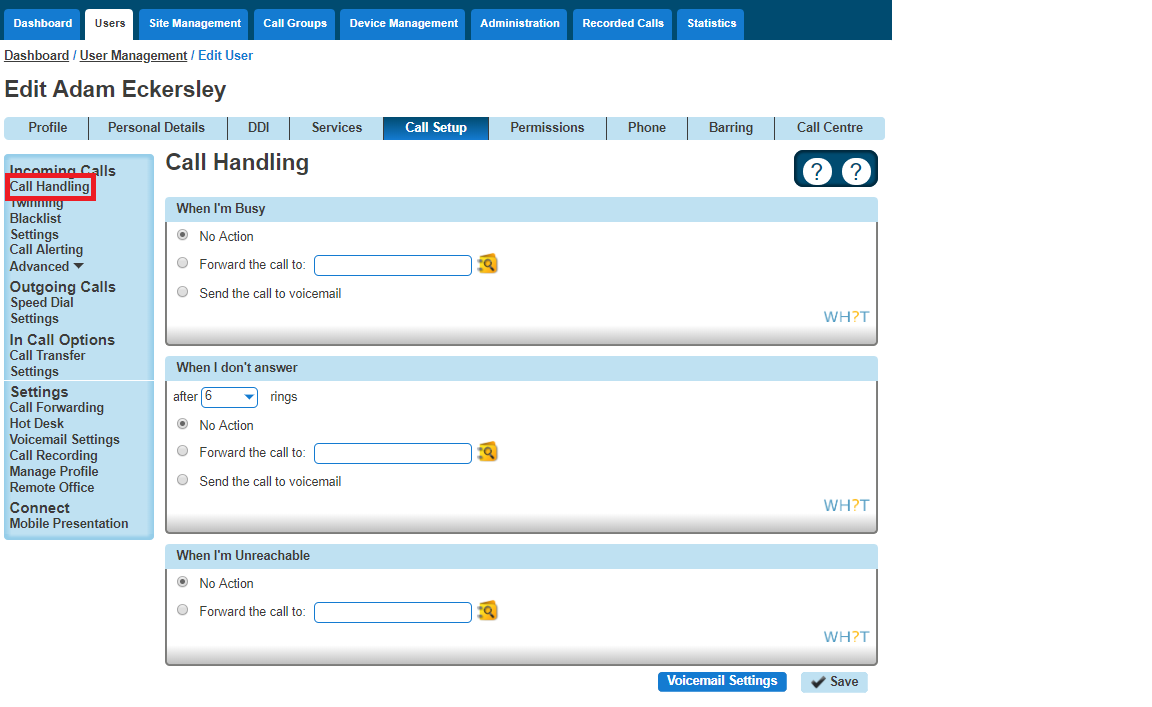
Click the “Call Setup” tab and then under Incoming Calls select “Call Handling”. You can now set up the following options:
- When I’m Busy – you can forward calls to voicemail or a specific number when you are on another call.
- When I Don’t Answer – you can forward calls to voicemail or a specific number when you don’t answer after a certain amount of rings. To do this you should leave the number box blank, tick the tick box and state the amount of rings before the call reaches voicemail
- When I’m Unreachable – you can forward calls to a specific number (not voicemail) when your handset is not registered or powered on (e.g. If your internet access is down, incoming calls would go to this number).
Step 5
If you would prefer to forward calls all the time, or (for Connect users) would like to forward them depending on which number was dialled, then you need to visit the Call Forwarding screen:
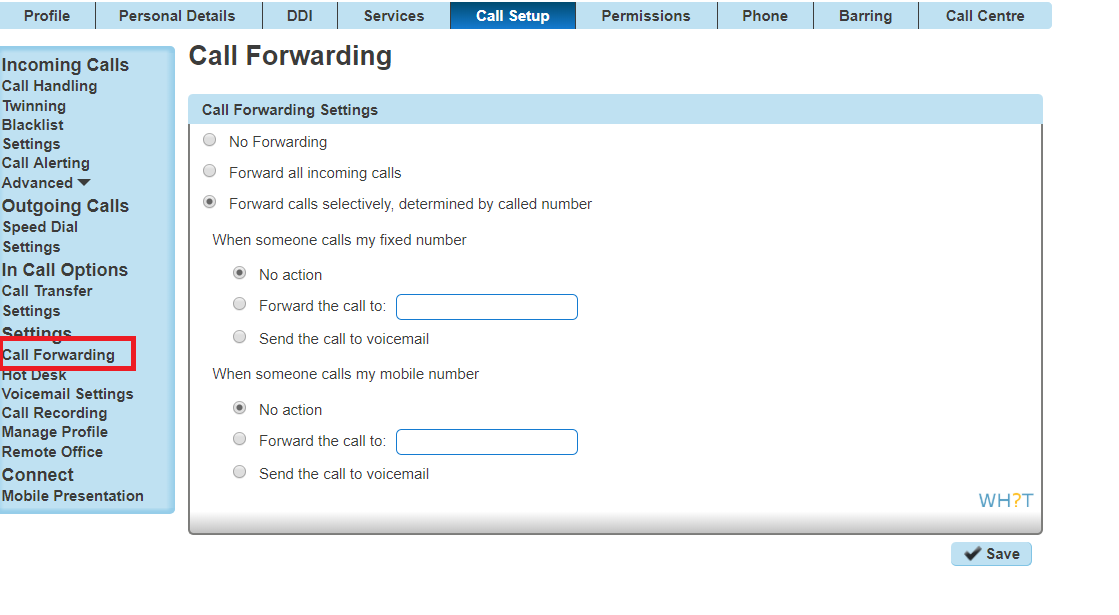
The ‘Send the call to voicemail’ option will only appear if the Voicemail add-on has been given to the user.
Turn Call Forwarding On/Off as a User using the Horizon Portal #
A user can set their own Call Forwarding rules when logging into www.unlimitedhorizon.co.uk. Once a user is logged in they can select the “Call Setup” option and the Incoming Call Handling option is selected.