
To make any in life changes, you will first need to search for the relevant end point on the Gamma Portal.
Go to Provisioning & Service Management > Voice Connectivity > Microsoft Teams – Operator Connect > Service Management
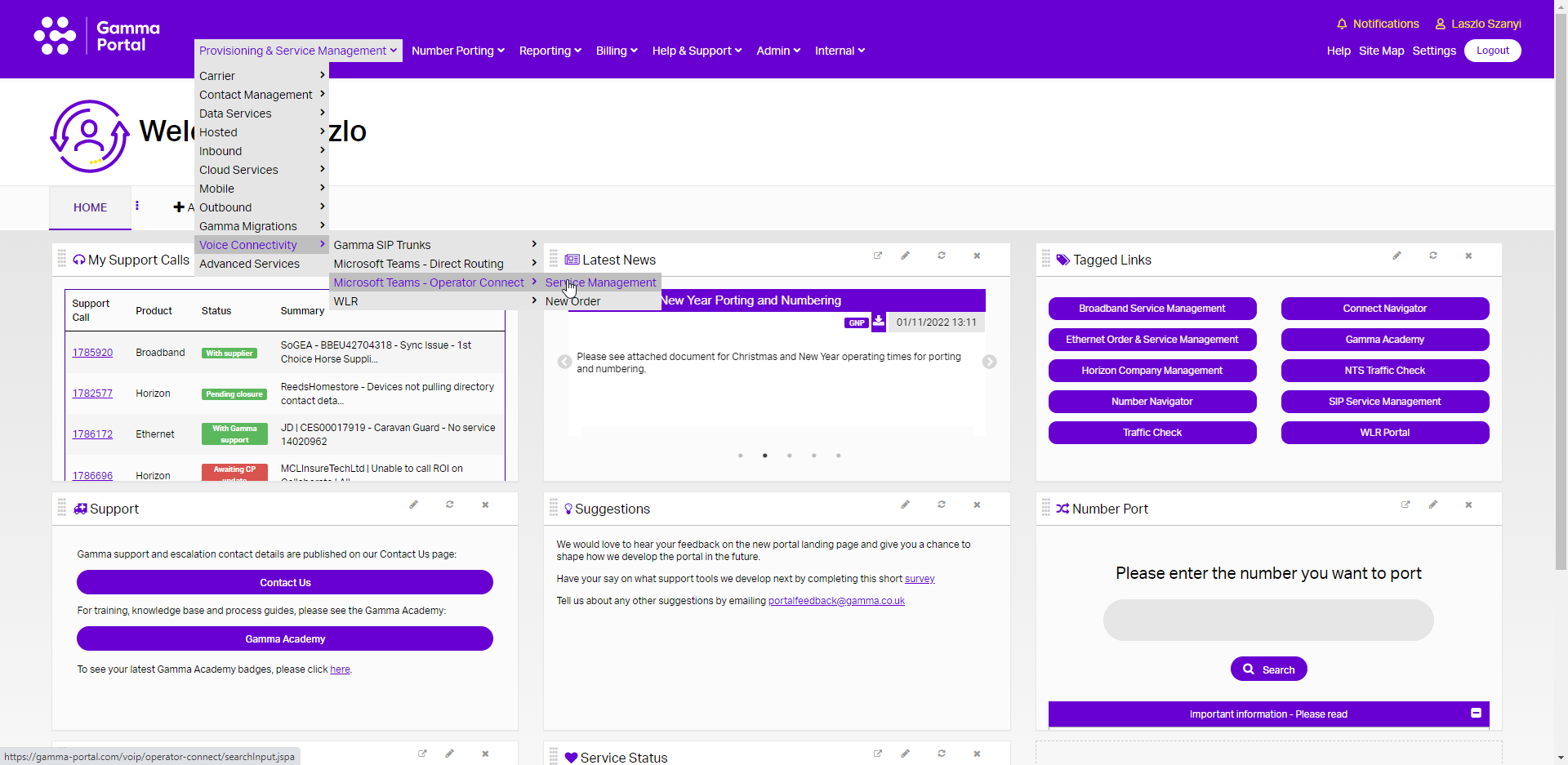
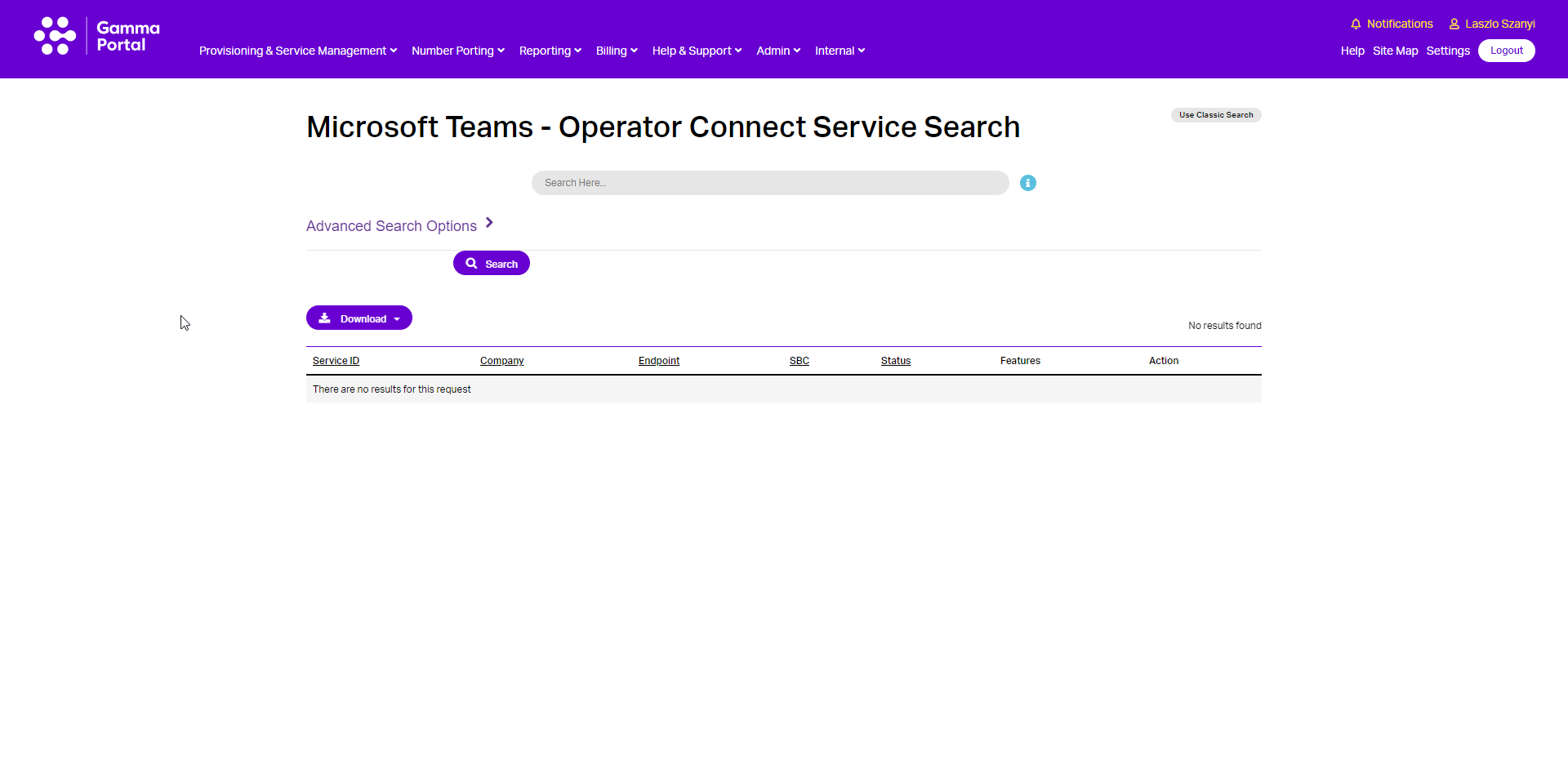
Search for the required endpoint:
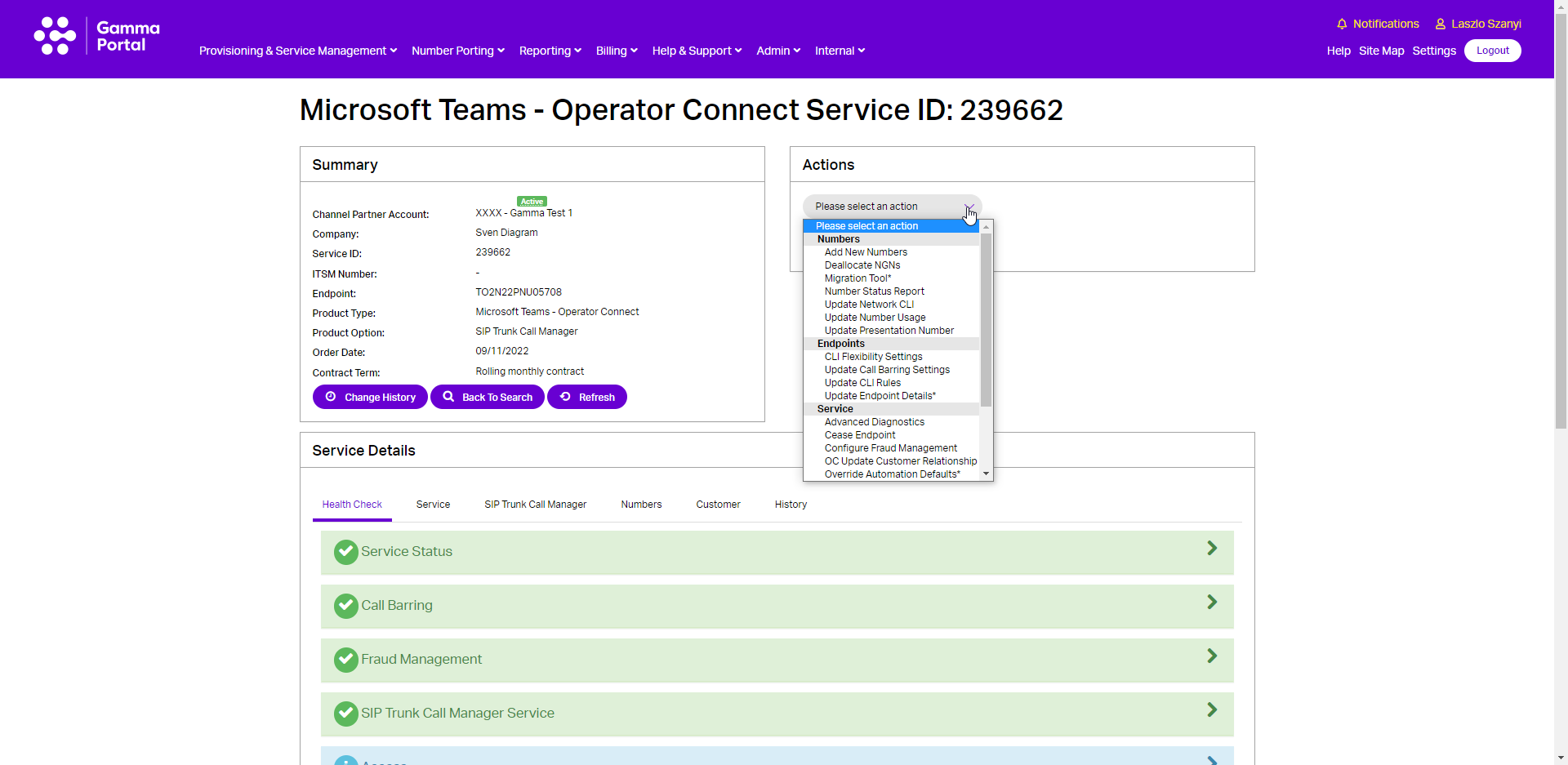
Click on View to access the end point details and select the required action.
Numbers #
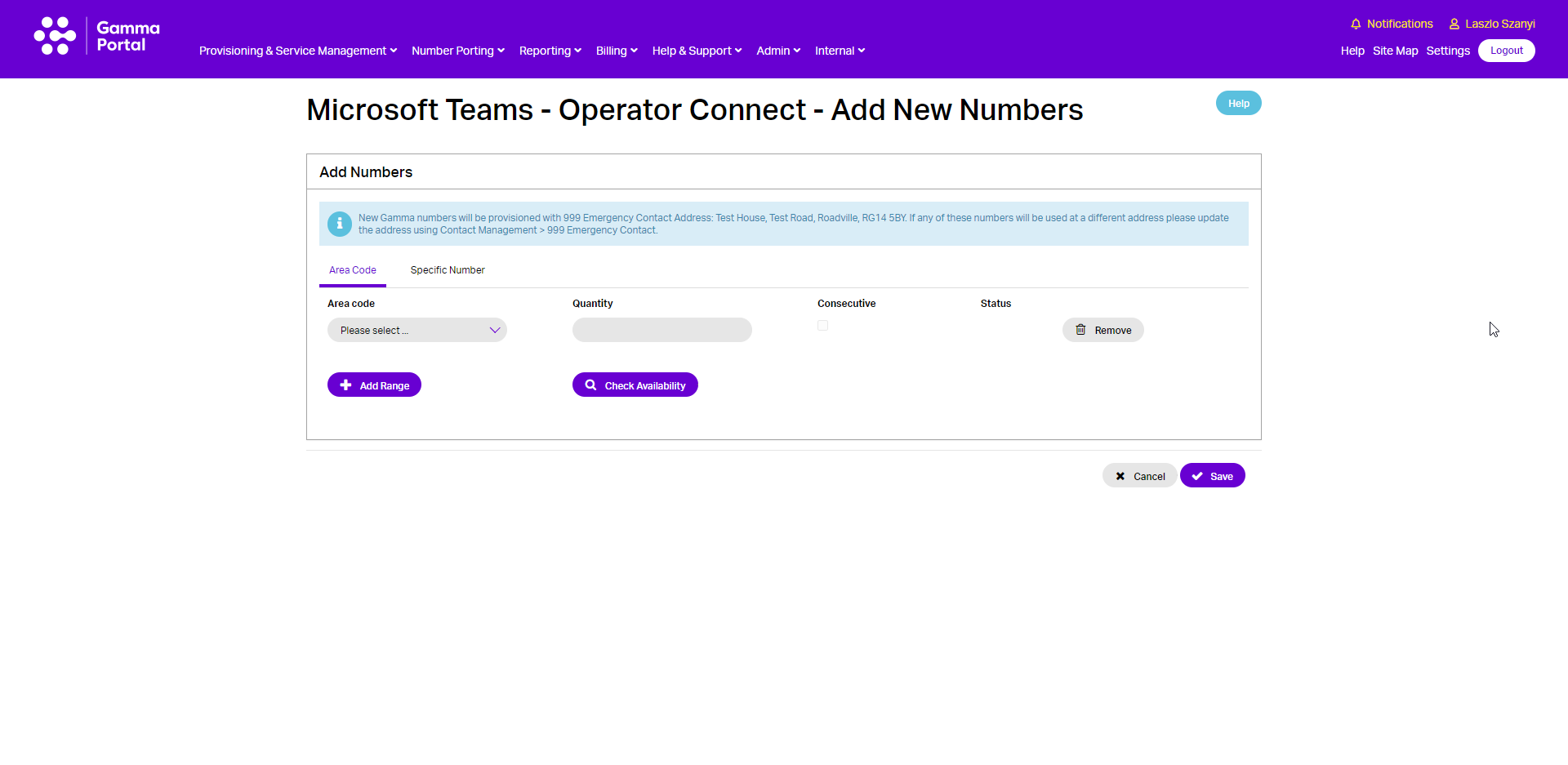
Add new numbers #
For adding DDIs you can follow one of the following processes:
- Next Available Numbers can be used for geographic numbers by following the below process using the Microsoft Teams – Operator Connect Service Management page.
- Specific Number Requests can be done following the Specific Geographic Number Request process and then once allocated to your account can be added using the “Specific Number” tab.
- Non-Geographic Numbers can be done using the Reserving Non Geographic Numbers process (please see our Gamma Numbers and Porting guide) and then adding the number using the “Specific Number” tab.
Select the account that has the endpoint you wish to Add New Numbers for and click “View”.
Click on the “Add New Numbers” option in the Actions drop-down and click Continue.
Click Save when all required Numbers added.
Deallocate NGN #
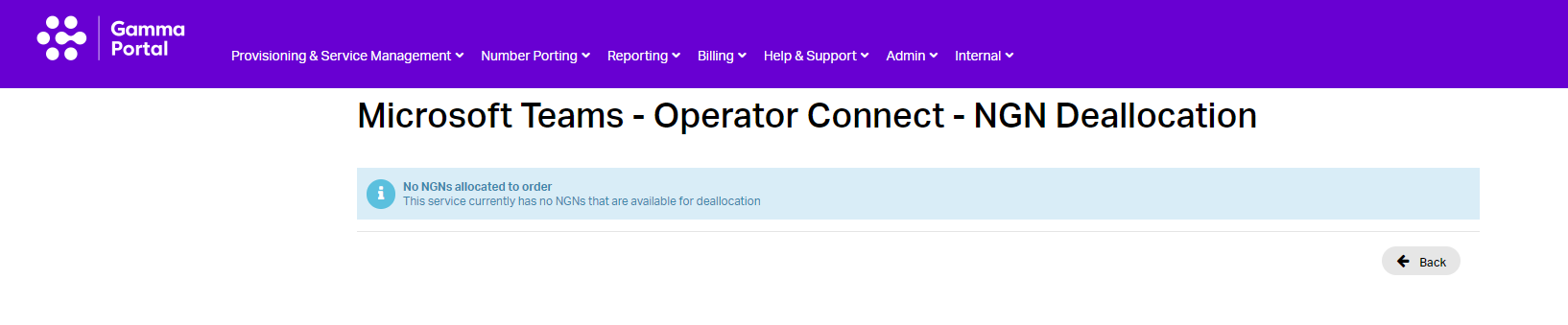
Select the account that has the endpoint you wish to Deallocate NGNs for and click “View”.
Click on the “Deallocate NGNs” option in the Actions drop-down and click Continue.
This Action allows users to deallocate any previously added NGNs from the Endpoint.
Number Status Report #
The Number Status Report is an important tool to plan number migration from other Gamma Product or port numbers to Gamma Operator Connect.
If a number is assigned to any of the following Microsoft Voice Products:
- Direct Routing
- Direct Routing on Premises (Skype for Business)
- Microsoft Calling Plan
- Operator Connect
Then the number upload to the Microsoft Tenant for Operator Connect will fail. Also, when adding multiple numbers to the Operator Connect endpoint, the whole upload will fail if any one number failed to upload. To avoid this, you should use the Number Status Report in-life action to identify any telephone numbers are already associated with any Microsoft Voice Product and require attention.
- Please note that this check will return the actual status of the numbers, a Microsoft Teams Administrator can assign or unassign numbers at any time.
Select the account that has the endpoint you wish to upload numbers to and click “View”.
Click on the “Number Status Report” option in the Actions drop-down and click Continue
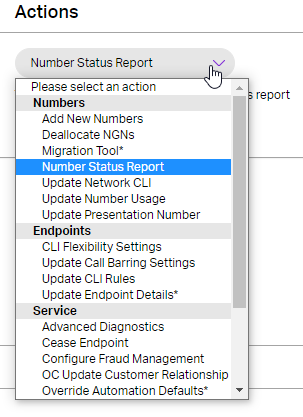
To access the Number Status Check tool “Click to go to Report”
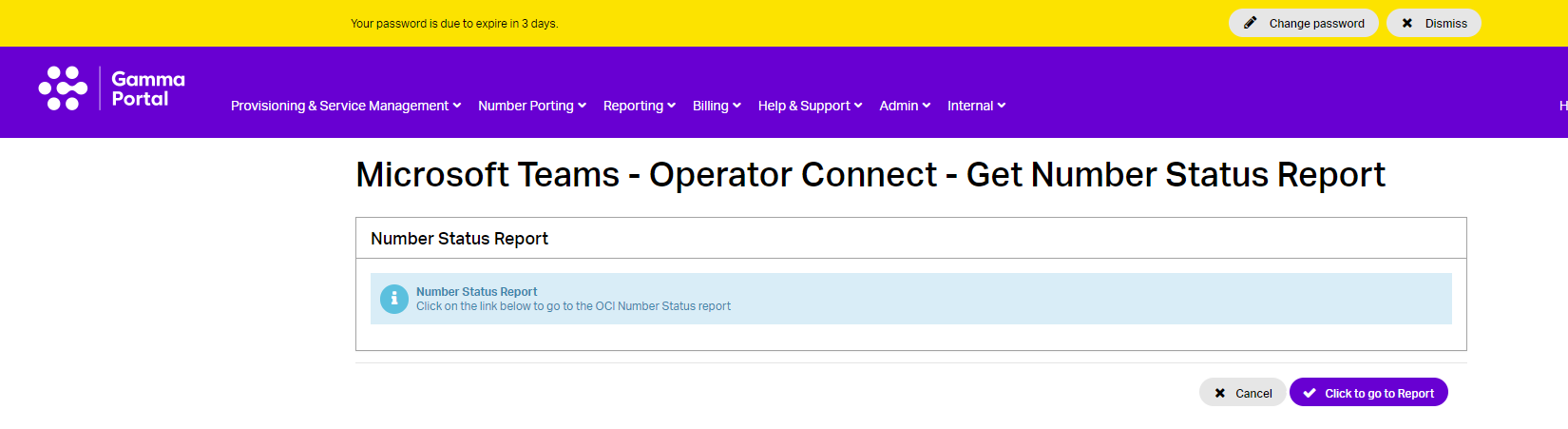
This will take you to the following page:
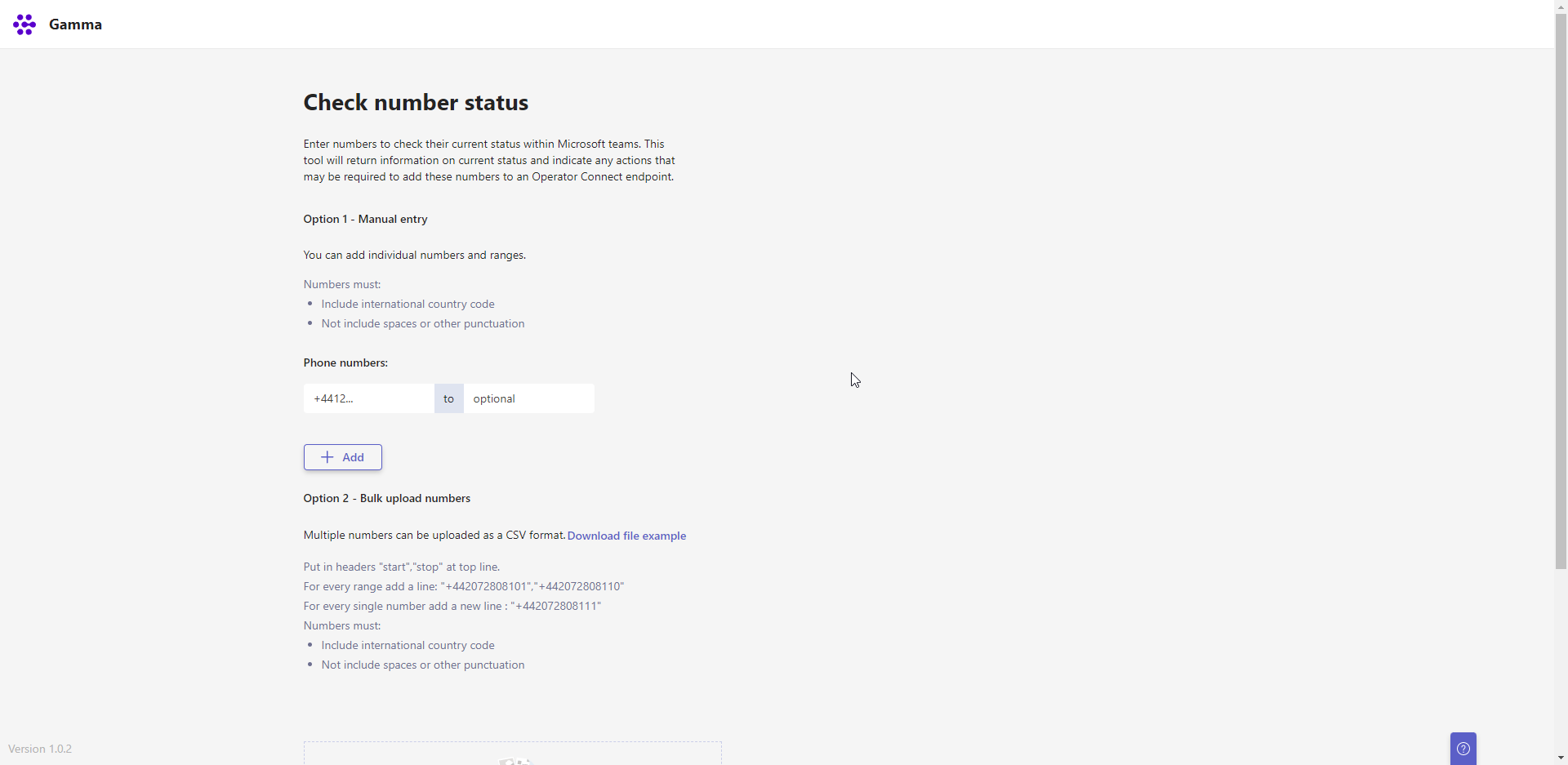
On this page you have two options; you can add number ranges and/or numbers manually or upload a CSV file. You can download the CSV file example to make sure it is compatible with the tool. Once you added all the numbers you wish to check, click “Check numbers.
| Please note: if you open the file in Excel, the numbers in Excel will show in exponent form. |
To make sure your phone numbers are following E.164 protocol, on Microsoft Excel highlight the column of phone numbers, under the Home tab, select Format and open Format Cells, choose a Custom Category and inside the “Type” field, type “+# ?” and click OK.
Update Network CLI #
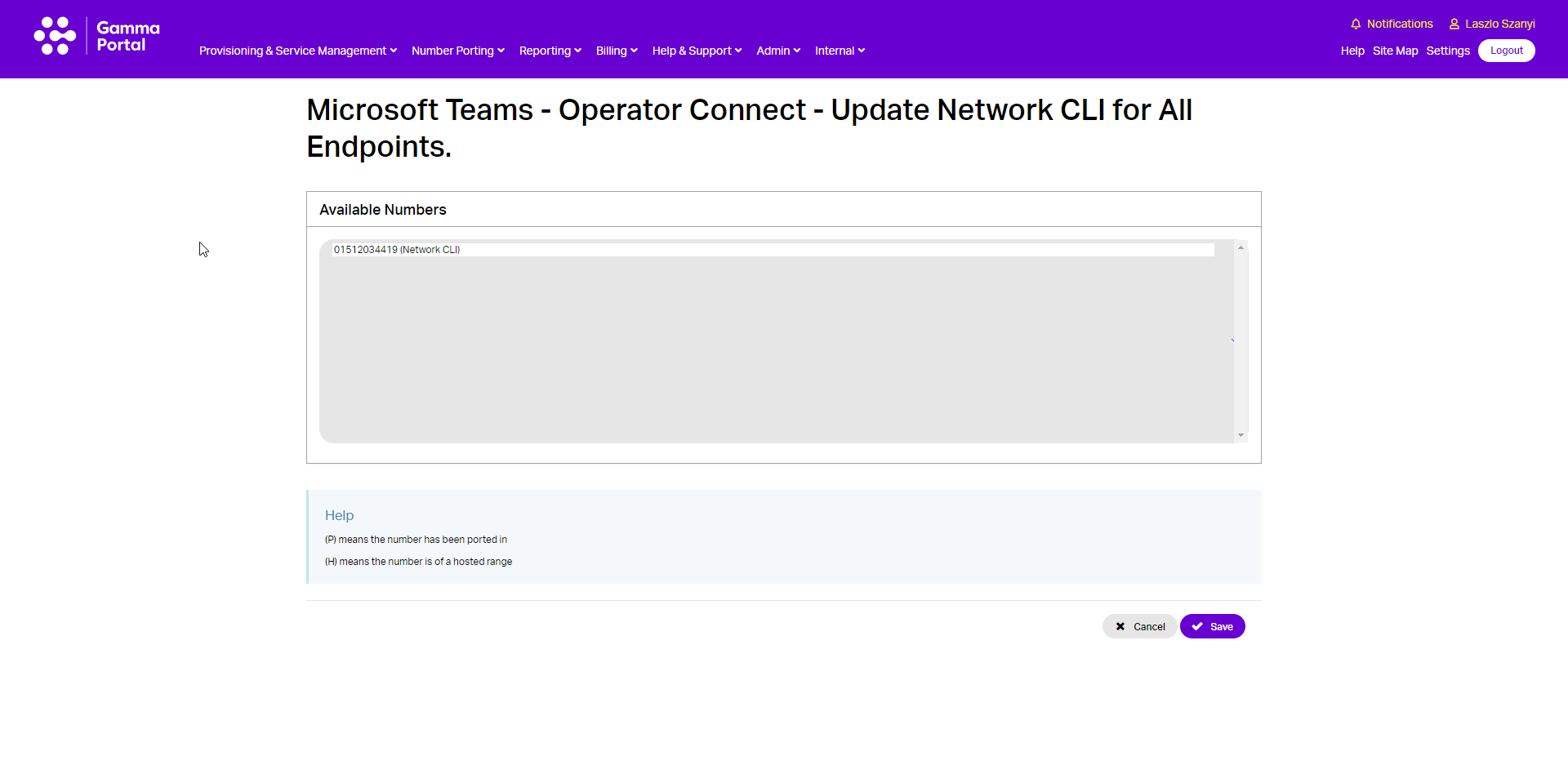
Select the account that has the endpoint you wish to change the Network CLI for and click “View”.
Click on the “Update Network CLI” option in the Actions drop-down and click Continue
This Action allows Users to change the Network CLI for the Endpoint.
Update Number Usage #
Select the account that has the endpoint you wish to change the Number Usage for and click “View”.
Click on the “Update Number Usage” option in the Actions drop-down and click Continue
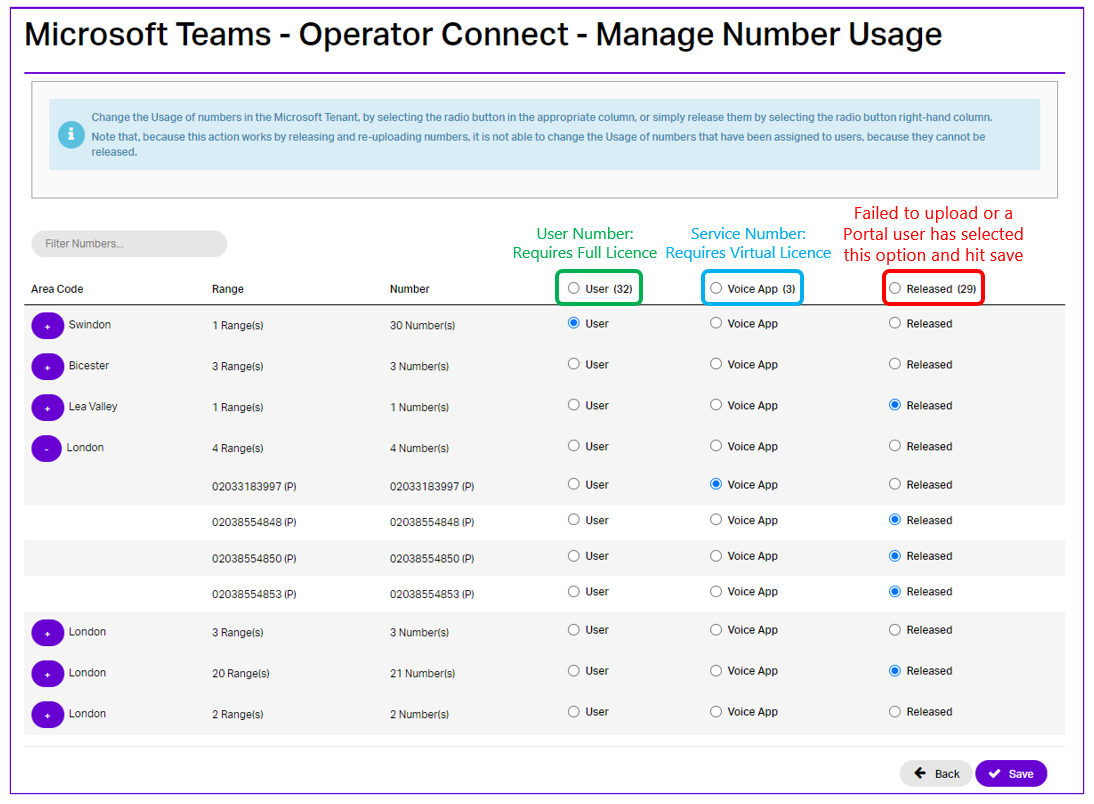
This Action allows Users to change the Number usage for all numbers for the Endpoint. This will enable the assignment of the number to different Users in the Microsoft Teams Tenant.
This is an additional area to help with Operator Connect Number visibility within Manage Number Usage.
The number usage status for each number can be the following:
- User: is the default option and these numbers can be assigned to Users (who have a full voice licence) within the MS Teams Admin Portal by the customers. When you add any number to an Operator Connect endpoint, the default usage will be set to User.
- Voice App: is the option reserved for Service Numbers (which have a Virtual Licence).
Please note: when you add an NGN to an Operator Connect, the number usage status will be released. You will then be able to change the usage to Voice App and hit save. - Released: numbers will appear in this option if the number fails to upload, or you selected this option and hit save.
| Any changes WILL NOT reflect in the customers’ MS Admin centre for at least 60 minutes. Switching number usage for the same number quickly causes routing to break within the Microsoft’s backend. |
Update Presentation Number #
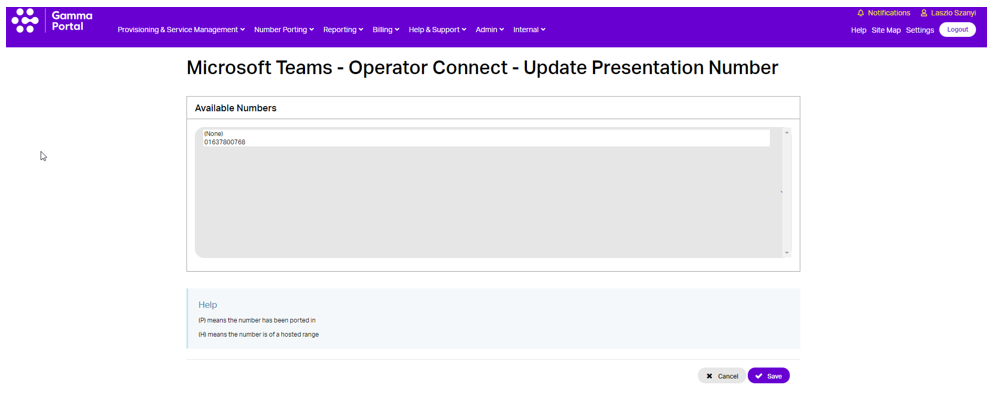
There is an option to Update Presentation Number which enables customers to select a single presentation number from the numbers associated with the Service. This is implemented within the Gamma environment and applied after any CLI presentation configured within the Teams Tenant itself. Any Geographic or Non-Geographic number associated with the Service can be selected, given both are terminated natively within the service.
There are two areas within the portal where the presentation number can be edited:
Within the number presentation section under Service Details, whereby the edit function will take you to the screen to allow you to choose from the list of available numbers
As an in-life action where you would choose “Update Presentation Number” from the action list drop-down which will again screen to allow you to choose from the list of available numbers.
Endpoint #
CLI Flexibility Settings #
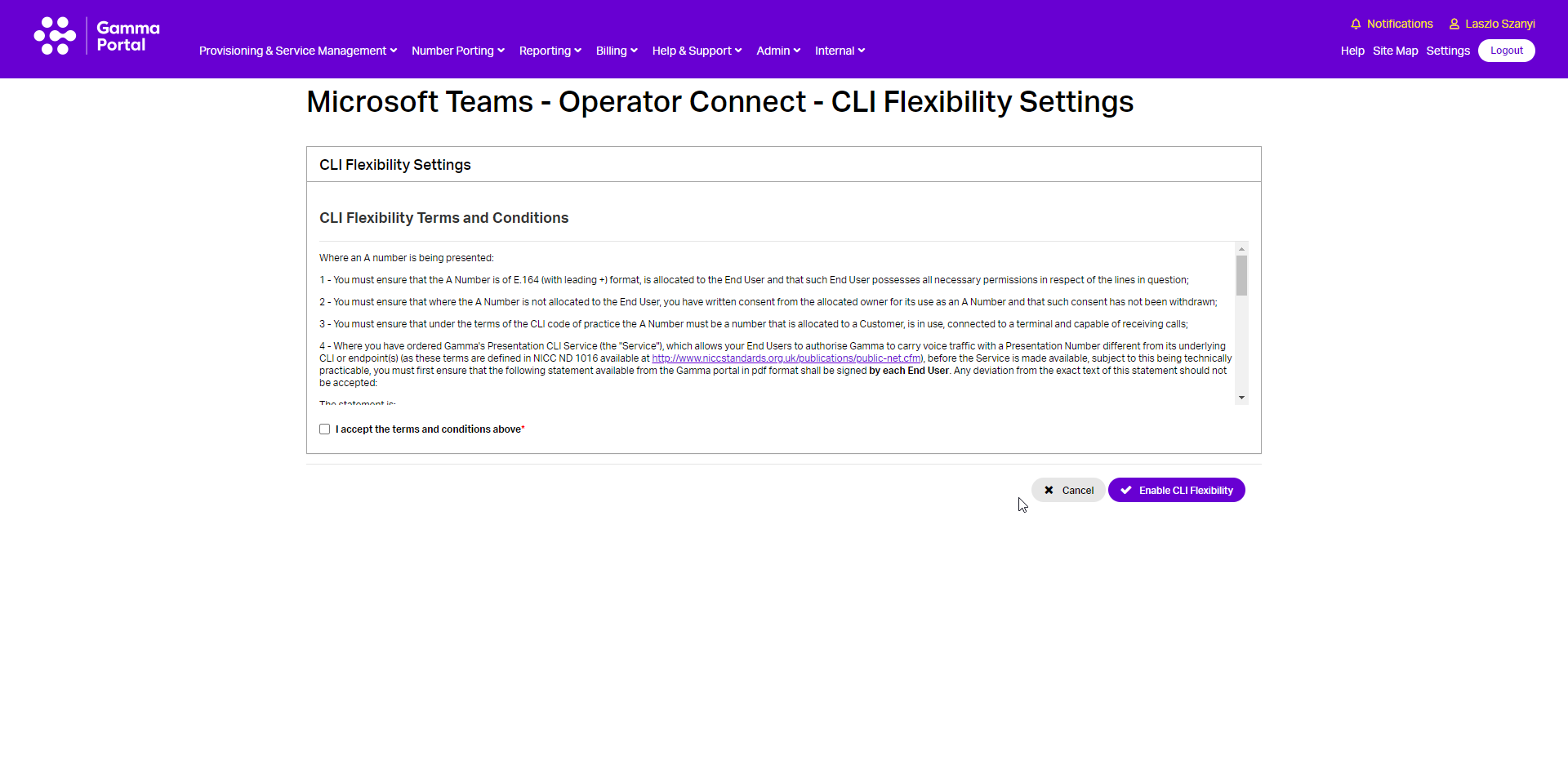
Select the account that has the endpoint you wish to change the CLI Flexibility Settings for and click “View”.
Click on the “CLI Flexibility Settings” option in the Actions drop-down and click Continue
This Action allows Users to change the CLI Flexibility Settings for the Endpoint.
Update call barring settings #
Select the account that has the endpoint you wish to Update Call Barring Settings for and click “View”.
Click on the “Update Call Barring Settings” option in the Actions drop-down and click Continue.
Gamma Microsoft Teams – Direct Routing offers five call barring options; all are controlled using the Gamma Portal. The call barring options which we offer are:
- No Call Barring
- International Call Barring
- Mobile Call Barring
- Premium Call Barring
- All Call Barring (expect freephone)
New endpoints as standard bar outbound calls to International and Premium Rate numbers. If you require this account to support Call Terminations to International and/or Premium rate numbers, please uncheck the appropriate option(s) below. Please note: In allowing the account to pass these calls, as per the standard Gamma Telecoms Services Agreement, the Channel Partner accepts all call liabilities associated with the account.
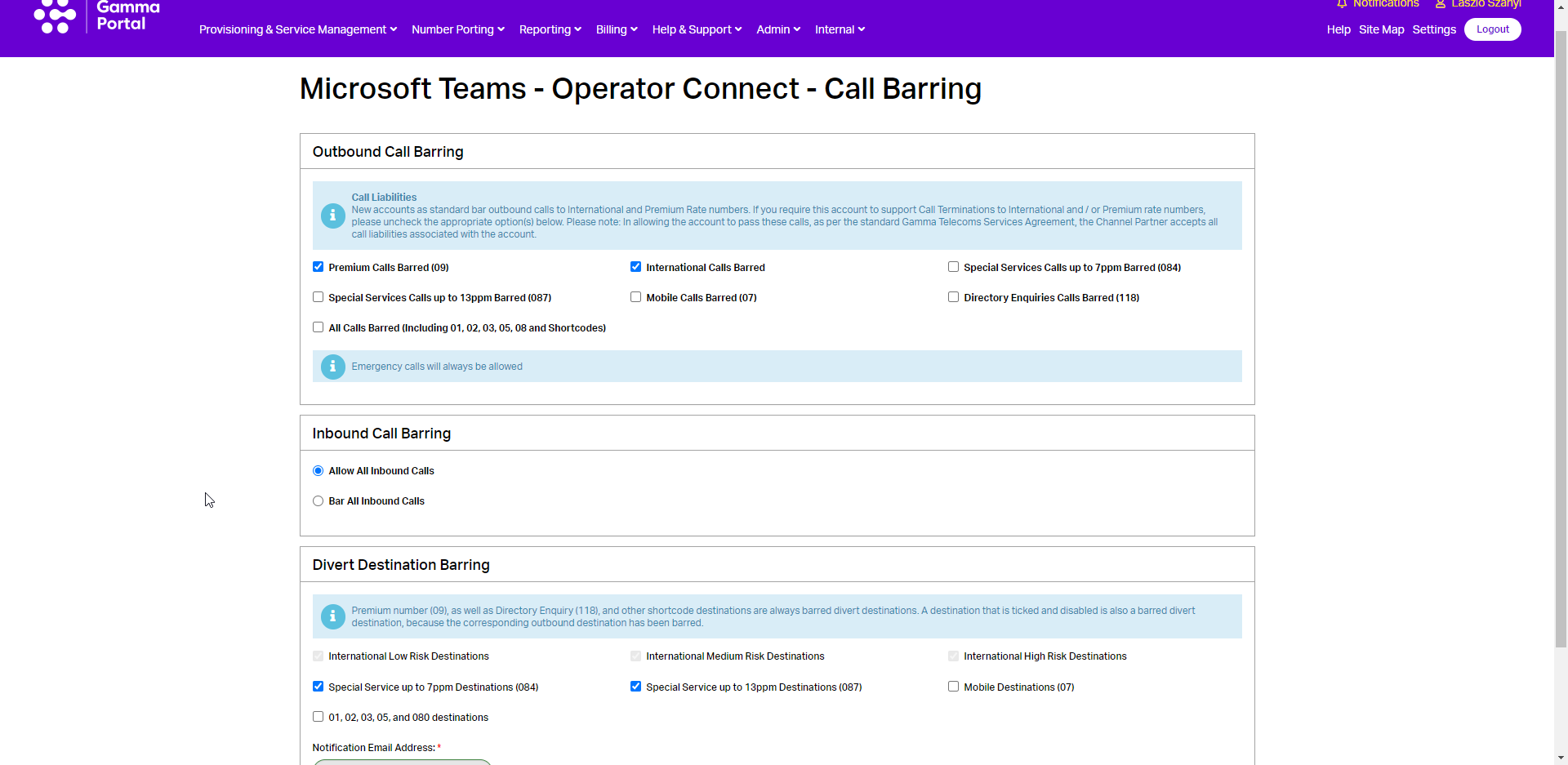
Once the required changes have been made to the call barring settings click ‘Save’ to confirm them.
Update CLI Rules #
Select the account that has the endpoint you wish to change the Incoming CLI or DDI Rules for and click “View”.
Click on the “Update CLI Rules” option in the Actions drop-down and click Continue
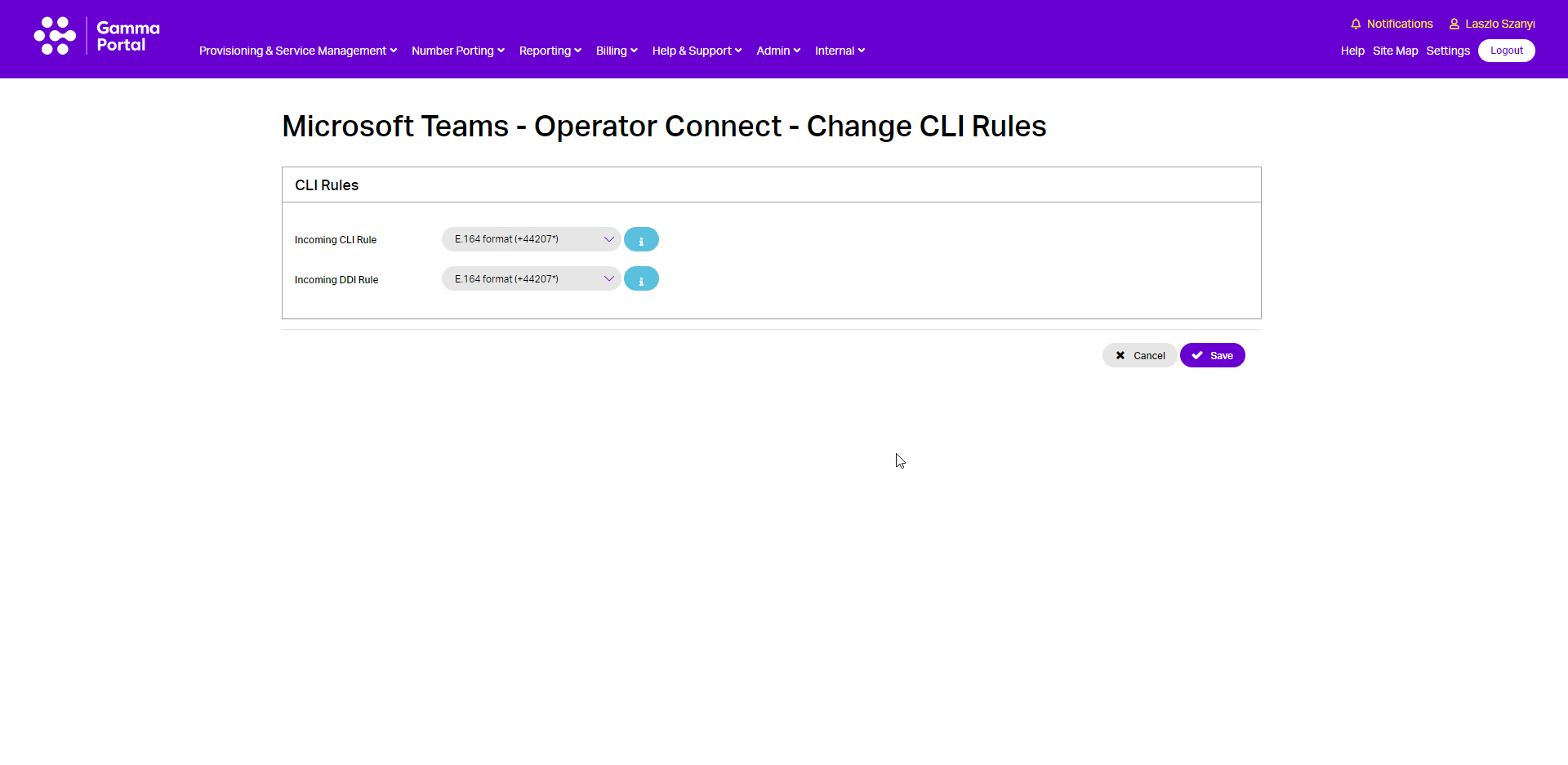
From here, you can select what the Incoming CLI or DDI Rule is to be set as. The options you have are:
- Leading Zero (0207…)
- No Leading Zero (207…)
- E.164 Format (+44207…)
Partners should be aware that modifications to the format of the DDI presented to the customer must align with the format currently defined in the applicable Microsoft calling plan in the customer tenant. If the two formats are not aligned, then calls will fail.
Service #
Advanced diagnostics #
Select the account that has the endpoint you wish to access Advanced Diagnostics for and click “View”.
Click on the “Advanced Diagnostics” option in the Actions drop-down and click Continue
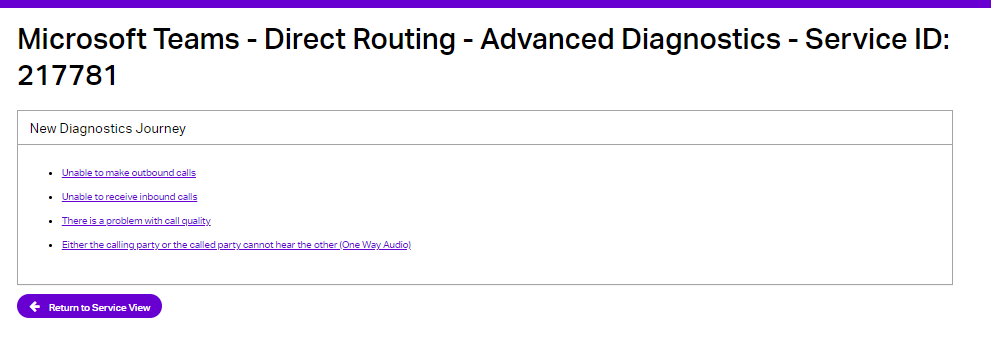
This Action Allows You to Start or Resume a Diagnostic Journey, or View Completed Journeys.
Our Microsoft Teams – Operator Connect Advanced Diagnostics Tool has been designed to give you more information to help you determine where a potential fault may lie; making sure that if you do have a fault on your endpoint you can resolve the issue efficiently.
The Tool also allows you to log a fault directly into the Gamma Service Desk without needing to call/email the team.
The journeys we have available for the Advanced Diagnostics Tool are:
- Unable to make outbound calls
- Unable to receive inbound calls
- There is a problem with call quality
- Either the calling party or the called party cannot hear the other (One Way Audio)
Cease End Point #
Select the account that has the endpoint you wish to cease and click “View”.
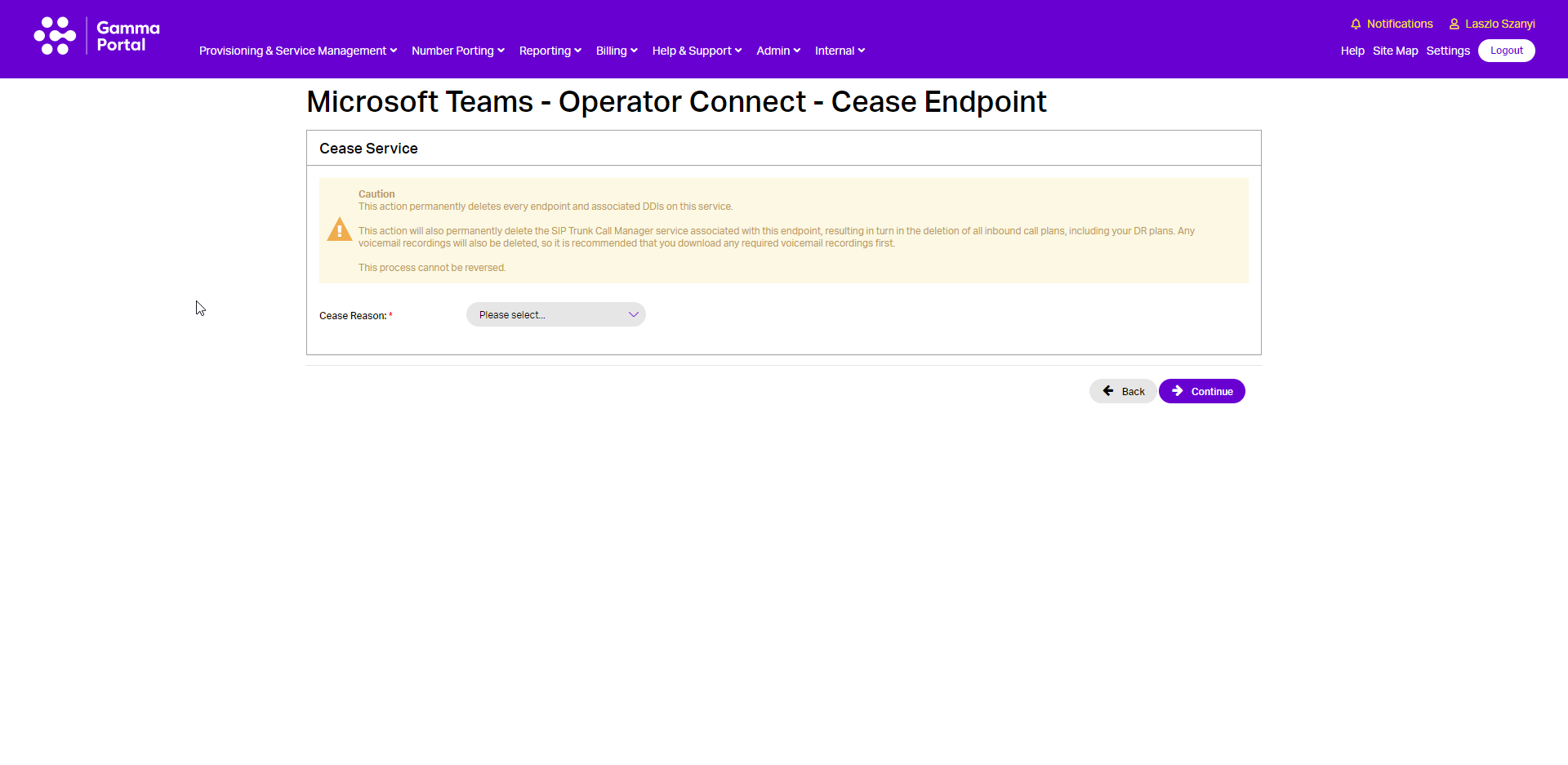
Click on the “Cease Endpoint” option in the Actions drop-down and click Continue.
This Action Allows You to Cease this Endpoint or cancel the Service during Test Mode.
Leave Test Mode #
Select the account that has the endpoint which you wish to take out of test mode and click “View”.
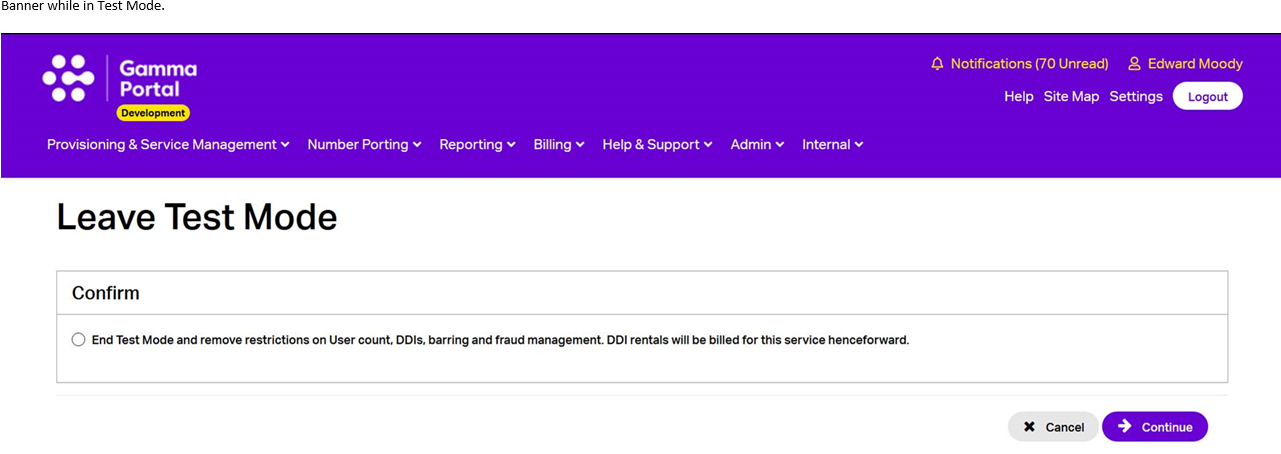
Click on the “Leave Test Mode” option in the Actions drop-down and click Continue
By selecting to confirm ending Test Mode and clicking Continue, it will convert into a fully operational service with associated billing and aligned to the contract term chosen. Configuration changes, such as increasing the number of users can be managed In-Life through the Portal.
Configure Fraud Management #
The Fraud Management System (FMS) feature allows Microsoft Teams – Operator Connect channel partners to protect themselves from fraudulent activity from endpoints that have fallen victim to hacking or excessive unauthorised call spends. The feature allows partners to pre-set individual call limits against specific Microsoft Teams endpoints and have automatic call barring invoked if these thresholds are breached.
For full information on Fraud Management please see the Microsoft Teams – Operator Connect Service Description.
The FMS is the default option when you are provisioning a Teams endpoint unless you choose to remove this default on the order. You can add/remove the FMS back on at any time. To do this, please follow the below steps.
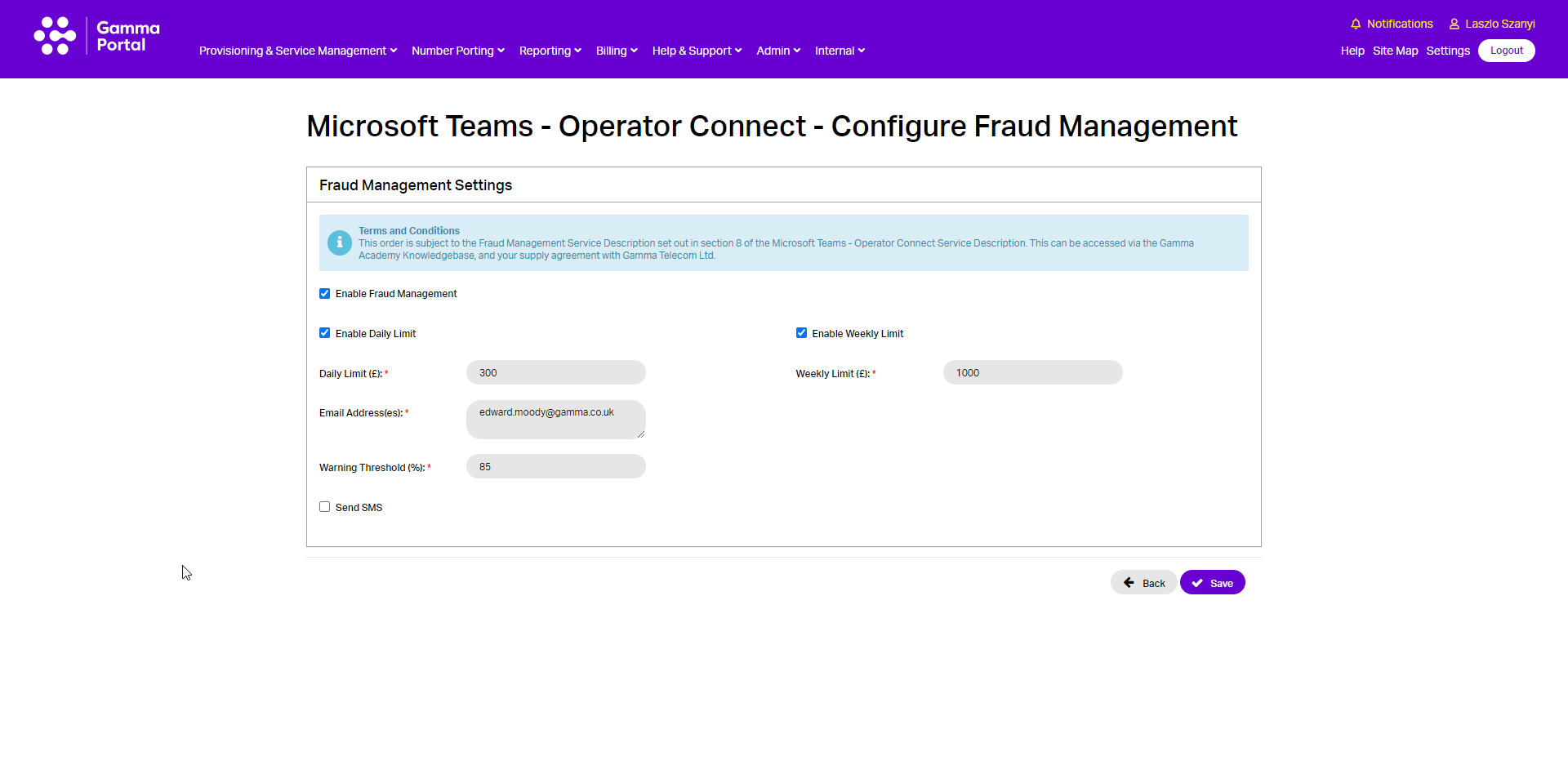
From here you can switch Fraud Management On or Off and select your daily spend limit (defaulted to £500). The daily spend limit is a rolling 24 hr aggregation of call charges across all channels on that endpoint, the time starts when the endpoint is successfully commissioned as part of a new order or when the feature is configured and then ‘saved’ on an existing endpoint. The 24 hr clock will reset if the threshold is breached and subsequently has the blocking removed.
The weekly spend limit is a rolling 7-day aggregation of call charges across all channels on that endpoint, the time starts when the endpoint is successfully commissioned as part of a new order or when the feature is configured and then ‘saved’ on an existing endpoint. The 7 day clock will reset if the threshold is breached and subsequently has the blocking removed.
In the “Warning (%)” text box enter at what threshold you’d like us to send a warning text/email out (defaulted to 70%).
If you want to set up Fraud Management and have the warning email sent to multiple email addresses, you can do this by separating the email addresses with a semi colon.
Teams Endpoint is barred because of Fraud Management #
If the endpoint exceeds either the 24 hour or 7 Day limit, the endpoint will be automatically barred from making any outbound calls, (with the exception of emergency service calls). An email will then be sent from ‘Gamma Fraud Management Systems’ containing the following details and will be delivered to the address configured in the original notification alert:
- Action: All Calls Barred
- Threshold Breach Period
- Endpoint Identification
- Total Call Duration
- Total Call Cost
- Total Number of Calls
The email will contain an attachment with the relevant CDRs for the period covered. This detail can be used to assist in the determination of whether fraudulent calls have been made.
It is the Channel Partner’s responsibility to inform the end user as to the reason that Call Blocking has been applied to their account. End users will receive a ‘fast busy’ when attempting to make out-bound calls. In a future release, call attempts will be diverted to a recorded announcement instructing them to contact their service provider.
Update Customer Relationship #
Select the account that has the endpoint you wish to update customer relationship and click “View”.
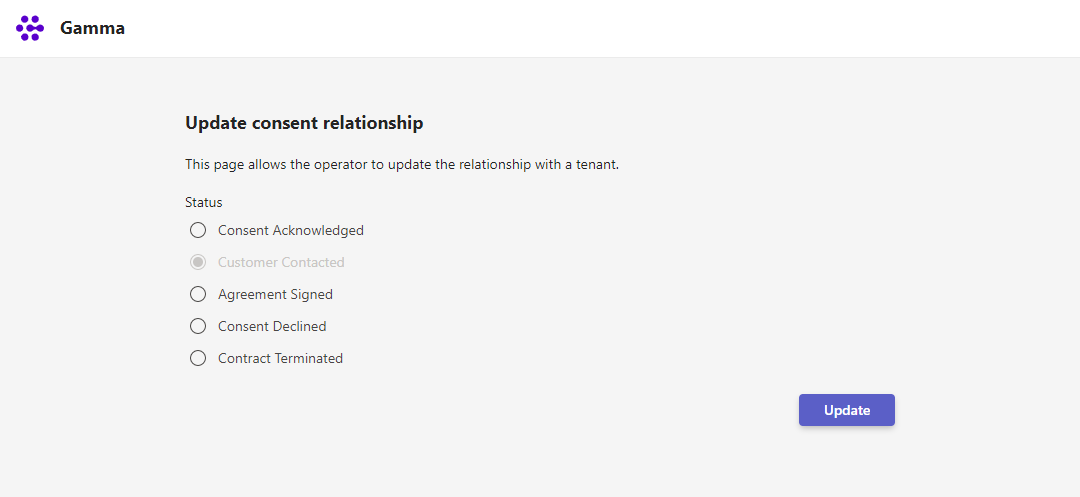
Click on the “OC Update Customer Relationship” option in the Actions drop-down and click Continue
By selecting to Update Customer Relationship and clicking Continue, it will take you to a new page where you can update the customer relationship status.
Resend order confirmation email #
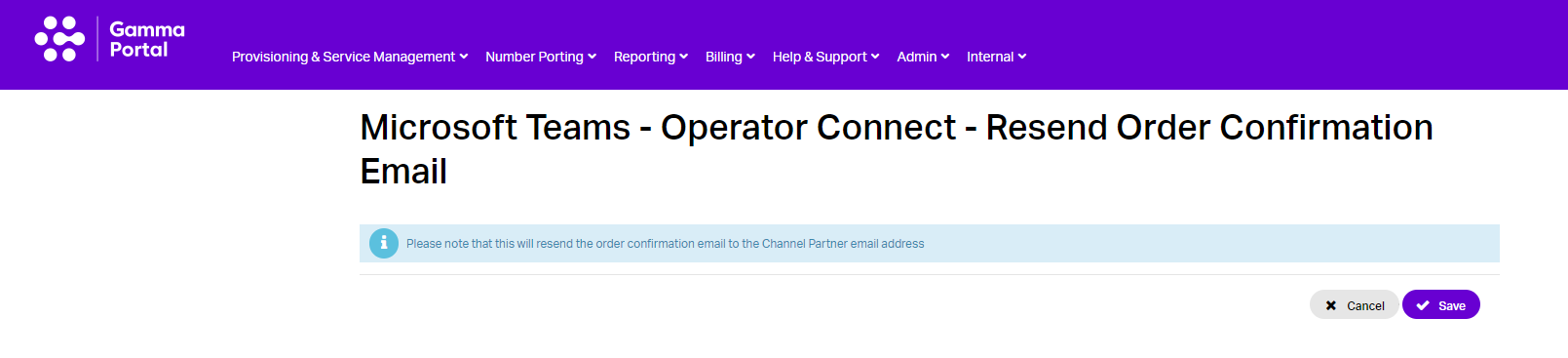
If you need another copy of your confirmation email, you can resend this by going onto the Gamma Portal, select ‘Provisioning & Service Management’, ‘Voice Connectivity’, Microsoft Teams – Operator Connect’ then ‘Service Management’.
Select the ‘Actions’ drop-down box and select ‘Resend Order Confirmation Email’.
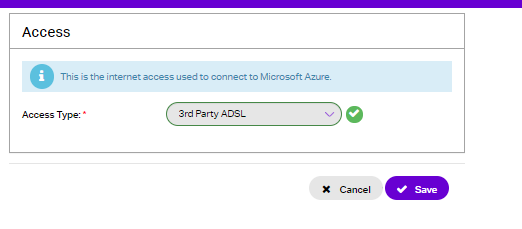
Update access type #
Select the account that has the endpoint you wish to update the Access type for and click “View”.
Click on the “Update Access Type” option in the Actions drop-down and click Continue
This Action allows you to update the Access Type associated with this service.
Update Customer Details #
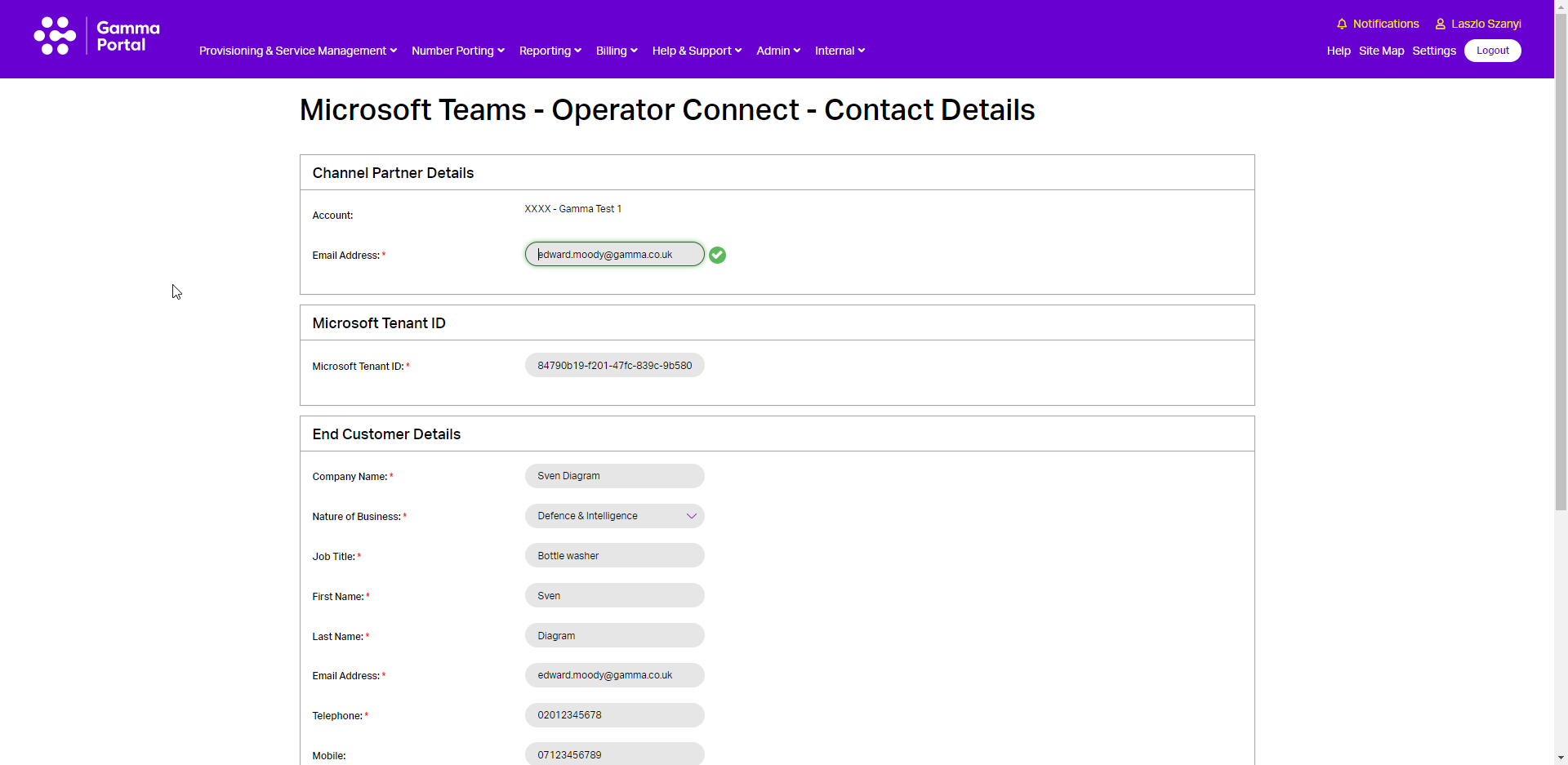
Select the endpoint you wish to update the Customer Details for and click “View”.
Click on the “Update Customer Details” option in the Actions drop-down and click Continue.
This Action Allows You to Update Customer Details:
Update Privacy Settings #
You can set up on the Gamma Portal if you’d like your Teams service to either:
- Always show your telephone number (No privacy feature)
- Always show your telephone number, and dial 141 before you make a call to withhold your telephone number.
- Always hide your telephone number, and dial 1470 to show your telephone number.
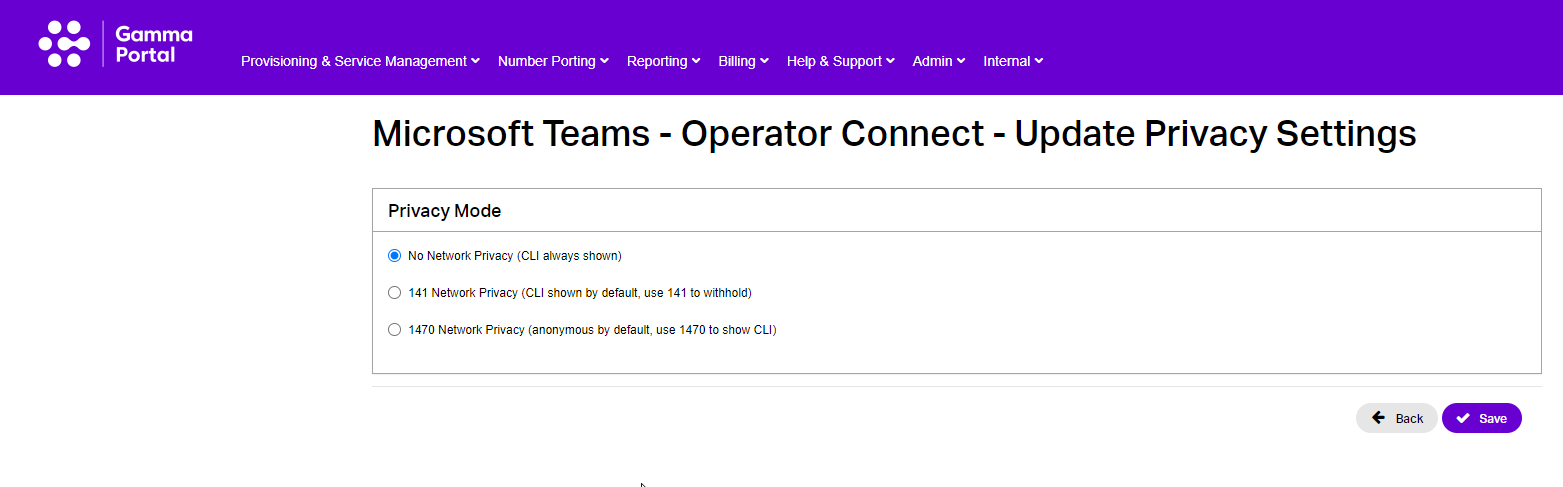
Select the account that has the endpoint you wish to update the Privacy Settings for and click “View”.
Click on the “Update Privacy Settings” option in the Actions drop-down and click Save.
Update User Count #
The Update User Count In-Life action is no longer available. The User Count is now automatically updated when a number with ‘User’ usage type is assigned to a User in Teams Admin Centre via the Teams Administrator.
The User Count automatic update is being processed every 4 hours, at 8:00, 12:00, 16:00, etc. The User Count is the total User assigned numbers in Teams Admin Centre.
The User Count Update details and the actual User Count figure can be checked via the Service Details History on Gamma Portal:
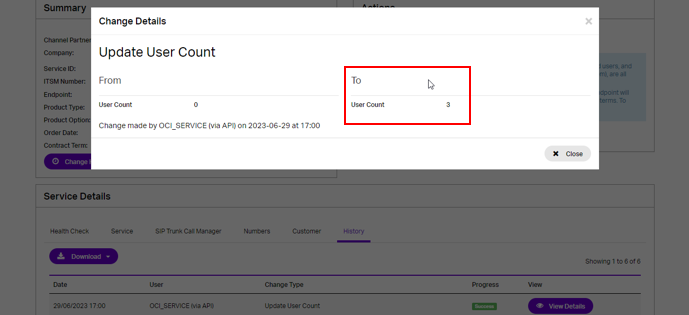
To check the actual User Count figure, find the latest change in the History where User: OCI_SERVICE (via API) and Change Type: Update User Count and click ‘View Details. The actual figure is highlighted on the above screenshot.
| Please note: if the Operator Connect Endpoint status is not active (e.g. With Gamma Support) then the User Count will not be updated. The number assignments will keep updating in the background and all changes will be applied when the endpoint status is ‘Active’. |
Manage User Count settings #
The Manage User Count Settings action allows you to:
- Set up email notifications for user count changes on your Operator Connect service. When enabled, Gamma will notify any listed email destinations of user count changes that have occurred throughout the day.
- The current number of users in the tenant with Gamma-assigned DDIs will contribute to the user count value.
- Record the number of users your end customer has committed to and view the current user count and peak user count values. These will also be collated in any issued notifications.
From the endpoint view page of the Operator Connect service you wish to update, select the “Manage User Count Settings” option from the Service section of the Actions dropdown and click Continue.
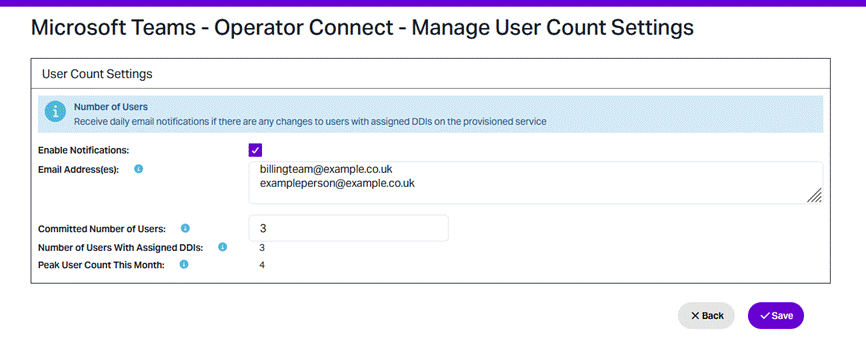
On this page:
- You can enable/disable user count notifications via the checkbox.
- Enter the email addresses of any team members or departments you would like to keep apprised of user count changes associated with this service.
- You can make a note of the number of users agreed between yourself and your customer. This committed user count is purely informational and helps you track changes against expectations.
- You can view the current user count registered against this service.
- You can view the highest user count value recorded in the calendar month so far. This value resets at the start of every month.
Click Save to proceed with any configured settings.
Once enabled, an email notification will be issued daily if:
- Enable Notifications has been checked.
- At least one email address has been specified.
- There has been at least one successful user count update during the preceding day.
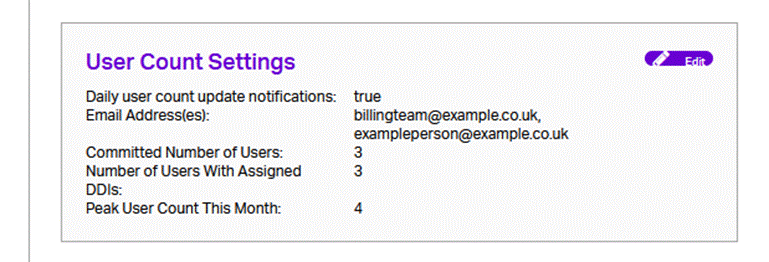
Your currently configured settings can be viewed in the User Count Settings panel under the Service tab in the Service Details section of your service view page:
Number Migrations #
For number migrations from Direct Routing to Operator Connect the process has recently changed, you will now need to use the the following PowerShell cmdlet which creates a request to release Direct Routing telephone numbers from Microsoft Teams telephone number management inventory.
Numbers to be migrated then can be added using a comma-separated list of numbers, or you can add a range by separating the first and last numbers with a slash (Starting/EndingNumber).
The cmdlet is an asynchronous operation and will return an OrderId as output. You can use the link below cmdlet to check the status of the OrderId, including any error or warning messages that might result from the operation.
https://learn.microsoft.com/en-us/powershell/module/teams/get csonlinetelephonenumberorder?view=teams-ps
Please note that these commands are only in the new release of PowerShell 6.7.1 which is currently in preview. To download this version please use;
https://www.powershellgallery.com/packages/MicrosoftTeams/6.7.1-preview
This is due to a recent change in the behaviour of Microsoft’s network, where unassigned numbers now enter Microsoft’s number inventory which is flagging as unknown in Gamma’s number status report, which is resulting in the ‘Skype for Business’ error.