Skip to content
  • Academy KB Home Redesign
  • Broadband Home
  • CCaaS
  • Channel Partner Support
  • Circle Loop Home
  • Collaborate
  • Connectivity
  • Courses
  • Documentation
  • Ethernet
  • FibreXchange
  • FUSION IoT
  • Gamma AI Concierge
  • Gamma Plus
  • Gamma SIP for Cloud Connect
  • Gamma SIP for Cloud Connect
  • Gamma SIP for Genesys Cloud
  • Gamma SIP Global Communications Enablement
  • Gamma SIP Trunks for Genesys Cloud
  • Hannah – Homepage WIP
  • Home
  • Horizon
  • Horizon Contact
  • Horizon Forms
  • Horizon Service Description Home
  • Horizon with Webex
  • Inbound
  • iPECS
  • Knowledge Base Intro
  • Knowledgebase Directory
  • LoginPress
  • Microsoft
  • Microsoft Teams Direct Routing Home
  • Microsoft Teams Operator Connect
  • Mobile
  • Multiple KB
  • My Courses
  • No Access
  • No active page
  • Numbering and Porting
  • Phoneline+
  • Product Homepage
  • Quick Download Button
  • Release Notes
  • Release Notes
  • SIP Home
  • Test
  • UCaaS
  • User Account
  • Voice
  • Voice Enablement
  • Webex for Gamma
  • Webex for Gamma Release Notes
  • Gamma Academy Knowledge Base
Gamma Academy Knowledge Base
  • Cloud Calling and Collaboration
    • Webex for Gamma
    • Horizon with Webex
    • Horizon
    • Phoneline+
    • Operator Connect
    • Direct Routing
    • Inbound
    • Akixi CX Analytics
    • Red Cactus
  • Connectivity and Networking
    • Numbering and Porting
    • Broadband
    • FibreXchange
    • Ethernet
    • SIP Trunking
    • Gamma FUSION IoT
  • CX
    • Horizon Contact
    • AI Concierge
  • Mobile Services
    • Gamma Mobile
  • CyberSecurity
    • SafeWeb
  • Partner & Portal Support
Gamma Academy Knowledge Base

Gamma Plus Documentation

  • Gamma Plus Terms & Conditions
  • Gamma Plus Service Descriptions

Gamma AI Concierge

  • AI Concierge Release Notes
  • AI Concierge Service Description
  • AI Concierge Terms & Conditions
  • Provisioning and In-Life Changes
    • Gamma AI Concierge and Gamma Plus FAQ
    • Provisioning Gamma AI Concierge
    • Ceasing Gamma AI Concierge
  • The AI Concierge Portal
    • The Gamma AI Concierge Portal Overview
    • The Dashboard
    • Assistants
    • Calendar Integration
    • Appointments
    • Call Records
    • Support

SafeWeb

  • SafeWeb Service Description
  • SafeWeb Terms & Conditions

Red Cactus

  • Red Cactus Terms & Conditions
  • Home
  • Home
  • Gamma Plus
  • Gamma AI Concierge
  • The AI Concierge Portal
  • Calendar Integration
View Categories

Calendar Integration

The Calendar Integration section of the Gamma AI Concierge portal allows you to setup your connection to the following calendar services:

  • Google Calendar
  • Calendly
  • Microsoft Outlook
  • Acuity Scheduling
  • SimplyBook.me

Please note that integration with Acuity Scheduling or SimplyBook.me requires that service’s appropriate premium license.

Integrating AI Concierge with one of these calendar services is required before an assistant can create bookings.

Setting up your calendar #

Microsoft Outlook, Calendly and Google Calendar

  • For the selected calendar, you will be required to sign in to your Microsoft, Calendly or Google account respectively. 

Acuity Scheduling and SimplyBook.me

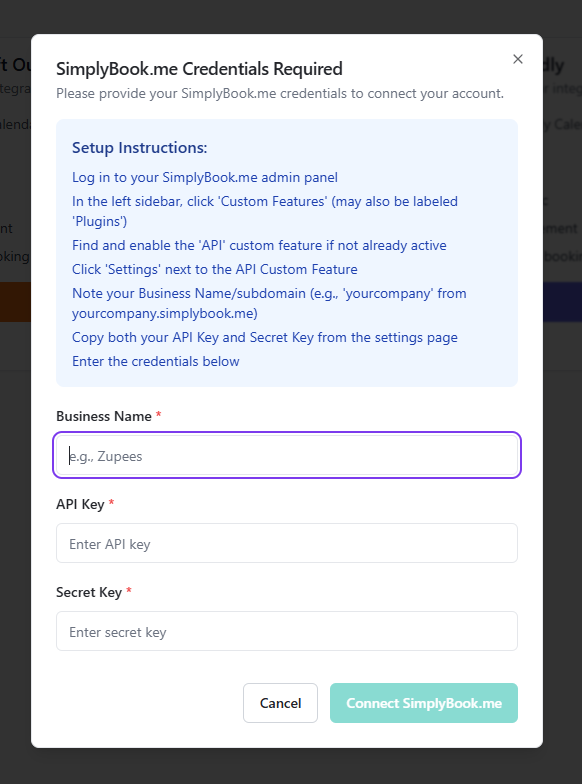
  • For Acuity Scheduling and SimplyBook.me you will need to provide the system with additional information, all of which is outlined in the relative Connect pop up.

Acuity Scheduling
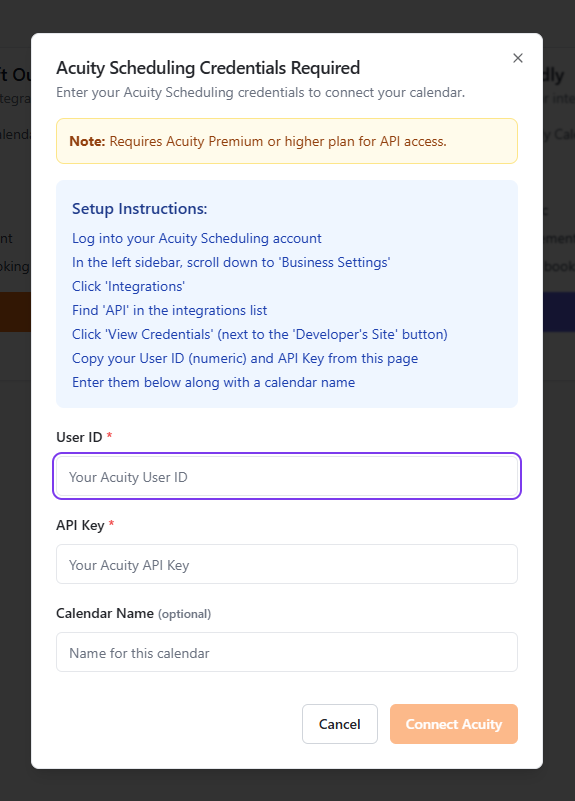
  • You will need Acuity Premium or higher plan for API access
  • Log into your Acuity Scheduling account
  • Scroll down to Buisness Settings via the left sidebar
  • Click Integrations
  • Find API in the integrations list
  • Click View Credentials
  • Copy your User ID and API Key from this page
  • Enter them in the fields, along with a calendar name if required
  • Click Connect Acuity

SimplyBook.me

  • Log into your SimplyBook.me admin panel
  • In the left sidebar, click Custom Features (this may also be labeled Plugins)
  • Find and enable the API custom feature if not already active
  • Click Settings next to the API Custom Feature
  • Note your Business Name/subdomain (eg if the business name is ‘yourcompany.simplybook.me’ then your subdomain is ‘yourcompany’)
  • Copy both your API Key and Secret Key from the settings page
  • Enter these credentials in the SimplyBook.me Credentials popup on the portal

Connecting your AI assistant to a calendar #

  • Create an AI assistant – further information can be found here
  • Select the assistant you wish to connect a calendar to
  • Click Configure
  • On the Assistant Details page, scroll down to Calendar and toggle Appointment Booking to on
  • Select the Calendar Provider in the pop-up menu
  • Select the specific calendar with the Use Existing button, or create a new one using the Create New option
  • Your AI assistant will now be able to read your schedule and create appointments

image_pdf
Updated on 13/05/2026
AssistantsAppointments
Contents
  • Setting up your calendar
  • Connecting your AI assistant to a calendar

Copyright © 2026 -  Gamma Telecom Ltd

Gamma API
We use cookies to measure performance and make improvements to this service. This includes page views, device/browser, location, and page interactions. We do not collect any information you upload to this site. By agreeing, you consent for your data to be used for this purpose.