
Introduction and Purpose #
What is the Horizon with Webex (HwW) Bulk Upgrade Tool? #
Horizon with Webex Bulk Upgrade Tool is a service offered inside of the Gamma Portal to our channel partners to provision HwW to end users at a wider company level, as opposed to a granular user level. This offers a quick and easy solution for our partners to provision HwW in bulk and start benefiting from the service as soon as possible.
How do I use the HwW Bulk Upgrade Tool? #
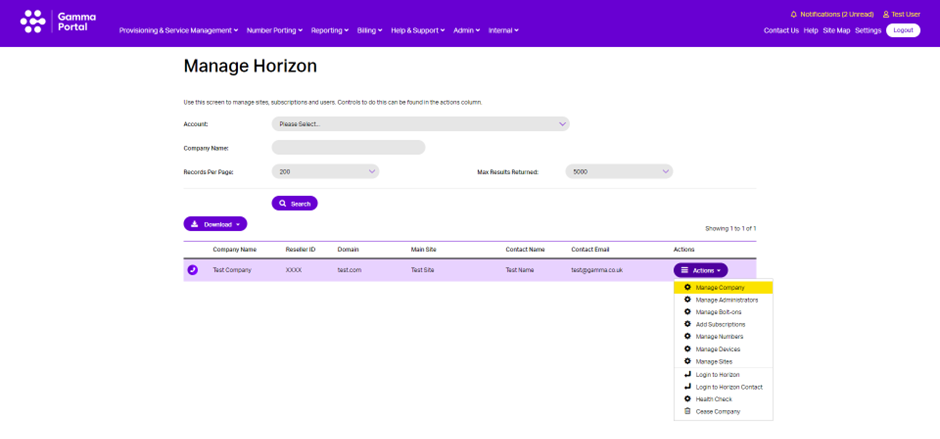
The Bulk Upgrade Tool is accessible to existing Horizon Companies; this can be accessed through the ‘Manage Company’ section of the Horizon Manage Companies page in the Gamma Portal.
Are there any prerequisites I need to be aware of? #
- Gamma Portal Account: Ensure you have a Gamma Portal account and the necessary permissions to order Horizon. If you lack these permissions, please speak to your account manager.
- Horizon GUI Access: You must be a Horizon Company Administrator.
Is there a step-by-step process I should follow when using the HwW Bulk Upgrade tool? #
- Navigate to Provisioning & Service Management:
- Go to ‘Provisioning & Service Management’ > ‘Hosted’ > ‘Horizon’ > ‘Horizon Manage Company’.
- Search for Horizon Company:
- Locate the Horizon Company you wish to add Horizon with Webex to.
- Manage Company:
- Select ‘Actions’ > ‘Manage Company’.
- Download Bulk Upgrade File:
- At the Manage Company page, navigate to the ‘Soft Client User Download’ tab and select ‘Download’ as shown below.
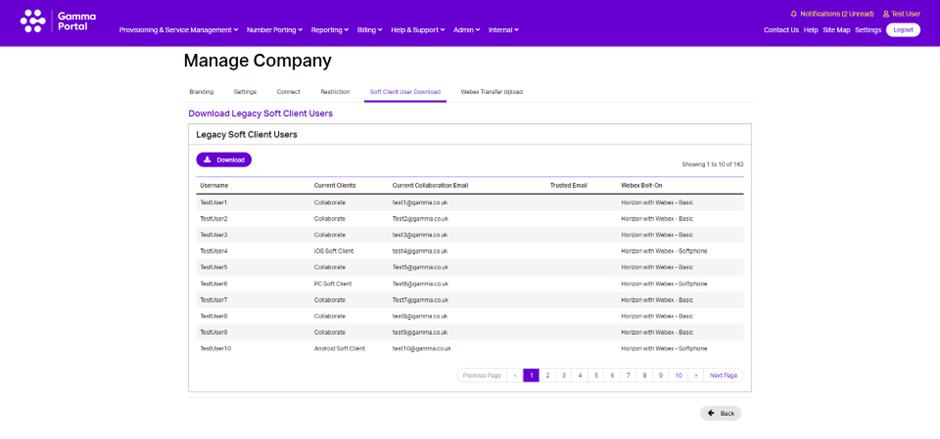
This will start the download of an excel file which includes a breakdown of all Horizon users under this company who have ‘Collaborate’, ‘iOS Soft Client’, ‘Android Soft Client’, ‘PC Soft Client’ or ‘Mac Soft Client’ assigned and do not have HwW yet.
- Complete Bulk Upgrade File:
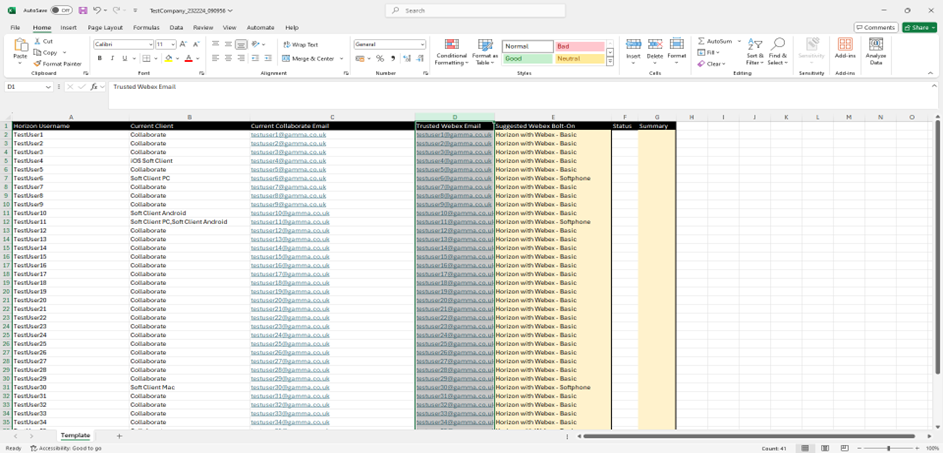
- Within the Excel file, fill in the ‘Trusted Webex Email’ section with the email addresses of your End Users (please note that subsequent HwW details will be sent to the email addresses provided here. It will also be the email address that end users use to login to Webex.)
- You can also select from the dropdown in the ‘Suggested Webex Bolt-On’ to another version of Horizon with Webex (please note that as standard, our system will automatically align Collaborate users to ‘Horizon with Webex – Basic’ and align Soft Client users to ‘Horizon with Webex – Softphone’)
- Once completed, ensure you save your Excel file in a location that you can easily access later. You will need this during the bulk upload process.
- Upload Bulk Upgrade Request:
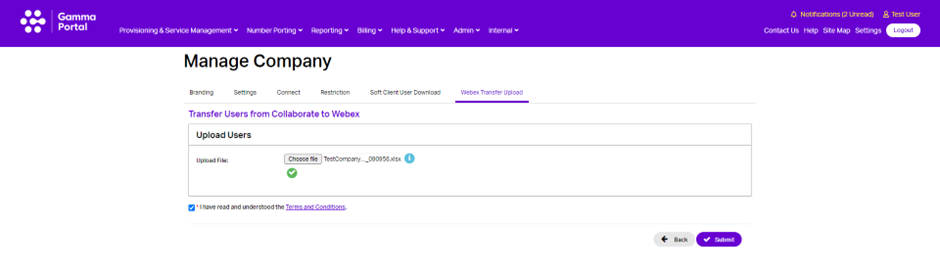
- At the Manage Company page in the Gamma Portal, navigate to the ‘Webex Transfer Upload’ tab.
- Using the ‘Upload’ option, select your completed Bulk Upgrade Spreadsheet
- Please ensure that you have read, understood and acknowledged the Terms & Conditions before proceeding
- Press Submit.
Important note: By using the Bulk Upgrade Tool, you acknowledge that the company’s current set up of Collaborate/Soft Client set-up or Bolt-Ons will not be affected. This tool is solely designed for the purpose of adding HwW to a company’s selected Collaborate/Soft Client users.
What happens next? #
Once uploaded and submitted, you will receive an email acknowledging that your request has been received. Once received, this will be actioned by Gamma’s systems, please be advised that this is not an instant action and may take up to 5 working days.
Once the Bulk Upgrade process has completed, you will receive an email of notification from webexorders@gamma.co.uk with a breakdown of successes and failures for your request.
What should I do if any part of the upload fails? #
Upon receiving your email of completion, with a copy of your processed Excel file, you may notice that there may have been a failure(s). This means that our automated system was not able to process your request for this user(s) successfully. There will also be a code, and a message associated with this user.
You may be able to resolve these issues yourself. Please see a list of error messages with some tips as to how to resolve yourself below:
| Error Message | Possible Resolution |
|---|---|
| There has been an unexpected error processing this request, please re-attempt for the user via the Horizon Portal. If issue persists, please contact the service desk | You may be able to resolve this issue by: – Re-attempting to add HwW to this user in the Horizon GUI manually. – Re-attempting to add HwW with a different email address to this user. – Contact the service desk, communicate the error code and associated message ready for further investigation. |
| This user already has a Webex Free Account | You may be able to resolve this issue by: – Re-attempting to add HwW with a different email address to this user – Advise the user to delete their Free Webex account |
| This user already has Webex with another provider | You may be able to resolve this issue by: – Re-attempting to add HwW with a different email address to this user. – Advise the user to speak to their prior provider to delete their old Webex account. |
| This email address is not available to use with this Horizon with Webex user. Please check email address is correct and try again. If problem persists, please contact the service desk. | You may be able to resolve this issue by: – Checking the email address inputted is correct. – Re-attempting to add HwW with a different email address to this user. |
What if my customer asks, ‘How do I delete a Free Webex Account?’ #
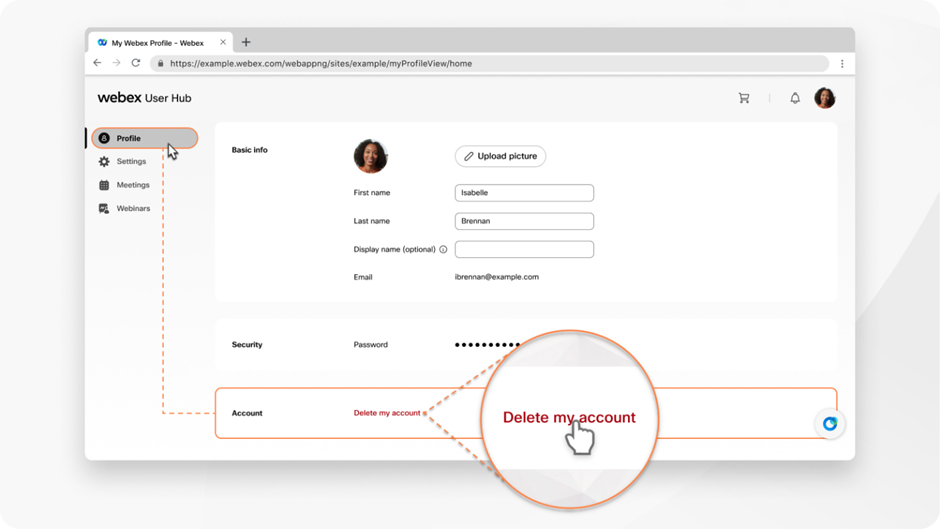
If your user is unsure of how to delete their free Webex account, here are some useful steps to help them:
- Go to User Hub (https://user.webex.com/webappng/hub/welcome) sign in page
- Type in email address and press ‘Next’
- Type in password or select forgot password to reset
- Navigate to ‘Profile’
- Scroll to bottom of page and select Delete my Account
- Confirm ‘Delete My Account’
If you encounter any issues not listed above, or require further assistance, please contact the Service Desk.