Our Microsoft Teams – Direct Routing Advanced Diagnostics Tool has been designed to give you more information to see where a potential fault may lie; Gamma or a configuration issue with your customers equipment, making sure that if you ever do have a fault on your endpoint you can resolve the issue efficiently.
Not only this, but it allows you to log a fault directly into the Gamma Service Desk without needing to call / email the team.
The journeys we have available for the Advanced Diagnostics Tool are:
- Unable to make outbound calls
- Unable to receive inbound calls
- There is a problem with call quality
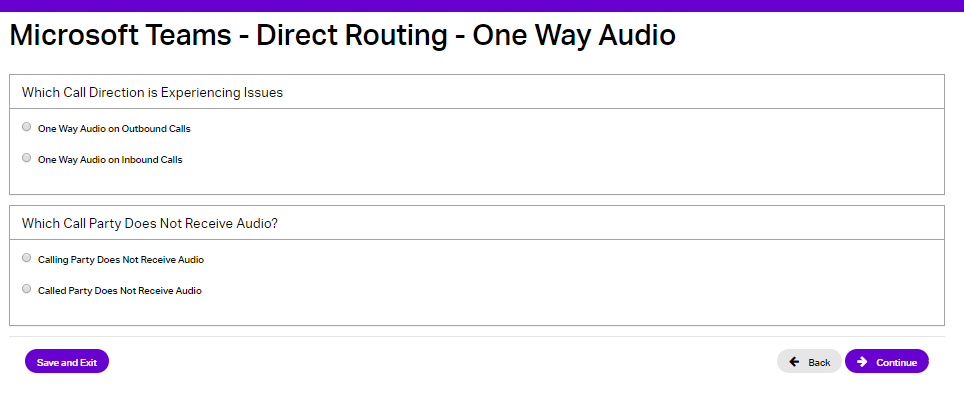
- Either the calling party or the called party cannot hear the other (One Way Audio)
Unable to Make Outbound Calls #
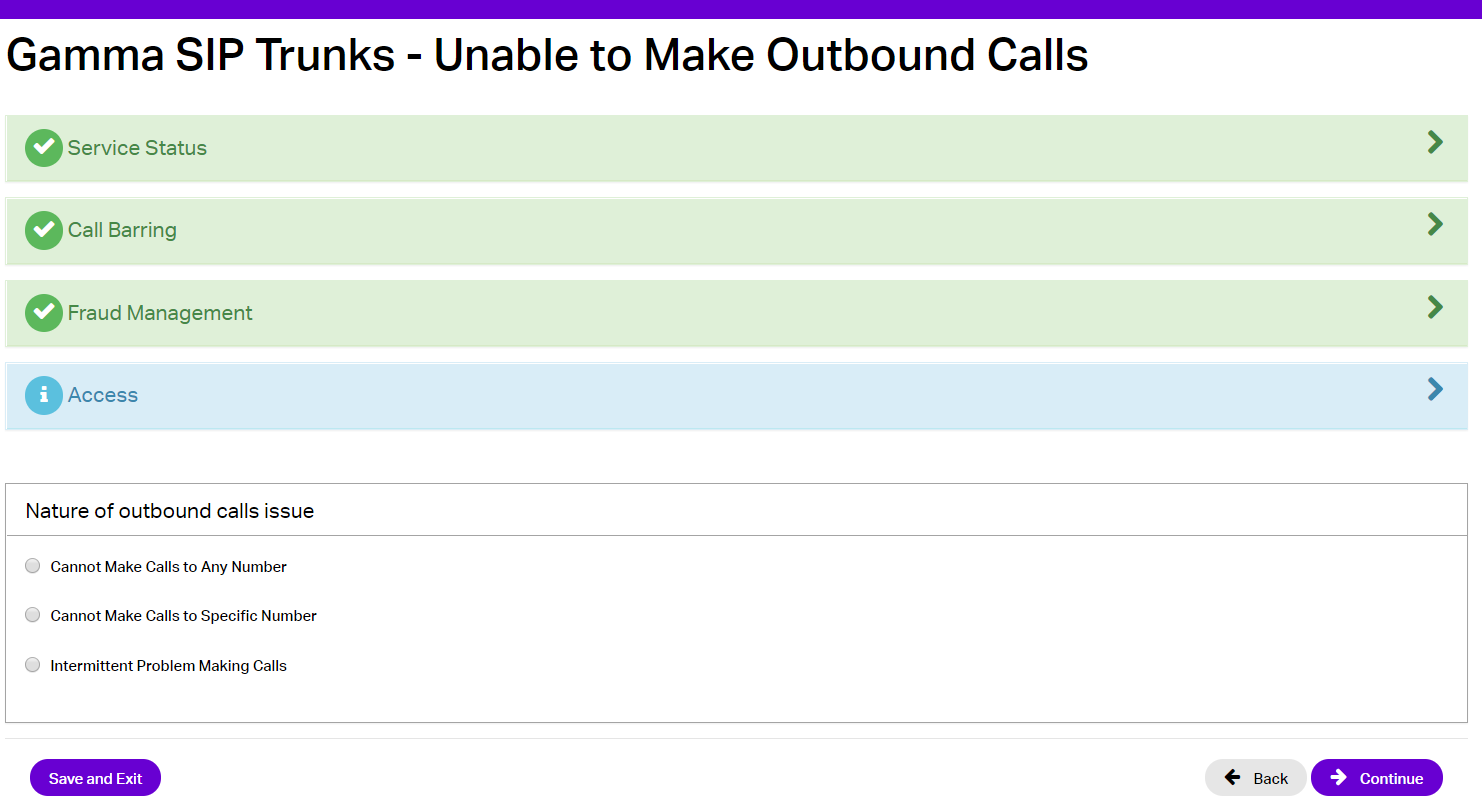
If you are unable to make outbound calls it is strongly recommended that you first check the Gamma Portal to make sure that there are no call barring settings that are blocking the outbound calls.
If outbound calls are not being blocked by barring settings, it is recommended that you next check the underlying access into Azure.
Check that the access is online and that any firewall in the call path is open for access to Microsoft.
If all is OK with the access and the LAN then you should use the Advanced Diagnostics tool and select the Unable to make Outbound Calls journey.
This journey will ask you to specify the nature of outbound calls issue.
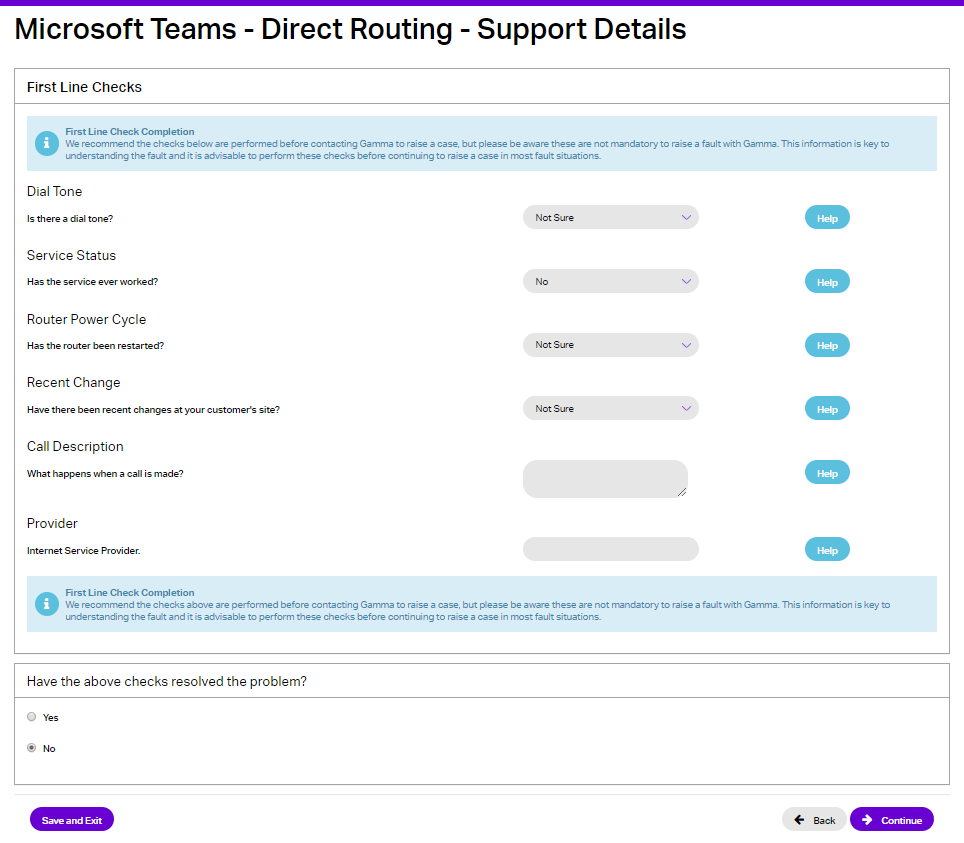
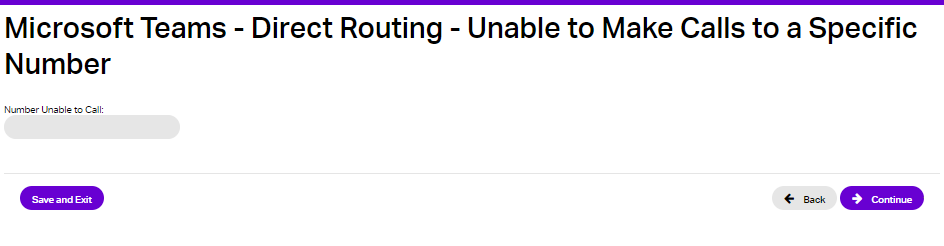
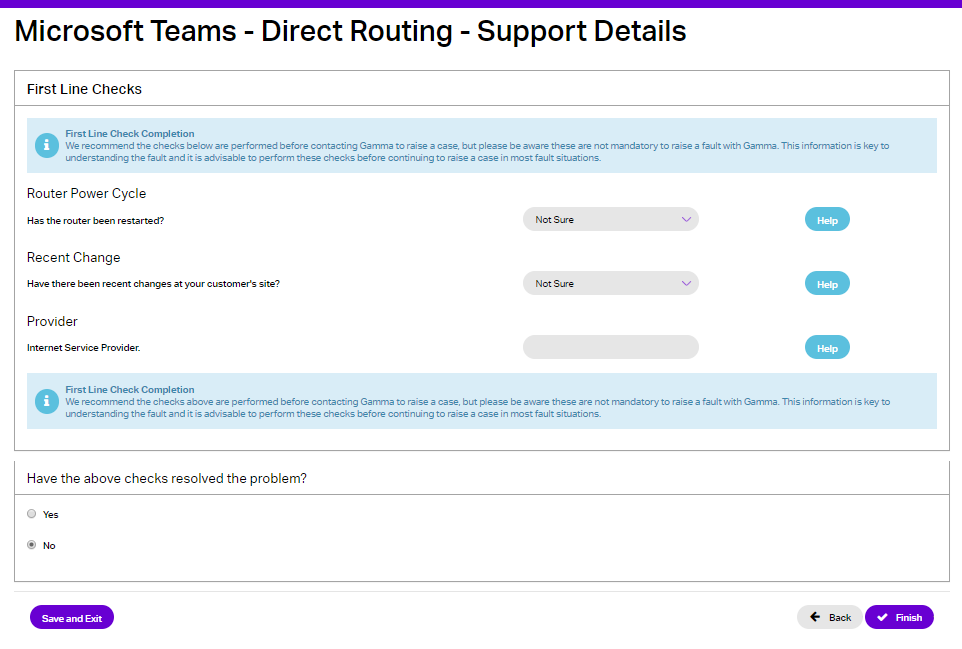
If you are unable to resolve your fault after completing the identified first line checks, you can continue the journey. This will then raise a ticket to the Service Desk with all the information that they need to start their diagnostic work and they will be in touch shortly.
Unable to Receive Inbound Calls #
If you are unable to receive inbound calls it is strongly recommended that your first check is to check the underlying access into Azure.
Check that the access is online and that any firewall in the call path is open for access to Microsoft.
If all is OK with the access and the LAN then you should use the Advanced Diagnostics tool and select the Unable to Make Inbound Calls journey.
This journey will ask for the Nature of inbound calls issue and In the majority of cases this will let you know what the issue is, and if this requires Gamma intervention.
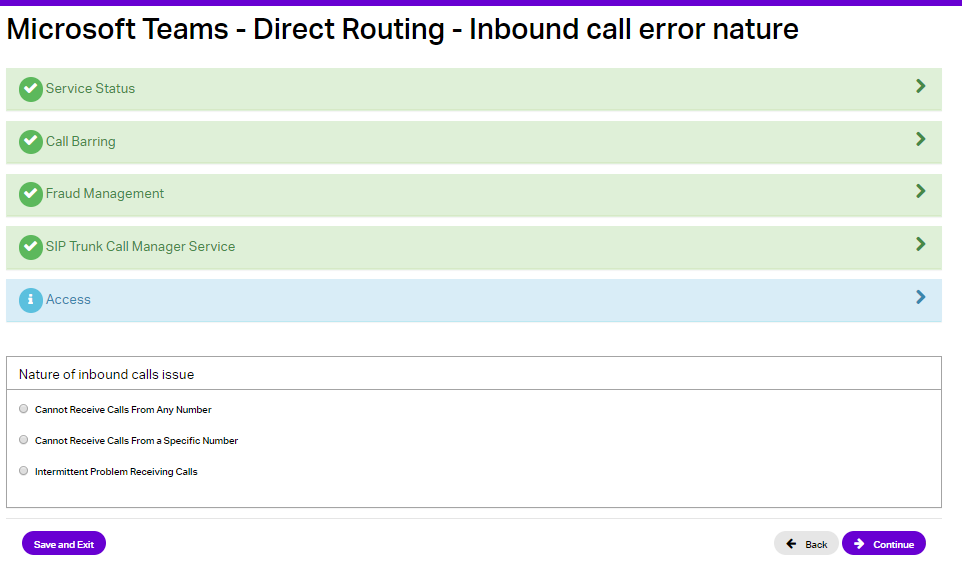
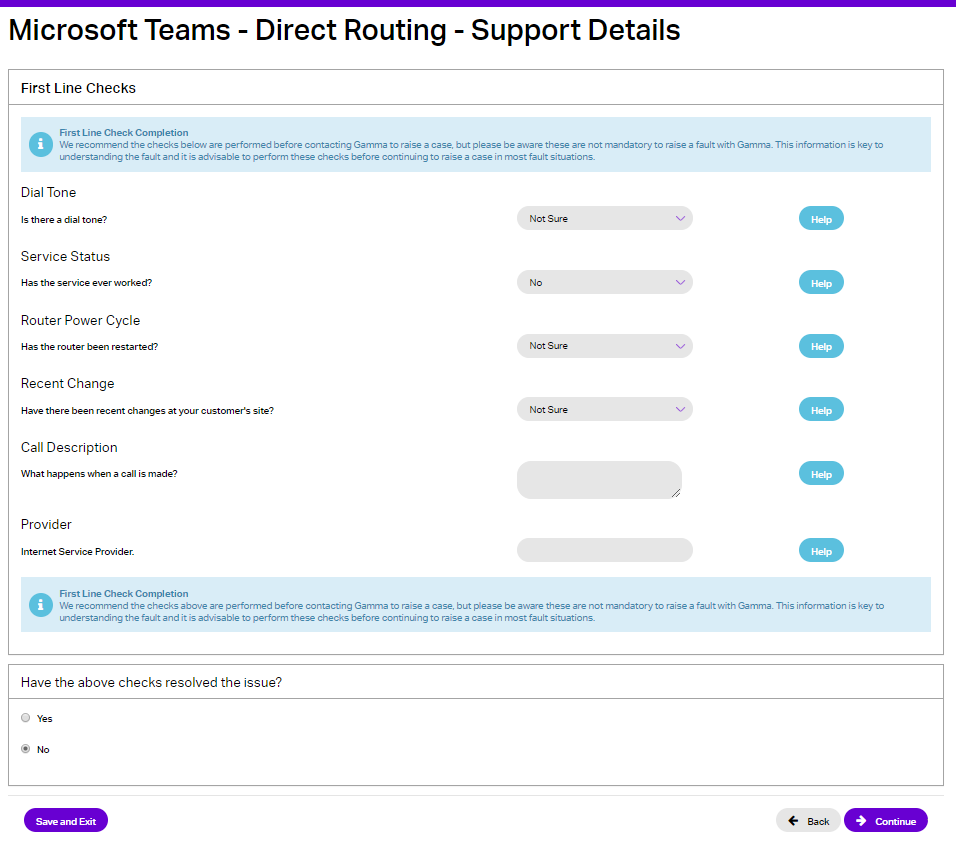
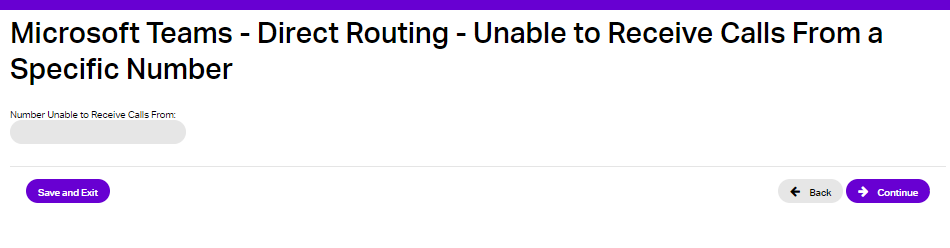
If you are unable to resolve your fault after completing the identified first-line checks, you can continue the journey. This will then raise a ticket to the Service Desk with all the information that they need to start their diagnostic work and they will be in touch shortly.
There is a Problem With Call Quality #
You should always check the underlying internet access that the endpoint runs over for performance issues such as jitter, latency or packet loss. If you are using Gamma access please see our Broadband Technical Support Guide, Assured Technical Support Guide or Converged Technical Support Guide or Ethernet Support Guide.
If all is OK with the access, then you should use the Advanced Diagnostics tool and select the option ‘There is a problem with call quality’ journey.
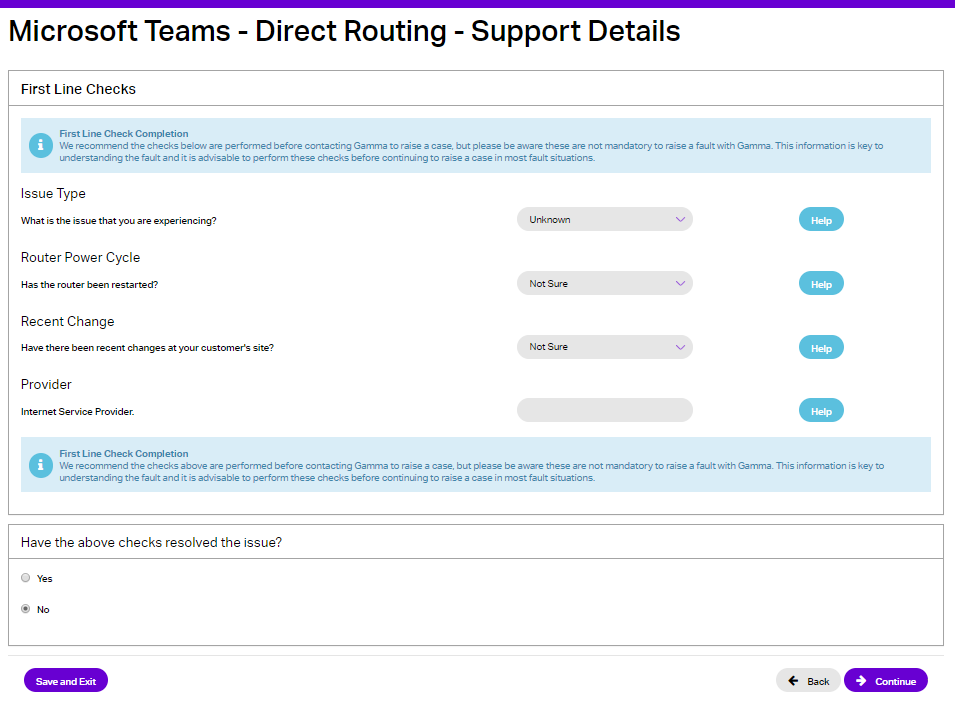
If you are unable to resolve your fault after completing the identified first-line checks, you can continue the journey. This will then raise a ticket to the Service Desk with all the information that they need to start their diagnostic work and they will be in touch shortly.
One-Way Audio #
You should check the underlying internet access that your connection to Azure runs over for performance issues such as jitter, latency or packet loss. If you are using Gamma access please see our Broadband Technical Support Guide, Assured Technical Support Guide or Converged Technical Support Guide or Ethernet Support Guide.
If all is OK with the access, then you should use the Advanced Diagnostics tool and select either the “calling party” or the “called party cannot hear the other (one-way audio)” journey.