
Start a new order #
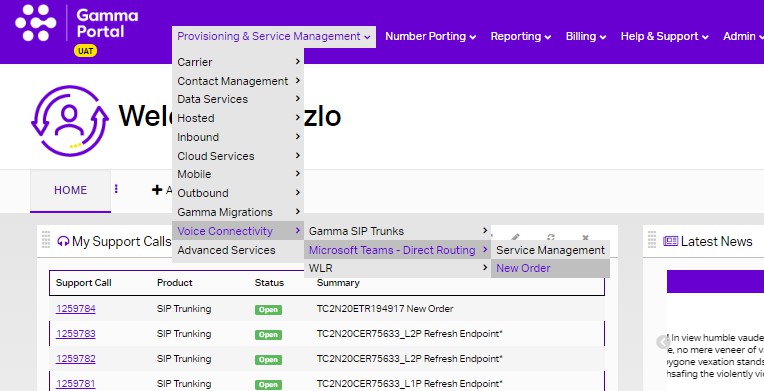
From the Gamma Portal, go to “Provisioning and Service Management”, “Voice Connectivity”, “Microsoft Team – Direct Routing” and “New Order”.
Partner and Customer Details #
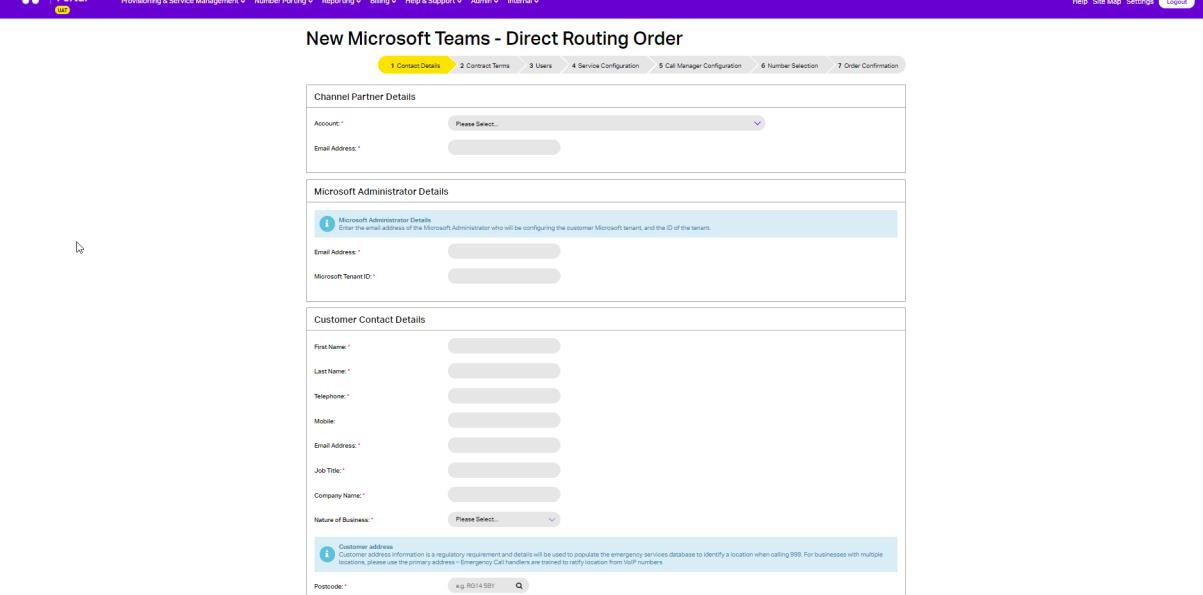
Select the account that you wish to provision the Gamma Microsoft Teams – Direct Routing on and then enter the following details:
- Your email address
- Enter the Microsoft Administrator email address and the Tenant ID in the “Microsoft Administrator Details” table.
- Your customer details go in the “Customer Contact Details” table. The customer contact details must include the name of an individual at the site where calls are being delivered.
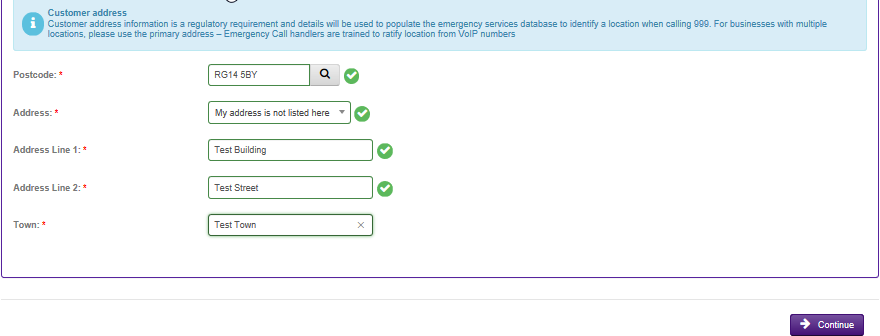
Enter your Access type and then your postcode. Once you’ve entered the postcode hit the magnifying glass, then select your customers address from the drop down. If your customers address is not listed there, select “My address is not listed” and you’ll be able to free type this in.
This will be used for populating the Emergency Services database.
Contract Terms #
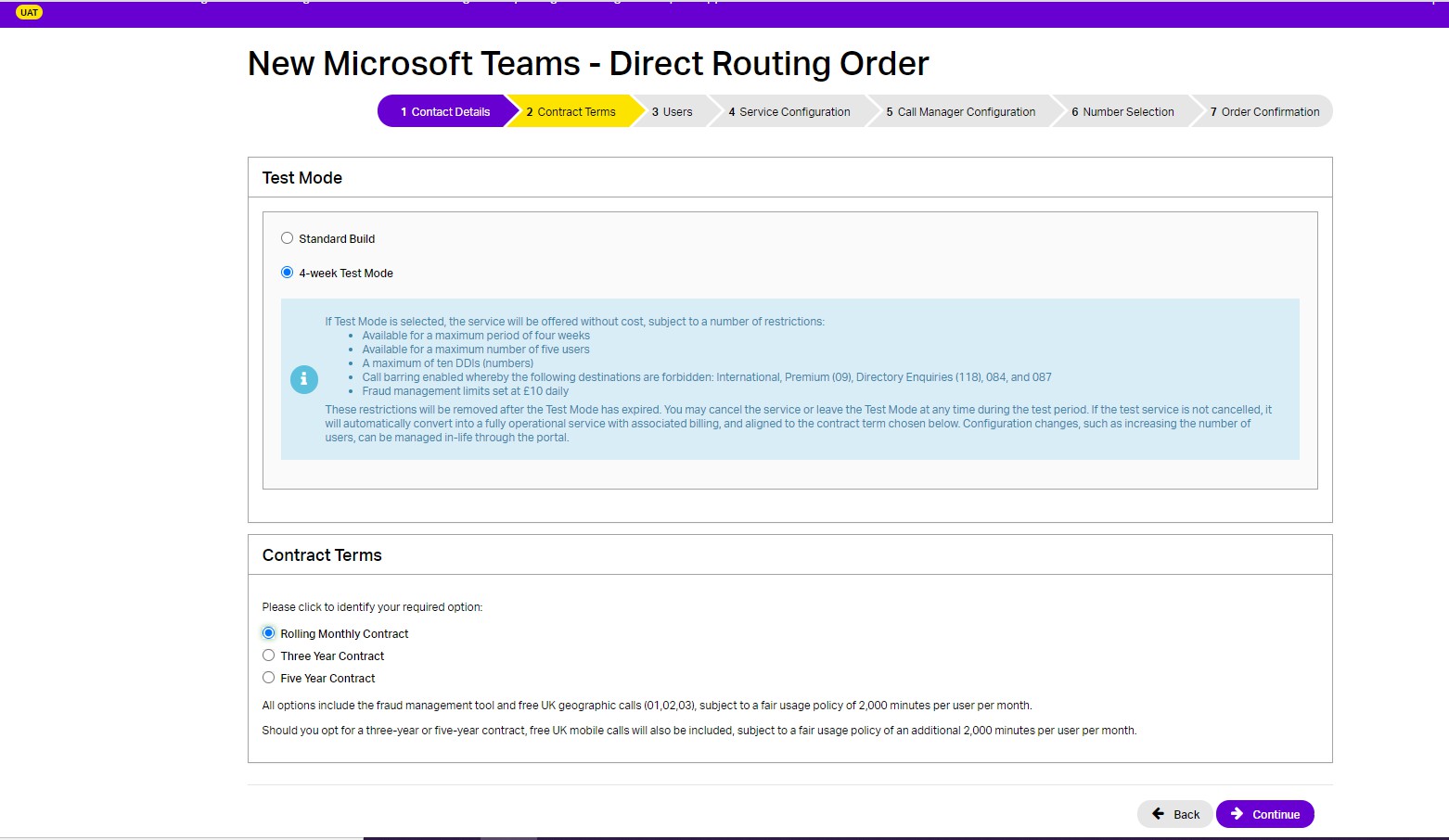
Select the contract terms you wish to apply. Check the service description and the price list. There are three options available:
- One Month Rolling
- Three Year
- Five Years
Test Mode #
There is also a Test Mode option available. If a Test Mode is selected the service will be offered without cost, subject to a number of restrictions:
- Available for a maximum period of four weeks
- Available for a maximum number of five users
- Call barring enabled whereby the following destinations are forbidden: International, Premium (09), Directory Enquiries (118), 084 and 087
- Fraud Management limits set at £10 daily.
The restrictions will be removed after the Test Mode has expired. You may cancel the service or leave the Test Mode at any time during the test period (see In-Life changes section for details). If the test service is not cancelled, it will automatically convert into a fully operational service with associated billing, and aligned to the contract term chosen. Configuration changes, such as increasing the number of users can be managed in-life through the Portal.
Users and Access Type #
Specify the number of Phone System user licenses the end point is to be built for.
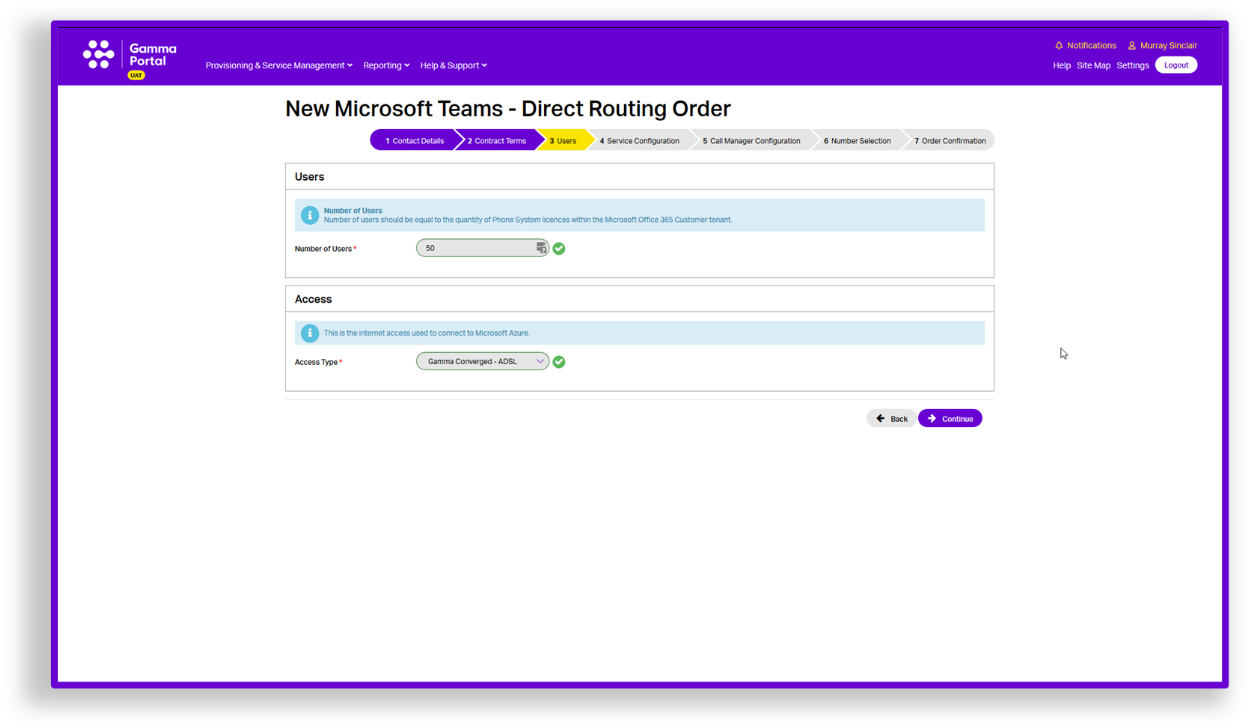
If ordering more than 500 users you will need to email presales@gamma.co.uk for approval.
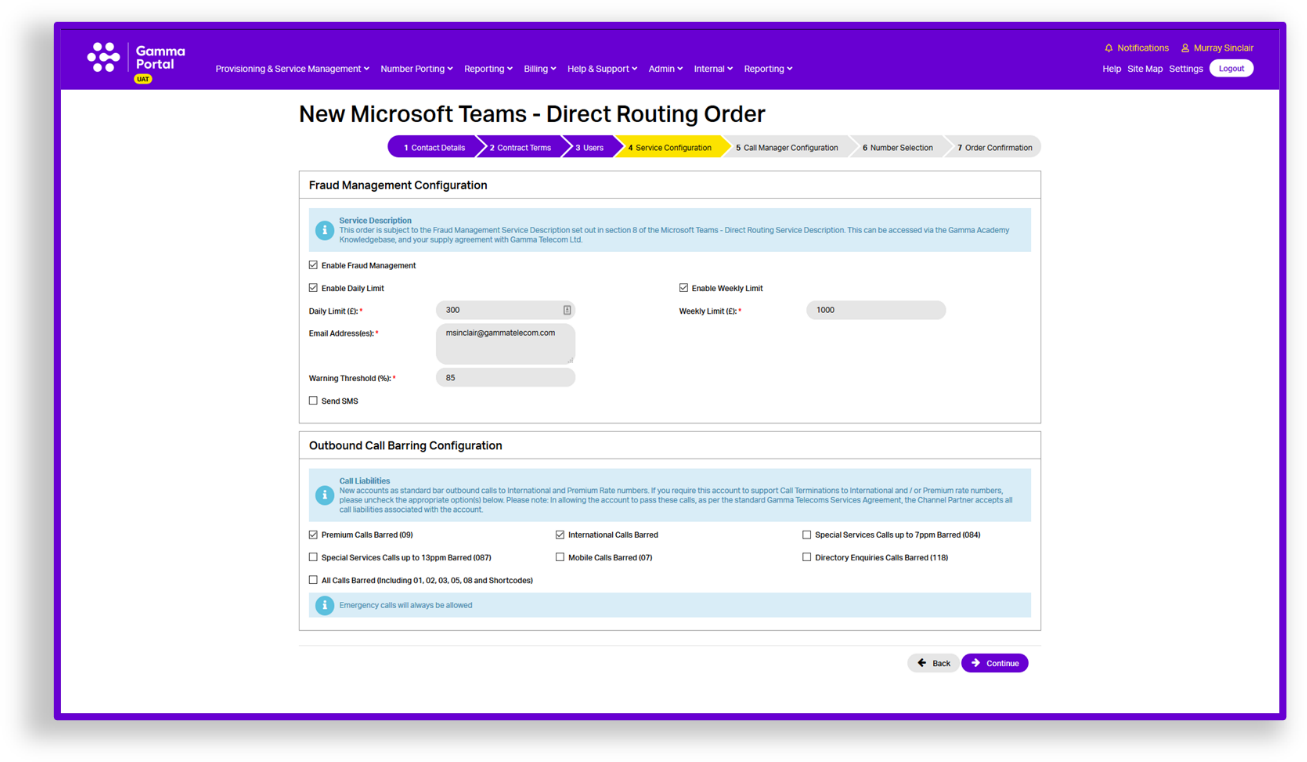
Fraud management and outbound call barring configuration #
You can enable your Fraud Management settings here. If you want to set up Fraud Management and have it go to multiple email addresses, you can do this by separating the email addresses with a semi colon. For example test.person1@gamma.co.uk; test.person3@gamma.co.uk
SIP Trunk Call Manager configuration #
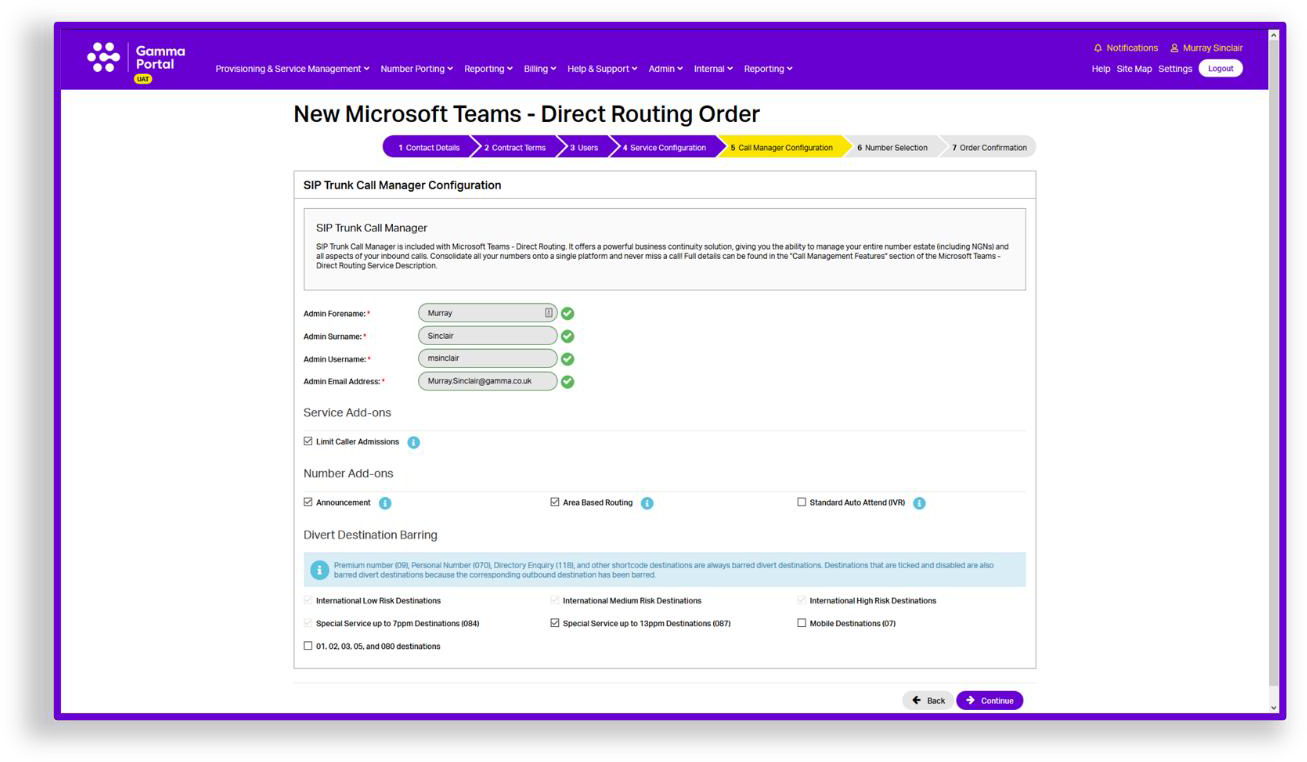
Enter an admin username and admin email address. If the admin user name is already in use then this will be presented to you when you type it in and you will need to enter another username.
You will also be presented with some new options which will help you configure you SIP Trunk Call Manager Service. These options are:
|
Announcement |
Announcements can be combined with an underlying call plan to play a message to the caller prior to the call connecting, or alternatively as a broadcast which plays an announcement, such as notifying the caller of a change of numbers, and then ends the call. |
|
Area Based Routing |
Area nodes are used to define an underlying call routing planning based on the originating telephone number, for a predefined area name consisting of one or more area codes or CLIs. |
|
Standard Auto Attendant (IVR) |
The Interactive Voice Response (IVR) control feature enables the creation of a personalised menu announcement with up to 10 options to be played to the caller, each leading to a defined call routing / action based on the caller’s key press on their keypad. |
|
Call Divert Barring |
This allows you to bar diverts to certain destinations. These are: International Low Risk Destinations International Medium Risk Destinations International High Risk Destination Special Service Numbers (084) Mobile Destinations 01, 02, 03, 05 and 080 destinations For more information on International Destination Risks please see the Billing Home page on the Gamma Portal (Billing Billing Home) |
Number selection #
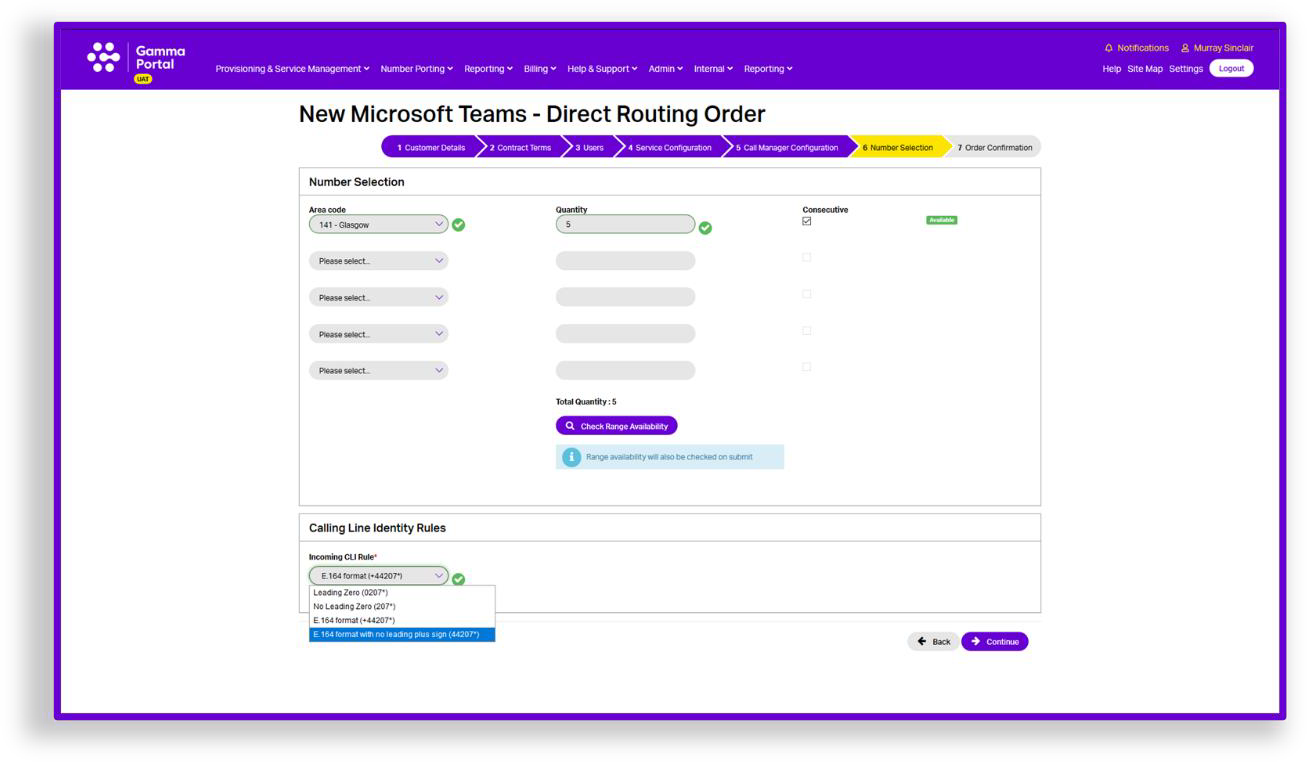
Now you can add Gamma ranged telephone numbers to your new SIP Trunk. Select up to 5 prefixes and the quantity of numbers required for each. Ticking consecutive will ensure you are provided with a consecutive range.
- You must check the availability of the range before proceeding with the order.
- The CLI rules will set the format of the CLI and DDI presented for incoming calls.
 If you require a specific number, you should use the Gamma Number Search under Help and Support to identify what numbers Gamma has available and then use the web
chat facility to get the number allocated to your account.
If there are any unavailable area codes for your selection you’ll be presented with a message that advises there aren’t enough available. To progress the order you should select any available number (which can be used for testing) and when your order is complete then you can contact Number Management who can review number availability.
If you are wishing to port your number(s) to Gamma, then you still need to select one number from an area so that we can set the Endpoint up. Your endpoint also needs to be set up before you place your Geographic Port Order. For more information on porting please see our Gamma Numbers and Porting guide.
- The default format for both CLI and DDIs represented for incoming calls for Direct Routing for Microsoft Teams is E.164 format (i.e. +441618703374).
You can change this to the following:
- Leading zero (i.e. 01618703374)
- No leading zero (i.e. 1618703374)
 Customers should be aware that modifications to the format of the B-number presented to the customer must align with the format currently defined in the
applicable Microsoft calling plan in the customer tenant. If the two formats are not aligned, then calls will fail.
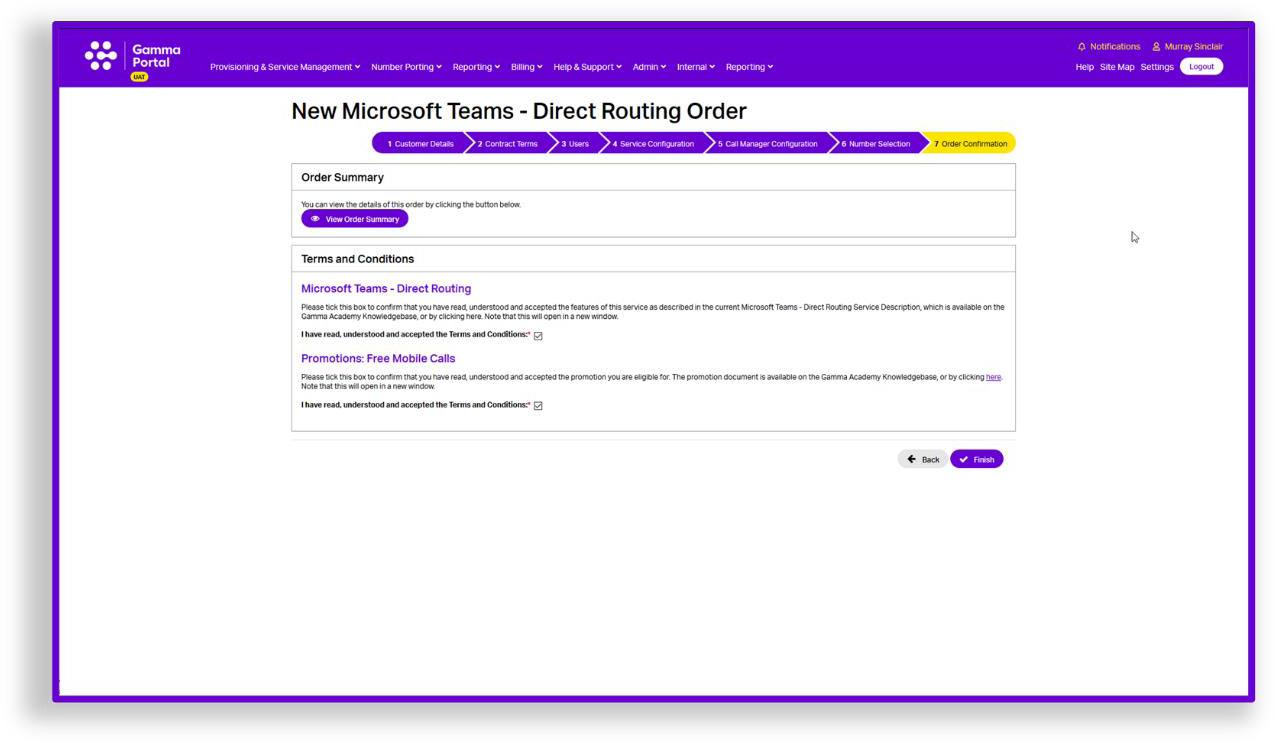
Order summary and terms and conditions #
You should read and accept the terms and conditions and then click Submit. The Gamma portal will now start to build your endpoint and will send you an email when complete.
This email will contain all the information you need to configure your Microsoft 365 tenant for Direct Routing with Gamma.
The email will also contain a link to download and install the Gamma Voice App to auto configure the end user Microsoft Tenant.
Order in progress #
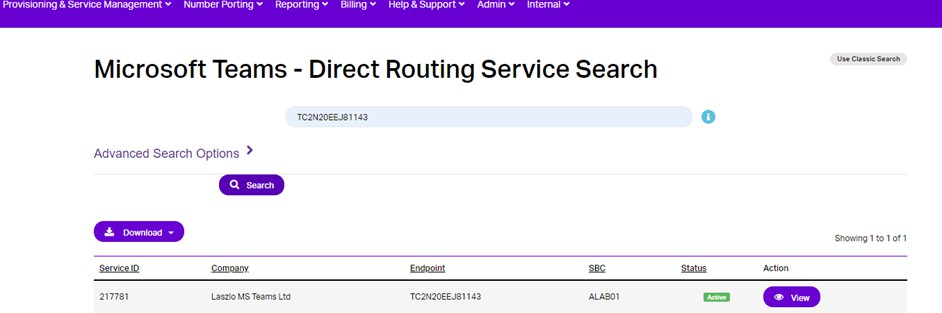
From the Gamma Portal, go to “Provisioning and Service Management”, “Voice Connectivity”, “Microsoft Team – Direct Routing” and “Service Management” to see your order Status.
Set-up Microsoft Teams – Direct Routing with Gamma Voice #
Your order confirmation email will include a link to download and install the Gamma Voice app, Gamma’s solution to auto-configure the End User’s Microsoft Tenant to enable Gamma Microsoft Teams – Direct Routing.
By clicking the link in the order confirmation email the Gamma Voice Download page will be displayed with the user and system requirements to download and set up Direct Routing with the Gamma Voice App.
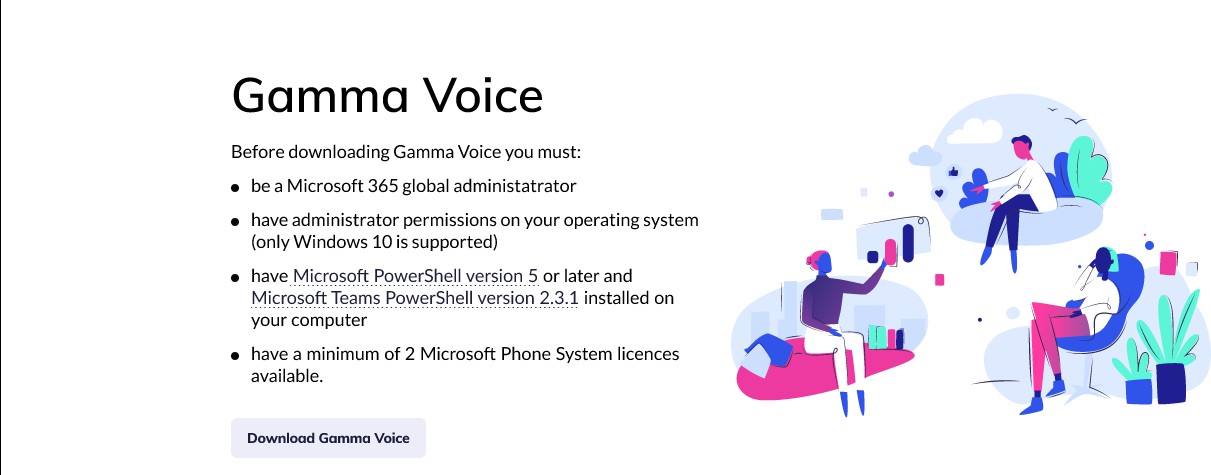
By clicking Download Gamma Voice button the Gamma Voice App setup file will start downloading.
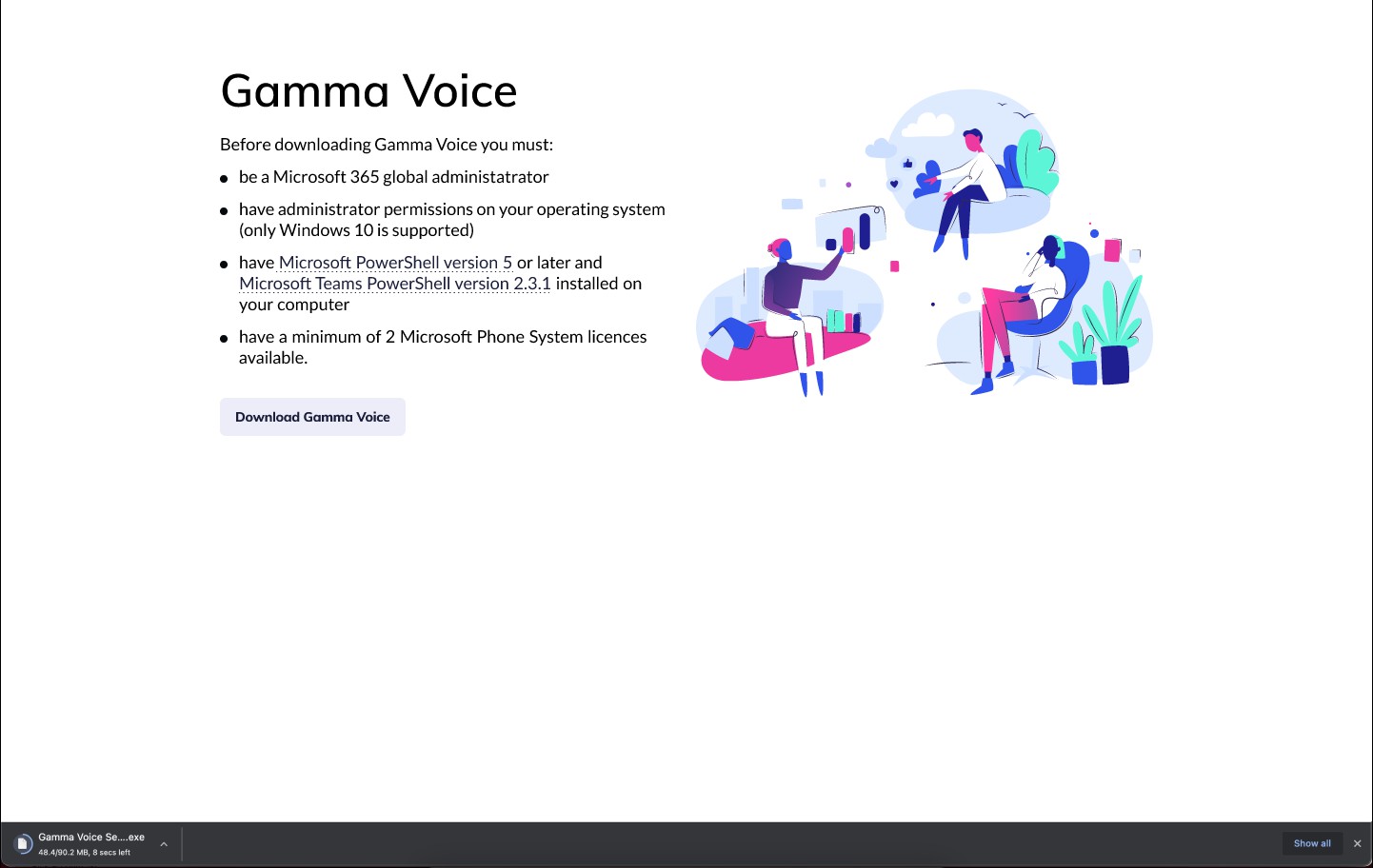
Click the downloaded file and a License Agreement window will pop up. You must agree the License Agreement to install Gamma Voice.

Then you should choose Install Location and finish installation. Once the installation has finished you will be able to configure Microsoft Teams – Direct Routing by using Gamma Voice.
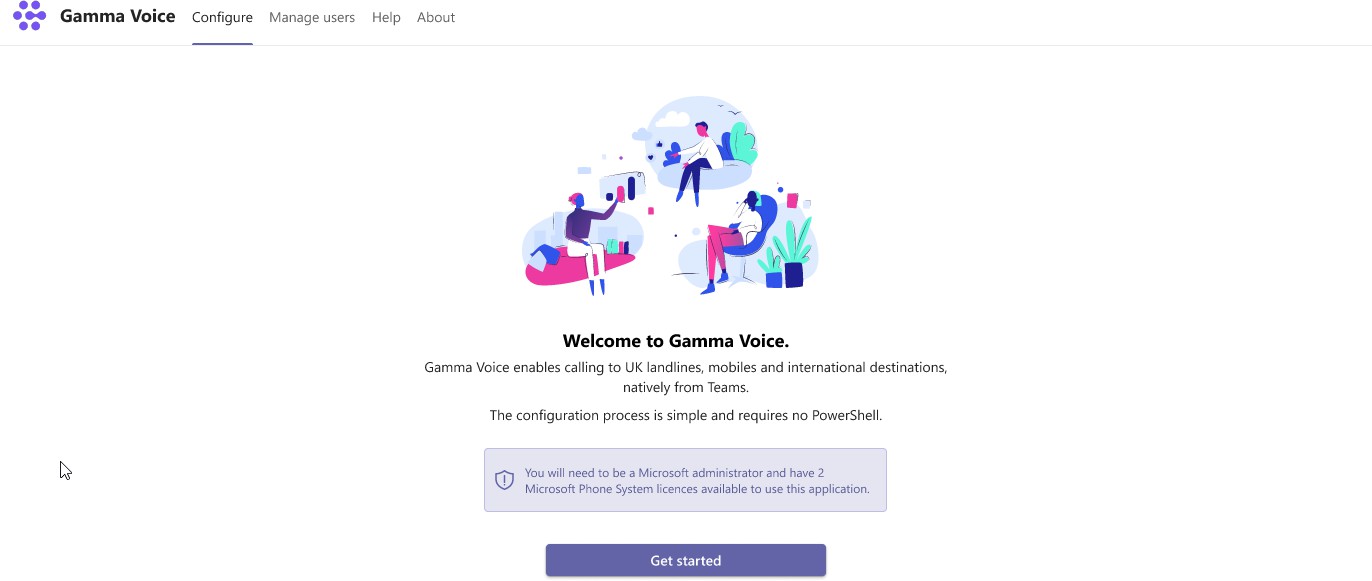
When opening the Gamma Voice App, the Welcome page will displayed and by clicking Get started button you will be able to start configuring your Microsoft Teams Tenant to enable calls from MS Teams.
The app will then prompt you to log in to your Microsoft Account.
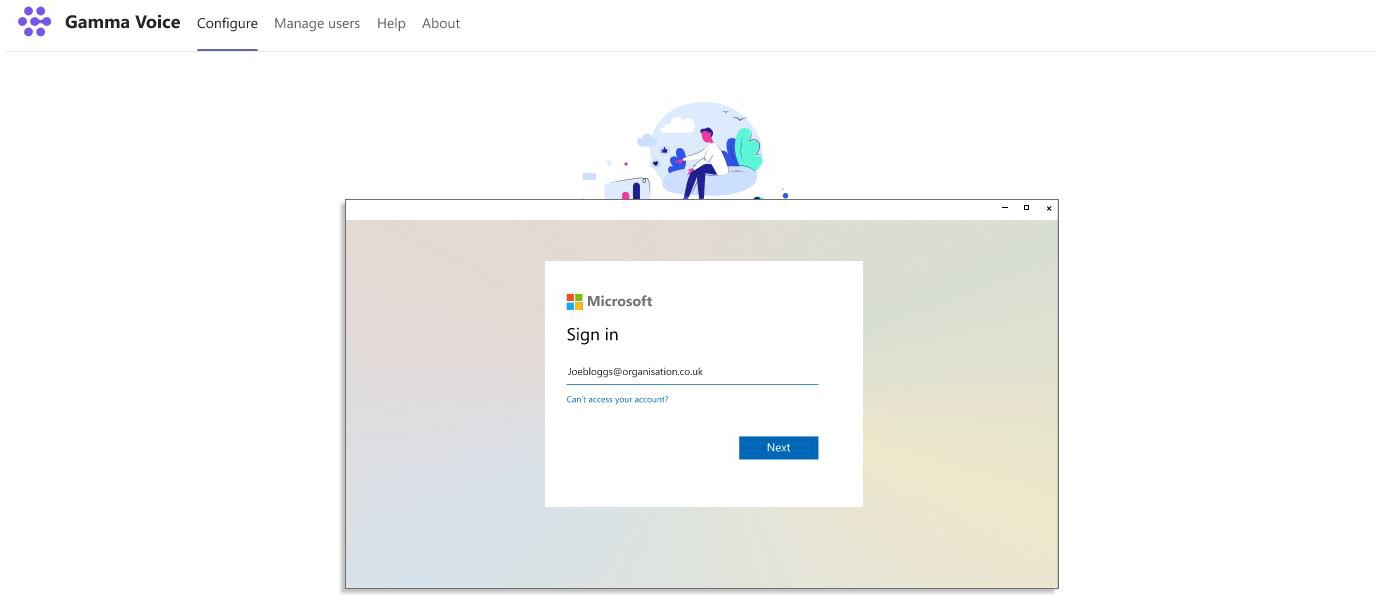
The Gamma Voice App need to access some information in your MS Teams Tenant so that it can configure Direct Routing, so after logging in the Microsoft Account you will be asked to give the App permission to enable this. By clicking Accept you will need to log in to your Microsoft Account again.

Once you signed in, the Company Details page will be displayed. If the correct Company name showing you should confirm this by clicking the tick-box below your Company name and click Continue.
If you believe that not the correct details displayed, please click on the “I don’t recognise these details”.
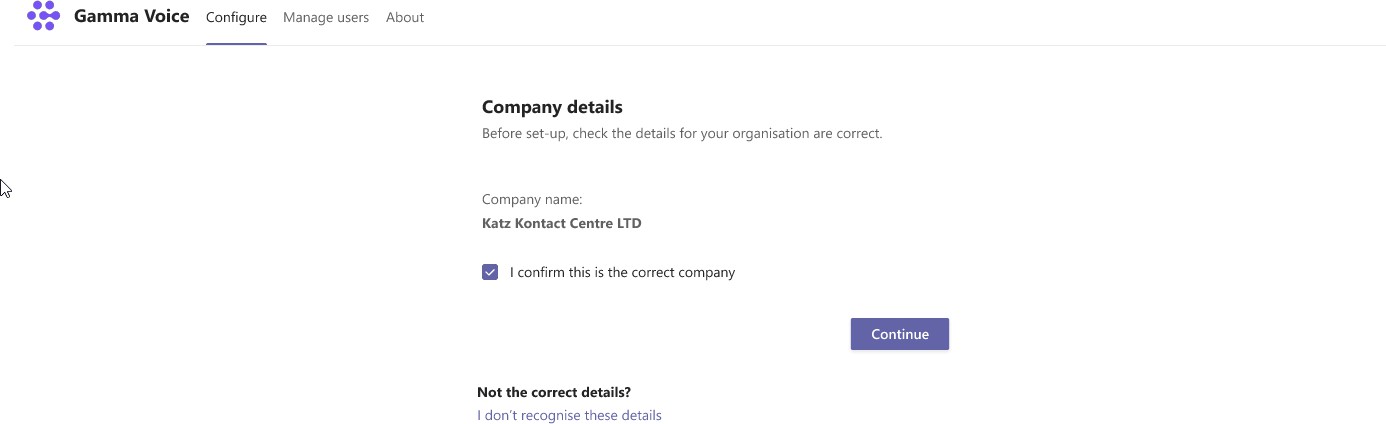
By clicking Continue the App will set-up the Tenant to enable Gamma Direct Routing.

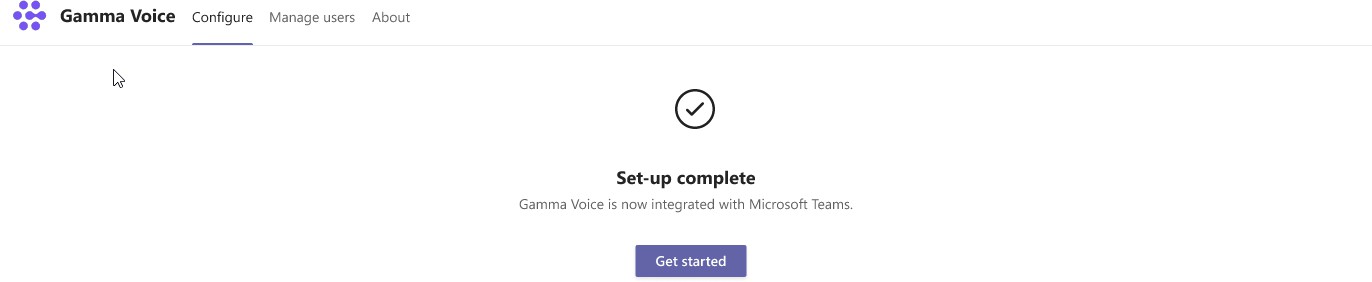
When the set-up is completed, you will be able to assign Gamma Numbers to Microsoft Users by clicking Get started.
The order confirmation email will also detail the domain names (FQDNs) for the Gamma Teams Customer endpoint you ordered, however, those only needed if you configure the Microsoft Teams Tenant without using the Gamma Voice App. To set up Direct Routing without using the Gamma Voice App these two domains must be verified as being hosted by Gamma. The verification process requires the customer Microsoft 365 administrator to generate a set of DNS (TXT name and value) records in their tenant, one set for each domain. You should then contact Gamma support desk to Update DNS Records before you can continue the manual configuration.
