
This guide explains how to set-up Microsoft Single Sign-On (SSO) for your users within the Gamma Portal as well as manage email changes and login restrictions through admin controls.
Limiting Login Types (Admins Only) #
Admins may want to restrict access to SSO only, especially if using company-wide controls like Azure Active Directory.
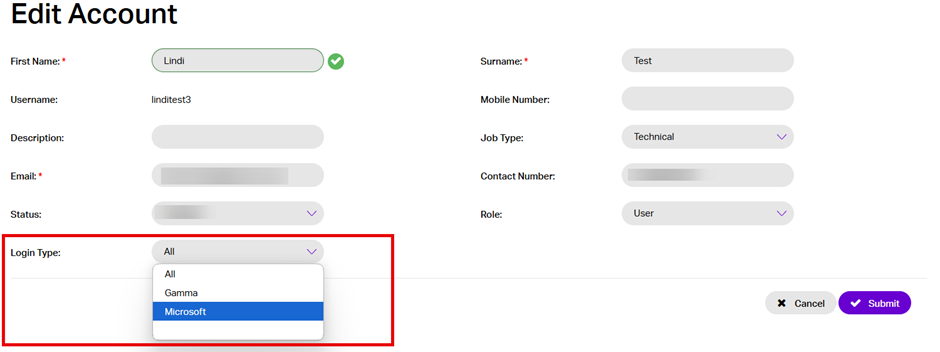
How to Set Login Type:
- Go to Admin > Maintain Accounts
- Search for the user and select Update Details
- Set Login Type:
- Use the Login Type dropdown to choose:
- Gamma = Username & Password
- Microsoft = SSO
- All = Both (default)
- Use the Login Type dropdown to choose:
- Select the preferred option and press Submit
This must be completed for each account individually. There is currently no bulk user action. This is on our roadmap for development in 2026.
Please note: The system is designed for individual user identities, not shared or generic accounts (e.g., broadband provisioning accounts), due to security best practices.
Managing Email Addresses (Admins Only) #
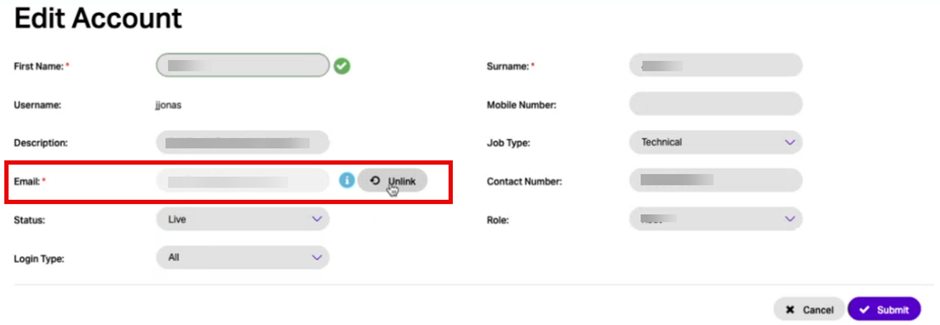
With SSO enabled, users cannot change their own email addresses. Admins must unlink accounts before updating emails.
Step-by-Step:
- Navigate to Admin Panel:
- Go to Admin > Maintain Accounts
- Find the User:
- Search for the user and select Update Details from the Actions menu
- Unlink Email:
- Next to the (greyed out) email address, click Unlink
- Update Email:
- Enter the new email address and press submit
- User Verification:
- The user must verify the new address the next time they use SSO
Multiple Portal Accounts #
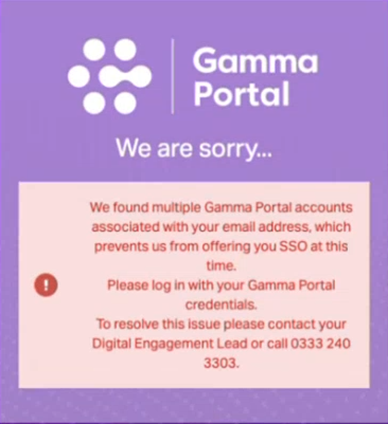
- SSO links accounts via email address. If multiple portal accounts share the same email, SSO will fail for those users.
- Example: If a user has 3 portal accounts all using the same email, the system cannot determine which account to authenticate
- The system will display a descriptive error message when this conflict occurs:
- Each Portal account must have a unique user email. This must also be verifiable within your organisation’s Azure AD/Entra platform for SSO to work. Please note: Plus addressing (e.g., user+alias@domain.com) is not supported—it maps back to the same Microsoft identity and is blocked.
Please note: Plus addressing (e.g., user+alias@domain.com) is not supported—it maps back to the same Microsoft identity and is blocked.
