
Gamma uses industry-standard OAuth 2.0 federation through Google Cloud based on linking a Google/your organisation identity to a Gamma Portal account.
Each login attempt is validated against your Google Workspace at the point of authentication to the Gamma Portal, a popular SSO pattern found in many SaaS (Software as a Service) portals and platforms.
Setting up the Gamma Portal with Google SSO #
The Gamma Portal Administrator within your organisation has control over the permitted authentication methods for each Portal user. Each account can be configured to allow:
- Portal credentials only
- Microsoft SSO only
- Google SSO only
- Both Google and Microsoft SSO options
- Any method.
For maximum security, we recommend configuring accounts to either Microsoft or Google SSO where possible. This will:
- Disable the Portal username/password authentication for users
- Forces all authentication through your Google Workspace
- Ensures your active directory policies (such as MFA – multifactor authentication) are always enforced.
Once your Gamma Portal account is set up for Google SSO, there is no way to bypass Google authentication by entering traditional Gamma Portal credentials, and all users must authenticate through your organisation’s Google Workspace.
What happens if I delete a user in Google Workspace? #
When you disable or delete a user in Google Workspace who accesses the Gamma Portal via Google SSO only, then that user will no longer be able to authenticate (log in) to the Gamma Portal, as the authentication request will be denied by Google.
This will prevent future login attempts by the user, but it won’t immediately end their active Gamma Portal session.
Multi-Factor Authentication (MFA) #
Multifactor authentication is enforced through your Google Workspace security settings (or Google Admin console), leaving you fully in control.
Google Single Sign-On from the Gamma Portal #
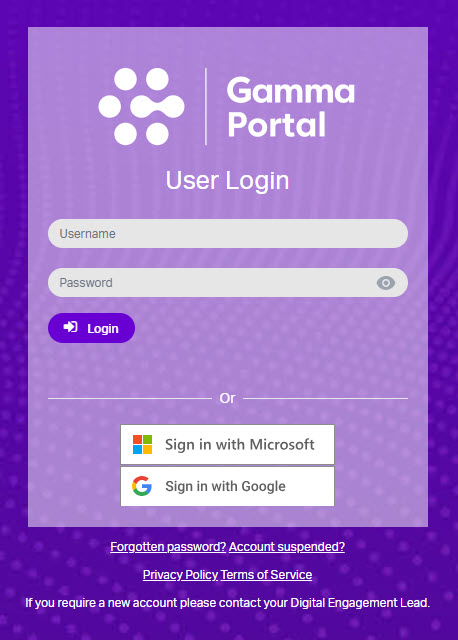
Once configured, you will be able to link your Google account to your Gamma Portal account – enabling secure and convenient access through Google Single Sign-On (SSO).
To activate this feature, simply link your Google email address to your Gamma Portal account and complete the email verification process.
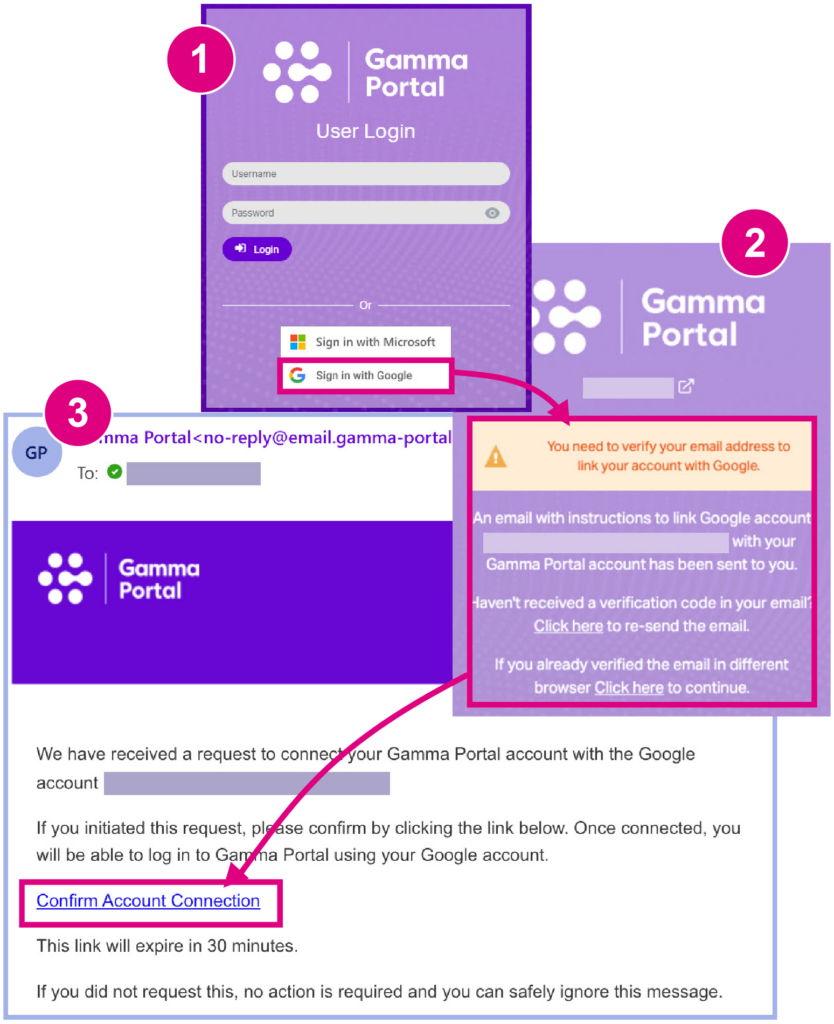
Remember, you have the flexibility to decide whether to enable SSO and to what extent. Please note that you can continue to log in using your existing username and password if preferred.
This enhancement represents a significant step forward in improving both the security and usability of the Gamma Portal.
What happens if I have multiple Gamma Portal accounts? #
Single Sign-On (SSO) links accounts via an email address. If multiple Gamma Portal accounts share the same email, this will cause SSO to fail.
If SSO fails, the Gamma Portal will display a descriptive error message:
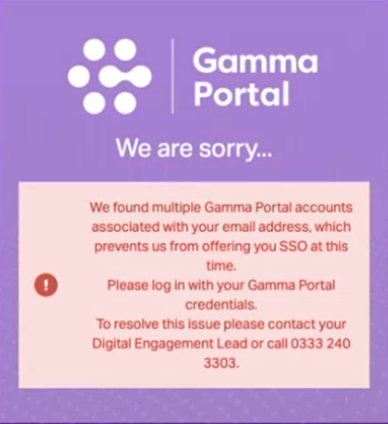
For example, if you have three Gamma Portal accounts (all using the same email) then the system will not be able to determine which account to authenticate, resulting in the error you see above.
It is therefore recommended that each Gamma Portal account has a unique user email associated with it. This must also be verifiable within your organisation’s Google Workspace platform for SSO to work.
Frequently Asked Questions #
1. Can I still use my username and password?
Yes, unless your administrator restricts your account to SSO only.
2. What if I need to change my Gamma Portal email?
Please contact your Digital Engagement Lead or account administrator to unlink and update your email.
