
This guide explains how to sign into the Gamma Portal using Microsoft Single Sign-On (SSO).
Logging in with Microsoft Single Sign-On #
- Access the Gamma Portal
- Go to the Gamma Portal login page
- Choose Your Login Method
- You will see two options:
- Standard Login: Enter your username and password as usual
- Sign in with Microsoft: Click this button to use your Microsoft account
- You will see two options:
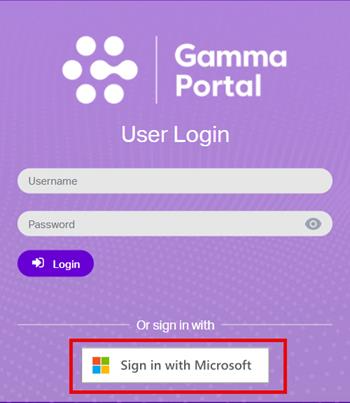
Note: You can continue using your existing username and password if you prefer (unless your administrator restricts access to Microsoft SSO only).
Linking Your Microsoft Account #
- Start the Linking Process
- Click Sign in with Microsoft
- Grant Permissions
- Accept the permissions requested by Gamma Portal for SSO
- Verify Your Email
- An email will be sent to your Portal account address
- Click the verification link in the email to activate SSO
- Once verified, you can use the “Sign in with Microsoft” button for future logins
Multiple Portal Accounts #
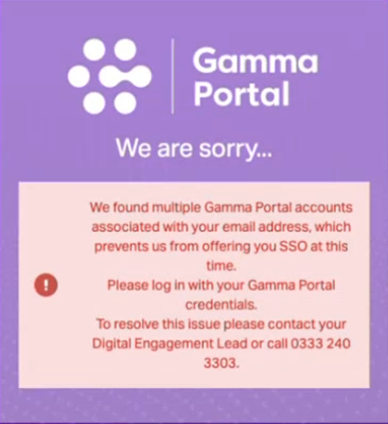
- SSO links accounts via email address. If multiple Portal accounts share the same email, SSO will fail .
- Example: If you have 3 Portal accounts all using the same email, the system cannot determine which account to authenticate
- The system will display a descriptive error message when this conflict occurs:
- Each Portal account must have a unique user email. This must also be verifiable within your organisation’s Azure AD/Entra platform for SSO to work.
Frequently Asked Questions #
- Can I still use my username and password?
- Yes, unless your admin restricts your account to SSO only.
- What if I need to change my email?
- Contact your Digital Engagement Lead/Admin to unlink and update your email.
Support #
For further help, contact your organisations Digital Engagement Lead in the first instance.