
After completing a Webex order for a customer company through the Gamma Portal, you will gain access to the Webex Control Hub to begin Webex configuration for your end user company.
This article explains how to manage Webex companies within the Gamma Portal.
Overview #
Once a Webex company has been successfully ordered, additional management options become available in the Gamma Portal. These options allow you to:
- View company details
- Cease a company
- Manage locations
- Assign numbers
- Allocate or unallocate subscriptions
- Configure fraud management
- Provision hardware.
1. Accessing the Company Management Page #
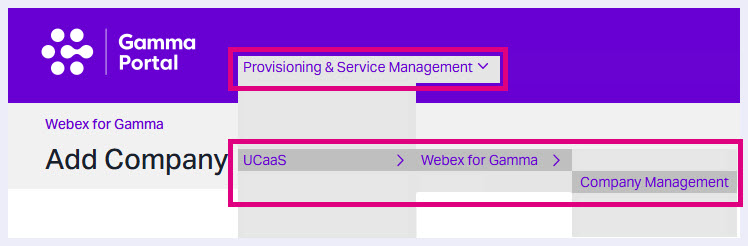
To navigate to the Company Management page:
- Log in to the Gamma Portal.
- Go to:
- Provisioning and Service Management
- UCaaS
- Webex for Gamma
- Company Management
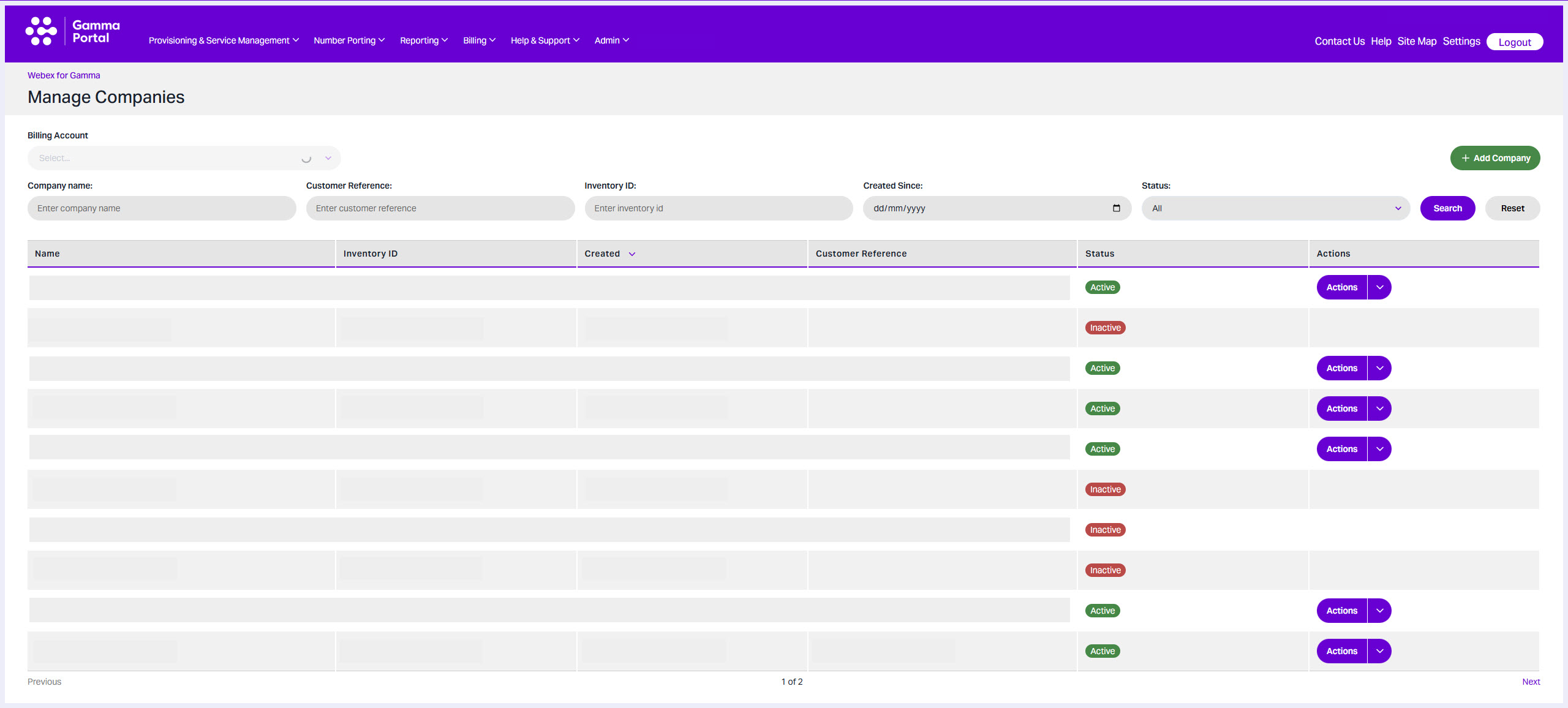
- Select your Channel Partner account to view all purchased Webex companies. Details will appear in the table below.
2. Using Filters #
If your account manages multiple Webex for Gamma companies, use the filter options to narrow your search.

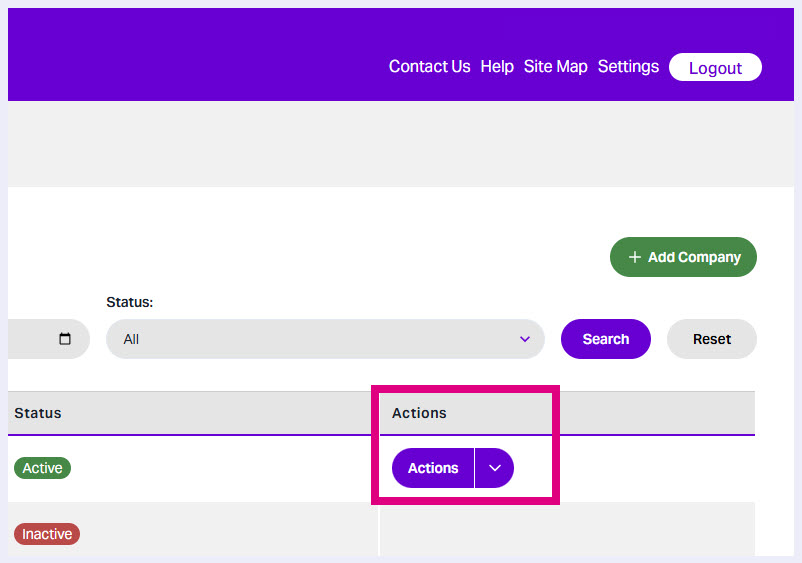
Once you locate the desired company, click the Actions drop-down menu to view available management options.
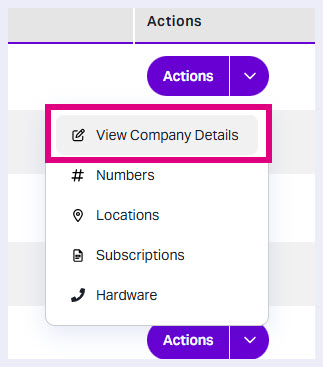
3. View Company Details #
To review company information:
- Click the company row, or
- Select Actions > View company details.
Here you can see:
- Customer company name
- Associated Partner account
- Company status (such as ‘Active’, ‘Inactive’, ‘Pending’)
- Account controls.
4. Cease a Company #
To terminate a Webex company:
- In the Overview tab, click Cease company
- Provide a reason for termination.
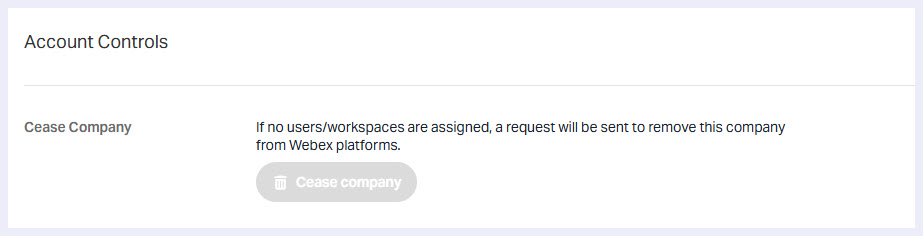
Important: Once ceased, all related data is deleted. If the company returns to Webex for Gamma, it must be provisioned from scratch.
5. Manage Locations #
The Locations tab displays the location created during the order process.
You can:
- Amend existing locations
- Add additional locations.

Note: Location management is only available in the Gamma Portal. Control Hub allows viewing but not editing locations. This ensures accurate emergency service assignments.
All locations created in the Gamma Portal will appear in Control Hub under ‘Locations‘.
5. Delete Locations #
Once a location has been created, it can be deleted by navigating to the Locations tab and selecting Actions > Delete Location.
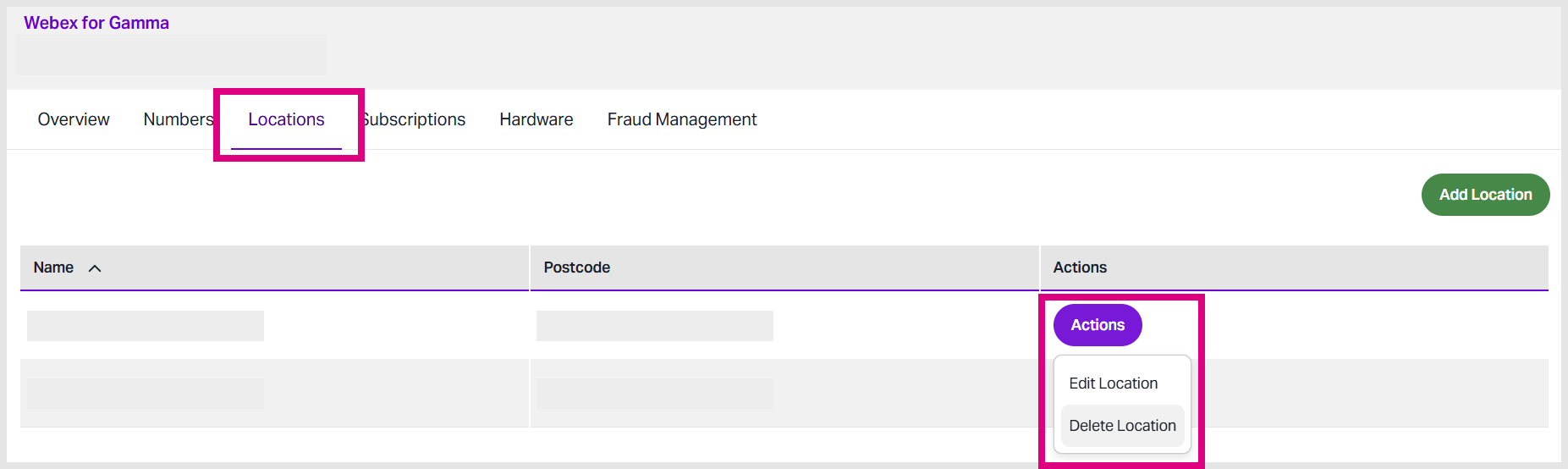
On this page, you can review key location details, including the name and address. You will also see a list of any users, workspaces, and/or virtual lines (or numbers) assigned to that location.
If users or workspaces are currently assigned to the location, they must first be removed in Webex Control Hub before the location can be deleted.
Any assigned numbers will also need to be either reassigned or deleted from the Location Numbers section below.
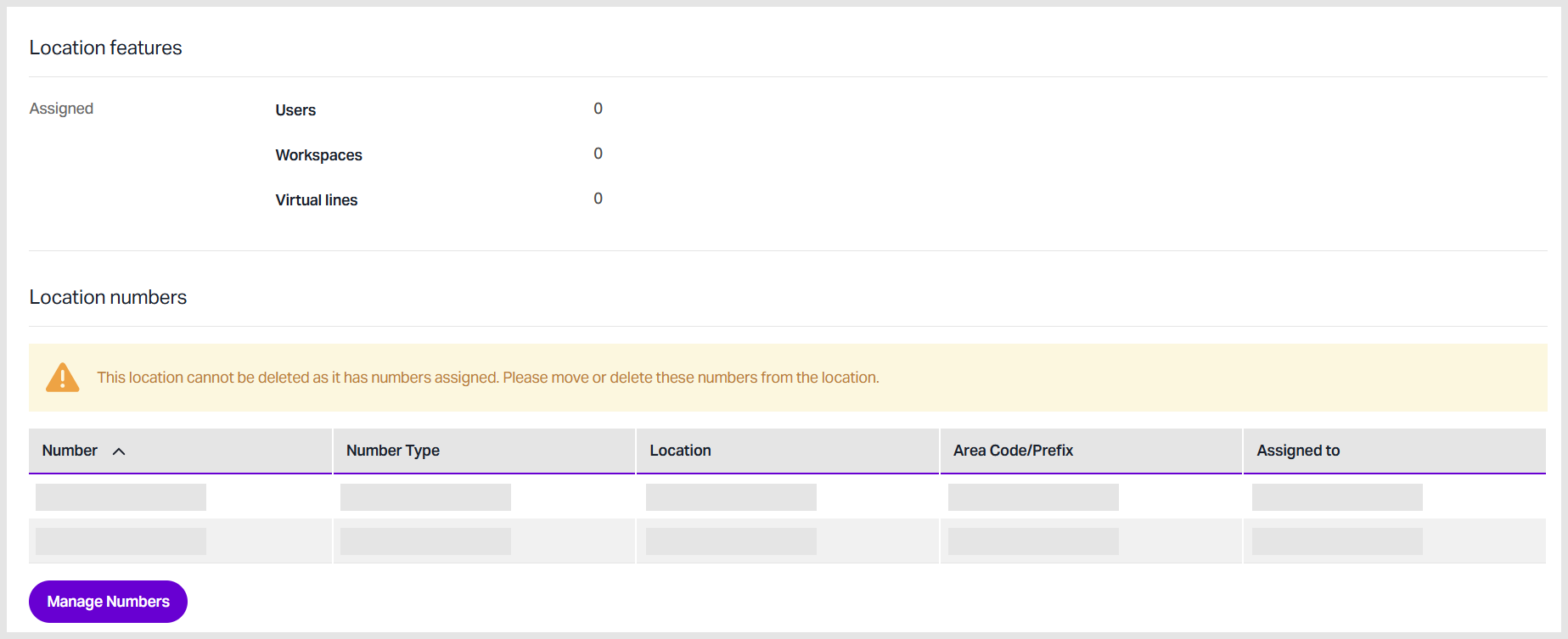
Please note that a location cannot be deleted while users, workspaces, or numbers remain assigned to it.
7. Assign Numbers #
Adding numbers is essential after provisioning Webex. To assign numbers:
- Go to the Numbers tab
- Click Add Numbers.

- Select the location and provide:
- Number type (geographic or non-geographic)
- Area code
- Quantity (up to 60 at a time)
- Optionally, tick Range for grouped numbers
- Here, you can claim a service number, often used to manage concurrent calls. Service numbers can later be assigned or unassigned to users as required.
- Click Confirm order.
Once assigned, numbers can be set as main numbers in Control Hub. Back in the Portal, you will now see options to delete numbers, add additional numbers, or move existing numbers between locations. You can also assign or unassign service numbers as needed.
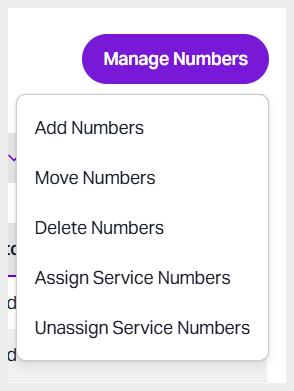
Any number currently assigned as a service number will be clearly indicated in the Number Type column.
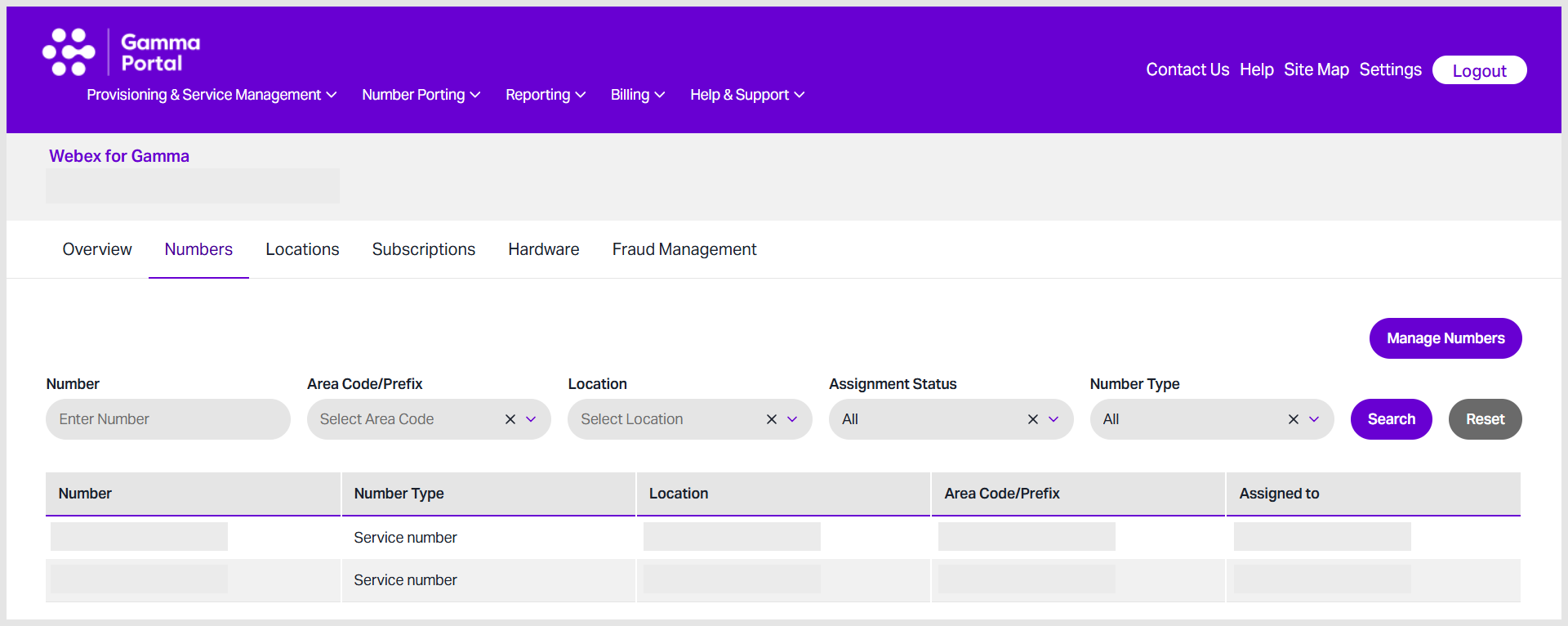
Note: Main numbers cannot be deleted until they have been removed in Webex Control Hub.
7. Allocate or Unallocate Subscriptions #
Under Subscriptions, you can:
- View all subscriptions for the company
- Order additional subscriptions at original terms
- Unallocate subscriptions
- Renew subscriptions via the Actions menu.
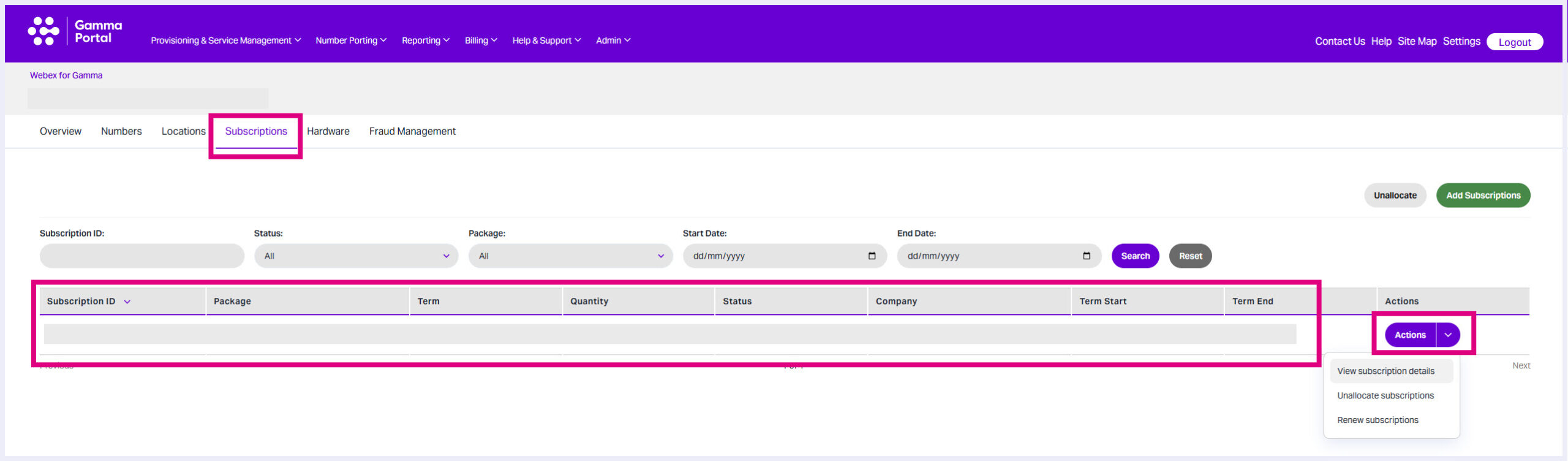
Subscriptions also appear in Control Hub under Management > Account.
8. Fraud Management #
Enable, disable, or adjust fraud management settings, including:
- Daily spending limits
- Warning percentage thresholds.

Configuration of fraud management follows the same process as during provisioning. For further details, refer to the Webex for Gamma Provisioning video on the Gamma Academy.
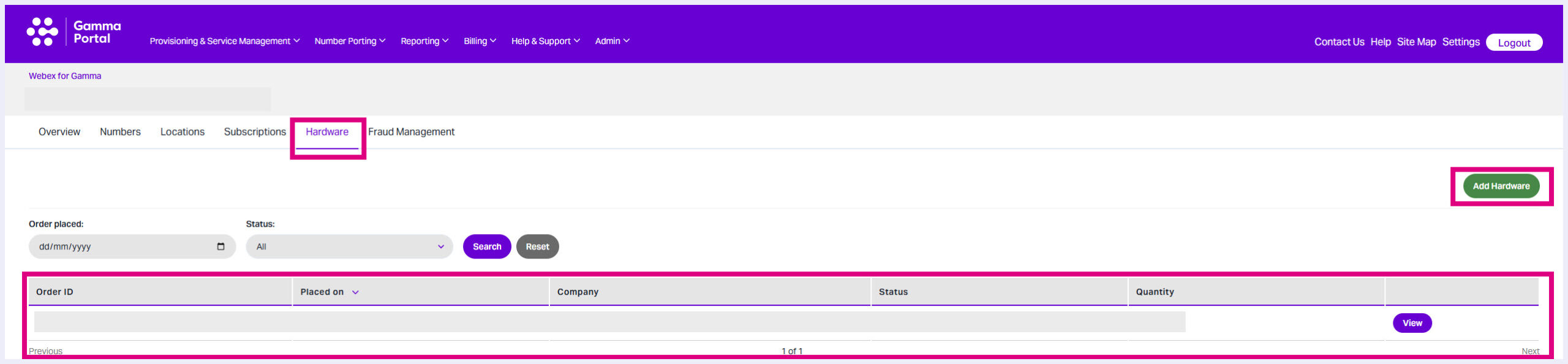
9. Hardware Provisioning #
The Hardware Provisioning tab allows you to add devices to an order at any time.
Conclusion #
Gamma Portal order management features apply to overall Webex setup. For location or user-specific configurations, use Webex Control Hub.
