Introduction #
Once you have provisioned your first Webex company, you will gain access to Webex Control Hub, where you can configure services for your end-user customers. This guide provides step-by-step instructions to help you complete the provisioning process efficiently.
Step 1: Access the Gamma Portal #
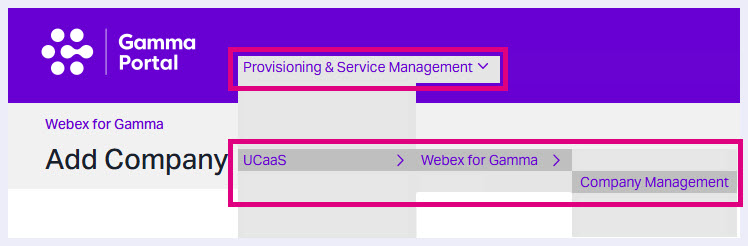
Log in to the Gamma Portal. Navigate to Provisioning and Service Management, select UCaaS, then click Webex for Gamma.
Step 2: Create a New Company #
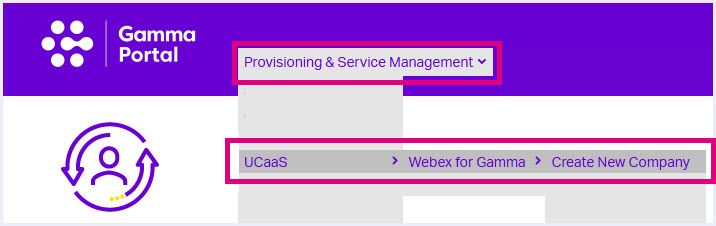
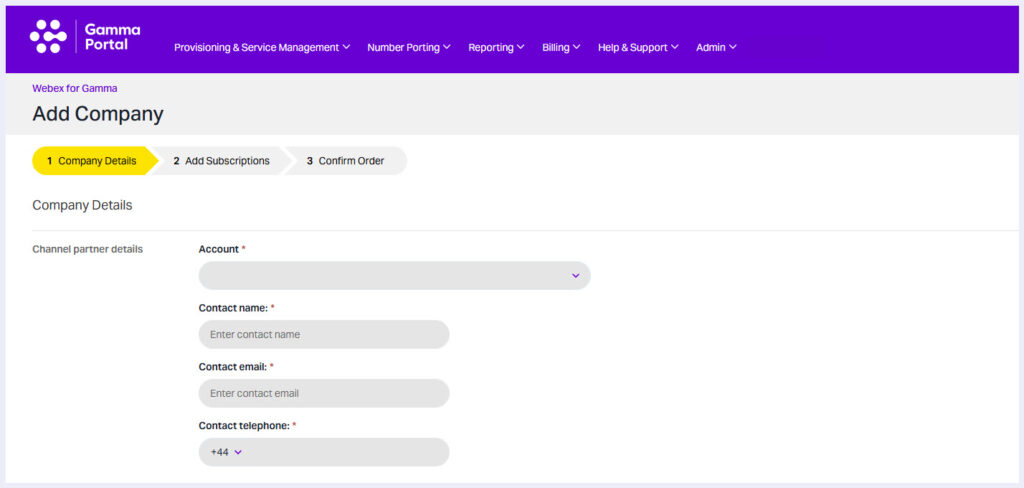
Click Create New Company or go to Company Management and select + Add Company. Complete the Channel Partner details, including:
- Partner account
- Main contact name
- Email address
- Telephone number.
Step 3: Add Customer Company Details #
Enter the customer company name. Optionally, add a customer reference number (free text field) to help manage Webex orders.

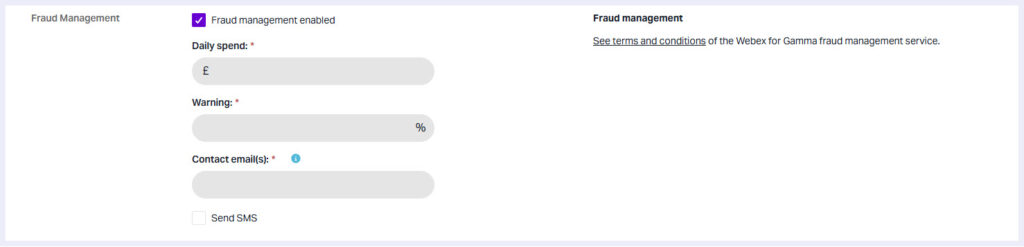
Step 4: Configure Fraud Management #
Webex for Gamma allows custom fraud management settings:
- Set a daily spending limit and a percentage threshold for alerts.
- Add contact channels (email or SMS) for notifications.
- Important:
- Warning threshold must be 10% or above
- There is no limit on daily spend
- Suspensions cannot be enforced if the spend limit is exceeded
- Monitor alerts via your chosen contact method.
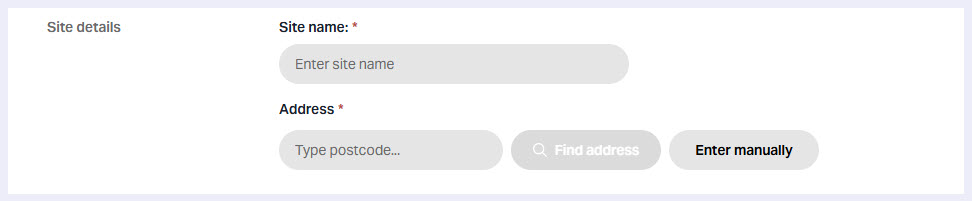
Step 5: Add Site Details #
Define a default site or primary location for the Webex company.
Step 6: Add Administrator Details #
- Provide a unique administrator email address for the end-user company.
This email will be used to set up the Webex Control Hub account.
Click Continue when ready to proceed.

Step 7: Purchase Webex Subscriptions #
You can:
- Buy new subscriptions for a company order, or
- Allocate subscriptions from an existing pool.
Subscription Options #
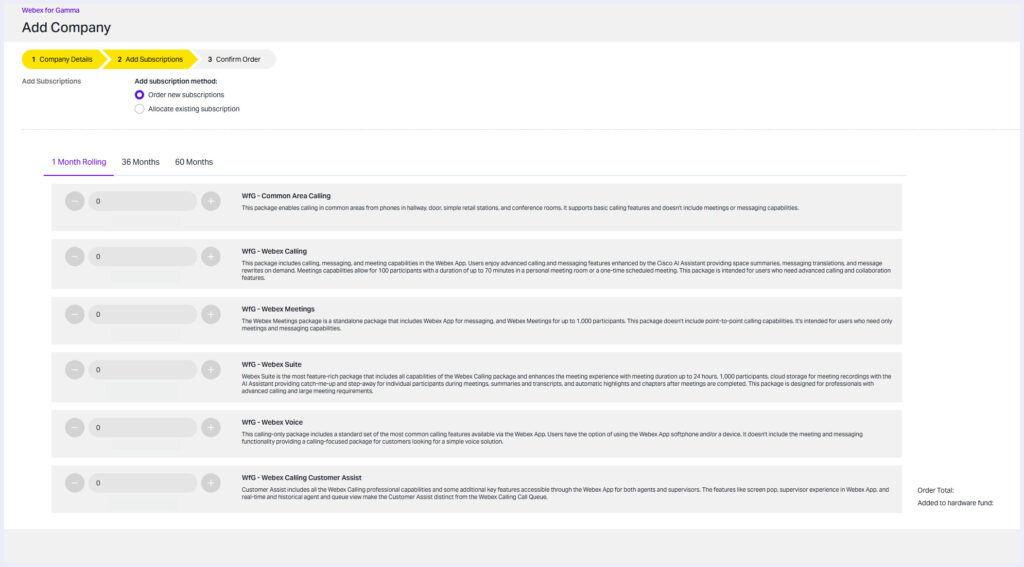
Webex for Gamma packages include:
- Common Area Calling
- Webex Voice
- Webex Calling
- Webex Calling: Customer Assist
- Webex Suite
- Webex Meetings
Discuss options with your customer to ensure they select the most suitable package.
For New Webex Customers #
- Choose a contract term:
- 1-month rolling
- 36 months
- 60 months
- Select the quantity of subscriptions.
- Review your basket and click Continue.
Hardware Fund #
When provisioning a company on a 36 or 60 month contract, you’ll have the option to include a hardware fund contribution.
If your customer wishes to source their own hardware, then these contracts will be offered at a lower monthly rate. Prices per month vary based on the contract term you choose. These details will be visible next to each subscription type.
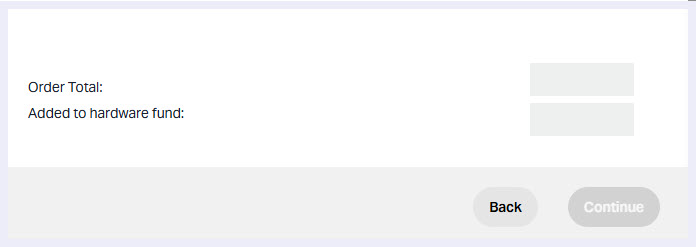
Next, select the quantity of subscriptions needed. If you wish to add or remove any later, you can do so from the basket the right of the screen. If your company has selected a hardware fund, the contribution will be calculated here and shown again at the end of the ordering process before you continue.
For Existing Webex Customers #
- Allocate existing subscriptions to the new Webex company.
Step 8: Review and Confirm #
- Double-check all details.
- Accept the terms and conditions.
- Click Confirm Order.
Order Tracking #
- Track your order on the Manage Companies page.
- You will receive confirmation emails from Gamma and Cisco.
- Processing may take up to 24 hours.