
Webex for Gamma‑configured hardware can be provisioned for your customer’s organisation through the Gamma Portal, within the dedicated Hardware Ordering section.
This article provides step‑by‑step instructions to complete a hardware order for your customer company.
1. Start on the Gamma Portal #
To order a device for a new Webex for Gamma company, log in to the Gamma Portal. There are two ways to begin the hardware ordering process:
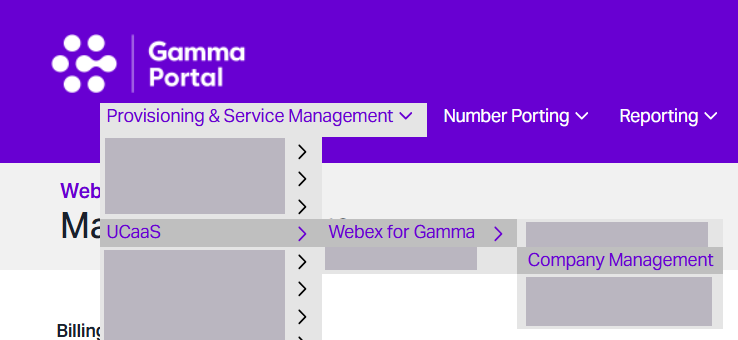
Entry point 1: Provisioning & Service Management > UCaaS > Webex for Gamma > Hardware Orders.

Entry point 2: Go to Provisioning & Service Management > UCaaS > Webex for Gamma > Company Management (this step applies to existing Webex for Gamma companies).
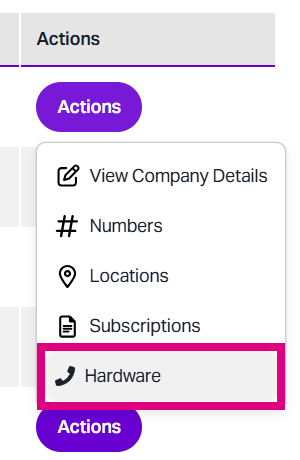
When ordering hardware from the Company Management page, open the ‘Actions’ menu and select ‘Hardware’.
2. The following steps apply to both entry points #
Select your Channel Partner (Billing) account.
Click the green ‘Add Hardware’ button located on the right side of the screen.
If you are ordering a device from the ‘Hardware Orders’ page, select your Channel Partner account from the drop‑down menu that appears (this selection will already be in place if you are provisioning hardware via the Company Management route.)
A list of available devices will then be displayed. Unavailable devices will also appear in this list; however, you can disable the Show out of stock items toggle if you wish to view only in‑stock devices.
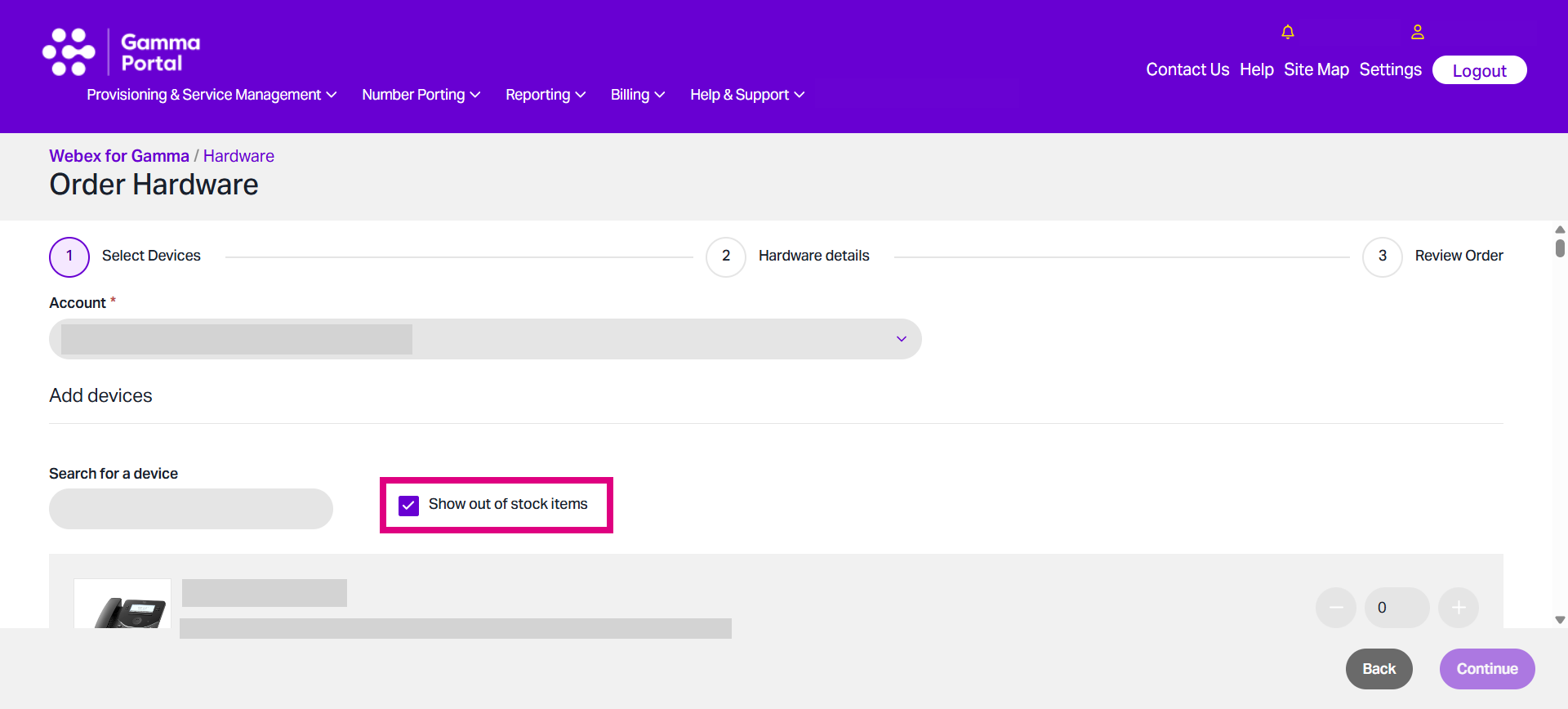
You can also manually search for a specific device.
Each available device is displayed with its unit price and an option to specify the quantity to be added to your order. Enter the required number of units in this section.
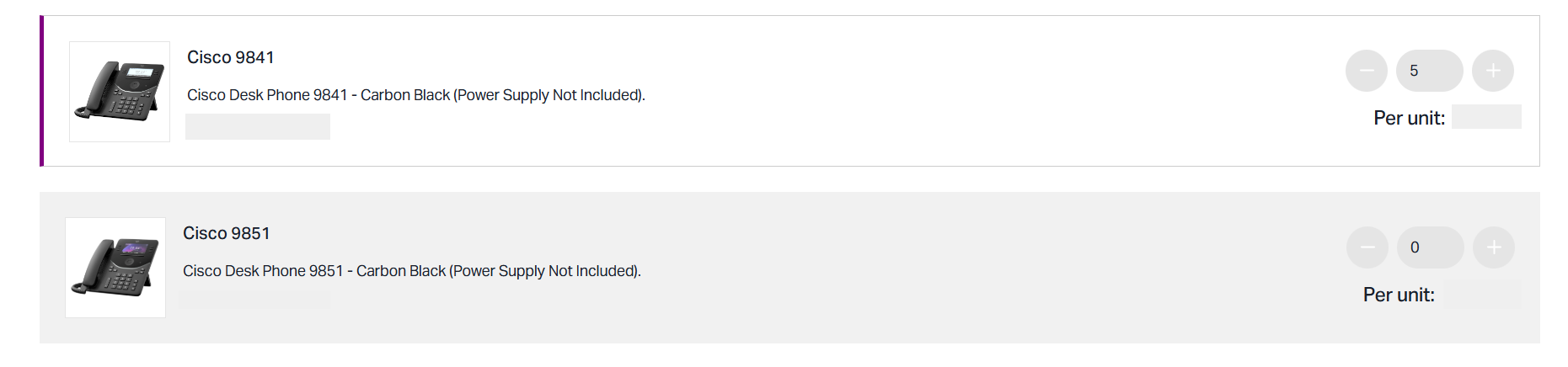
You may also choose to purchase power supplies for each unit, where applicable or required.
Once you have selected your device(s), click ‘Continue’.
3. Add your Partner details #
Enter your Partner details, including the primary contact name, contact telephone number, and email address.
4. Add your customer’s details #
Next, add your end user customer’s primary details in the same way.
5. Choose a delivery address #
Next, check with your end user customer to see where they would prefer for their Webex for Gamma hardware to be delivered and add these details to the ‘Delivery details’ area.
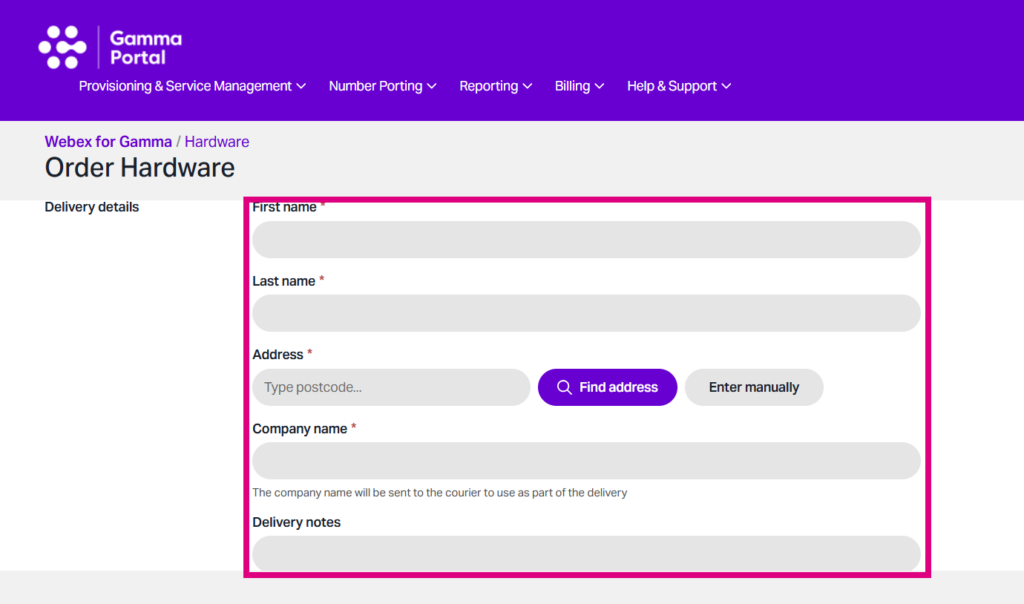
A ‘Company Name’ field has been added should you wish to add a custom name for delivery. You may also include any additional delivery notes, such as instructions for the courier if the recipient is unavailable to take the order.
6. The ‘Order Details’ page #
Finally, review all order details to ensure the information is accurate and that all parties are satisfied before proceeding to confirmation. This page will display the total cost of the order. Once you are ready to continue, select the confirmation checkbox, then click Continue to finalise the order.
What happens next? #
Device orders will automatically process as soon as a company order is completed. You will receive an email with the MAC address(es) for the device(s) you have ordered for your customer. Keep the MAC address handy, as you will need this to assign the device to a Webex user later on.