
Call Notify by Email enables a user to define criteria that cause certain incoming calls to trigger an e-mail notification. If an incoming call meets user-specified criteria an e-mail is sent to the notify address informing the user of the details of the incoming call attempt. A criteria set is based on incoming calling line identity, time of day and day of week. Multiple criteria sets can be defined.
Turn Call Notify by Email On/Off #
 Call Notify by Email can only be set up for a user by the Company Administrator.
Step 1
Log into the Gamma Portal and go to Provisioning and Service Management, Hosted, Horizon and Horizon Manage Company.
Step 2
Select your account and login to the company that you want by using the “Actions” button select “Login to Horizon”.
Step 3
Go to “Users” and “List Users” and locate the user that you want to set up Call Notify by Email for and then click the “Edit” button.
Step 4
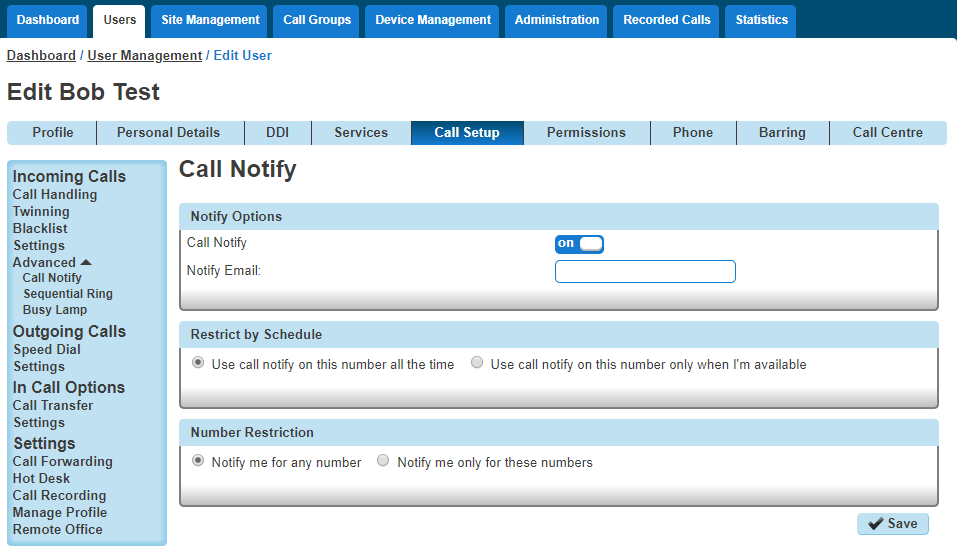
Click the “Call Setup” tab and then under Incoming Calls select “Call Notify” under the “Advanced” option in Incoming Calls.
Step 5
From here you can switch Call Notify by Email on or off.
If you select “On”, you’ll get some more options. You should enter your email address into the Notify Email text box.
 You can change the email address that gets the notifications at any time by editing the Notify Email text box and clicking “Save”.
If you want it to notify you at certain times, you can set up a Schedules and select this by using the “Use call notify on this number only when I’m available”.
If you want to be notified by email of a call from a certain number(s) within your directory, you can do this as well by selecting “Notify me only for these numbers” and using the textbox and the Add button, or you can search your directory by clicking the directory icon.
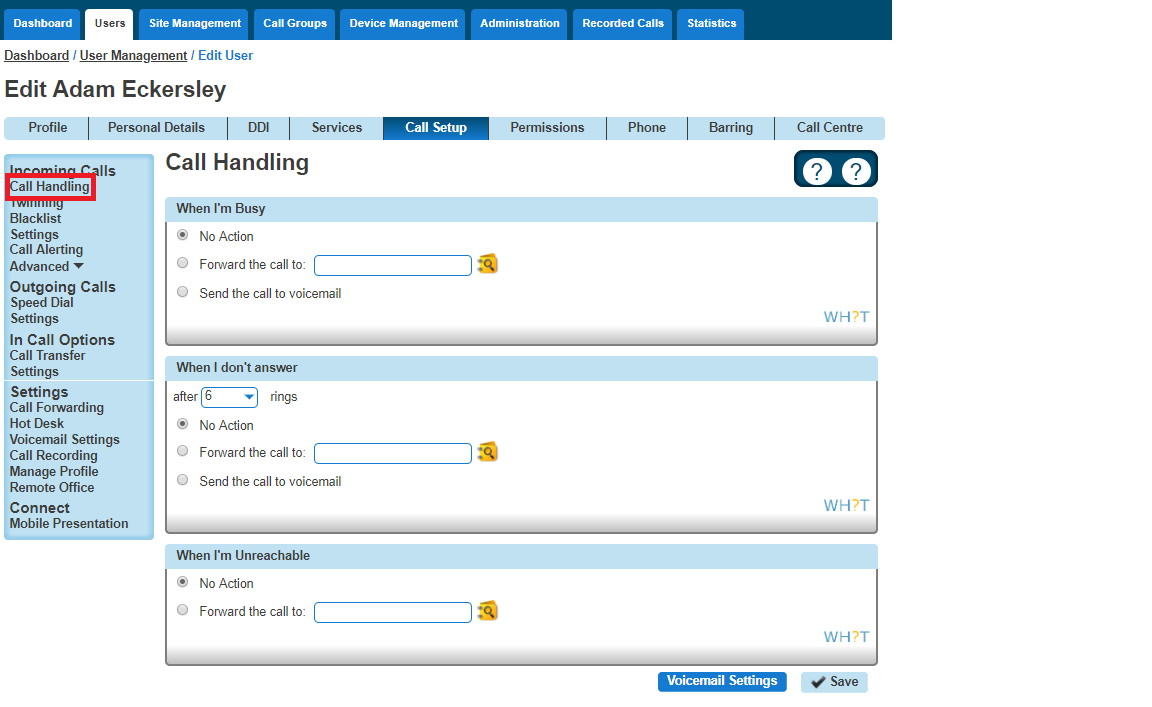
Step 5
If you would prefer to forward calls all the time, or (for Connect users) would like to forward them depending on which number was dialled, then you need to visit the Call Forwarding screen:
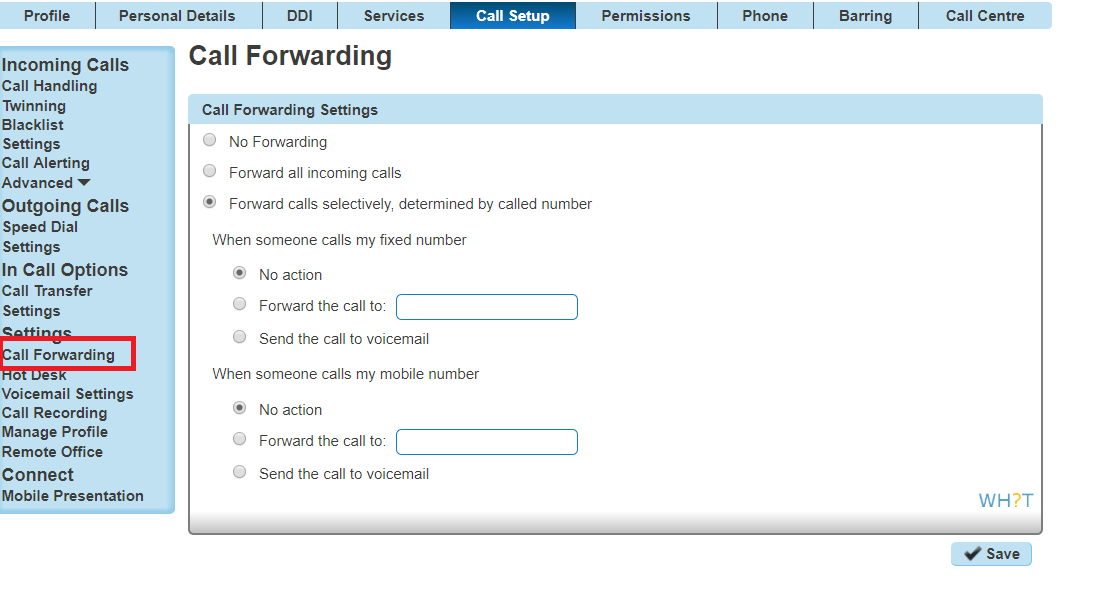
The ‘Send the call to voicemail’ option will only appear if the Voicemail add-on has been given to the user.
Turn Call Forwarding On/Off as a User using the Horizon Portal #
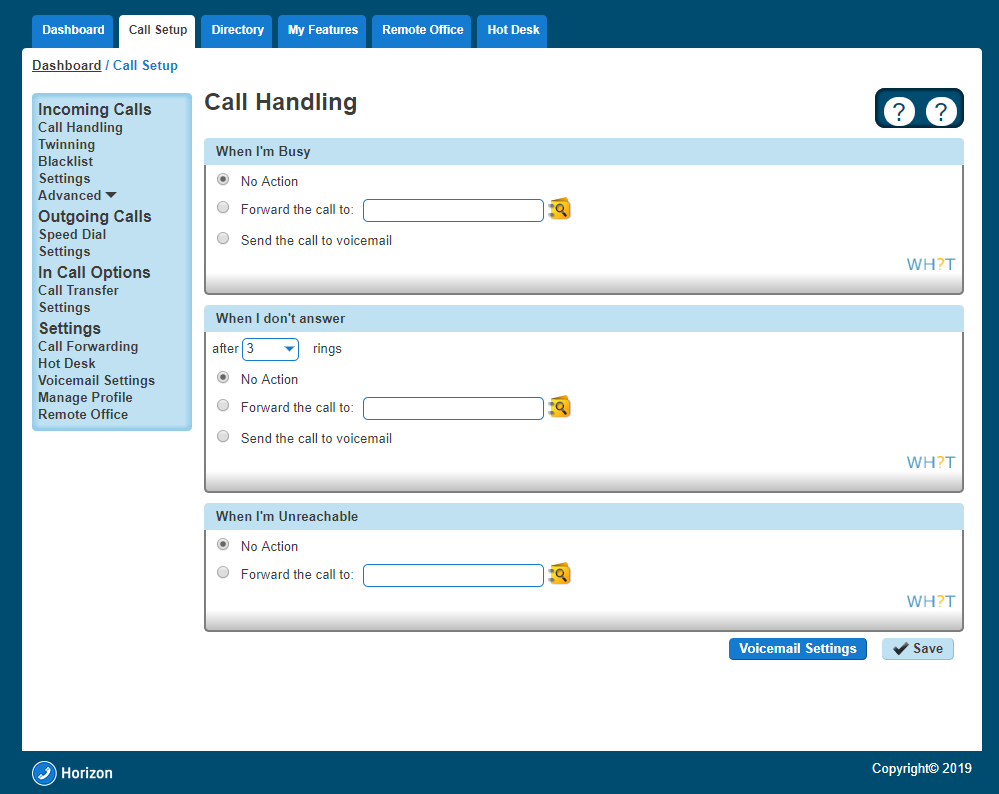
A user can set their own Call Forwarding rules when logging into www.unlimitedhorizon.co.uk. Once a user is logged in they can select the “Call Setup” option and the Incoming Call Handling option is selected.
Turn Call Forwarding On/Off as a User using a Soft Client #
Gamma offer different Soft Clients that can be used instead of a handset. A user also has the ability to change some of their settings directly from the soft client. For full information on how to turn call forwarding on or off using the Soft Client please refer to the relevant soft client guide on the Knowledgebase.