
Skip to content
  • Academy KB Home Redesign
  • Broadband Home
  • CCaaS
  • Channel Partner Support
  • Circle Loop Home
  • Collaborate
  • Connectivity
  • Courses
  • Documentation
  • Ethernet
  • FibreXchange
  • FUSION IoT
  • Gamma AI Concierge
  • Gamma Plus
  • Gamma SIP for Cloud Connect
  • Gamma SIP Global Communications Enablement
  • Gamma SIP Trunks for Genesys Cloud
  • Hannah – Homepage WIP
  • Home
  • Horizon
  • Horizon Contact
  • Horizon Forms
  • Horizon Service Description Home
  • Horizon with Webex
  • Inbound
  • iPECS
  • Knowledge Base Intro
  • Knowledgebase Directory
  • LoginPress
  • Microsoft
  • Microsoft Teams Direct Routing Home
  • Microsoft Teams Operator Connect
  • Mobile
  • Multiple KB
  • My Courses
  • No Access
  • No active page
  • Numbering and Porting
  • Phoneline+
  • Product Homepage
  • Quick Download Button
  • Release Notes
  • Release Notes
  • SIP Home
  • Test
  • UCaaS
  • User Account
  • Voice
  • Voice Enablement
  • Webex for Gamma
  • Webex for Gamma Release Notes
  • Gamma Academy Knowledge Base
Gamma Academy Knowledge Base
  • Cloud Calling and Collaboration
    • Webex for Gamma
    • Horizon with Webex
    • Horizon
    • Phoneline+
    • Operator Connect
    • Direct Routing
    • Inbound
    • Akixi CX Analytics
    • Red Cactus
  • Connectivity and Networking
    • Numbering and Porting
    • Broadband
    • FibreXchange
    • Ethernet
    • SIP Trunking
    • Gamma FUSION IoT
  • CX
    • Horizon Contact
    • AI Concierge
  • Mobile Services
    • Gamma Mobile
  • CyberSecurity
    • SafeWeb
  • Partner & Portal Support
Gamma Academy Knowledge Base

Provisioning and In-Life Changes

  • Customer Requirements Capture Guide
  • Enable Horizon Contact with a New Horizon Company
  • Enable Horizon Contact with an Existing Horizon Company
  • Network Configuration Guidelines for Horizon Contact
  • Provisioning Horizon Contact Users on the Horizon Platform
  • Assigning CRM bolt-ons to users
  • Ceasing Horizon & Horizon Contact
  • System Level Functionality
    • System Level Functionality
    • Automatically assigned system level settings
    • System level flows

Technical Support

  • Offline Reporting Destinations
  • Horizon Contact AWS migration – What you need to know
  • Diagnosing Call Quality Issues with WebRTC Diagnostics
  • Understanding WebRTC diagnostic tests
  • Horizon Contact Known Behaviours
  • Horizon Contact as a Web Application Via Edge
  • Generating HAR Files for diagnostics
  • Horizon Contact Glossary

Knowledge Bases

  • Horizon Contact Agent Knowledge Base
  • Horizon Contact Supervisor Knowledge Base
  • Horizon Contact Administrator Knowledge Base

Integration Guides

  • ConConnect Integration
  • Care Connect Integration
  • Contact Salesforce Integration
  • Contact Zendesk Integration
  • Contact Microsoft Dynamics Integration
  • Contact CRM Integration Developer Guide

Service Description

  • Horizon Contact Service Description

Horizon Contact Release Notes

  • Horizon Contact Release Notes
  • Horizon Contact 2024 Release Notes
  • Horizon Contact 2023 Release Notes
  • Horizon Contact 2022 Release Notes
  • Horizon Contact 2021 Release Notes

T&Cs and SLAs

  • Horizon T&Cs and Horizon Contact
  • Horizon Contact SLAs
    • Horizon Contact 2025 SLAs
    • Horizon Contact 2024 SLAs
  • Contact Safe-Pay T&Cs
    • Contact Safe-Pay T&Cs

Horizon Contact Forms

  • Horizon Contact Forms and Downloads
  • Home
  • Home
  • Horizon Contact
  • Integration Guides
  • Contact Salesforce Integration
View Categories

Contact Salesforce Integration

Contact can be integrated with third-party Customer Relationship Management (CRM) platforms to enhance the CRM capability provided to a company.

The Salesforce integration allows the company’s agents to use Contact within the Salesforce platform. The agents continue to use Salesforce as their main environment, but can use Contact to make and receive calls. Agents can initiate calls from within Salesforce by clicking on the contact’s telephone number in the contact page.

Note: In order to make use of Zendesk agents will need to have the required CRM bolt on and the relevant Contact licenses in place.

Step 1 – Download the Salesforce integration file #

In order to successfully integrate Salesforce and Contact you will need to download the relevant XML file. The file you need to use will depend on the URL being used to log into Contact:

Login URLFile to download
https://contact.unlimitedhorizon.co.uk/loginHorizon-Contact-Salesforce-unlimitedhorizon
https://horizon.contact.gammagroup.co/loginHorizon-Contact-Salesforce

Step 2 – Import the Salesforce file #

  • Log in to Salesforce as an administrator-level user.
  • To go to the Salesforce Setup pages:
    • In the top-right corner, click: 
    • Click Setup.
  • Navigate to Platform Tools > Feature Settings > Service > Call Center > Call Centers:
  • The All Call Centers dialog is displayed:
  • Click: 
  • The Call Center Import dialog is displayed:
  • Import the Salesforce XLM configuration file as follows:
    • Click Choose File.
    • Navigate to the Salesforce XLM configuration file and open it.
    • Click: 

Step 3 – Call Centre Settings #

  • In the All Call Centres dialog, select the name of the appropriate Contact:
  • The settings page for Contact is displayed:
  • Click: 
  • Navigate to Platform Tools > Apps > App Manager:
  • The App Manager dialog is displayed:
  • Select the application to which you want to add Contact then click:  and select Edit.

Step 4 – Softphone Parameters #

  • Navigate to App Settings > Utility Items (Desktop Only).
  • Click Add Utility Item and then select Open CTI Softphone from the dropdown list:
  • The Utility Items dialog is displayed.
  • Enter parameters for the Open CTI Softphone then click Save.

Step 5 – User Configuration #

  • Navigate to the Users page under Administration
  • On the list of users find the relevant User and click Edit
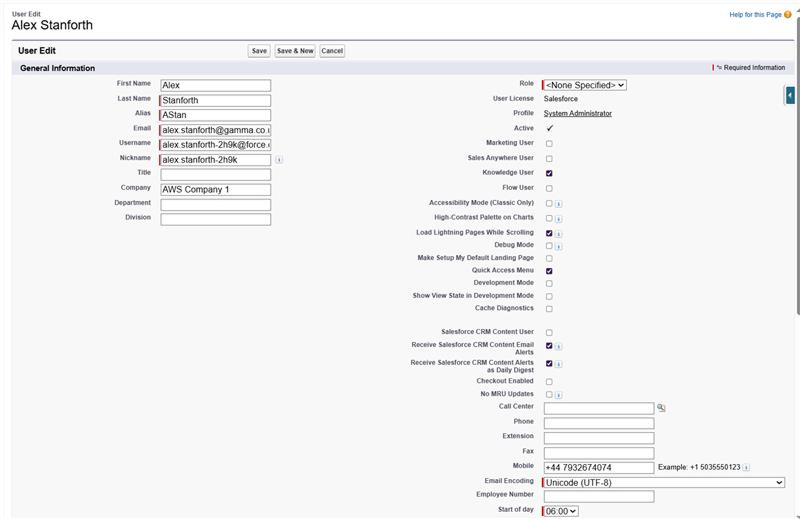
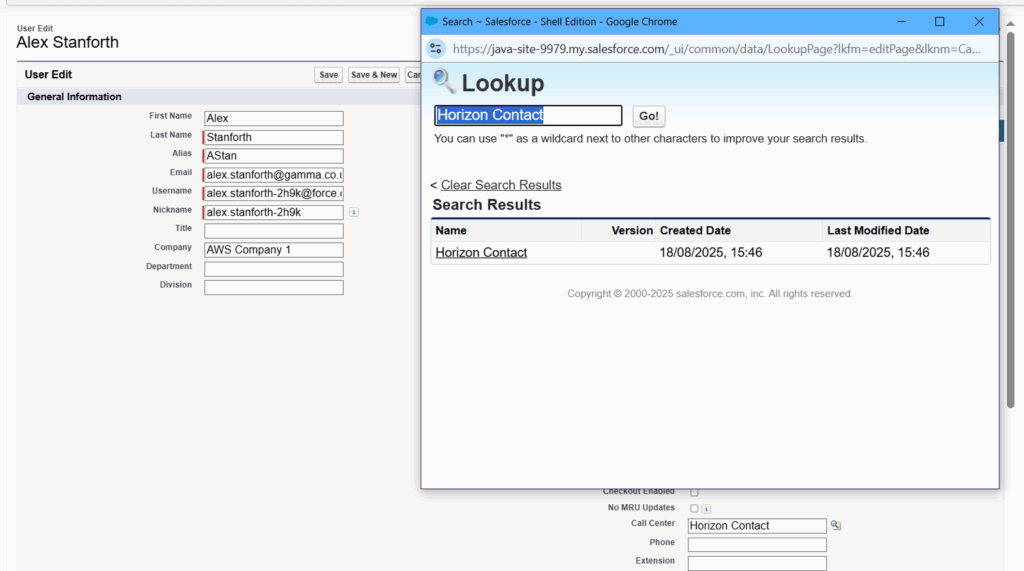
  • In the Call Centre field, press the lookup icon
  • Select Horizon Contact from the list of results
  • Save the User’s settings

Step 6 – Trusted URL #

  • Navigate to Setup and search for Trusted URLs
  • Create a new entry for Horizon Contact:
    • API Name should be Contact
    • URL should be the same as the Contact URL the agent is using
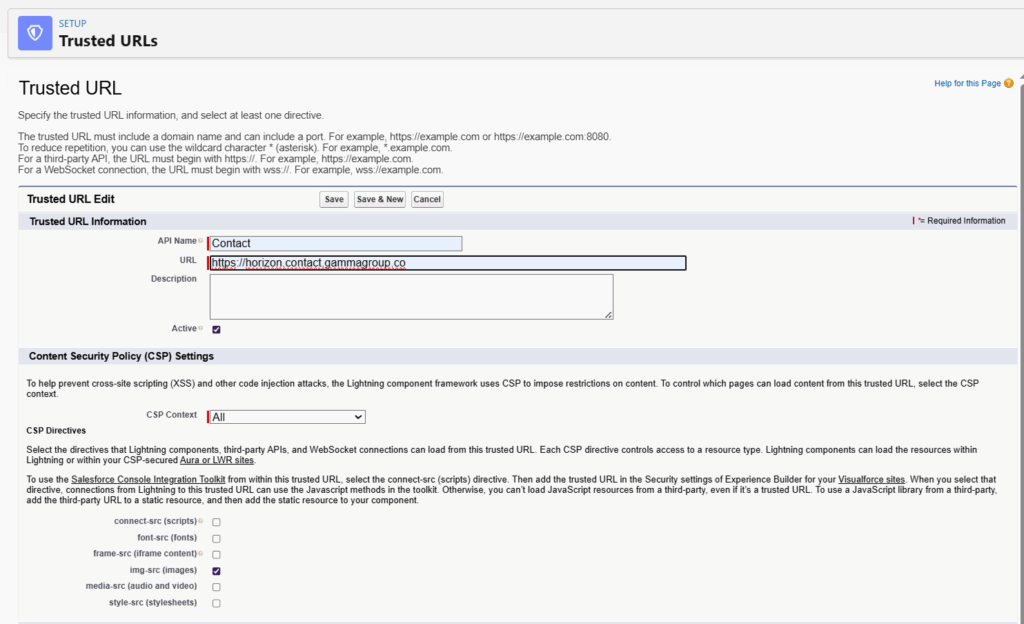
  • Save Settings with the Trusted URL configured

Result #

Agents should now see Contact softphone within Salesforce.

To use Contact, agents must enter their Contact login details into the softphone.

Agents can now answer calls within Salesforce

Updated on 02/10/2025
Care Connect IntegrationContact Zendesk Integration
Contents
  • Step 1 – Download the Salesforce integration file
  • Step 2 - Import the Salesforce file
  • Step 3 – Call Centre Settings
  • Step 4 – Softphone Parameters
  • Step 5 - User Configuration
  • Step 6 - Trusted URL
  • Result

Copyright © 2026 -  Gamma Telecom Ltd

Gamma API
We use cookies to measure performance and make improvements to this service. This includes page views, device/browser, location, and page interactions. We do not collect any information you upload to this site. By agreeing, you consent for your data to be used for this purpose.