
Skip to content
  • Academy KB Home Redesign
  • Broadband Home
  • CCaaS
  • Channel Partner Support
  • Circle Loop Home
  • Collaborate
  • Connectivity
  • Courses
  • Documentation
  • Ethernet
  • FibreXchange
  • FUSION IoT
  • Gamma AI Concierge
  • Gamma Plus
  • Gamma SIP for Cloud Connect
  • Gamma SIP Global Communications Enablement
  • Gamma SIP Trunks for Genesys Cloud
  • Hannah – Homepage WIP
  • Home
  • Horizon
  • Horizon Contact
  • Horizon Forms
  • Horizon Service Description Home
  • Horizon with Webex
  • Inbound
  • iPECS
  • Knowledge Base Intro
  • Knowledgebase Directory
  • LoginPress
  • Microsoft
  • Microsoft Teams Direct Routing Home
  • Microsoft Teams Operator Connect
  • Mobile
  • Multiple KB
  • My Courses
  • No Access
  • No active page
  • Numbering and Porting
  • Phoneline+
  • Product Homepage
  • Quick Download Button
  • Release Notes
  • Release Notes
  • SIP Home
  • Test
  • UCaaS
  • User Account
  • Voice
  • Voice Enablement
  • Webex for Gamma
  • Webex for Gamma Release Notes
  • Gamma Academy Knowledge Base
Gamma Academy Knowledge Base
  • Cloud Calling and Collaboration
    • Webex for Gamma
    • Horizon with Webex
    • Horizon
    • Phoneline+
    • Operator Connect
    • Direct Routing
    • Inbound
    • Akixi CX Analytics
    • Red Cactus
  • Connectivity and Networking
    • Numbering and Porting
    • Broadband
    • FibreXchange
    • Ethernet
    • SIP Trunking
    • Gamma FUSION IoT
  • CX
    • Horizon Contact
    • AI Concierge
  • Mobile Services
    • Gamma Mobile
  • CyberSecurity
    • SafeWeb
  • Partner & Portal Support
Gamma Academy Knowledge Base

Provisioning and In-Life Changes

  • Managing PhoneLine+ Companies in the Gamma Portal
  • PhoneLine+ Ordering Guide
  • PhoneLine+ Package Selection

Device Help

  • PhoneLine+ RMA Check List
  • Handset Returns
  • Resolving issues with first line checks
  • Device Guides
    • YeaLink T34W User Guide
    • YeaLink T31W User Guide
    • Polycom VVX150 Full User Guide
    • Polycom VVX250 Full User Guide
    • Cisco ATA 192 User Guide

Knowledge Bases

  • Customer Knowledge Base

Service Description

  • PhoneLine+ Service Description

Support

  • PhoneLine+ Network Configuration Guidelines
  • Fraud Management: PhoneLine+

Phoneline+ SLAs

  • PhoneLine+ 2025 SLAs
  • Phoneline+ 2024 SLAs
  • Phoneline+ 2023 SLAs

T&Cs

  • Terms and Conditions
  • Home
  • Home
  • PhoneLine +
  • Provisioning and In-Life Changes
  • Managing PhoneLine+ Companies in the Gamma Portal
View Categories

Managing PhoneLine+ Companies in the Gamma Portal

After provisioning PhoneLine+ for a customer company, the Manage Companies page in the Gamma Portal provides all company details and a range of actions to help you manage the service.

Accessing the Manage Companies Page #

To find the Manage Companies screen:

  1. Log in to the Gamma Portal.
  2. Navigate to:
    • Provisioning and Service Management > Hosted > PhoneLine+ > Search and Manage Companies.
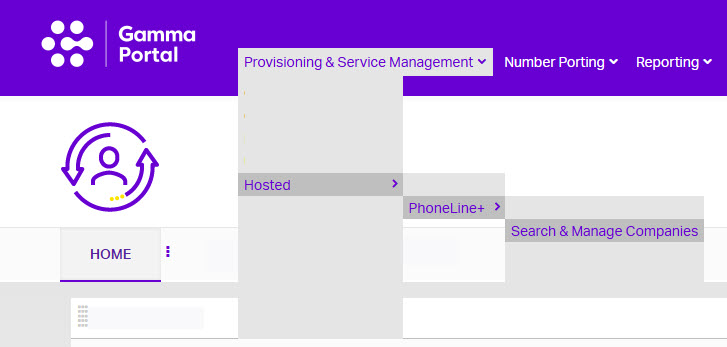
This will display the Manage Companies table, showing all companies for which you have provisioned PhoneLine+.

Manage Companies Functionality #

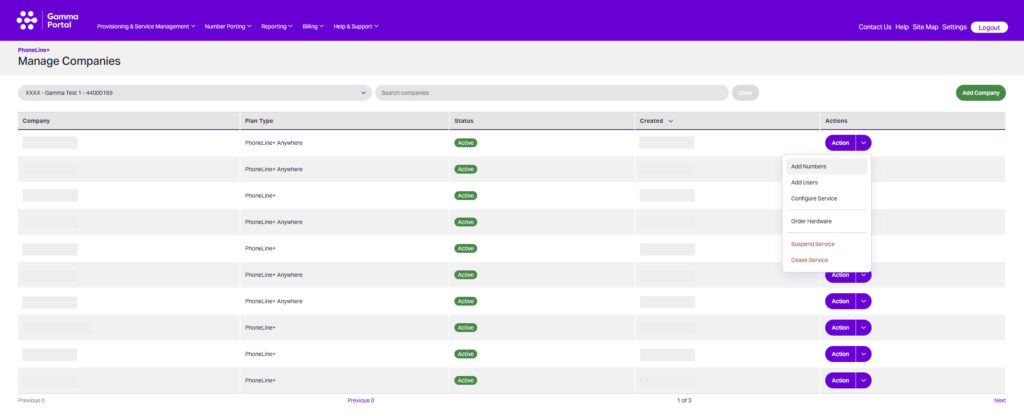
The Manage Companies table displays:

  • Company name.
  • Associated PhoneLine+ plan.
  • Status (Active, Suspended, Ceased).
  • Order creation date.
  • Available Actions.

Use the Search bar to quickly locate a company or scroll through the list.

Actions Menu Options #

The Actions dropdown provides tools to manage the service.
1. Add & Edit Numbers #

  • Select Add Numbers.
  • View existing numbers and assign/unassign them to users, teams, or plans.
  • To add a new number:
    • Click Add New Number.
    • Search for an available option and follow provisioning steps.

2. Add & Edit Users #

  • Select Add Users.
  • View existing users or click Add New User to create one.
  • Modify user details via the Users table:
    • Update profile info (name, email, user type).
    • Change default number.
    • Set a 6-digit PIN for voice portal.
    • Send password reset email.

Note: Hardware-only customers do not have email addresses linked. Ensure emergency services address is updated.


3. Suspend Service #

  • From Actions, select Suspend Service.
  • Optionally redirect outbound calls to a specified number.
  • Click Suspend to confirm. You can reverse this action anytime.

4. Upgrade or Regrade Service #

  • From Actions, select Configure Service.
  • Scroll to the Plan section:
    • Regrade: Change contract term (e.g., 24 months → 60 months).
    • Upgrade: Change plan type (e.g., hardware-only → PhoneLine+ Office).
  • Click Submit to apply changes.

Important: Downgrades are not permitted. Hardware-only upgrades require an email address for users.


5. Remove Service #

  • From Actions, select Remove Service or use the option on the account overview page.
  • Choose a reason for removal (add details if selecting “Other”).
  • Click Remove to confirm.

Warning: This action is irreversible. To reactivate, you must create a new company.


Conclusion #

The Manage Companies page offers comprehensive tools for managing PhoneLine+ services. For hardware provisioning guidance, refer to our Order Hardware training materials.

Updated on 21/11/2025
PhoneLine+ Package SelectionPhoneLine+ Ordering Guide
Contents
  • Accessing the Manage Companies Page
  • Manage Companies Functionality
  • Actions Menu Options
  • 1. Add & Edit Numbers
  • 2. Add & Edit Users
  • 3. Suspend Service
  • 4. Upgrade or Regrade Service
  • 5. Remove Service
  • Conclusion

Copyright © 2026 -  Gamma Telecom Ltd

Gamma API
We use cookies to measure performance and make improvements to this service. This includes page views, device/browser, location, and page interactions. We do not collect any information you upload to this site. By agreeing, you consent for your data to be used for this purpose.