
If you are experiencing issues with the performance of PhoneLine+ you can perform some of these checks to diagnose the problem.
These first line checks address the underlying broadband service on which PhoneLine+ sits.
Before you contact the support desk, please ensure that you have completed these checks for the issue you are experiencing.
ADSL / FTTC #
ADSL runs over underlying PSTN network. Please check the following:
Preliminary Line Tests (WLR) #
Check the physical phone line. To do this:
- Plug a telephone into the test socket, lift the receiver and listen for any audible noise
- Dial 17070 and press option 2, this will carry out a quiet line test
- Make a phone call and ensure the quality of the call is good
- If you own the line, carry out a WLR line test
- Check that you can make and receive calls without a permanent engaged tone
No Dial Tone #
Before carrying out the checks below, ensure that outgoing call barring is not enabled on the line.
- Is the router powered up?
- Are the router and associated cables connected correctly?
- Does rebooting the router resolve the problem?
- Is the underlying telephone line working okay? (see Preliminary Line Tests)
- Plug in a phone and check that dial tone is present, and that there is no audible noise (see Preliminary Line Tests)
- Is the sync light displaying on the router (CD Light)?
- Is the PPP light displaying on the router?
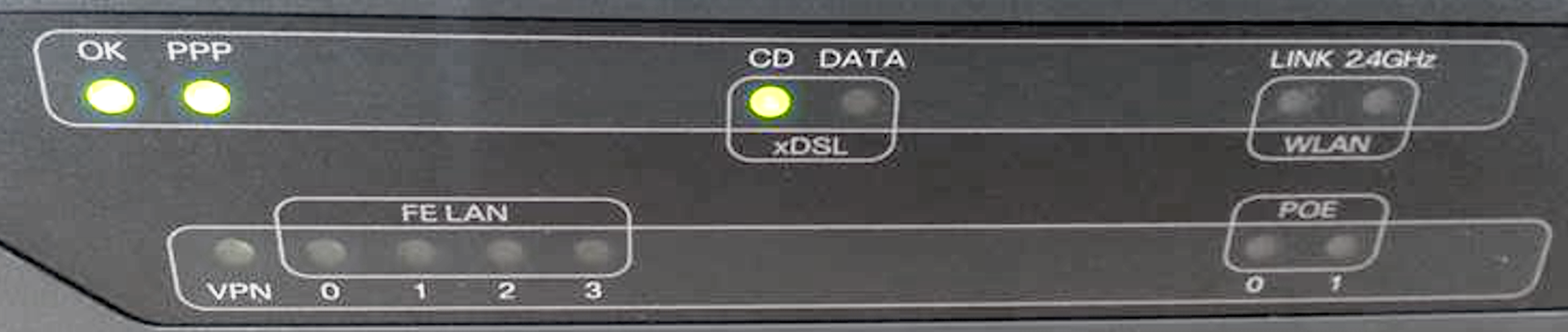
- Confirm if the customer has ever had a working service. If yes, when was the fault first experienced?
- Has anything recently changed on site, for example new cabling, or other electrical equipment?
- Is the router connected in the master socket?
- Has the internal ringing been eliminated?
- Does removing all other equipment from the line, such as analogue phones and fax machines, solve the issue?
Dropping Calls #
Some of the most common reasons why calls don’t connect are:
- The user’s handset is not registered
- Do Not Disturb is enabled
- The user has Out of Hours settings configured
- The number has previously ported to Gamma and there is an issue with the Range Holder. For these issues you will need to provide call examples to the Service Desk.
If you need to contact the Service Desk they will likely ask you some of the following questions. To speed up support go through the questions first to try and identify the issue.
- Is the problem experienced constantly, or only at certain times of the day?
- Does the router lose sync when the calls are dropped?
- If so, for how long? How does the user get sync back?
- Is the underlying telephone line working?
- Plug in a phone – is the dial tone present and no audible interference noise such as hissing? (see Preliminary Line Tests)
- Is the router filtered properly?
- Does changing the filter help?
- Is the router connected directly to the master socket?
- Has local wiring been eliminated?
- Has all other equipment been removed from the PSTN line (phone and fax machines)?
- Are there any sources of electrical or mechanical interference near the router?
Poor Call Quality #
If you are experiencing call quality issues with PhoneLine+, we would recommend that you complete the following checks in this order.
Codecs
If you’re experiencing call quality/media issues the first check that you should do is check the codec and your customer’s access bandwidth.
| G711 | High quality codec | 100kb per second |
| G722 | Highest quality codec (“HD codec”) | 60kb per second |
| G729 | Lowest quality codec | 40kb per second |
Access
The next thing you should check after the code is your customer’s access (i.e. the Broadband or Ethernet connection). The following items are key to check:
- Packet Loss
- Jitter
- Latency
Bypass the switch
You should also try and bypass the switch to make sure that it is not the switch causing issues. Do this by plugging a handset directly into the router. If the call quality/media issues stop, you know the problem is with the switch.
I have checked all the above
If you have done all the above checks and are still experiencing issues you should report the fault to the Service Desk. You will likely be asked some of the following questions. To speed up support go through the questions first to try and identify the issue.
- Describe the symptoms exactly and at which end they are experienced.
- For example: crackling or popping; distorted voice; intermittent silence; inaudible voice; echo on the line
- Is the problem experienced constantly, or only at certain times of the day?
- Is the underlying telephone line working?
- Plug in a phone – is the dial tone present and no audible interference noise such as hissing? (see Preliminary Line Tests)
- Is the router filtered properly?
- Does changing the filter help?
- Is the router connected directly to the master socket?
- Has local wiring been eliminated?
- Has all other equipment been removed from the PSTN line, such as phone and fax machines?
- Are there any sources of electrical or mechanical interference near the router?
Fibre #
No Broadband Service #
- Is the router powered up?
- Are the router and associated cables connected correctly?
- Does rebooting the router resolve the problem?
- Is the sync light on the router (CD Light)?
- Is the PPP light on the router?
- Confirm if the customer has ever had a working service. If yes, when was the fault first experienced?
- Has anything recently changed on site, for example new cabling, or other electrical equipment?
- Is the router connected in the master socket?
- Has the internal ringing been eliminated?
Please note: To assist us in quickly resolving your issue, please provide 3 examples of the call issue that you are experiencing when contacting the PhoneLine+ support team. These examples should include the number you made the call from, the number you were attempting to call, date, time of the call which must be within the last 48hrs.
SoGEA #
- Check cables are fitted correctly, and equipment is working
- Remove the faceplate, plug a new microfilter into the test socket and run the router from there
- Ensure router has up to date firmware installed.
FTTP Connection Issues #
Please check the following:
- Cables are fitted correctly, and equipment is working
- ONT power has been checked and is switched on
- Connection under the ONT is fitted tightly
- Serial number/ONT number is matching (usually this is required if it is a new provisioning failure)
FTTP Slow Speed #
- Check CAT cables and other physical equipment are working
- Swap out CAT cables to be sure they aren’t malfunctioning
- CAT6 cables are the best for FTTP performance
- Check FTTP DUPLEX settings
- This should be set to Auto and match on both WAN and LAN ports
- MTU setting should be between 1492 to 1500
- FTTP = should be set to PPPOE.
- Ensure your router has up to date firmware installed.
