
Overview #
PhoneLine+ is provisioned via the Gamma Portal and is available in four main packages for customers to choose from:
- PhoneLine+
- PhoneLine+ Office
- PhoneLine+ Anywhere
- Hardware Only
For detailed descriptions of each package and use case examples, visit the Gamma Academy – PhoneLine+ Product Information page or the PhoneLine+ Package Selection article on this Knowledge Base.
Creating a new company order #
Follow these steps to create a new company order in the Gamma Portal:
1. Log in and Navigate #
- Sign in to your Gamma Portal account.
- Go to:
Provisioning and Service Management → Hosted → PhoneLine+. - Select New Company Order.
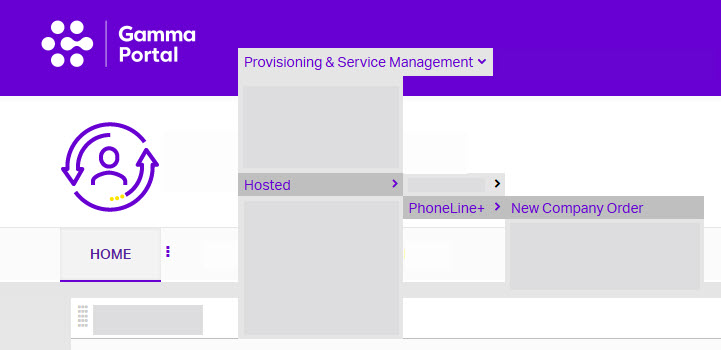
2. Enter Partner Details #
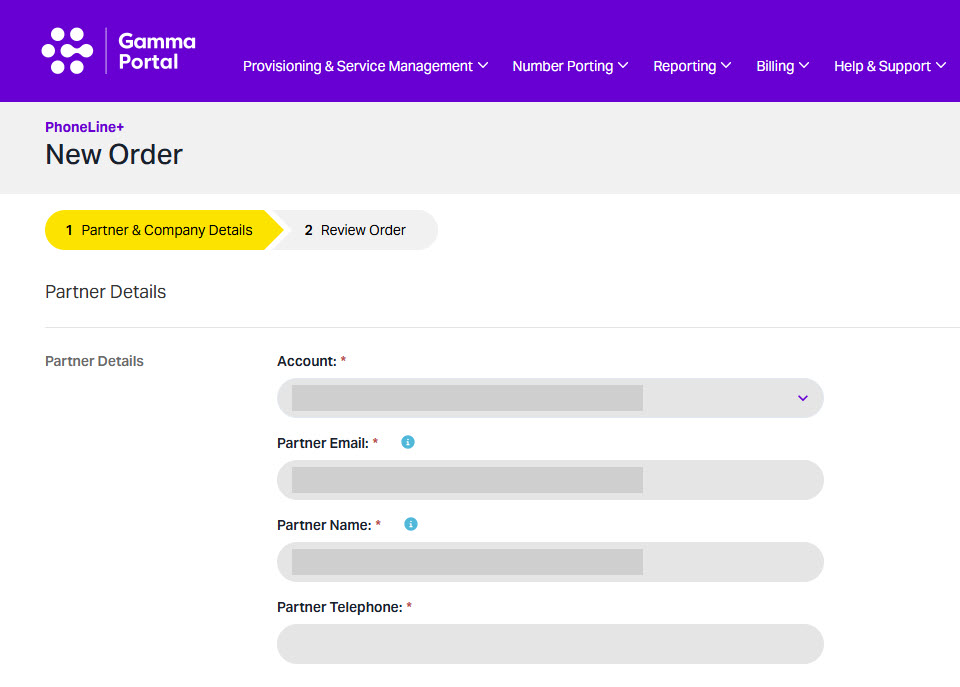
- From the Account drop-down, select your Partner billing account.
- Add Channel Partner details:
- Company account
- Primary email address
- Partner name
- Telephone number.
These details confirm your identity and allow Gamma to contact you if needed.
3. Choose Contract Type #
- Example: If the customer requires basic hunt groups, SMS, and WhatsApp integration, select the PhoneLine+ Anywhere contract.

4. Set Contract Length #
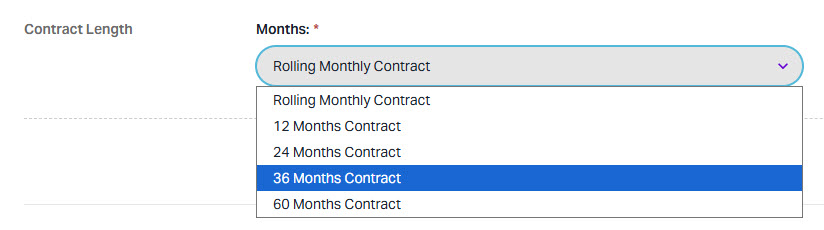
- Discuss the preferred contract term with your customer.
- Options range from rolling monthly to 60 months.
- The Gamma Portal will display all available options.
5. Add Customer Company Details #
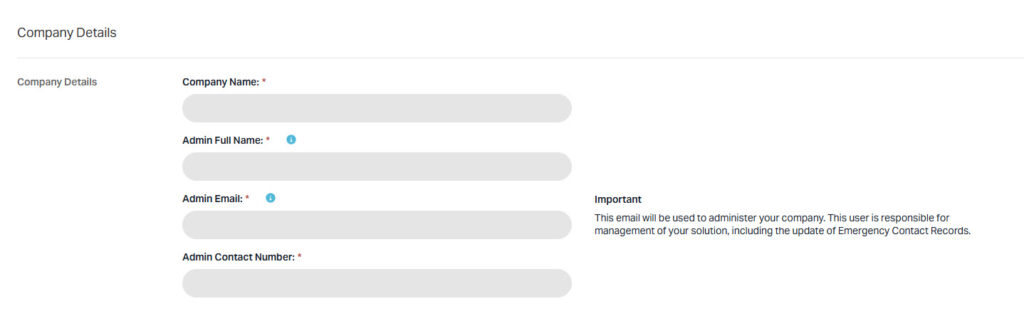
Provide:
- Company name
- Company admin’s full name, email address, and contact number
- Company address (use postcode search or enter manually)
Important: Verify administrator details for emergency service call handling.
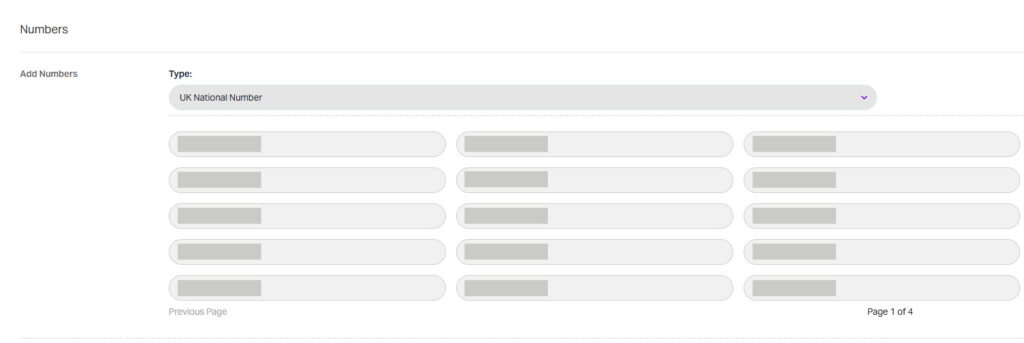
6. Add Numbers #
- In the Numbers section, a UK town/city number is displayed by default.
- Select the region (e.g., Leeds – code 0113).
- Choose an available number from the list.
7. Review and Confirm #
- Check the Order Summary page for accuracy.
- Tick Terms and Conditions and click Confirm Order.
- Once successful, click Go to Dashboard to access Manage Companies, where your new PhoneLine+ company will appear.
