
This user guide will help you to navigate and use your VVX250 phone. It will give you an overview of your phone, and walk you through tasks so you can successfully use your phone to perform basic and advanced phone functions.
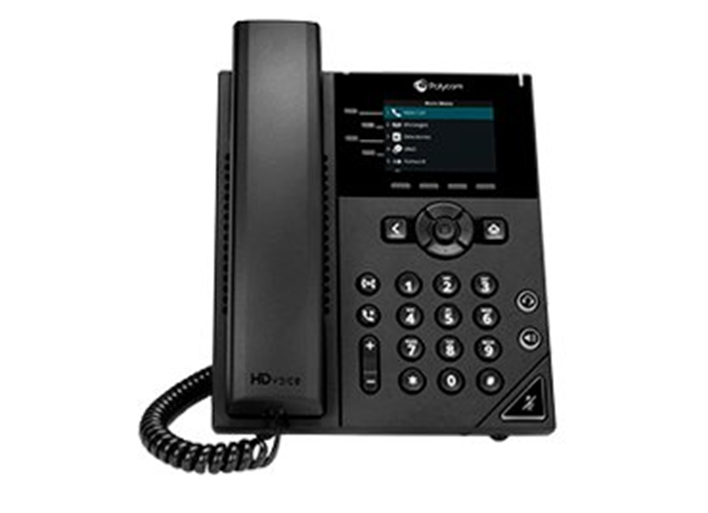
How to set up the Polycom VVX250 #
The phone will arrive pre-configured and needs to be connected to the internet & powered up using Power over Ethernet (PoE) or via AC power supply.
Phone Keys and Hardware #
The figure below shows the main phone keys and features.
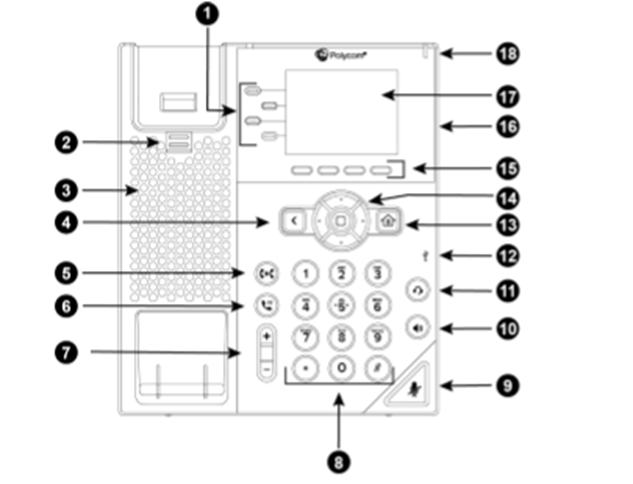
| Reference Number | Feature | Feature Description |
| 1 | Line keys | Enable you to select a phone line, view calls on a line, or quickly call a favorite contact. |
| 2 | Reversible tab | Secures the handset in the cradle when your phone stand is positioned at a high angle. To secure the handset, remove the tab, reverse it so the protrusion points up, and re-insert it. Position the handset so the protrusion on the tab fits into the slot on the handset. |
| 3 | Speaker | Provides ringer and speakerphone audio output. |
| 4 | Back key | Enables you to return to the previous screen. |
| 5 | Transfer key | Transfers an active call to a contact. |
| 6 | Hold key | Holds an active call or resumes a held call. |
| 7 | Volume keys | Adjust the volume of the handset, headset, speaker, and ringer. |
| 8 | Dial pad | Enables you to enter numbers, letters, and special characters. You can also use the dial pad keys to select menu items that have index numbers. |
| 9 | Mute key | Mutes local audio during calls and conferences |
| 10 | Speakerphone key | Enables you to place and receive calls using the speakerphone. |
| 11 | Headset key | Enables you to place and receive calls through a headset. |
| 12 | USB Port | Enables you to attach a USB flash drive or USB headset. |
| 13 | Home key | Displays the Home screen from other screens and displays the Lines and Calls screen from the Home screen. |
| 14 | Navigation keys / Select key | Scrolls through information or options displayed on the phone’s screen. Selects a field of displayed data. |
| 15 | Soft keys | Enable you to select context sensitive keys that display along the bottom of the screen. |
| 16 | Security slot (on back) | Enables you to attach a universal security cable lock to your phone so you can secure it to a desktop. |
| 17 | Screen | Shows a 7.1 cm (2.8 in) color display that enables you to view menu options and data. |
| 18 | Message Waiting Indicator | Flashes red to indicate when you have new messages. |
Phone Icons and Status Indicators #
| Icon | Description | Icon | Description |
 | Registered line |  | Phone warning |
 | Unregistered line |  | Login credentials invalid |
 | Outgoing call |  | Shared line |
 | Held call |  | Call forwarding enabled |
 | Incoming call |  | Presence status (Available) |
 | Wireless network |  | Presence status (Busy or In a Call) |
 | Do not disturb enabled |  | Presence status (Away) |
 | Favourite |  | Presence status (Do Not Disturb) |
 | Placed call |  | Presence status (offline) |
 | Received call |  | New message |
 | Missed Call |
Call Actions #
Place Calls #
The VVX 250 phone can manage a maximum of three active, incoming, and held audio calls at a time. However, you can have only one active call in progress with numerous other incoming calls or calls on hold on all phones
- Do one of the following:
- Start typing a phone number
- Select New Call
- Press a line key
- Pick up the handset, press
 , or press
.
- Enter a number or select a recent contact.
- Select Dial
Answer an Incoming Call #
- Do one of the following:
- Pick up the handset
- Press or select answer
- Press
- After you answer the incoming call, the call becomes active
Hold a Call #
You can place any active call on hold on VVX 250 Phone.
- During an active call select Hold

- If you’re in the Calls screen, select the call first.
A hold icon is displayed on the line of the held call and and a red LED light flashes on the line key.
Resume a Call #
You can view and resume all held calls on the phone.
- Do one of the following:
- Select Resume
- From the Calls screen, select the call and select Resume
Ending Calls #
You can end active calls on your phone at any time, however, you must resume held calls before you can end the call.
- Do one of the following
- Place the handset on the cradle.
- Press End Call.
- In the Calls screen, highlight the call and press End Call
Transferring Calls #
You can transfer active or held calls to another person using the following transfer types:
- Blind transfer—Transfers the call directly to another line without speaking with the other party first.
- Consultative transfer—Enables you to speak with the other party before completing the transfer.
Choose a Default Transfer Type #
Consultative is the default transfer type. You can choose a default transfer type to use for all calls on VVX 250 phone. When you choose a default transfer type, the phone uses the selected transfer type for all calls.
- Navigate to Settings > Basic > Preferences.
- Select Default Transfer Type and choose a transfer type.
- The selected transfer type is used for all calls.
Transfer a Call #
You can transfer a call to another contact and choose the transfer type you want to use for the call.
- During a call, do one of the following
- Press Transfer
 to use the default transfer type.
 - Press and hold Transfer to use the non-default transfer type.
- For example, if Blind is the default, press and hold Transfer to perform a Consultative transfer.
- For example, if Blind is the default, press and hold Transfer
- Press Transfer > More and select Blind or Consultative.
- Depending on the default transfer type, either the Blind or Consultative option displays. For example, if the default transfer type is Blind, then you can select Consultative.
- Press Transfer
- Dial a number or choose a contact from the Recent Calls or a directory.
- If the transfer type is set to Blind, the call is transferred immediately.
- If the transfer type is set to Consultative, select Transfer after speaking with your contact.
Cancel a Transfer #
If a contact does not answer the transfer or you want to remain speaking with the contact on your line, you can cancel the transfer before it is complete.
- Select Cancel
- The call is not transferred and becomes active
Managing Calls #
Display Calls from the Lines Screen #
You can display the calls for each line from the Lines screen. When you select a phone line that has a held call, the first held call on that line is automatically resumed, even if you already have an active call on a different line.
- Press and hold the line key

Display Calls from the Calls Screen #
You can view multiple calls on your line from the Calls screen.
- Do one of the following:
- Press the Home key

- From the Lines screen, press the Calls soft key
- Press the Home key
The Calls screen is displayed with the list of active and held calls for each line on the phone.
Manage a Call from the Calls Screen #
From the Calls screen, you can manage a call by holding, resuming, or transferring the call.
- Select a call
- Do one of the following
- Select Hold to place an active call on hold
- Select Resume to make a held call active
- Select End Call to end a call with a contact. You can end active calls only, so resume the held call first before ending it.
- Select Transfer to send the call to another contact
Reject Incoming Calls #
You can reject a call and send the call directly to voicemail. Rejected calls display in the Missed Calls list in your Recent Calls list. Rejecting calls is not available for shared lines.
- From the Incoming Call screen, select Reject
Reject Calls from a Contact #
You can send incoming calls from a particular contact directly to your voicemail.
- Navigate to Directories > Contact Directory
- From your Contact Directory, select a contact
- From the Contact Information screen, select Edit or tap
- From the Edit Contact screen, select Auto Reject > Enabled and select Save
Calls from the contact are sent directly to voicemail when the contact calls.
Rejecting Calls with Do not Disturb #
Do Not Disturb (DND) enables you to set your phone to automatically reject calls when you don’t want to be interrupted.
Enable Do not Disturb #
You can enable DND to prevent your phone from ringing and to send all incoming calls directly to voicemail. All calls you receive while DND is enabled are logged in the Recent Calls list.
Enabling DND on shared lines disables ringing only. A visual notification of the call still displays, and you have the option to answer or ignore the call.
Note: When you set your presence status to Do Not Disturb and enable DND on your phone, a message stating that your status is set to Do Not Disturb scrolls under the time display, and the DND icon does not display in the status bar.
- Select DND
Call Forwarding #
You can forward an incoming call to a contact or forward all incoming calls to a contact.
To forward an incoming call:
- In the Incoming Call screen, select Forward
- From the Call Forwarding Screen, entering the forwarding number and select Forward
To forward all incoming calls:
- Select Forward or navigate to Settings > Features > Forward
- If your phone has multiple lines, select a line
- On the Forwarding Type Select screen, select a forwarding type
- If you selected the No Answer option, enter the number of rings before the call is forwarded.
- Enter a contact’s number if enabled and select Enable
To disable call forwarding:
- Select Forward
- If your phone has multiple lines, select a lin
- From the Forwarding Type Select screen, select your forwarding type
- Select Disable
Phone Actions #
View the Contact Directory #
You can view and add contacts to the Contact Directory. To view the Contact Directory:
- From the Home screen select Directories > Contact Directory
Listen to Voicemail #
- Navigate to Messages
- Select Message Center
- If you have multiple lines on your phone, select the line that has the new message
- From the Messages screen, select Connect and follow the prompts to access your messages
Enabling Wi-Fi functionality for the Polycom VVX250 #
By default, the Polycom VVX250 is configured to connect via a wired connection. To enable the Wi-Fi functionality a USB Wi-Fi dongle needs to be connected to the device and the Wi-Fi option needs to be enabled from within the menu.
Start by inserting the USB Wi-Fi dongle into the USB port on the side of the device. The Wi-Fi mode then needs to be enabled
This can be done by following the below menu sequence:
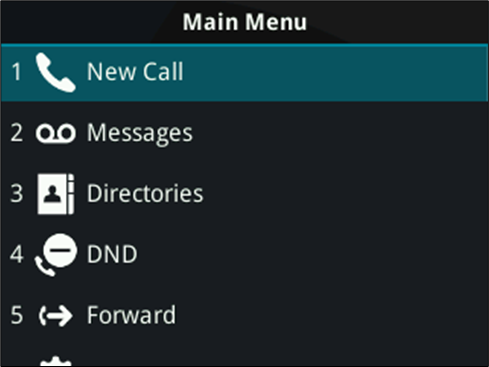
Access the Main Menu

Entering the Main Menu and navigating down to option 7 “Wi-Fi”
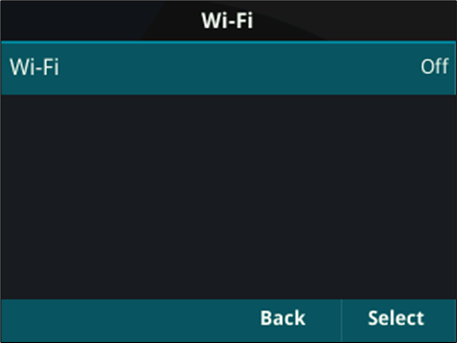
Entering the “Wi-Fi” menu option will present the current status, which as default will be “Off”
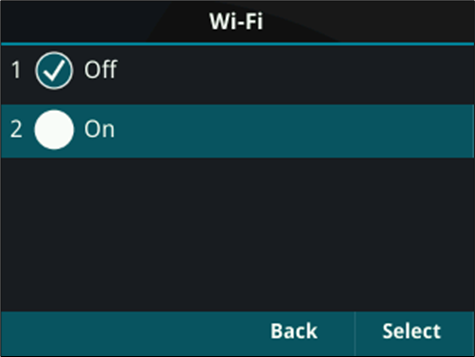
To enable this functionality, navigate down to “On” and press the “Select” key

Once this is selected, the phone will advise you that it requires a reboot, select “Cancel” to go back or “Yes” to continue with the reboot.
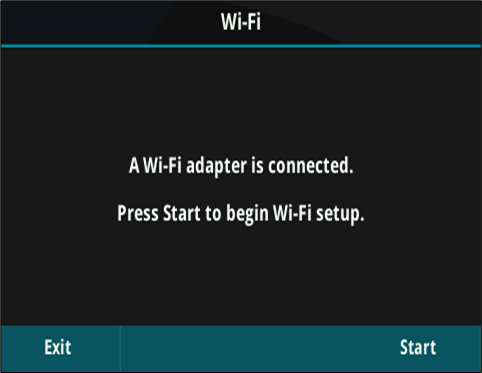
It’s important to note that when the device boots up, it will no longer be able to obtain an IP address via the wired connection (Both Wired and Wireless cannot run in parallel).
Once the device has started a prompt will be displayed on screen, press “Start” to begin the setup.
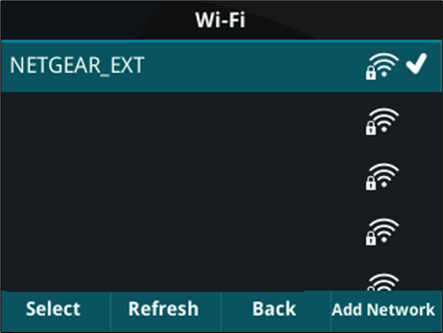
The ability to scan for a Wi-Fi network is presented. A list of available networks will populate this page and from here you can press “Select” to attempt to join that network.
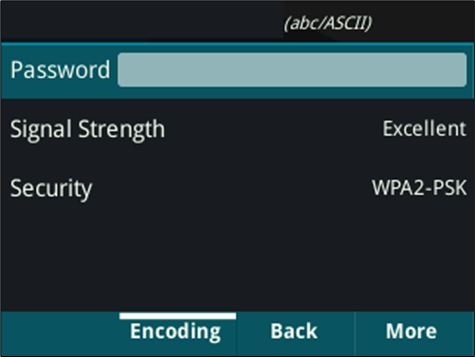
Upon pressing “Select” you will need to enter the appropriate security credentials for that particular Wi-Fi network. Once you have finished press the “More” option and then press “Connect”
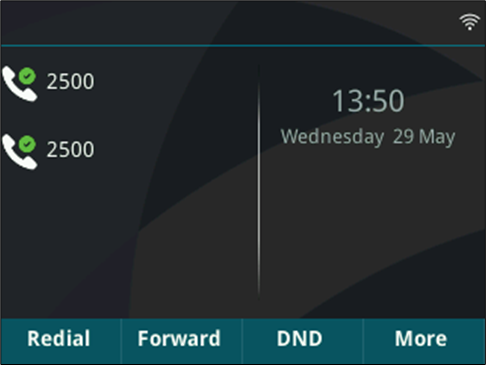
The device will then join the chosen Wi-Fi network. A visual indicator is present at the top right corner of the display.