
The T34W is a high-performance, colour screen Wi-Fi IP phone with an extra-large 320×240-pixel colour display with backlight. It also offers high-definition (HD) audio, dual-band 2.4GHz & 5GHz Wi-Fi, dual-port Gigabit Ethernet with integrated Power over Ethernet (PoE), and a USB 2.0 port for headset connections.
Supported features
For the initial launch of the Yealink T34W on PhoneLine+, we will be supporting all of the existing features that are also supported on our previous IP handsets on the platform (Polycom VVX150, etc.), this will mean the following is supported:
- Outbound calls
- Inbound calls
- Voicemail access
- Call hold
- Call waiting
- Call Transfer
- Instant conference (N-way Calling)
- Contact Syncing (standard, Office, Anywhere license only)
Yealink T34W Handset #
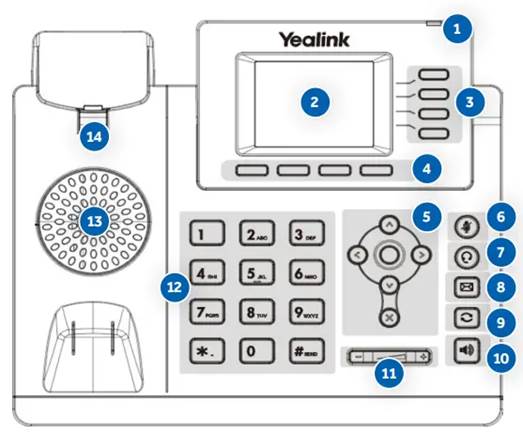
| No | Item | Description |
| 1 | Power LED | Indicate call message, and phone system status. |
| 2 | Phone Screen | Shows information about your phone, such as calls, messages, Soft keys, time and date. |
| 3 | Line Keys | Access your phonelines and features. |
| 4 | Soft Keys | Access the function above the soft keys on the screen. The softkeys change depending on what you are doing at the time. |
| 5 | Navigation Keys | Scroll through information or options displayed on the screen.Access History and Directory respectively. |
| OK Key | Confirm actions or answer incoming calls. | |
| Cancel Key | Cancel actions or reject incoming calls. | |
| 6 | Mute Key | Toggle the microphone on or off. |
| 7 | Headset Key | Toggle the headset mode on or off. |
| 8 | Message Key | Access your voice massages. |
| 9 | Redial Key | Redial a previously dialled number. |
| 10 | Speakerphone Key | Toggle the speakerphone (hands-free) mode. |
| 11 | Volume Key | Adjust the handset, headset, and speaker volume. |
| 12 | Keypad keys | Allows you to enter numbers, letters, and special characters. If a menu item has an index number, you can use the keypad key to select the item. |
| 13 | Speaker | Provide ringer and speakerphone audio output. |
| 14 | Reversible Tab | Secure the handset in the cradle when the phone is mounted vertically. |
1. Connecting your phone to WiFi #
- Press the Menu soft key.
- Use the navigation arrow keys and OK keys to reach the Basic menu option.
- Scroll down to Wi-Fi option using the navigation keys and press OK.
- Toggle Wi-Fi to ON using the right navigation key, then press the down navigation key to scan for networks.
- Scroll down to the Available Networks option using the navigation keys and press OK.
- Select the desired Wi-Fi network using the navigation and OK keys and follow the prompts to enter any required password, then press the Save soft key.
2. Placing Outgoing Calls #
When the phone is not in use:
- Pick up the handset or press the Speakerphone button.
- Dial tone will be heard.
When using a headset:
- Press the Headset button to activate headset mode.
- Dial a speed dial or telephone number.
When you are already on a call:
- Press the Hold soft key.
- Press the New Call soft key.
- Dial a speed dial or telephone number.
- Resume the original call by pressing the Resume soft key.
3. Answering an Incoming Call #
On the handset:
- Pick up the handset to answer the call.
On a headset:
- When the headset is connected, press the Headset button to answer the call.
On Speakerphone:
- Press the Speaker button to answer the call.
4. Rejecting an Incoming Call #
- Press the Reject soft key to immediately send the caller to voicemail.
5. Ending a Call #
On a handset:
- Hang up the handset.
On a headset:
- Press the Headset button.
On speakerphone:
- Press the Speakerphone button.
6. Call Hold #
Placing a call on hold:
- While on a call, press the Hold soft key.
Retrieving calls on hold:
- Press the Resume soft key.
7. Mute #
- To mute the microphone on a call, press the Mute button.
- To unmute the microphone, press the Mute button again.
8. Transferring Calls #
Blind Transfer:
- Press the Transfer soft key during an active call.
- Enter the number or speed dial you want to transfer to.
- Press the Transfer soft key again.
Attended Transfer:
- Press the Transfer soft key during an active call.
- Enter the number you want to transfer to and press the Dial soft key.
- Press the Transfer soft key after the second party answers and you have announced the call.
9. Call Waiting #
While already on a call, and a new call rings in, you will hear a beep tone emitted by your phone.
To Answer the Second Call:
- Press the Answer soft key to access that call. The first call will be placed on hold.
- Once the second call has ended, resume the original call by pressing the Resume soft key.
To Reject the Second Call:
- Press the Reject soft key to immediately send the caller to voicemail.
10. Speakerphone #
While the phone is not in use:
- Press the Speakerphone button to activate the speakerphone and get a dial tone for an outbound call.
While on a call on the handset or headset:
- Press the Speakerphone button to continue the current call on the speakerphone.
While a call on speakerphone is active:
- Press the Speakerphone button to hang up the current call.
11. Instant Conference (N-Way Calling) #
- Press the Conf soft key during an active call.
- The call is placed on hold.
- Enter the number of the second party, and press the Send soft key
- Press the Conf soft key again when the second party answers.
- All parties are now joined in the conference.
- Press the End Call soft key to disconnect all parties.
12. Feature Access Codes #
Feature access codes can be used on this device as an alternative method for controlling calling features when not using a client or app. They are a series of key presses which facilitate certain functions on within the platform.
Please note, that the ability to use an FAC will be dependant on your user permissions
| Feature | FAC | Description |
| If calls are not answered | #41 | Set to Keep Ringing |
| *41 | Send calls to voicemail | |
| *92 | Always forward calls to another number. To set the forwarding destination you must add the full number after the code before dialing, for example, dialing *9207012345678 would set calls to be forwarded to 07012345678 | |
| *93 | Remove call forwarding, this will then default back to Keep Ringing | |
| *61* | Check what your current settings are | |
| Anonymous Call Rejection | *77 | Switch Anonymous Call Rejection on |
| *87 | Switch Anonymous Call Rejection off | |
| *52* | Check what your current Anonymous Call Rejection settings are | |
| Voice portal | *62 | Access your voice portal |
| 1571 | Access your voice portal | |
| Call Pull | *11 | Pull a live call to a different device/Client/App |