Content #
This page will cover the following areas relating to the pricing tool:
- What type of In-Life Changes the Pricing Tool accommodates
- Extra considerations when using the pricing tool
- How you get access to the Pricing Tool
- Creating a Renewal/Regrade Quote
- Retrieving a Saved Quote
- Completing your Renewal/Regrade Order
What type of In-Life Changes the Pricing Tool accommodates. #
Prior to using the tool, you should ensure you are familiar with how changes are handled and review separate guidance we have in this area. Further details can be found by clicking here.
As with new service pricing is provided upon application.
The pricing tool currently handles the following In-Life Change scenario for Fibre and FTTC access types only.
- A change in bandwidth
- Changing between Wires-only and Managed Services
- Adding Broadband Backup
The tool will also allow for you to make any combination of the above as well.
All other changes, including those which contain a combination of the above (for example, an increase in bandwidth and change of product) are priced outside of the Pricing Tool.
For these, you should contact ethernetorders@gamma.co.uk outlining the type of change you are looking to make.
For any changes you are looking to make, please ensure you are familiar with how changes are handled and review the separate guidance we have in this area. Further details can be found by clicking here.
All changes need to conform to the designs we support as per the Service Description.
Extra Considerations when using the pricing tool #
The pricing tool is designed to make obtaining prices for the supported In-Life changes as quick as possible.
However there are extra considerations to take when using the tool and reviewing the results.
A generated quote is specific to an existing In-Life Service.
Prices returned are valid for 30 days only
If you are adding Broadband Backup, accuracy of pricing and availability is increased by specifying a CLI. A postcode can cover a large geographic area and is therefore less reliable, returning less than accurate speed estimates.
You will not be able to add 4G as a backup option on to an existing In-Life service – this is currently only available for new services.
If you wish to order use the returned quote to add Broadband Backup, a CLI must be specified.
The price isn’t saved unless you complete the quoting process
A returned price isn’t a guarantee of availability or a commitment to deliver service
How you get access to the pricing tool #
Access to the pricing tool is managed on a per application basis and if you fulfil the correct credit requirements.
To obtain access, please contact your Business Development Manager or the Internal Account Management Team
Creating a Renewal/Regrade Quote #
To use the pricing tool effectively, there are a number of key steps you need to run through. To create a quote by which you can order from, it is important all of these steps are completed.
Step 1
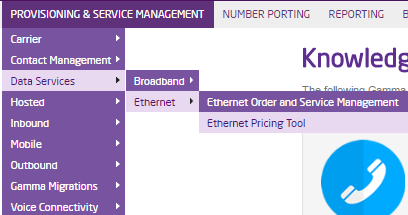
Log into the Gamma Portal and go to Provisioning and Service Management, Data Services, Ethernet and select Ethernet Pricing Tool.
Step 2
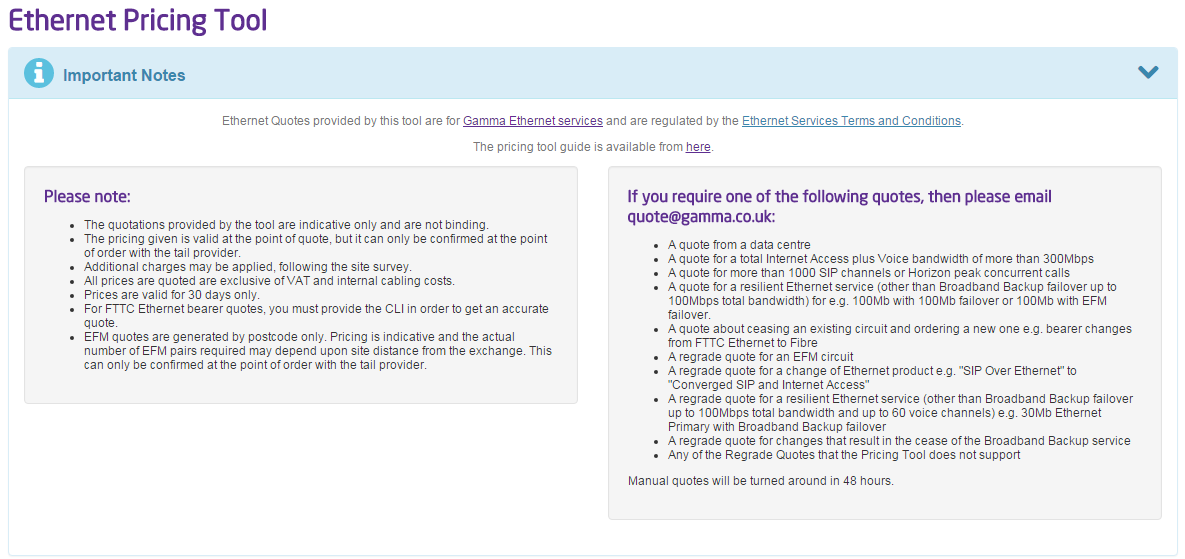
The terms and conditions of Ethernet are included in the “Important Notes” section at the top of the page. These apply to new Ethernet quotes as well as Regrades so are important to review on a regular basis.
Use the “Help” buttons which contains information on what each panel means.
Step 3
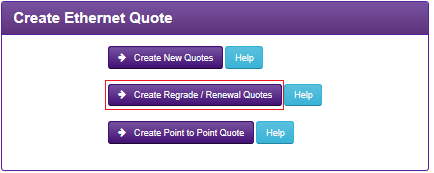
Select the “Create Regrade/Renewal Quotes” button to start creating your quote.
Step 4
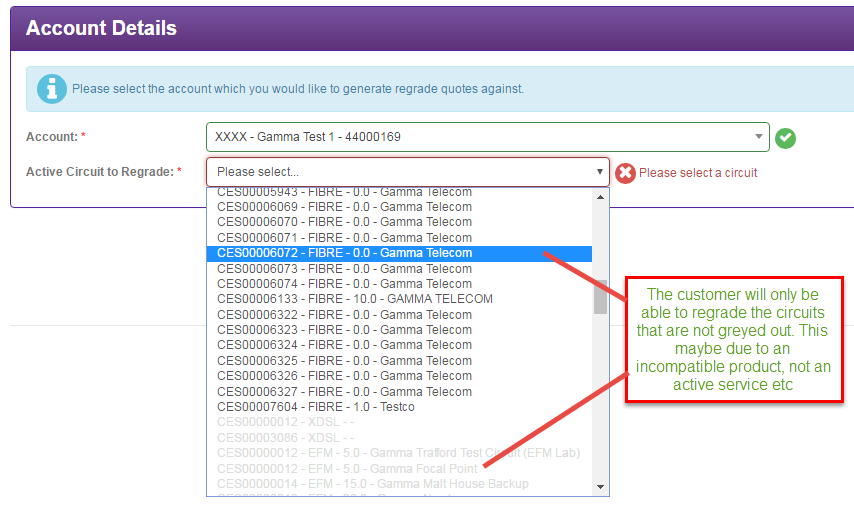 When selecting a circuit, if the circuit details are greyed out this is due to the circuit not meeting the criteria for the regrade/renewal service. When you hover over the circuit, it will outline why the circuit can’t be regraded/renewed through the tool.
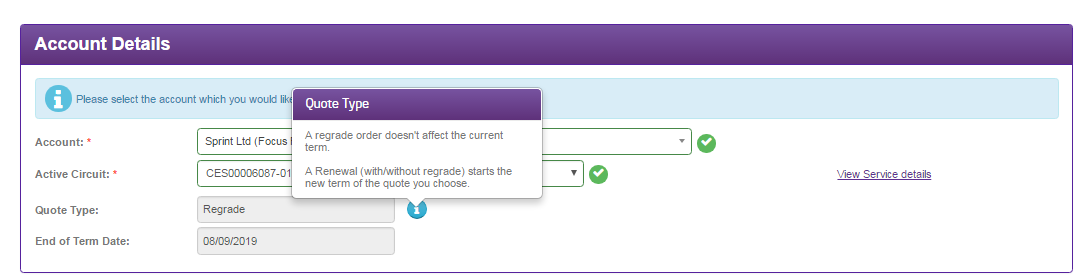
Once you have selected your circuit, you will see a ‘Quote Type’ and ‘End of Term Date’ field appear. The ‘I’ information icon next to the quote type will outline what constitutes a regrade, renewal or renewal/regrade.
Step 5
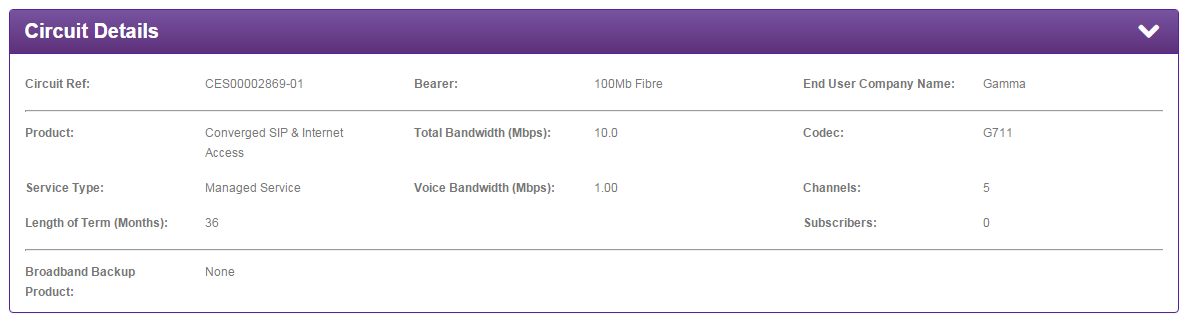
Once you have selected your service, you will be presented with a high-level summary of its features.
Please review this content carefully to ensure you have selected the correct service you want to change.
Step 6
One of the features of the tool allows for you to add a broadband back up service if the broadband speeds are sufficient to meet your current service speeds.
You can check for broadband availability by specifying an existing CLI or the site address.
Although we have your address for your current service, the BT records for broadband availability may be in a different format. If we cannot find a match from the information you already have, you will have to select the address.
CLI CHECKS
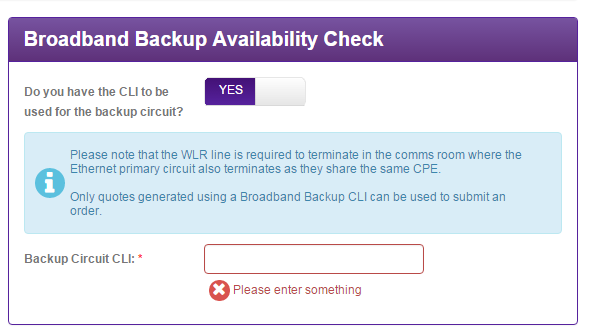
To check availably based on CLI, you need to answer “YES” to the question “Do you have the CLI to be used for the backup circuit?”
The page will then adjust slightly to show you a field to end the circuit CLI.
This CLI has to be associated to an active WLR3 line.
|
ADDRESS CHECK
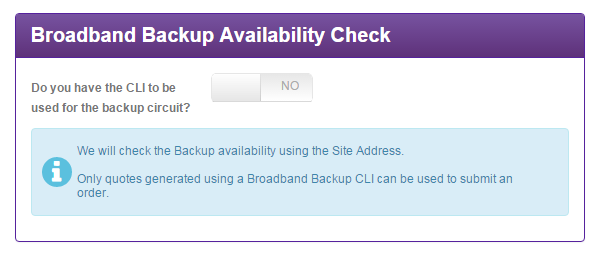
An alternative way of seeing what Broadband Backup services are available is by running an address check instead. To do this, answer “NO” to the question “Do you have the CLI used for the backup circuit?”
Press “Continue” and we will run an availability check. If we can’t match an address based on the records we already have for your service, we will return you to the page to select an address from a list.
The same rules on ordering apply in that we can only accept an order if there is a working WLR3 line for the service to be installed on.
SKIP CHECK
The skip a Broadband Back up check, select “NO” from the question “Do you have the CLI used for the backup circuit?”
Our system will currently run an address check in the background. If there is a match you will proceed to the next page.
If there is no match, you can skip the address selection to move on.

Step 7
The next step is to identify what changes you would like to make to your circuit (if any), at this stage in the “New Circuit Configuration” section you will be presented with a drop down box which will contain all the potential options for your regrade.
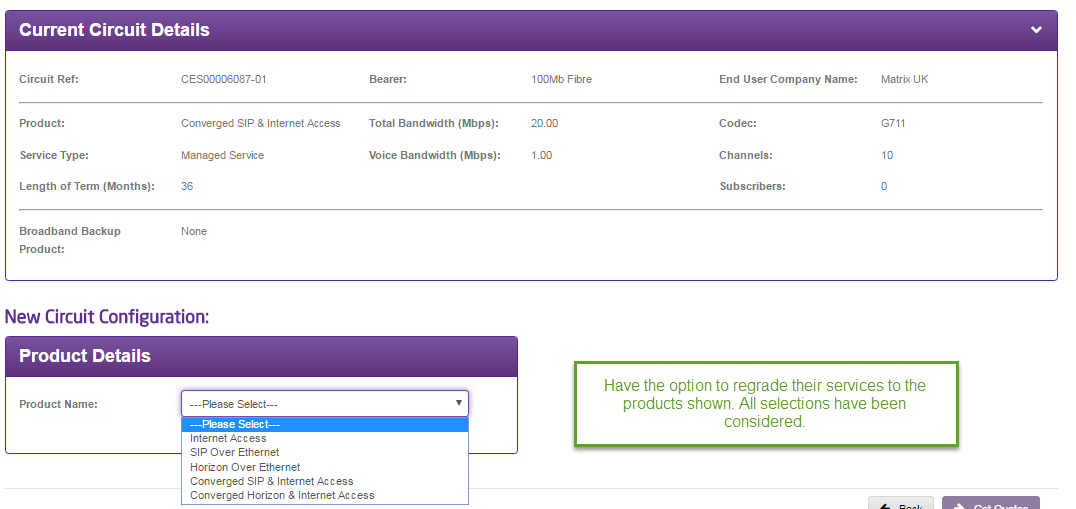
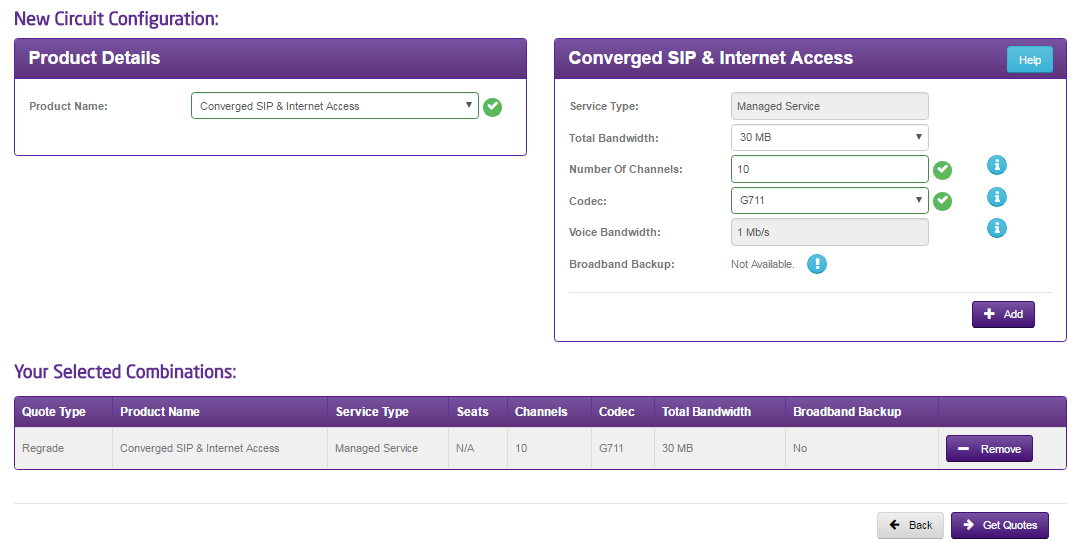
Dependent on the product you have selected, only relevent fields will be displayed for the user to populate. It is also worth noting that multiple quotes can be generated for the same product (see step 8 for more information):
Step 8
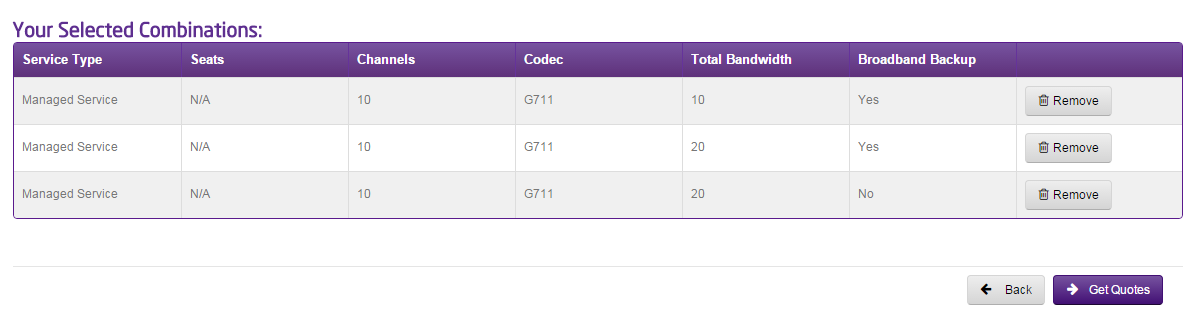
To add your combinations to the list, press the ”Add” button.
At the bottom of the page you can then review the combinations you’ve added and remove them if required.
To proceed to see the associated prices, press “Get Quotes”
You can only add up to 5 combinations
Step 9
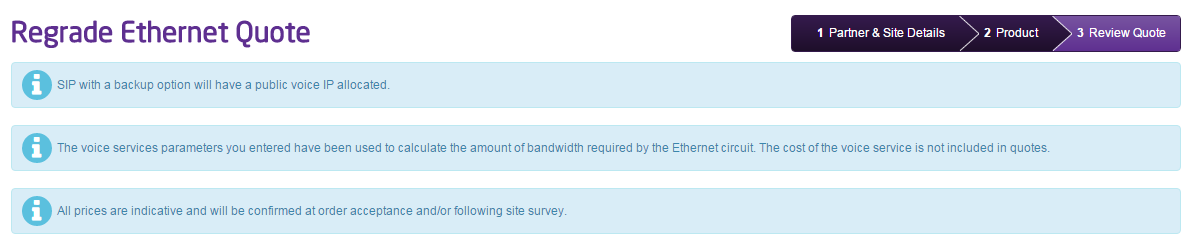
The next step is to review your returned results.
The first thing you will see are any alerts or information we need to draw to your attention. For example, if you have a Converged SIP service but you wish to add broadband backup, we will alert you to the fact the SIP will have a public IP subnet allocated, as the build type is different. This will also mean there are some wider change implications, which need to be co-ordinated with you. We will discuss this with you as we process the order.
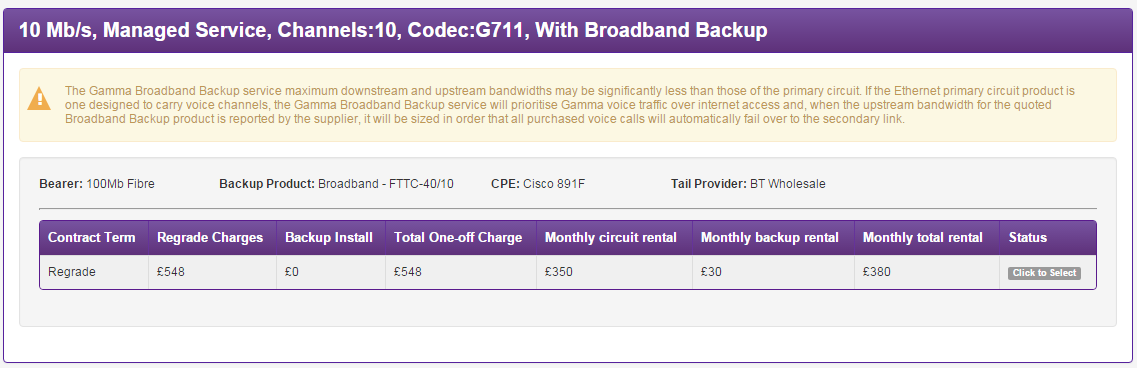
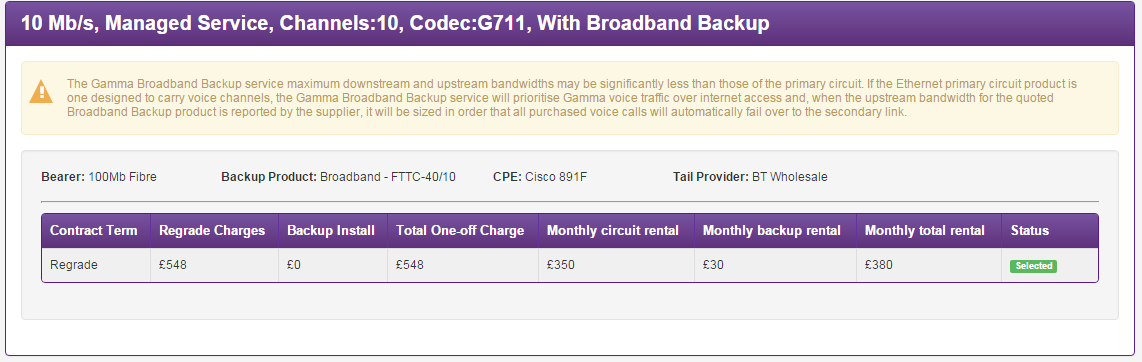
For each combination you specified, we will return a result. The result will describe the combination you specified at a high level with the detail underneath.
You will also be informed of the router being provided. This is important if the router is different from what you currently have as you will need to swap the devices over when you want the change to take place.
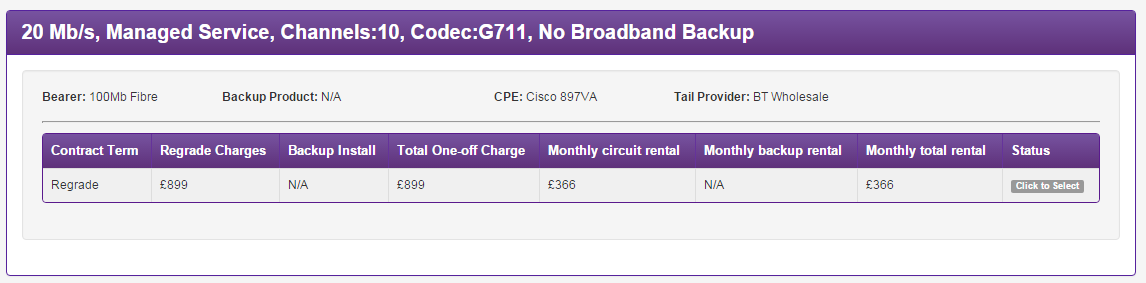
For each result you will also see the any charges associated with the regrade/renewal, the new circuit rental and the associated broadband back up costs, if specified.
Step 10
To save your selection (of which you can select multiple results), look at the “Status” column and press the button “Click to Select”.
The button will turn green to show you it has been selected.
Step 11
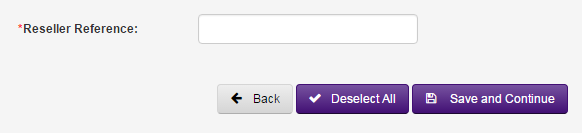
Before you can save your quote, we ask you to provide your own reference. This is so you can find the quote with a name, which is meaningful to you or as a way of describing it. This is in conjunction with our own quote reference we will give you.
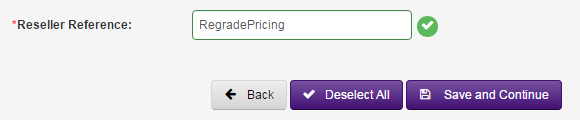
The Reseller Reference box is found at the bottom of the page. The box is initially blank.
However once populated will have an associated tick next to it.
Press “Save and Continue” to save your quote with us.
If you leave the page before doing this, your pricing isn’t saved. If you want to use the prices presented you will have to start again and complete the process.
Step 12
Once you have saved your quotes, each one will be given a unique referenced, prefixed with “REA”.
You can see a high level detail of when the quote was created, the service it is related too and associated total costs.
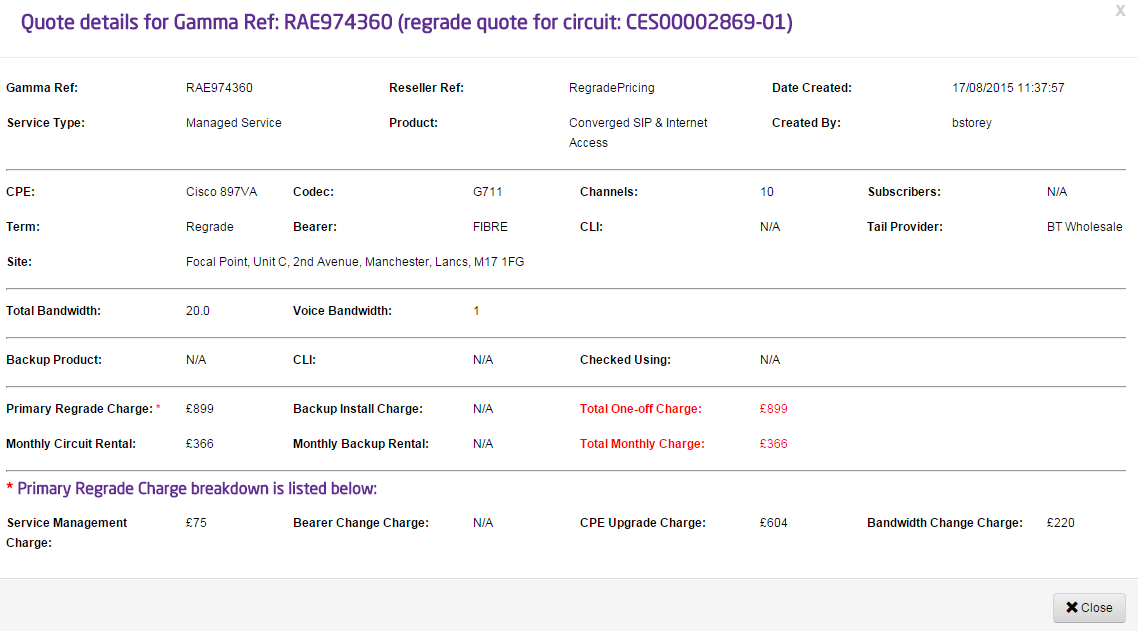
You can also go deeper in to each quote by selecting the “ACTIONS” button and pressing “VIEW”.
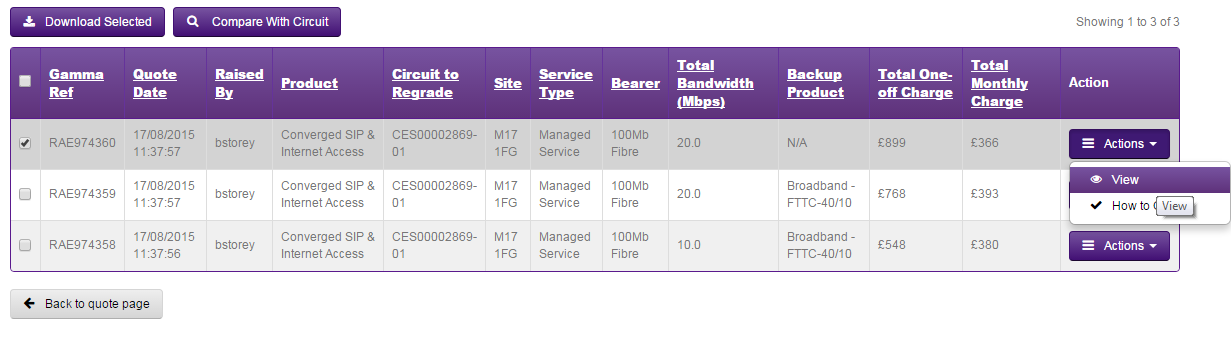
From here, a window will open where you can see more information about the quote including a break down / itemisation of the charges and how they have been calculated.
Step 13
One useful feature we have allows you to compare all of your returned quotes side by side against the current service.
Here you can visually see the differences between the current configuration and price against one of the quotes you have created.
The changes are denoted by the green boxes.
To do this, first, select the quotes you wish to review by using the check boxes on the left hand side.
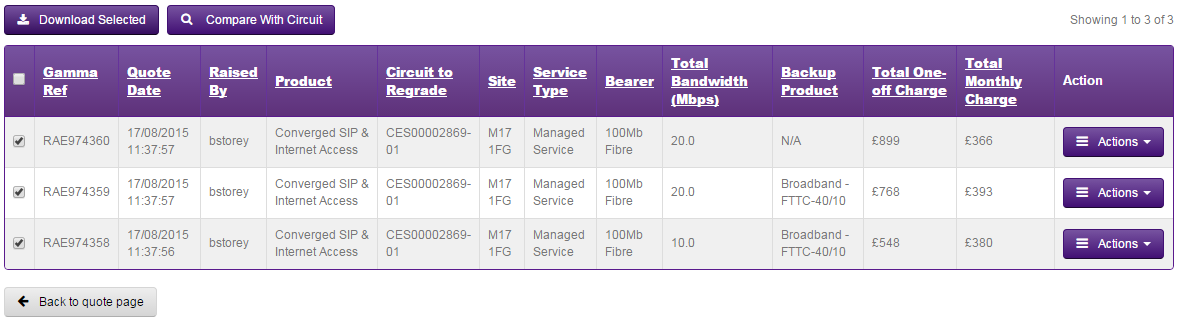
Next press the “Compare with Circuit” button.
A separate pop up will open over the screen illustrating the circuits.
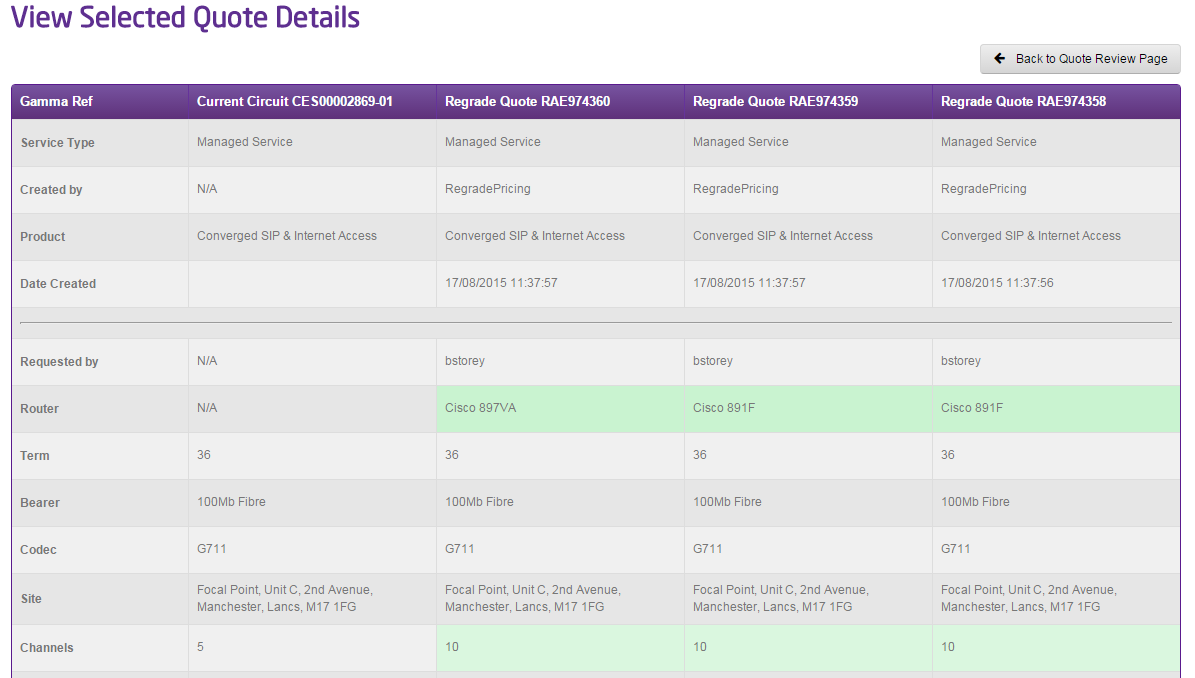
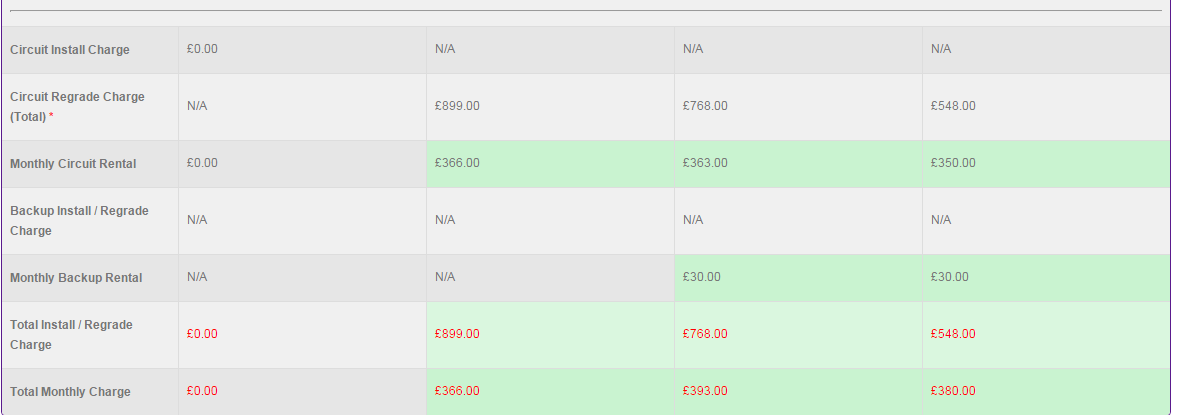

When you are comparing circuits the feature will highlight in green any field that is different to the current circuit details, this is so any product and price different is easily identifiable. In a similar way to viewing individual quotes, you can also compare the one off charge breakdowns as well.
Step 14
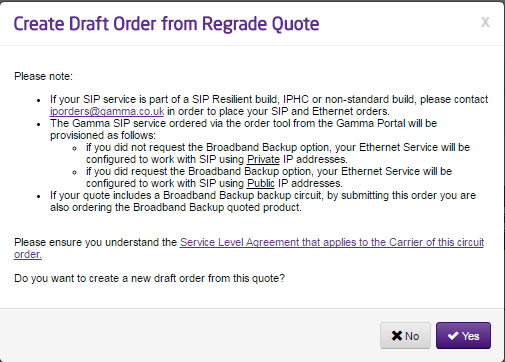
To finish your quote, you need to select the ‘Actions’ button and select ‘order’.

Once you have done this you will be presented with a pop up which will outline the changes that will occur depending on the details of the product renewal/regrade change.
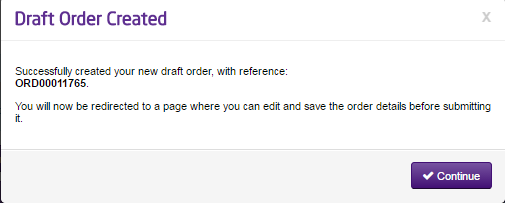
As you continue through the journey, you will be proivded with a draft order quote referrence.
Retrieve a Saved Quote #
Step 1
Log into the Gamma Portal Provisioning and Service Management > Data Services > Ethernet > Ethernet Pricing Tool.
Step 2
Click “Search Quote”
Step 3
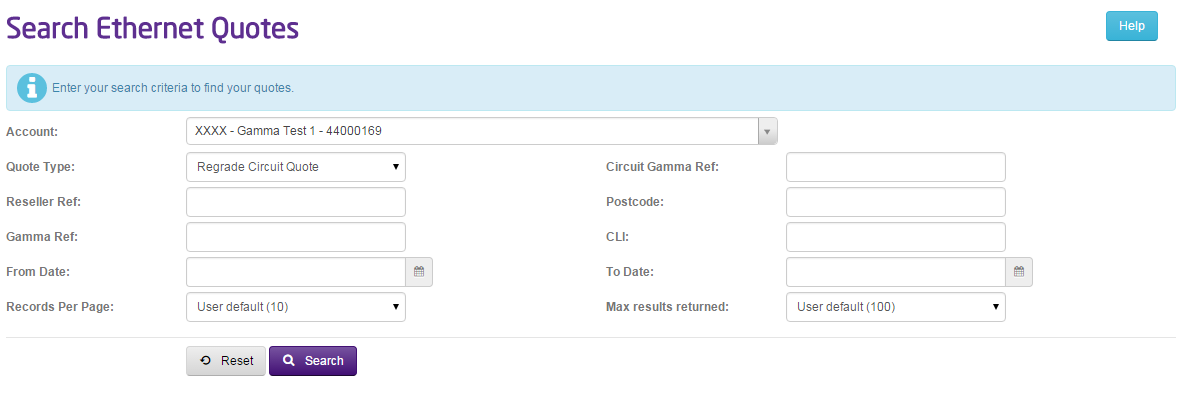
You will be presented with a panel which will allow for you to customise your search.
As this tool can be used for both regrade quotes and new service quotes, it is important you specify the type of quote you are looking for in the “Quote Type”.
If you know the quote reference, you can explicitly enter that in to the “Gamma ref” field too.
To start your search, press “Search”
Step 4
Your results will be presented in a table underneath the search panel.
If the user selects ‘View’ the quote details will appear in a pop up window.
If multiple quotes are selected there will be an arrow on the page for them to scroll down to see all quotes. In some cases a pop up window will appear asking the user to acknowledge some specific information and to confirm they want to go ahead and place the order

Complete Your Renewal/Regrade Order #
Step 1
Once you have completed your quote and submitted your draft order, (see section entitled “Creating a Renewal/Regrade Quote”, you will be brought directly into the ‘Order details’ page. The draft order will pull through all the information from your quote into the apprioriate sections.
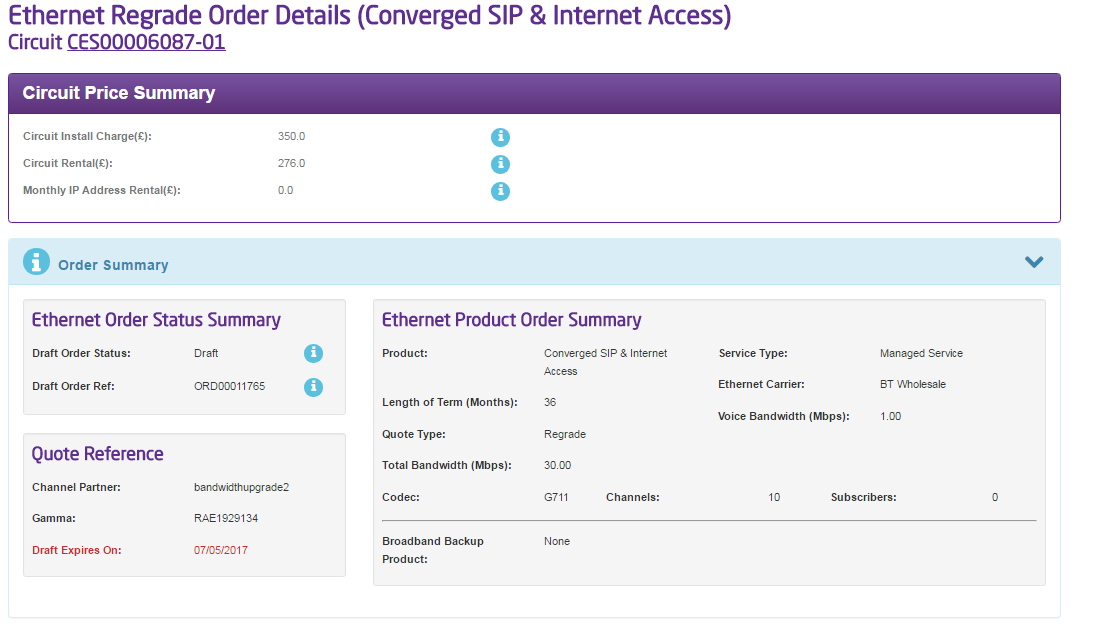
Step 2
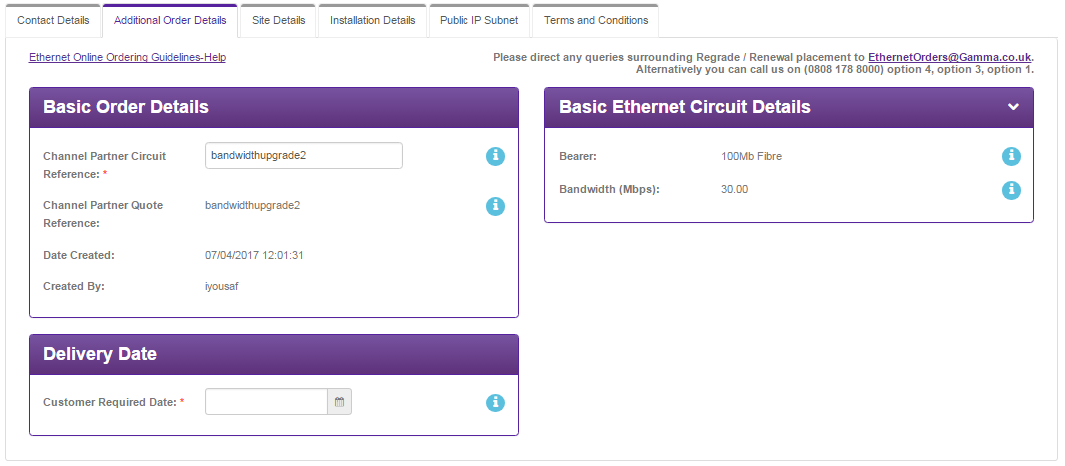
To submit your order you will need to ensure that all the mandatory fields have been completed across all six tabs (mandatory fields can be identified, as they will have a red asterix next to the field name).

As a user, you will be given the ability to edit the circuit reference created during the initial quote stage; this can be found on the ‘Additional Order Details’ tab:
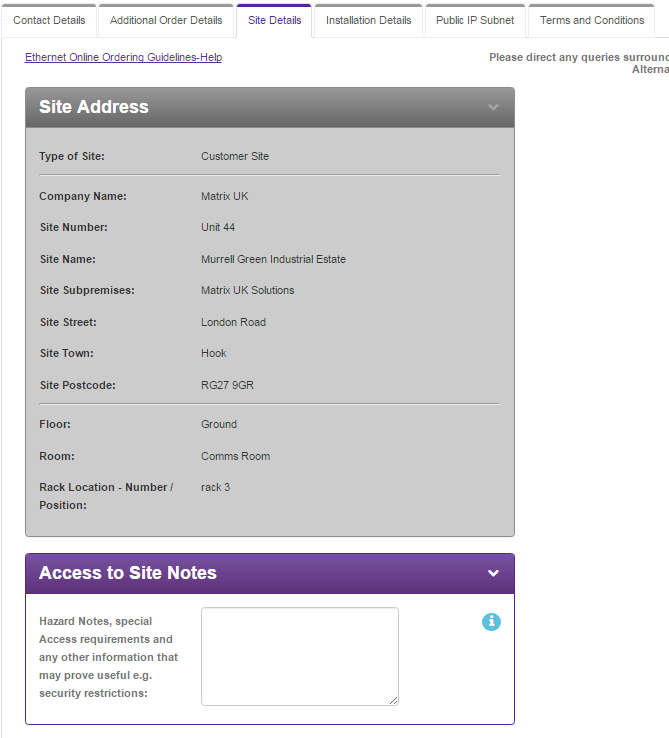
The site address information will be pre-populated and can’t be amended, however any site notes can be added via the ‘Site Details’ tab:
Installation Details will be different dependant on the product details for the regrade/renewal. In this case, it is asking how they would like the SIP service to be run, either Public/Private routing.
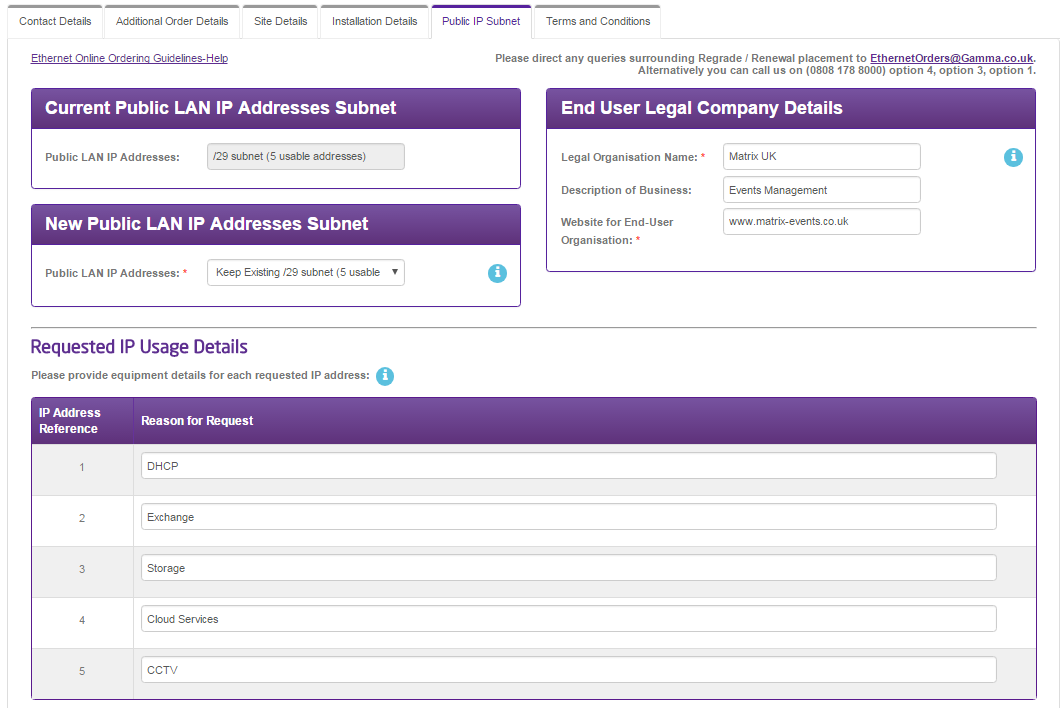
The reseller has the option to request for further IP’s for the customers solution if required. If they are requesting more than 5 usable IP’s (/29 range) they will have to fill in the justification form above prior to submitting the order. There will be an option to keep the existing subnet range as well.
Step 3
Once all mandatory information has been entered in the journey you will be able to submit your order, to do this simply select the ‘Review and Submit’ button located at the bottom of your page:
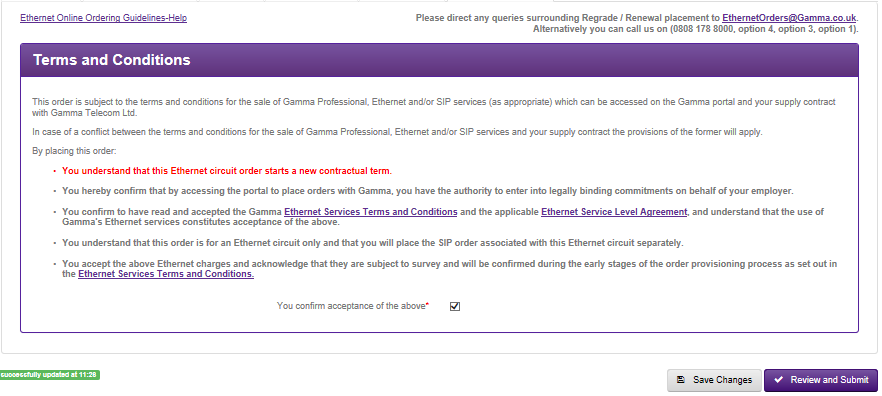
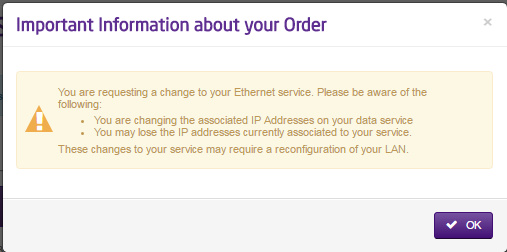
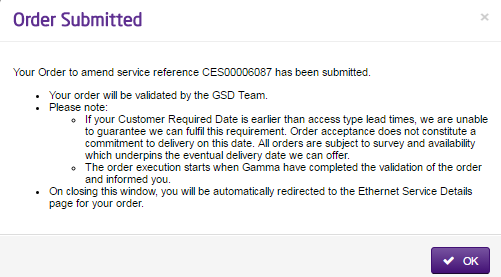
Once you have done, there will be two messages displayed, the first will highlight and confirm any changes to your service because of this order and the second will provide you with a service reference number which you will need for any further communications with Gamma.