
A slow speed fault is where the speed that your customer is getting is considerably lower than what is expected.
If the Ethernet circuit has 4G as a back up, very slow speeds may indicate that the primary circuit is hard down, and the data traffic is now being carried over the 4G network. Please consult 4G Fast Start and 4G Backup troubleshooting in this document for further information.
 Check Bandwidth #
You are unable to check the Bandwidth for Converged IPDC and Internet Access products. If you have Converged IPDC and Internet Access, then please skip to the “Local Checks” section.
A cause of intermittent connections for Ethernet is the bandwidth being maxed out. You can check this by using the Ethernet Service Management tool within the Gamma Portal.
Step 1
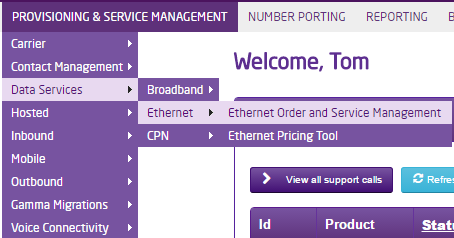
Log into the Gamma Portal and go to Provisioning and Service Management, Data Services, Ethernet and select Ethernet Service Management.
Step 2
Search for the Ethernet circuit you are having the Intermittent Connectivity issues by any of the criteria that is available to you. We’d recommend searching using the Service Ref, which begins “CES” followed by a series of numbers.
Click “Search”.
Step 3
To get to the Service Management screen, click into the Service Reference, which is a purple link.

Step 4
You’ll be taken to the main Ethernet Service Details screen, from here you will be able to view the contact details for the service, by clicking the -01 ref you will be able to view details about the service.
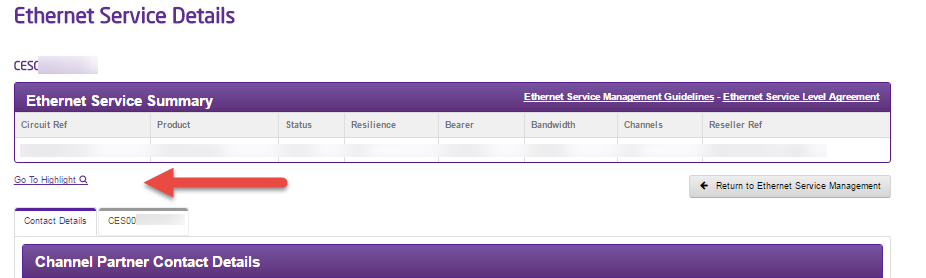
You will should be able to see the highlight button, if you don’t have this then please contact your account manager or the support desk and they will assist you in getting this set up.
After clicking the highlight link you will be taken to the highlight monitoring system where you will be able to check the monitoring graphs.
Step 5
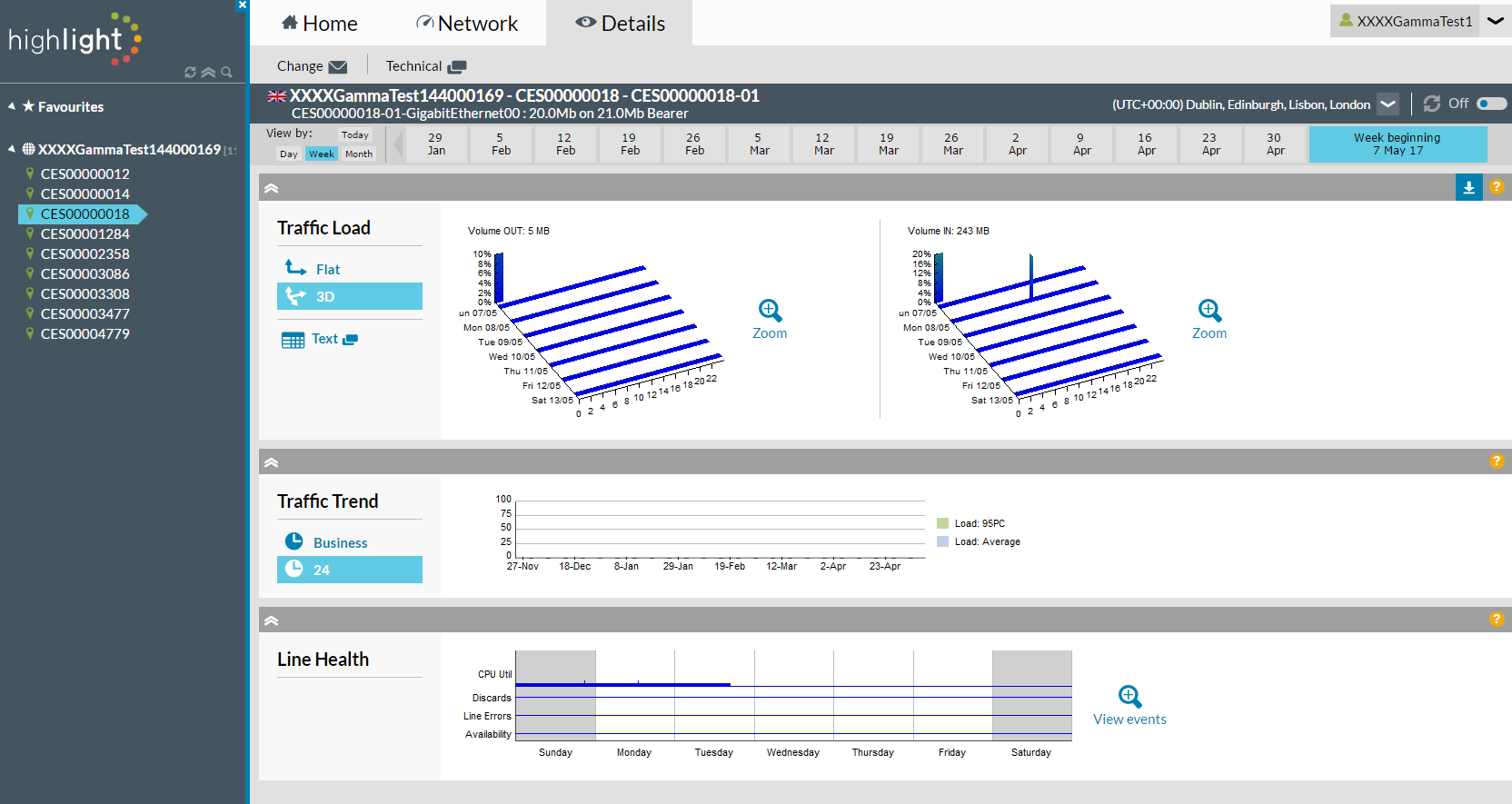
Once you are into the highlight system you will be able to see the circuits you have down the left hand side column, you can select the relevant circuit you want to view.
Step 6
You can use the tabs along the top Home, Network & Details to get further information regarding the circuit.
We need to compare the bandwidth (you can get this from the header) with the graphs to see if your customer is coming anywhere near the bandwidth allowance. You use the different views of the graphs to see if this is case by comparing it with the bandwidth your customer pays for and what the bars/lines on the graph come to. In this example, we can see that we’ve got 30MBPS Bandwidth and on the daily graph we’re using on average 6.16MBPS with a maximum usage of 29.74MBPS.
If the bandwidth is being regularly maxed out, then you should speak to your BDM about increasing your bandwidth.
If the bandwidth is not being maxed out, then move on to local checks.
Local Checks #
These are the local checks that we’d recommend that you ask or do before logging a fault with Gamma.
Has there been any configuration changes that have happened recently?
We ask this as these changes may have affected the connection, and it wouldn’t actually be a fault with the line, but a fault with the configuration.
Are all the connections into the Network Termination Equipment (NTE) and Routers securely in?
We need to make sure that all the cables are connected properly into the NTE and routers. Below are pictures on what cables should be plugged into the NTE.
Fibre (EAD)

EFM

Switch all the equipment off and leave off for 2 minutes before powering back on.
Using the On/Off switch on the router(s) – located next to where the power supply unit plugs into.
If your end user is using a wireless connection, try the service with a wired connection.
This is to see if the is anything affecting the wireless.
We are unable to offer any help on the Firewall, as these are not configured by Gamma.
Run a speed test
If it is an IPDC Only Ethernet circuit, do not use the speed tester as the results will not be accurate.
A speed test should be run directly from the router with no other devices active on the network. Speed tests measure available bandwidth, so if 10 PCs are running on the network at the time the speed test results could be inaccurate.
Go to Speed Test or Gamma Speed Test and follow the on screen instructions. This will give you the actual speed that the Ethernet circuit is achieving.
Still got Slow Speed?
If after these checks your end user still has slow speed issues, ask them the following questions and call us. We’ll need answers to these questions so that we can quickly resolve the fault for you.
- What does the customer regard as slow?
- Are all websites affected or only certain sites?
- Are only specific applications affected?
- Is the data slow at all times or only specific times of the day?