What the V2.0 Pricing Tool offers #
Pricing for our services is provided upon application. In order to meet your pricing requests we have created an online Ethernet pricing tool. All pricing can therefore be automatically and instantly generated for you. The tool will chose the nearest (and therefore most cost effective) Gamma data centre to connect to and will provide you with a quote on-screen which you can also download.
The tool will provide you with prices, broken down by different contractual terms.
It will allow you to save the prices returned and allocate a unique reference which you can use to create an order with.
Extra Considerations when using the V2.0 pricing tool #
The pricing tool is designed to make obtaining prices for Converged Ethernet Services as quick as possible.
However there are extra considerations to take when using the tool and reviewing the results.
The tool should not be used when:-
- Your customer is in a Data Centre
- You wish to specify which Gamma data centre to connect to
- You require more than 1000Mbps
- You require bandwidth to accommodate 1000+ SIP cha
- You wish to make a change to an existing service
Bespoke requirements
Should you have requirements which fulfil this criteria, please email quote@gamma.co.uk. Responses to these enquiries are 48 hours.
With the pricing tool results, the following should also be considered:
Prices returned are valid for 30 days only
For FTTC and EFM Services, accuracy of pricing and availability is increased by specifying a CLI. A postcode can cover a large geographic area and is therefore less reliable.
If you wish to order FTTC access of xDSL backup, a CLI must be specified.
xDSL backup is not available for primary access bandwidth which exceeds 100Mbps.
If ordering 4G Fast Start or 4G Back-up other back-up options are not compatible
The price isn’t saved unless you complete the quoting process
A returned price isn’t a guarantee of availability or a commitment to deliver service
How you get access to the V2.0 pricing tool #
Access to the pricing tool is managed on a per application basis and if you fulfil the correct credit requirements.
To obtain access, please contact your Business Development Manager or the Internal Account Management Team
Using the Ethernet Pricing Tool V2.0 #
To use the pricing tool effectively, there are a number of key steps you need to run through. To create a quote by which you can order from, it is important all of these steps are completed.
Step 1
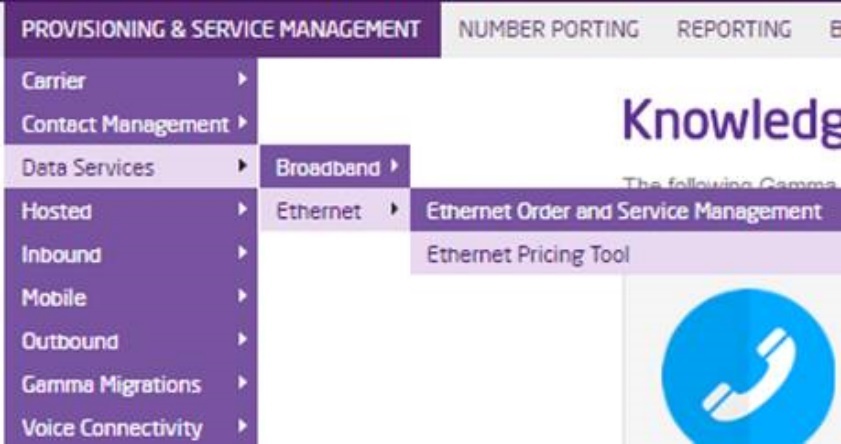
Log into the Gamma Portal and go to Provisioning and Service Management, Data Services, Ethernet and select Ethernet Pricing Tool.
Step 2
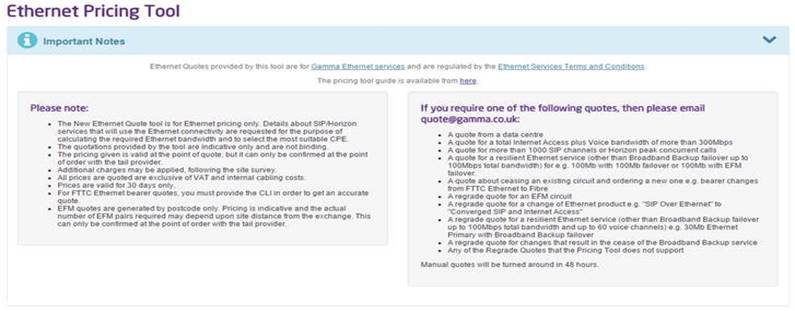
The terms and conditions of Ethernet are included in the “Important Notes” section at the top of the page.
Use the “Help” buttons which contains information on what each panel means.
Step 3
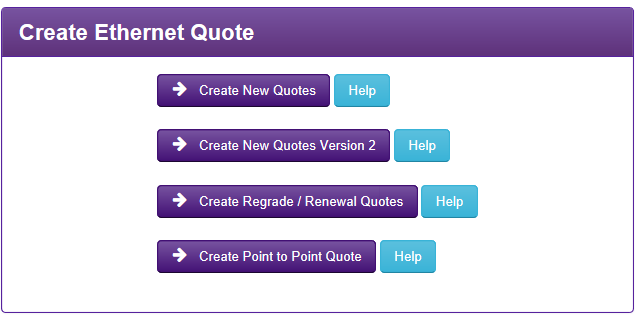
Select the “create a new quote” button to start your Ethernet quote.
Step 4
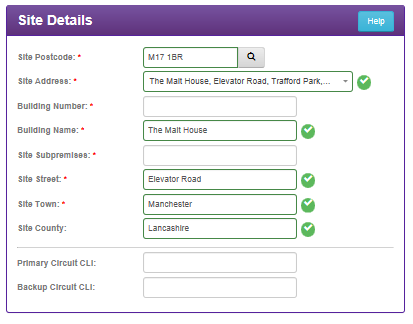
Enter the site postcode and CLI in Site Details.
Searching the site address is done by clicking on the lens next to the postcode and either selecting one of the returned addresses or by selecting ‘My address is not listed here’ and then they can manually enter it.
Step 5
At this point, the user would be asked to enter information regarding the product they want. You will also be able to enter a referrence (please note, this is not mandatory), however this referrence can be used later on to help identify any specific quotes you may have saved.The products that the user will have to select from are:
- Internet Access (Wires Only)
- Internet Access (Managed)
- Gamma SIP (Voice Only)
- Gamma SIP (Converged)
- Horizon (Voice Only)
- Horizon (Converged)
Depending on which product the user has selected, they will also have to provide more information which will help determine the standard of Ethernet circuit in order to meet there needs. Please see the table below which shows the information that will be needed.
Description | Options | Limitsations |
Service Type | Managed / Wires Only | Both options are available only for Internet Access. All other products are Managed. |
Bandwidth | 1Mbps – 1000Mbps | None |
Channels* | User specified | SIP Trunking or Converged SIP Trunking only |
Codec* | G711/G729 | Voice Access Only |
Seats* | User specified | Horizon or Converged Horizon only |
Peak Concurrent Calls* | User specified | Horizon or Converged Horizon only |
Please also be aware, by using the “Add CES quote option” button you can create a series of quotes, then once you click the “Get Quotes” button you will be presented with prices for each varient of quote that you have assembled.
Step 6
Once you click on ‘Get Quotes’, you will be presented with a list of quotes, the default view for these quotes will be a contract term of 3 years, however there will be quotes for multiple bearers where applicable. The quotes page also gives you the option to filter depending on the bearer or contract term you would like, please see the screenshots below, which show you how to do this:

At this point in your quote you will also be able to select the resiliency that you require from your Ethernet circuit, you will be presented with the following options:
- None
- ADSL 2+
- AnnexM
- FTTC 40/10
- FTTC 80/20
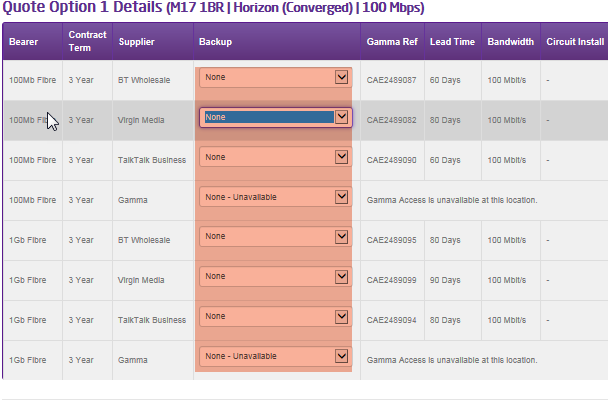
For more information around Gamma’s resiliency offering, please refer to the Ethernet service description, which you can find on the Gamma Academy.
At this point, if you wish too, you will be able to order your Ethernet quote by using the actions drop down and selecting order. If you do this, you will then be taken into the orderding journey (for more information please see page 56 of this document).
If at this point you need to leave the journey, any quotes processed will be saved for later retireval; in order to retrieve your quotes please see the following steps highlighted in this section.
Step 7
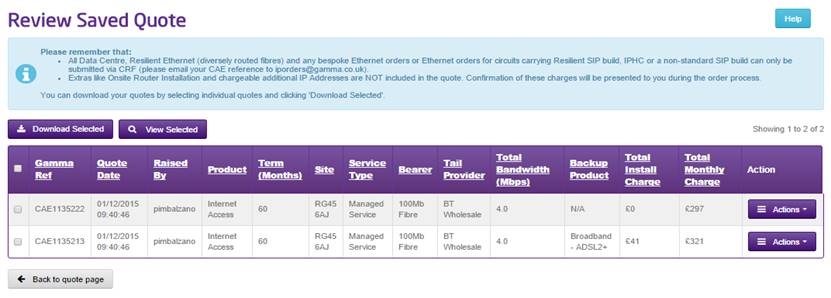
From the portal select the following to get to this screen; Provisioning and Service Management > Data Services > Ethernet > Ethernet Pricing Tool > Search Quotes.
Step 8
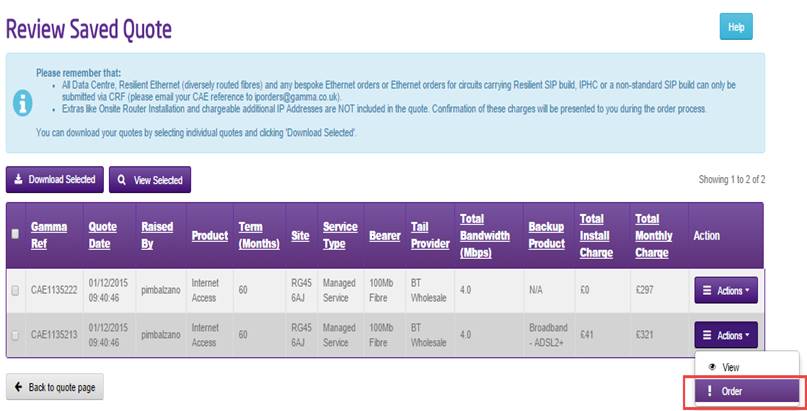
The user can then view the quote details or create an order.
Certain quotes cannot be used to submit an order online. In such cases the “!” symbol next to the Order word will indicate such limitation. A quote which includes Broadband Backup which was calculated using the Site Address instead of the Broadband Backup CLI is an example of such a case.
Order from Quote
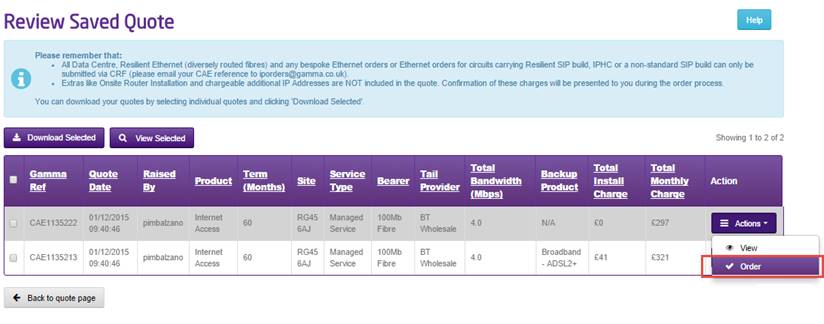
Cannot order from quote (for example, the quote includes Broadband back up generated using the address instead of the Broadband back up CLI)
Step 9
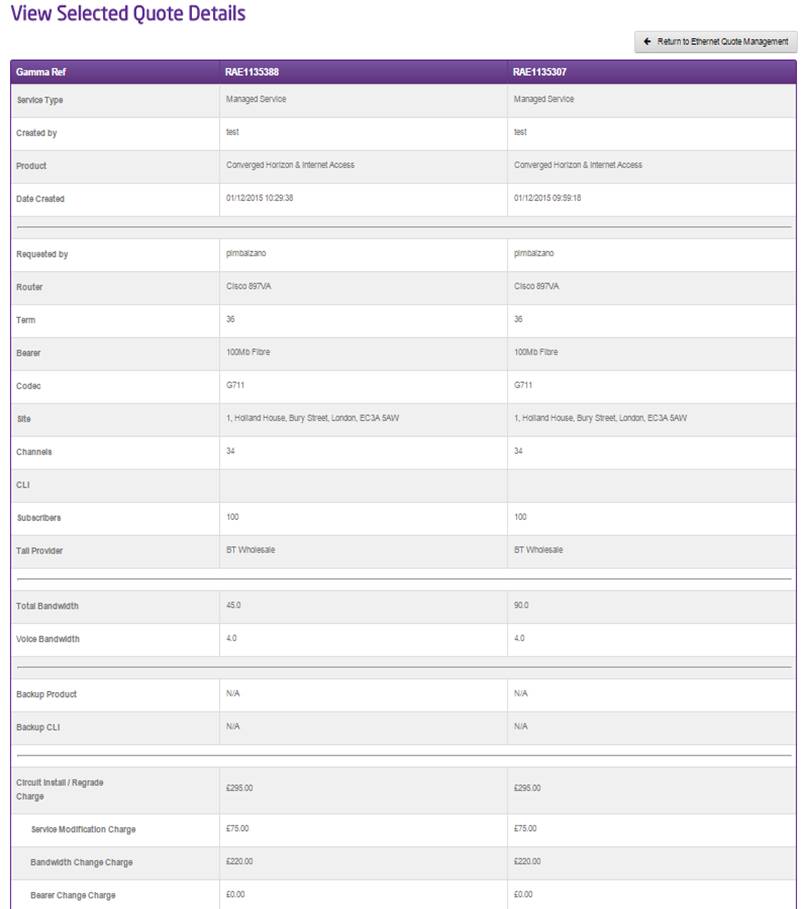
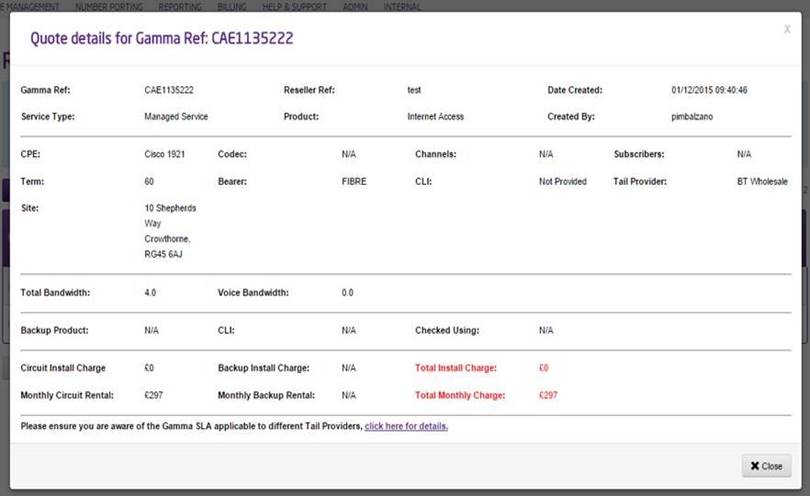
When the user clicks ‘View’, a popup window displays the quote details
Retrieve a Saved Quote #
Step 1
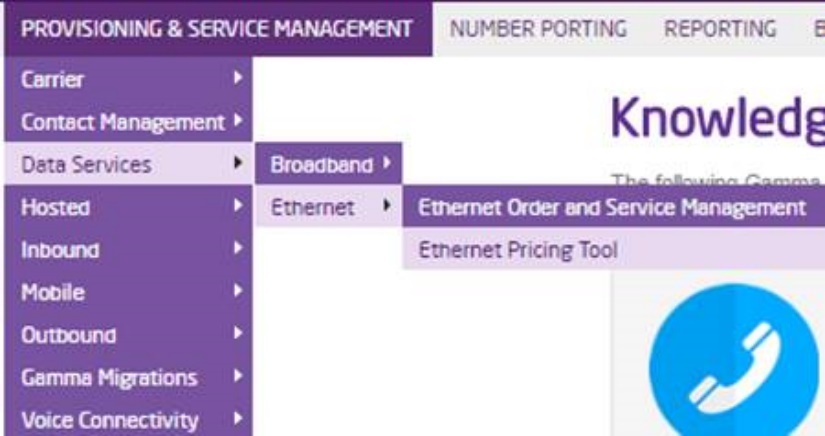
Log into the Gamma Portal Provisioning and Service Management > Data Services > Ethernet > Ethernet Pricing Tool
Step 2
Click “Search Quote”

Step 3
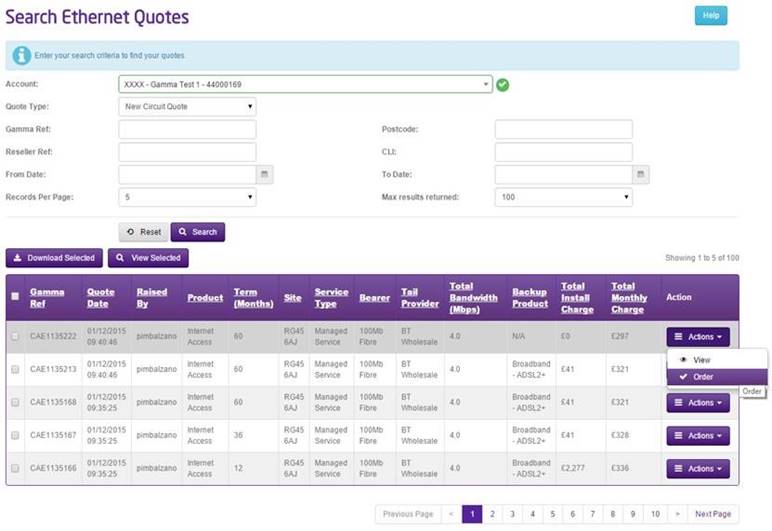
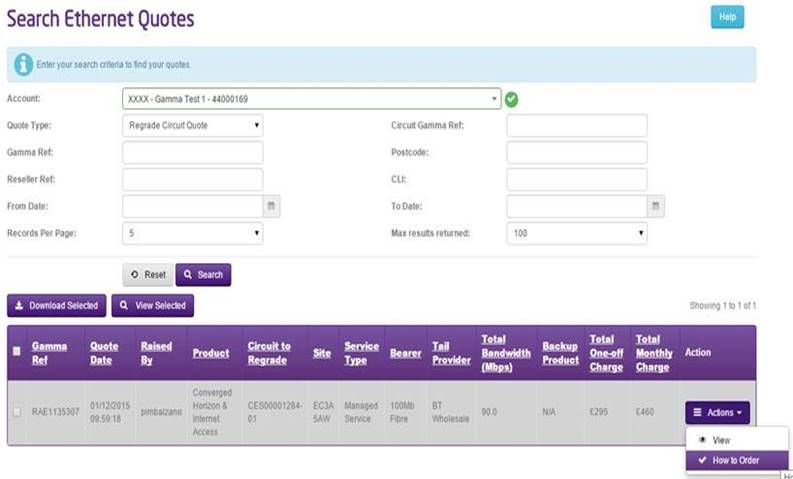
You can search for a new search or regrade an existing service quotes. Once the correct account s selected, select the quote type and any other filter you require and click search.
Multiple quotes can be selected. Once selected the actions box has the options of ‘View’ to view the quote details or ‘Order’ to start the order process. There is also the option to download the quotes and the downloaded report format has not changed.
New circuit search results
Regrade circuit search results
Step 4
If the user selects ‘View’ the quote details will appear in a pop up window.
If multiple quotes are selected there will be an arrow on the page for them to scroll down to see all quotes
In some cases a pop up window will appear asking the user to acknowledge some specific information and to confirm they want to go ahead and place the order
View multiple new circuit quotes
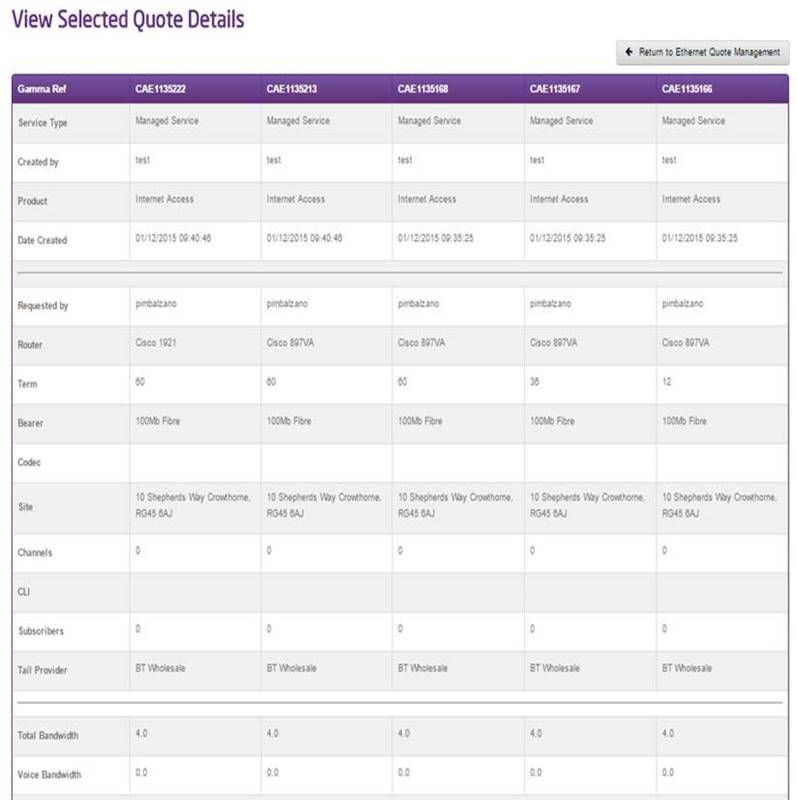
View multiple regrade circuit quotes