
Overview #
As part of your CPN solution or your Ethernet Circuits you have access to a monitoring tool called Highlight which provides you and your end customer (optional and for you to decide) with an overview of the network technology underpinning your end customers business.
Along with monitoring, the highlight service assurance platform will allow you to set up alerting for your circuits so that you can manage any circuits that breach the alerting threshold rule set, this will allow you to manage faults quicker and more effectively. Alerts can be in form of emails or now webhooks.
Within the highlight platform there are a number of support functions.
Please use the quick start guide as this will be able to give you all the information needed to get the most out of the system.
Other useful sections to help you become familiar with the platform are:
Support #
We know that alerting and monitoring are very important and to support you with getting the most out of the Highlight platform we have created several videos that will guide you through the system. These support videos are available on the Academy, which can be accessed via the following link:
Access to Monitoring #
Step 1 #
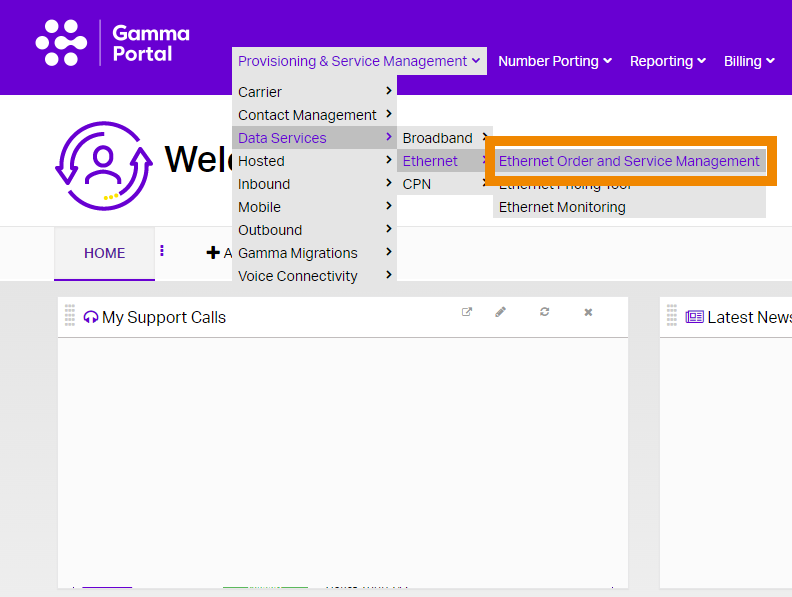
To view your circuits within highlight you will need to head over to the Gamma Portal to access the system. Once in the Gamma Portal if you go to Data Services > Ethernet > Ethernet Order and Service Management.
Step 2 #
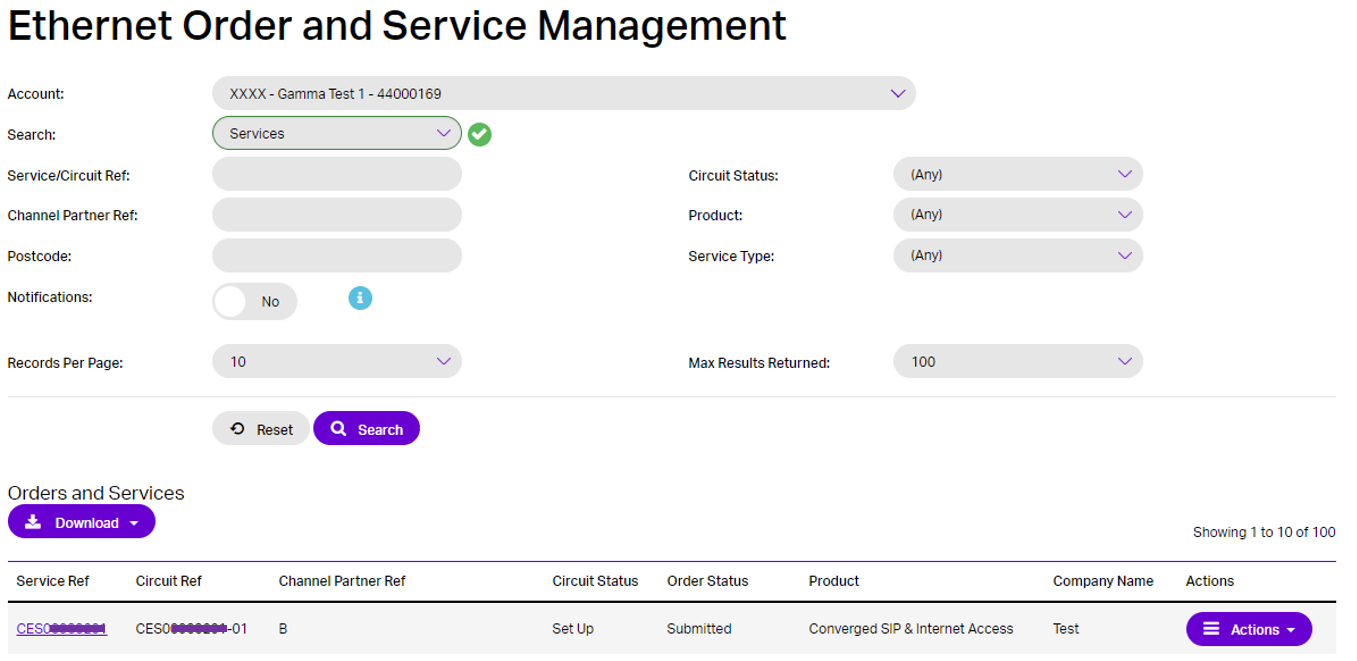
Once here you will need to search for the circuit you wish to view, use the search option to find the circuit.
Step 3 #
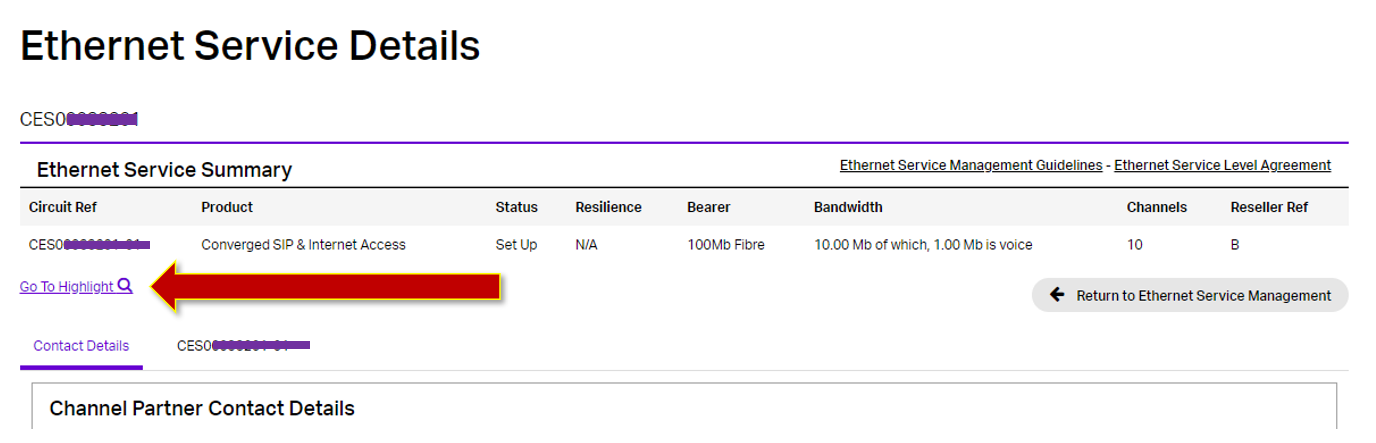
Once you have located the circuit you’d like to open Highlight on, click on the Service Ref which will then load the Ethernet Service Details page. On here you should see a link for highlight, if you don’t please raise this to your account manager. Click on the link that will then load the highlight system.
Step 4 #
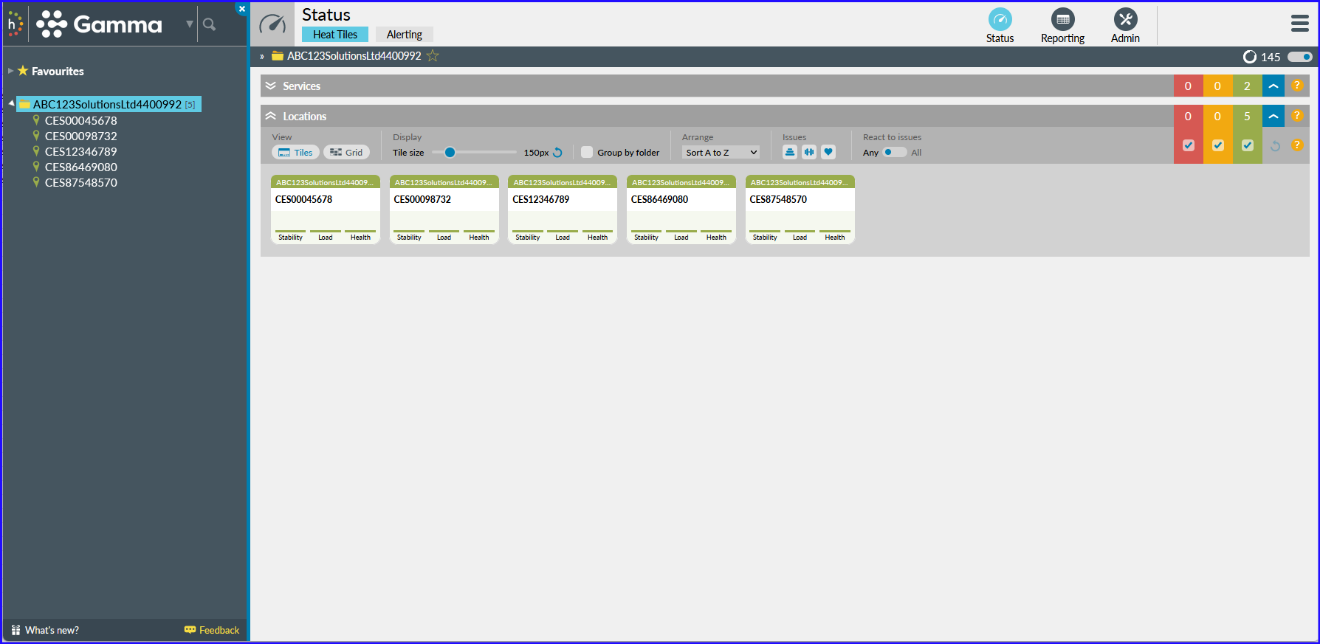
Once you are into the highlight platform you will be able to see the circuits you have.
Down the left panel you can select the relevant circuit you want to view.
Step 5 #
You can use the buttons along the top Heat Tiles, Alerting, Status, Reporting and Admin to get further information regarding the circuit.