
Get closer to your customer and increase margin with our new Service Monitoring Graphs #
The graphs can be used in several ways;
Login to view your end user graphs on a regular basis for increased intelligence on their usage patterns and business operations i.e. when is their busiest part of the working day.
Check the graph to identify if they are consistently using their full available capacity and avoid any potential impact on productivity for e.g. web pages / emails taking longer to download by pro actively providing them with more bandwidth to suit their growing business requirements.
For Converged Internet and IPDC customers, check the graphs to understand both your end users voice and data usage to identify opportunities to increase margin by selling more bandwidth and/or channels.
Use this new tool to further lock in your customer by enriching the value you add when providing support and advice to your end user.
Step 1
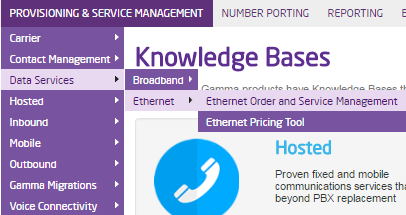
Log into the Gamma Portal and go to Provisioning and Service Management, Data Services, Ethernet and select Ethernet Order and Service Management.
Step 2
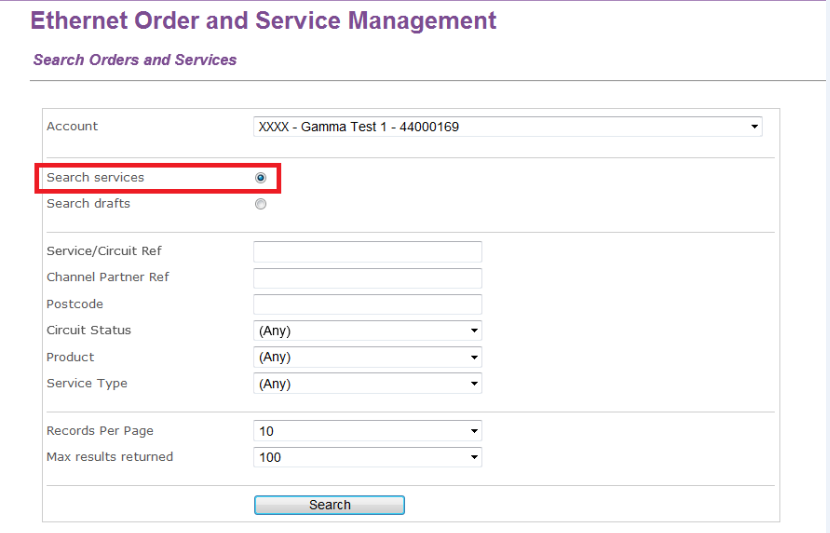
Search for the Ethernet circuit you are having the Intermittent Connectivity issues by any of the criteria that is available to you. We’d recommend searching using the Service Ref, which begins “CES” followed by a series of numbers. Ensure you selected “Search services”. Click “Search”.
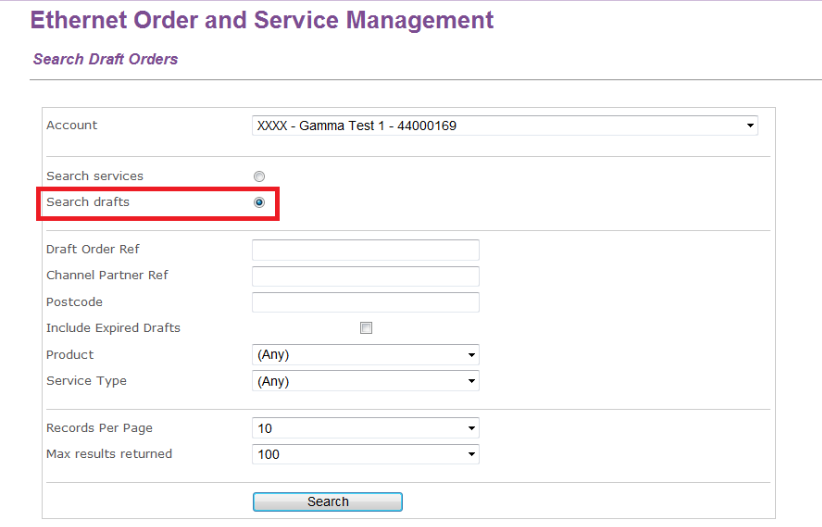
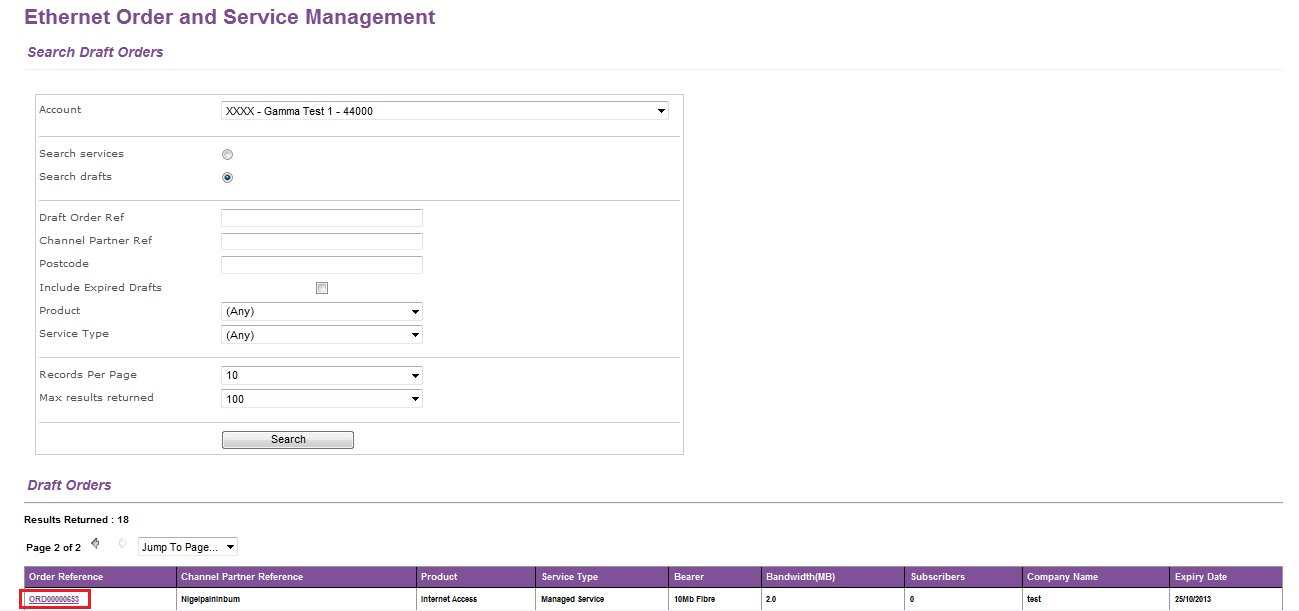
From the Search page you can also search Draft Orders: select “Search drafts”, enter the Draft Order Reference, which begins “ORD” followed by a series of numbers and click “Search”.
A Draft Order expires once the quote from which it was generated expired. An expired Draft Order can be reactivated by loading a new valid quote from the Draft Order View (restrictions apply e.g. quote generated form the same CP account, etc)
Search Services:
Search Drafts:
Step 3
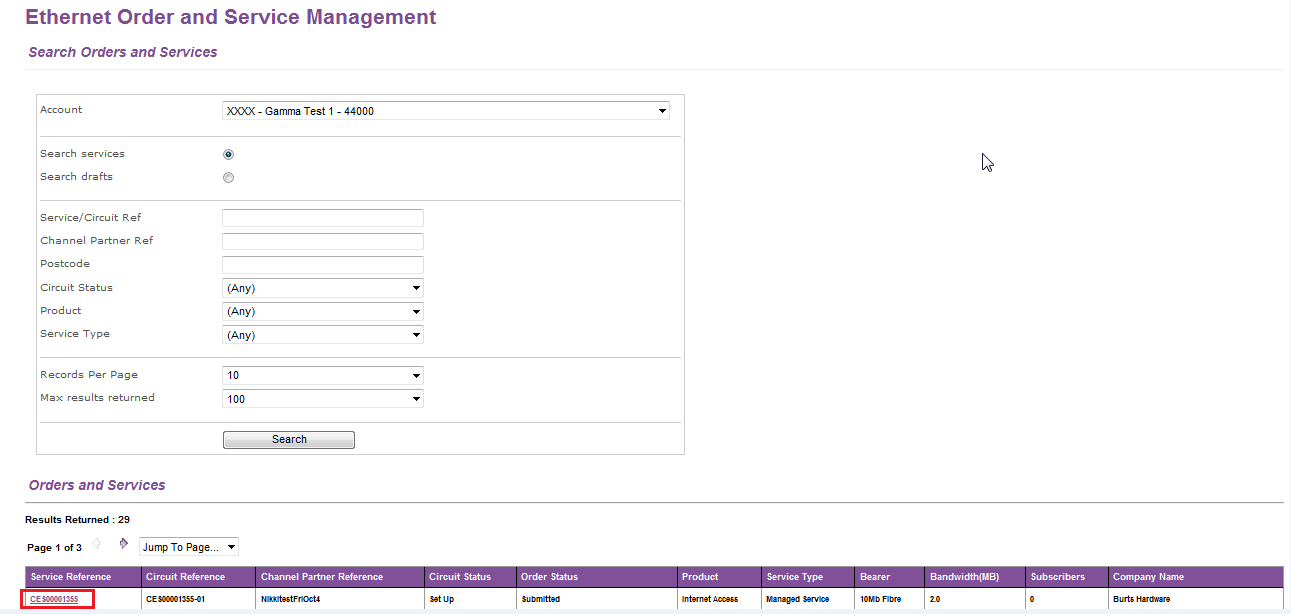
To get to the Service Management screen, from the Service Search Results table click into the Service Reference, which is a purple link.
Service Management:
To get to the Draft Order Management screen, from the Draft Search Results table click into the Draft Order Reference, which is a purple link.
Draft Order Management:
Service View Only #
You’ll be taken to the main Ethernet Service Details screen, which is broken up into three sections. These sections are:
Header
This includes the basic service details and the Ethernet product details.
Contact Details
This tab contains the Channel Partner/Technical/In and Out of Hours contact details. Contact Details can be edited.
Circuit Details
It is a tab labelled with Circuit Reference.
For an Active circuit, you find information about where the circuit is, what router is used with the circuit and its Serial Number and WAN MAC Address, Customer Subnet, Default Gateway.
For Circuits in Set Up status, you will find most of the order details plus additional details like what router is used with the circuit and it’s Serial Number and WAN MAC Address, Customer Subnet, Default Gateway.
Monitoring Graphs
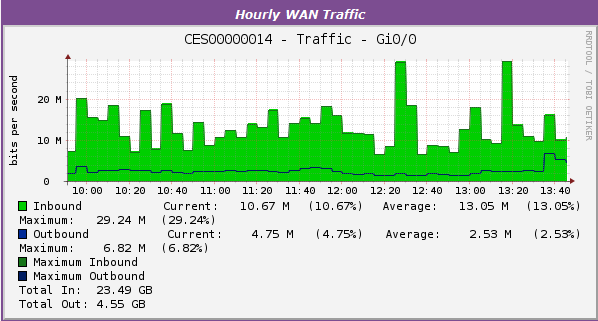
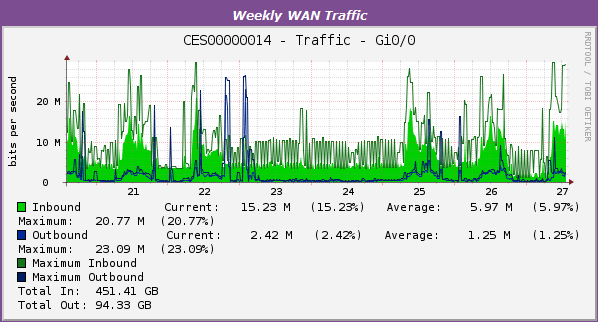
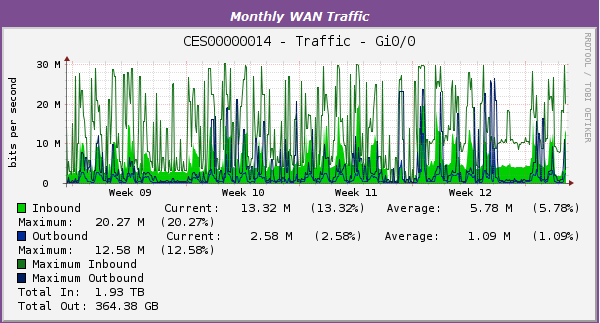
The Monitoring Graphs tab is displayed only for circuits in Active status. These are some graphs that we’ve got that will allow you to have a look at how the circuit is being used, broken down by hourly, daily, weekly, monthly and yearly graphs.
Click the “Monitoring Graphs” tab to load up the graphs. These are split into the following:
Hourly
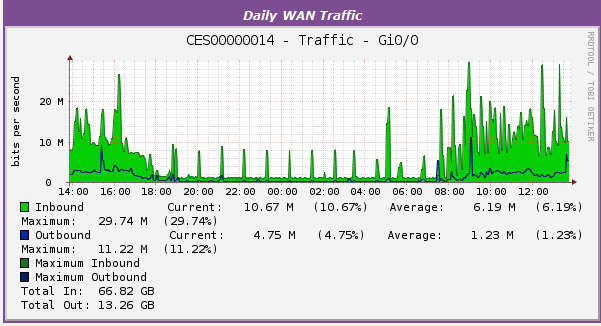
Daily
Weekly
Monthly
Yearly
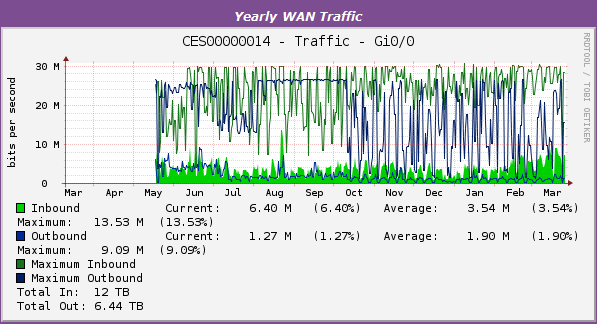
We need to compare the bandwidth (you can get this from the header) with the graphs to see if your customer is coming anywhere near the bandwidth allowance. You use the different views of the graphs to see if this is case by comparing it with the bandwidth your customer pays for and what the bars/lines on the graph come to. In this example, we can see that we’ve got 30MBPS Bandwidth and on the daily graph we’re using on average 6.16MBPS with a maximum usage of 29.74MBPS.
Draft Order Management Only #
You’ll be taken to the main Ethernet Draft Order screen, which is broken up in Header and a set of tabs. These sections are:
Header
This includes the Ethernet Order Status and Circuit Price Summary, the Quote Reference (from which you can also upload a new quote), and the Ethernet product details.
The following set of tabs
Contact Details
In this tab you enter the Channel Partner/Technical/In and Out of Hours contact details, and the End User Details.
Additional Order Details
In this tab you find Basic Order and Circuit Details and you enter the Customer Required Date.
Site Details
In this tab you enter the Site Address and Access to Site Notes, the BTWE/ONEA Reference (if available), and the Landlord Details (if applicable).
Installation Details
In this tab you enter the Installation Point Details and, if displayed, you select the Chargeable Extras e.g. Onsite Router Installation.
Public IP Subnet
In this tab you select the required public IP subnet and, if required, enter the End User Legal Company Details and the Requested IP Usage Details.
Terms and Conditions
Accepting Terms & Conditions and the charges specified in the Circuit Price Summary is a pre-condition to order submission.
On submission of a draft order, the Service Management View of the just placed service order will be displayed. All the order parameters will be displayed under the circuit tab.
