
NTS Channel Partner Migration #
A Number Translation Service (NTS) migration allows another Gamma Channel Partner to migrate a number(s) from an existing Channel Partners account to their own account. The number does have to be live.
If you are in contact with an end user who wishes to migrate their service to you then it’s as simple as completing the NTS Migration Form from the Gamma Academy Knowledgebase and sending it to GammaNumbers@gamma.co.uk. Please note that there is a 3 day lead time for these requests.
“Geographic Number, Translation Unavailable” #
You might see the status “Geographic Number, Translation Unavailable” Message displayed on the Gamma Portal. If you get this message it means that your geographic number translation cannot be completed on the Gamma Portal and you will need to place the number on Inbound. Please see the Inbound Provisioning and In Life Changes guide for more details.
Change a NTS Translation #
Step 1
Log into the Gamma Portal and go to Provisioning and Service Management, Inbound and select View and Translate NTS Numbers.
If you don’t have this option, contact your Portal Administrator (Help and Support and Portal Administrators) or contact your Internal Account Manager.
Step 2
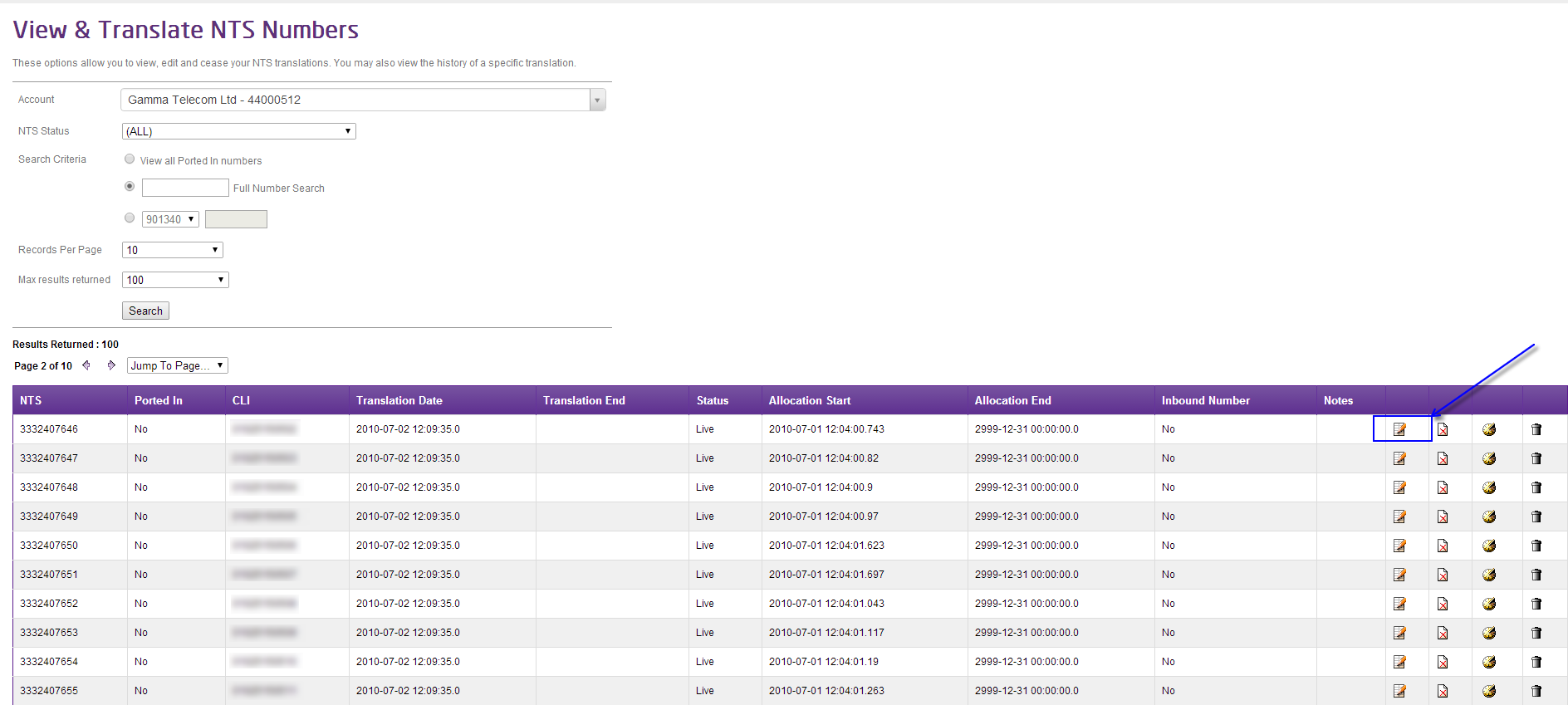
Make sure that you’ve selected the right account and then enter the full telephone number that you wish to change the translation of, in the Full Number Search text box and click Search.
If your number has shown up in the Results Returned table then the number is reserved against your account and is ready to go. Click on the “Edit NTS Translation” button, which is an icon of a piece of paper with a pencil.
Step 3
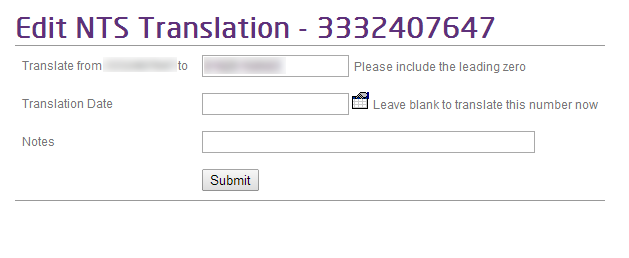
Once you’re on the Edit NTS Translation screen you can enter the number you want the non-geographic number to translate to (i.e. which number you want the call going to).
Click submit. If you have not specified a translation date, then the transfer request will begin processing and this can take approximately 30 minutes to complete. If the number does not update after 2 hours, then please contact the Gamma Numbers Team by email at GammaNumbers@Gamma.co.uk.
Deallocating NTS Numbers on the Gamma Portal #
Step 1
Log into the Gamma Portal and go to Provisioning and Service Management, Inbound and select View and Translate NTS Numbers.
If you don’t have this option, contact your Portal Administrator (Help and Support and Portal Administrators) or contact your Internal Account Manager.
Step 2
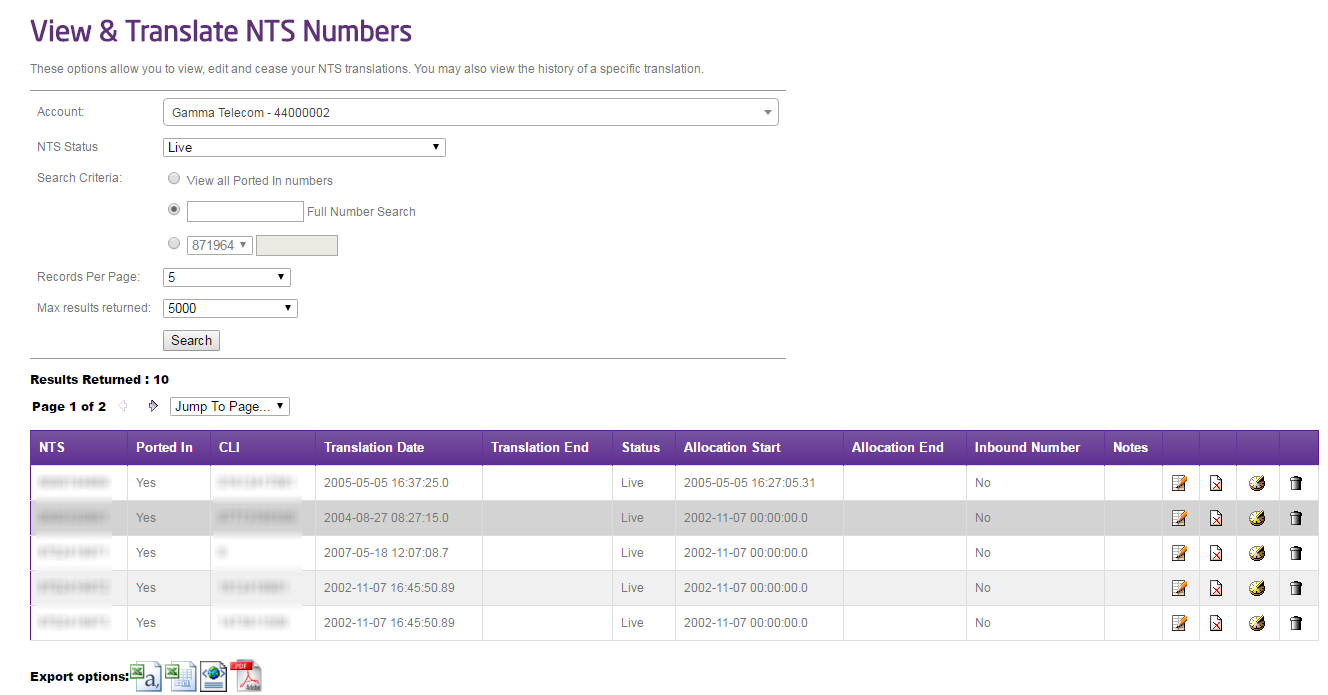
Make sure that you’ve selected the right account and then enter the full telephone number that you’ve reserved into the Full Number Search text box and click Search.
If your number has shown up in the Results Returned table and the status is listed as Available for Translation or Live and the Ported In status shows as No, then the number can be removed from your account. For Ported In numbers you will need to contact the Porting Team to cease the numbers back to the original Range Holder.
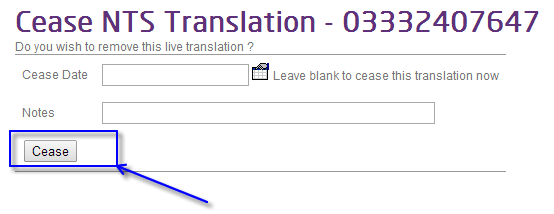
If the status shows as Live you would need to first cancel the translation by clicking on the “Cease Translation” button, which is an icon of a piece of paper with a red cross.
If the Inbound Number column shows “Inbound 2” then the number is live on Inbound and would need to be deallocated from Inbound before it can be deallocated from your account.
If the status shows as Available for Translation and is not on Inbound then you can select the “Deallocate NTS Number” button, which is an icon of a dustbin.
Step 3
Enter any valid notes you may wish to add then click the Deallocate button.
The number will then be deallocated from your account and once completed the status will change to “Old Allocation”
Unable to Reserve NTS Numbers (Geographic and Non-Geographic) #
When you are trying to reserve numbers on the Gamma Portal, you’ll be informed of your current utilisation level for the area code or prefix that you’re wanting to reserve. The utilisation level is the percentage of the numbers in that dialling code or prefix already on your account that are live.
When your utilisation level falls below 70% then you are unable to reserve any numbers on the Gamma Portal for that dialling code or prefix. If your utilisation level is above 70% then you can reserve numbers again.
To view the numbers you already have allocated to your account, go to Provisioning and Service Management, Inbound, NTS Management, View and Translate NTS Numbers.
In the Full Number Search field enter the dialling or Prefix you are trying to obtain numbers for (in the case of the above example this would be 0871964).
For Non-Geographic Numbers select the NTS status as “Available for Translation” and click the Search button. For Geographic Numbers select the NTS status as “Geographic Number, Translation Unavailable”.
The numbers that show the Ported In status as No and the Inbound Number status as No are not currently live on Inbound and are available for you to use. If you wish to remove unwanted numbers from your account please follow the instructions for Deallocating NTS Numbers. Alternatively you can look to use some of your existing numbers before obtaining new numbers