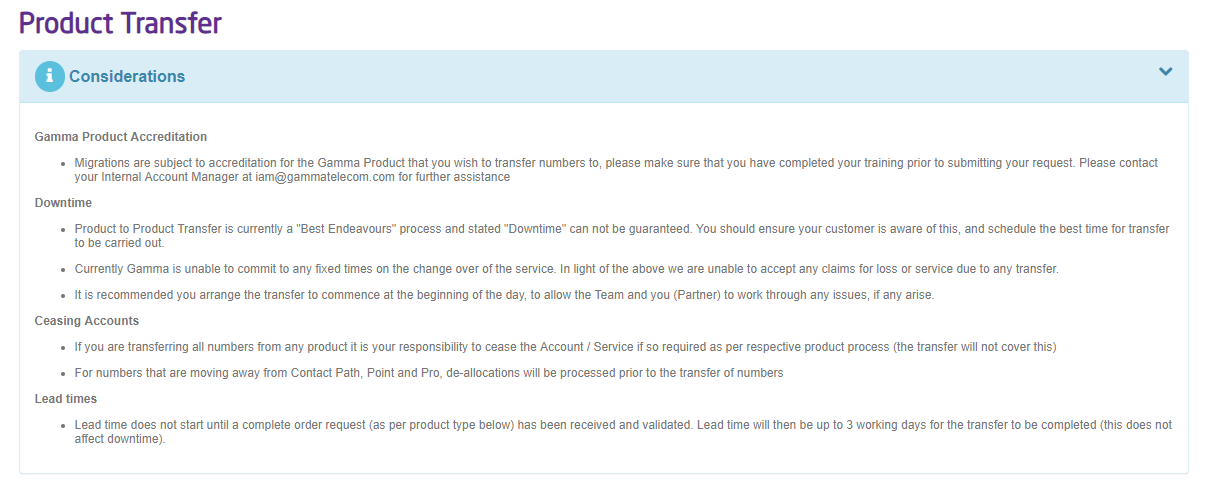
A Product Transfer is when the number your customer has is already on the Gamma network and on your account and you want it to be transferred to another Gamma product. Product Transfers don’t take as long as a geographic or non-geographic port because the number is already working on the Gamma network and we just have to do some back end work to get it working for you.
If the numbers are currently with another Gamma Channel Partner and need to be transferred to you and the Product changed as well, then please submit a Channel Partner Migration instead.
The majority of product migrations can be completed by the Channel Partner themselves in the Gamma Portal using our Product Migration tool.
The customer should be prepared for a short period of downtime whilst the numbers are migrated to their destination service account. The downtime should be minimal and is an unavoidable part of the migration process.
Product Migration Tool #
Migrations can be placed with the tool at any time, but they are only processed between 08:00 and 16:30 weekdays if they are automatic (see exclusions). If you place an automatic order outside of these times, then your order will be queue until 08:00 the next working day.
Automation Exclusions #
The following automation exclusions will raise a ticket to our Provisioning team who will be in contact with you shortly to discuss the migration requirements and plan this in with you.
- Migration requests that have more than 200 numbers
- Current product is Inbound
- Out of hours requests (subject to a charge. Details are in the Gamma Number Policy Document)
Preparation – Horizon Only #
Before you place the migration request you need to ensure that the numbers you wish to migrate have been unassigned from any users, call groups, voicemail portals or sites. Failure to do this will put the order in a “Pending CP Intervention” status and you will be sent an email asking you to remove the numbers before restarting the migration.
Place my migration #
Step 1
Log into the Gamma Portal and go to Provisioning and Service Management, Gamma Migrations and select Product to Product Migration Wizard.
If you don’t have this option, contact your Portal Administrator (Help and Support and Portal Administrators) or contact your Internal Account Manager.
Step 2
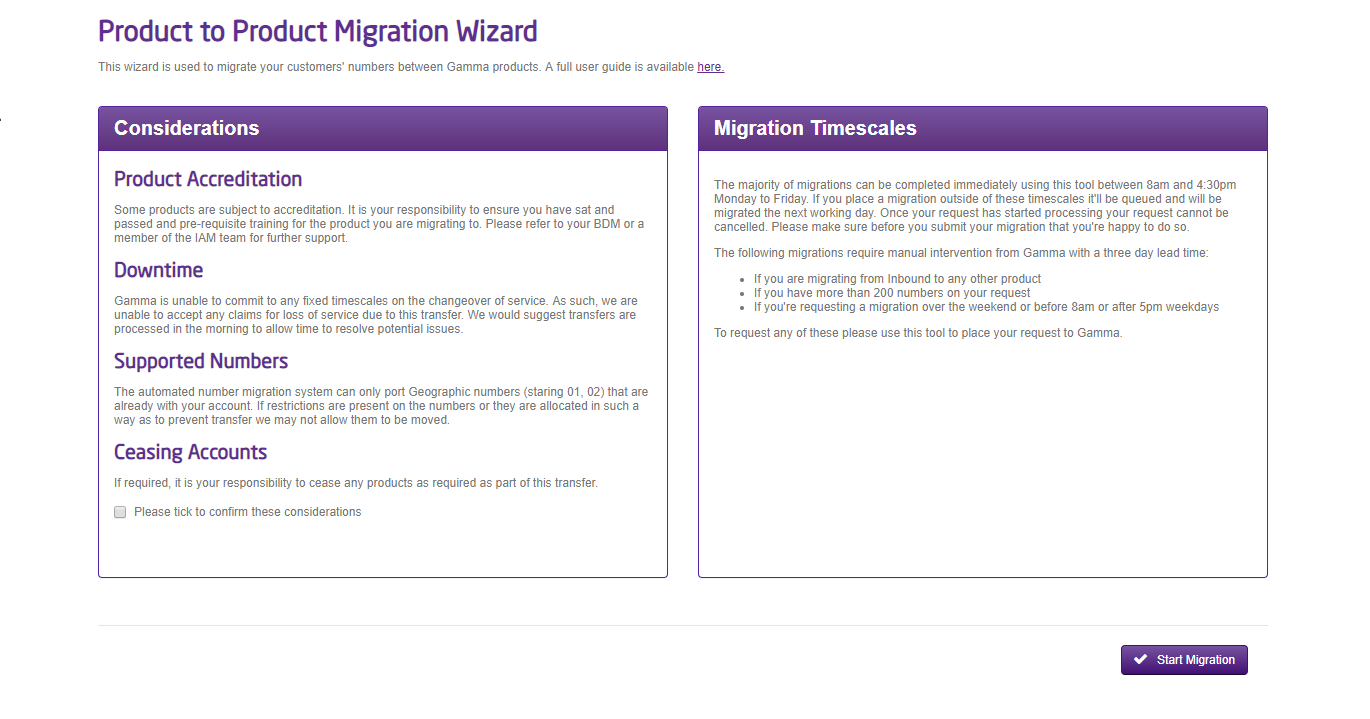
Please read the Considerations and Migration Timescales text. Both of these contain important information regarding your product migration. Select the tick box to confirm that you have read these and click “Start Migration”.
Step 3
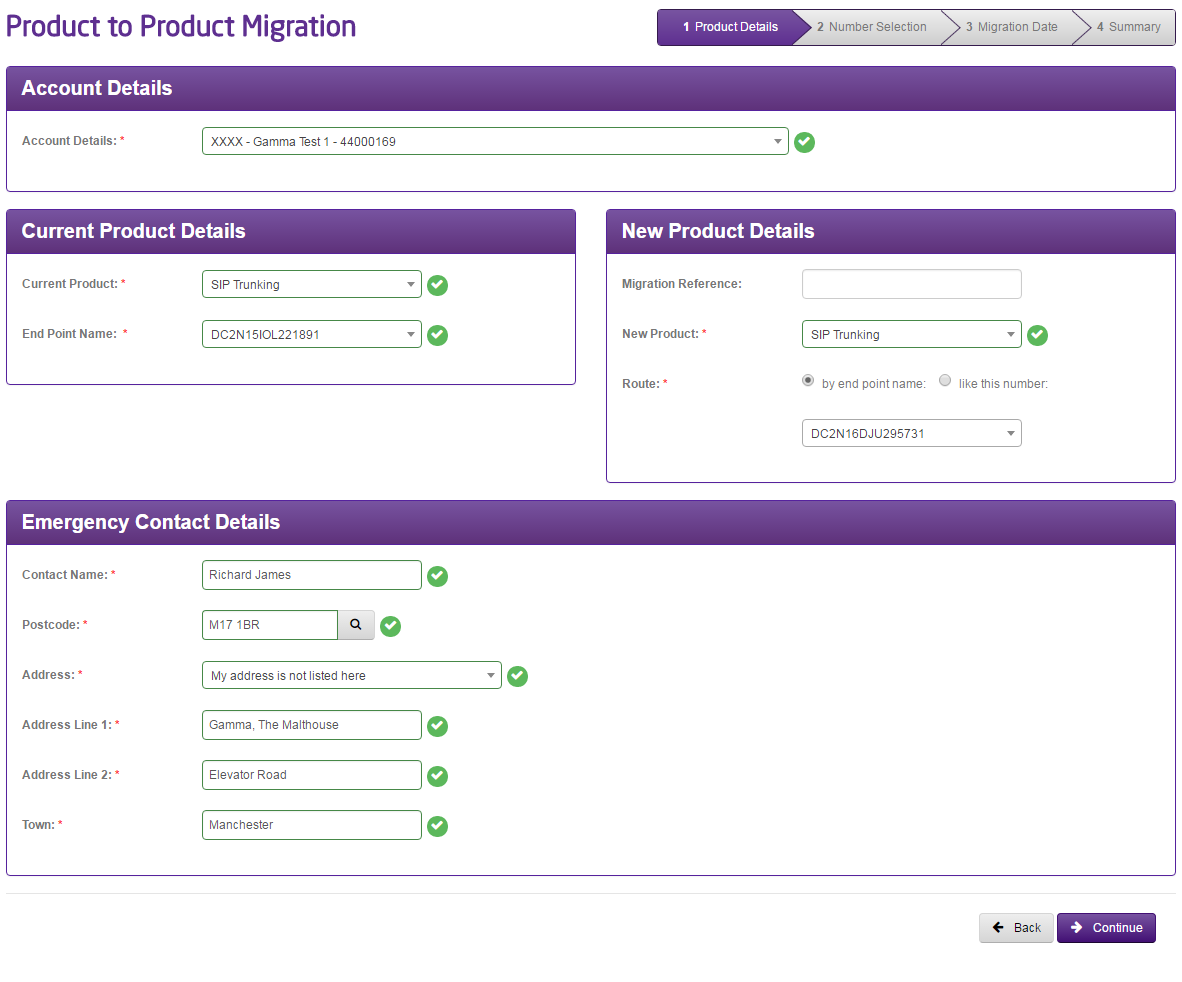
Select your account, current product and current product details where applicable (such as Horizon Company, SIP Endpoint, Inbound Company etc). Also select your new product and the new product details as well.
In most cases a product will only have one routing prefix with Gamma. However, if we detect on the endpoint or company that you’ve selected that there are multiple route prefixes, we will ask you to select a live number on your product that routes the way that you want your migrated numbers to route.
You can only migrate products between the same account. If you have multiple accounts and want to transfer to a product that is on a separate account, you will need to use the Channel Partner Migration form on the Numbering Navigator
Enter the End User Emergency Service contact details, select the address and then click “Continue”.
Step 4
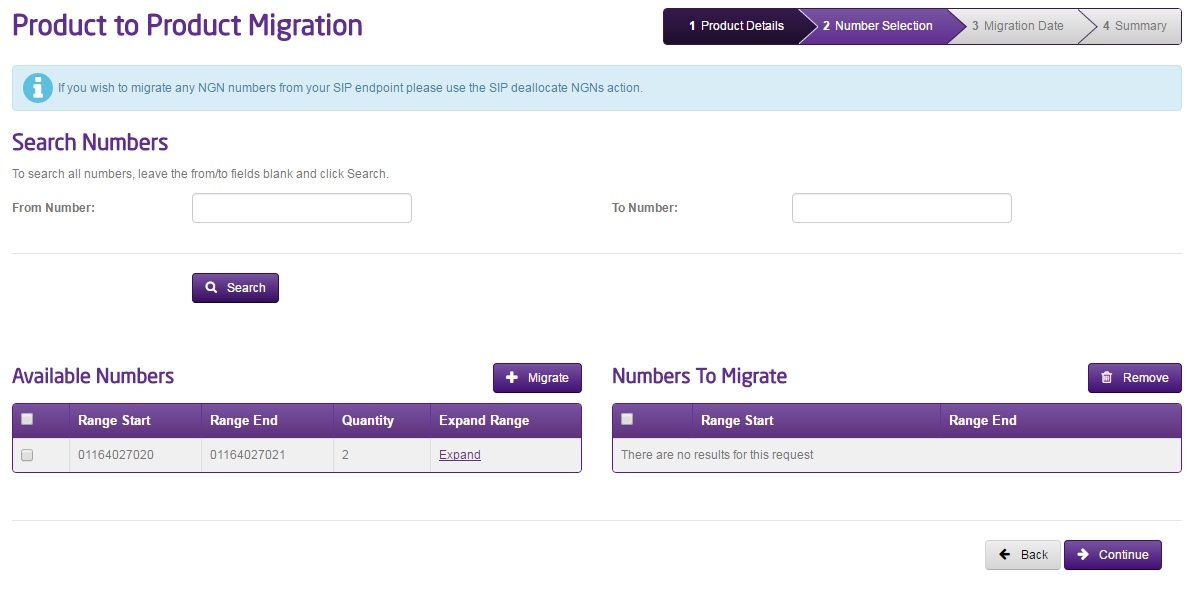
Search for the numbers that you want to migrate from your current product. If you want to migrate individual numbers with a range, you can click on the “Expand Range” link to load up all the numbers included in that range, and select the individual numbers.
Click “Migrate” so the numbers you are migrating are in the right hand side table and click continue.
If you want to search for all numbers on the product, leave the “From Number” and “To Number” text boxes blank
Step 5
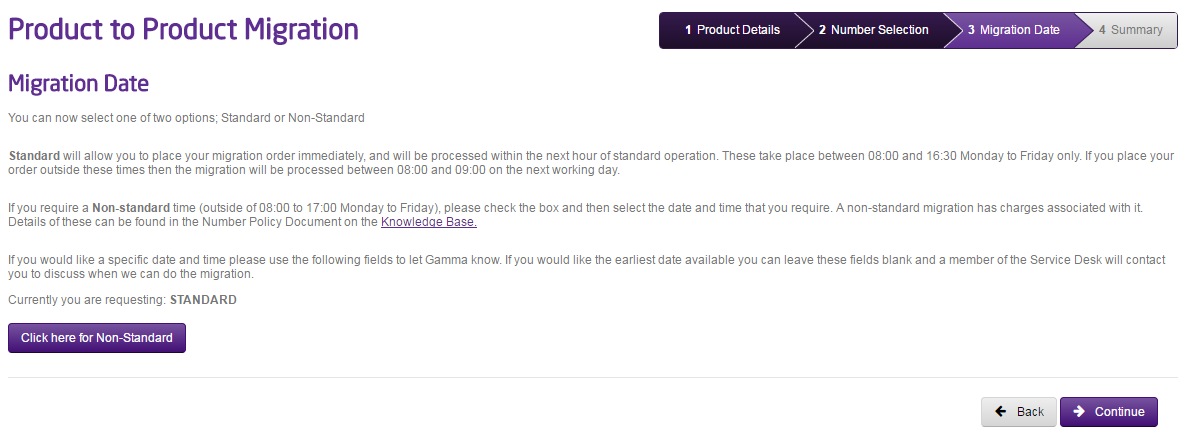
The tool will work out if you can migrate without the need of the Service Desk (“Standard” migration) or will ask you for a date and time when you’d like your migration to happen (“Non-Standard”). Standard migrations will typically complete within the hour.
Standard Migrations
Standard Migrations will go into a pending state for no more than 20 minutes. A migration will be in progress for typically a matter of minutes, but can take up to an hour depending on the size of your request and the volume of orders going through at any one time.
Non-Standard, From Inbound and more than 200 number migrations
If your migration request originates from Inbound, if you have more than 200 numbers on an order or if you want an out of hours migration then this will generate a request to the Gamma Numbers team who will then pick up your order and manage this for you. The team will be in contact as soon as they receive the migration request. Lead times for a product migration in these scenarios is 3 working days.
Step 6
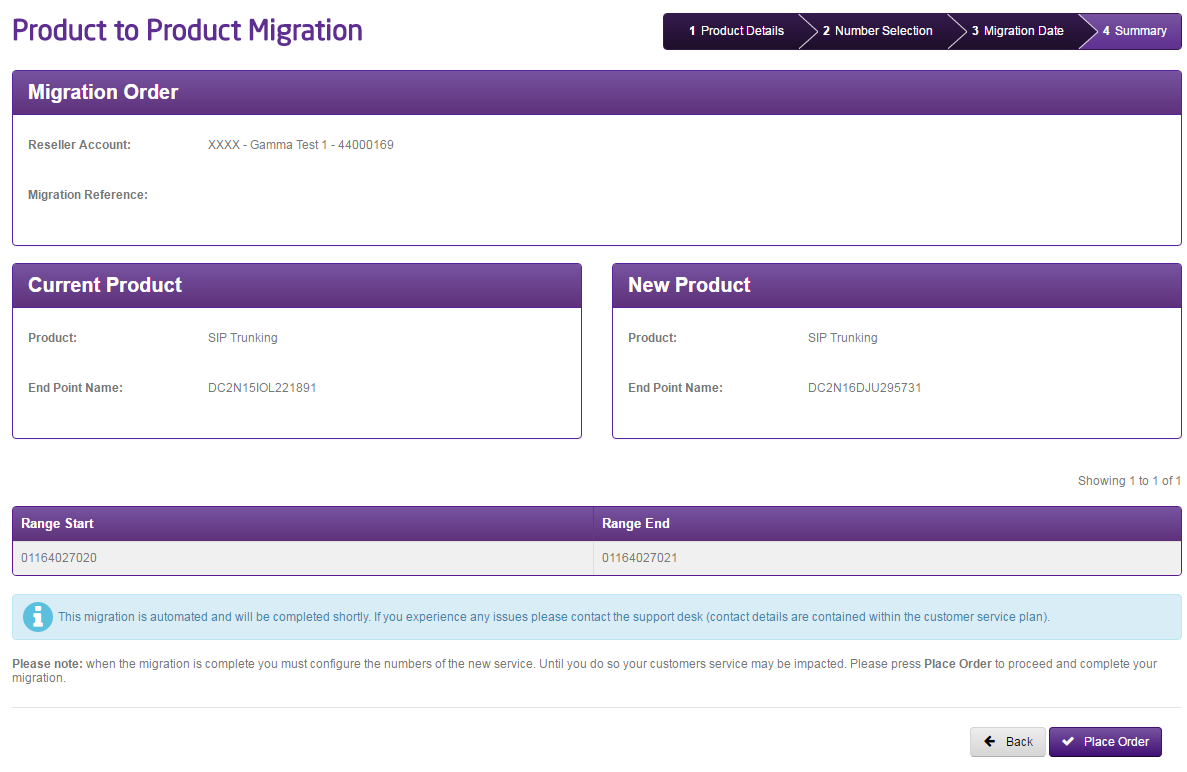
Once you’ve gone through the migration pages, review everything on the Summary page.
Once you’re happy with the details here, click “Place Order”.
You will then be presented with a reference number for your migration. You can use this to track your migration progress by going to Provisioning and Service Management, Gamma Migrations, Manage Migration Orders.
Managing my migration #
Once you’ve completed your order and received your reference number, you can track progress using the “Manage Migration Orders” (for automated) or “Manual Migration Search” for any orders which has the criteria listed in automation exclusions (more than 200 numbers, current product is Inbound, out of hours requests etc).”
Below are what each of the statuses mean:
|
Status |
Meaning |
|
Pending Manual Intervention |
Order is pending action by Gamma |
|
Complete |
The order has been completed successfully |
|
Failed |
The order has failed. Gamma are aware of the problem and will be in contact shortly. |
|
Pending |
The order is waiting in a queue to be processed. |
|
Migration In Progress |
The migration is being processed. |
|
Cancelled |
The migration was cancelled |
|
Pending CP Intervention |
The Channel partner needs to take some action. An email will be sent detailing exactly what it is that you need to do |
Restarting my migration #
If you need to restart an order that is in “Pending CP Intervention” status you can use the “Actions” drop down and select “Resume Migration”. This should be picked up within 20 minutes and completed within the hour.
Cancelling a migration #
If an order is in “Pending” or “Pending CP Intervention” status you will be able to cancel the migration request by using the “Actions” drop down and selecting “Cancel”. If the order is in any other status you will need to contact the Service Desk.
My Order has failed #
In the unlikely event that your order has failed an alert is sent to the Gamma support team immediately to pick up, and someone will be in touch. The Gamma support teams have all the tools required to resolve any possible failure as quickly as possible.
Product Migration Request Form #
You can place a Product Migration request through Numbering Navigator. This will send the request through to the Service Desk who will validate your request and schedule a time and date for your migration. You then should contact the Service Desk when you want the migration triggered.
The total lead time for a product migration using the Numbering Navigator form is 3 working days.
Place my Product Migration on Numbering Navigator #
Step 1
Log into the Gamma Portal and go to Help & Support and select Number Navigator.
If you don’t have this option, contact your Portal Administrator (Help and Support and Portal Administrators) or contact your Internal Account Manager.
Step 2
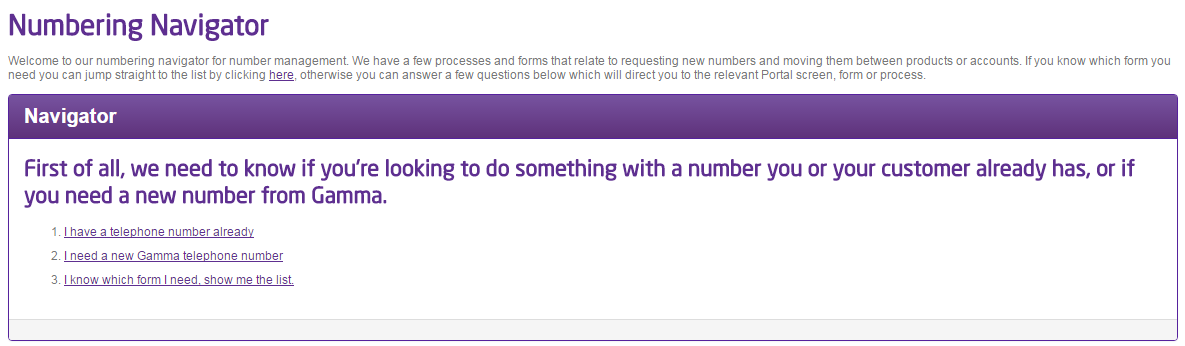
Select “I know which form I need, show me the list”
Step 3
Select “Product transfer form”
Step 4
When you select your Channel Partner account, the form will expand to show further fields for completion.
Enter the postcode of your customer and click the magnifying glass and then enter the address.
Select the current product and then your target product.
Now enter your numbers. If you have single number(s) then use the “Add Number” button, and if you have a range of numbers click “Add Range” and enter the details. Click the purple tick button and then click Submit.
Once you press ‘submit’, you will be provided with an acknowledgement notification on screen along with a unique order reference number. Be sure to make a note of this reference number which should be used in any correspondence with the Service Desk regarding your request.
Your order will now be sent to the Service Desk for processing.
Remember to process your migration batches separately if you are taking a staggered approach to migration. This means submitting a separate order form for each batch.
What happens after I’ve placed my order? #
Both automated and manual migration orders can be tracked now in Provisioning & Service Management > Gamma Migrations.
Once your order(s) has been submitted, the Service Desk will review the order details. This is the stage at which we will accept or reject the requested migration(s) based on various factors but usually concerning the accuracy of data supplied and technical feasibility of the requested order.
Once your order(s) has been accepted, the Service Desk will confirm this by email to you with information on how you can call the Migrations Team when you are ready to start the number migration.
In respect of product migrations, you can arrange your migration for any time during the normal working hours for the team (Mon-Fri 08:00-17:00 exc. bank holidays) by calling in to the team and quoting your order reference number. The team will process your migration request there and then.
Out of hours requests can be accommodated at the discretion of the Service Desk and will be dependent on resource availability. Out of hours appointments will incur additional costs, please see the Gamma Number Policy document for details.
An out of hours request must be agreed with the team in advance to ensure available resource to oversee the migration.
Gamma recommends that the number migration date is scheduled for the very end of your project when you are ready for the customer to go live in full on their new solution. At this stage, you should be satisfied that any other project components are complete and testing clearly.
As an added precaution, you may want to arrange for an engineering presence to be available at the customer site on the day of the migration to help service users with any issues. However, we strongly recommend that any associated works have been completed and tested well in advance of the migration date.
How do I search for a Product Migration Order I’ve placed via the Numbering Navigator? #
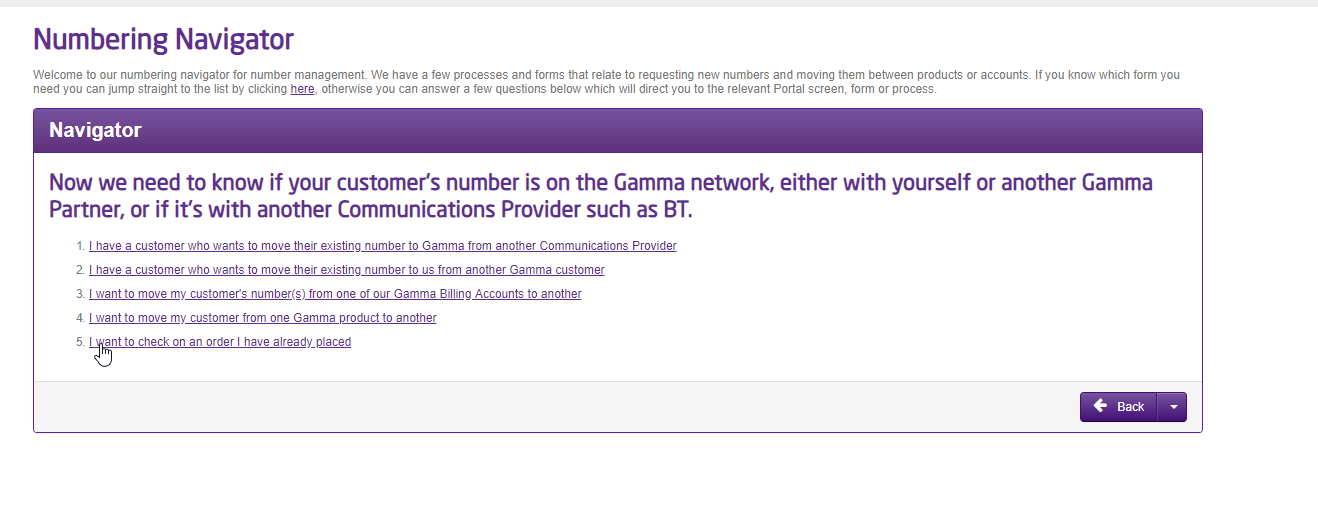
To search for a migration order placed via the Numbering Navigator we’ve added a new option called “I want to check on an order I have already placed”, this can be found under Numbering Navigator > I have a telephone number already which when selected will take you through to the “Migration Search Page” to track your orders. (Also accessible via Provisioning & Service Management > Gamma Migrations in the Gamma Portal menu.
Pre Migration Testing #
As the migration process deals solely with numbers already successfully provisioned on the Gamma network, the risk of loss of service upon order completion (aside from the specified downtime) is negligible. As such, Gamma do not offer any pre-migration testing as part of the migration service.
We do recommend that the Channel Partner runs their own customer testing pre-migration to check that the host service is fully operational and configured to accept the new numbers coming across (e.g. is there a customer PBX to be configured or any call-plans to be set-up in preparation and are these working as expected?).