
Geographic Line Types #
The telecommunications industry has “multi line” numbers and “single line” numbers. This goes back to traditional telephony systems and how numbers were built within an exchange. You can see what the line type is by looking at the customer’s bill. There is a possibility that the telephone number is supplied through next-generation technologies, such a VOIP (Voice over Internet Protocol), so won’t actually come through a traditional method. If this is the case, you can find out if it is a single or multi line by contacting the losing communications provider (who is currently providing the end user’s service) and asking if it is a multi or single line.
If you are porting BT number(s) to Gamma and you have access to WLR systems then you can use this information to see what line type a number is. This will also contain information, such as postcodes, to help get a port order accepted.
Some number ranges that originate on the BT Wholesale IPEX (IP Exchange) platform are built as single lines, though your customer might use multiple numbers in the range that may have traditionally been a multi- line order. If this is the case, you will need to place single line orders for all the numbers. Gamma have raised this issue with all communication providers.
Single Lines #
Single lines are lines that terminate on a single socket, and do not have any other form of associated numbers. The most common single line is your home telephone line (providing you just have the one number!). This is a single telephone line that terminates at your socket (i.e. the call is delivered to your line, and that is where the routing of the call finishes).
These types of ports have shorter lead times.
Multi Lines #
Multi lines are lines that terminate on equipment such as a PBX. A Multi Line can be a single CLI that goes to numerous lines, or if it is an ISDN product.
Porting Timescales #
All these timescales are in working days. Working days for Single Lines are Monday – Saturday, and Multi Line/Complex DDI ports are Monday – Friday.
|
Current Installation Type |
Provide Port |
Subsequent Port |
|
Single Line |
4 |
7 |
|
Multi Line (including associated & other numbers) |
7 |
10 |
|
Multi Line (150 lines or less) |
10 |
13 |
|
Multi Line (151 lines or more) |
17 |
20 |
|
Complex DDI & BT FeatureNet* |
22 |
25 |
* Please note Mixed orders will always fall into the SUP category and will depend on the amount of numbers being ported so;
No DDI Ranges – 10 Working Days
DDI Ranges <150 Numbers – 13 Working Days
DDI Ranges >150 Numbers – 20 Working Days
Complex – Any numbers listed to remain or cease – 25 Working Days
Directory Listings #
It is the responsibility of the Channel Partner to check the telephone number(s) that you’re porting to Gamma have Directory Listings. Your current provider may not currently charge you for this service, but Gamma get charged by BT for this, and this charge is passed on to yourselves.
If you do not wish to have Directory Listings in place when you port to Gamma, you must contact the current provider and cease this before your port order, otherwise you may get charged.
Pre Order Validation (POV) #
For port orders Gamma are involved in the Pre Order Validation (POV) process with a range of other communication providers. The primary aim of the POV is for both the range holder and gaining communications provider to review the proposed order and resolve any potential issues that may lead to an order being rejected.
A list of current communication providers is available on the Offta website under the Geographic Number Porting – Process Documents with the title “App J3 – Consolidated Contact Register PoV Process”
The POV process is free and will provide you with all the information you need to get an accepted port order.
The updated POV process allows you to submit a pre order validation request on the Gamma Portal. You no longer need to email the Gamma Porting Desk. There is a 5 working day SLA for Gamma to obtain the correct details from the losing communications provider to facilitate a port request. Progress of the POV request will be visible on the Gamma Portal, and on completion we will also notify you, so that you can raise your port order directly from the completed POV, using the pre-validated details, saving you time and effort.
Step 1
From the Gamma Portal, go to “Number Porting”, “Geographic Number Porting”, “Pre Order Validation”, New Pre Order Validation”.
If you don’t have this option, contact your Portal Administrator (Help and Support and Portal Administrators) or contact your Internal Account Manager.
Channel Partner Details #
We now start to place the order. Make sure that you’ve got the right account selected from the drop- down menu.
This section is where your details go (and not your end users); it will pre-populate with the contact details from your own portal registration, but you can add an additional email address if someone else is going to be managing the order for your company. Notifications will be sent to both these email addresses.
We strongly recommend that you add another email address as this may prove to be critical to the smooth delivery of your pre order validation.
End User Details #
This is where you should fill in the name and role of the end user.
Number Details #
Enter the main billing number, the postcode, and then select the current provider. In some instances, e.g. with BT, a button will appear, allowing you to check that the number is successfully matched.
Enter any additional 01 and 02 UK geographic numbers and ranges in this section.
Letters of Authority (LOA) #
This is where you should attach up to 3 Letters of Authority (LOA) which you have obtained from your customer. These should be no more than 3MB in size, and must be in PDF, PNG or JPG format. The numbers entered in the previous section must match the LOA attachments, or your request will be declined. You may also download a LOA template from here.
Additional/Supporting Comments #
Please provide any additional information here, and then click on Continue to go to the Submit screen.
In the review screen, you will be presented with all of the information you have entered, and must confirm that the information is correct, and that you agree to Gamma’s T&Cs. When you are ready, you should hit Submit, and an automatic confirmation email will be sent to you. You will be provided with your pre order validation reference, and have the option to raise a new POV request or search (and potentially amend) requests.
Step 2
Now you can check on the status of your POV request any time you like. As well as seeing where your request is up to, you can add notes, which are seen by the Porting Desk. This is the fastest way to get a response from Gamma.
Go to “Number Porting”, “Geographic Number Porting”, “Pre Order Validation”, Pre Order Validation Search”. Enter your details and hit Search.
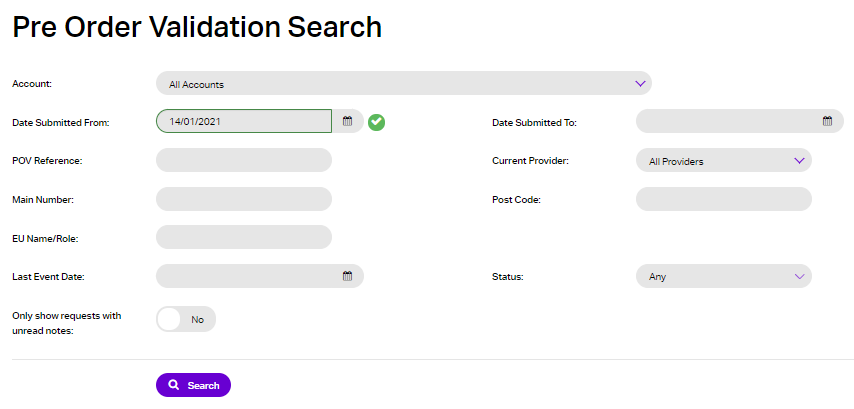
To add a note, search for the POV request, click on Actions and select Add Note. You can add your note details on the right and then submit them to the Porting Desk.
Step 3
After searching for and finding your request, you can download a list of POV requests, using the download option, in various formats (CSV, Excel, XML or PDF). Also, depending on the status of a POV request, you will have different action options.
For example, if your request has been rejected by the LCP or declined by Gamma, you can amend and resubmit your request by choosing the appropriate action.
Possible statuses of your POV requests include:
- POV Submitted – a request has been submitted to the Porting Desk for review
- Declined by Gamma – a request has been returned to you, after failing initial validations
- Issued to Current Provider – Gamma has accepted the request and sent it to the LCP
- Awaiting Current Provider response – we are awaiting further information from the LCP
- POV Passed to IPEX – Request has gone to IPEX. This will take a further 5 working days from when it was sent.
- POV Accepted by Current Provider – the LCP has confirmed all details, but Gamma may still need to edit the main billing number or amend associated numbers or DDI ranges on the POV request.
- POV Rejected by Current Provider – the LCP has rejected the POV request.
- POV Completed – the LCP has confirmed all details on the POV request, Gamma has added any other numbers and these details have been shared with you.
- And the possible actions are:
- View Request – see POV that was submitted, plus any notes and attached LOAs
- Add Note
- Resubmit Request (‘Declined by Gamma’ or POV Rejected by Current Provider’ only) – copies the values from the original POV request, but not the LOA. You should then edit it, to correct the details and add the LOA(s), before submitting.
- View Orders – see links to any port order(s) associated with the completed POV
- Raise GNP order (‘POV Completed’ status only, and requires a GNP order)
- Raise IPEX order (‘POV Completed’ status only, and requires an IPEX port order)
- Raise Manual order (‘POV Completed’ status only, and requires a manual port order)
Once your POV request is completed, and you have all information, you will be able to place your port order with confidence.
