
Note: If you are placing an order for an endpoint to be provisioned on 3rd party access with a private IP address then you will need to complete the Gamma Solutions CRF (or Simplicity CRF for Simplicity Partners) and send to iporders@gamma.co.uk who will validate your request before it will be built by our Solutions Delivery Team.
Step 1
From the Gamma Portal, go to “Provisioning and Service Management”, “Voice Connectivity”, “Gamma SIP Trunks” and “New Order”.
Note: If you don’t have this option contact your Portal Administrator (Help and Support and Portal Administrators) or contact your Internal Account Manager.
Step 2
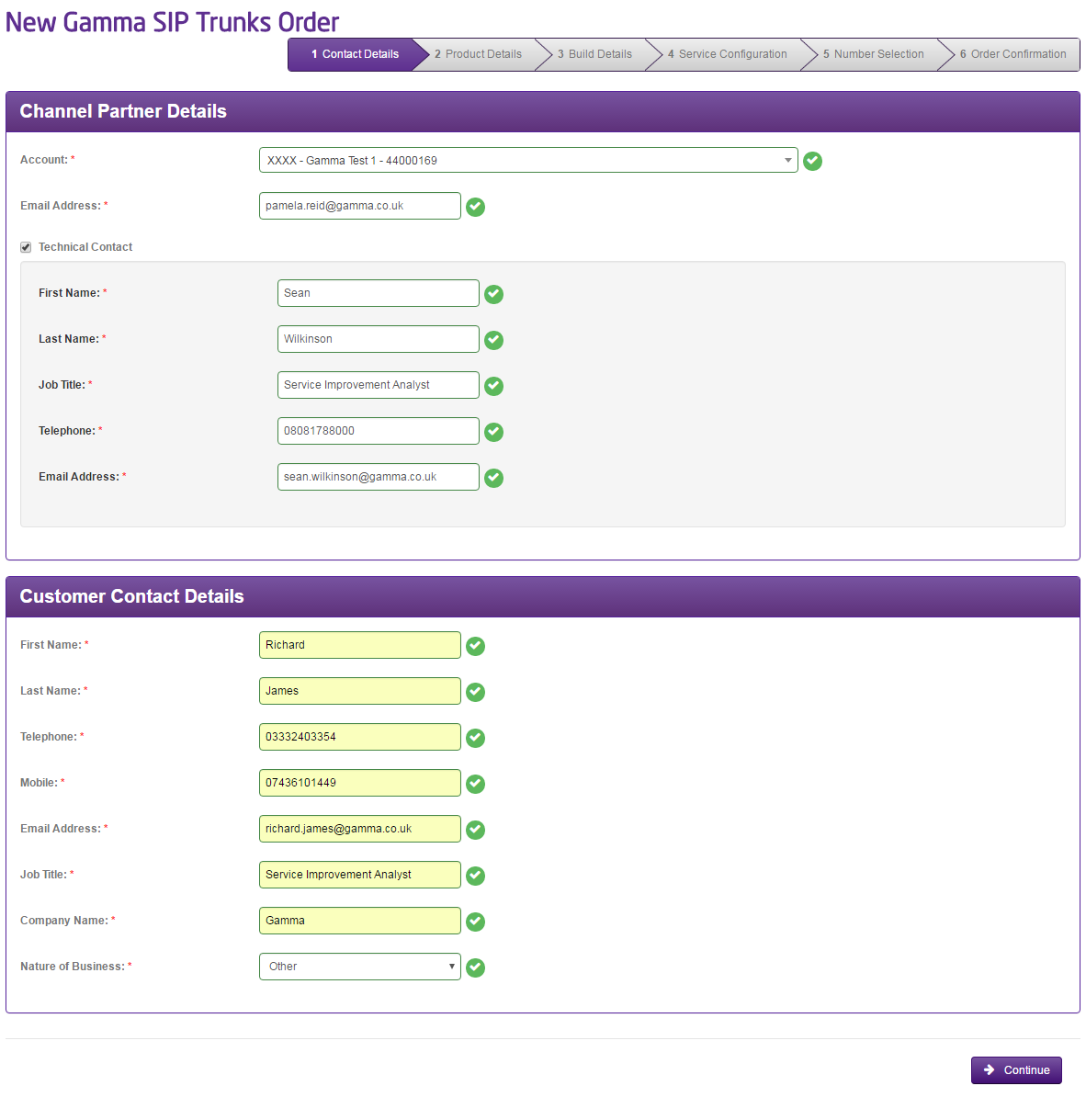
Select the account that you wish to provision the Gamma SIP Trunk on and then enter the following details:
- Your email address
- Select if you would like for a Technical Contact to be named on the endpoint. If so, enter their details here.
- Your customer details go in the “Customer Contact Details” table. The customer contact details must include the name of an individual at the site where calls are being delivered. This is required for Emergency Service details
Step 3
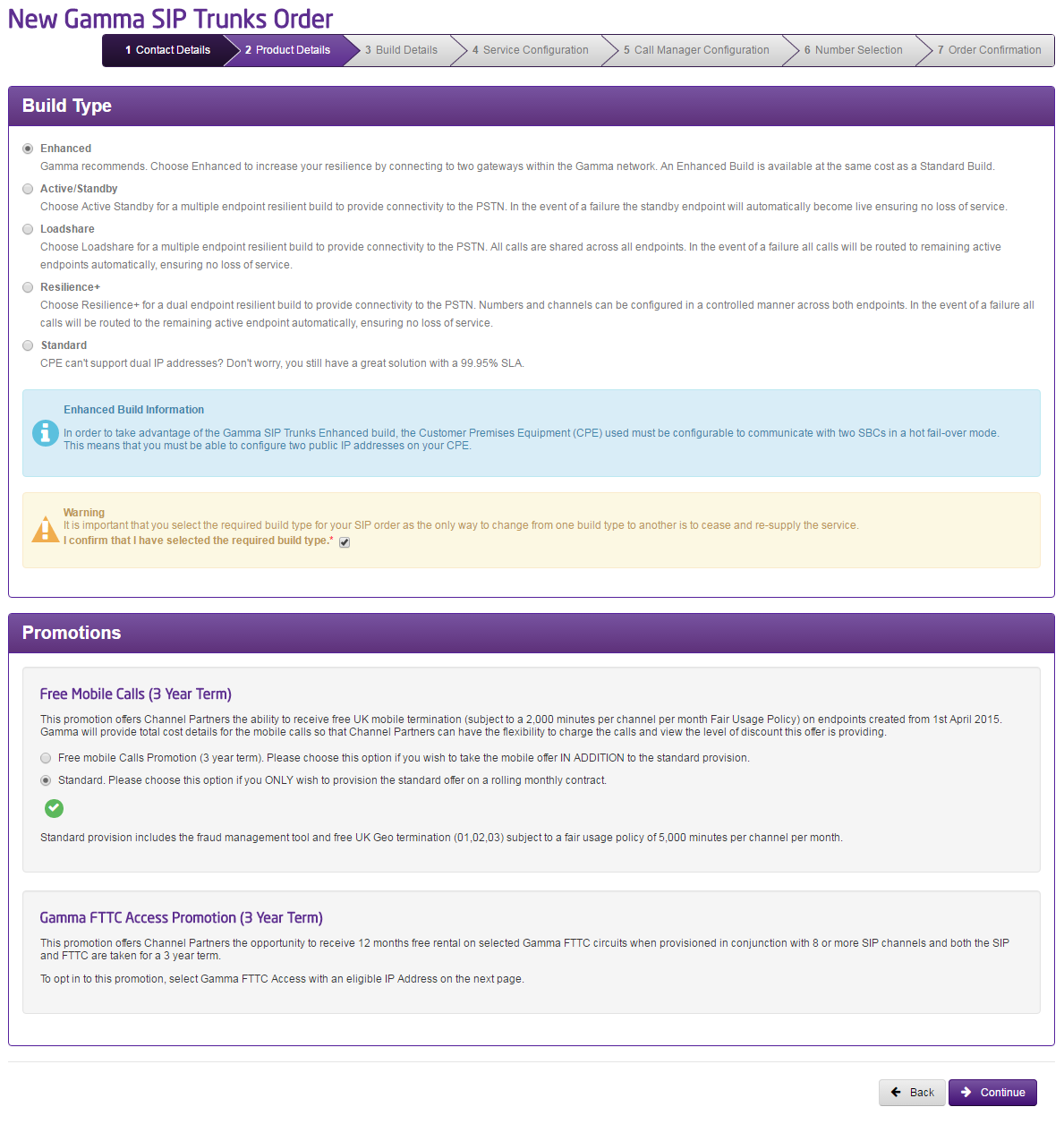
You should now select your build type. The options available to you are:
| Enhanced | This design offers a single site connected to geographically diverse Gamma SBC high availability clusters i.e. SBC pairs A & B. The connection to the Gamma network may be DSL, Ethernet or a Private connection. This solution offers Gamma connection resilience but no site resilience. |
| Active / Standby | This design offers dual endpoints in active / standby mode working off geographically diverse Gamma SBC high availability clusters i.e. SBC pairs A & C. For this configuration, all traffic will route to the primary endpoint A. In the event of failure all calls will route to the secondary endpoint.Please Note: that the configurable tolerance is set to 50%. |
| Loadshare | This design offers dual endpoints in load-share mode working off geographically diverse Gamma SBC high availability clusters i.e. SBC pairs A & B. For this configuration, traffic will be delivered in a round robin fashion to ensure equal distribution between endpoints. |
| Resilience+ | The Resilience+ account is designed to offer two SIP endpoint connections where each endpoint is active to selected DDI’s whilst standby resilience is provided by the other endpoint. Resilience+ accounts offer dual live sites with dual fail over optionsPlease Note: that the configurable tolerance is set to 50%. |
| Standard | This design offers a single site connected to a single Gamma SBC HA Cluster. The connection to the Gamma network may be DSL, Ethernet or a Private connection. There’s no site resilience available in this set up. |
For more information on the build types please see our SIP Trunks Technical Service Description.
Step 4
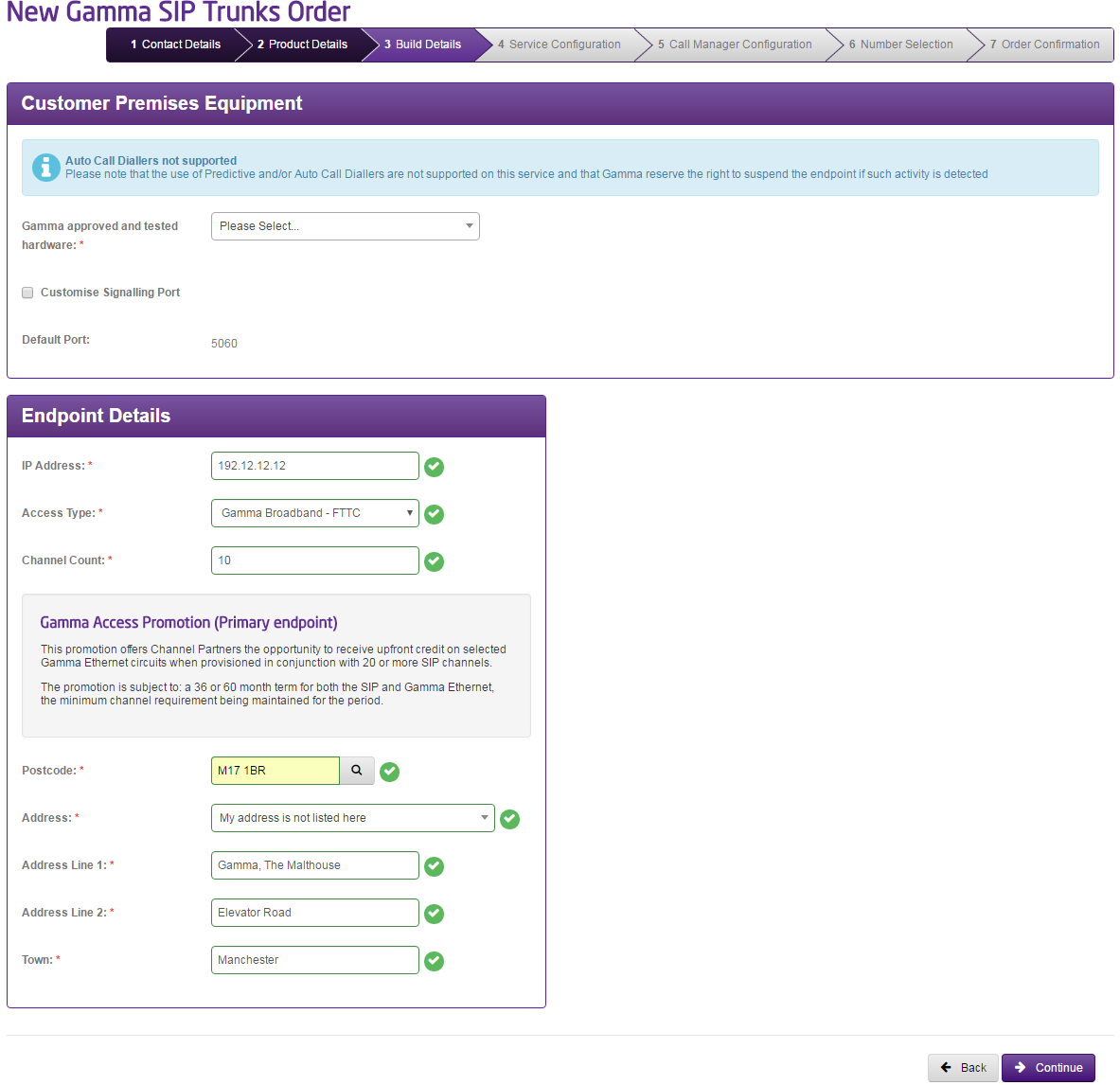
You can either select hardware that has been approved and tested by Gamma from the drop down, or enter something different by selecting “None of the above”.
The equipment that the Gamma Portal displays has been verified for connection to Gamma’s SIP trunking service using IP Authentication. For full information please see the Gamma SIP Trunks Equipment Conformance List.
Note: Some iPBXs require extra hardware/software; A SIP Proxy/SIP aware firewall or a Session Border Controller (SBC). It is the responsibility of the Channel Partner to determine if extra hardware/software is required and provide as necessary.
If you select “None of the above” then four new fields will be displayed for you to complete. These are:
- Type
- Vendor
- Model
- Software Revision
Enter the IP address of the connection that the CPE (Customer Premises Equipment) will use to access the internet. This must be unique.
Gamma SIP Trunks by default use the port 5060 for signalling. If you wish to change this then you can select the Customise Signalling Port button and enter the port number you wish Gamma to send signalling to.
Enter the number of channels that you require.
Warning: If you are requesting more than 250 channels then approval needs to be obtained. You should submit the order as normal and then contact the Service Desk with your order ID. Not doing so can cause delays in your order
Enter your Access type and then your postcode. Once you’ve enter the postcode hit the magnifying glass, then select your customers address from the drop down. If your customers address is not listed there, select “My address is not listed” and you’ll be able to free type this in.
Click “Continue”.
Step 4
You need to make sure that your access can cope with your codec that you choose. This can be done by using the simple formula, though the Gamma Portal will tell you the minimum upstream and downstream requirements:
Concurrent calls x Codec kbps = bandwidth
G711 | Highest quality codec | 100kb per second |
G729 | Lowest quality codec | 40kb per second |
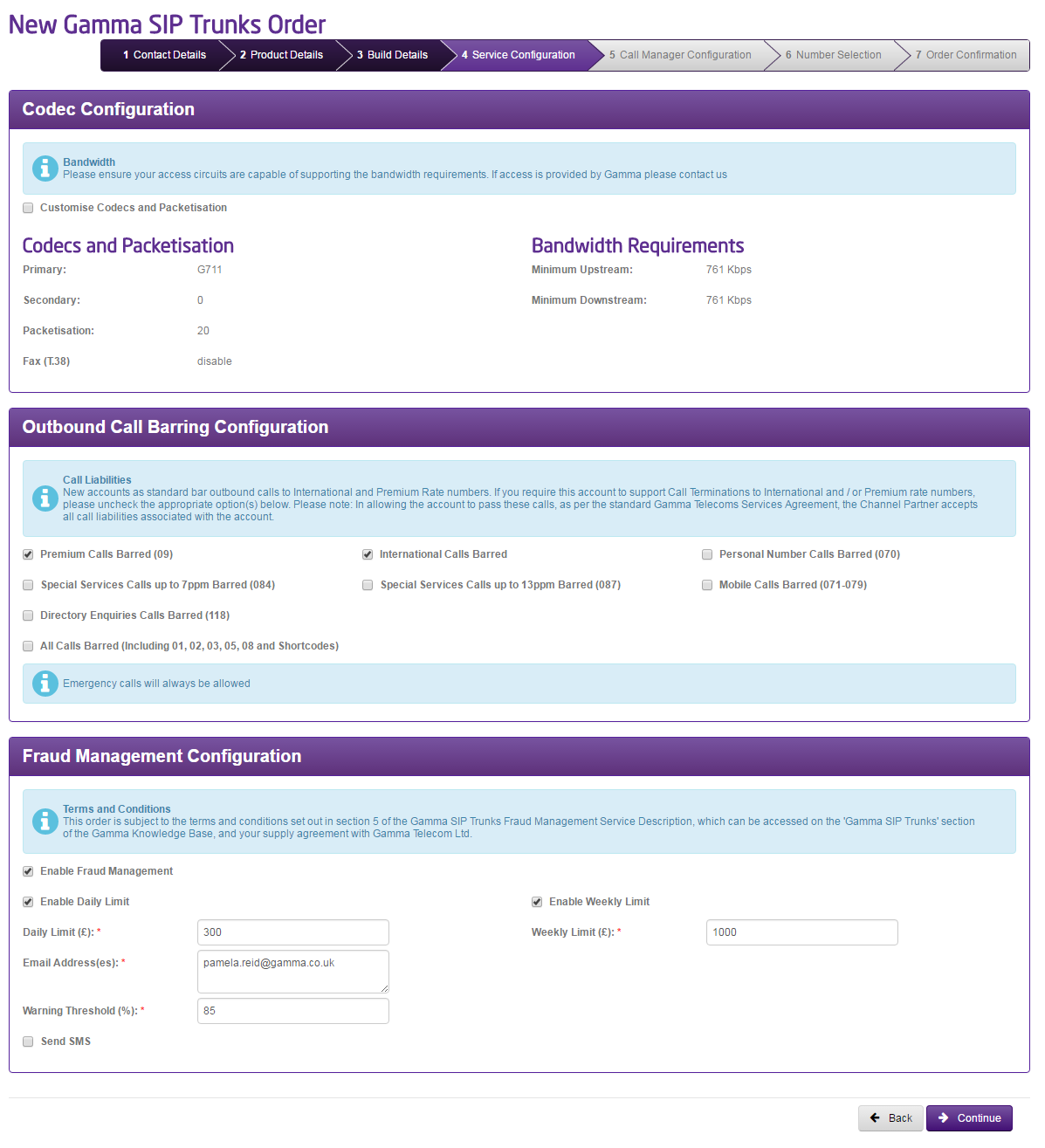
Your codec settings will be pre populated with Gamma recommended codecs and packetisation options. If you wish to change these you can click the “Customise codecs and packetisation”.
Note: It is recommended that all Channel Partners offer G.711 A-law (20 ms) as standard, although there is no requirement for this to be the first choice of codec.
Packetisation delay is the time taken to fill a packet payload with encoded/compressed speech. This delay is a function of the sample block size required by the vocoder and the number of blocks placed in a single frame. Packetisation delay can also be called Accumulation delay, as the voice samples accumulate in a buffer before they are released. Currently the most common sample period is 20 ms, although customers may opt for 10 ms, which introduces less latency but at the expense of greater bandwidth. Only one sample period (10 ms or 20ms) may be provided by a customer.
Select the primary codec you wish to be used for this SIP Trunk. You can change this at a later date if required. You can input a secondary if you wish.
Select your Fax Option. This will determine the correct routing prefix and the type of codec support in case of a fax transmission. The default is “T.38 On” and the options you have here are None, Use T.38 On or Use G711 Pass Through.
Outbound Call Barring Settings allow you to bar certain (or all) call types when creating your endpoint. You can change these at any time once your Endpoint is live.
Finally, you can enable your Fraud Management settings here. If you want to set up Fraud Management and have it go to multiple email addresses, you can do this by separating the email addresses with a semi-colon. For example, richard.james@gamma.co.uk; paul.wakefield@gamma.co.uk; portalfeedback@gamma.co.uk
Step 5
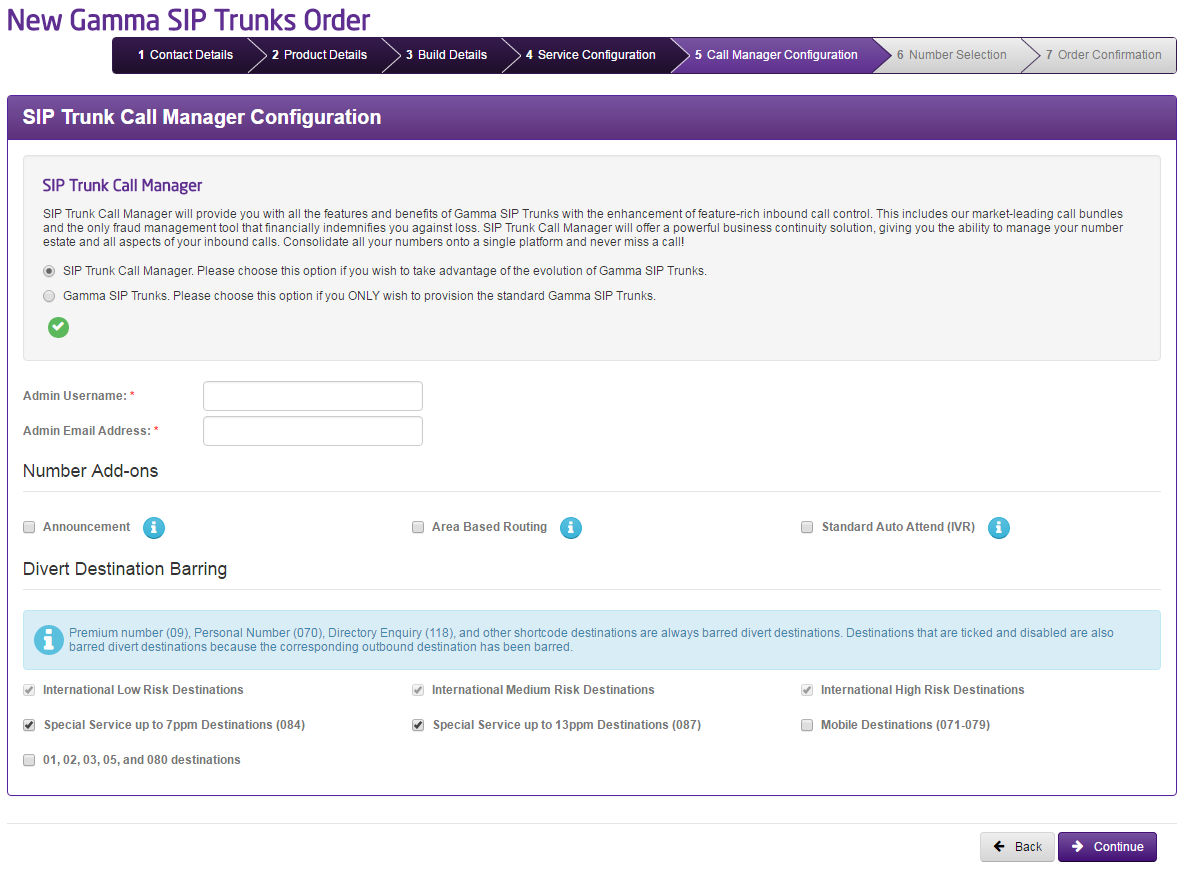
If you would like to provision your SIP Trunk with SIP Trunk Call Manager then select the “SIP Trunk Call Manager” radio button. Enter an admin username and admin email address. If the admin user name is already in use then this will be presented to you when you type it in and you will need to enter another username.
You will also be presented with some new options which will help you configure your SIP Trunk Call Manager Service. These options are:
Announcement | Announcements can be combined with an underlying call plan to play a message to the caller prior to the call connecting, or alternatively as a broadcast which plays an announcement, such as notifying the caller of a change of numbers, and then ends the call. |
Area Based Routing | Area nodes are used to define an underlying call routing planning based on the originating telephone number, for a predefined area name consisting of one or more area codes or CLIs. |
Standard Auto Attendant (IVR) | The Interactive Voice Response (IVR) control feature enables the creation of a personalised menu announcement with up to 10 options to be played to the caller, each leading to a defined call routing / action based on the caller’s key press on their keypad. |
Call Divert Barring | This allows you to bar diverts to certain destinations. These are: International Low Risk Destinations International Medium Risk Destinations International High Risk Destination Special Service Numbers (084) Mobile Destinations 01, 02, 03, 05 and 080 destinations For more information on International Destination Risks please see the Billing Home page on the Gamma Portal (Billing 🡪 Billing Home) |
Step 6
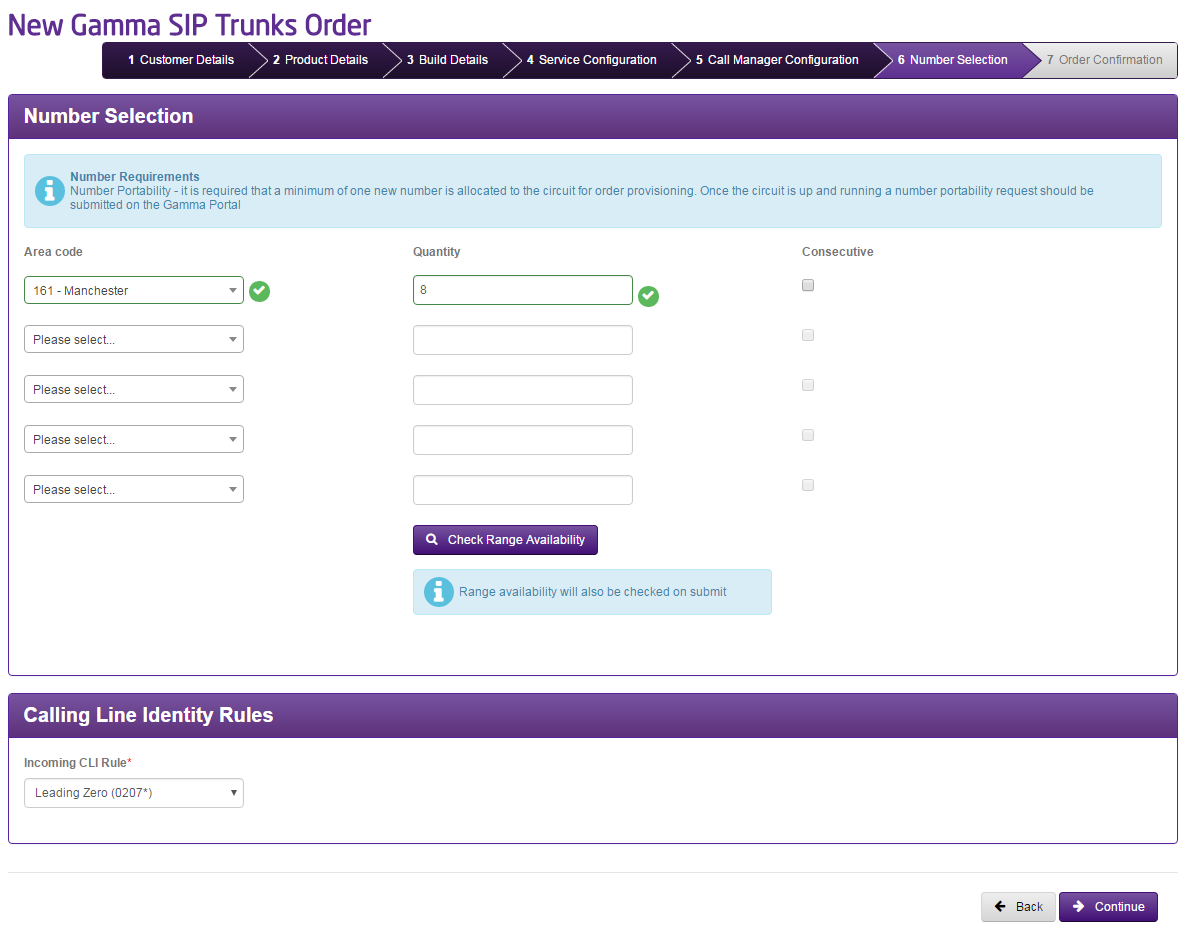
Now you can add Gamma ranged telephone numbers to your new SIP Trunk. Select up to 5 prefixes and the quantity of numbers required for each. Ticking consecutive will ensure you are provided with a consecutive range.
You must check the availability of the range before proceeding with the order.
You can enter a default divert number to be used during faults/DR situations.
The CLI rules will set the format of the CLI presented for incoming calls.
If you require a specific number, you should use the Gamma Number Search under Help and Support to identify what numbers Gamma has available and then use the web chat facility to get the number allocated to your account.
If there are any unavailable area codes for your selection you’ll be presented with a message that advises there aren’t enough available. To progress the order you should select any available number (which can be used for testing) and when your order is complete then you can contact Number Management who can review number availability.
If you wish to port your number(s) to Gamma, then you still need to select one number from an area so that we can set the Endpoint up. Your endpoint also needs to be set up before you place your Geographic Port Order. For more information on porting please see our Gamma Numbers and Porting guide.
Select what you like your numbers to be presented as:
- Leading zero (i.e. 01618703374)
- No leading zero (i.e. 1618703374)
- E.164 format (i.e. +441618703374)
Step 7
You should read and accept the terms and conditions and then click Submit. The Gamma portal will now start to build your Gamma SIP Trunk and will send you an email when complete.
This email will contain all the information you need to set up your customer’s equipment for their Gamma SIP Trunk.
Resend Order Confirmation Email #
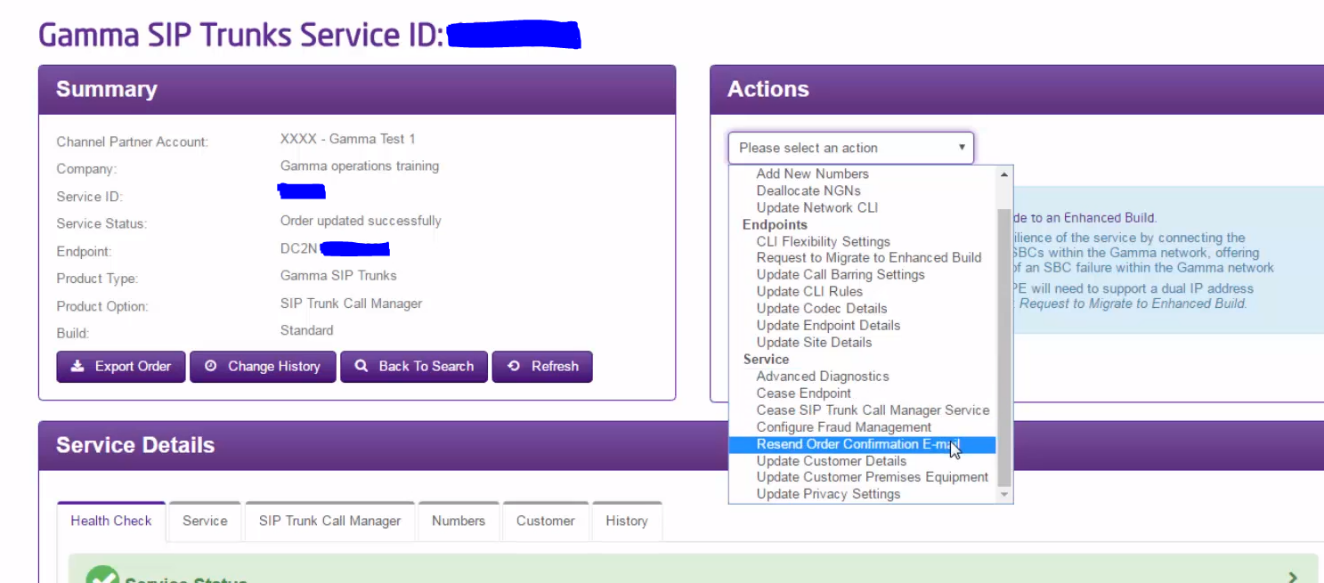
If you ever need another copy of your confirmation email, you can resend this by going onto the Gamma Portal, selecting ‘Provisioning & Service Management’, ‘Voice Connectivity’, ‘Gamma SIP Trunks’ then ‘Service Management’.
Select the ‘Actions’ drop-down box and select ‘Resend Order Confirmation Email’.
SIP International Ordering #
Complete the “Gamma Solutions Combined CRF and Order Form” which can be found on the Academy and email it to iporders@gamma.co.uk
Please note: The standard lead time for order processing is 48 hours; 10 working day SLA on IP changes.
New Enhanced Build – Testing #
Once you’ve completed your Enhanced Build provisioning request on the Gamma Portal you’ll receive a confirmation email to the email address that you’ve specified on your order. This will contain the details for both of the Gamma SBCs. Please see an example of this email below.
The timescales are 10 working days to request, test and complete the migration.
The 10 working day lead time is from the point of the status showing “Migration to Enhanced build Available” on the portal (if this is a standard build that is upgrading to the Enhanced service) – this has a 24 hour lead time from requested to the available message or alternatively, the 10 working days from the point of: “New Order” on the portal (if this was ordered as an Enhanced build).
