If the endpoint that you’re looking to migrate is on a private interconnect and doesn’t use public internet access or Gamma Ethernet then we will be unable to migrate your endpoint to Enhanced Build. Please speak to your account manager about other resilient options that Gamma can offer.
Before you start this you should make sure that the Channel Partner email address is still correct and valid. To check this you should go to Actions and “Update Customer Details. Confirmation emails with details of the new SBCs are sent to this email address.
Step 1
From the Gamma Portal, go to “Provisioning and Service Management”, “Voice Connectivity”, “Gamma SIP Trunks” and “Service Management”. Search for your endpoint.
Step 2
Select the endpoint that you wish to migrate from Standard build to Enhanced build and click “View”.
Step 3
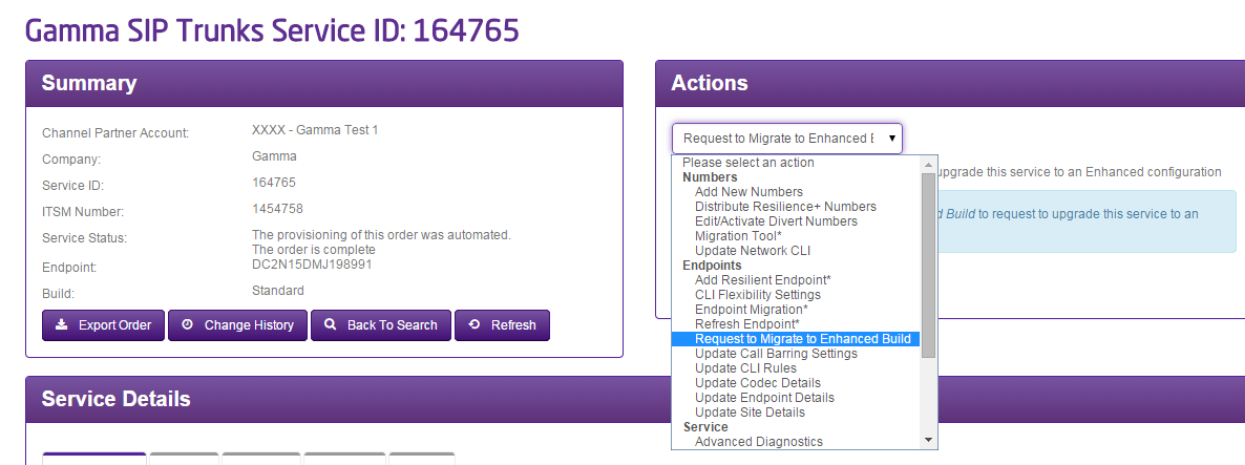
To begin the migration process, you first need to put in a request to create an enhanced build endpoint. This request takes 24 hours to be confirmed.
This is done by navigating to the endpoint on the Gamma Portal and selecting ‘Request to Migrate to Enhanced Build’
Step 4
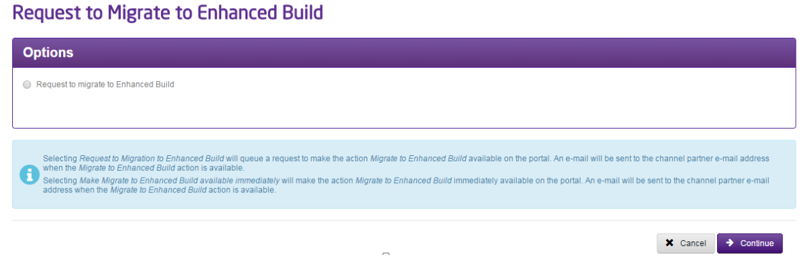
You will then need to select “Request to migrate to Enhanced Build” again to confirm your request. Once your request has been completed (this takes 24 hours) you’ll get an email to confirm that your Enhanced Build endpoint is ready to be created.
Step 5
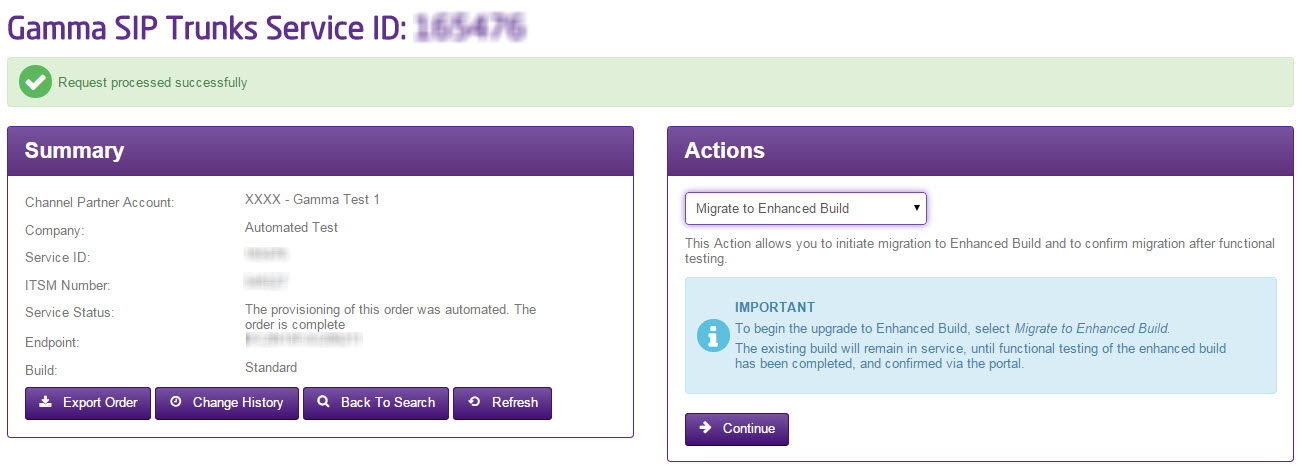
Once the endpoint is ready to migrate you’ll receive an email informing you of this. From the actions drop down select “Migrate to Enhanced Build”.
Step 6
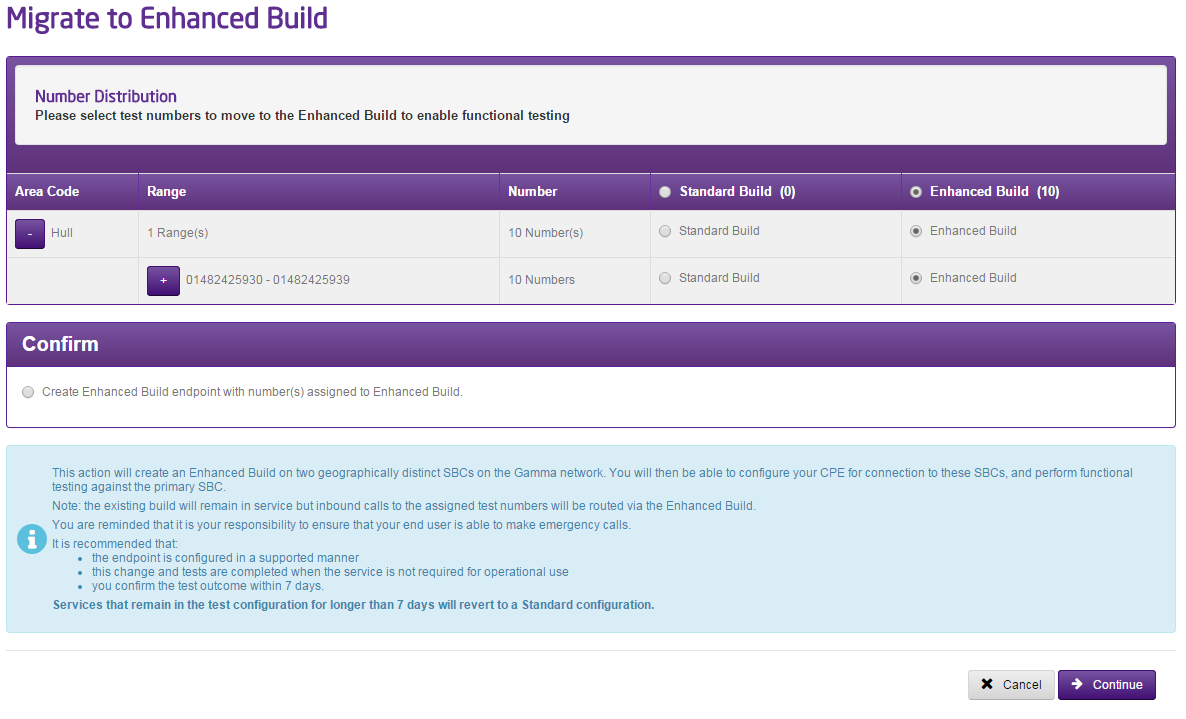
You then need to choose what number you would like to test on the new Enhanced Build. This is done by selecting the Enhanced Build option.
Once you’ve selected your numbers to test with, select “Create Enhanced Build endpoint with number(s) assigned to Enhanced Build” and click Continue. This will create a new endpoint.
It is recommended that you only migrate one or two numbers to the Enhanced Build for testing instead of all numbers If all numbers are currently being used and you cannot use any of them for testing then please add some new numbers to the Endpoint and use these for testing. If you migrate all your customers’ numbers and their PBX is not properly configured to receive calls from the Enhanced Build SBC the calls will fail and this will impact your customer’s service.
Step 7
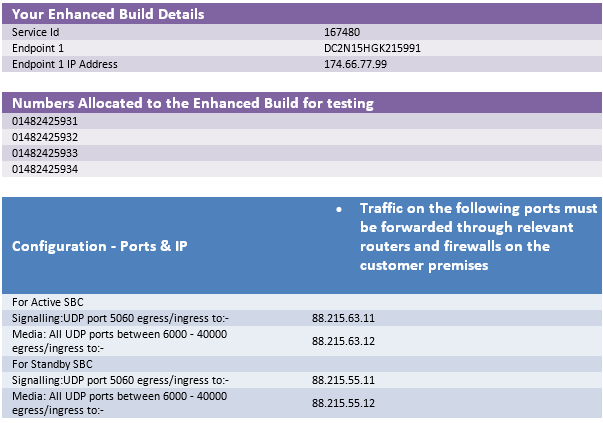
After you’ve pressed Continue the Gamma Portal will create 2 new endpoints for you, one built on the new active SBC and another built on the new Standby SBC. You’ll receive a confirmation email to the Channel Partner email address on the endpoint with all the details regarding the new active and standby SBC’s that will be required to setup your customer’s PBX.
Step 8
Your customer’s endpoint is now in phase 1 testing. Their original endpoint will be working as normal alongside the new enhanced build endpoint that has been created (details are in the confirmation email).
The DDIs selected for the enhanced build testing in step 6 will be routing via the new ACTIVE Gamma SBC IP address for testing (as per the confirmation email).
The DDIs that have not been selected for enhanced build testing will still be routing via the ORIGINAL single build endpoint.
You have 7 days to complete your testing after which all the numbers will revert to the original single build endpoint.
Step 9
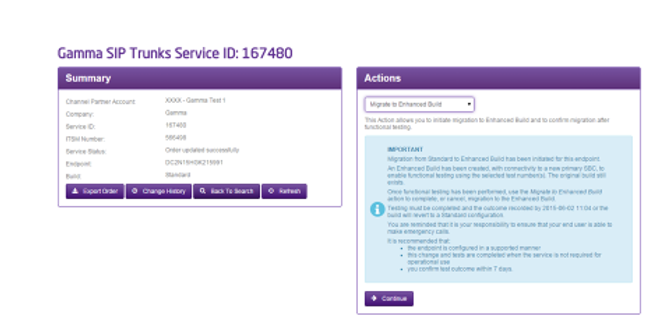
Once the customer has made their test calls you will then need to pass, fail or continue testing. To do this go to the Service Management page of the endpoint on the Gamma Portal and select “Migration to Enhanced Build”.
Step 10
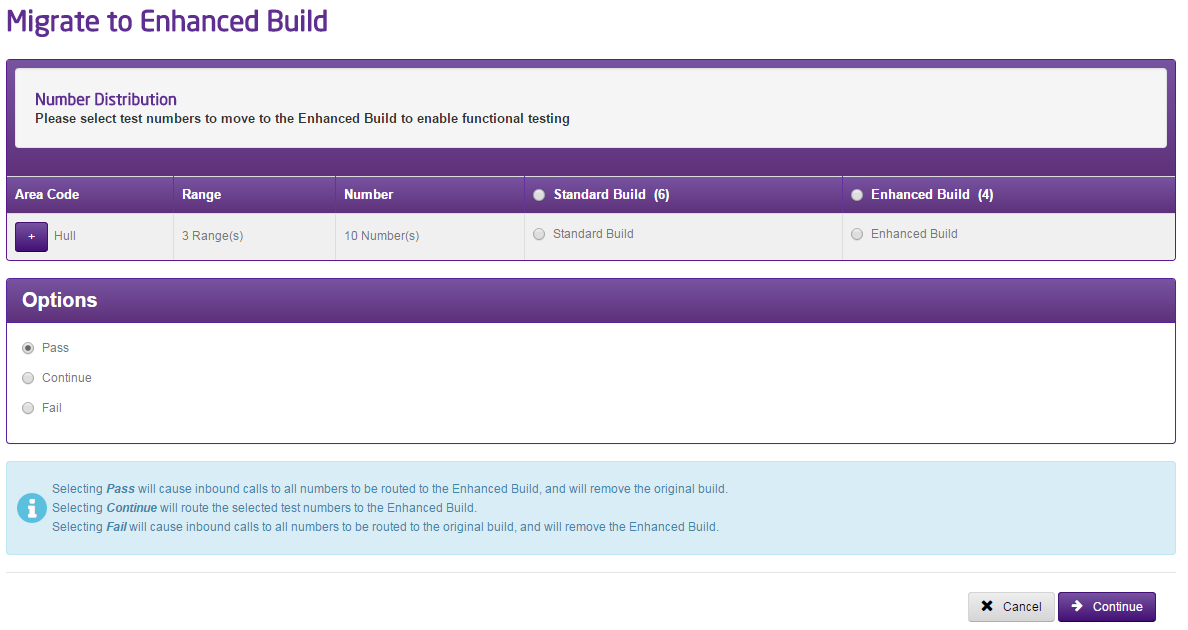
Pass | This will trigger ALL numbers on your customer’s endpoint to migrate to the new enhanced build endpoint. It will also CEASE the customer’s original endpoint. This action cannot be reversed. You will receive a confirmation email when this has been completed. |
Fail | This will fail the test and will route all numbers that are currently assigned to the enhanced build endpoint back to the original endpoint. It will also cease the enhanced build endpoint. You will receive a confirmation email when this is complete. You will still be able to migrate to enhanced build at a later day by completing this guide again |
Continue | This allows you to continue testing and will let you move additional numbers to the enhanced build endpoint. |
Step 11
Now that you have all your customer’s traffic routing to and from the active SBC on the enhanced build endpoint you will need to commence phase 2 testing and test the standby SBC on the enhanced build. To initiate this please select “Test Enhanced Build” on the Gamma Portal.
Phase 2 testing will trigger all calls of all your customer’s DDIs to failover to the standby SBC and will blacklist the customer CPE IP address on the active SBC, meaning that we will only be accepting traffic on the standby SBC. With this in mind we recommend that you initiate and undertake this testing at an agreed time with your customer when it will not interrupt their service.
You will receive a confirmation email once testing has been initiated.
Step 12
You’ll then need to carry out tests on the
SBC (details are included in the confirmation email).
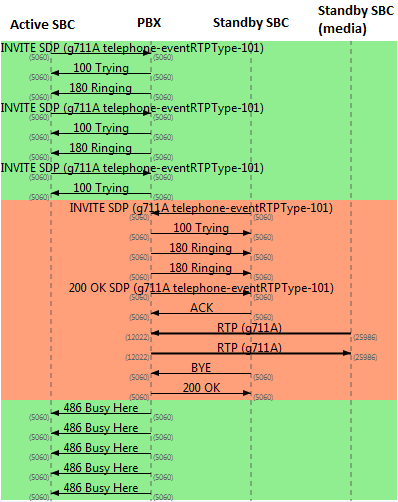
We simulate a failure on the active endpoint to the standby endpoint by blacklisting the CPE IP address on the active SBC. This means that all inbound calls the customer’s PBX will receive an INVITE request from the active SBC and will we subsequently ignore the customer’s responses to this INVITE. This will cause the call to failover and the PBX will receive another INVITE from the standby SBC which we will respond to. A successful call flow should look like the image here.
Once you’ve completed the testing you will need to pass or fail the test on the Gamma Portal. Again go back to “Test Enhanced Build” on the Service Management page.
Pass | This will complete the test and configure your customer’s endpoint as Enhanced build. All inbound calls will initially be sent to the active SBC, and if these fail they will automatically be sent to the standby SBC. The CPE IP address will be removed from the blacklist on the active SBC. |
Fail | This will fail the test and remove the CPE IP address from the blacklist on the active SBC, meaning that all traffic will revert back to the active SBC. Once you have failed the test you can re-test using this guide. |