
Skip to content
  • Academy KB Home Redesign
  • Broadband Home
  • CCaaS
  • Channel Partner Support
  • Circle Loop Home
  • Collaborate
  • Connectivity
  • Courses
  • Documentation
  • Ethernet
  • FibreXchange
  • FUSION IoT
  • Gamma AI Concierge
  • Gamma Plus
  • Gamma SIP for Cloud Connect
  • Gamma SIP for Cloud Connect
  • Gamma SIP for Genesys Cloud
  • Gamma SIP Global Communications Enablement
  • Gamma SIP Trunks for Genesys Cloud
  • Hannah – Homepage WIP
  • Home
  • Horizon
  • Horizon Contact
  • Horizon Forms
  • Horizon Service Description Home
  • Horizon with Webex
  • Inbound
  • iPECS
  • Knowledge Base Intro
  • Knowledgebase Directory
  • LoginPress
  • Microsoft
  • Microsoft Teams Direct Routing Home
  • Microsoft Teams Operator Connect
  • Mobile
  • Multiple KB
  • My Courses
  • No Access
  • No active page
  • Numbering and Porting
  • Phoneline+
  • Product Homepage
  • Quick Download Button
  • Release Notes
  • Release Notes
  • SIP Home
  • Test
  • UCaaS
  • User Account
  • Voice
  • Voice Enablement
  • Webex for Gamma
  • Webex for Gamma Release Notes
  • Gamma Academy Knowledge Base
Gamma Academy Knowledge Base
  • Cloud Calling and Collaboration
    • Webex for Gamma
    • Horizon with Webex
    • Horizon
    • Phoneline+
    • Operator Connect
    • Direct Routing
    • Inbound
    • Akixi CX Analytics
    • Red Cactus
  • Connectivity and Networking
    • Numbering and Porting
    • Broadband
    • FibreXchange
    • Ethernet
    • SIP Trunking
    • Gamma FUSION IoT
  • CX
    • Horizon Contact
    • AI Concierge
  • Mobile Services
    • Gamma Mobile
  • CyberSecurity
    • SafeWeb
  • Partner & Portal Support
Gamma Academy Knowledge Base

Provisioning and In-Life Changes

  • Before Ordering SIP
    • Gamma Combined Solution Customer Requirement Form
    • Number Requirements
    • Equipment Conformance List
  • Ordering SIP on the Gamma Portal
    • Place a New SIP Order
  • In-Life Configuration
    • Add or Remove Numbers to/from SIP
    • Migrating a Standard Build to Enhanced
    • Fraud Management
    • Call Line Identity (CLI) Rules
    • Change Access Type
    • Update Customer Premises Equipment (CPE)
    • Update IP Address
    • Privacy Settings
    • Codecs & Packetisation
    • Channels
    • Cease an Endpoint
    • Cease Call Manager
  • Service Acceptance Testing
    • Service Acceptance Testing Introduction
    • Stage 1 – SIP Trunking Acceptance Testing
    • Stage 2 – Enhanced Build Testing
    • Stage 3 – Capacity Acceptance (Load test)

Features

  • CLI Flexibility
  • Call Barring
  • Call Diverts

Advanced Features

  • [Legacy] Microsoft Lync / Skype for Business
  • 3cx SIP Configuration
  • SIP Trunk Call Manager Setup
    • Create or Upgrade a New SIP Trunk Call Manager Account
    • Bulk App User Creation
    • Create Users and Profiles
    • End User Call Management Features
  • SIP Trunk Call Manager (STCM) Advanced Features
    • End User Call Management – Additional Features
    • STCM Call Queue Settings & Behaviour
    • STCM Distribution
    • STCM Advanced Statistics & Push Reports
    • STCM Customer Fields
    • STCM Business Continuity
    • STCM Replace Announcements
    • STCM Limit Caller Admissions (LCA)
    • STCM Diverts Guide
    • STCM Setup Notifications for Billable Options
    • STCM Call Plan Validation Errors

Technical Support

  • Diagnosing Faults
    • SIP Health Check
    • Advanced Diagnostics
    • I Have a Problem With Call Quality
    • I Have a Problem With Call Routing Issues
    • Raising a fault
  • Technical Information
    • SIP Infrastructure Upgrade
    • SIP Trunking Infrastructure Upgrade
    • MSX 11&12 IP Address Change Process Guide for Customers
    • PCI Compliance
    • Nuisance and Malicious Calls
    • Hacking
    • DTMF
    • Fax
    • Mass Calling Event
    • Failover on Resilient SIP Designs
  • International Support
    • International SIP FAQ Guide
    • International Equipment Conformance List

Service Description

  • SIP Service Description

T&Cs and SLAs

  • Gamma SIP Trunks Terms and Conditions
  • SIP and Microsoft Teams Phone SLAs
  • SIP Trunks Voice Traffic Policy

SIP SLAs

  • Gamma SIP Trunks – 2025 SLAs
  • Gamma SIP Trunks – 2024 SLAs
  • Gamma SIP Trunks – 2023 SLAs
  • Gamma SIP Trunks – 2022 SLAs
  • Gamma SIP Trunks – 2021 SLAs
  • Gamma SIP Trunks – 2020 SLAs
  • Gamma SIP Trunks – 2019 SLAs
  • Gamma SIP Trunks – 2018 SLAs
  • Gamma SIP Trunks – 2017 SLAs
  • Home
  • Home
  • SIP Trunking
  • Advanced Features
  • 3cx SIP Configuration
View Categories

3cx SIP Configuration

This guide assumes some familiarity with the 3CX server. It describes a minimal configuration to get a 3CX system with no PSTN connectivity up and running with a Gamma SIP trunk.

Preparation Steps #

Network #

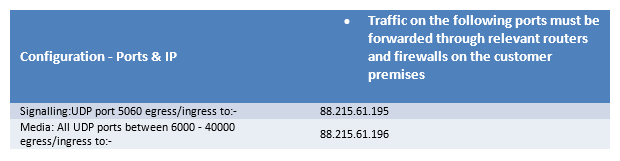
Please refer to your order confirmation email, which will detail IP addresses and ports required to implement the SIP trunk. Router/firewall configuration changes may be needed to allow the traffic to pass between nominated Gamma IP addresses and your 3CX server:

An example is shown below:
You will also need to refer to the 3CX Firewall and Router Configuration to setup the network for the various ports that 3CX uses.

This guide includes the additional ports 3CX makes uses of for external handsets etc. You will also find a list of commonly used firewalls with 3cx and example configurations.

Installing 3cx #

Please refer to the 3CX website for the most up to date installation guide.

The above guide will take you through the following steps, once these are completed you will be able to add your Gamma SIP trunk to the server:

  • System Requirements
  • Supported Operating Systems
  • Supported Hardware and VM platforms
  • Firewall & Network Considerations
  • Other requirements
  • Preparing the Windows host machine for installation
  • Download and Install 3CX Phone System
  • 3CX Phone System Configuration Wizard
  • Logging into the 3CX Phone System Management Console
  • Step 2: Activate your license
  • System Prompts Language
  • Upgrading from a Previous Version of 3CX Phone System
  • Backup and Restore
  • Scheduling a Backup
  • Moving 3CX Phone System to a New Machine

Adding a Gamma SIP Trunk #

In the 3CX Phone Management console menu, select “VoIP Providers” > “Add VoIP Provider”:
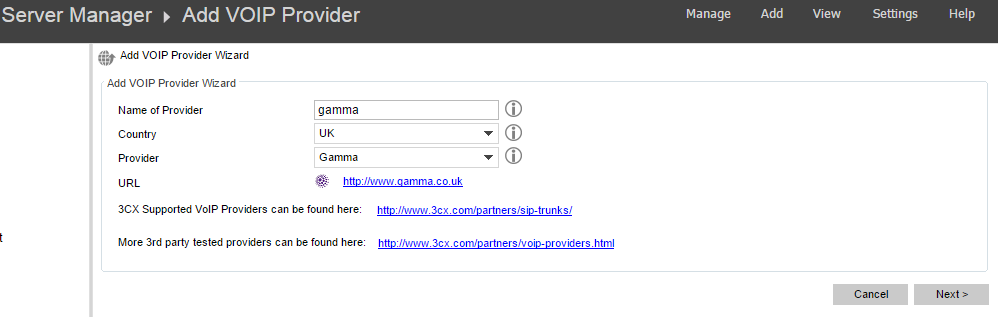
Select ‘UK’ from the country drop down and ‘Gamma’ from the provider drop down menu. You can name the trunk anything you find to be relevant. Gamma would suggest naming this using the unique reference given to your SIP trunk for future reference should you need to contact Gamma support – you can find this on the order confirmation email or by checking the order via the Gamma portal.

Click ‘next’ once complete.

Now you are required to enter Gamma’s signalling gateway address.

The SIP server hostname or IP may be pre-filled. Compare these with the details that you have received within your order confirmation email from Gamma or by checking the order directly on the Gamma portal.

The SIP server port will be populated with correct default of 5060.
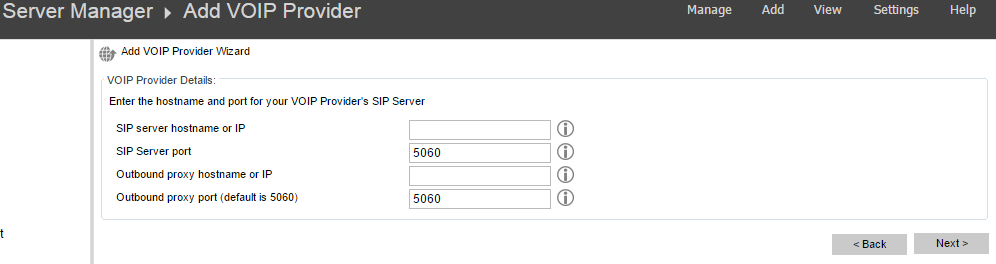
If you use an outbound proxy, you can enter this here.

Click ‘next’ to continue.

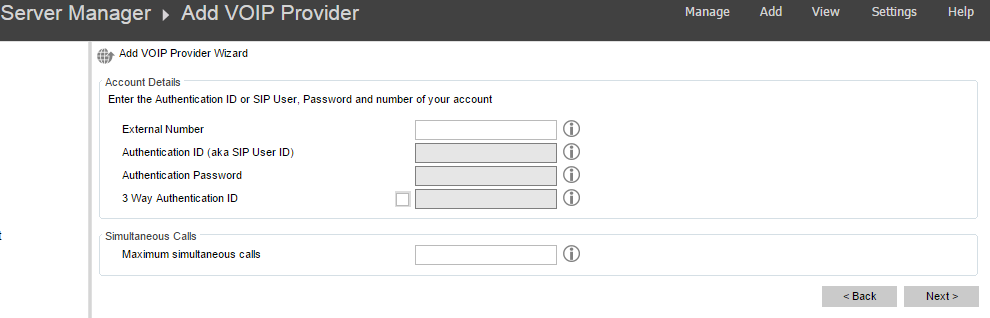
In the final step, you will be asked for an “external number” – This is only a requirement of 3CX and not used by Gamma for authentication, you can enter any DDI that resides on your SIP trunk with Gamma.

You will also be asked for your ‘Maximum simultaneous calls’ which is the number of channels you have purchased from Gamma on your SIP trunk.

Again, you can find these details on your initial order confirmation email or by checking the gamma portal.

The remaining fields should be greyed out as these are not required by Gamma. Gamma SIP trunks are authenticated on an IP basis.
DDIs and Inbound Call Configuration #

Gamma will provide you with DDI numbers. You can find a list of these on your order confirmation email or by checking the order on the Gamma portal, you will need to specify these in the DID tab. To do this:
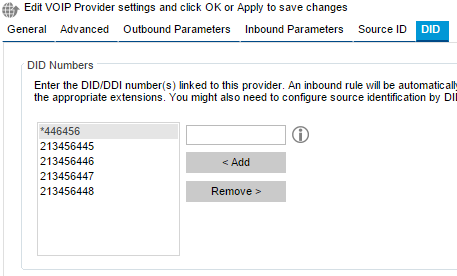
  1. In the 3CX Management Console, select “VoIP providers” click on the VoIP provider you want to configure.
  2. Click on the “DID” tab.
  3. Add the DID numbers associated with your account. An Inbound Rule, which can be configured at a later stage, will be created for each number specified in this list.
  4. You can also see the list of inbound rules by expanding the “Inbound Rules” node.

Edit Call Line Identify (CLI) Rules #

You can modify the format in which Gamma sends the CLI to your 3CX to match how you configure your inbound rules above:

Leading Zero (0207…)

No Leading Zero (207…)

E.164 Format (+44207…)

This can be done via the Gamma portal using the ‘Update CLI Rules’ action.

image_pdf
Updated on 14/12/2023
[Legacy] Microsoft Lync / Skype for Business[Legacy] Microsoft Lync / Skype for Business
Contents
  • Preparation Steps
    • Network
    • Installing 3cx
  • Adding a Gamma SIP Trunk
  • DDIs and Inbound Call Configuration
    • Edit Call Line Identify (CLI) Rules

Copyright © 2026 -  Gamma Telecom Ltd

Gamma API
We use cookies to measure performance and make improvements to this service. This includes page views, device/browser, location, and page interactions. We do not collect any information you upload to this site. By agreeing, you consent for your data to be used for this purpose.