Gamma SIP Trunks have MS Lync certification which means that they can now be connected directly to MS Lync without the requirement of an additional Gateway or SBC on the customer’s site.
This follows the successful testing and gaining of the appropriate approvals notification which can be seen on Microsoft’s technet site
This forms part of the Unified Communications Open Interoperability Program for Service Providers wishing to connect directly with Microsoft Lync 2010.
How do I make a MS Lync / Skype for Business order on the Gamma Portal #
The process is virtually identical to that of a standard SIP trunk order. The only difference being that “MS Lync (Direct)” must be selected on the CPE drop down menu during the order creation. Failure to do this will result in a SIP trunk that is incompatible with MS Lync.
Can I use a Gateway or a SBC? #
In situations where the customer wishes to continue using a SIP gateway of Session Border Controller (SBC), then this device must be selected from the CPE drop down list rather than MS Lync. This is because in this case, the Gamma SIP trunk is interworking at a protocol level with the Gateway or SBC rather than with MS Lync. In these instances, the CPE on site must be converting the traffic from Gamma to TCP for Lync, and from Lync to UDP to go out to Gamma.
If the required Gateway or SBC is not seen on the approved list, it is possible to select ‘none’ though the following warning notice will be displayed and will need to be considered.
How do I configure MS Lync / Skype for Business to work with Gamma SIP Trunks #
Gamma considers MS Lync as just another approved CPE and in that sense does not offer any specific advice configuring the application itself. The signalling and media ports required for successful operation with the service are communicated via email following the order creation.
Please note: Gamma do not currently support the optional network security elements of TLS and SRTP on this service.
How are these SIP Trunks different to other Gamma SIP Trunks #
Technically, the MS Lync endpoints use TCP as the signalling transport method (as required by Microsoft) rather than UDP as used by standard Gamma endpoints. All the portal features and configurations options are available as per standard endpoints.
Can I convert an existing endpoint to MS Lync / Skype for Business? #
Not directly; if a migration is required, a new endpoint must be created on the portal and the DDIs moved over. It is not possible to convert an existing endpoint to a MS Lync endpoint.
Preparation Steps #
Network #
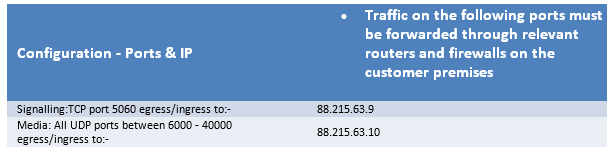
Please refer to your order confirmation email, which will detail IP addresses and ports required to implement the SIP trunk. Router/firewall configuration changes may be needed to allow the traffic to pass between nominated Gamma IP addresses and your Lync mediation server.
An example is shown below:
Optional Additional Network Setup #
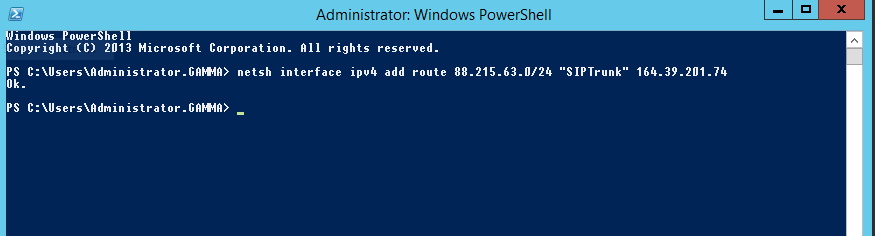
If using only Lync/Skype for Business as mediation server with no SBC or third party mediator please be aware that a 2nd NIC is required with an internet IP directly assigned to the network interface, as Gamma use IP authentication for our SIP trunks the Lync server has to present this external IP for calls to flow both inbound and outbound. After adding a routed IP to a 2nd network interface a static route to our signalling/media IPs may be required this can be added via netsh in the example below.
netsh interface ipv4 add route <Gamma subnet IP >/<subnet mask> <NIC Reference> <Next-hop address>
Using the details above would require a command such as below:
Netsh interface ipv4 add route 88.215.61.0/24 SIPTrunk 164.39.201.74
SIPTrunk is the name giving to the network interface in windows and the 164.39.201.74 is the router IP address/default gateway on the connection which the 2nd nic resides.
Initial Setup #
Check that Enterprise Voice and (if desired) PSTN Conferencing are enabled for the Lync server or pool.
In the Topology Builder, expand and find the Lync server, and check under “Features and Functionality”:
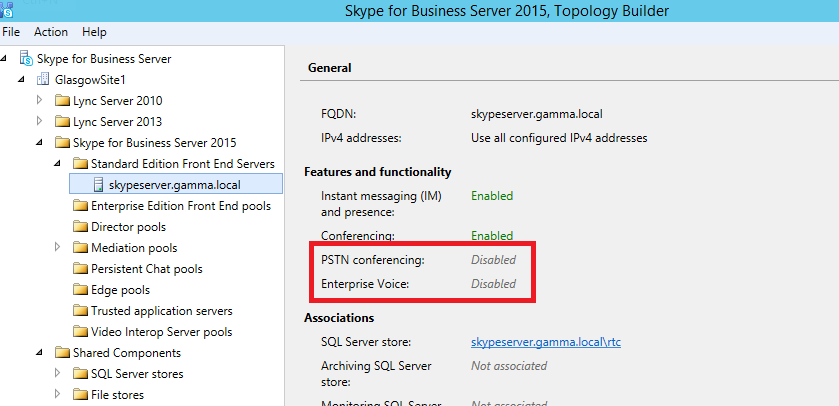
If they are set to Disabled, edit the properties of the server or pool and enable them:
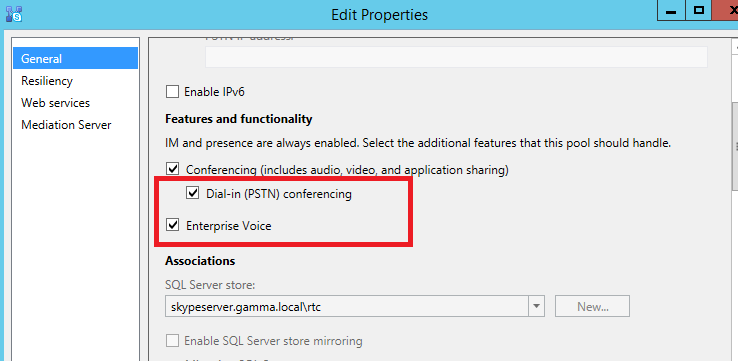
The topology will then need to be published, and the Lync Server Deployment Wizard re-run on the server(s) to enable the new features.
Lync 2013 / Skype for Business Configuration #
Add to Topology #
The configuration shows a single Skype for Business 2015 Standard Edition server.
Open the Lync Server Topology Builder and download the current topology.
Locate the Lync server, right-click and Edit Properties
Ensure that “Enterprise Voice” is ticked, and “Collocated Mediation Server enabled” is ticked.
Under the Mediation Server section, tick “Enable TCP port” and use 5060 – 5060 as the TCP port range. Click OK.
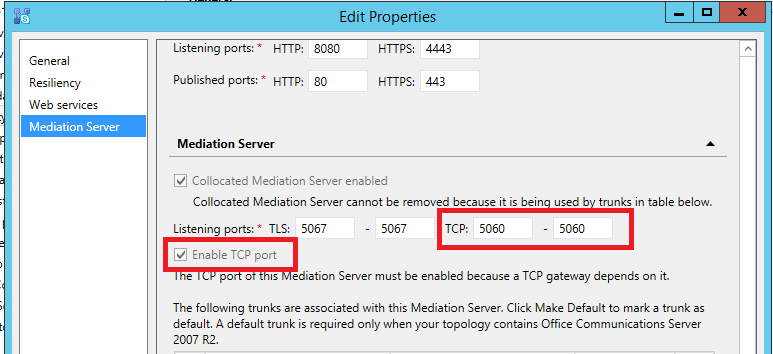
Under Shared Components > PSTN Gateways, right-click and select “New IP/PSTN Gateway”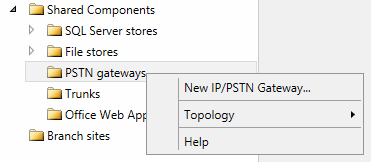
In the “Define New IP/PSTN Gateway” dialog, enter the “signalling” IP address given in the order confirmation email (eg. 88.215.61.195) and click Next.
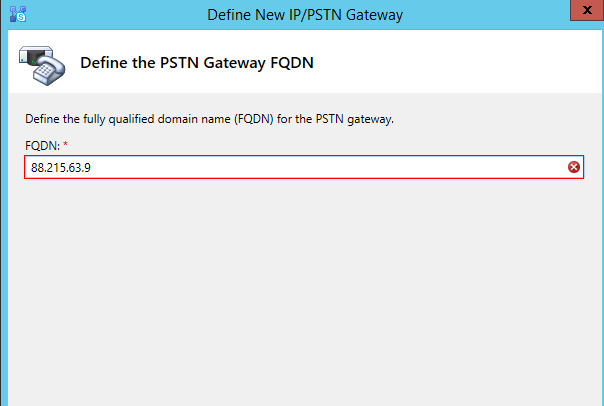
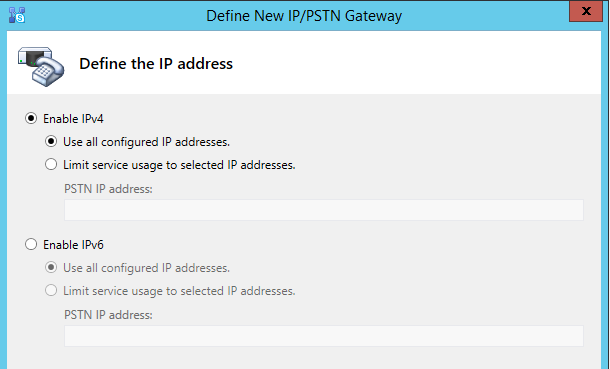
Leave the “Define the IP address” dialog at defaults and click Next.
On the “Define the root trunk” dialog, change the trunk name to “GammaSIPTrunk”, SIP Transport Protocol to TCP, and change the Listening Port for IP/PSTN gateway and Associated Medation Server Port to 5060.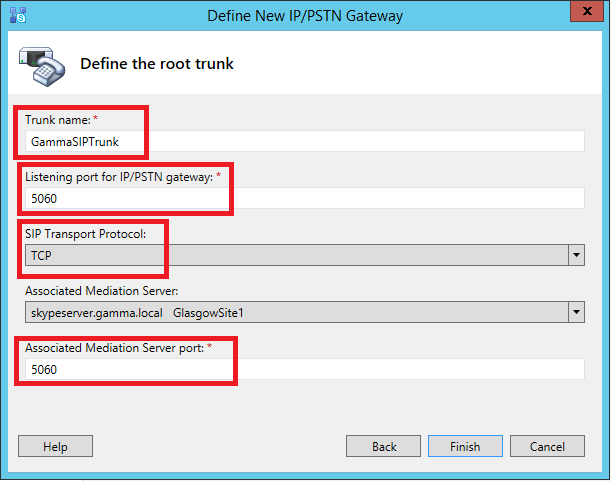
If you are experiencing issues relating to failed inbound calls from withheld numbers we would recommend that you change the SIP Trunk name to the IP address of the Gamma signalling gateway rather than the text field ‘GammaSIP’ indicated above.
PSTN Gateway #
At this point the separate media IP will need entered into the PSTN gateway setup, this was provided in the handover document and is normally only one ip away from the signalling server.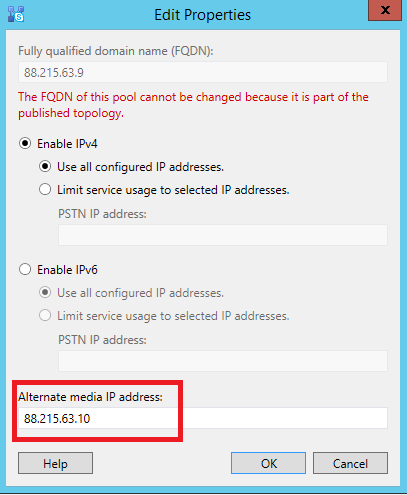
(Optional Additional Network Setup) #
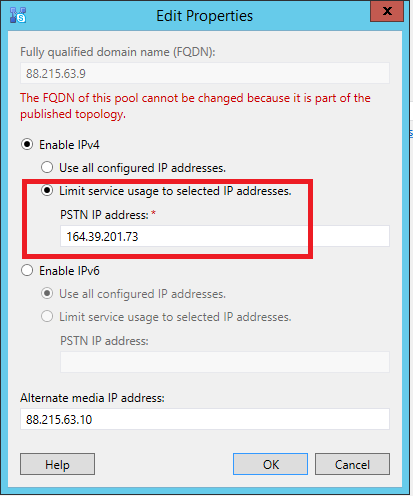
If using only Lync and the built in mediation server as described earlier in this document using a 2nd NIC, within this screen a limit will need to be put on to make sure the sip trunk only routes over the 2nd network interface as seen below, this should be the static internet IP which is assigned to the 2nd network card, in this example it is 164.39.201.73.
TRUNK #
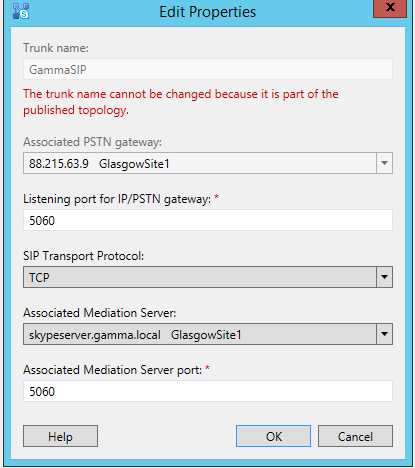
Publish the topology, by going to the Action menu > Topology > Publish…
Close the Lync Server Topology Builder
Create a Dial Plan #
A dial plan is defined in the Lync Server Control Panel. Dial plans contain “normalization rules”, which allow us to manipulate numbers that users have dialled. Usually in the UK we dial numbers starting 0 (or 00 then country code for international), but we want numbers dialled from Lync to be in E.164 format – e.g. dialled 02079461234 would be converted to +442079461234.
Click on Voice Routing, then Dial Plan. We could create a new dial plan if preferred, or edit the Global dial plan as shown here.
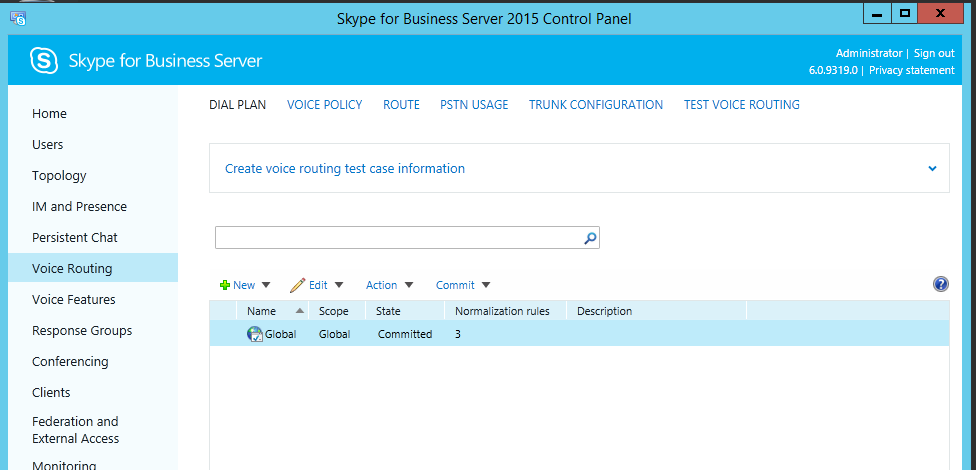
Under Associated Normalization Rules, add the following rules to normalize UK (starting 0) and international (starting 00) numbers to E.164:
| Name | UK |
| Starting Digits | 0 |
| Length | At least 10 |
| Digits to Remove | 1 |
| Digits to Add | +44 |
| Name | International |
| Starting Digits | 00 |
| Length | At least 7 |
| Digits to Remove | 2 |
| Digits to Add | 00 (Gamma expects international calls to begin with 00 in most cases) |
In the Associated Normalization Rules window, move the “Keep All” rule below the new ones before clicking OK to save.
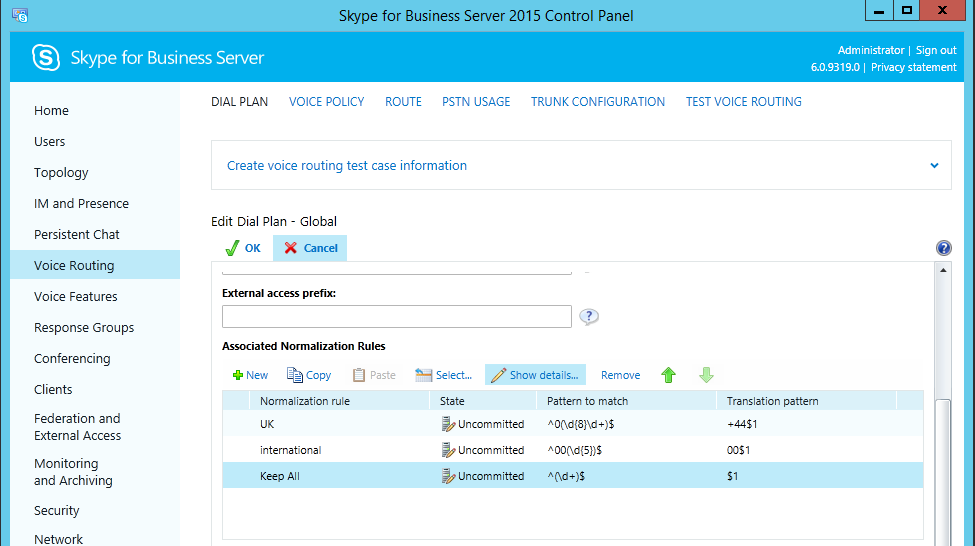
Back at the Dial Plan view, click Commit > Commit All.
Create a Voice Policy #
A voice policy is defined in the Lync Server Control Panel. Voice policies define calling features that can be used, and which types of call (“PSTN usages”) can be made.
Click on Voice Routing, then Voice Policy. We could create a new policy if preferred, or edit the Global voice policy as shown here.
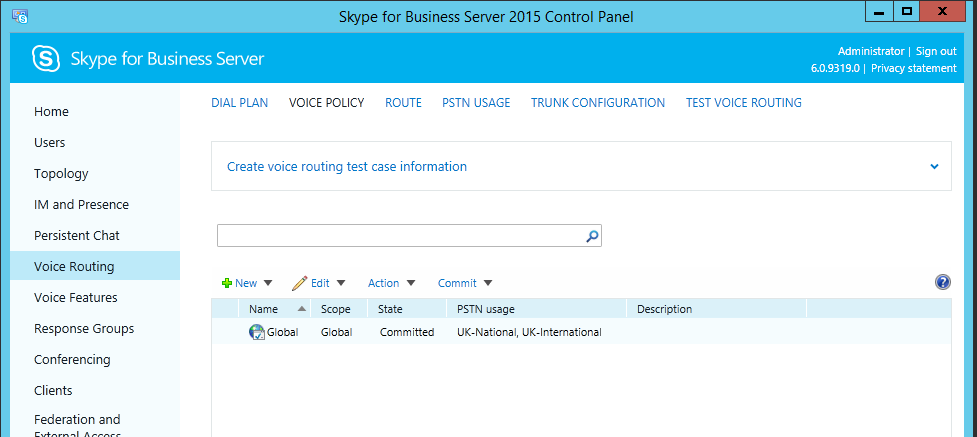
Under Associated PSTN Usages, click New and add two new ones – “UK-National” and “UK-International”. Associated Routes for each can be left blank (they will be created in the next section).
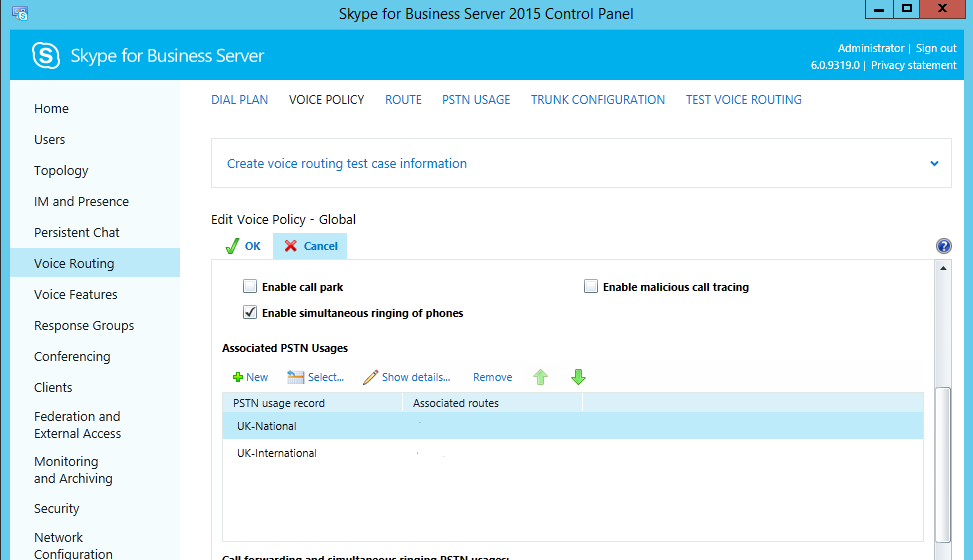
Click OK to save, then back at the Voice Policy view, click Commit > Commit All.
Create a Route #
A route is defined in the Lync Server Control Panel. A call (or voice) route specifies how Lync handles outbound calls placed by users.
Click on Voice Routing, then Route, then New to create a new route.
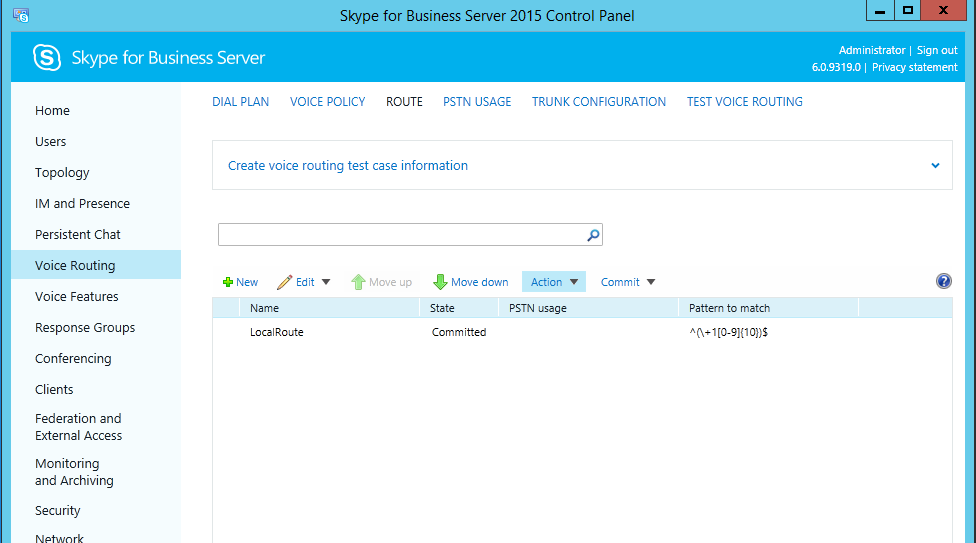
| Name | Gamma Route |
| Description | SIP Trunk to Gamma |
| Pattern to Match | .* (default – “all calls”) |
| Suppress Caller ID | Unchecked |
| Associated Trunks | Add the “GammaSIP” trunk (this may show as pstngateway:88.215.63.9) |
| Associated PSTN Usages | UK-National UK-International |
Click OK to finish creating the route. Finally, changes need to be committed, via Commit > Commit All.
At this point go back to the voice policy and ensure Associated Routes now show the Gamma Route as below, if these are not showing manually add them via Show Details.
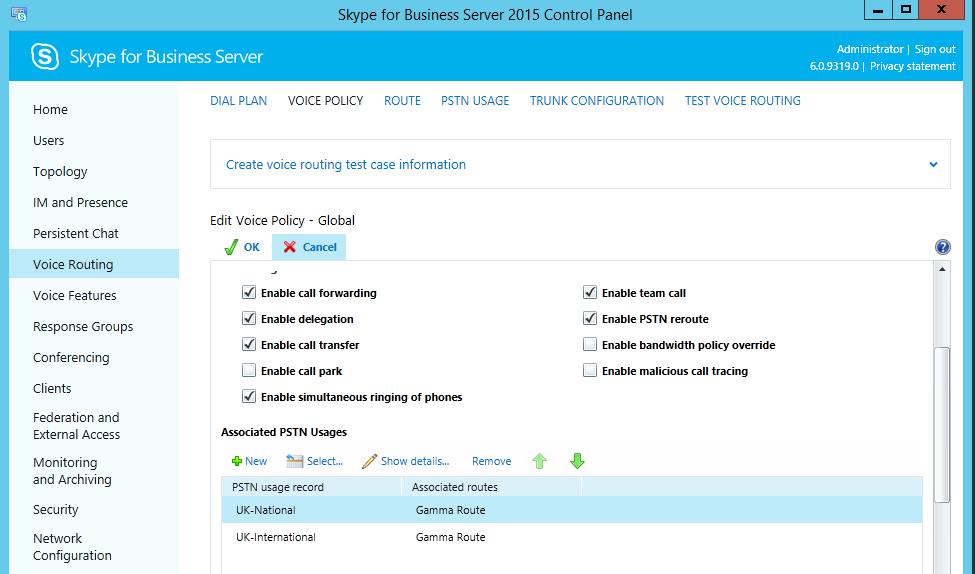
Edit Trunk Configuration #
Trunk configuration is defined in the Lync Server Control Panel. A trunk configuration defines the relationship and capabilities between a Lync Mediation Server and the other end of the trunk (Gamma’s equipment, in this case).
Under Voice Routing, Trunk Configuration, edit the “PstnGateway:88.215.63.9” trunk. Set:
| Encryption support level | None |
| Refer support | None |
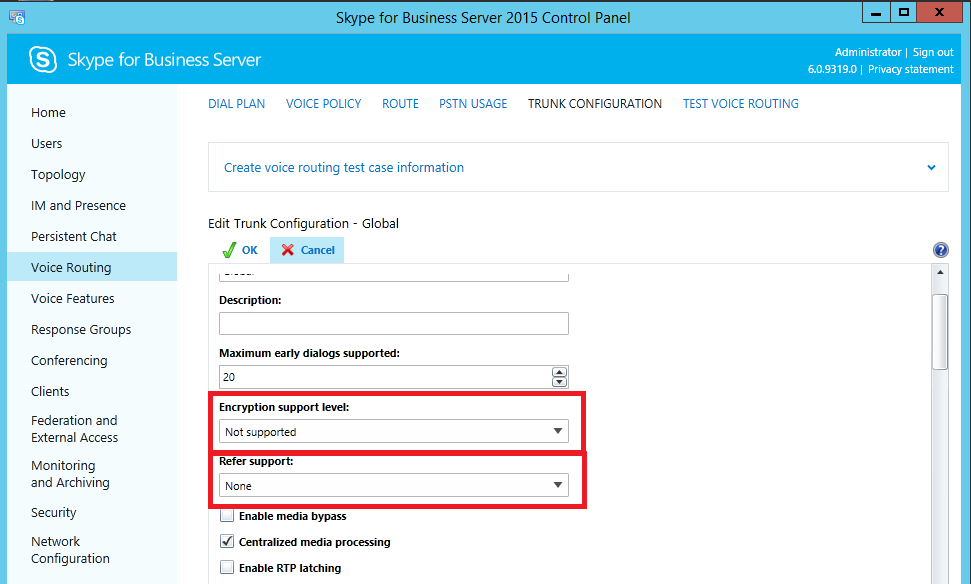
Click OK to save changes, then Commit > Commit All.
Enable users for Enterprise Voice #
Finally, a test user can be enabled for Enterprise Voice and assigned a Line URI. This associates a telephone number (from the range allocated to the SIP trunk), to the user.
Under the Users section of the Lync Server Control Panel, find and edit a user.
In the “Telephony” dropdown, select “Enterprise Voice”.
In the Line URI field, enter “tel:” then the full E.164 telephone number, e.g. tel:+441413753414 .
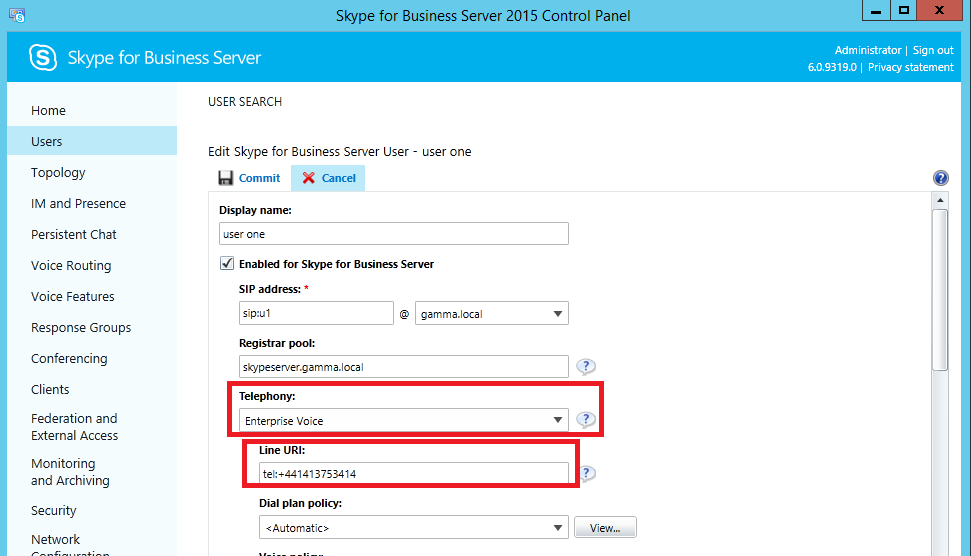
Click Commit.
Once the changes have replicated in Active Directory, the account should be ready to make and receive calls. If the user is signed in to a Lync client, sign out and back in.
Now a test call can be placed, and it should be routed out to Gamma and reach the other subscriber OK. If successful, try dialling from outside to the number assigned to the Lync user.