Adding new numbers to your SIP Trunk #
For any SIP Trunks that have a “This is a Manual Endpoint” note on when viewing the Gamma Portal, additional DDIs can be requested by emailing siptrunkorders@gamma.co.uk who will manually pick up your request. The email needs to have the following details:
- Quantity of numbers for the area code (e.g. 10 x 0161 numbers)
- Endpoint number (DCxxxxxxxxx)
-
End user 999 details
- Contact Name
- Contact Number
- Address
- Postcode
For adding additional DDIs you can follow one of the following processes:
Next Available Numbers can be used for geographic numbers by following the below process using the SIP Service Management page.
Specific Number Requests can be done following the Specific Geographic Number Request process and then once allocated to your account can be added using the “Specific Number” tab.
Non-Geographic Numbers can be done using the Reserving Non Geographic Numbers process (please see our Gamma Numbers and Porting guide) and then adding the number using the “Specific Number” tab.
Non-Geographic Numbers can only be terminated directly on SIP endpoints with SIP Trunk Call Manager enabled.
Next Available Geographic Number #
Step 1
From the Gamma Portal, go to “Provisioning and Service Management”, “Voice Connectivity”, “Gamma SIP Trunks” and “Service Management”.
If you don’t have this option contact your Portal Administrator (Help and Support and Portal Administrators) or contact your Internal Account Manager.
Step 2
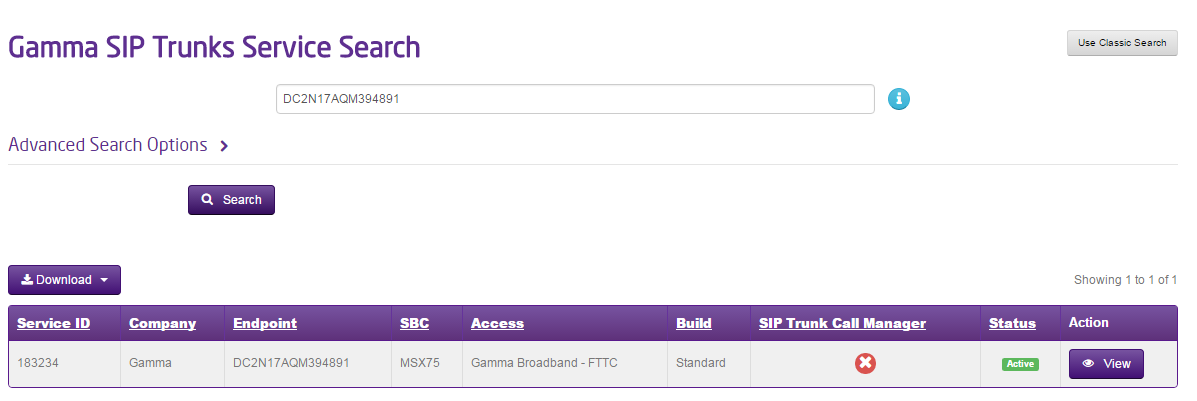
Select the account that has the endpoint you wish to add new numbers to and click “View”.
Step 3
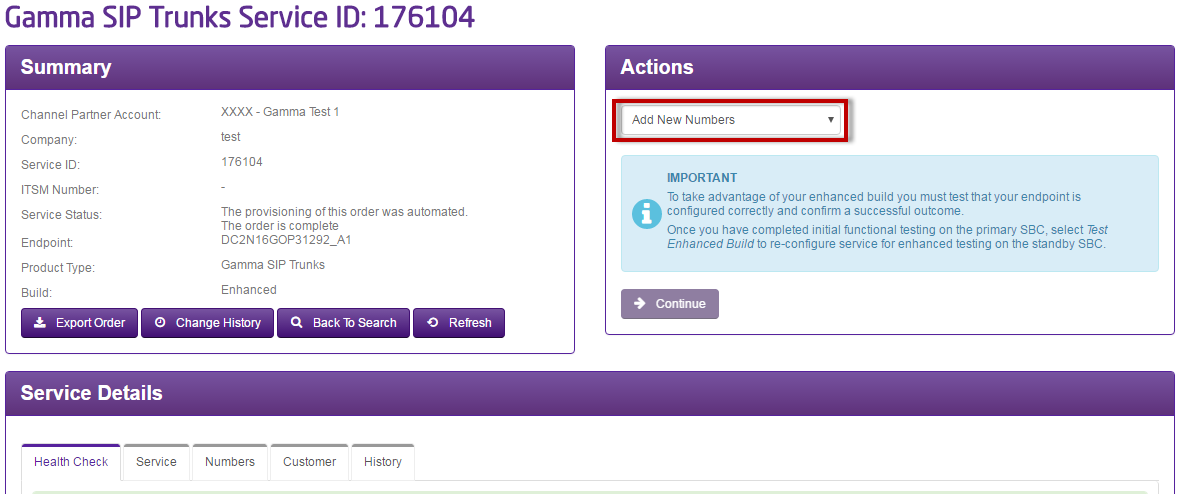
From the “Actions” drop-down select “Add New Numbers” and click “Continue”
Step 4
Select the quantity of numbers, the area code and whether you require these to be consecutive. Once you’ve clicked on Submit, the DDIs will be generated automatically.
Specific Geographic Number Selection #
If you would like to search for a specific geographic number then you can Gamma Number Search under Help and Support on the Gamma Portal. This will allow you to search for new available numbers and also view numbers currently allocated to your account that are not in use.
For further instructions please see the Porting and Gamma Numbers Guide.
Once a number is allocated to your account by the Gamma Numbers team, you should follow these steps.
Step 1
From the Gamma Portal, go to “Provisioning and Service Management”, “Voice Connectivity”, “Gamma SIP Trunks” and “Service Management”.
If you don’t have this option contact your Portal Administrator (Help and Support and Portal Administrators) or contact your Internal Account Manager.
Step 2
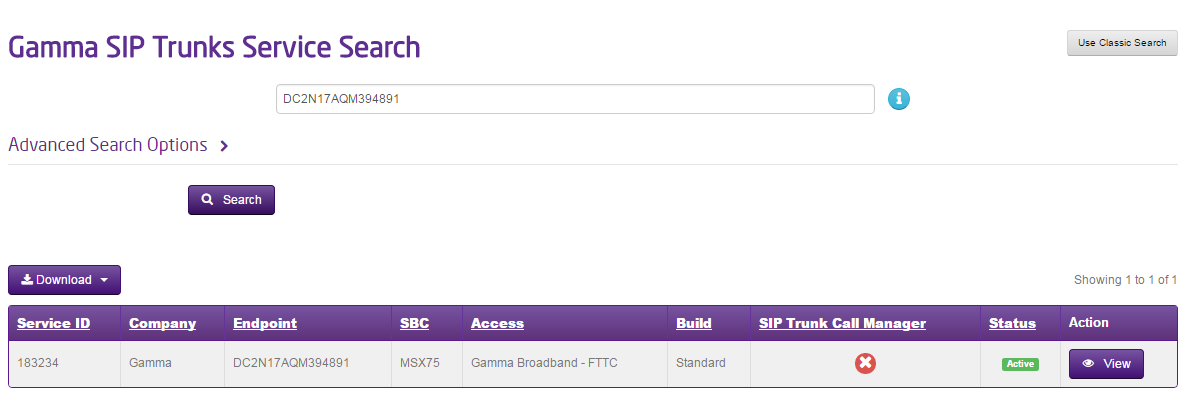
Select the account that has the endpoint you wish to add new numbers to and click “View”.
Step 3
From the “Actions” drop-down select “Add New Numbers” and click “Continue”
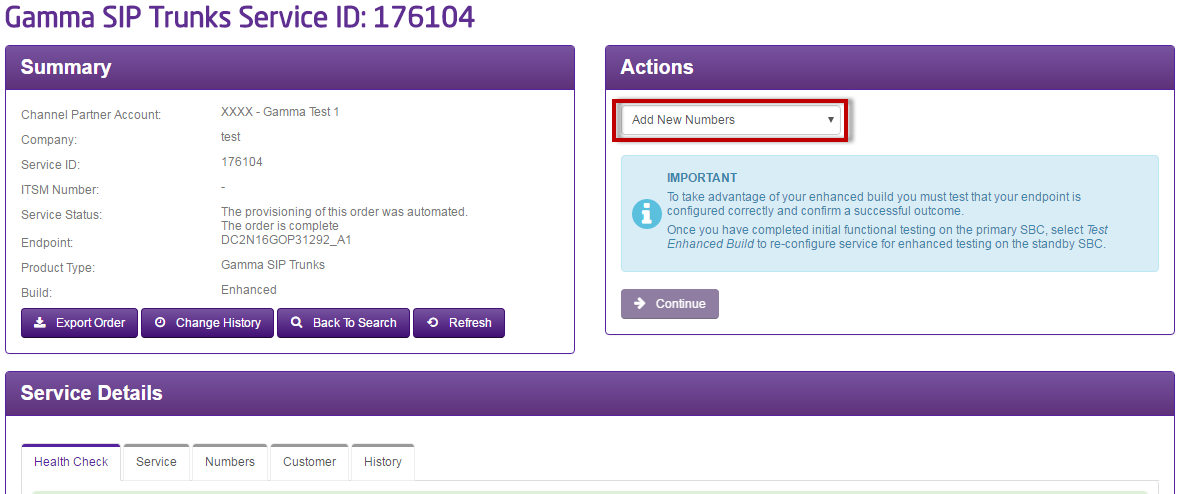
Step 4
Select the Specific Number tab. If the number shows as “unavailable” then this is not available for you to add and you should contact the Service Desk to check why.
If the number is showing as available, then click “Save” once you’ve finished adding all your numbers.
Once you’ve clicked on Submit, the DDIs will be generated automatically.
 Adding Non-Geographic Numbers to your SIP Endpoint #
You should reserve a Non-Geographic Number to your Channel Partner Account by using our Reserve NTS Number guide within our Gamma Numbers and Porting Guide.
Once a number is allocated to your account, you should follow these steps.
Step 1
From the Gamma Portal, go to “Provisioning and Service Management”, “Voice Connectivity”, “Gamma SIP Trunks” and “Service Management”.
If you don’t have this option contact your Portal Administrator (Help and Support and Portal Administrators) or contact your Internal Account Manager.
Step 2
Select the account that has the endpoint you wish to add new numbers to and click “View”.
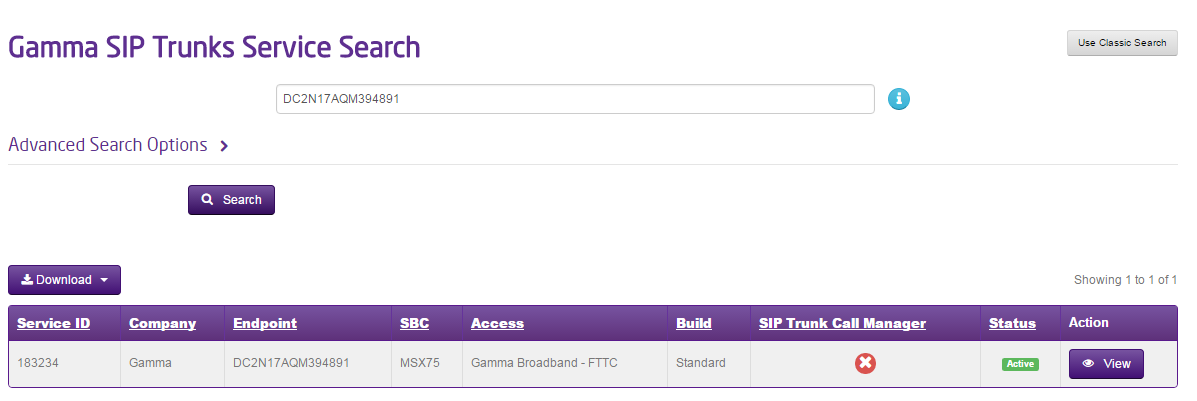
Step 3
From the “Actions” drop-down select “Add New Numbers” and click “Continue”
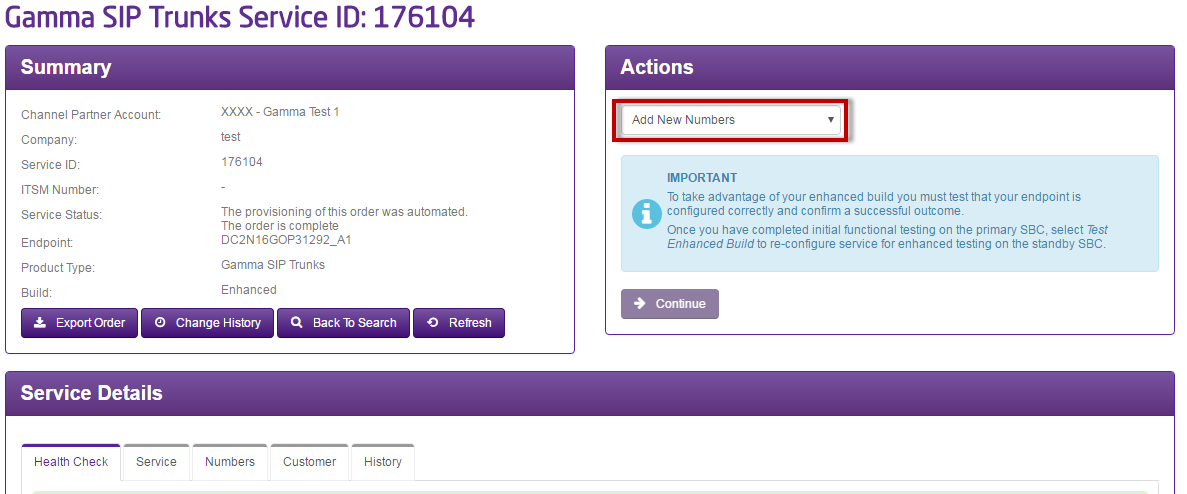
Step 4
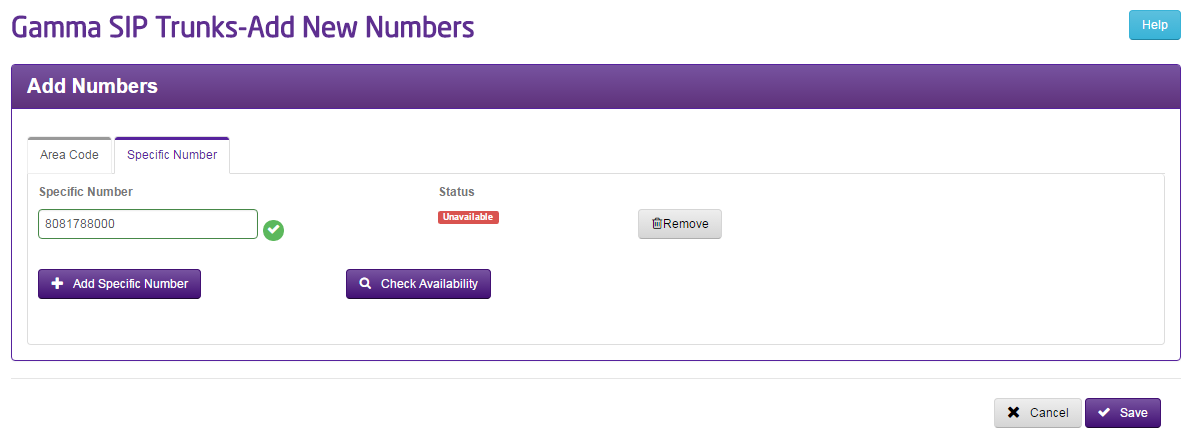
Select the Specific Number tab. If the number shows as “unavailable” then this is not available for you to add and you should contact the Service Desk to check why.
If the number is showing as available then click “Save” once you’ve finished adding all your numbers.
Once you’ve clicked on Submit, the DDIs will be generated automatically.
Removing numbers from your SIP Endpoint #
Geographic Numbers #
To remove a Geographic Number from your SIP Endpoint you should contact the Service Desk who will be able to complete this for you.
Non-Geographic Numbers #
Step 1
From the Gamma Portal, go to “Provisioning and Service Management”, “Voice Connectivity”, “Gamma SIP Trunks” and “Service Management”.
If you don’t have this option contact your Portal Administrator (Help and Support and Portal Administrators) or contact your Internal Account Manager.
Step 2
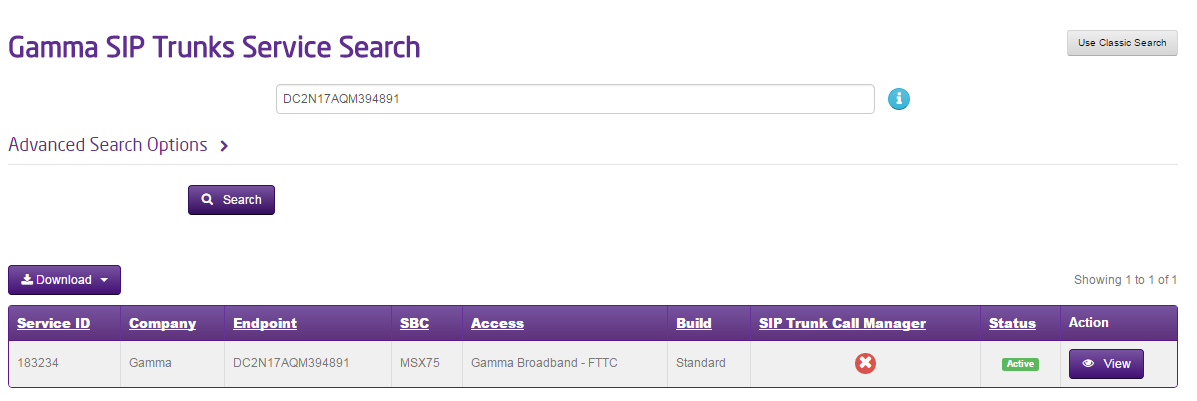
Select the account that has the endpoint you wish to add new numbers to and click “View”.
Step 3
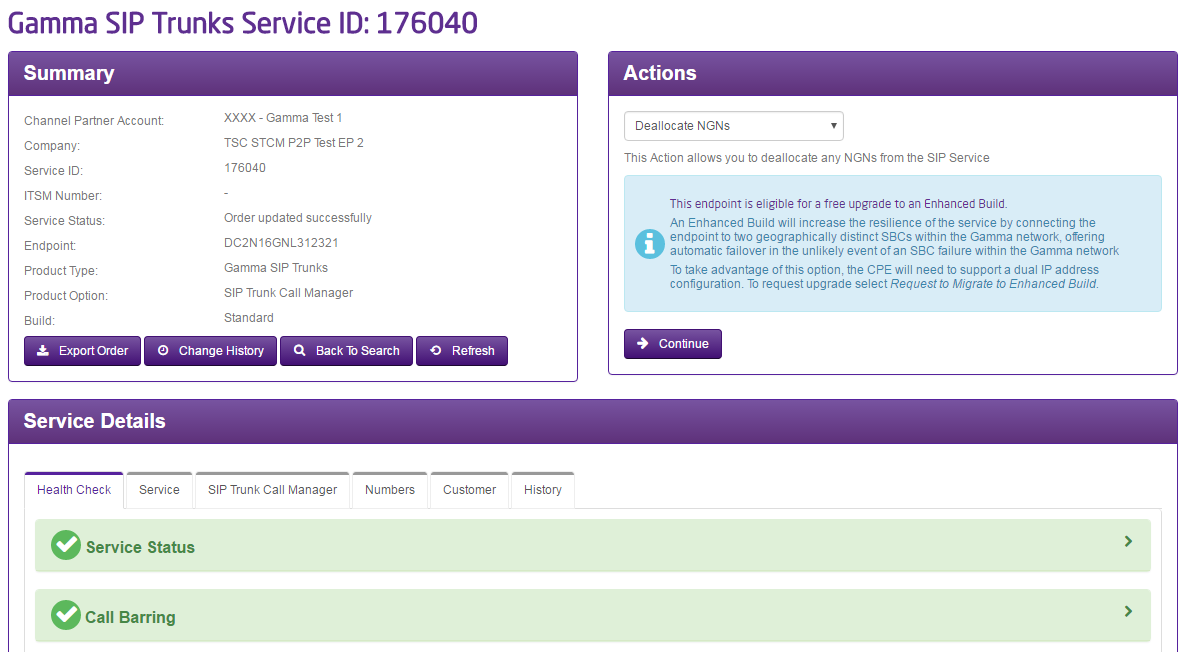
From the “Actions” drop-down select “Deallocate NGNs” and click “Continue”
Step 4
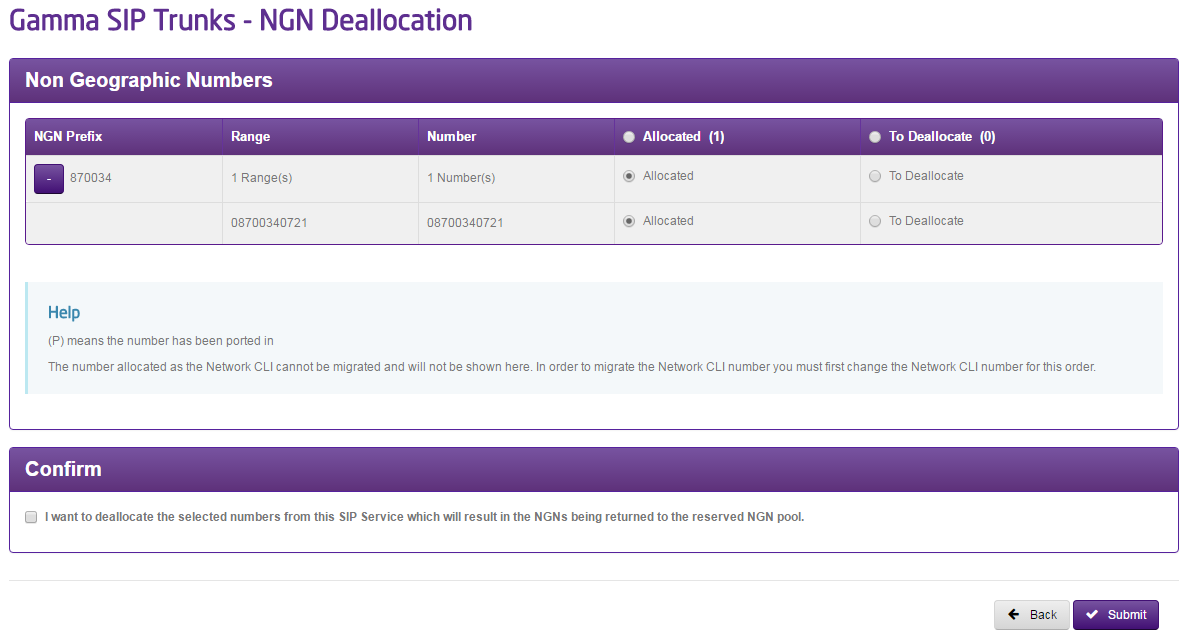
Select the Non-Geographic numbers you want to deallocate and then confirm that you want to deallocate the numbers before clicking “Submit”