
Our SIP Advanced Diagnostics Tool has been designed to give you more information to see where a potential fault may lie; Gamma or a configuration issue with your customers equipment, making sure that if you ever do have a fault on your SIP Trunk you can resolve the issue efficiently.
Not only this, but it allows you to log a fault directly into the Gamma Service Desk without needing to call / email the team.
The journeys we have available for the Advanced Diagnostics Tool are:
- No Inbound Calls
- No Outbound Calls
- CLI Presentation
- Call Quality
- One Way Audio
No Inbound Calls #
If you are unable to receive inbound calls it is strongly recommended that your first check is to check the underlying access of the SIP Trunk.
Check that the access is online and that any firewall in the call path is open for Gamma signalling gateway address and ports are open that is specified in the completion email (if you need to resend the confirmation email you can do this by viewing the SIP Endpoint and using the actions dropdown select “Resend Order Confirmation Email”. This will send an email to the Channel Partner email address that is associated to the endpoint).
If all is OK with the access and the LAN then you should use the Advanced Diagnostics tool and select the No Inbound Calls journey.
This journey will ask you for call examples. The reason for this is that we will return the calls and the SIP release reason of the call. In the majority of cases this will let you know what the issue is, and if this requires Gamma intervention or if it is equipment setup issue.
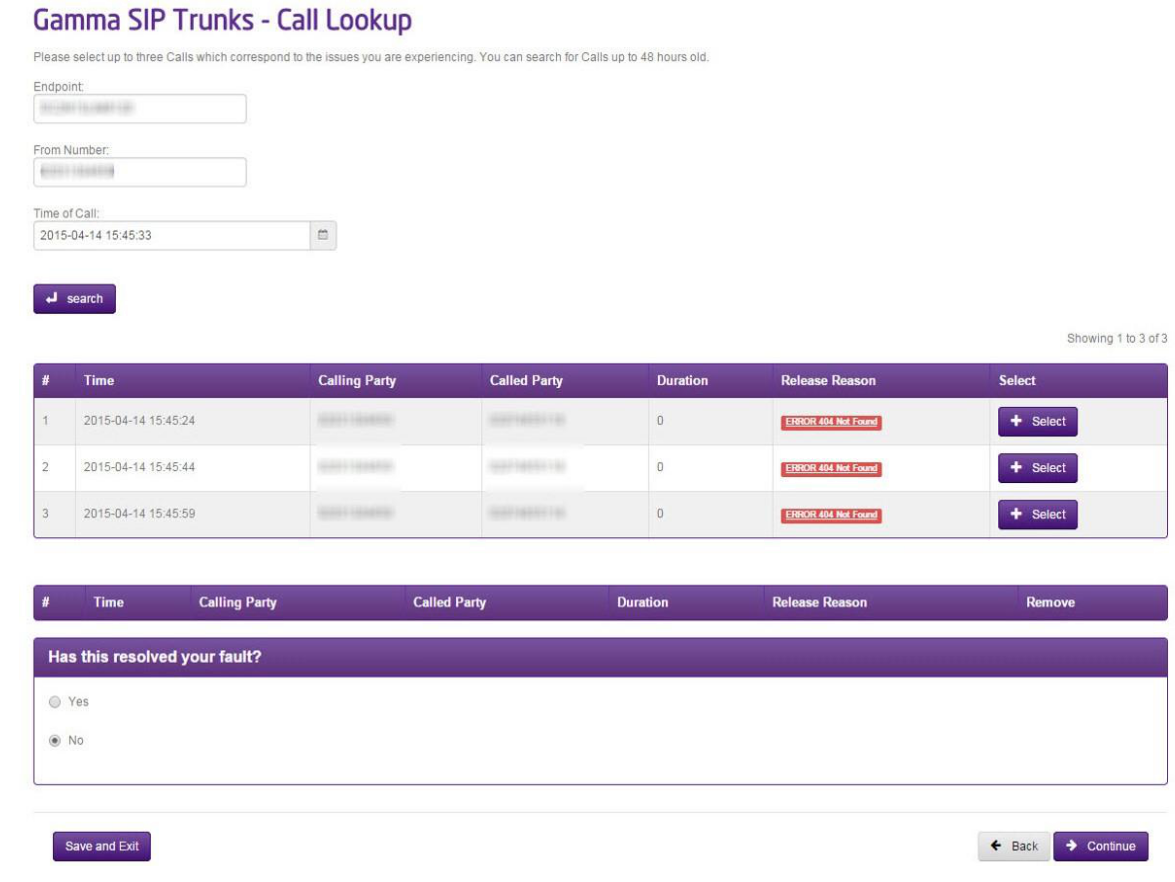
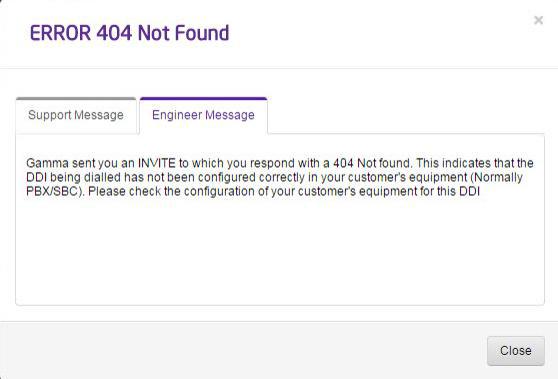
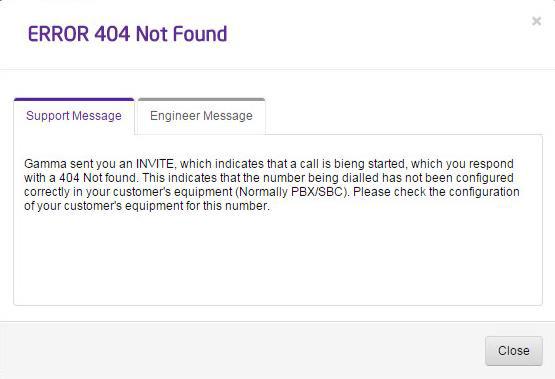
Remember to click on the SIP Release Reason which will give you full information on what the release reason means, and what you should do next.
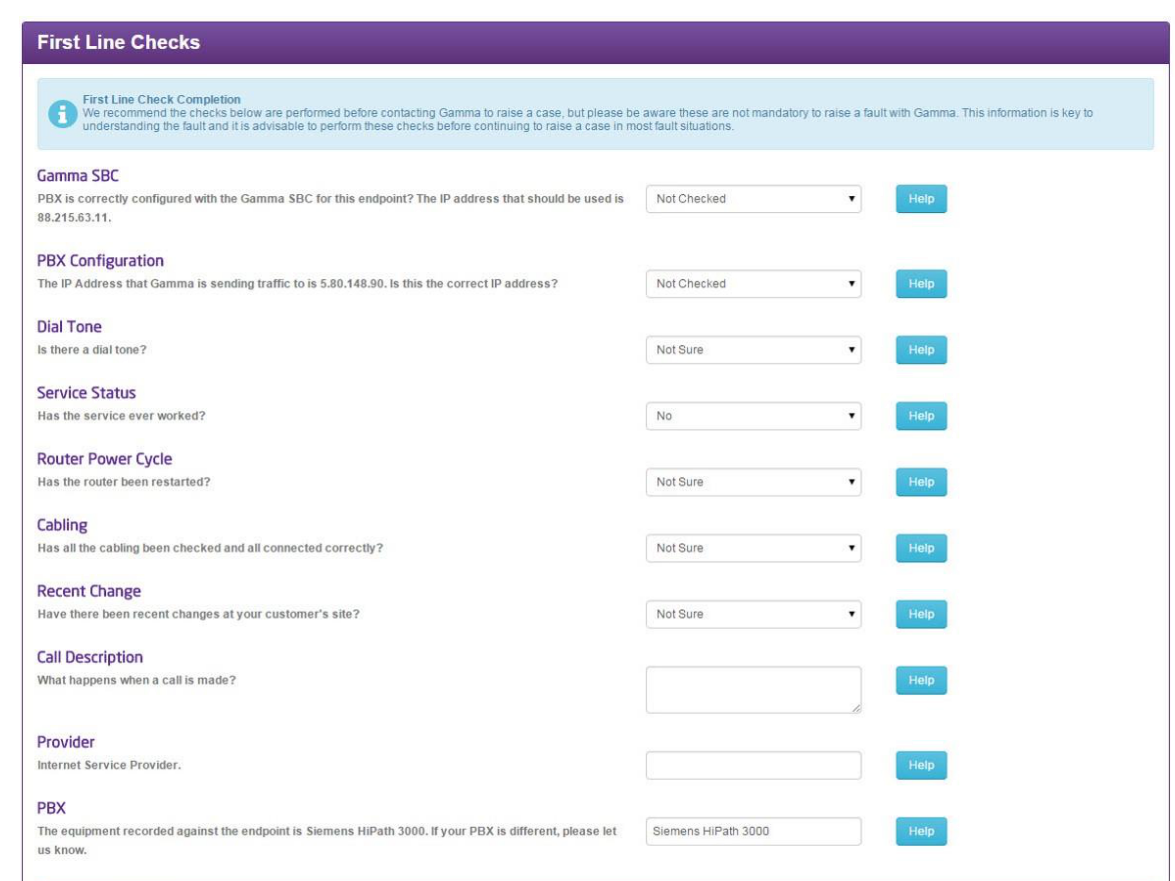
If you are unable to resolve your fault with this information, you can continue the journey by selecting a minimum of three calls and will be presented with a series of questions that are applicable to the No Inbound Calls fault. This will then raise a ticket to the Service Desk with all the information that they need to start their diagnostic work and they will be in touch shortly.
No Outbound Calls #
If you are unable to make outbound calls it is strongly recommended that your first check is to check the underlying access of the SIP Trunk.
Check the Gamma Portal to make sure that there are no call-barring settings that are blocking the outbound calls.
Check that the access is online and that any firewall in the call path is open for Gamma signalling gateway address and ports are open that is specified in the completion email (if you need to resend the confirmation email you can do this by viewing the SIP Endpoint and using the actions dropdown select “Resend Order Confirmation Email”. This will send an email to the Channel Partner email address that is associated to the endpoint).
You should also make sure that the correct Gamma signalling gateway IP address is used in your INVITE, and that all the relevant headers (“via”, “contact”) are populated with the public IP address from which we expected receive traffic (i.e. the IP address that you’ve set in the Gamma Portal for the SIP Trunk)
If all is OK with the access and the LAN then you should use the Advanced Diagnostics tool and select the No Outbound Calls journey.
This journey will ask you for call examples. The reason for this is that we will return the calls and the SIP release reason of the call. In the majority of cases this will let you know what the issue is, and if this requires Gamma intervention or if it is equipment setup issue.
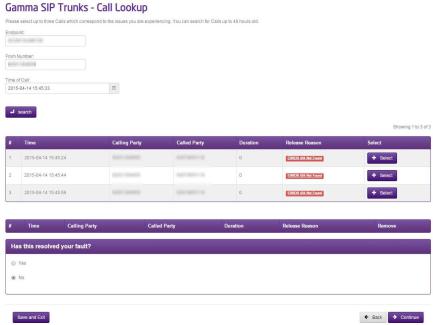
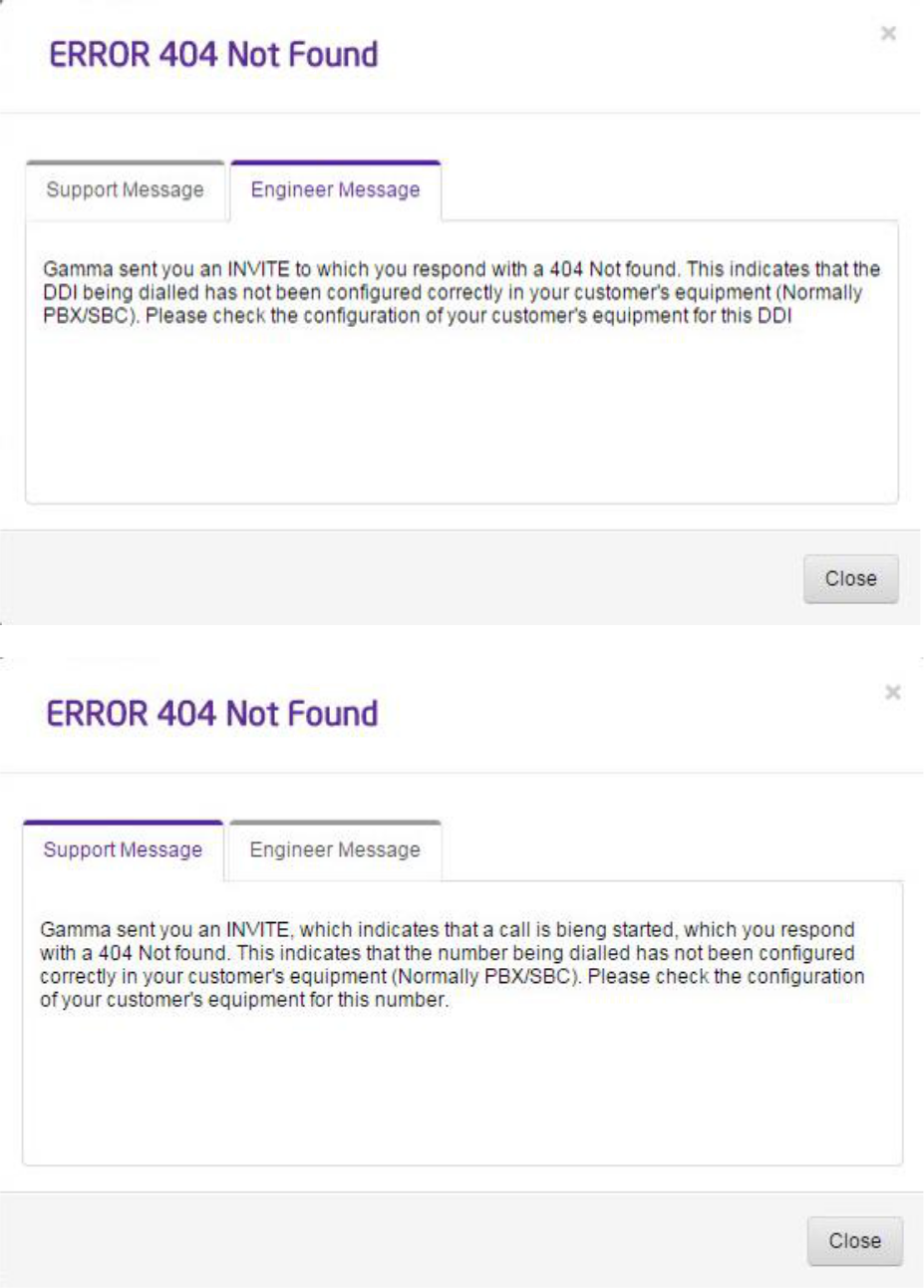
Remember to click on the SIP Release Reason which will give you full information on what the release reason means, and what you should do next.
If you are unable to resolve your fault with this information, you can continue the journey by selecting a minimum of three calls and will be presented with a series of questions that are applicable to the No Outbound Calls fault. This will then raise a ticket to the Service Desk with all the information that they need to start their diagnostic work and they will be in touch shortly.
CLI Presentation Issues #
FROM Header
The FROM header must contain the originating CLI without the leading zero or in full E.164 format (e.g. 441618703327). The domain part of the SIP URI within the FROM header can contain either
the IP address of the public-facing interface or a customer-defined FQDN sip:1618703327@yourpublicaddress or sip:+1618703327@yourpublicaddress
Withholding a Telephone Number
There are numerous ways that you can withhold a telephone number.
- Anonymous in the FROM header. This method is the oldest method and requires the phone system to send the following in the FROM header as the SIP URI: <sip:anonymous@anonymous.invalid> This presence of this value in the SIP URI will stop us from sending the default CLI out as the CLI.
- Remote Party Identity (RPID) Privacy Header. If the RPID header is sent in the INVITE to Gamma, with “Privacy = FULL” set, then will signal to us that you wish the CLI to be withheld from the called party.
- Peer Asserted Identity (PAID). If the PAID header is present in the SIP INVITE with the “privacy:id” option, this will signal to Gamma that you wish to withhold the CLI from the called party. Privacy portal settings.
- The option ‘Update privacy settings’ on the Gamma Portal allows you to set a Trunk to present anonymous either by default or when calls sent to Gamma are prefixed with ‘141’.
- Please note that signalling will override the privacy settings on the portal.
My Number is withheld on International Calls
We cannot guarantee the delivery of CLI on international calls by virtue of all of the intermediary carriers and switches present in the call path between its source and destination. Our international carrier will convey the CLI as received, but carriers that are further downstream may discard the originating CLI, culminating in its delivery being on a ‘best efforts’ basis. Despite this, we will still investigate any reported faults with CLI delivery on international calls and they should be reported into the Service Desk for a fault to be logged. It is beneficial to send a P-Asserted-Identity header in your INVITE, so that the onward carrier has a network number from which your CLI can be mapped.
