
What is it? #
The Business Continuity (BC) feature, allows a customer to have immediate control in a business continuity or disaster recovery scenario. The feature gives the customer the ability to invoke pre-built BC plans on multiple numbers, with a single action on the portal or even with the mobile app.
Each of the customers numbers can have its own unique BC plan, and these plans can be as simple (1 to 1 translation) or complex (messaging, IVR, hunt groups etc.) as required.
How Does it Work? #
Example: #
Under normal conditions the numbers will route to the pre-built day-to-day call plan, this will be the currently ‘Active’ call plan on the number.

I would then create an additional call plan for each number which routes calls to my desired BC destination:
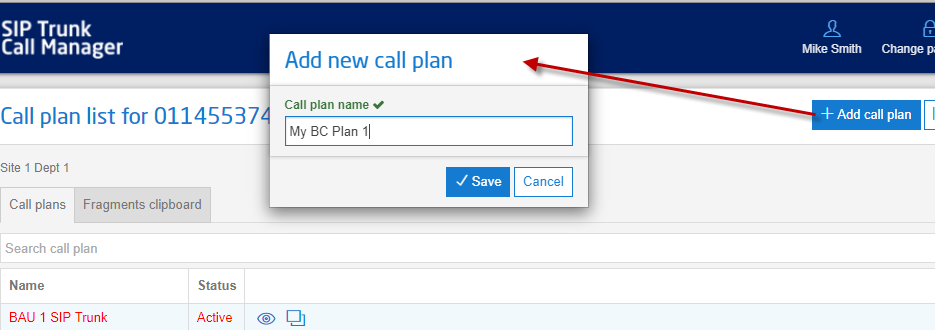
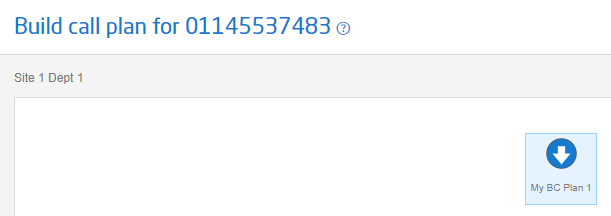
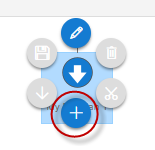
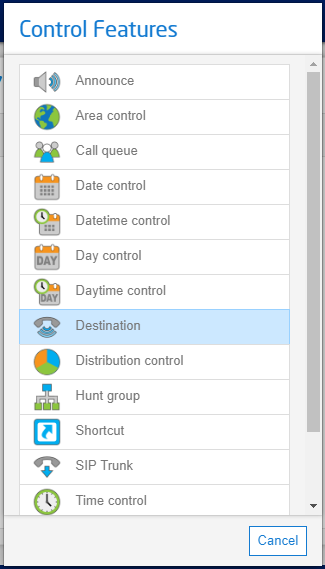
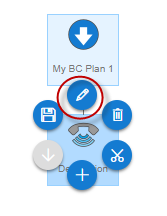
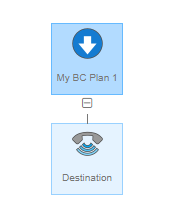
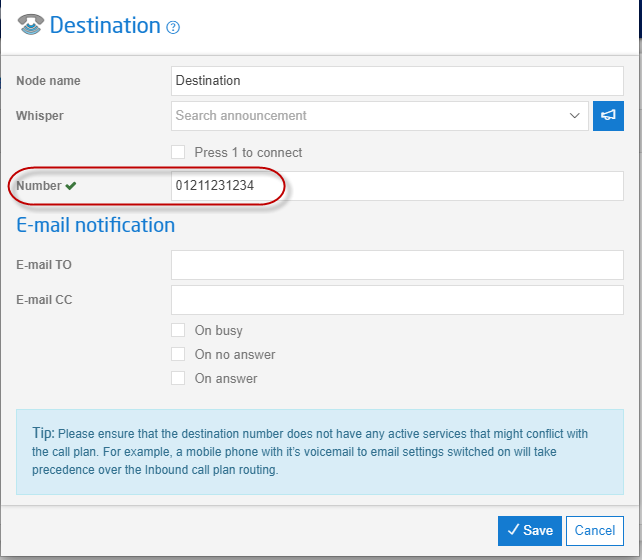
Once complete and my plan, I select to validate my call plan.
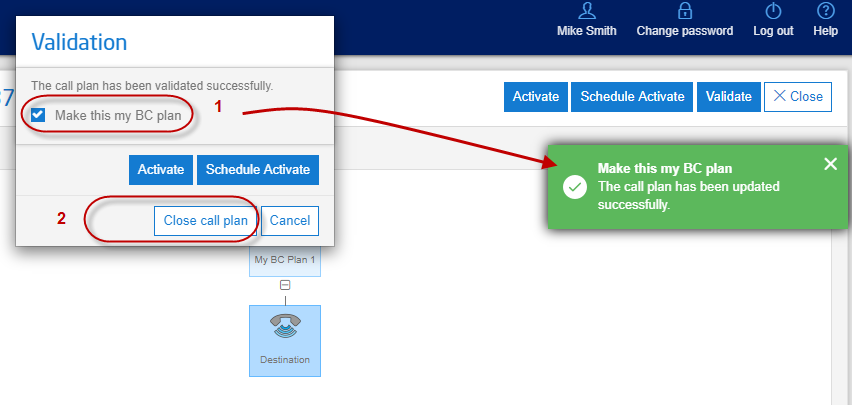
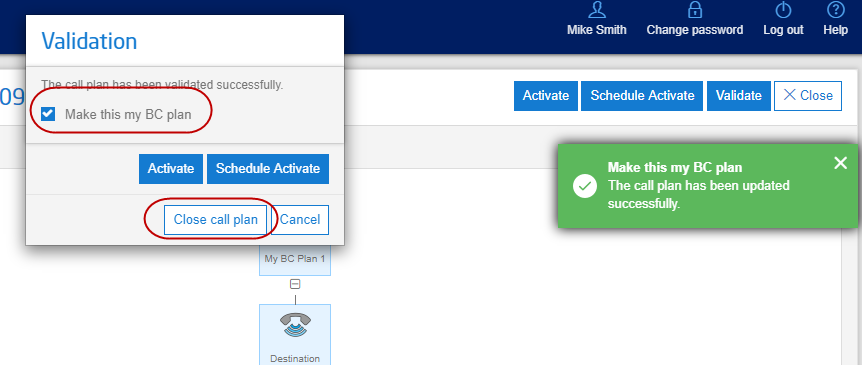
Once my call plan has passed validation, I am presented with an option to ‘Make this my BC plan’. To do this, I tick the relevant box as shown below, and then close the call plan:
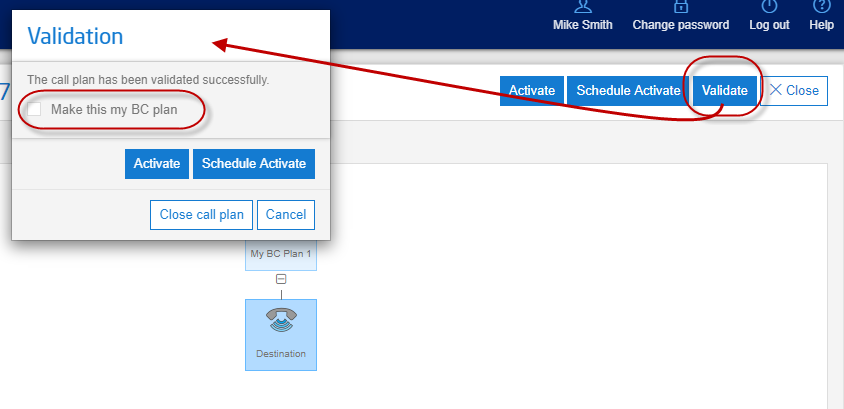
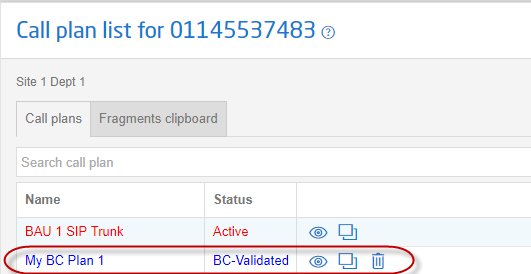
My BC call plan will now appear in validated status, below my active call plan:
I would then follow the same steps for any other numbers that I wish to have a BC plan for.
How do I Invoke my BC Plan(s)? #
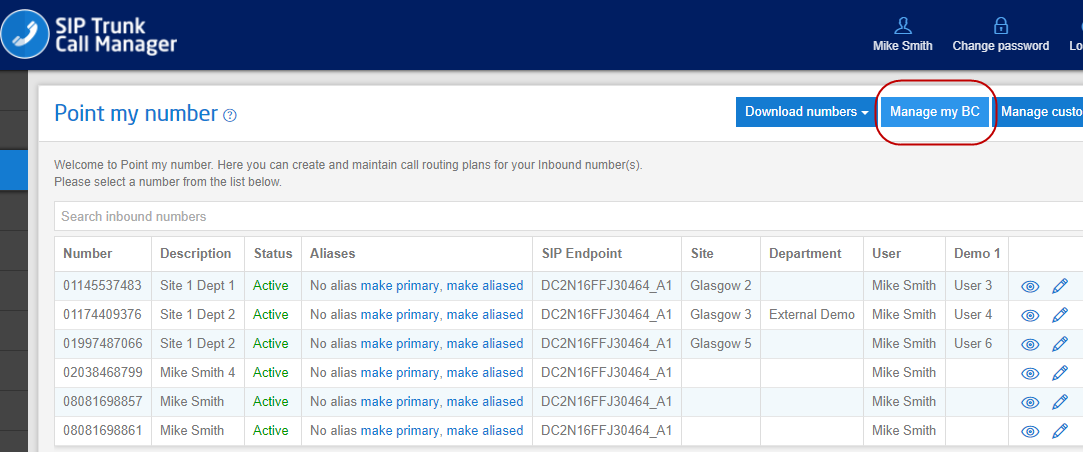
First navigate to the ‘Point my Number’ homepage and select ‘Manage my BC’ as shown below:
You will then be asked to select which numbers you wish to invoke. Your options ae:
All numbers. This will automatically select all the numbers on the account, to have their BC plan invoked.
Individually select numbers by clicking the checkbox next to it.
Search for specific numbers or a group of numbers by entering digits or text into the Find field. This field searches both the Description and any Custom Fields (if any have been created). You can then select the returned results. A %/percentage sign can be used as a wild card.
Once you have made your selection. Proceed by selecting ‘Invoke BC’ as shown below:
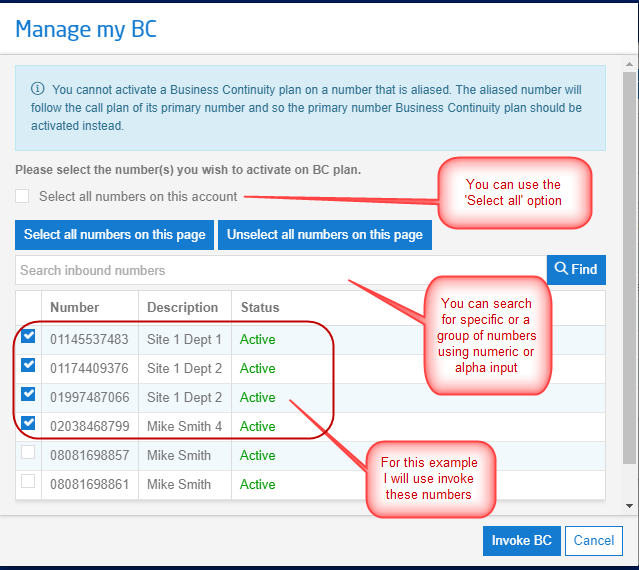
Select: Invoke BC
Provided there is a BC-validated plan available for each number selected, this action will invoke the pre-built BC plan for each of the STCM numbers selected. The BC plan will be active for the next incoming call to each of these numbers and their call plan status will be updated to ‘BC-Active’ as shown below:
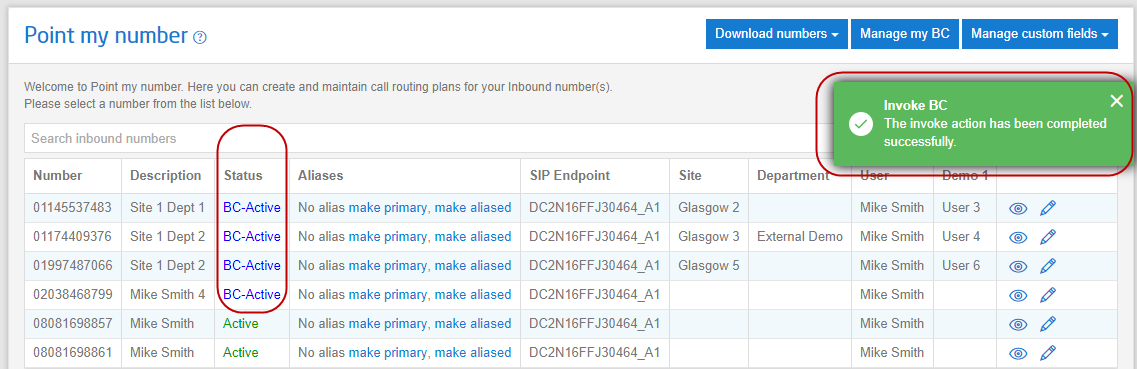
To return to BAU, you should navigate back the Point my Number screen, select Manage My BC again, make the relevant number selections. Then click ‘Restore Last Active’.
This will then restore the selected numbers to the previously Active call plan.
Copying a BC Plan to Multiple Numbers #
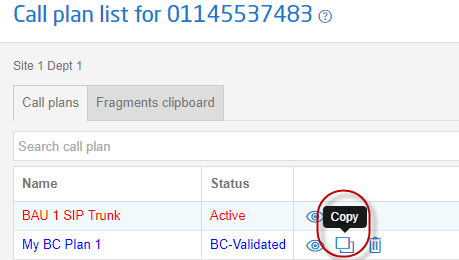
You can use the standard call plan copy feature to copy a BC plan to multiple other numbers in the account.
You will still need to access each number in question to put the plan into BC Validated status, the BC Validated status is not maintained when copied and there is no template or shortcut to do this currently.
Access BC plan you have just created:
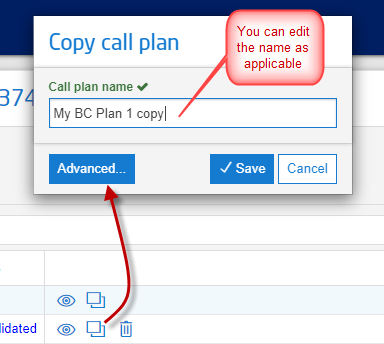
Label the plan appropriately, and select Save:
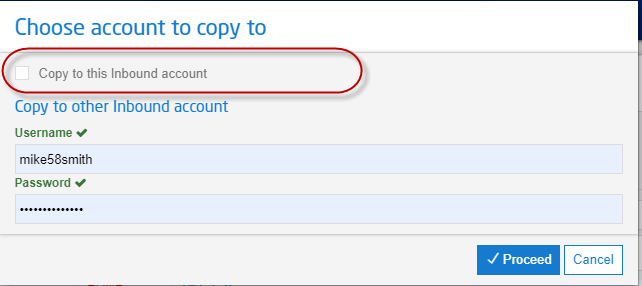
Select the Copy to this account option and click Proceed:
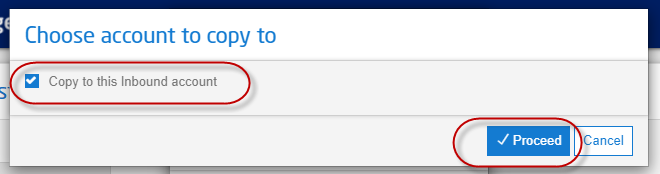
Now you can select the number/s required. You can select:
- All numbers. This will automatically select all the numbers on the account, to have their BC plan invoked.
- Individually select numbers by clicking the checkbox next to it.
Search for specific numbers or a group of numbers by entering digits or text into the Find field. This field searches both the Description and any Custom Fields (if any have been created). You can then select the returned results. A %/percentage sign can be used as a wild card.
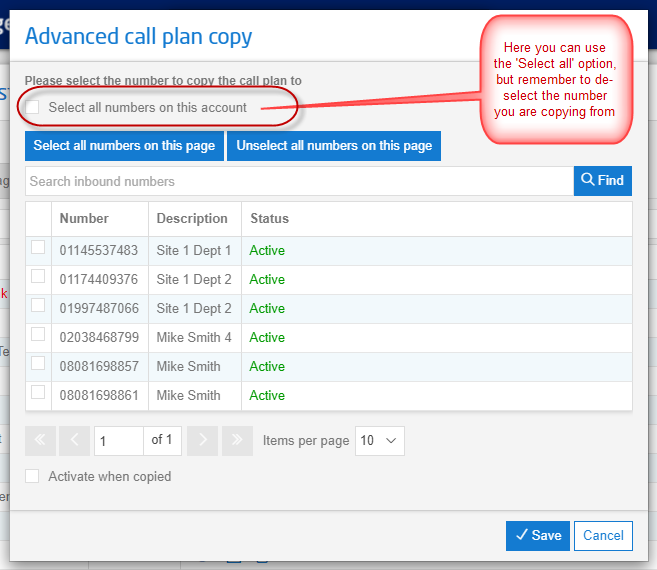
I have selected just a few in this example.
Once selected choose Save:
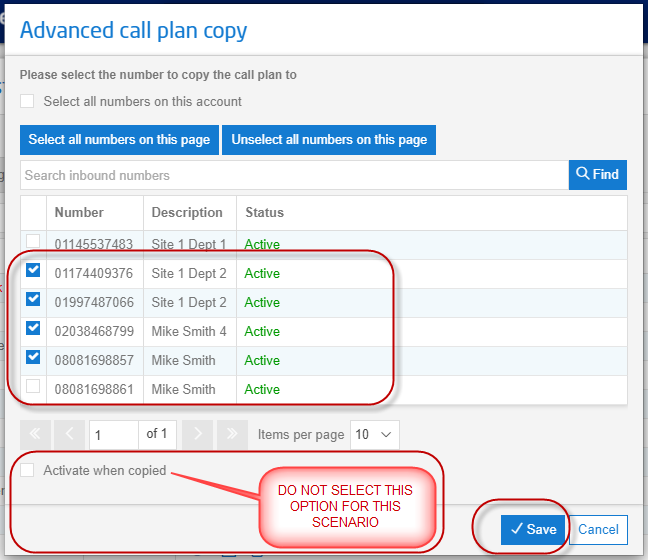
And Save again
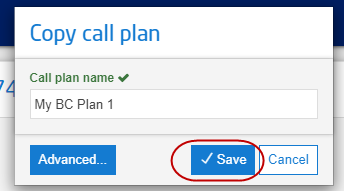
The call plan will now be copied to the selected numbers.
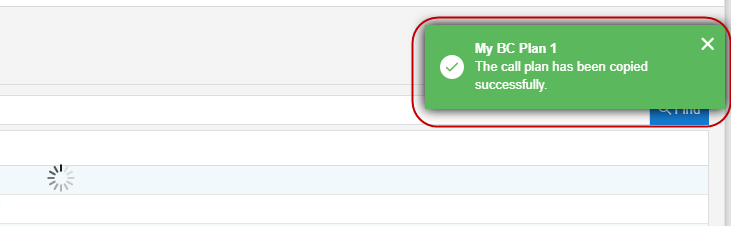
Make the Copied Plan Your BC Plan #
You will now need to access each number you copied to and make the copied plan your BC plan
Access the number you copied to and find the plan you copied. It will be in a Validated status. Follow the below steps:
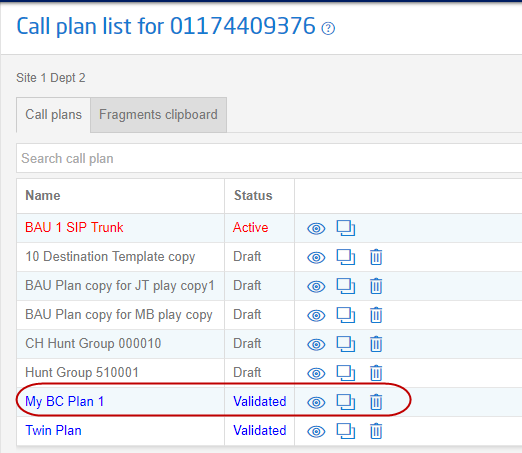
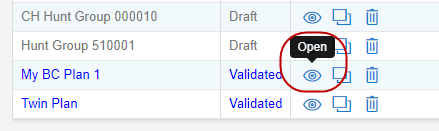
Open the call plan:
Now select Validate:
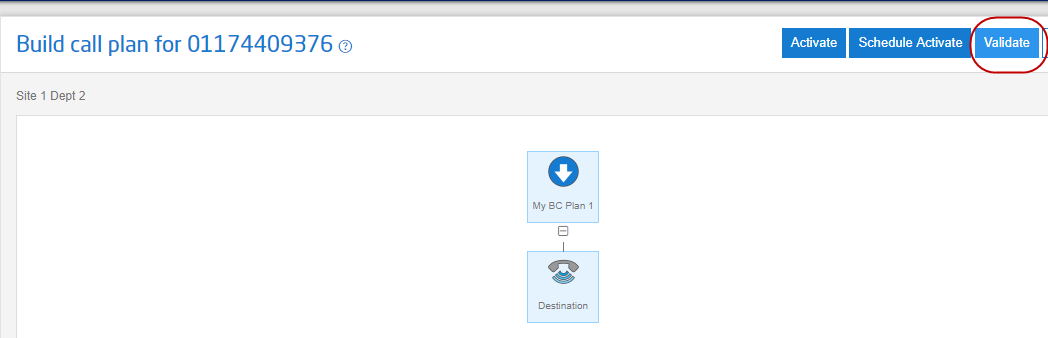
The copied plan is now ready to use as your BC plan:
Repeat for the remaining numbers.
