The Call Divert feature allows SIP Trunking channel partners to set up and manage their own call Diverts for both individual DDIs and entire number ranges. It can be used to selectively divert numbers on an ‘ad-hoc’ basis or divert the entire range during a service outage.
The feature is entirely under the direct control of the channel partner, accessed exclusively from the Gamma Portal and does not require any input from Gamma.
It is available to all existing SIP Trunking channel partners that currently manage their SIP Trunking endpoints via the Portal.
Please note:
Diverts are not instantaneous – activation/deactivation time may vary between a few minutes and half an hour depending on the number of telephone numbers requested and the current demands of the system
Each individual divert activation/deactivation is limited to a maximum of 150 numbers in a single process
Diverts cannot be activated or deactivated on the Gamma SIP Trunk Service Management if the service has SIP Trunk Call Manager, as amendments are made within the call plans.
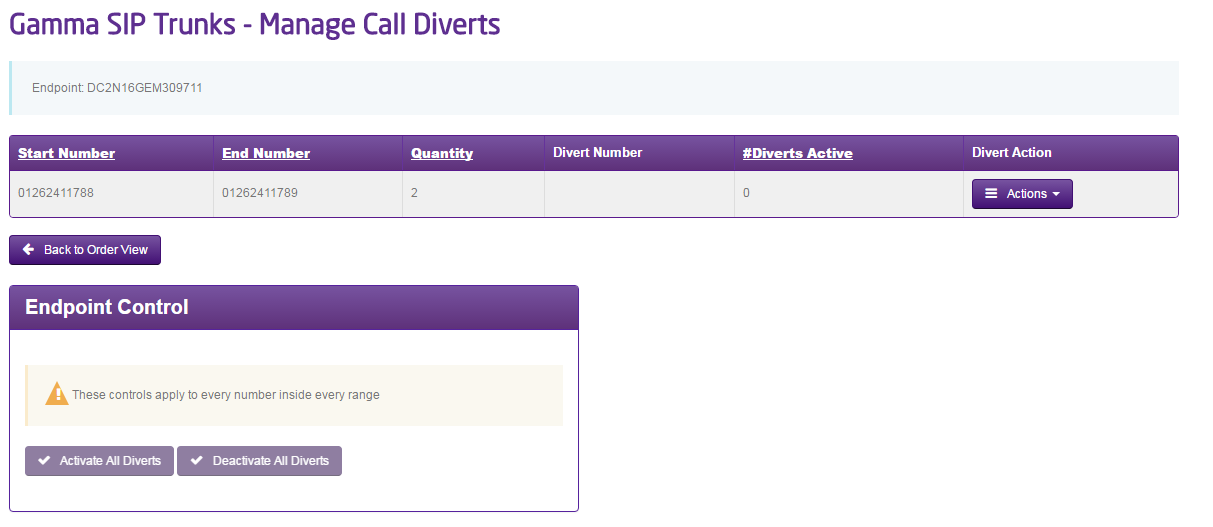
If all numbers are diverted using portal functionality then this will activate all diverts to the destination number. Those without a destination number would not divert (i.e.: DDIs that don’t have a pre-saved divert destination).
Activate / Deactivate Call Diverts #
Step 1
From the Gamma Portal, go to “Provisioning and Service Management”, “Voice Connectivity”, “Gamma SIP Trunks” and “Service Management”.
If you don’t have this option contact your Portal Administrator (Help and Support and Portal Administrators) or contact your Internal Account Manager.
Step 2
Select the account that has the endpoint you wish to add/remove diverts for and click “View”.
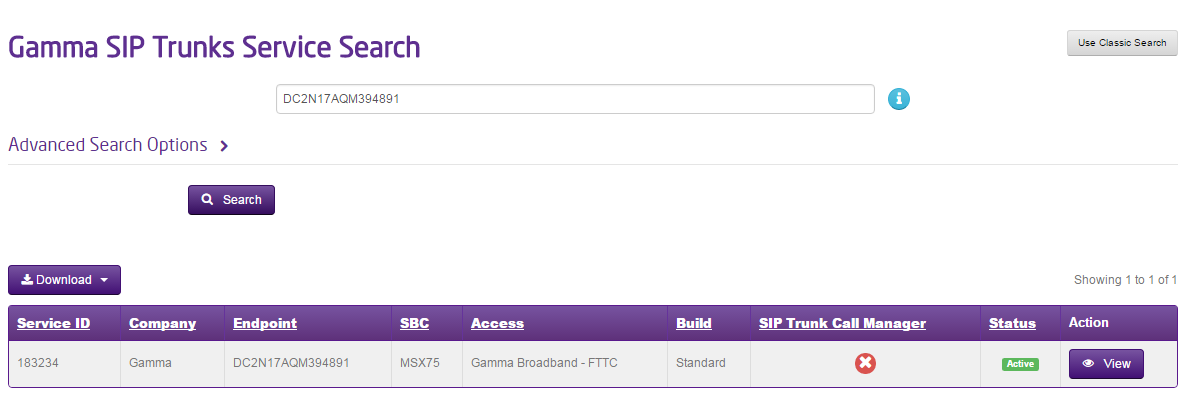
Step 3
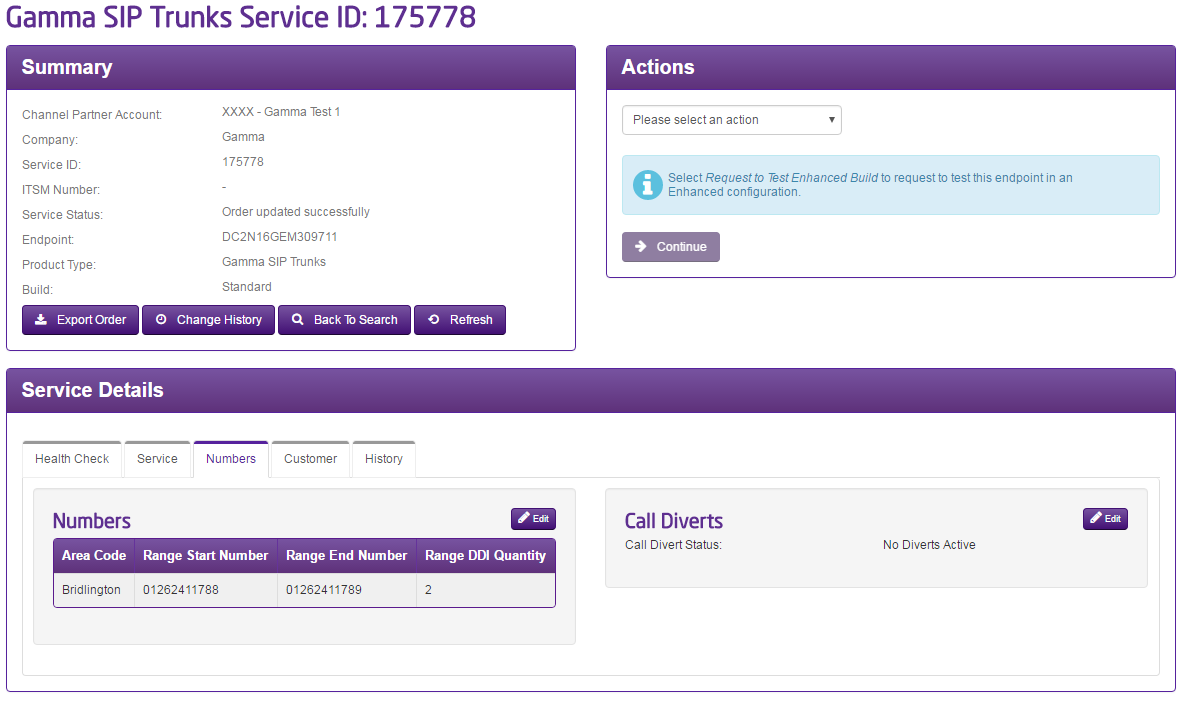
Click on the “Numbers” tab and then the Edit button next to Call Diverts.
Step 4
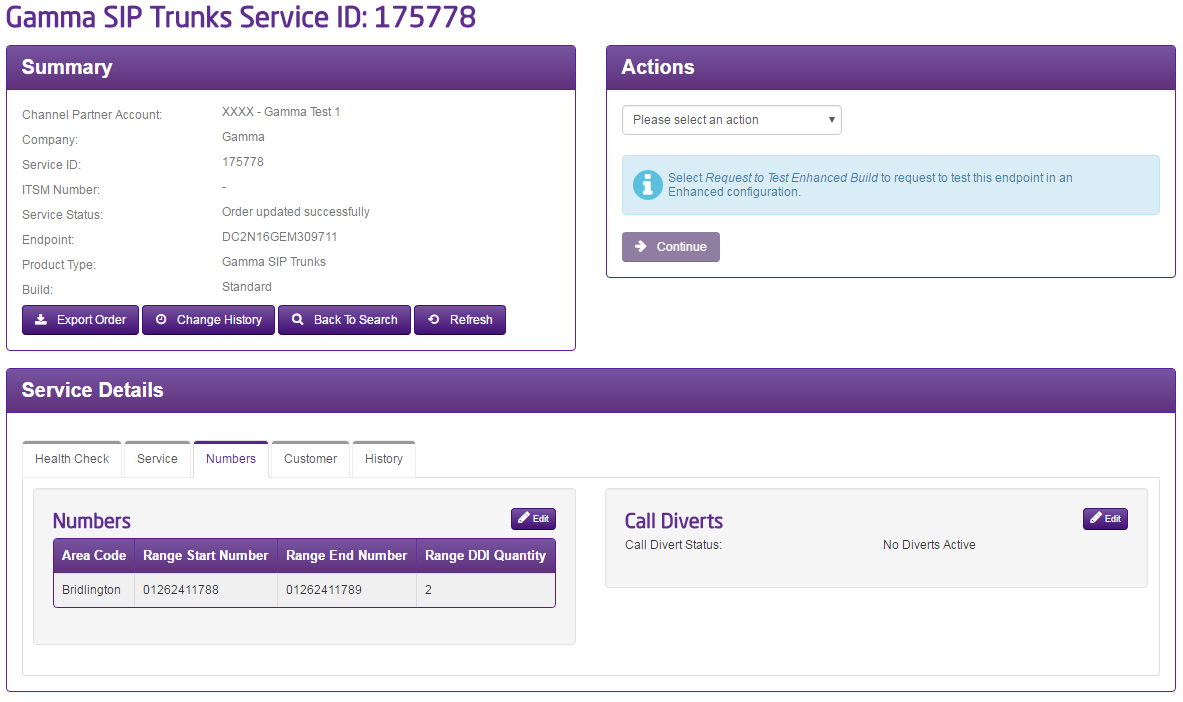
Click on the “Numbers” tab and then the “Edit” button next to Call Diverts.
Step 5
Using the “Actions” drop down you can set up the divert for the entire range or single numbers.
Step 6
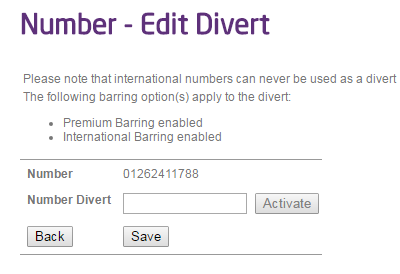
Click on the “Edit/Activate” button so you can enter the number to divert to for the range/single number.
Clicking Save will save the divert but not activate it. Clicking Activate will save and activate the divert to the number you’ve entered in “Number Divert”