
Introduction #
As explained in the accompanying customer communication, the Gamma signalling IP Address on MSX 11&12 is being replaced therefore all customers who have an endpoint on that MSX routing via a public or Gamma Ethernet Vlan will need to follow this process to ensure that their endpoint is migrated over on the portal to use this new IP Address
New IP Addresses #
Customers will need to re-route their traffic via one of the following Gamma IP Addresses
Public Vlan-500
Currently routing via Gamma signalling 83.245.6.81 ———-🡪 Change to 88.215.51.235
Gamma Ethernet – Vlan PRV_SIP_R1
Currently routing via Gamma signalling 100.80.2.49 ———-🡪 Change to 100.80.2.193
Gamma Ethernet Vlan, PRV_SIP_R2
Currently routing via Gamma Signalling 100.80.2.57 ———-🡪 Change to 100.80.2.201
Preparation #
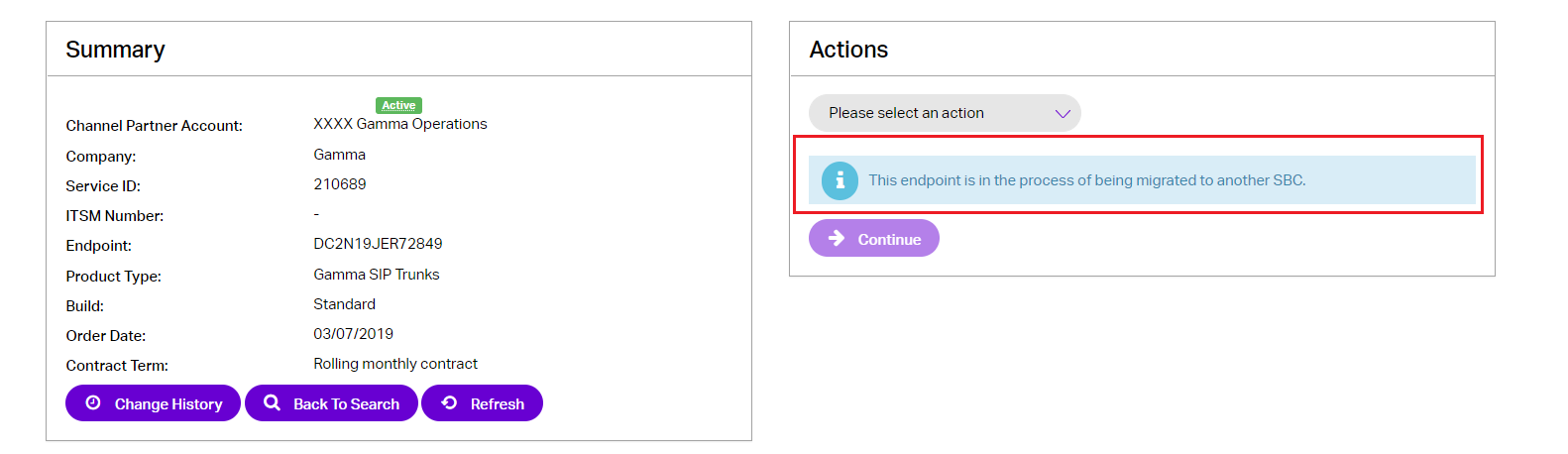
All eligible endpoints have been placed into a migration in progress state by the portal developers which will facilitate the change of the Gamma IP Address. On the endpoint order details page, under Actions drop down menu, it will show information “This endpoint is in the process of being migrated to another SBC.” as highlighted below.
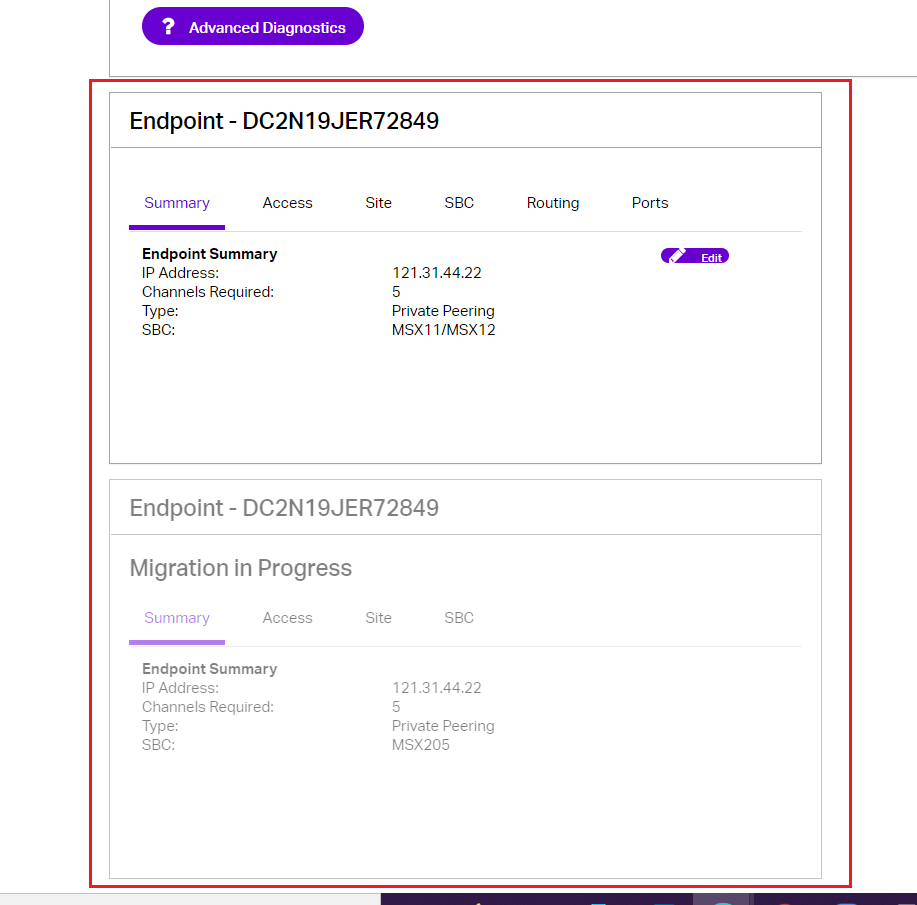
At the bottom of the page, it will show as below which means that your endpoint has been placed into the migration in progress state by portal developers.
Please note, this is the starting point only and the migration will not actually start until you proceed as per section 5.
Pre-requisite check for Permissions #
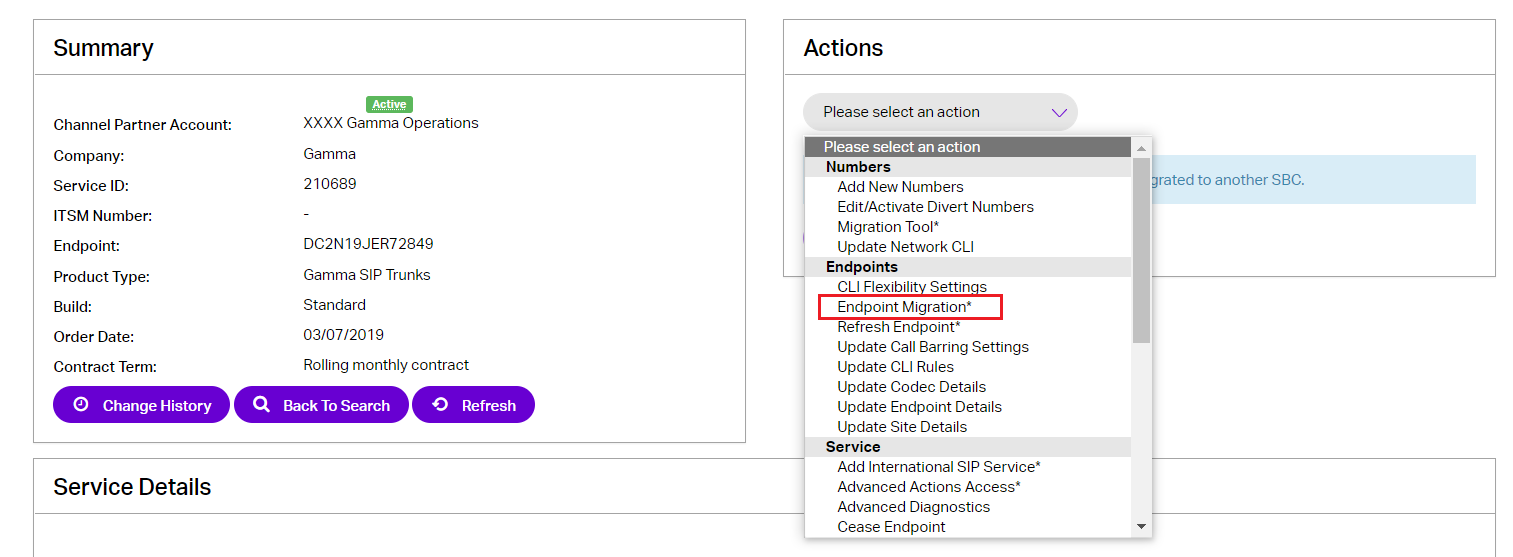
Before you start with actual migration as explained in section 4 & 5, please ensure that you can see “Endpoint Migration” option under Actions drop down menu, as shown below, which is the new “Self Service Migration Tool” we have added to the portal to give you the ability to carry out this change of the Gamma IP address. Please note that only Administrators* portal accounts have been given permission to carry out this change.
*This is to ensure migrations are carefully planned as per the guide and executed at the right time. This is to avoid any risk that an endpoint could accidently be committed too early to migration which could result in loss of service.
If any other user would like permission to carry out the migration, then please follow the usual channels of contacting Gamma BDM for portal permission to be updated, so that additional users have this “Endpoint Migration” option to carry out the change.
The IP Address Migration Process #
The actual IP migration process consists of 2 steps which need to be done within the same change window if the endpoint is a traffic carrying one.
i. Re-configure the Customer CPE to route via the new Gamma IP address as detailed in the accompanying customer communication
ii. Change the endpoint on the Gamma portal to route via the new Gamma IP address. This is achieved by “moving” the endpoint over to a new MSX 205&206 which is using the new Gamma Signalling IP Address followed by a deletion of the “old” endpoint on MSX 11&12. There are no changes required to the customer IP Addresses throughout this process just the Gamma IP Address
As detailed in section 5 there is an opportunity to test that your Gamma IP Address change has been successful before making the change permanent
5 Test or Commit immediately to the Migration
If you would like to check that your IP Address change is successful before completing the migration follow this procedure from step 5.1 – Option to test
If you want to proceed and commit to the IP Address change immediately without testing first follow from step 6 – Commit and Complete the migration
Option to Test #
Once the CPE has been configured to use the new Gamma signalling IP address, the change can be tested prior to the migration process being completed by following the steps below
Proceed with the Migration #
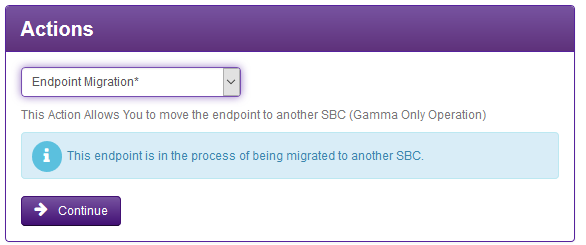
In order to test the IP Address change, the portal endpoint migration process needs to be selected and continued.

From the Actions box select the Endpoint Migration option followed by Continue.
Continue Migration to MSX 205&206 #
Once the option to continue with the migration is selected, the next page on the portal shows that the migration is to a fixed destination of MSX 205&206
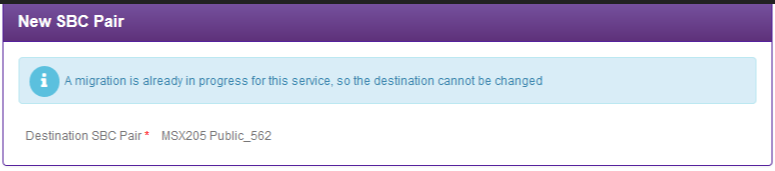
Note if a Gamma Ethernet endpoint, the Vlan will show as PRV_SIP_R1 or PRV_SIP_R2
Selecting a number(s) to test with #
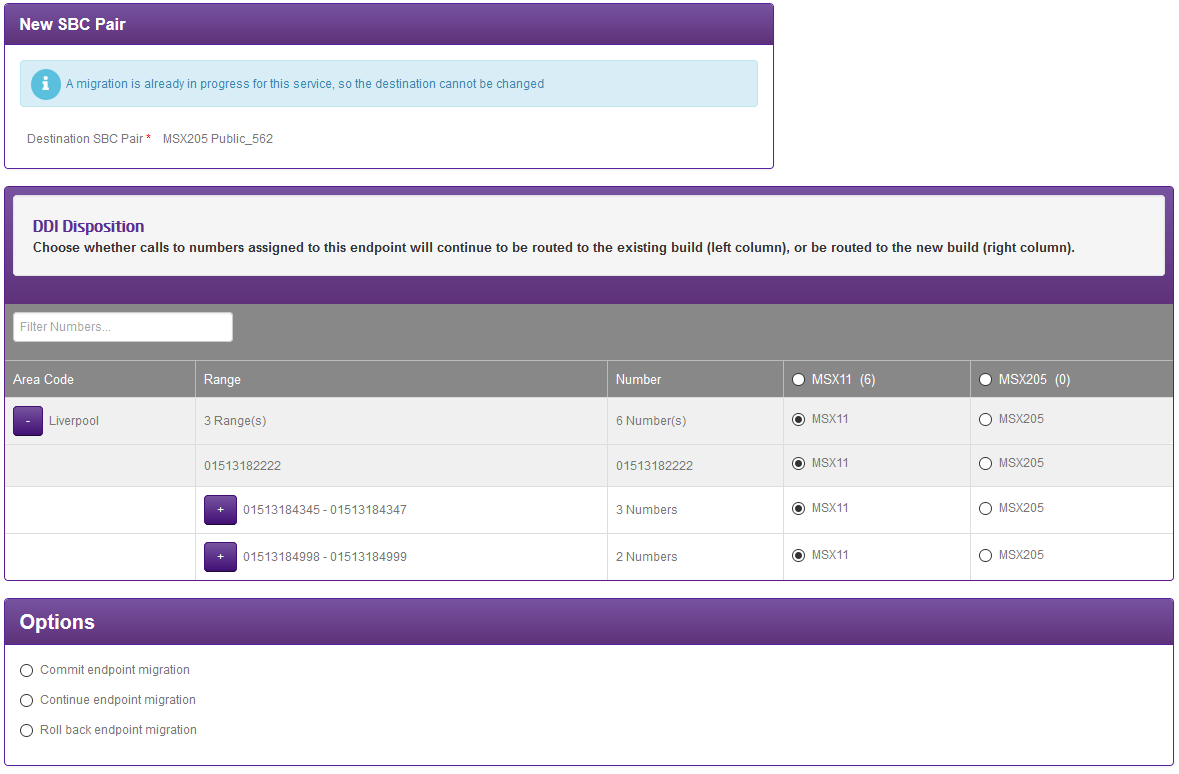
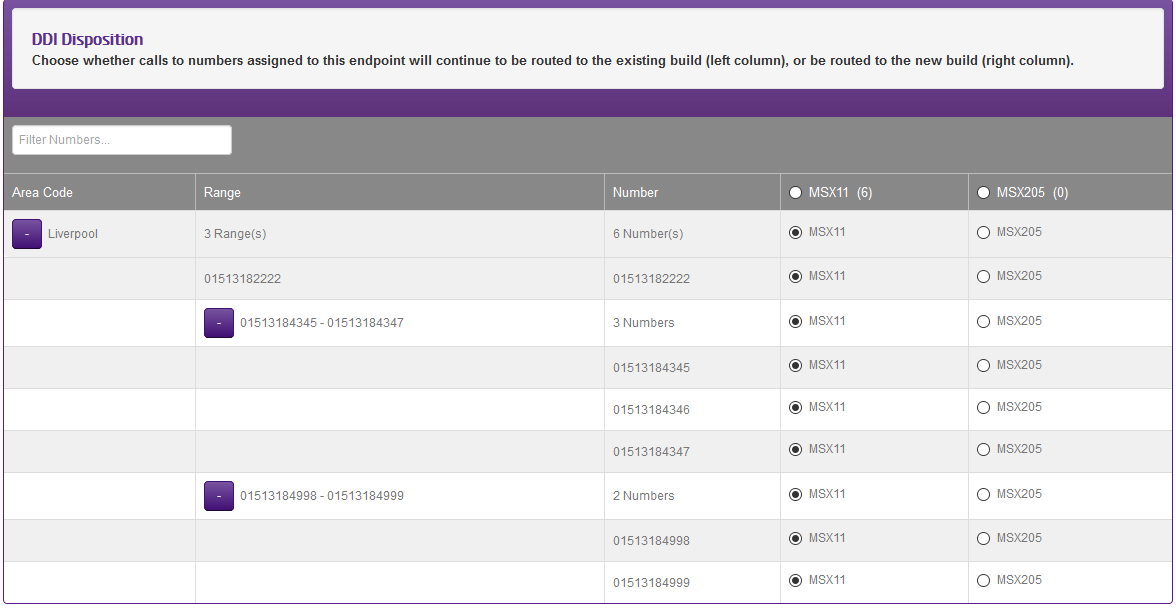
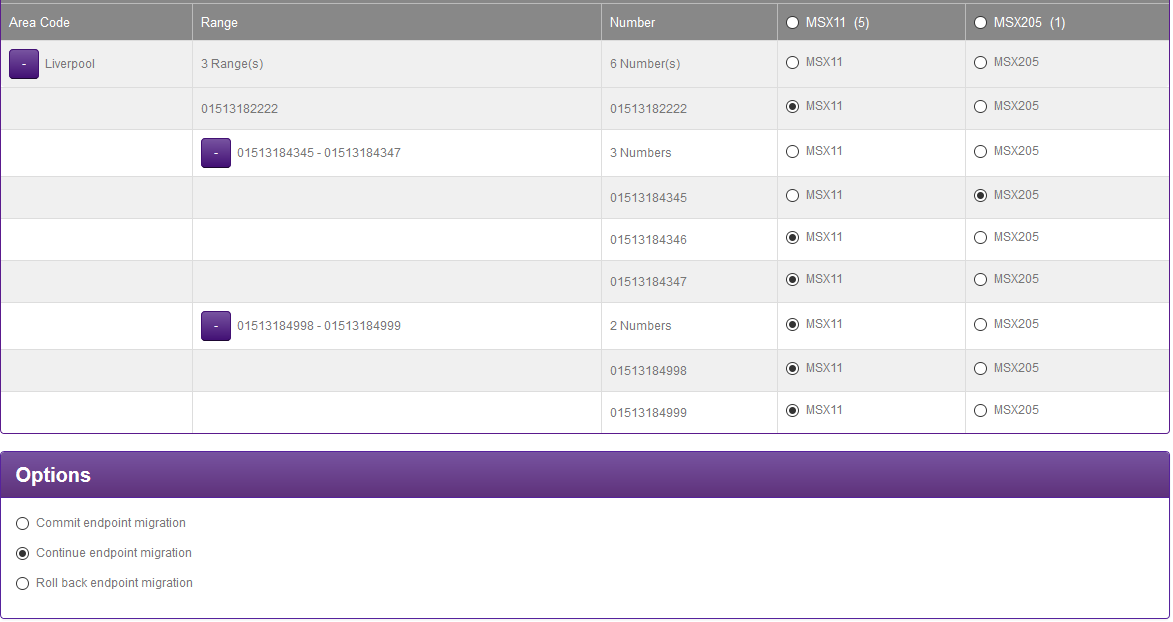
The following option allows selection any of the endpoint’s numbers to test with. The action will move the selected number over to the duplicated / replacement endpoint built on MSX 205&206
Step A – Expand the list of numbers. Click on the Area code box(es) as highlighted below
Step B – Click on the number range boxes to further expand the list of numbers
Step C – Select a number(s) to test with
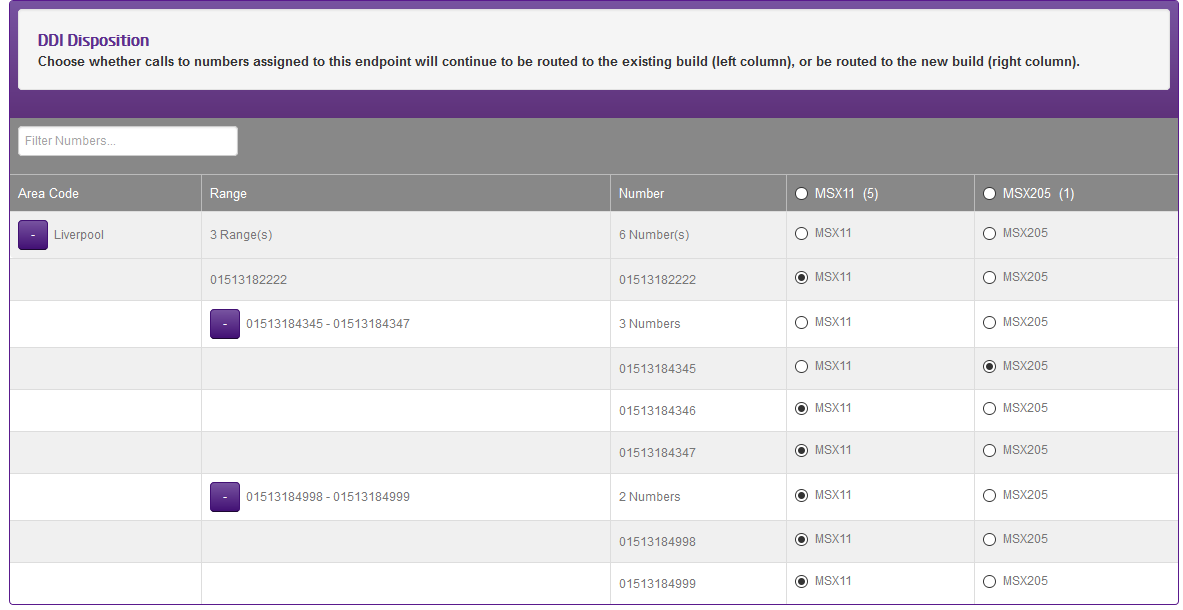
For this example, when the next step of the migration process is invoked, number 01513184345 will be moved over to the duplicated endpoint on MSX 205&206
The rest of the numbers at this stage will remain routing via the endpoint on MSX 11&12
Continue with the migration #
By selecting the option to continue the migration, the number selected for testing will be moved over to the duplicate endpoint on MSX 205&206
Select the Continue Endpoint migration option followed by Submit

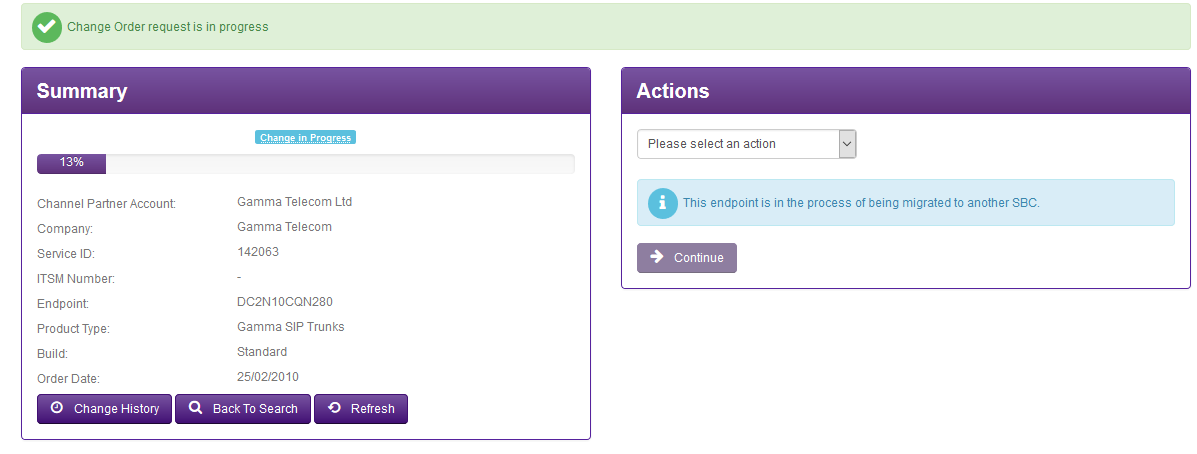
Portal change in Progress #
Once the option to continue with the migration has been invoked, the portal will return to the service page view and a change in process progress bar will be displayed
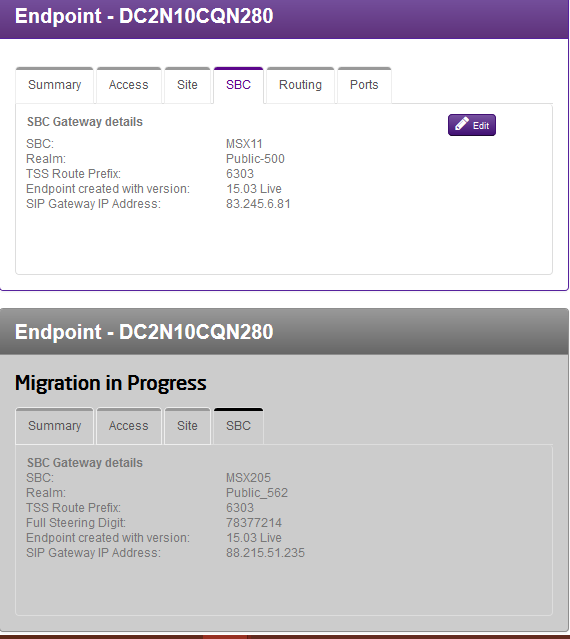
Portal duplicate endpoint details #
Once the change has been processed, the duplicate endpoint on MSX 205&206 will now appear on the portal.
It is greyed out at this stage because the migration hasn’t been completed
Test that the IP Address change is successful #
Test calls can now be made using the DDI moved over to MSX 205&206
Commit or Roll-back the migration #
Following testing either proceed with the IP Address change or roll-back if test calls are unsuccessful due to the IP address change being unsuccessful
Commit – By selecting this option, all customer numbers will be moved over to MSX 205&206 therefore using the new Gamma signalling IP address and the endpoint on MSX 11&12 deleted.
To commit to the migration and therefore the new Gamma IP address go to step Commit and Complete the migration
Roll-Back – By selecting this option, any test numbers will be moved back to the endpoint on MSX 11&12 and the duplicated endpoint on MSX 205&206 will be deleted.
To carry out a roll-back and continue to use the existing Gamma IP address go to step Roll-back the migration
Commit and Complete the migration #
This step will move all numbers over to the duplicated endpoint on MSX 205&206 hence the new Gamma Signalling IP address and delete the endpoint on MSX 11&12.
Select the endpoint migration option followed by continue
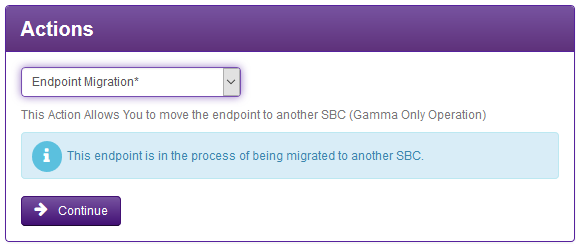
From the next screen select the commit endpoint migration option followed by submit
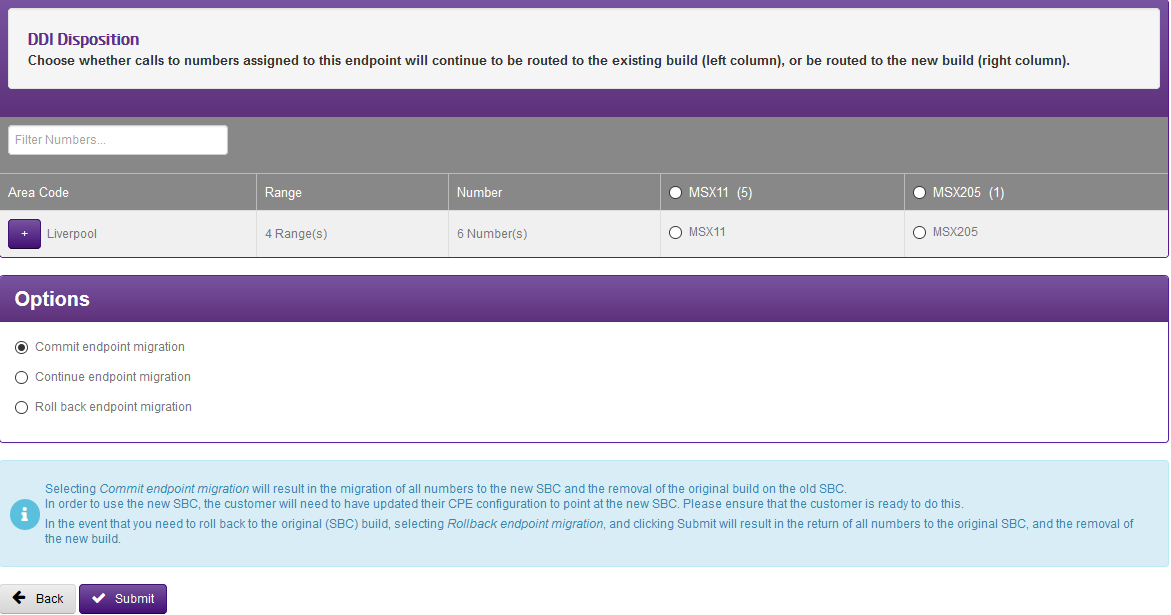
Migration Completed #
Once the Migration has been Committed only the details for the endpoint on MSX 205&206 will be shown on the portal and any further provisioning changes will be made via this MSX
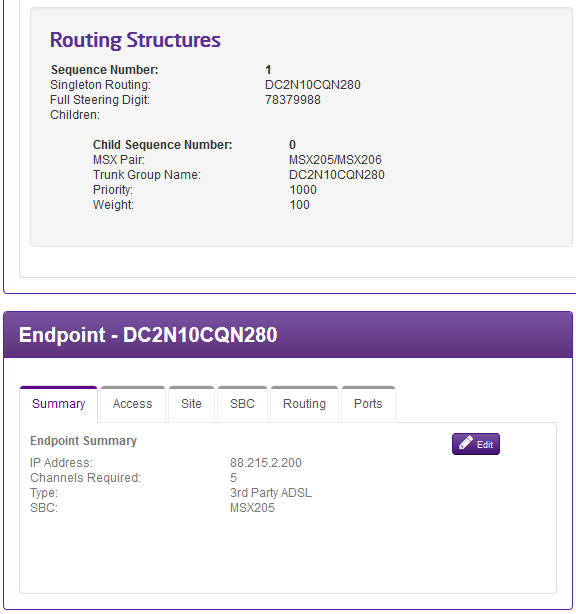
Roll-Back the migration #
If test calls via the duplicated endpoint on MSX 205&206 are not successful and there is an issue with the CPE IP address change, there is an option to roll-back the migration. This will move any numbers that were routing via MSX 205&206 back to the endpoint on MSX 11&12 and delete the duplicated endpoint on MSX 205&206. Therefore, the Gamma signalling IP address will remain unchanged at this time
To invoke Roll-back select the endpoint migration option again followed by continue
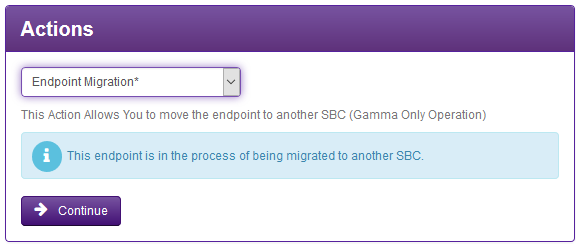
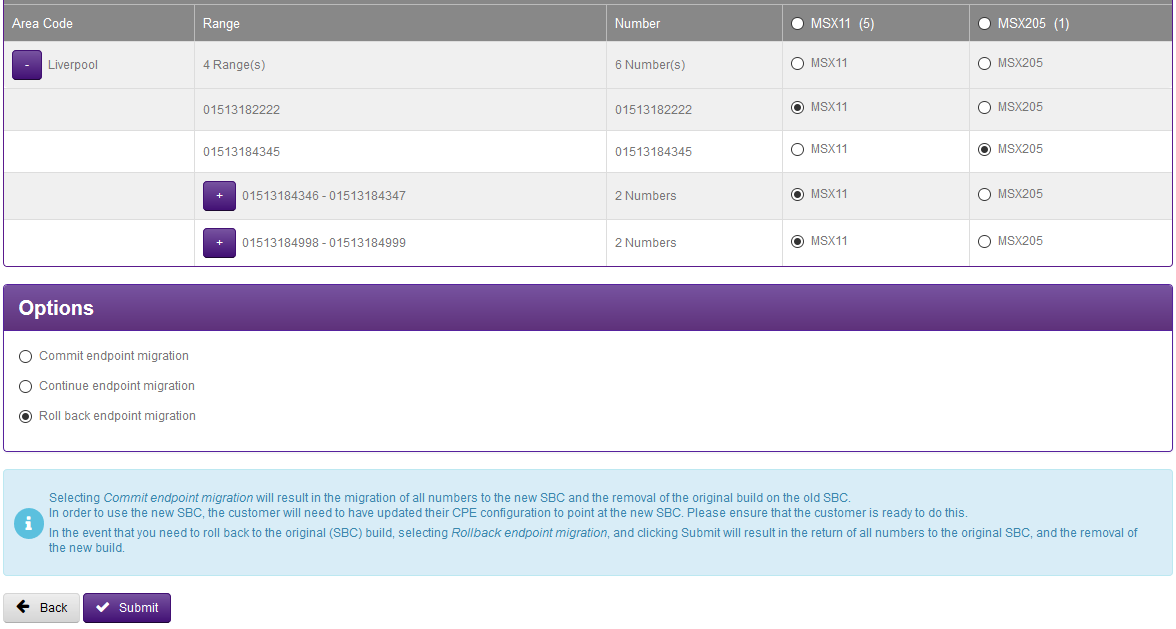
This will proceed into the next screen on the portal.
There is no need to move any test numbers back at this stage as the roll-back action will do that.
Select the roll-back endpoint migration option followed by submit
Once rollback is completed only the details for MSX 11&12 will be displayed on the portal service page
Post Roll-Back actions #
Email the TSC Provisioning team with the details so that they can ask the developers to place the endpoint into the “ready to migrate” state on the portal when ready to attempt the IP Address change again