Unable to Make Calls #
Please ensure the below checks have been followed. These steps will either resolve the problem for you or allow us to provide a resolution as quickly as possible.
Step 1
Does the customer have coverage on their handset? To make calls the customer requires coverage on their phone, but they also may be calling of WiFi. If the customer has 4G signal please try both 4G and 3G to confirm the problem persists on both types of signal.
- If Yes continue to the next step
- If No then please go to problems with coverage diagnostics by clicking here
Step 2
Is the customer making an International or Premium rate Call?
- If Yes continue to the next step
- If No continue to step 4. This is to check if the customer is affected by a restriction on the portal.
Step 3
Are international/ premium rate calls available on the portal for this subscription?
International and premium rate calls need to be activated in the portal before the customer can use this service. If the service is restricted then the customer will receive an automated message when trying to dial this type of number.
- Yes continue to next step
- No activate the service for the customer via the portal. For how to do this please refer to our in-life changes section of the Mobile Knowledge Base.
Step 4
Please request the customer dials the number manually instead of using the phonebook/ contact list on their handset. Did this work?
By performing this check it eliminates any issues with how the number is stored in the handset. If the customer is dialling the number manually already please continue to the next step.
- Yes problem resolved, the problem was with how the number is stored in the customer’s handset.
- No continue to the next step.
Step 5
Get the customer to perform a hard reset on their phone. Take out the battery and SIM card without switching the handset off. Then wipe the SIM card with a soft dry cloth. This will resolve a large number of problems caused by registration to the network. Did this work?
- Yes problem resolved.
- No continue to the next step.
Step 6
Try the customer’s SIM card in a handset you know to be working. This is done to eliminate any issues with the handset as approximately 80% of issues are equipment related. Did this work?
- Yes the problem lies with the handset, please refer to your own process relating to handset repair/exchange.
- No then please continue to the next step
Step 7
Does this affect all numbers the customer dials? This helps us to identify it the problem may be related to the number being dialled or the customer’s number.
- Yes go to step 9
- No continue to the next step.
Step 8
Can you call the number on a landline? If you can call the number on a landline then it proves the problem is with the user and not the number being dialled.
- Yes continue to the next step
- No the problem lies with the number being dialled.
Step 9
Are there any mobile notifications on the Gamma Portal? At this point the user may be affected by a problem that needs to be investigated further. Please check the notifications on the Gamma Portal to see if this is a problem we are already aware of.
- Yes then advice the end user of the issue and any information that is provided
- No then please click here to follow steps to raise a fault to the Gamma Service Desk.
Unable to receive calls #
Please ensure the below checks have been followed. These steps will either resolve the problem for you or allow us to provide a resolution as quickly as possible.
Step 1
Does this problem affect all calls or just calls from one number? This is to eliminate any problems with the number that is calling the user.
- All Calls? Continue to the next step
- One number? This seems to be a problem with the other number. Please request they contact their service provider and raise the problem with them.
Step 2
Has the user ported in to our network in the last 24 hours? This is to check if the user if affected by a porting problem.
- Yes – please follow the porting problems: Incoming Service diagnostics.
- No continue to the next step.
Step 3
Does the customer have coverage on their handset? To make calls the customer requires coverage on their phone. If the customer has 4G signal please try both 4G and 3G to confirm the problem persists on both types of signal
- Yes continue to the next step
- No then please go to problems with coverage diagnostics by clicking here
Step 4
Are there any active diverts preventing the call being connected to the user? This check confirms that diverts are not inadvertently blocking the user’s calls from being received. To remove diverts please request the customer dials ##002# and send (which is the call button) to remove the diverts.
- Yes problem resolved, problem was caused by calls being diverted to another number
- No continue to the next step
Step 5
Get the customer to perform a hard reset on their phone. Take out the battery and SIM card without switching the handset off. Then wipe the SIM card with a soft dry cloth. This will resolve a large number of problems caused by registration to the network. Did this work?
- Yes problem resolved.
- No continue to the next step.
Step 6
Try the customer’s SIM card in a handset you know to be working. This is done to eliminate any issues with the handset as approximately 80% of issues are equipment related. Did this work?
- Yes the problem lies with the handset, please refer to your own process relating to handset repair/exchange.
- No then please continue to the next step
Step 7
Check if there are any bars on the number which is restricting the service. For more information on how to to do this please see the Mobile In Life Changes guide.
- Yes remove restriction from the portal.
- No continue to next step
Step 8
Are there any mobile notifications on the Gamma Portal? At this point the user may be affected by a problem that needs to be investigated further. Please check the notifications on the Gamma Porta to see if this is a problem we are already aware of.
- Yes then advice the end user of the issue and any information that is provided
- No then please click here to follow steps to raise a fault to the Gamma Service Desk.
Coverage Issues #
Please ensure the below checks have been followed. These steps will either resolve the problem for you or allow us to provide a resolution as quickly as possible.
Step 1
Has the number connected in the last 24 hours? If the number has recently been connected to the network this may be an incomplete connection which is causing problems for the user.
- Yes continue to the next step
- No continue to step 3
Step 2
Does the activation/ port in request show as failed in the portal?
- Yes contact support on 08081788000 and we will assist further.
- No continue to next step
Step 3
Get the user to perform a hard reset on their phone. Take out the battery and SIM card without switching the handset off. Then wipe the SIM card with a soft dry cloth. This will resolve a large number of problems caused by registration to the network. Did this work?
- Yes problem resolved
- No continue to next step
Step 4
Please check the Service Checker to view the coverage in the area the user is having the problem. To get to the service checker go to www.gamma.co.uk then go to products then mobile then click the checker.
Step 5
Are there any mobile notifications on the Gamma Portal? At this point the user may be affected by a problem that needs to be investigated further. Please check the notifications on the Gamma Portal to see if this is a problem, we are already aware of.
- Yes then please advise the user of the fault information provided.
- No continue to the next step
Step 6
Has the user’s loss of service exceeded SLA? Resolutions for site faults can be delayed for a number of reasons.
- Yes call support to receive and update on the fault.
- No advise the user of site fault SLA
Step 7
Try the user’s SIM card in a handset you know to be working. This helps us to identify it the problem may be related to the number being dialled or the customer’s number. Did this work?
- Yes the problem lies with the handset. Please refer to your own process relating to handset repair/ exchanges
- No continue to the next step
Step 8
Issue the user with a new SIM card. Please skip this step for “Data Only” SIMs. This is done to eliminate any issues with the SIM card as approximately 80% of issues are equipment related. Did this work?
- Yes problem resolved. Problem was a faulty SIM card.
- No continue to the next step
Step 9
Are there any mobile notifications on the Gamma Portal? At this point the user may be affected by a problem that needs to be investigated further. Please check the notifications on the Gamma Porta to see if this is a problem we are already aware of.
- Yes then advice the end user of the issue and any information that is provided
- No then please click here to follow steps to raise a fault to the Gamma Service Desk.
Unable to send SMS #
Please ensure the below checks have been followed. These steps will either resolve the problem for you or allow us to provide a resolution as quickly as possible.
Step 1
Does the customer have coverage on their handset? To make calls the customer requires coverage on their phone. If the customer has 4G signal please try both 4G and 3G to confirm the problem persists on both types of signal
- Yes continue to the next step
- No then please go to problems with coverage diagnostics by clicking here
Step 2
Can the customer make and receive calls? This is to get a full detail of the customer’s problem as they may be affected by a wider ranging problem.
- Yes continue to the next step
- No please follow Voice Calls Support Diagnostics by clicking here
Step 3
Has the user ported in to our network in the last 24 hours? This is to check if the user if affected by a porting problem.
- Yes please follow the Porting Problems – Incoming Service Diagnostics.
- No continue to the next step.
Step 4
Is the customer’s inbox full? Older handsets will not receive SMS messages once the inbox is full. This is not as common with more recent handsets (as the inbox memory is combined with the handset memory) and you will normally see a notification on the handset to advise this. To eliminate this delete some SMS messages.
- Once you have deleted some messages please continue to the next step
Step 5
Please get the customer to send a message to themselves. By sending an SMS from the user’s number to their own number this will establish where the problem lies. (i.e. with the person sending or the person receiving the SMS). Did this work?
- Yes the problem lies with the person receiving the SMS
- No continue to the next step
Step 6
Get the customer to perform a hard reset on their phone. Take out the battery and SIM card without switching the handset off. Then wipe the SIM card with a soft dry cloth. This will resolve a large number of problems caused by registration to the network. Did this work?
- Yes problem resolved.
- No continue to the next step
Step 7
Try the user’s SIM card in a handset you know to be working. This helps us to identify it the problem may be related to the number being dialled or the customer’s number. Did this work?
- Yes the problem lies with the handset. Please refer to your own process relating to handset repair/ exchanges
- No continue to the next step
Step 8
Are there any mobile notifications on the Gamma Portal? At this point the user may be affected by a problem that needs to be investigated further. Please check the notifications on the Gamma Porta to see if this is a problem we are already aware of.
- Yes then advise the end user of the issue and any information that is provided
- No then please click here to follow steps to raise a fault to the Gamma Service Desk.
Unable to receive SMS #
Please ensure the below checks have been followed. These steps will either resolve the problem for you or allow us to provide a resolution as quickly as possible.
Step 1
Does the customer have coverage on their handset? To make calls the customer requires coverage on their phone. If the customer has 4G signal please try both 4G and 3G to confirm the problem persists on both types of signal
- Yes continue to the next step
- No then please go to problems with coverage diagnostics by clicking here
Step 2
Can the customer make and receive calls? This is to get a full detail of the customer’s problem as they may be affected by a wider ranging problem.
- Yes continue to the next step
- No please follow Voice Calls Support Diagnostics by clicking here
Step 3
Has the user ported in to our network in the last 24 hours? This is to check if the user if affected by a porting problem.
- Yes please follow the Porting Problems – Incoming Service Diagnostics.
- No continue to the next step.
Step 4
Is the customer’s inbox full? Older handsets will not receive SMS messages once the inbox is full. This is not as common with more recent handsets (as the inbox memory is combined with the handset memory) and you will normally see a notification on the handset to advise this. To eliminate this delete some SMS messages.
- Once you have deleted some messages please continue to next step
Step 5
Please get the customer to send a message to themselves. By sending an SMS from the user’s number to their own number this will establish where the problem lies. (i.e. with the person sending or the person receiving the SMS). Did this work?
- Yes the problem lies with the person sending the SMS
- No continue to the next step
Step 6
Get the customer to perform a hard reset on their phone. Take out the battery and SIM card without switching the handset off. Then wipe the SIM card with a soft dry cloth. This will resolve a large number of problems caused by registration to the network. Did this work?
- Yes problem resolved.
- No continue to the next step
Step 7
Try the user’s SIM card in a handset you know to be working. This helps us to identify it the problem may be related to the number being dialled or the customer’s number. Did this work?
- Yes the problem lies with the handset. Please refer to your own process relating to handset repair/ exchanges
- No continue to the next step
Step 8
Are there any mobile notifications on the Gamma Portal? At this point the user may be affected by a problem that needs to be investigated further. Please check the notifications on the Gamma Porta to see if this is a problem we are already aware of.
- Yes then advise the end user of the issue and any information that is provided
- No then please click here to follow steps to raise a fault to the Gamma Service Desk.
Unable to make Data Connection #
Please ensure the below checks have been followed. These steps will either resolve the problem for you or allow us to provide a resolution as quickly as possible.
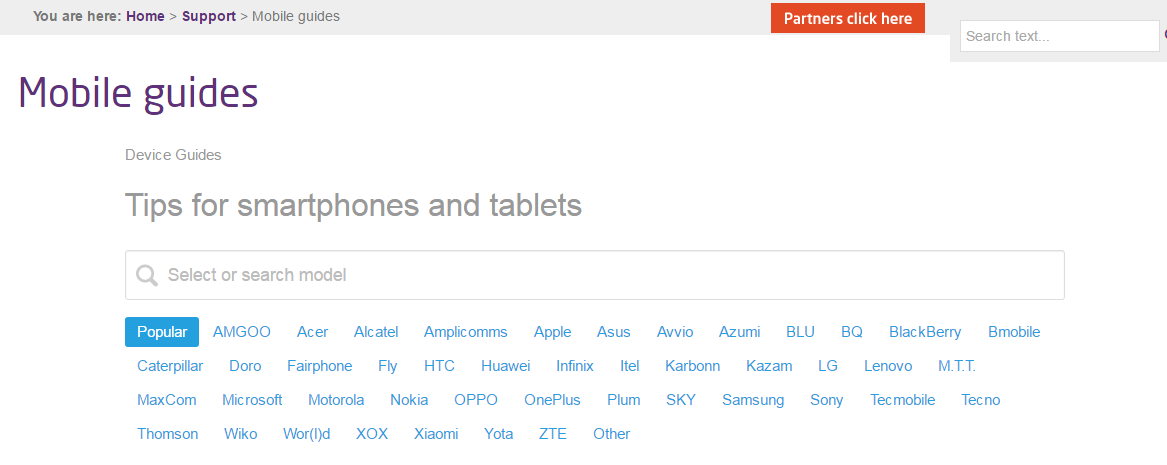
To help with this guide, we’d recommend you use our Mobile Guides page. This gives you screenshots and full details on what you should be entering on your customer’s handsets. To get there go to www.gamma.co.uk/support/mobile-guides/
Step 1
First thing you should check is to ensure that the customer actually has coverage on their handset. Use our Coverage issues guide to help you click here.
Step 2
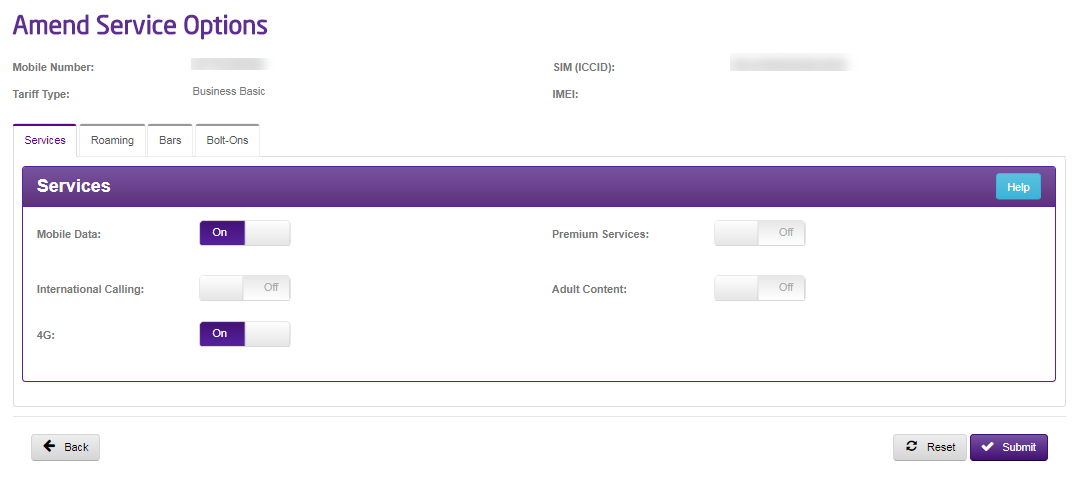
Check in the Gamma Portal that services are available by going to “Amend Service Options” (in the Mobile Service Management screen) to ensure that no service restrictions have been selected.
Step 3
Check that the MSISDN has the correct services set up in the Amend Service Options screen.
Step 4
Check that the APN settings are correct in the handset. Use our Data and MMS Settings (including APNs) by clicking here to ensure that you get the right settings into your customer’s phone.
Step 5
Take out the battery and SIM card without switching the handset off. Then wipe the SIM card with a soft dry cloth. This will resolve a large number of problems caused by registration to the network.
Step 6
Try the customer’s SIM card in a handset you know to be working with the Gamma APN settings. This is done to eliminate any issues with the handset as approximately 80% of issues are equipment related.
Step 7
Have a look at the Service Status Noticeboard for Mobile on the Gamma Portal to see if there are any issues that could be affecting your customer. If not, please raise a fault using the below link
- Please click here to follow steps to raise a fault to the Gamma Service Desk.
Unable to view specific websites (Adult Content) #
Please ensure the below checks have been followed. These steps will either resolve the problem for you or allow us to provide a resolution as quickly as possible.
Step 1
Is the user unable to access all web sites or just one particular web site? This helps us to understand if the problem relates to a larger data connection problem.
- One website/ webpage – Continue to next step
- All – Please go to Unable to make data connection diagnostics by clicking here
Step 2
Does the customer receive a message on screen to advise the website has been blocked due to content control, this helps us identify if the problem relates to the website in question or a problem with content control.
- Yes – Continue to next step
- No – This is likely to be a specific website problem. Please try again later.
Step 3
Do you believe we should be restricting access to this web site? Adult Control works on websites containing adult content – e.g. gambling, erotica, chat and dating services and violent games. Websites containing adult material are categorised through a web filtering system. You can view details of how a site has been categorised; or if you feel that content on a specific site should not be restricted, or has been incorrectly categorised, you can request content re-categorisation.
- Yes – Continue to next step
- No – Please submit a request to re-categorise the website with our web filtering service. Please ensure you submit your request with full information regarding why the website/ webpage should be re-categorised. Please click here to raise the request or go to (http://sitereview.cwfservice.net/sitereview.jsp)
Step 4
Has Adult Content been removed on the portal? Adult Content needs to be removed to allow a user to access 18+ rated content.
- Yes – Continue to next step
- No – Remove content control and try again. To do this go to Mobile>Service Management> Find service> On Options select Amend Service Options> Then remove Adult content”.
Step 5
Please clear the cache/ temporary internet files on the user’s handset. Did this work? Adult Content needs to be removed to allow a user to access 18+ rated content.
- Yes – Continue to next step
- No – Handsets store web pages to allow faster access to web sites in the future. The handset may have stored the content control holding page for the website the user is attempting to access. Clearing the cache/ temporary internet files will eliminate this as the cause of the problem.
Step 6
Get the customer to perform a hard reset on their phone. Did this work? Take out the battery and SIM card without switching the handset off. Then wipe the SIM card with a soft dry cloth. This will resolve a large number of problems caused by registration to the network.
- Yes – Problem resolved.
- No – Continue to next step
Step 7
Are there any mobile notifications on the Gamma Portal? At this point the user may be affected by a problem that needs to be investigated further. Please check the notifications on the Gamma Porta to see if this is a problem we are already aware of.
- Yes then advise the end user of the issue and any information that is provided
- No then please click here to follow steps to raise a fault to the Gamma Service Desk.
Unable to access Voicemail #
Please ensure the below checks have been followed. These steps will either resolve the problem for you or allow us to provide a resolution as quickly as possible.
Step 1
Can the user make voice calls to other numbers? This is to confirm if the user is affected by a wider ranging voice call problem.
- Yes – Continue to next step
- No – Please go to Problems receiving voice calls diagnostics by clicking here.
Step 2
Please call 121 from the user’s handset. Can you hear a voicemail greeting?
- Yes – Problem resolved. The user was affected by a temporary voicemail problem
- No – Continue to next step. Please also note what was heard upon calling 121 i.e. silence, 3 tones etc as this may be needed if we escalate the problem.
Step 3
Please get the user to call 1211 from their handset to activate the Voicemail service. Did this work? By calling 1211 from the user’s handset this will activate the Voicemail service for them.
- Yes – Problem resolved
- No – Continue to next step
Step 4
Are there any mobile notifications on the Gamma Portal? At this point the user may be affected by a problem that needs to be investigated further. Please check the notifications on the Gamma Porta to see if this is a problem we are already aware of.
- If Yes then advise the end user of the issue and any information that is provided
- If No then please click here to follow steps to raise a fault to the Gamma Service Desk.
Not receiving Voicemail Alerts #
Please ensure the below checks have been followed. These steps will either resolve the problem for you or allow us to provide a resolution as quickly as possible.
Step 1
Please ensure that the user has alerts set up for Voicemail. Once done please advise how the user would like to receive their voicemail alerts? To find out how to set up Voicemail alerts click here.
- SMS – Continue to step 2
- Voice – Continue to step 3
- Icon – Voicemail icon alerts are handset dependent. To confirm the alert service is working we recommend the user changes the alert to SMS. If this works then it means the user’s handset is not compatible with icon alerts.
Step 2
Can the user receive SMS? The user may be affected by a wider ranging SMS problem.
- Yes – Continue to step 4
- No – Please go to Problems Receiving SMS diagnostics by clicking here.
Step 3
Can the user receive voice calls? The user may be affected by a wider ranging voice problem.
- Yes – Continue to step 4
- No – Please go to Problems receiving voice calls diagnostics by clicking here
Step 4
Test the alerts by calling the users number and leaving a voicemail. Did this work? Voicemail works on a schedule to retry notifications of new messages. By leaving a test voicemail you will save time instead of waiting for the retry schedule to notify the user.
- Yes – Problem resolved
- No – Continue to next step
Step 5
Are there any mobile notifications on the Gamma Portal? At this point the user may be affected by a problem that needs to be investigated further. Please check the notifications on the Gamma Porta to see if this is a problem we are already aware of.
- If Yes then advise the end user of the issue and any information that is provided
- If No then please click here to follow steps to raise a fault to the Gamma Service Desk.
Calls not diverting to Voicemail #
Please ensure the below checks have been followed. These steps will either resolve the problem for you or allow us to provide a resolution as quickly as possible.
Step 1
Is the voicemail service active? Please ask the user to dial in their voicemail service either with the short code 121 or the long dial number +447458121121. Did this work?
- Yes – Please request the user ‘resets’ their diverts by dialling ##002# and send (call) to remove all diverts. Then call 1211 to activate standard Voicemail Diverts. – Once done go to step 2.
- No – Voicemail is not yet active on the user’s number. To activate Voicemail please request the user calls 1211. – Once done continue to step 2
Step 2
Test the voicemail service, Dial the customer’s Mobile number and leave a voicemail. Did this work?
- Yes – Problem resolved
- No – Continue to step 3
Step 3
Are there any mobile notifications on the Gamma Portal? At this point the user may be affected by a problem that needs to be investigated further. Please check the notifications on the Gamma Porta to see if this is a problem we are already aware of.
- If Yes then advise the end user of the issue and any information that is provided
- If No then please click here to follow steps to raise a fault to the Gamma Service Desk.
No Coverage #
Please ensure the below checks have been followed. These steps will either resolve the problem for you or allow us to provide a resolution as quickly as possible
Step 1
Is the roaming service active on the portal? Roaming needs to be active to allow the SIM to work abroad.
- Yes – Continue to next step
- No – Remove the bar from the portal.
Step 2
Do we have a roaming agreement in the country the user is currently situated? We need to have a roaming agreement with one or more local networks in the country the user currently situated. Check our Blocked Operators Document to see which partners we don’t have any roaming agreements with and what country they operate in, this can be found by searching on the academy.
- Yes – Continue to next step
- No – Advise the user we do not currently have an agreement in place to allow service in this country.
Step 3
Get the user to perform a hard reset on their phone. Did this work? Take out the battery and SIM card without switching the handset off. Then wipe the SIM card with a soft dry cloth. This will resolve a large number of problems caused by registration.
- Yes – Problem solved
- No – Continue to next step
Step 4
Request the user to perform a manual roam to all alternative networks. Did this work? A manual roam is when you manually select an available network from your handset. If there is a site problem with the local network then it is unlikely we will be able to establish the details of this problem for a number of days. If this is the case then by selecting another available network will resolve this problem.
- Yes – Problem resolved. Problem is with local network
- No – Continue to next step
Step 5
Try the users SIM card in a handset you know to be working. Did this work? This is done to eliminate any issues with the handset as approximately 80% of issues are equipment related.
- Yes – The problem lies with the handset. Please refer to your own process relating to handset repair/ exchanges
- No/unable to try – Continue to next step
Step 6
Are there any mobile notifications on the Gamma Portal? At this point the user may be affected by a problem that needs to be investigated further. Please check the notifications on the Gamma Porta to see if this is a problem we are already aware of.
- If Yes then advise the end user of the issue and any information that is provided
- If No then please click here to follow steps to raise a fault to the Gamma Service Desk.
Unable to Make Calls Whilst Roaming #
Please ensure the below checks have been followed. These steps will either resolve the problem for you or allow us to provide a resolution as quickly as possible
Step 1
Is the customer set up for “Mobile Roaming”, Mobile Roaming needs to be activated in the portal before the user can use this service. If the service is restricted then the user will not have coverage on their phone.
- Yes – Continue to next step
- No – Activate the service for the user via the portal.
Step 2
Does the customer have coverage on their handset? To make calls the customer requires coverage on their phone. If the customer has 4G signal please try both 4G and 3G to confirm the problem persists on both types of signal.
- Yes continue to the next step
- INo then please go to problems with coverage diagnostics by clicking here
Step 3
Is the customer making an International Call or Premium Call? In this context an “International Call” means any destination other than back to the UK or the country where the user is currently situated. This is to check if the customer is affected by a restriction on the portal.
- Yes – Continue to next step
- No – Continue to step 5
Step 4
Is the user dialling a number in the country they are currently situated. When the user is abroad they will be able to dial both UK numbers and international number for the country they are in with an international bar present. The international bar will only restrict international calls made outside the country they are in.
- Yes – continue to step 5
- No – continue to next step
Step 5
Is the correct dialling code being used? When the user is abroad you need to enter the correct international code for the large majority of networks. The standard UK international code is +44 and leaving off the 1st zero.
- Yes – Continue to next step
- No – Enter correct dialling code and try again
Step 6
Request the user to perform a manual roam to all alternative networks and attempt to make a call. Did this work? A manual roam is when you manually select an available network from your handset. If there is a problem with the local network then it is unlikely we will be able to establish the details of this problem for a number of days. If this is the case then by selecting another available network will resolve this problem.
- Yes – Problem resolved. Problem is with local network
- No – Continue to next step
Step 7
Get the user to perform a hard reset on their phone. Did this work? Take out the battery and SIM card without switching the handset off. Then wipe the SIM card with a soft dry cloth. This will resolve a large number of problems caused by registration to the network.
- Yes – Problem solved
- No – Continue to next step
Step 8
Get the user to try their SIM card in a handset you know to be working. Did this work? This is done to eliminate any issues with the handset as approximately 80% of issues are equipment related.
- Yes – The problem lies with the handset. Please refer to your own process relating to handset repair/ exchanges
- No/ Unable to try – Continue to next step
Step 9
Are there any mobile notifications on the Gamma Portal? At this point the user may be affected by a problem that needs to be investigated further. Please check the notifications on the Gamma Porta to see if this is a problem we are already aware of.
- If Yes then advise the end user of the issue and any information that is provided
- If No then please click here to follow steps to raise a fault to the Gamma Service Desk.
Unable to Receive Calls Whilst Roaming #
Please ensure the below checks have been followed. These steps will either resolve the problem for you or allow us to provide a resolution as quickly as possible
Step 1
Does the customer have coverage on their handset? To make calls the customer requires coverage on their phone. If the customer has 4G signal please try both 4G and 3G to confirm the problem persists on both types of signal.
- Yes continue to the next step
- No then please go to problems with coverage diagnostics by clicking here.
Step 2
Can the user make calls? The user may be affected by a wider ranging problem. This is to get a full detail of the problem.
- Yes – Continue to next step
- No – Follow Unable to make calls whilst roaming by clicking here.
Step 3
Request the user to perform a manual roam to all alternative networks and call the user. Did this work? A manual roam is when you manually select an available network from your handset. If there is a problem with the local network then it is unlikely we will be able to establish the details of this problem for a number of days. If this is the case then by selecting another available network will resolve this problem.
- Yes – Problem resolved. Problem is with local network
- No – continue to next step
Step 4
Get the user to perform a hard reset on their phone. Did this work? Take out the battery and SIM card without switching the handset off. Then wipe the SIM card with a soft dry cloth. This will resolve a large number of problems caused by registration to the network.
- Yes – Problem solved
- No – Continue to next step
Step 5
Get the user to try their SIM card in a handset you know to be working. Did this work? This is done to eliminate any issues with the handset as approximately 80% of issues are equipment related.
- Yes – The problem lies with the handset. Please refer to your own process relating to handset repair/ exchanges
- No/Unable to try – Continue to next step
Step 6
Are there any mobile notifications on the Gamma Portal? At this point the user may be affected by a problem that needs to be investigated further. Please check the notifications on the Gamma Portal to see if this is a problem we are already aware of.
- If Yes then advise the end user of the issue and any information that is provided
- If No then please click here to follow steps to raise a fault to the Gamma Service Desk.
Unable to send or receive SMS whilst Roaming. #
Please ensure the below checks have been followed. These steps will either resolve the problem for you or allow us to provide a resolution as quickly as possible
Step 1
Does the customer have coverage on their handset?
- Yes – Continue to next step
- No – Follow No Coverage Process by clicking here
Step 2
Is the correct dialling code being used? When the user is abroad you need to enter the correct international code for the large majority of networks. The UK international code for SMS is +44 and leaving off the 1st zero.
- Yes – Continue to next step
- No – Enter correct dialling code and try again
Step 3
Check the SMS settings in the user’s handset, ensure that the message centre number is set to +46707963151, SMS is set to send as text and sent via GSM. Once confirmed get the user to send an SMS to their own number. Once the settings has been confirmed/ corrected the best way to test this is for the user to send an SMS to themselves. This will confirm both sending and receiving SMS is now working (or is still an issue).Did this work?
- Yes – Problem resolved
- No – Follow SMS Provisioning Process in the Provisioning section of the Mobile Knowledge Base.
Request the user to perform a manual roam to all alternative networks and attempt to make a call. A manual roam is when you manually select an available network from your handset. If there is a problem with the local network then it is unlikely we will be able to establish the details of this problem for a number of days. If this is the case then by selecting another available network will resolve this problem. Did this work?
- Yes – Problem resolved. Problem is with local network
- No – Continue to next step
Step 5
Get the user to perform a hard reset on their phone. Take out the battery and SIM card without switching the handset off. Then wipe the SIM card with a soft dry cloth. This will resolve a large number of problems caused by registration to the network. Did this work?
- Yes – Problem solved
- No – Continue to next step
Step 6
Get the user to try their SIM card in a handset you know to be working. This is done to eliminate any issues with the handset as approximately 80% of issues are equipment related. Did this work?
- Yes – The problem lies with the handset. Please refer to your own process relating to handset repair/ exchanges
- No/Unable to test – Continue to next step
Step 7
Are there any mobile notifications on the Gamma Portal? At this point the user may be affected by a problem that needs to be investigated further. Please check the notifications on the Gamma Porta to see if this is a problem we are already aware of.
- If Yes then advise the end user of the issue and any information that is provided
- If No then please click here to follow steps to raise a fault to the Gamma Service Desk.
Unable to Use Data While Roaming #
Please ensure the below checks have been followed. These steps will either resolve the problem for you or allow us to provide a resolution as quickly as possible
Step 1
Does the customer have coverage on their handset? To make calls the customer requires coverage on their phone. If the customer has 4G signal please try both 4G and 3G to confirm the problem persists on both types of signal.
- If Yes continue to the next step
- If No then please go to problems with coverage diagnostics by clicking here
Step 2
Are data services active in the portal? Data services need to be active in the portal.
- Yes – Continue to next step
- No – Activate data services in the portal
Step 3
Do we have a roaming data agreement in the country where the user is situated? To use data services abroad we need to have a roaming data agreement with the local networks. Check the “Gamma Countries and Services” article to see which partners we don’t have any roaming agreements with and what country they operate in, this can be found by searching on the academy.
- Yes – Continue to next step
- No – Advise the user we do not have a data roaming agreement for this country.
Step 4
Check the settings in the customer’s handset. Are the settings correct? The user will require the correct Gamma data settings in their handset to make a data connection.
- Yes – Continue to next step
- No – Enter correct settings and try again, for the settings please click here
Step 5
Perform a manual roam and try to make a data connection on all available networks. A manual roam is when you manually select an available network from your handset. If there is a problem with the local network then it is unlikely we will be able to establish the details of this problem for a number of days. If this is the case then by selecting another available network will resolve this problem. Did this work?
- Yes – Problem resolved. Problem is with local network
- No – Continue to next step
Step 6
Get the user to perform a hard reset on their phone. Take out the battery and SIM card without switching the handset off. Then wipe the SIM card with a soft dry cloth. This will resolve a large amount/ variety of problems caused by registration to the network. Did this work?
- Yes – Problem solved
- No – Continue to next step
Step 7
Get the user to try their SIM card in a handset you know to be working. This is done to eliminate any issues with the handset as approximately 80% of issues are equipment related. Did this work?
- Yes – The problem lies with the handset. Please refer to your own process relating to handset repair/ exchanges
- No/Unable to try – Continue to next step
Step 8
Are there any mobile notifications on the Gamma Portal? At this point the user may be affected by a problem that needs to be investigated further. Please check the notifications on the Gamma Porta to see if this is a problem we are already aware of.
- If Yes then advise the end user of the issue and any information that is provided
- If No then please click here to follow steps to raise a fault to the Gamma Service Desk.
Raising a Mobile Fault to Gamma #
To watch our short video on how to raise a mobile fault please head over to the Academy and search for Raising a Mobile fault. Alternatively you can use the following step-by-step guide.
Step 1
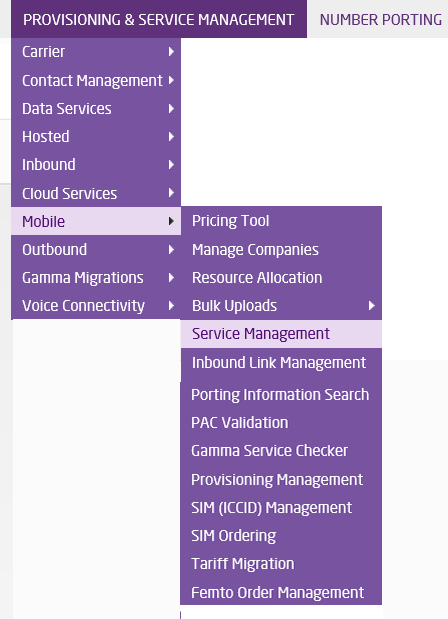
Go to Provisioning and Service Management and select Mobile > Service Management.
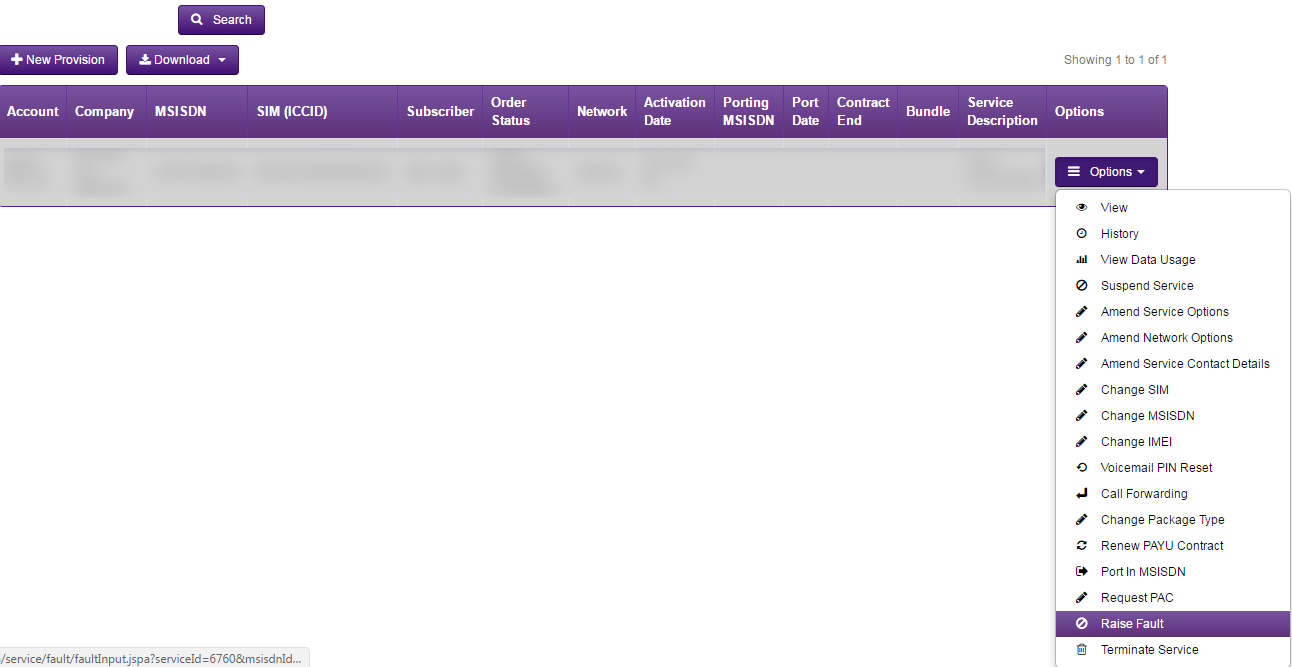
Step 2
Then use the search functions to locate the affected number, use the options tab and select ‘Raise Fault’.
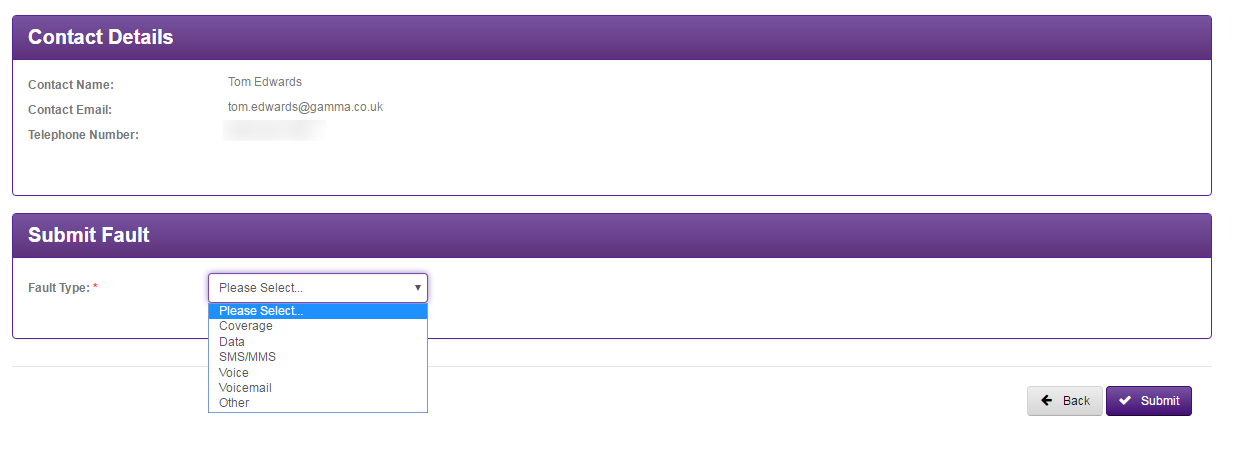
Step 3
Now you will be able to select the fault type you are currently experiencing.
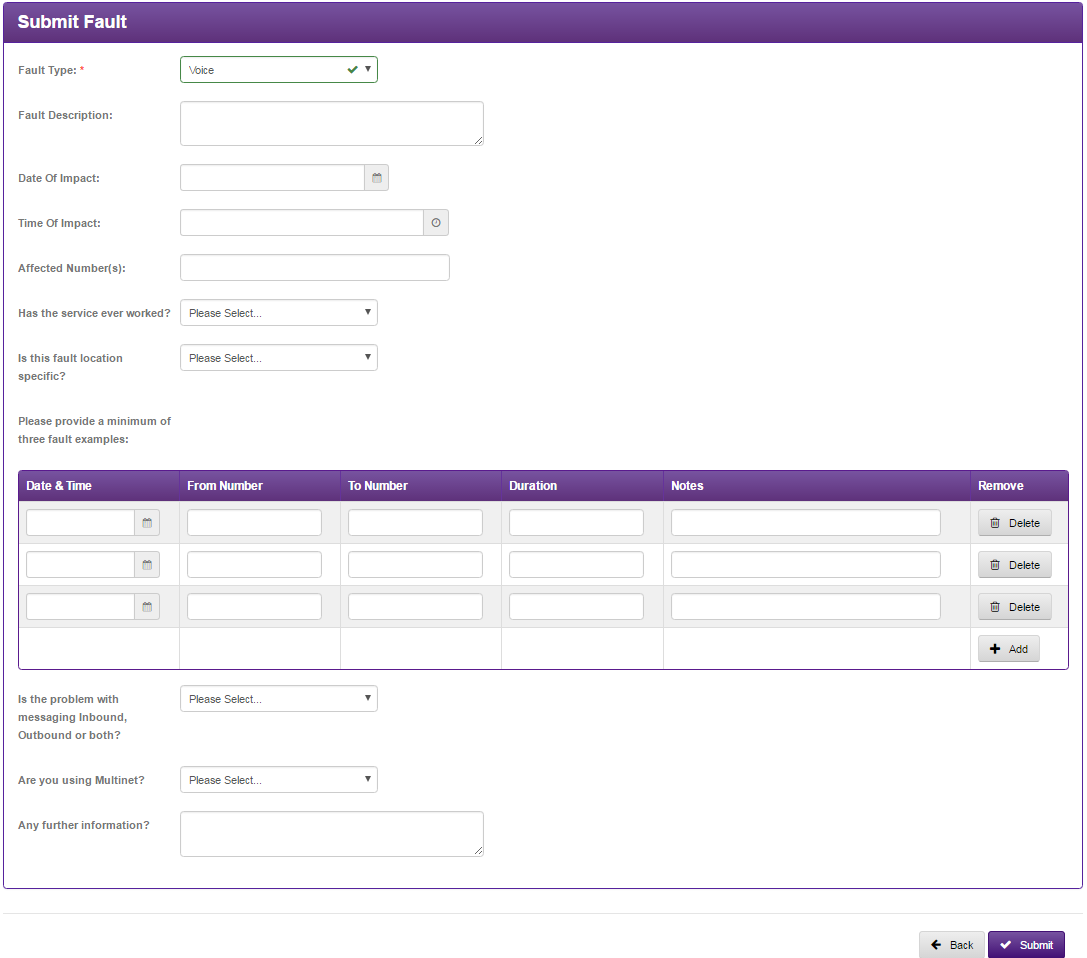
Step 4
After selecting the fault type you will have some information to fill in. Please note this information is to help the support desk fix the fault as quick as possible so the more information you can provide the better.
Please note where we ask for examples these are mandatory and we will need a minimum of 3.
Step 5
After filling in all the detail in the form click the submit button. You will then be taken to the final page where you will be given your support call ref and some further information.