It is the responsibility of the Channel Partner to set up and amend details for Companies.
How to Add a Company to your Partner Account #
Each phone service must be set up under a company, so without companies, you cannot set up any phone services.
Law Enforcement Agencies (LEAs) use this information. It is vitally Important that the information you provide is accurate and kept up to date for this reason.
Step 1
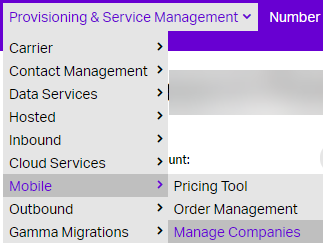
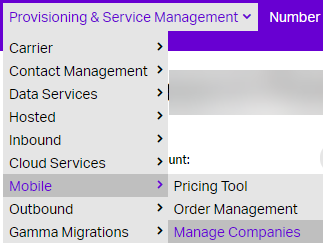
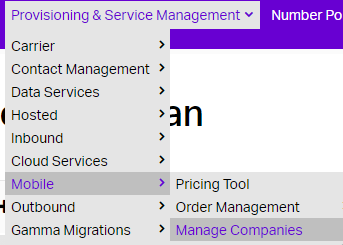
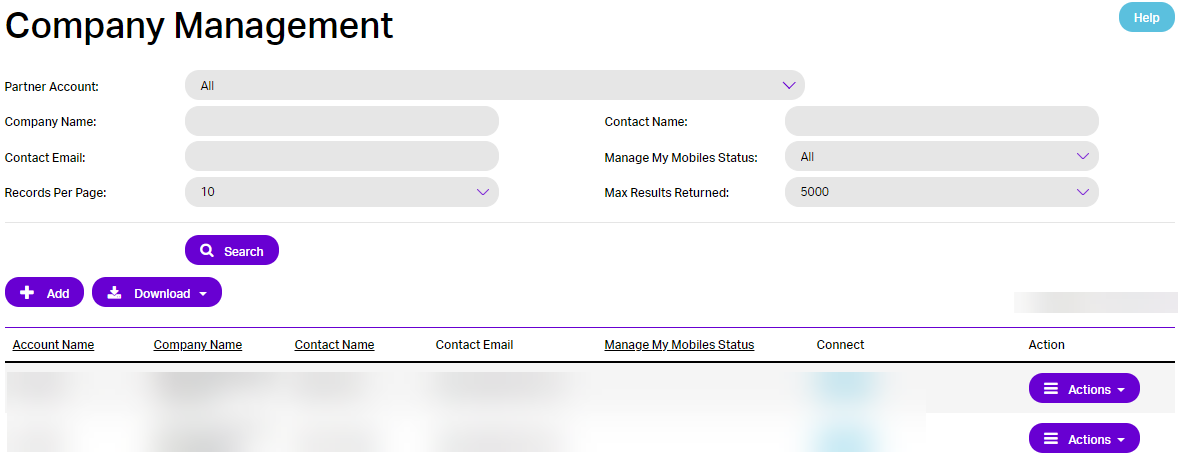
From the Gamma Portal, select Provisioning & Service Management > Mobile > Manage Companies.
Step 2
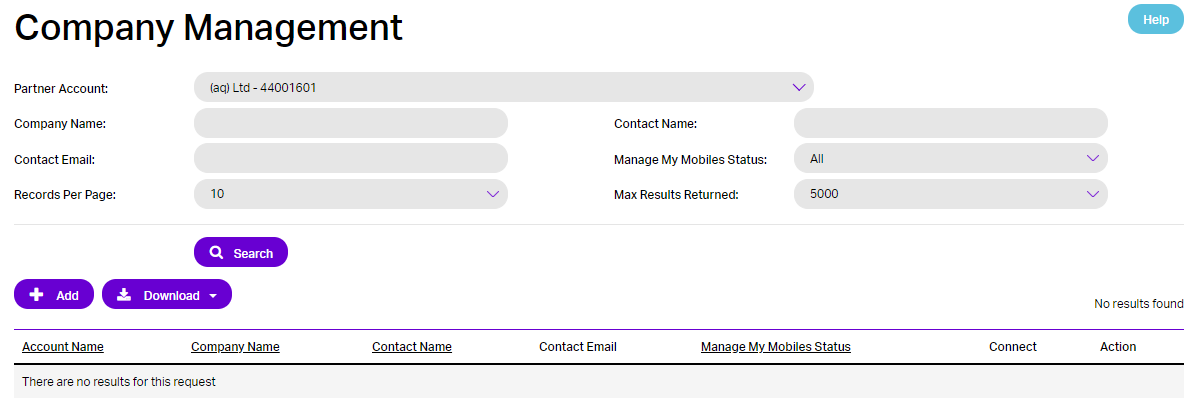
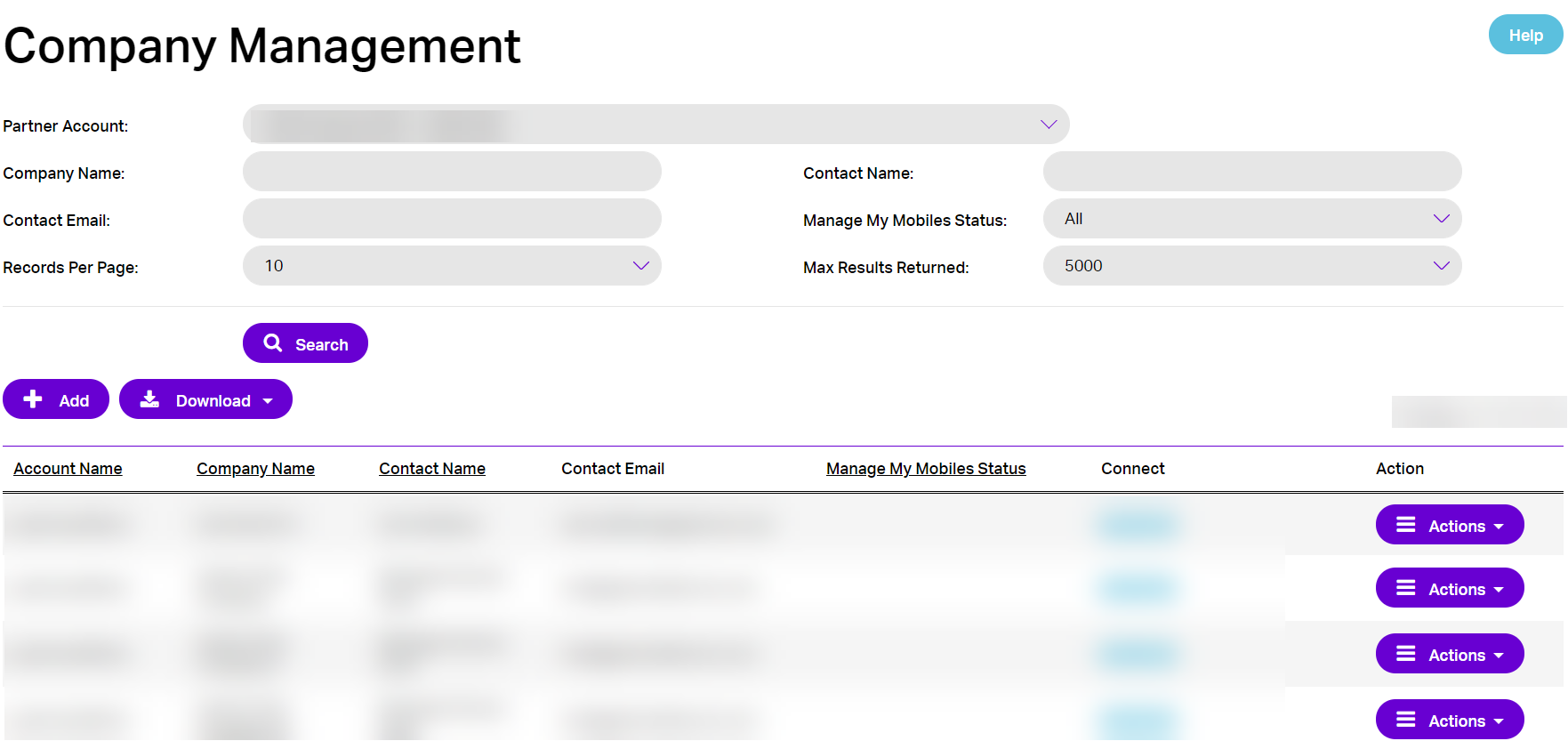
You will see a purple button saying “Add” just under the search button, click this to add a new company to your account.
Step 3
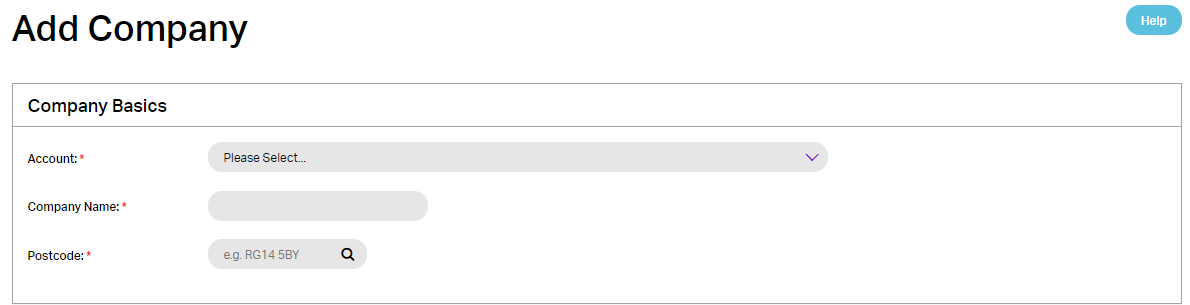
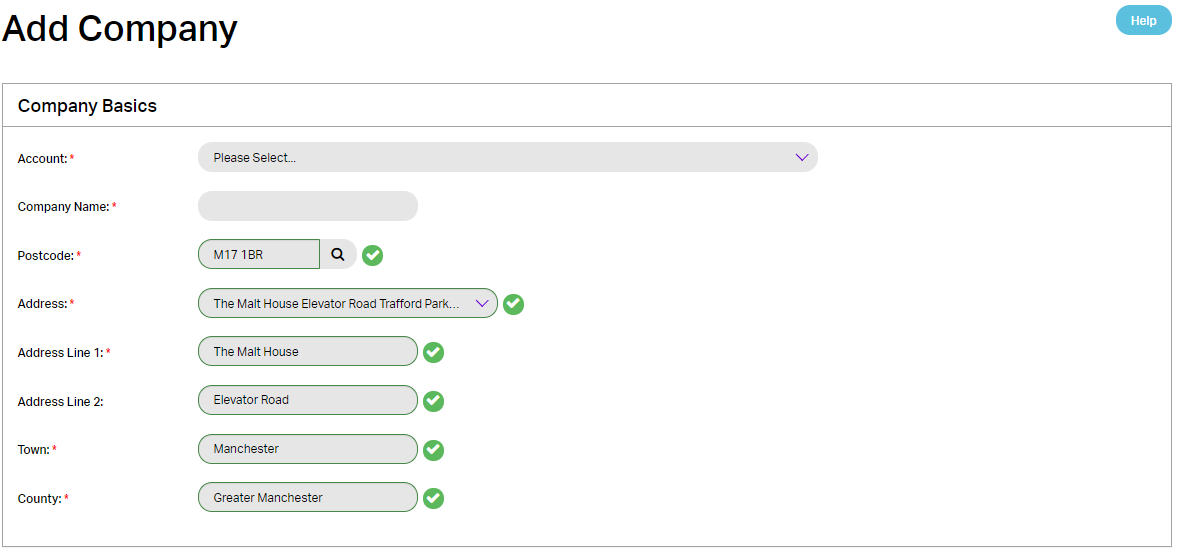
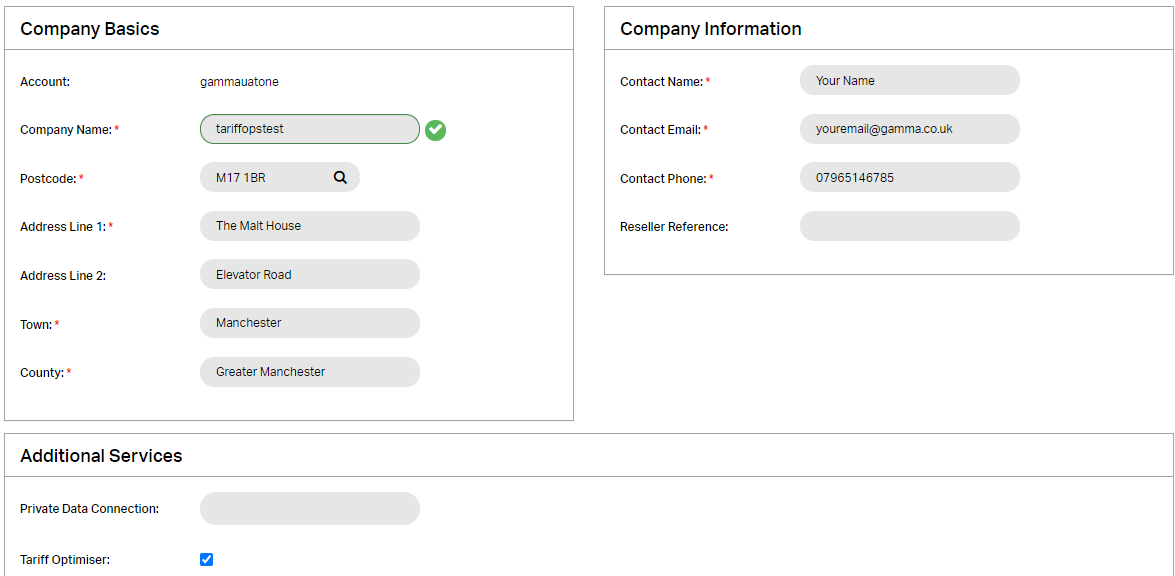
You will then be taken to an “Add Company” page. Here you can enter the Account you wish to add the company to, the Company Name and the Postcode.
Step 4
Once you have entered the postcode click the magnifying glass next to this to bring up further address details.
Step 5
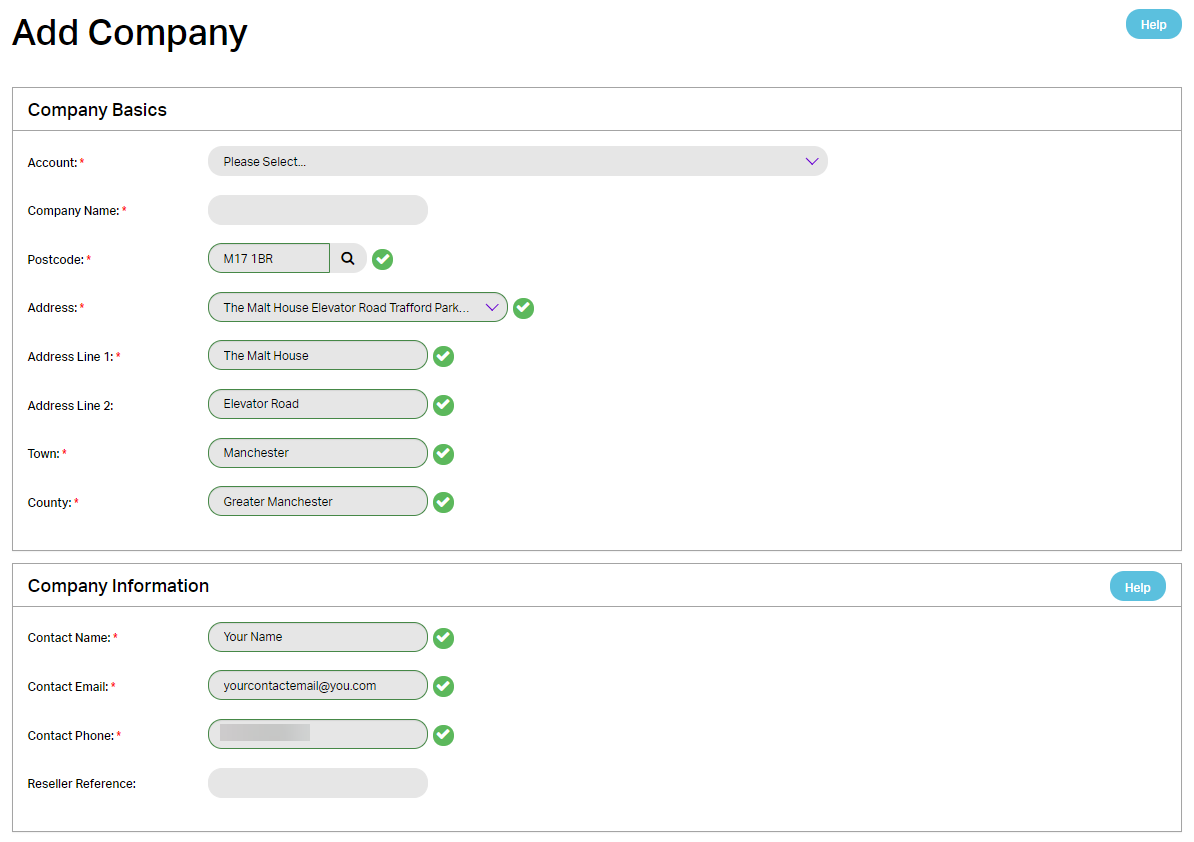
Once you have entered the address details, Enter the Contact information for this company including the Reseller Reference, then click ‘Submit’.
Step 6
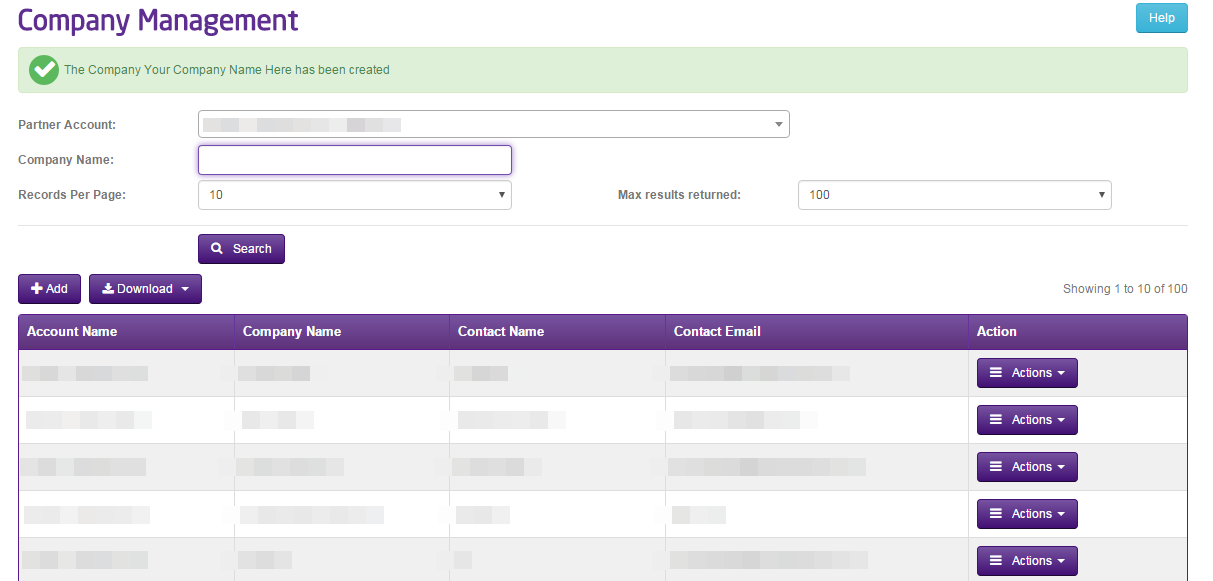
You will then be returned to the Company Management page you will see a green banner to confirm that your account has been created.
Amend Company #
How to amend your company
Step 1
From the Gamma Portal, Provisioning & Service Management > Mobile > Manage Companies.
Step 2
Select the Partner Account you require and search.
Step 3
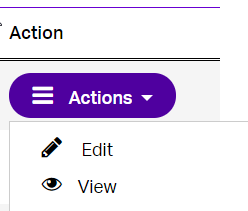
Select “Edit” from the drop-down “Action” menu on the right-hand side.
Step 4
To amend the company details, check the company details displayed and make the required changes.
Step 5
To make changes to the company click ‘Submit’.
Delete Company #
The company can only be deleted if it contains no active Mobile Number(s).
How to Delete a Company #
Step 1
From the Gamma Portal, Provisioning & Service Management > Mobile > Manage Companies.
Step 2
Select the Partner Account you require and search.
Step 3
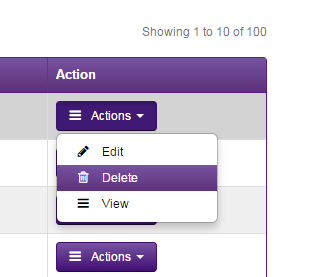
Select “Delete” from the drop-down “Action” menu on the right-hand side.
Step 4
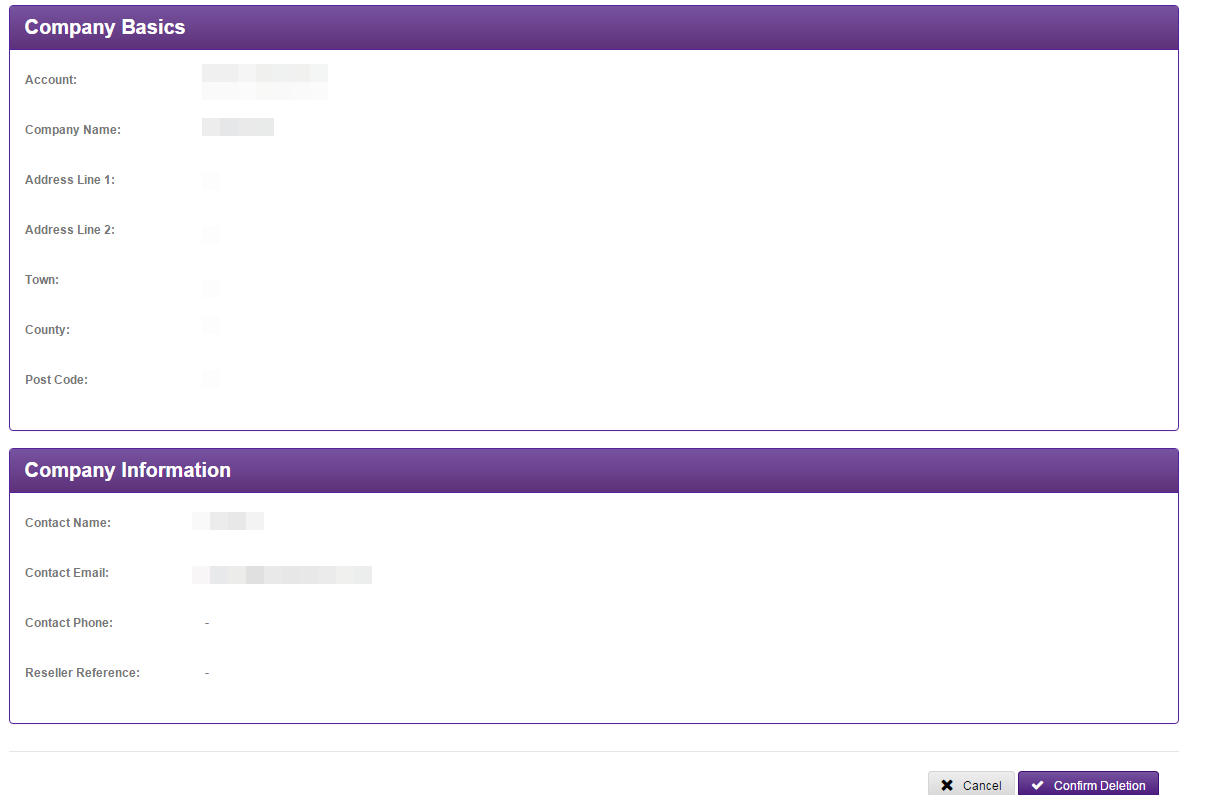
To delete the company, check the company details displayed to make sure they are correct.
Step 5
To delete the company, click ‘Confirm Deletion’.