
This process flow will show the steps you need to take to set an existing company up with the Manage My Mobiles portal.
We have a support video on the Academy that will show you step by step on how to set up Manage My Mobiles, this video is found in the Mobile Provisioning course. We would recommend that you complete the Mobile Beginner course and watch the previous Mobile Provisioning Beginner videos prior to watching this one.
This support guide will talk you through step by step on how to provision this website for your customer, for a new mobile company and also and existing one too. We will also cover what the key differences are between the Manager and Reporter users within Manage My Mobiles.
Please Note: Manage My Mobiles will only work if the users are on the new Gamma tariffs
Step 1
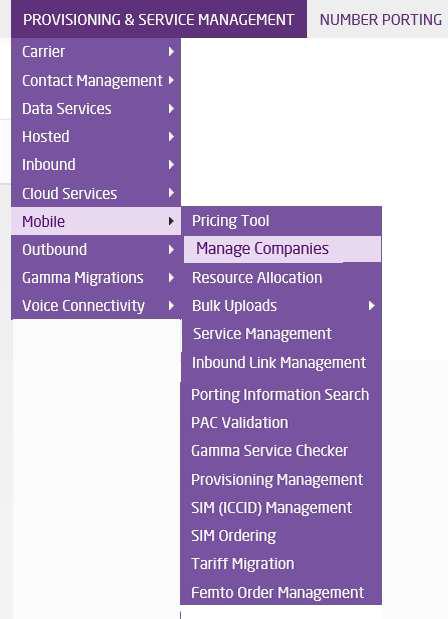
You will need to go to the Company management section within Mobile.

Step 2
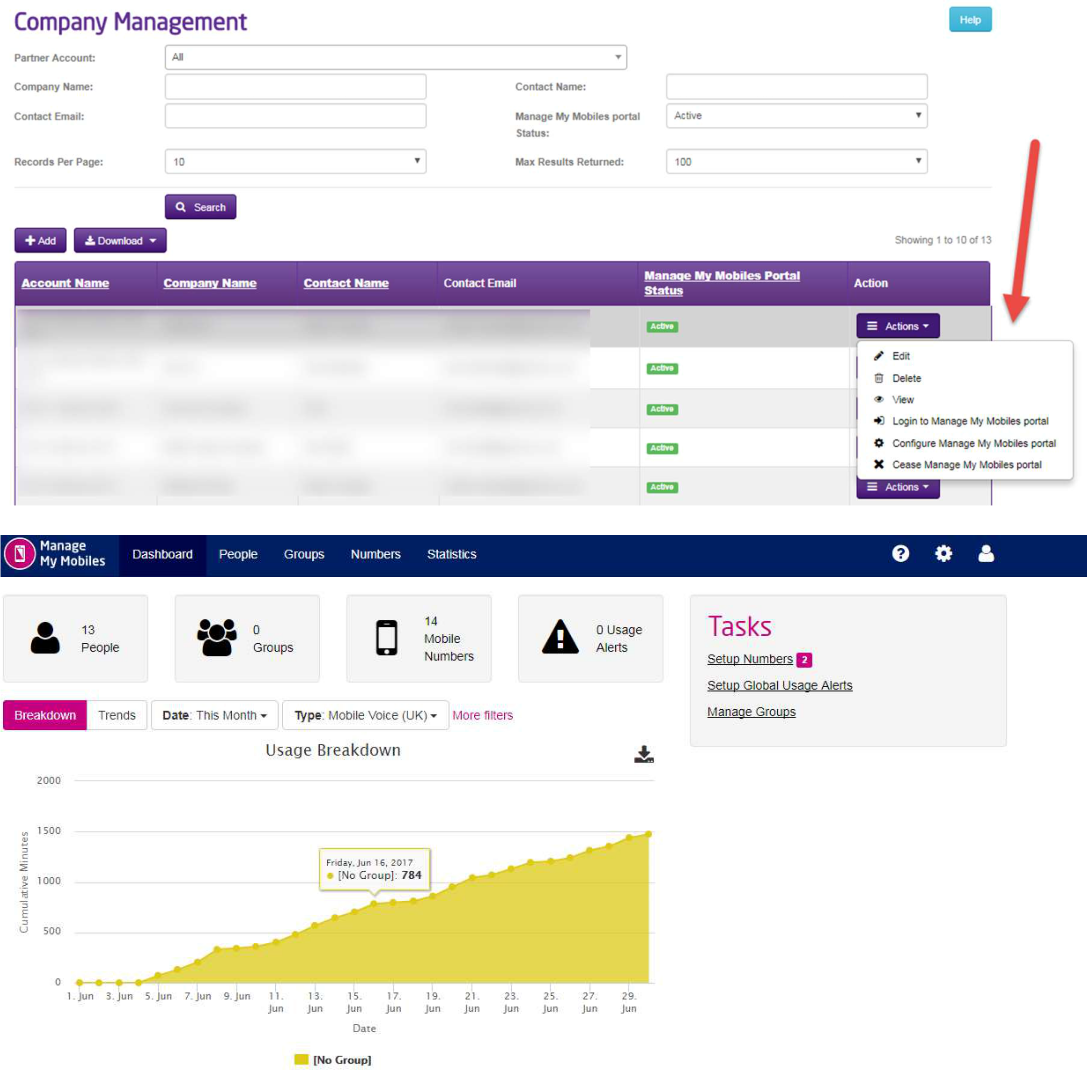
Use the search fields to locate the company you want to add the Manage My Mobiles portal too.
Once you have located the company use the actions tab to select + Add Manage My Mobiles.

Step 3
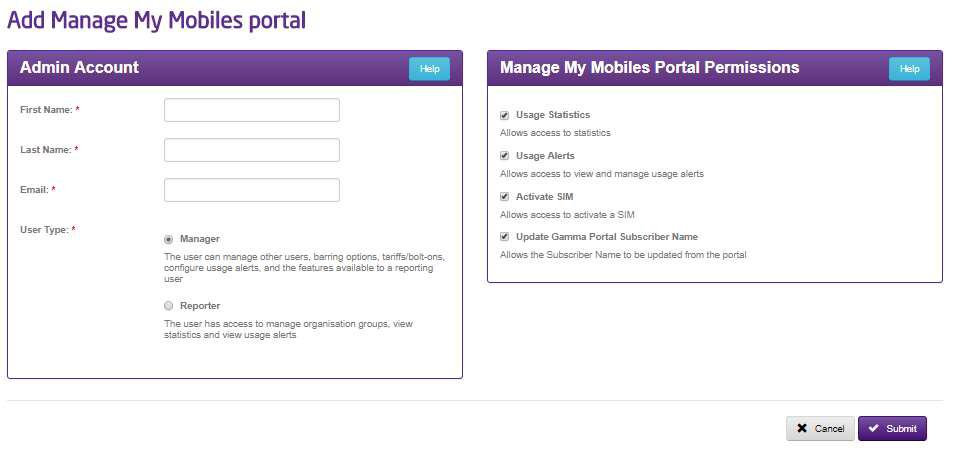
The next page requires you to enter the customer admin (first user) of the Manage My Mobiles portal. Please select the relevant user type required Manager or Reporter. You can see from the permission box what the different user types will have access too.
Step 4
Please note that if the company doesn’t have at least one Mobile Number assigned to the company you won’t be able to access the Manage My Mobiles portal. Please read the terms and conditions and click continue.

Step 5
The accounts can take upto 24hrs to create and you may notice that the Manage My portal status shows as Setup pending. Once the order for the Manage my mobiles account has been completed you will see the below confirmation email.
Step 6
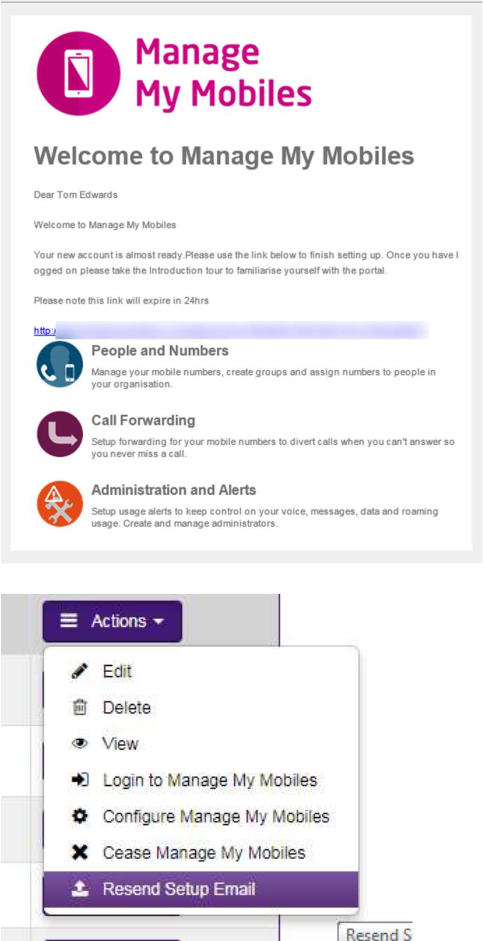
Once activated your customer will receive an email with a link that they need to click on to register to the Manage My Mobiles portal.
Email your customer will receive, to resend this use the actions tab on the relevant company and click resend.

Step 8
If you click to login to the Manage My Mobiles Portal you will be directed to a new window in your browser and you will taken to the Manage My Mobiles landing page. Please note you may not see data populated in the graph when you first login as this will need to build after users have been added.
Step 9
On clicking the link on the invite email your end user will be directed to the sign up page (shown below). On this page, the admin must enter a username and create a password. The password should include one lowercase letter, one uppercase letter, one number, one special character and be at least 8 characters in length. On this page the user must also use the tick box to agree to the use of analytics, then click continue.

Step 10
The next page you will be taken to is the Communications page. On this page you must update and confirm what notifications you would like to receive and how you would like to receive them. Once the choices have been selected and the relevant information entered, click continue. Alternatively you can skip this option and update these details later. Similarly, should you need to make a change on the previous page, click “back”.

Once you have entered all of your details at your request, click continue and you will be taken to the Setup Complete page.
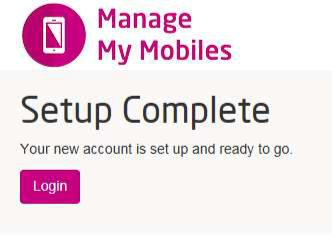
From this page you can click the button to login to your Manage My Mobiles Portal.