How to Suspend a Service #
Step 1
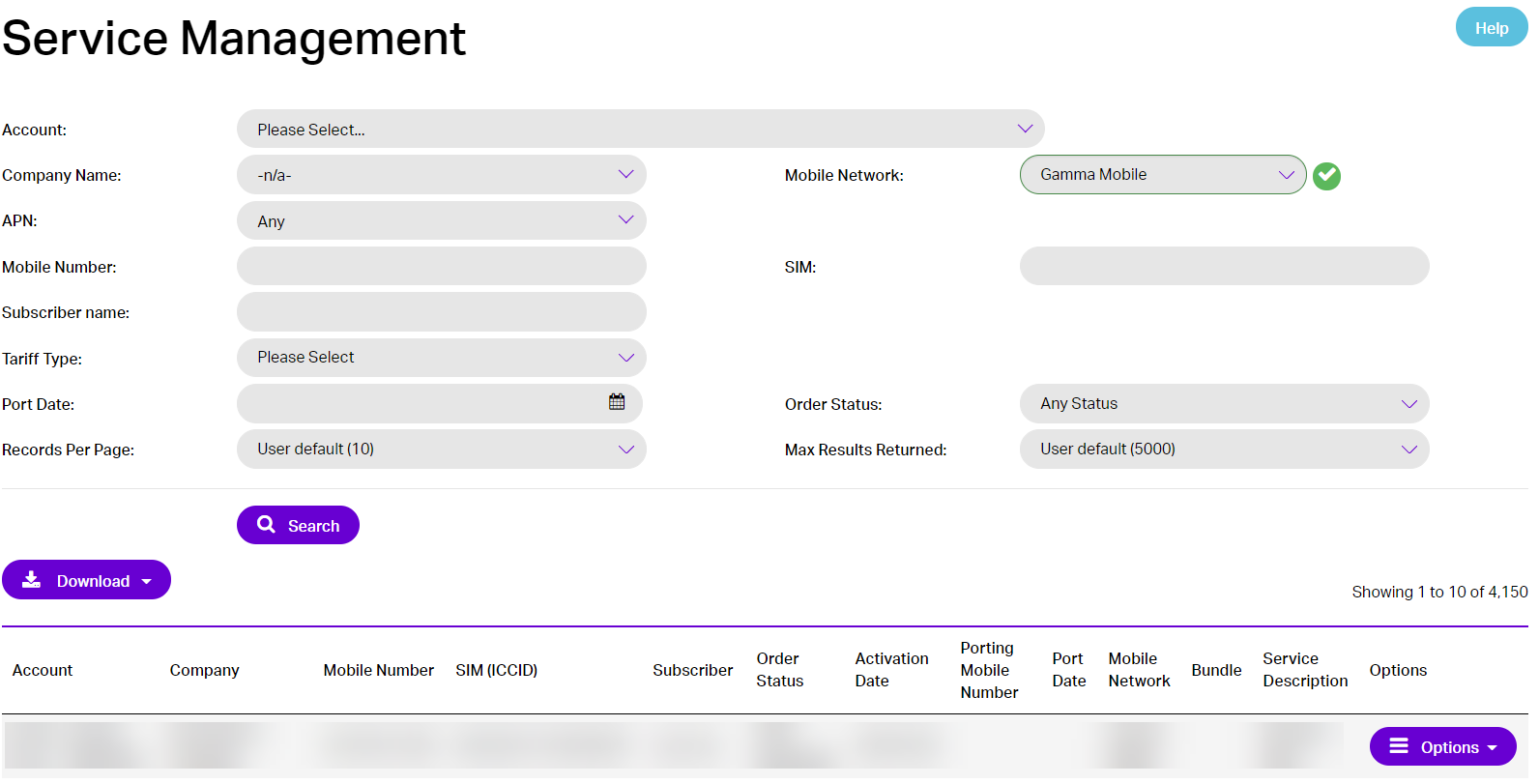
From the Gamma Portal go to Provisioning & Service Management >> Mobile >> Live Service Management.
Step 2
Select the Partner Account and search for the Mobile Number(s).

Step 3
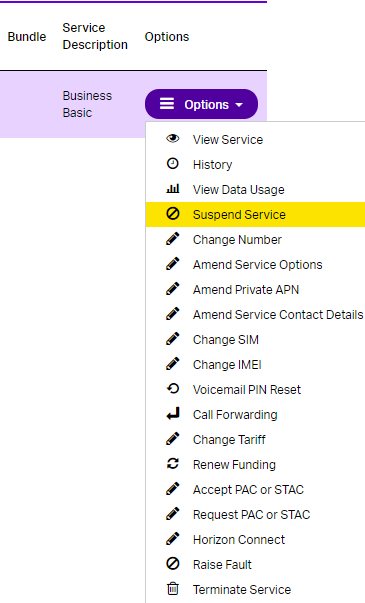
Select “Suspend Service” from the drop down “Options” menu next to the Mobile Number(s).
Step 4
To suspend the service, Check the details displayed on the Suspend Service page and click ‘Submit’.
The phone service will be suspended and the customer will not be able to use their Gamma SIM card.
Only tick the ‘Blacklist Handset’ option if the handset and SIM have been stolen. If the customer has lost their handset DO NOT select this option
Resume a Service #
From the Gamma Portal go to Provisioning & Service Management >> Mobile >> Live Service Management.
Step 2
Select the Partner Account and search for the Mobile Number(s).
Step 3
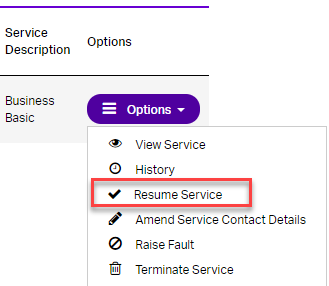
Select “Resume Service” from the drop down “Options” menu next to the Mobile Number(s).
Step 4
To resume the service, check the details displayed on the Resume Service page and click ‘Submit’.
The phone service will be reactivated, and the customer will have service using the original Gamma SIM card
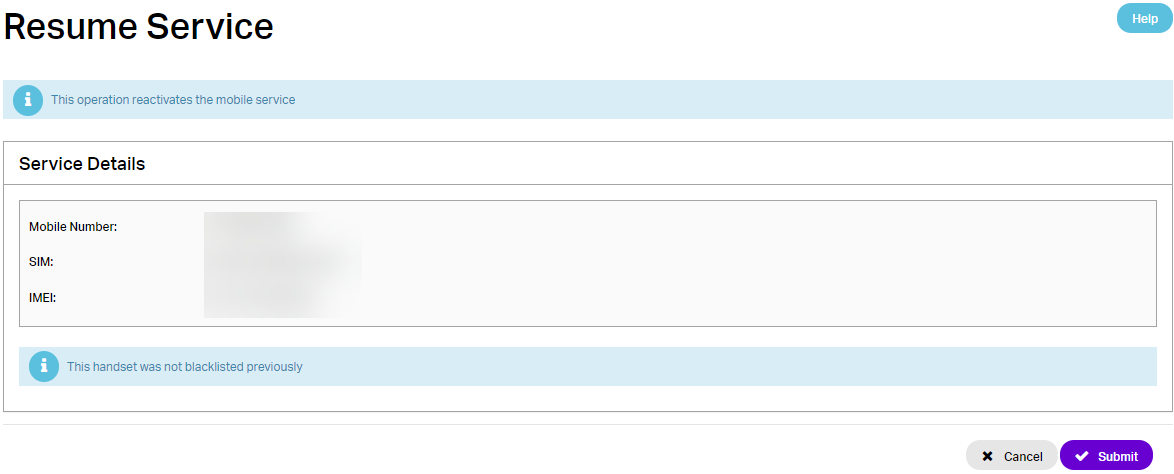
They may need to restart their handset or action a manual roam (iPhone – airplane mode)
Amend the Phone Service #
Step 1
From the Gamma Portal go to Provisioning & Service Management >> Mobile >> Live Service Management.
Step 2
Select the Partner Account and search for the Mobile Number(s).
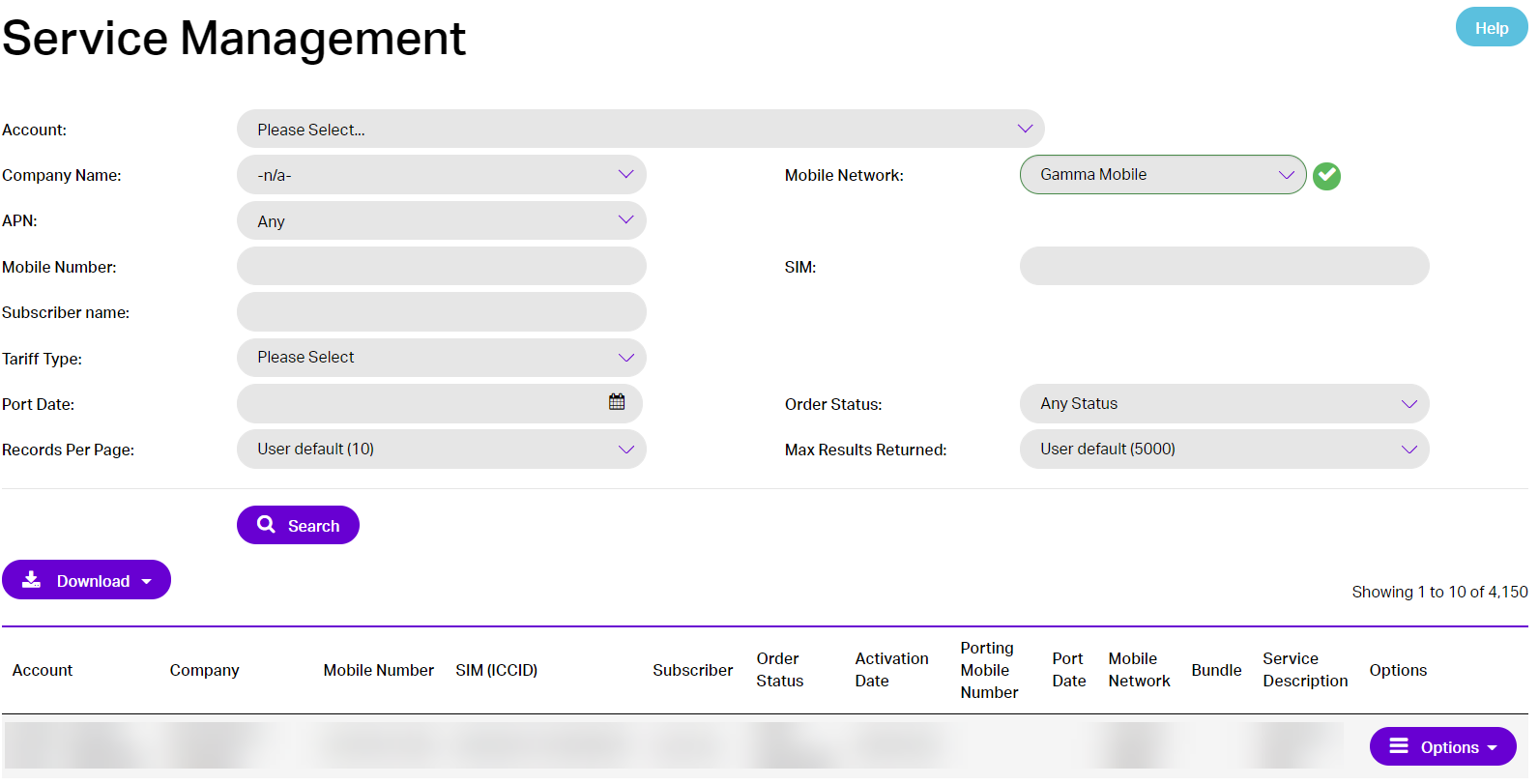
Step 3
Select “Amend Service Options” from the drop-down “Options” menu next to the Mobile Number(s).
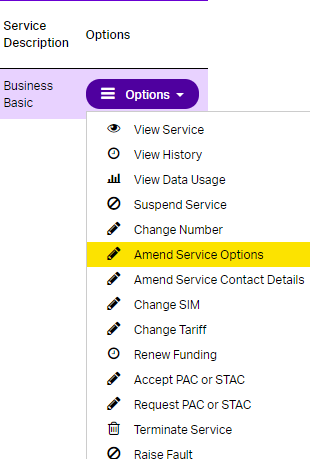
Step 4
To amend mobile services, use the tick boxes and drop downs to add additional services and click ‘Submit’.
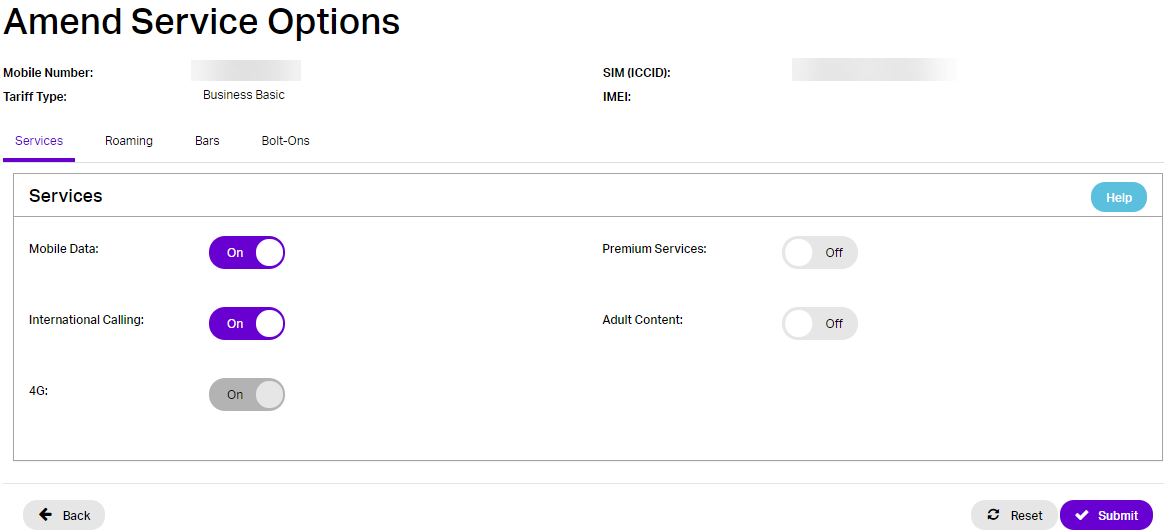
For International Roaming please ensure this is carried out 24hrs before the subscriber intends to travel abroad.
Amending Service Contact Details #
Step 1
From the Gamma Portal go to Provisioning & Service Management >> Mobile >> Live Service Management.
Step 2
Select the Partner Account and search for the Mobile Number(s).
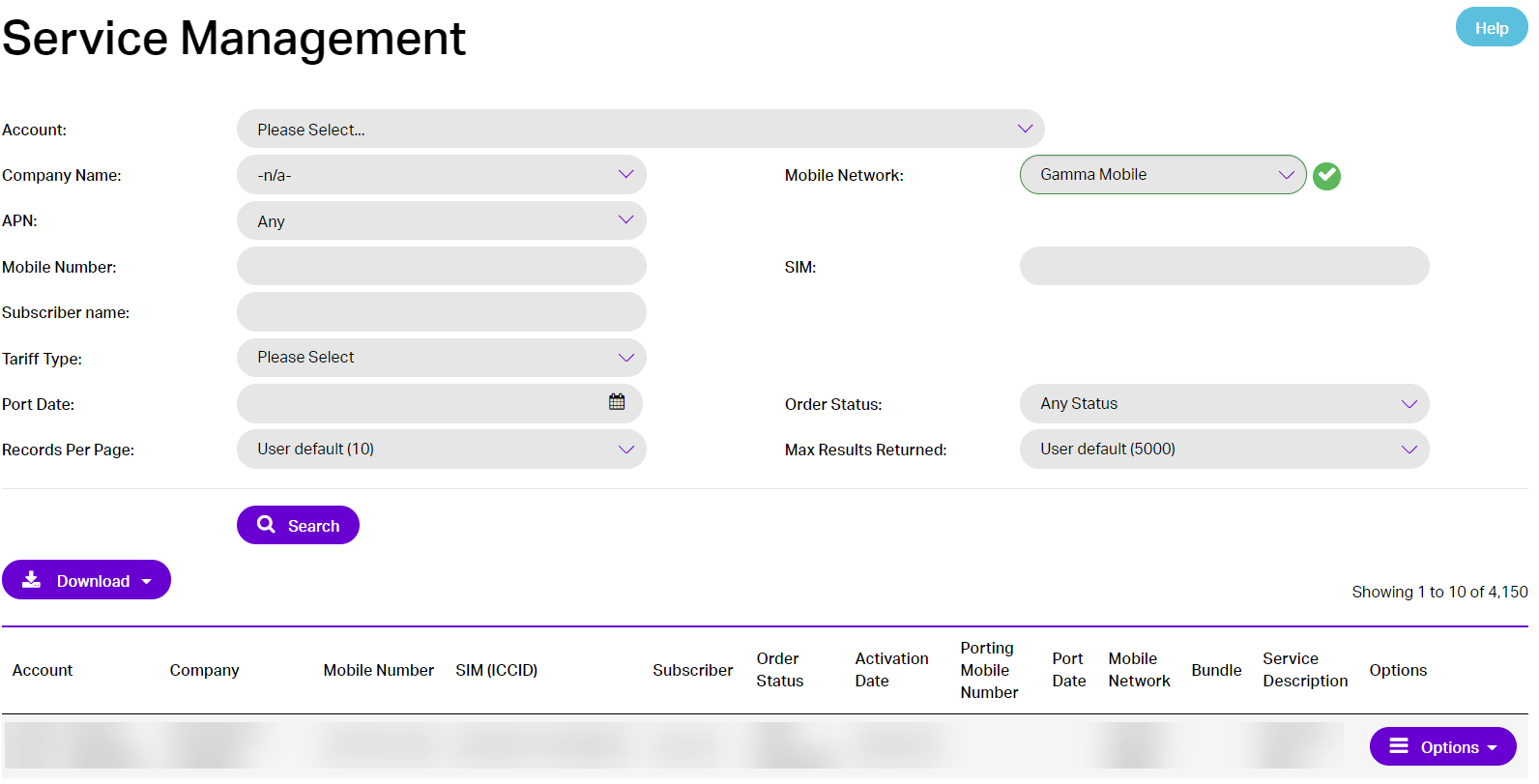
Step 3
Select “Amend Service Contact Details” from the drop-down “Options” menu next to the Mobile Number(s)
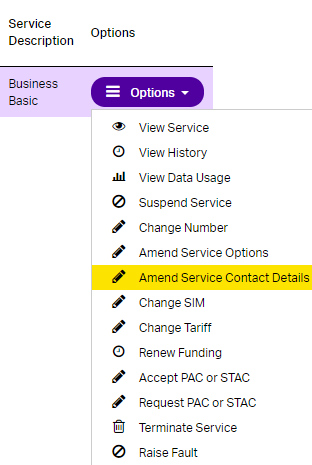
Step 4
To amend service contact details, check the details and update information as required and click ‘Submit’.
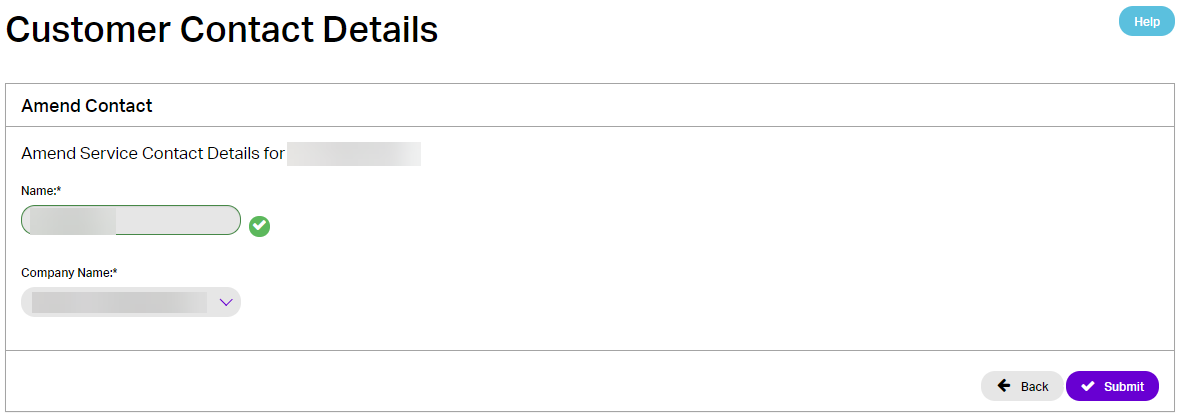
It is important that the details entered are for the current user as these are used for Emergency Services
To Change SIM #
Step 1
From the Gamma Portal go to Provisioning & Service Management >> Mobile >> Live Service Management.
Step 2
Select the Partner Account and search for the Mobile Number(s).
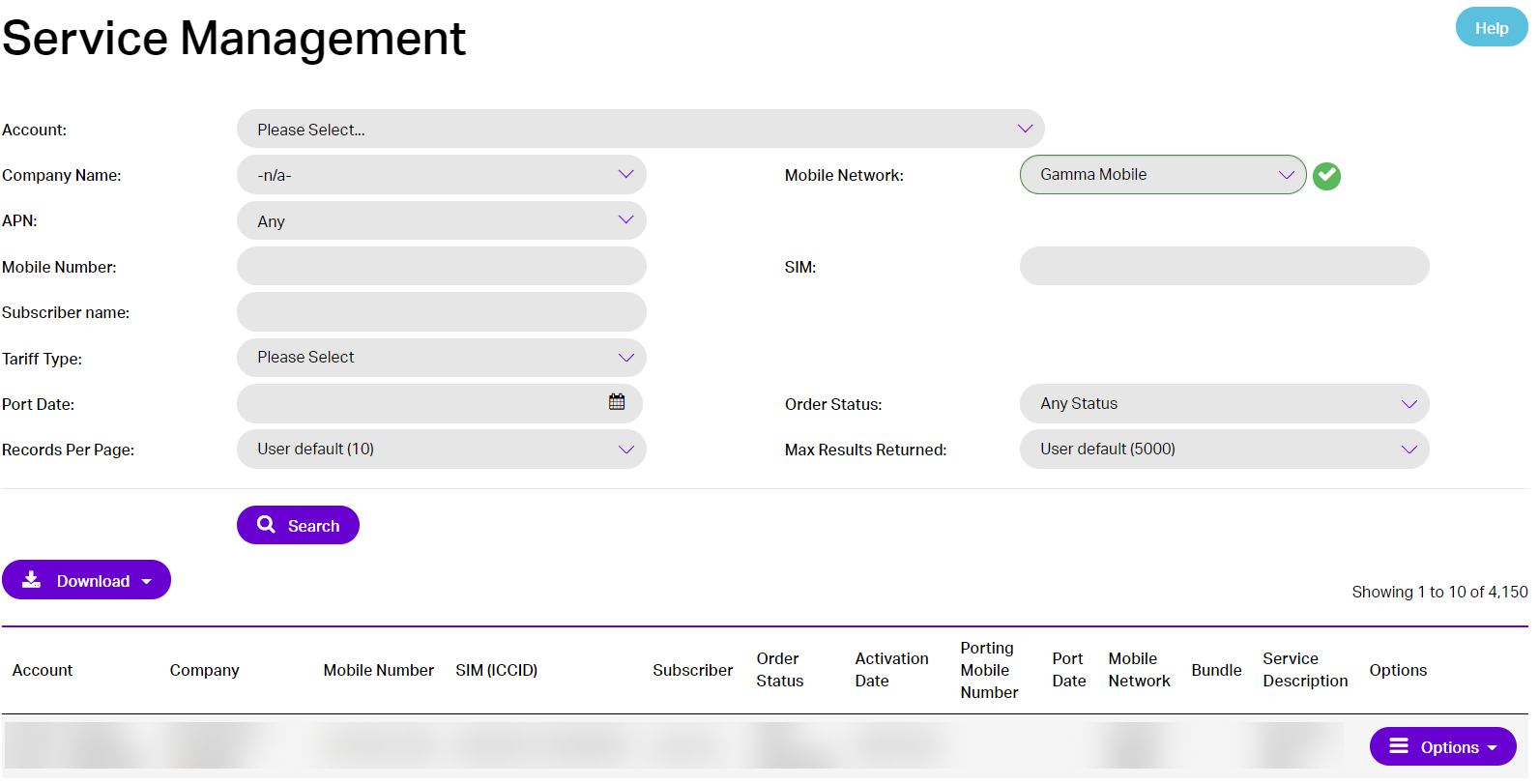
Step 3
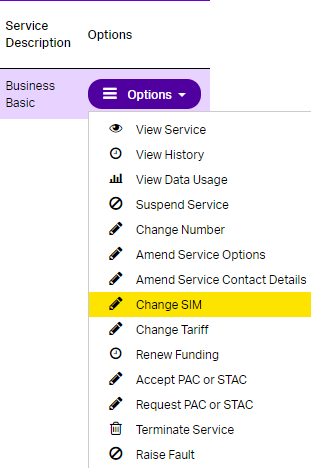
Select “Change SIM” from the drop-down “Options” menu next to the Mobile Number(s).
Step 4
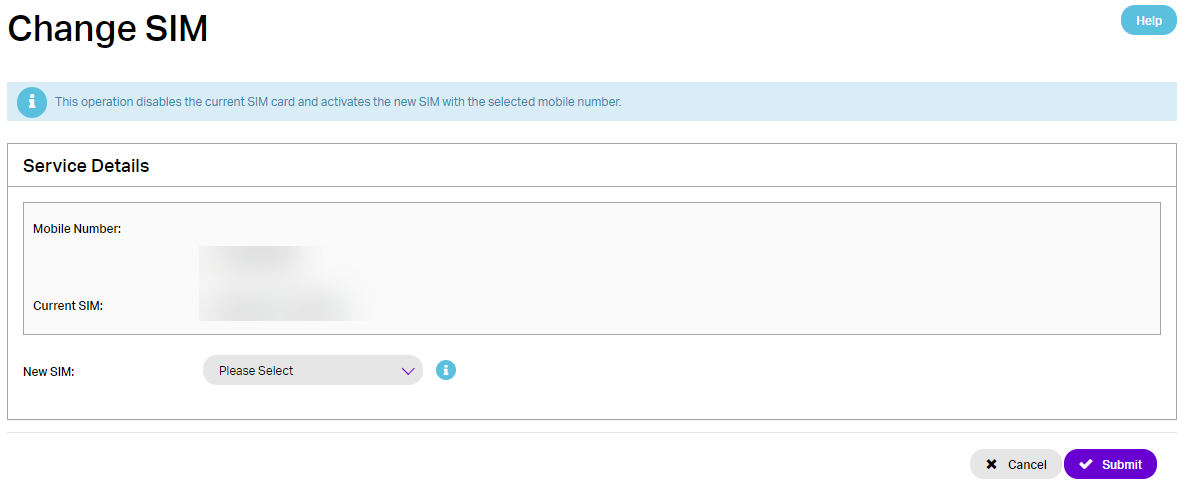
To change the SIM, check the details and select the new SIM from the drop-down and click ‘Submit’.
To Change Mobile Number #
Step 1
From the Gamma Portal go to Provisioning & Service Management >> Mobile >> Live Service Management.
Step 2
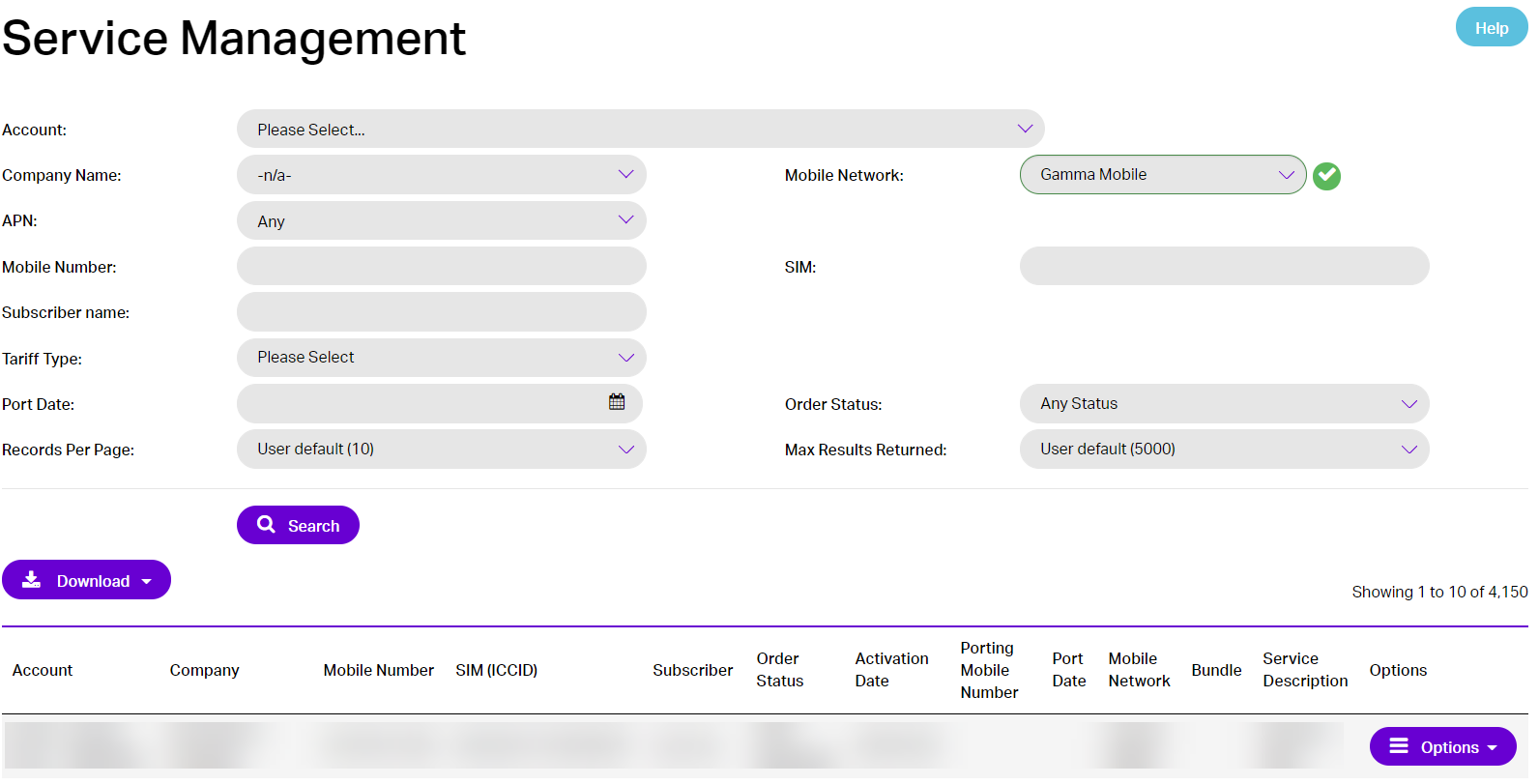
Select the Partner Account and search for the Mobile Number(s).
Step 3
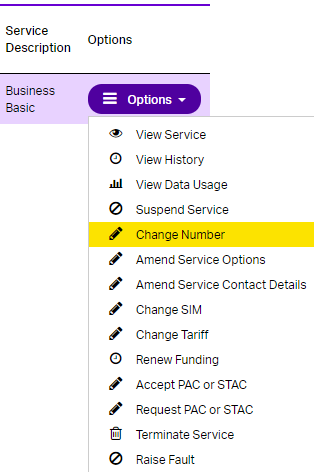
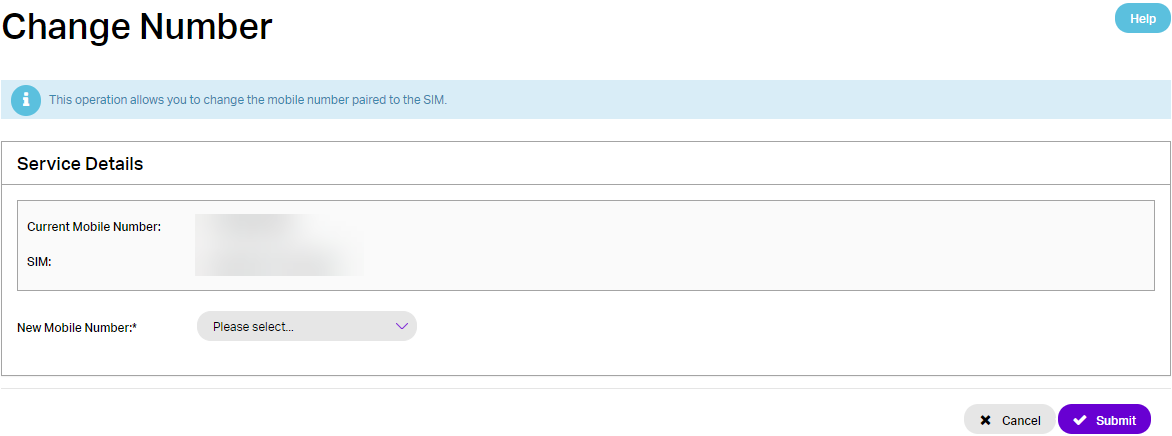
Select “Change Number” from the drop-down “Options” menu next to the Mobile Number.
Step 4
To change the Mobile Number(s), check the details and select the mobile number. Update information as required and click ‘Submit
The original mobile number will be quarantined and is not available for 6 months. The new mobile number will now be paired with the SIM card.
Voicemail Details #
The voicemail service is set up automatically when a SIM card is activated, it is not possible to turn off voicemail. The first time the voicemail platform is accessed users will be required to set up a PIN and add a name recording. The voicemail service is unbranded.
Accessing voicemail #
Calls to voicemail from Gamma mobiles can be made using the using the short code 121 or the long number +447782333123. A voicemail contact is saved to the Gamma SIM contacts.
Additionally, voicemail can be access from any other device by calling +447782333123 and following the instruction to provide the mobile number and PIN.
Voicemail PIN #
Voicemail PIN need to be between 4 and 10 digits.
Partners can request for Voicemail PIN’s to be reset by calling Gamma customer services on 0800 178800. Voicemail PINs will be reset to the default PIN 1212, the Gamma customer service team will update you when the PIN has been reset. This will be within 1 hour of the request been submitted to Three by the Gamma support team.
Port Out Mobile Number(s) (Request PAC or STAC) #
When one of your users wishes to leave, you can supply them with a PAC or STAC using the following process.
Step 1
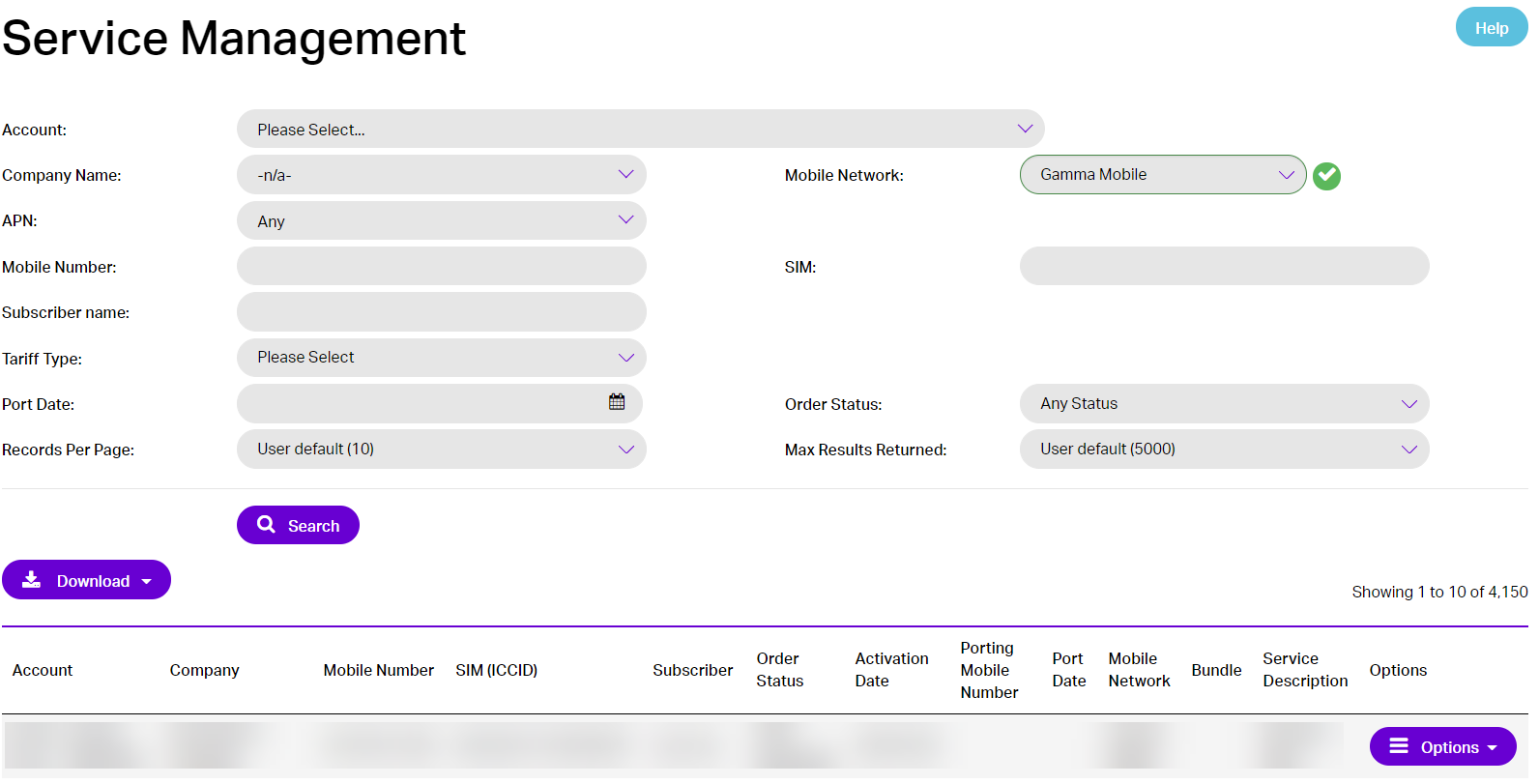
From the Gamma Portal go to Provisioning & Service Management >> Mobile >> Live Service Management.
Step 2
Select the Partner Account and search for the Mobile Number(s).
Step 3
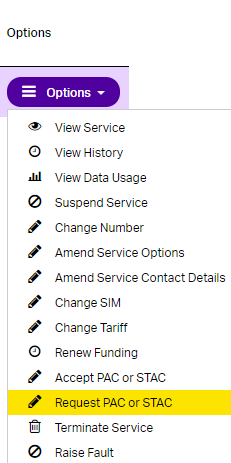
Select “Request PAC or STAC” from the drop-down “Options” menu next to the Mobile Number(s).
Step 4
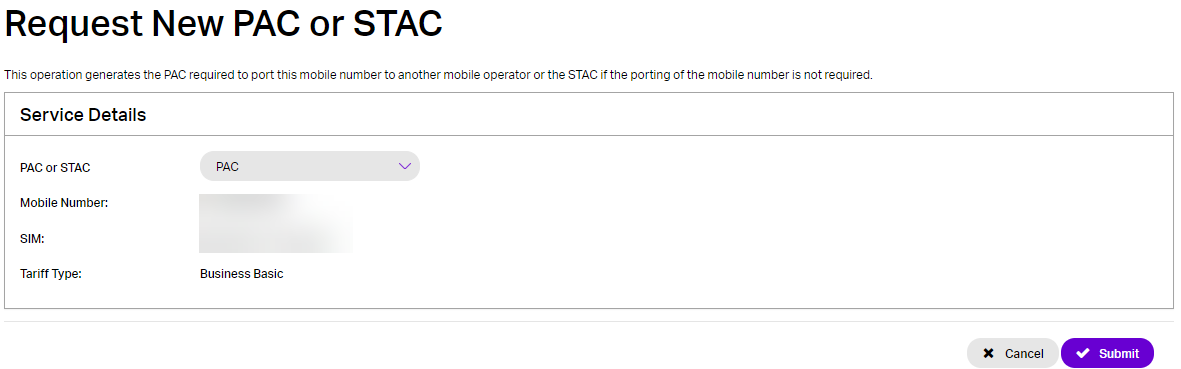
Select either PAC or STAC from the dropdown, check the rest of the details and click “Submit”. The requested PAC or STAC will be displayed on the screen.
You must not terminate the service. The system will automatically do this when the PAC or STAC is used by the receiving network.
The PAC or STAC will be valid for 30 days, if this is not used the Mobile Number(s) will stay on our network and return to an “Active” status
Terminate Service #
Step 1
From the Gamma Portal go to Provisioning & Service Management >> Mobile >> Live Service Management.
Step 2
Select the Partner Account and search for the Mobile Number(s).
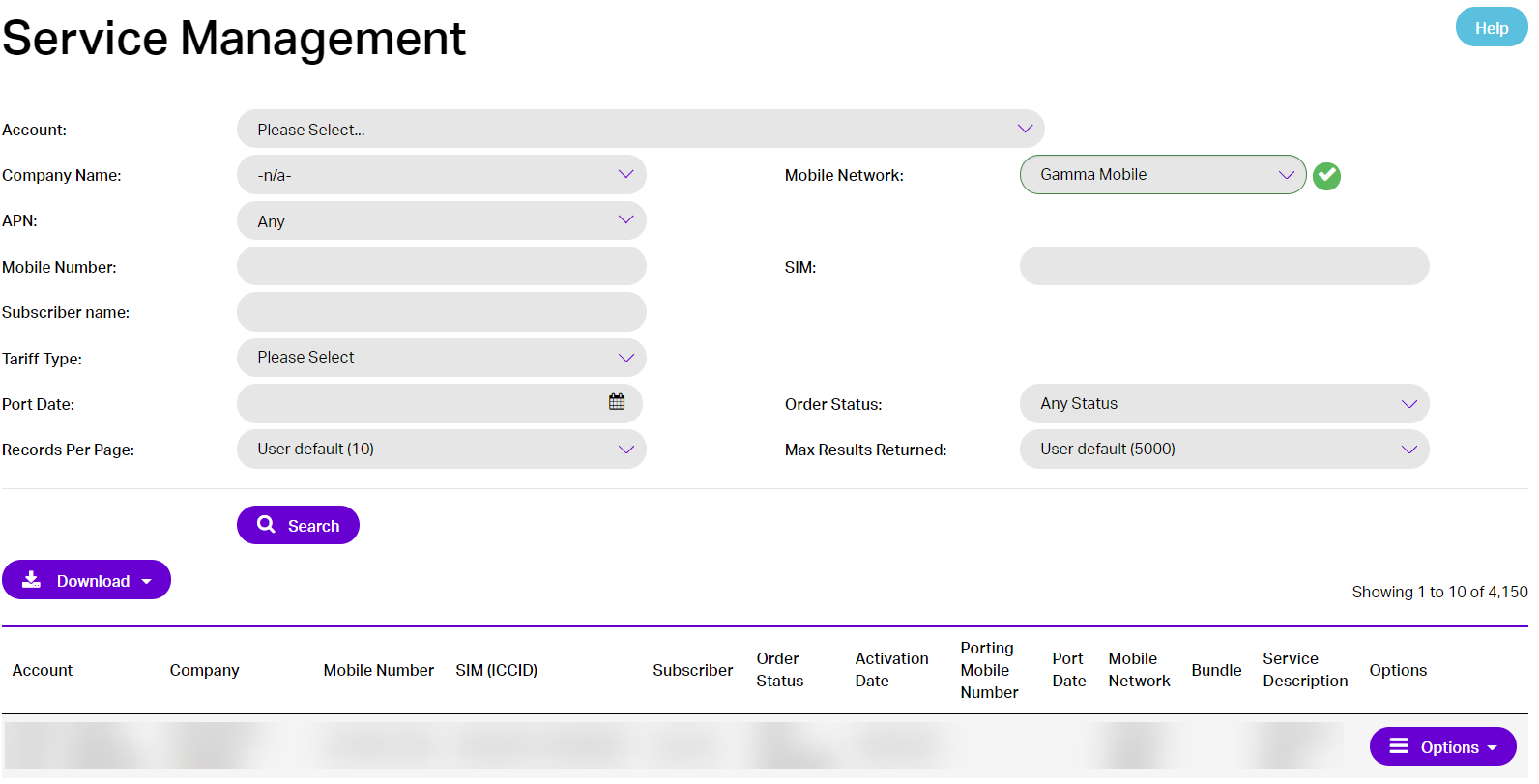
Step 3
Select “Terminate Service” from the drop-down “Options” menu next to the Mobile Number(s).
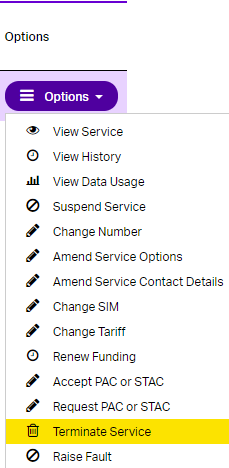
Step 4
To terminate service, check the details and click ‘Submit’.
Once you have done this the SIM card will be blocked and the Mobile Number(s) will be quarantined and can no longer be used
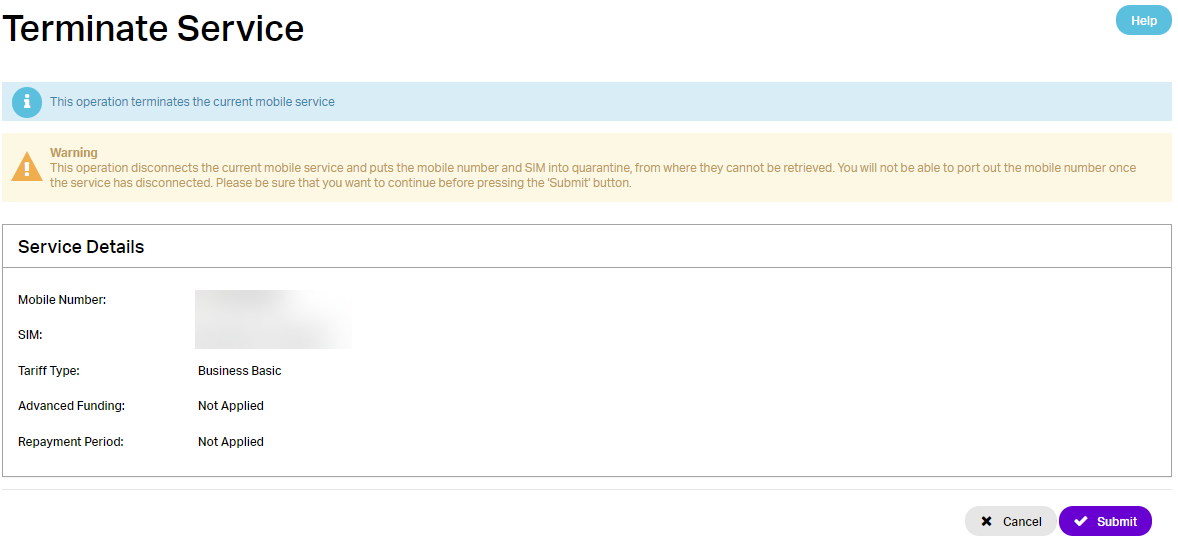
The service cannot be re-instated once it is ceased.
Send SMS – setup #
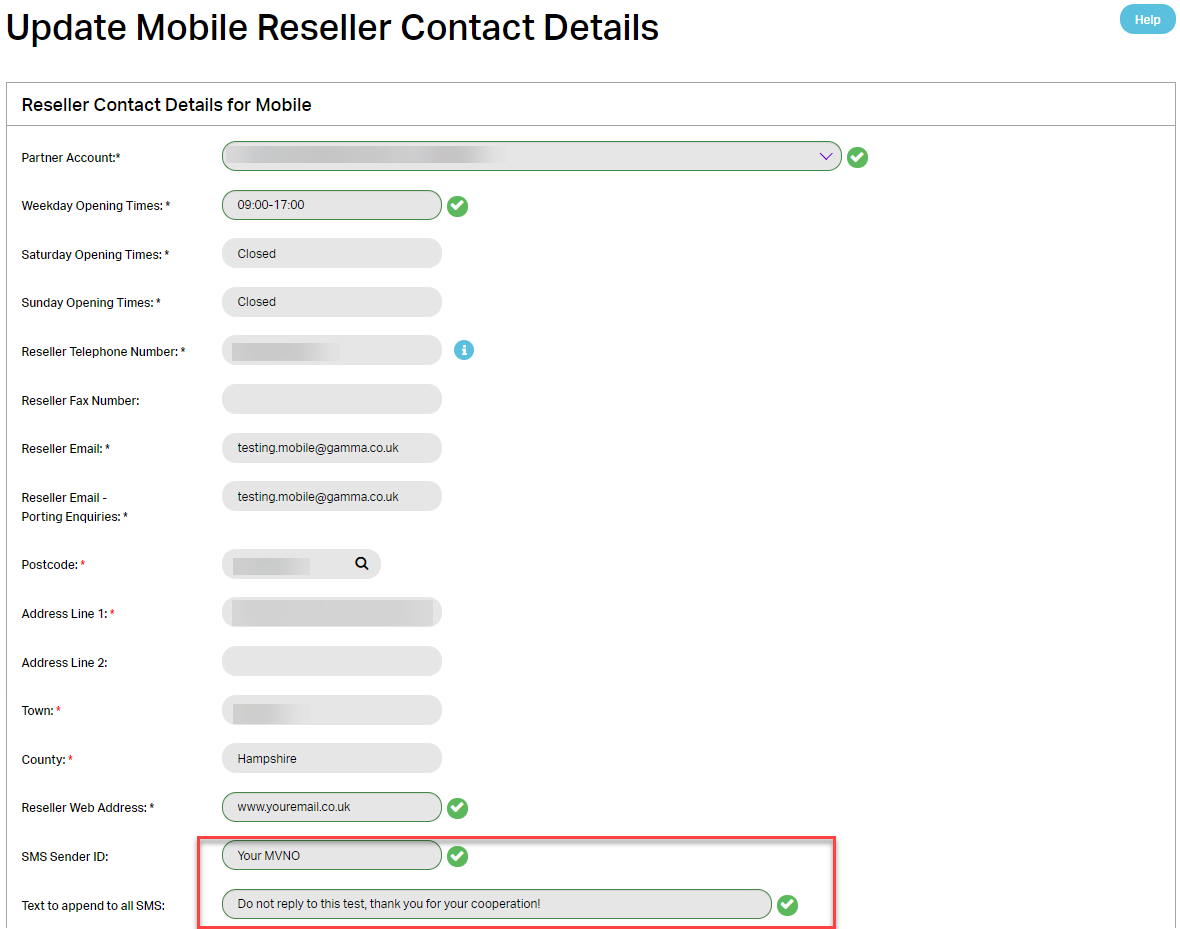
SMS messages can be defined and sent from the Gamma Portal to up to two of your Gamma mobiles services at a time. Some default fields need to be set up in the following screen
Provisioning & Service Management >> Contact Management >> Mobile Reseller Contact
Step 1
Select Partner Account and the form will populate with the details already setup.
Step 2
Enter a value for “SMS Sender ID” – this field is a maximum of 11 characters and cannot be all numeric. The recipient of the SMS will see this value as the sender of the SMS but will not be able to reply.
Step 3
Enter a value for “Text to Append to All SMS” – this field is a maximum of 100 characters. As users will not be able to reply to SMS, it is suggested that this text gives your contact details.
Step 4
Click “Continue” to submit the changes to the Accounts contact details.
Send SMS #
Step 1
From the Gamma Portal go to Provisioning & Service Management >> Mobile >> Send SMS.
Step 2

Select Account, Customer and one or two mobile numbers that you wish to send the SMS to.
Step 3
Optionally you can amend the “Sender ID” field, unclick the “include appended text” field and amend the “Appended Text” field
Step 4
Enter the text that you wish to send to your user and click “submit”.
The text that is sent will not be stored on the Gamma Portal but a log that a SMS has been sent will be stored on the history of the Mobile Number.
Change Tariff #
Step 1
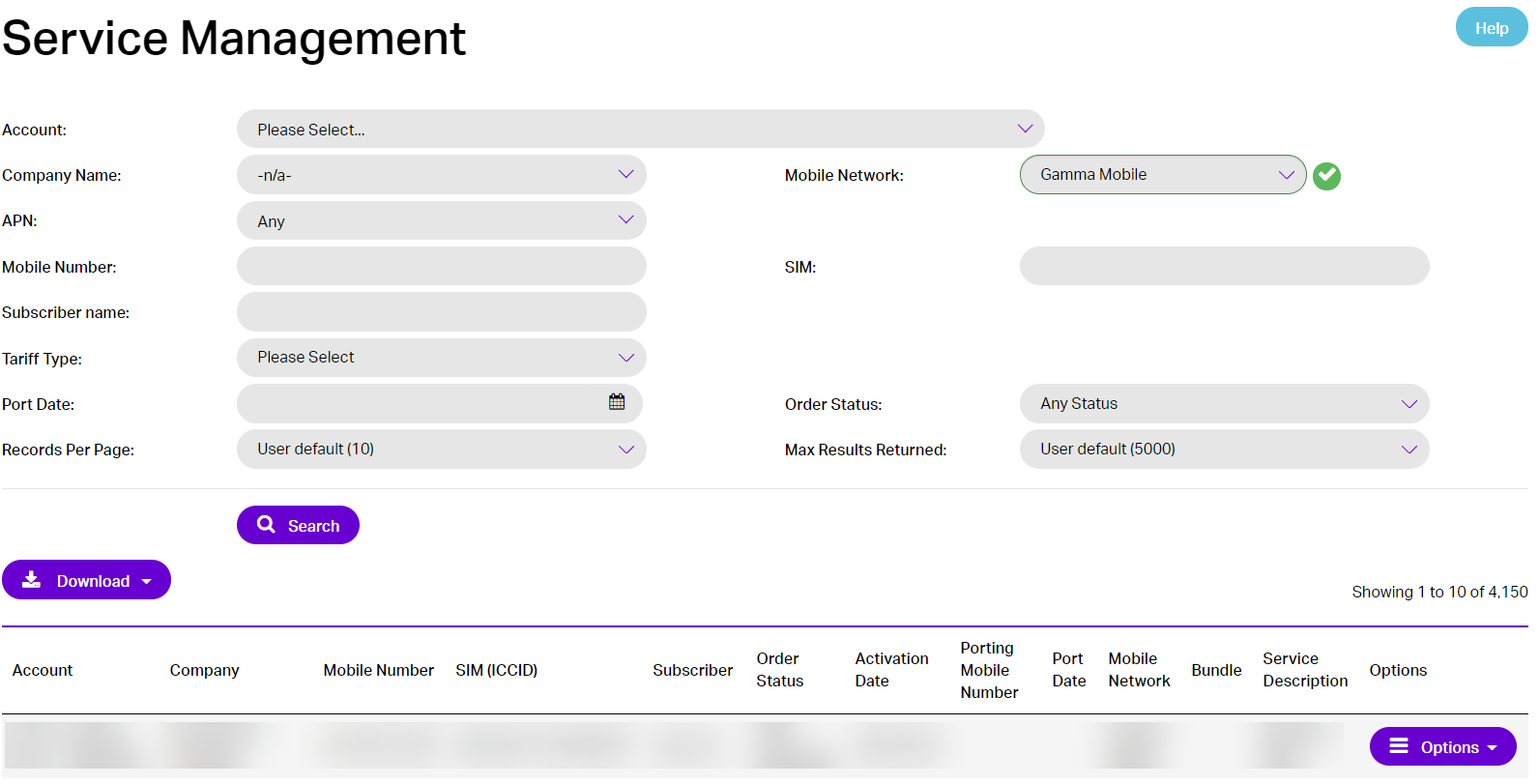
From the Gamma Portal go to Provisioning & Service Management >> Mobile >> Live Service Management.
Step 2
Select the Partner Account and search for the Mobile Number(s).
Step 3
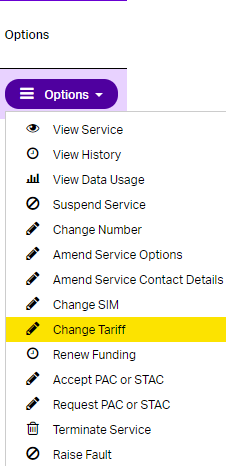
Select “Change Tariff Bundle” from the drop-down “Options” menu next to the Mobile Number(s).
Step 4
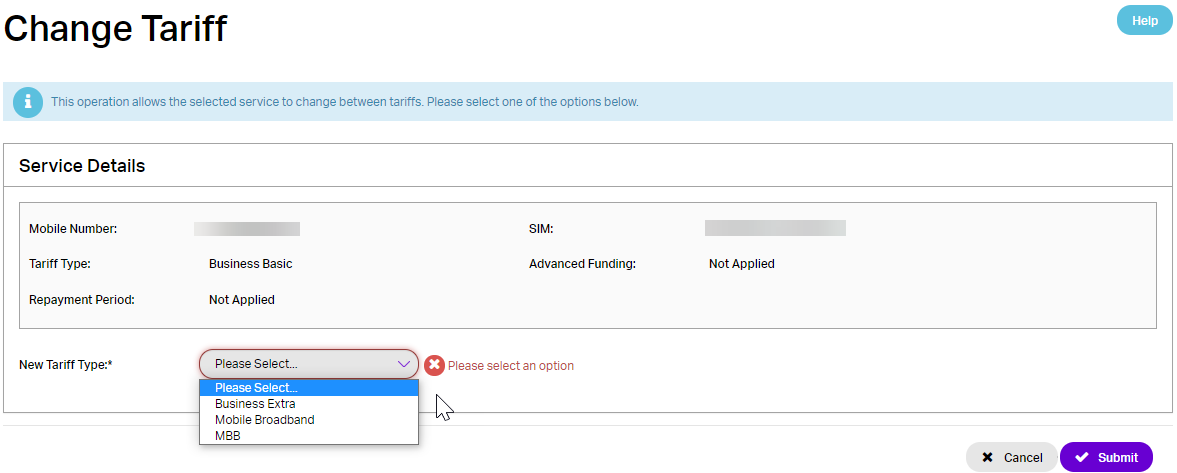
To change the tariff, check and select the new tariff type and click ‘Submit’.
Renew Funding #
You can apply and renew funding from the Gamma Portal for a mobile number.
Step 1
From the Gamma Portal go to Provisioning & Service Management >> Mobile >> Live Service Management.
Step 2
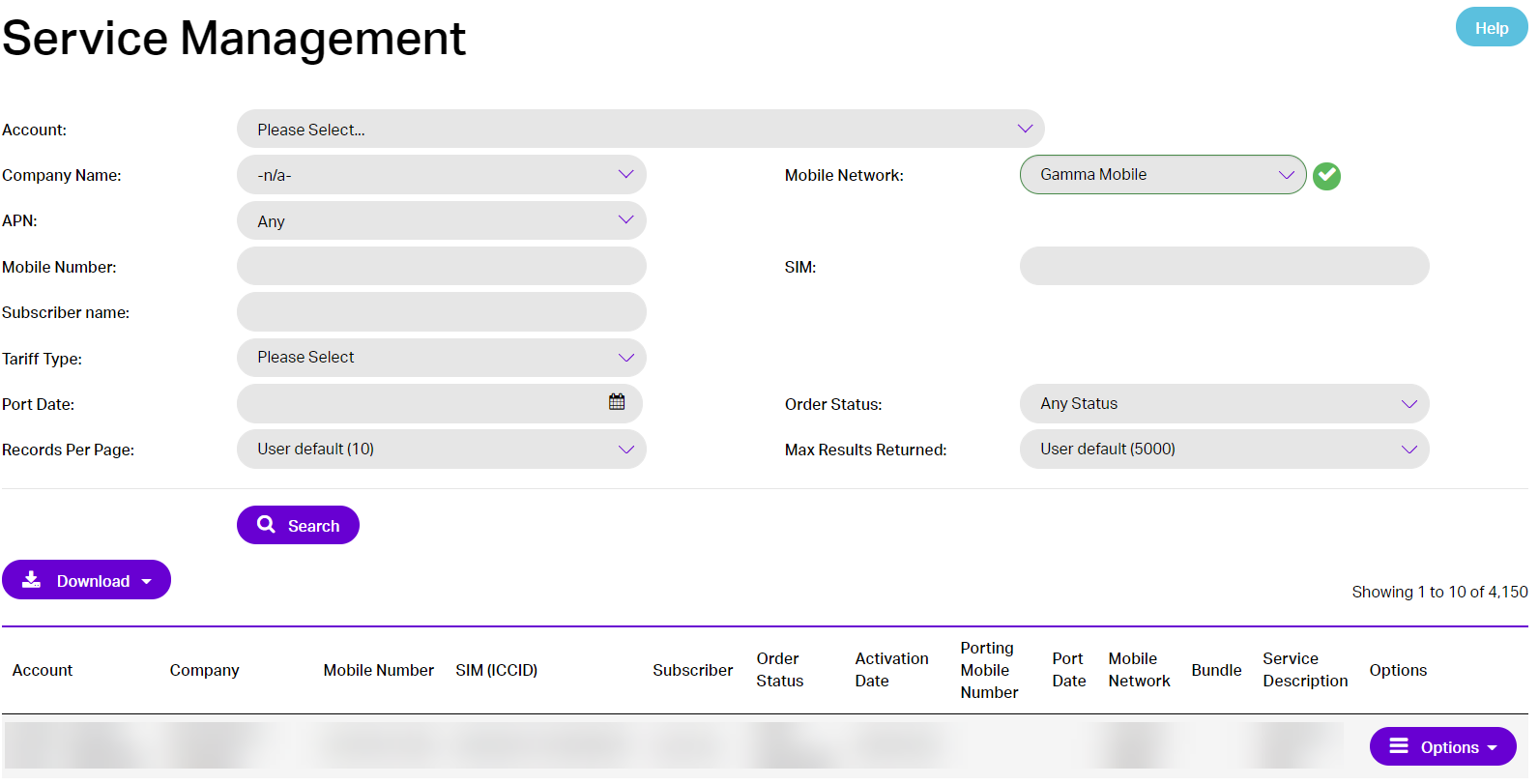
Select the Partner Account and search for the Mobile Number(s).
Step 3
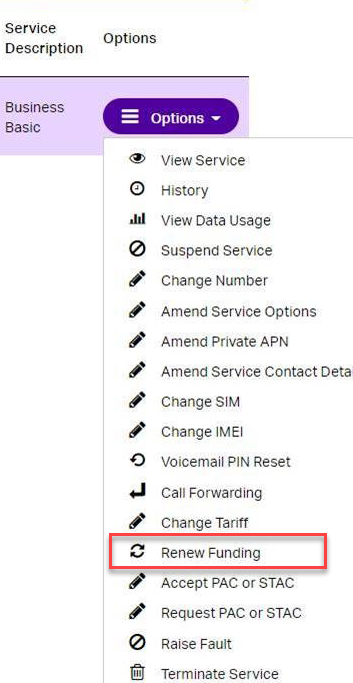
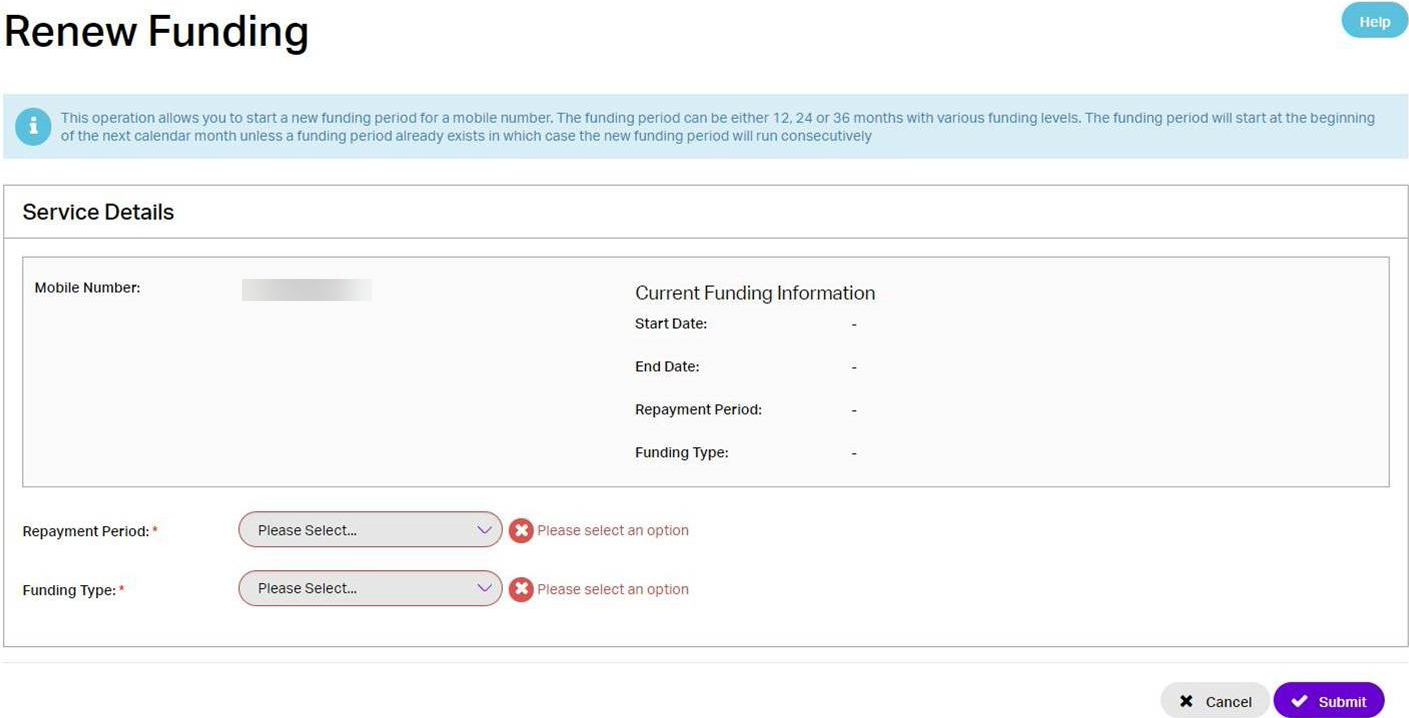
Select “Renew Funding” from the drop-down “Options” menu next to the Mobile Number(s).
Step 4
To apply and renew funding, select the Repayment Period and Funding Type and click ‘Submit’.