
How to use ‘One Touch’ Business Continuity #
One Touch’ Business Continuity is particularly relevant to those users with multiple Inbound numbers associated with their account. This function will enable users to pre build and designate a specific BC plan for each Inbound number. An excellent strategy for the many businesses which will elect to route their incoming calls to employees mobiles or home telephones to achieve business continuity. Because this BC plan is unique to the Inbound number, it enables individual BC call routing on a per number basis.
The user will therefore be able to quickly and easily invoke and revoke BC call plan routing on all/selected Inbound numbers instantly.
Another excellent application is the office evacuation – the user is able to simply log on to the website and quickly redirect calls, with the knowledge that normal routing can be restored just as easily when access back to the office is granted.
How does this work? #
Example:
I am an Inbound user with multiple numbers associated with my account. Under normal circumstances I have individual call plans set up for each of my Inbound numbers:
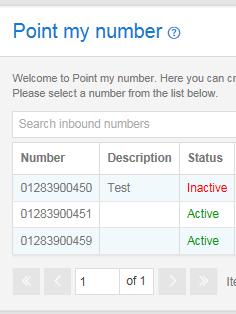
I create an additional call plan for each number which routes business calls to employees personal mobiles, in the event of a BC situation. When my plan is complete, I can choose to validate the plan by using the validate button at the top right hand corner of the screen.
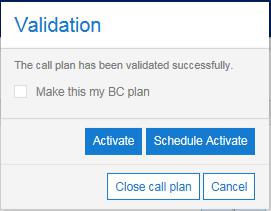
Assuming my call plan is feasible and there are no validation errors highlighted to me (which first must be fixed) I am provided with an option to ‘Make this my BC plan’. To do this, I tick the relevant box as shown below, and then close the call plan:
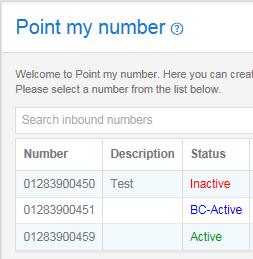
My BC call plan will now appear in validated status, below my active call plan:
I follow the above process for each of my individual Inbound numbers that I wish to route differently in the event of a BC situation.
How do I invoke my BC plan(s)? #
First navigate to the ‘Point my Number’ homepage and select the “Manage my BC” button which can be located at the top right hand corner of your screen. You will then be asked to select which Inbound numbers you wish to activate your pre designated BC call plans on (select all or individual numbers from the list). Proceed by selecting ‘Invoke BC’ as shown below:
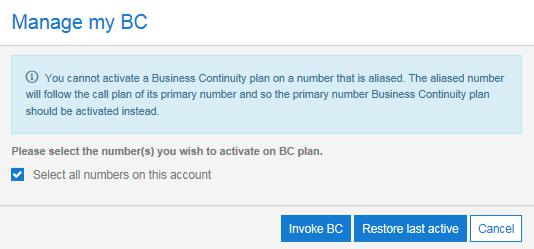
Provided there is a BC-validated plan available for each number, this action will invoke the pre built BC plan for each of the Inbound numbers selected. The BC plan will be active for the next incoming call to each of these numbers and their call plan status will be updated to ‘BC-Active’.
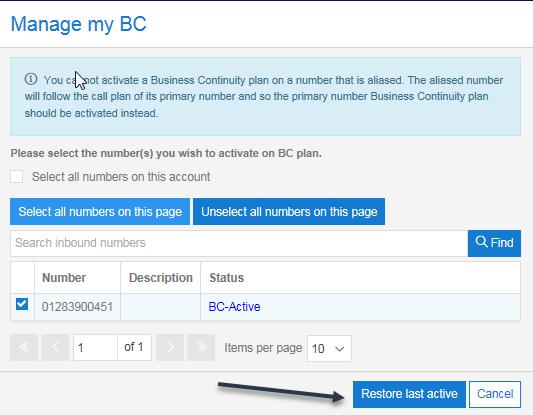
To restore the last active call plan (when BC routing is no longer required) proceed to ‘Manage my BC’ from the ‘Point my Number’ homepage, select relevant Inbound number(s) and click on ‘Restore last active’. This will restore the last active call plan for each of the selected numbers and will apply for the next incoming call received on these numbers:
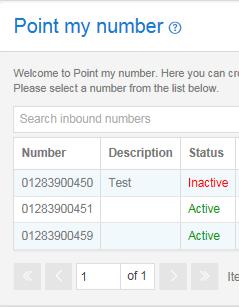
Call plan status will be updated to reflect this:
Important: Please note that the ‘Restore last active’ function within ‘Manage my BC’ will only work providing that no changes have been made to the last active call plan. If changes have since been made to the last active plan for any number, an error message will be shown for the relevant number(s) advising the user to manually restore the required call plan using the normal Point my Number process.
#
