Skip to content
  • Academy KB Home Redesign
  • Broadband Home
  • CCaaS
  • Channel Partner Support
  • Circle Loop Home
  • Collaborate
  • Connectivity
  • Courses
  • Documentation
  • Ethernet
  • FibreXchange
  • FUSION IoT
  • Gamma AI Concierge
  • Gamma Plus
  • Gamma SIP for Cloud Connect
  • Gamma SIP Global Communications Enablement
  • Gamma SIP Trunks for Genesys Cloud
  • Hannah – Homepage WIP
  • Home
  • Horizon
  • Horizon Contact
  • Horizon Forms
  • Horizon Service Description Home
  • Horizon with Webex
  • Inbound
  • iPECS
  • Knowledge Base Intro
  • Knowledgebase Directory
  • LoginPress
  • Microsoft
  • Microsoft Teams Direct Routing Home
  • Microsoft Teams Operator Connect
  • Mobile
  • Multiple KB
  • My Courses
  • No Access
  • No active page
  • Numbering and Porting
  • Phoneline+
  • Product Homepage
  • Quick Download Button
  • Release Notes
  • Release Notes
  • SIP Home
  • Test
  • UCaaS
  • User Account
  • Voice
  • Voice Enablement
  • Webex for Gamma
  • Webex for Gamma Release Notes
  • Gamma Academy Knowledge Base
Gamma Academy Knowledge Base
  • Cloud Calling and Collaboration
    • Webex for Gamma
    • Horizon with Webex
    • Horizon
    • Phoneline+
    • Operator Connect
    • Direct Routing
    • Inbound
    • Akixi CX Analytics
    • Red Cactus
  • Connectivity and Networking
    • Numbering and Porting
    • Broadband
    • FibreXchange
    • Ethernet
    • SIP Trunking
    • Gamma FUSION IoT
  • CX
    • Horizon Contact
    • AI Concierge
  • Mobile Services
    • Gamma Mobile
  • CyberSecurity
    • SafeWeb
  • Partner & Portal Support
Gamma Academy Knowledge Base

Provisioning and In-Life Changes

  • Before Ordering Inbound
    • Inbound Architecture
    • Inbound Features Matrix
    • Inbound and Horizon Working together
    • Inbound for Horizon Business Process Guide
  • Ordering Inbound
    • Ordering Inbound
    • Inbound International Number Porting Process
  • Configuring Inbound
    • Inbound User Login & MFA
    • Inbound – Administrating Users
    • Inbound – Managing MFA
    • Inbound Call Plans Creation and Changes
    • Inbound Account Management
    • Inbound Business continuity

Features

  • Call Plans
    • Inbound Manage My BC
    • Inbound Point My Number
    • Inbound IVR and Menu Option
    • Inbound Call Queues
    • Inbound Aliasing
    • Inbound Hunt Groups
    • Inbound Area Control
    • Inbound Limit Caller Admission
  • Routing
    • Inbound Root Control
    • Inbound CLI Based Routing
    • Inbound Date, Time and Destination Controls
    • Inbound Goto Features 1,2 and 3
    • Inbound Distribution and Diversion Controls
  • Company Admin
    • Inbound Manage Custom Fields
    • Inbound Notifications
    • Inbound Announce 
    • Inbound Suspend and Resume Call Recording Feature
    • Inbound Voicemail
  • Reviewing Calls and Statistics
    • Inbound View History
    • Inbound Performance and Statistics
    • Inbound Custom Fields
    • Inbound Listen to my Calls

Technical Support

  • Inbound – Technical Support
  • Inbound – Destination Risk
  • International Inbound Numbers – New Portal
  • Inbound – Unwanted and Nuisance Calls
  • Inbound – Glossary
  • Withdrawal of Gamma mobile applications for Inbound, Business Continuity and SIP Trunk Call Manager

Service Description

  • Inbound Service Description

Inbound SLAs

  • Inbound 2025 SLAs
  • Inbound 2024 SLAs
  • Inbound 2023 SLAs
  • Inbound 2022 SLAs
  • Inbound 2021 SLAs
  • Inbound 2020 SLAs
  • Inbound 2019 SLAs
  • Inbound 2018 SLAs
  • Inbound 2017 SLAs

Inbound Forms

  • Inbound Forms

Inbound Release Notes

  • Inbound Release Notes
  • Home
  • Home
  • Inbound
  • Technical Support
  • International Inbound Numbers – New Portal
View Categories

International Inbound Numbers – New Portal

Introduction #

As part of ongoing product enhancements, Gamma is changing supplier arrangements for our International Inbound numbers and there will be a new International Numbers portal.  Portal functionality remains the same and the portal layout and operation has been simplified. 

Dashboard Screen #

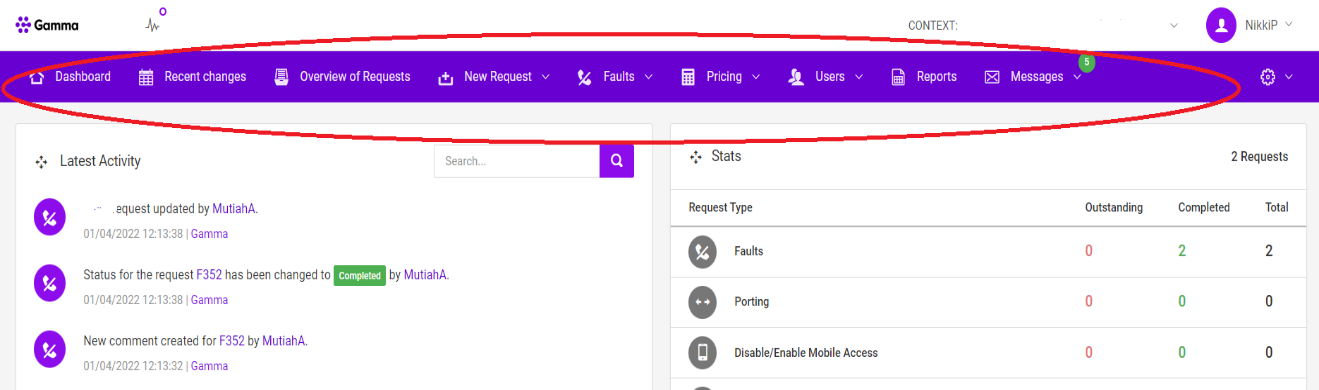
Once logged in previously, you would have been presented with this welcome screen, with all the action tabs across the top of the screen:

Old Portal: #
Graphical user interface, application

Description automatically generated

New Portal #

The new welcome dashboard screen appears as below with all actionable items as icons or links.
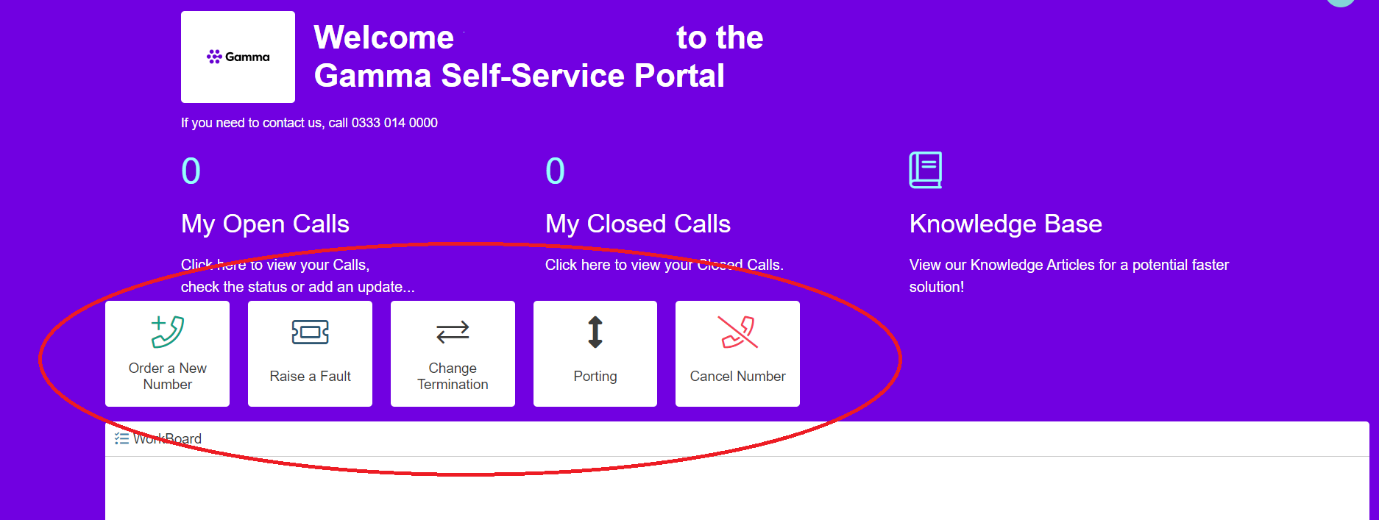
Graphical user interface, application

Description automatically generated

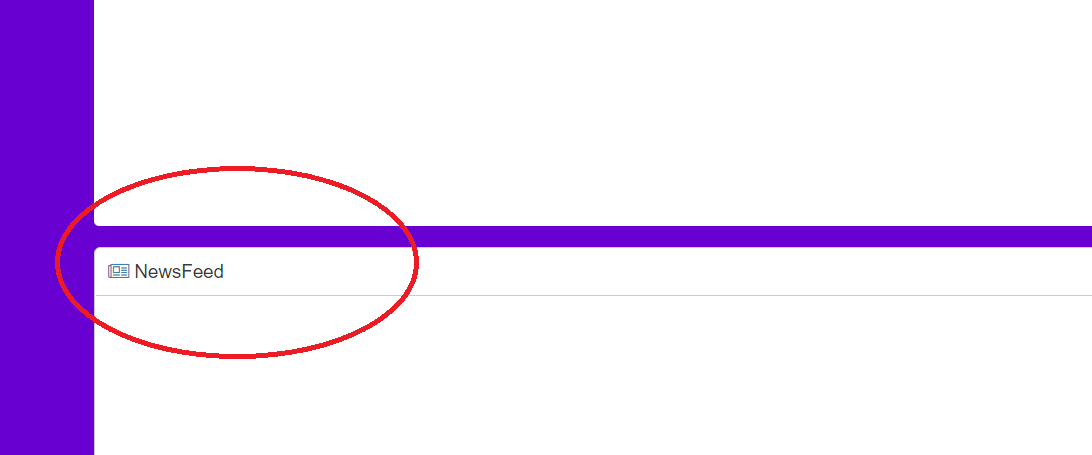
The News Feed icon at the bottom of the screen is where we can share with you any industry news/changes etc.
Shape

Description automatically generated

Services #

Order a New Number #

To Order a new number, simply click on the Order a new Number Icon

Graphical user interface

Description automatically generated with low confidence

This will take you into a standard ordering capture form where you can add all the details pertinent to a new number as follows:
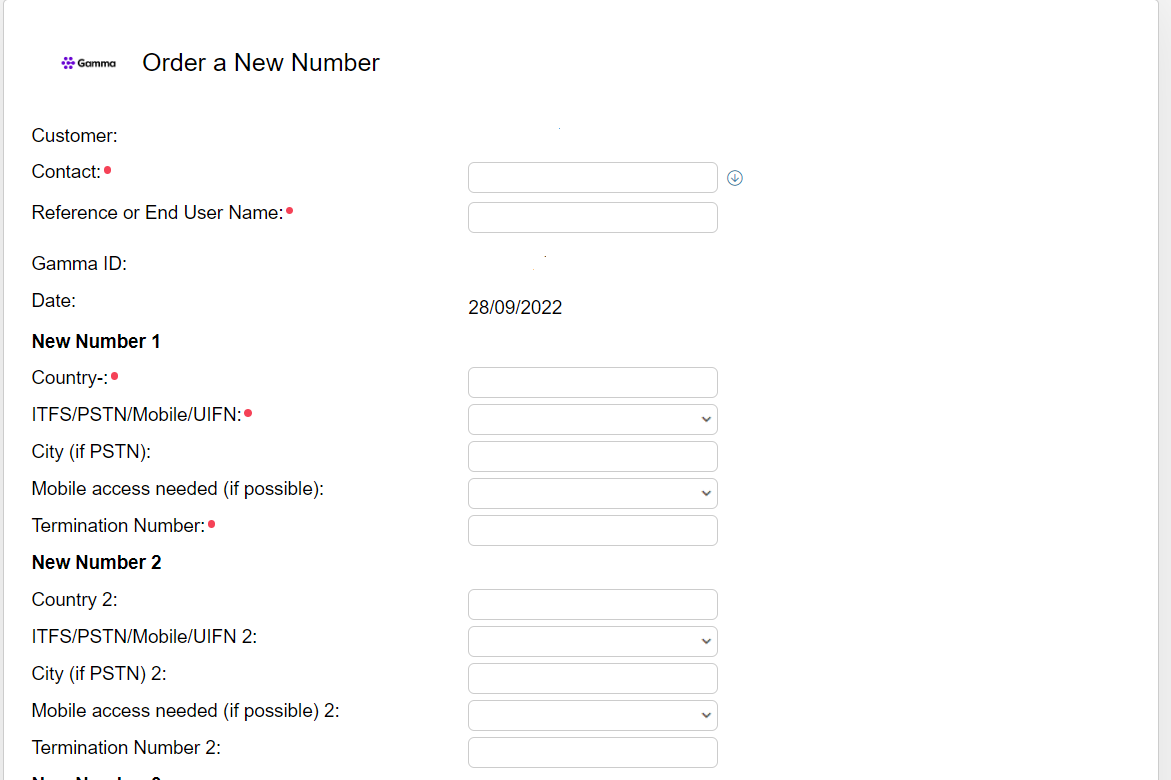
Graphical user interface, table

Description automatically generated with medium confidence

Once your order has been submitted you will be presented with the Ticket Reference Number (you will also receive an email confirming the details of your Ticket and what happens next)

Raise a Fault #

To raise a new fault, simply click on the Raise a Fault icon

Graphical user interface, application

Description automatically generated

This will open the form to allow you to add all the details relevant to the fault your customer is experiencing.
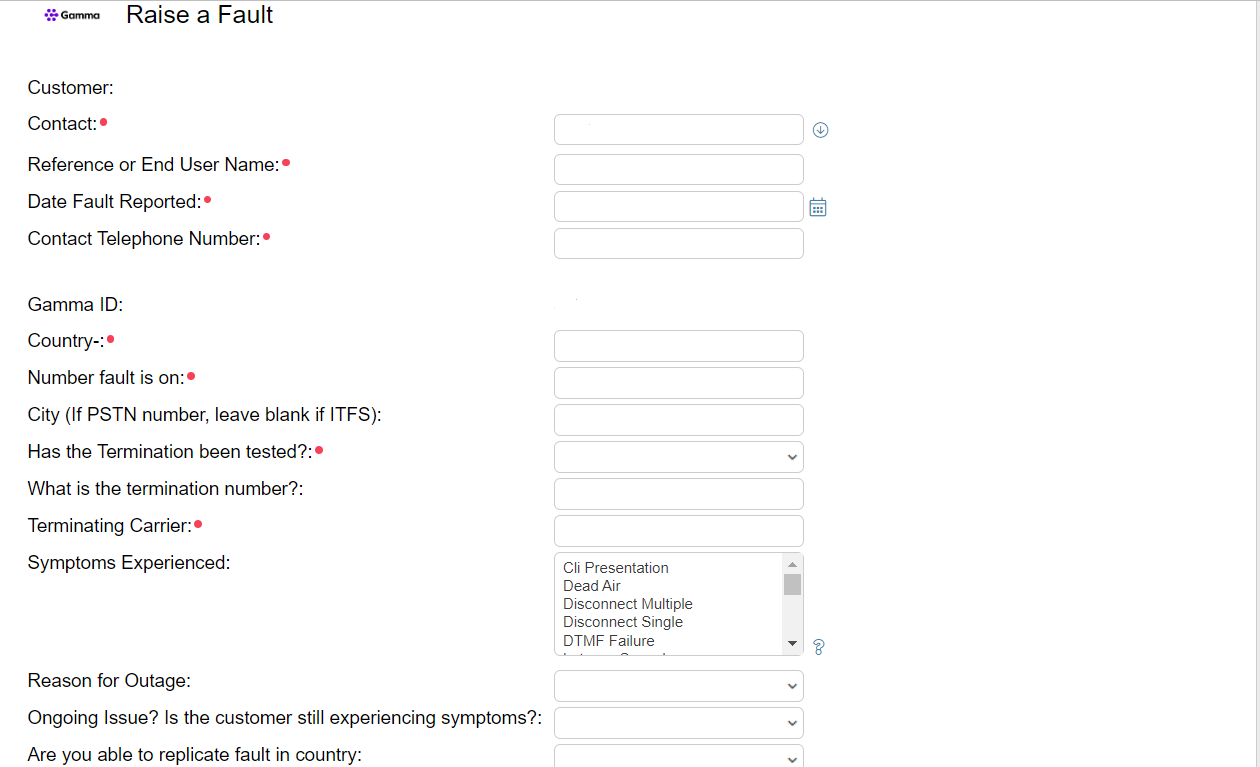
Graphical user interface, application

Description automatically generated

Once your fault has been submitted you will be presented with the Ticket Reference Number (you will also receive an email confirming the details of your Ticket and what happens next)

Change the Termination Number #

To change the termination number, please select the Change Termination icon:
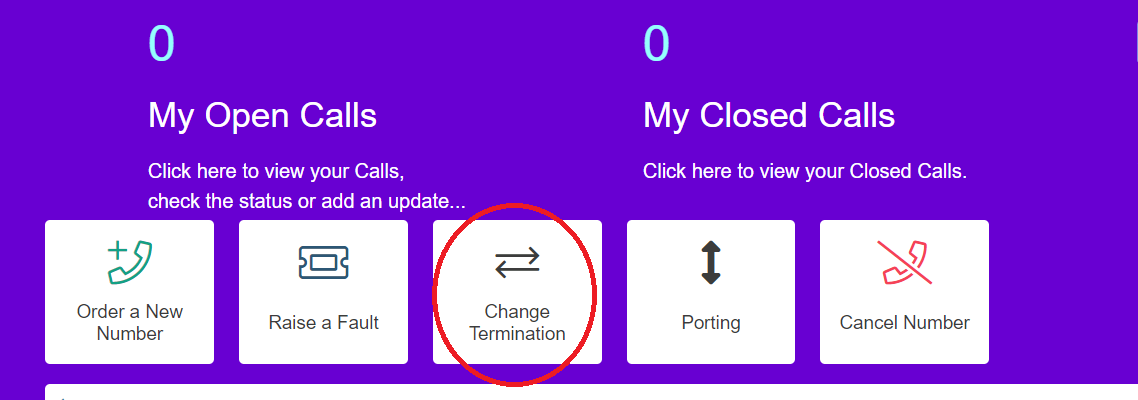
Graphical user interface, application

Description automatically generated

This will then take you into the form where you can request the termination number change
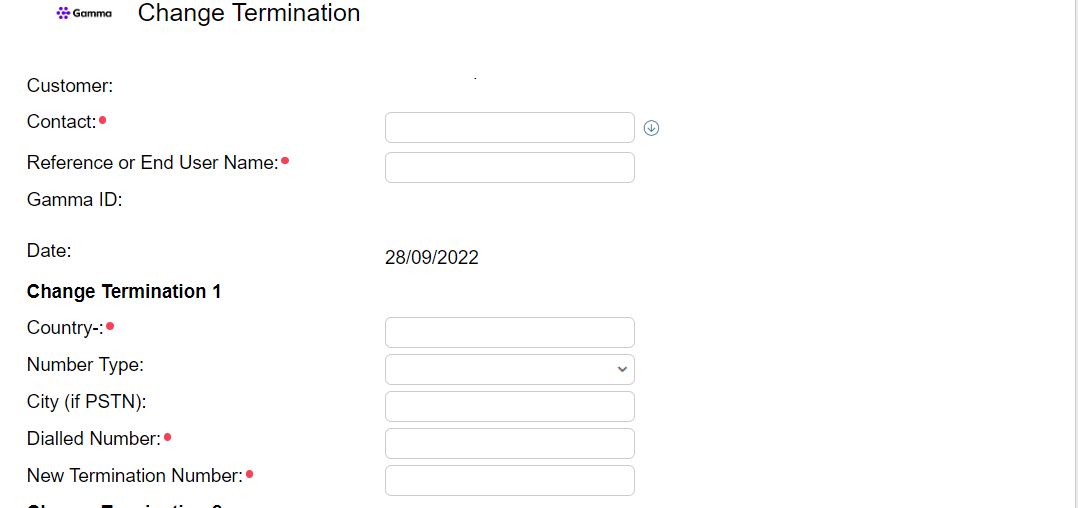
Graphical user interface, application, table

Description automatically generated

Once your change of termination request has been submitted, you will be presented with the Ticket Reference Number (you will also receive an email confirming the details of your Ticket and what happens next)

Port a Number #

To Port a number, select the Porting icon
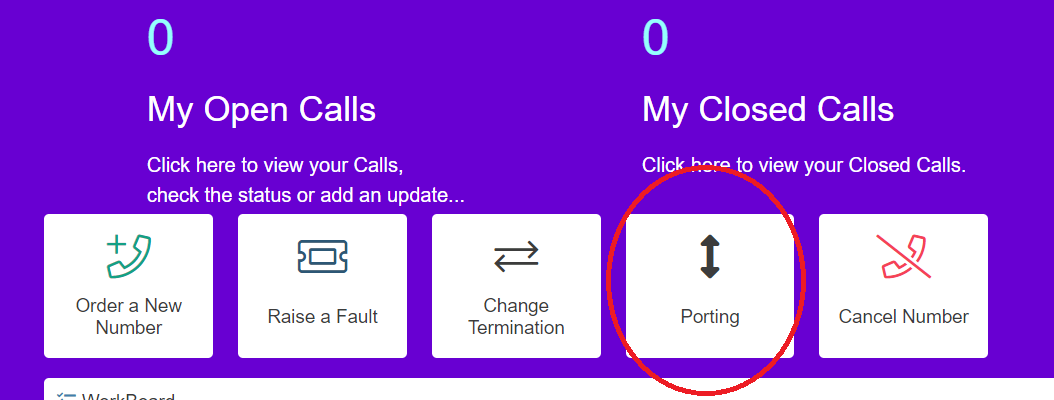
Graphical user interface, application

Description automatically generated

This will take you to the initial Porting form, where can you enter the relevant number and porting details
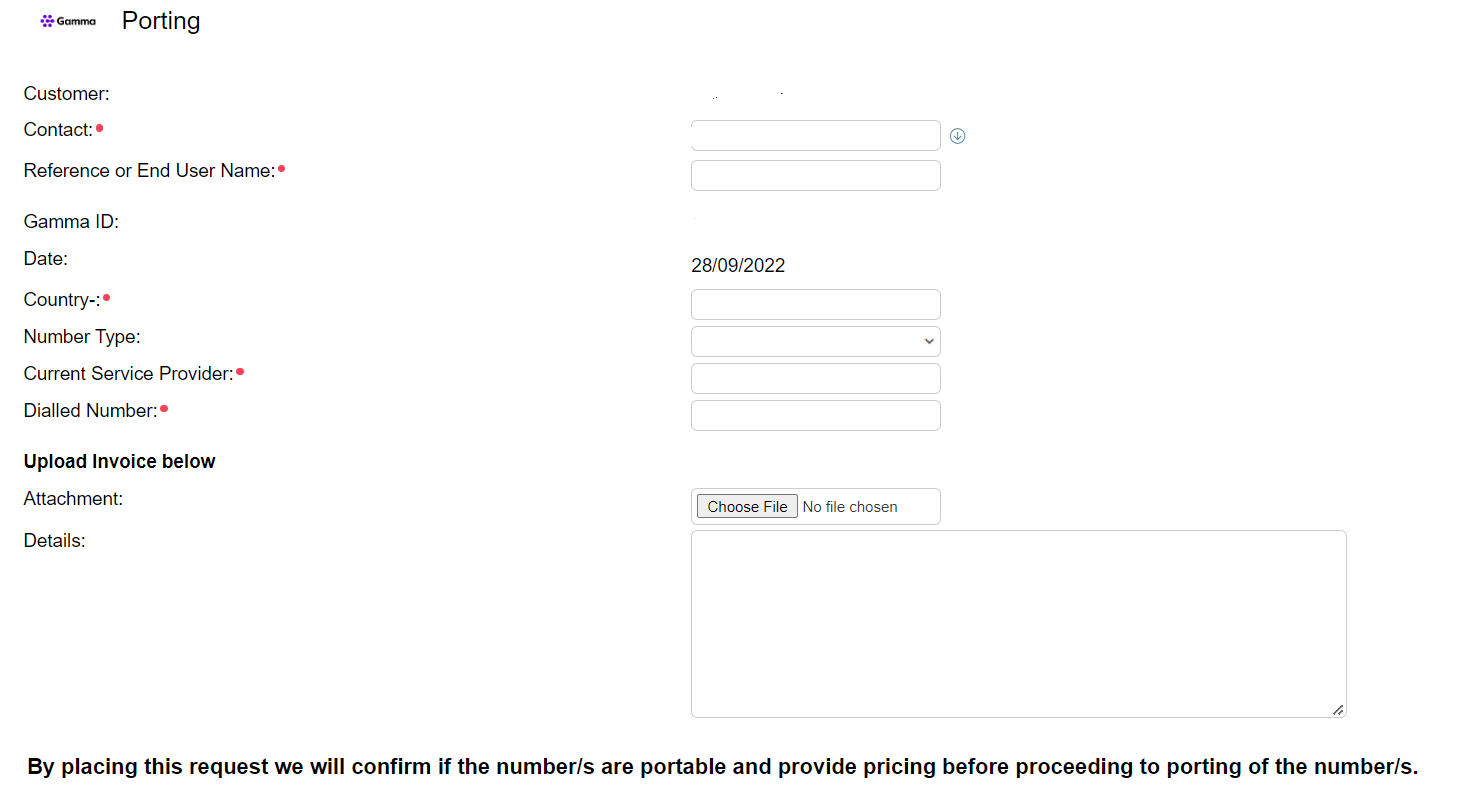
Graphical user interface, application

Description automatically generated

Once you porting request has been submitted, you will be presented with the Ticket Reference Number (you will also receive an email confirming the details of your Ticket and what happens next)

To Cancel a Number: #

If you wish to cancel a number, select the Cancel Number icon

Graphical user interface, application

Description automatically generated

And the enter the details relevant to the number you wish to cancel
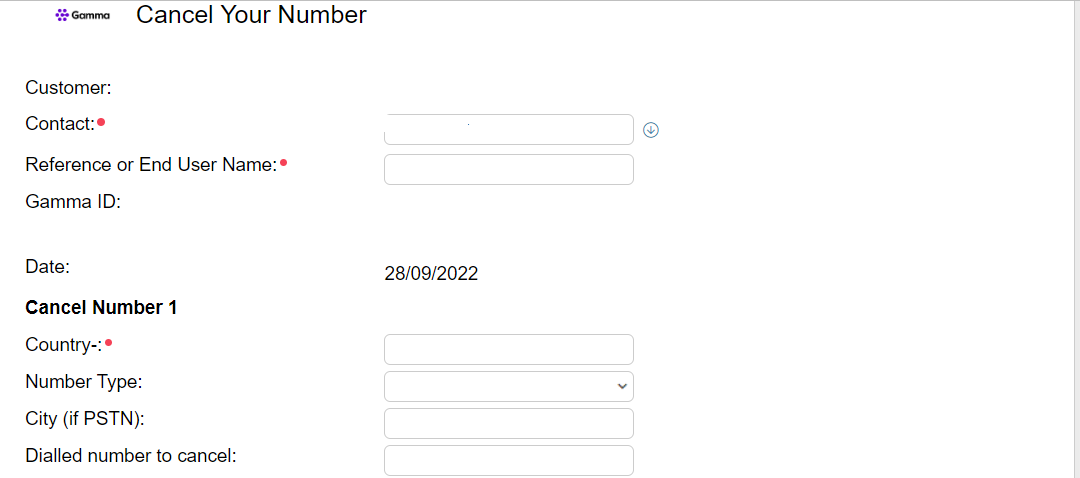
Graphical user interface, application

Description automatically generated

Once your cancellation request has been submitted, you will be presented with the Ticket Reference Number (you will also receive an email confirming the details of your Ticket and what happens next)

My open and closed calls #

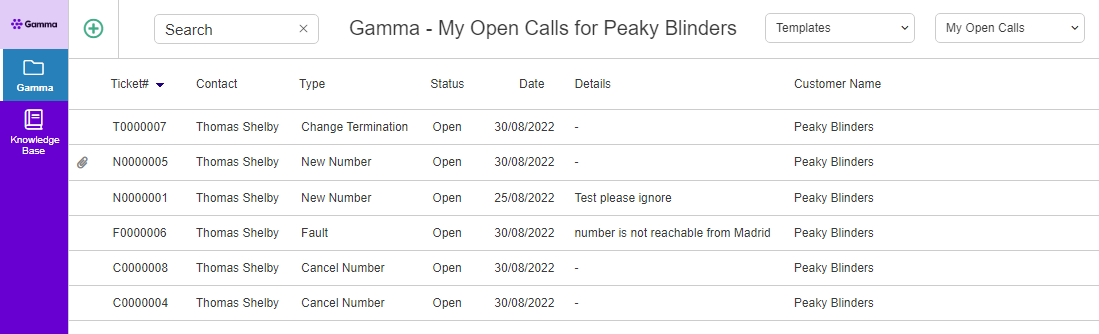
The My Open Call/ My Closed Calls icon will allow you to view all the open/closed tickets you have raised on any given customer number
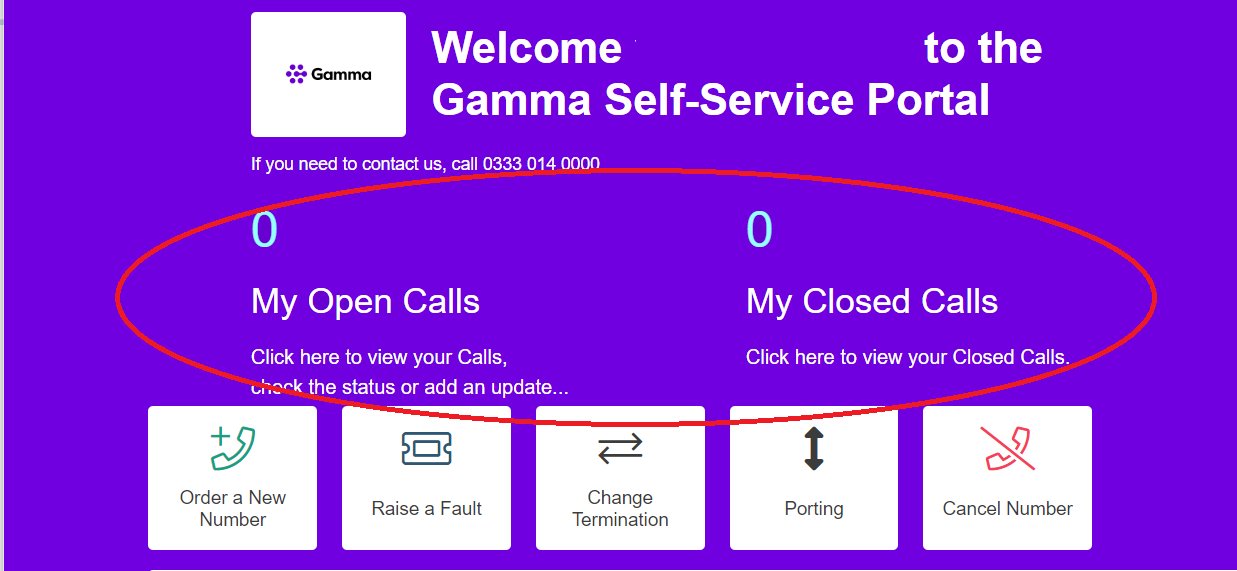
Graphical user interface, application

Description automatically generated

From here you can:

  • Select a ticket from the Summary to check the Status of your Ticket or add a Note (see below)
  • Add a Note by clicking on the New Note button or the Update Your Ticket button
  • View a Note by selecting the Note
  • Check the Status of your Ticket
  • Add attachments to your Ticket
Graphical user interface, text, application

Description automatically generated

House-on-the-Hill Icon Key #

On the left-hand side of the Ticket Summary, you will see a variety of symbols indicating different alerts. A key for the symbols is as follows:

Tickets

Comments

Closed Ticket

Ticket recently updated by another person

Ticket with attached file(s)

Ticket is On Hold

Resolved Ticket

Ticket is linked to other Ticket(s)

Notes

Note with attached file(s)

Knowledgebase: #

Clicking on the knowledgebase icon will take you into the knowledge base
Diagram

Description automatically generated

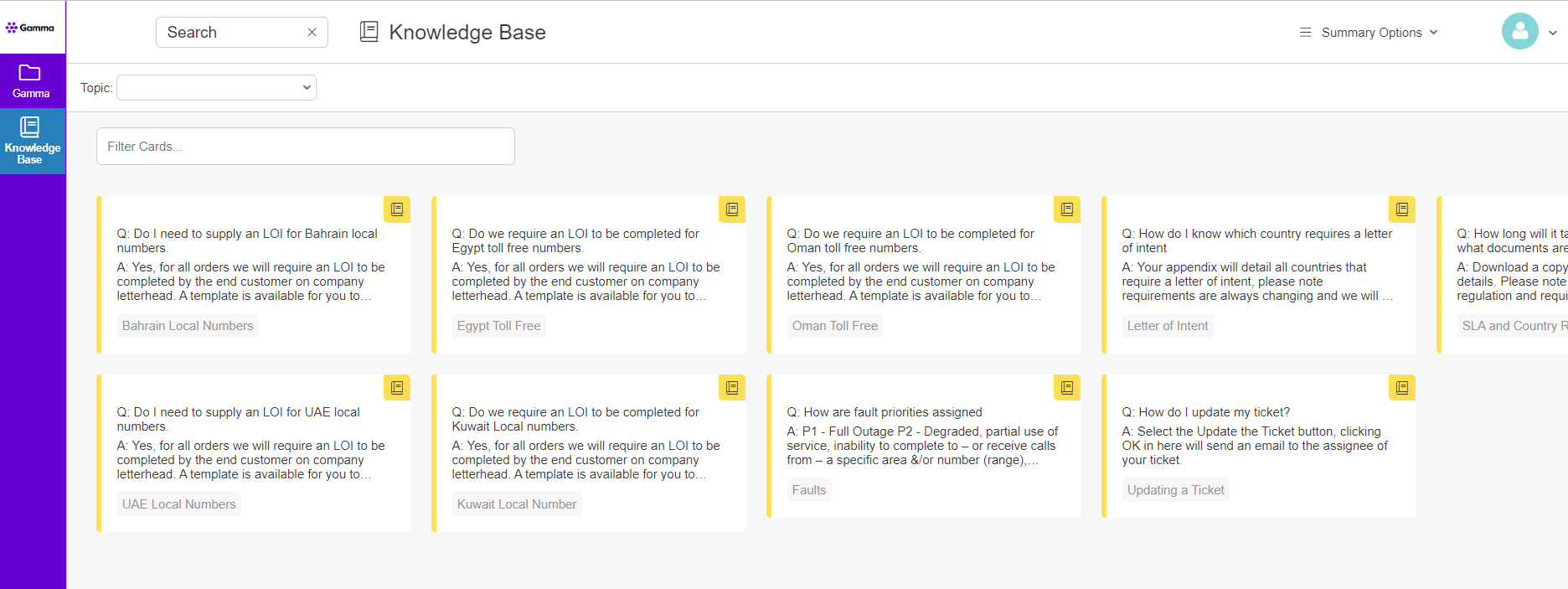
Here you will find lots of FAQ information on all things International Numbers. It will also contain commercial information and any forms required as part of the order /porting process. You will be able to enter what you are looking for in the search field to help find information more quickly.
Graphical user interface, application

Description automatically generated
Updated on 16/07/2024
Inbound – Destination RiskInbound – Unwanted and Nuisance Calls
Contents
  • Introduction
  • Dashboard Screen
    • Old Portal:
    • New Portal
  • Services
    • Order a New Number
    • Raise a Fault
    • Change the Termination Number
    • Port a Number
    • To Cancel a Number:
    • My open and closed calls
  • House-on-the-Hill Icon Key
  • Knowledgebase:

Copyright © 2026 -  Gamma Telecom Ltd

Gamma API
We use cookies to measure performance and make improvements to this service. This includes page views, device/browser, location, and page interactions. We do not collect any information you upload to this site. By agreeing, you consent for your data to be used for this purpose.