
Ordering Inbound is easy and can be completed on the Gamma Portal in a number of easy steps.
Step 1
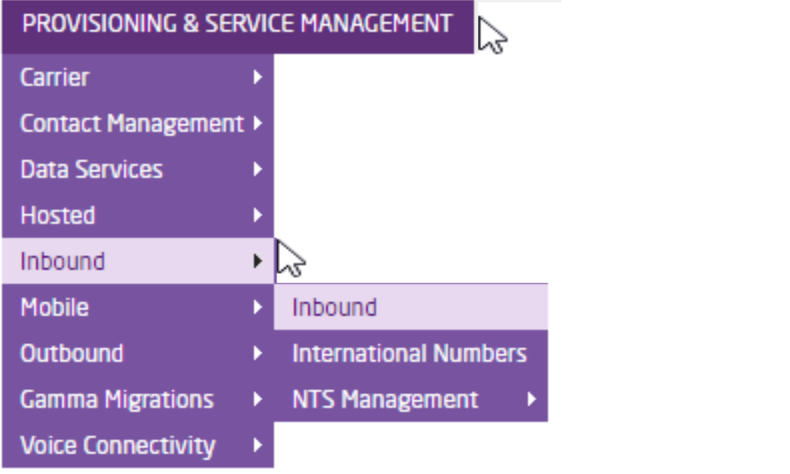
Log onto the Gamma Portal and go to the Inbound Management Screen (Provisioning and Service Management > Inbound > Inbound)
If you do not have access to this area please contact your BDM who will update your permissions.
Step 2
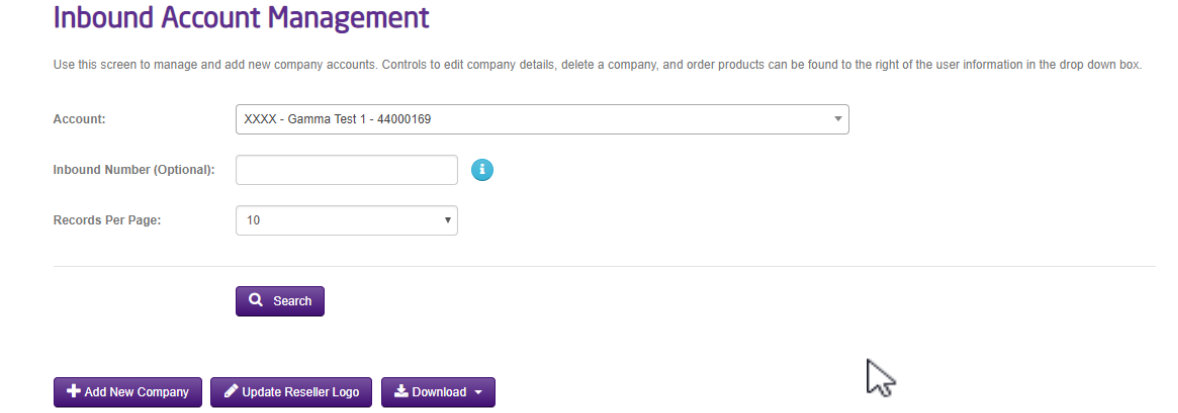
Select the relevant account from the drop down menu then click ‘Add New Company’ on the bottom left hand corner.
Any numbers you wish to allocate to a MyInbound account must be reserved to your account on the portal. Additional numbers can be reserved under Provisioning and
service management > Inbound > NTS Management > Reserve NTS Numbers
Step 3
Allocate one or more numbers for use with this account.
The easiest way to search for a number is to select ‘Full Number’ and enter the number(s) you wish to allocate, you can do this one at a time. You can also search
using the other options consistent with the rest of the portal, % is allowed as a wildcard.

Step 4
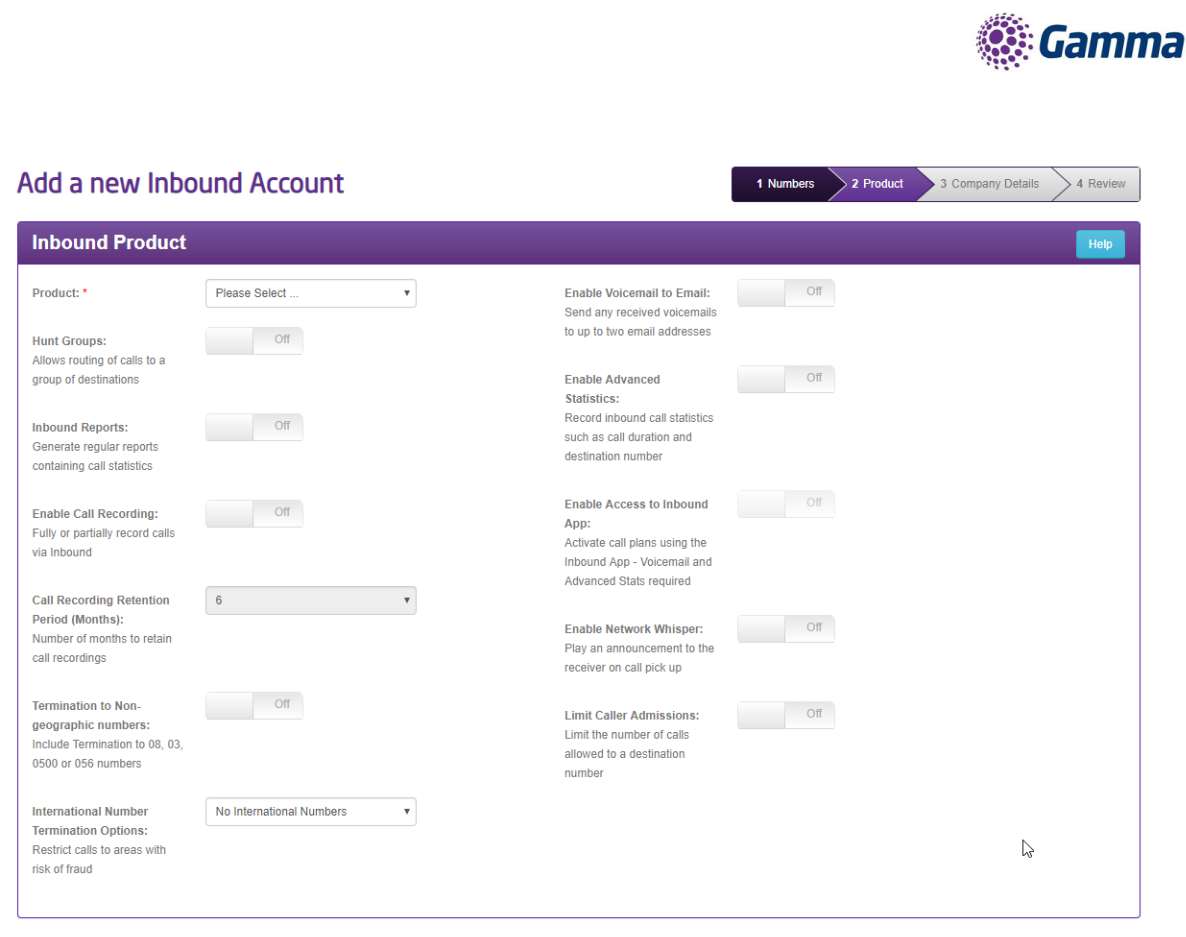
When you have selected the numbers you want you can select the product and additional features required.
Additional features are optional extras that can be added to any of the products.
Product – This is the product the Account will be set up with, either Contact Point, Contact Path, Contact Pro, Business Continuity.
Step 5
From here you can input the Company Details as follows:
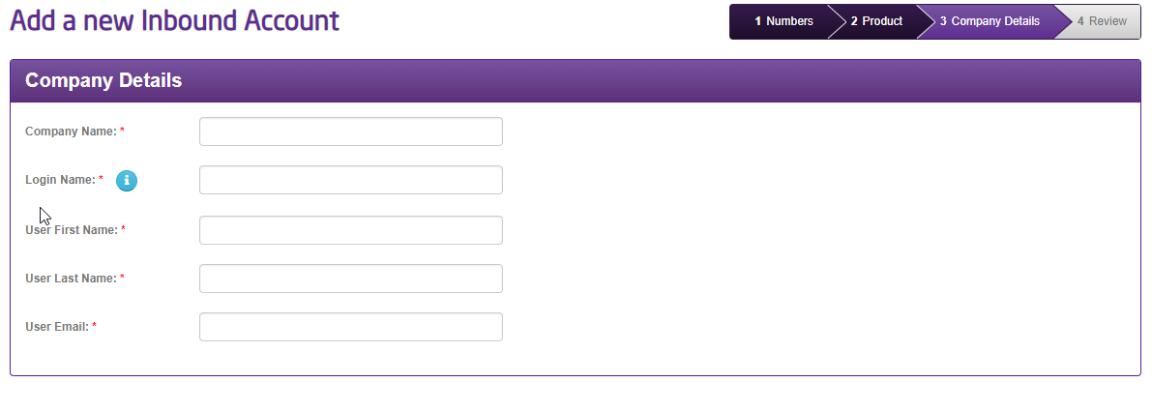
- Login Name: This is the administrator login for the account. This will be used to access Point my Number from MyInbound.com
- Users First/Last Name: This is the name of the person administering the account
- User Email: This is the email address for the Administrator – reset passwords and notifications will be sent here.
Step 6
When you’ve entered your Company Details there’s an opportunity to review your selection before pressing “submit”.
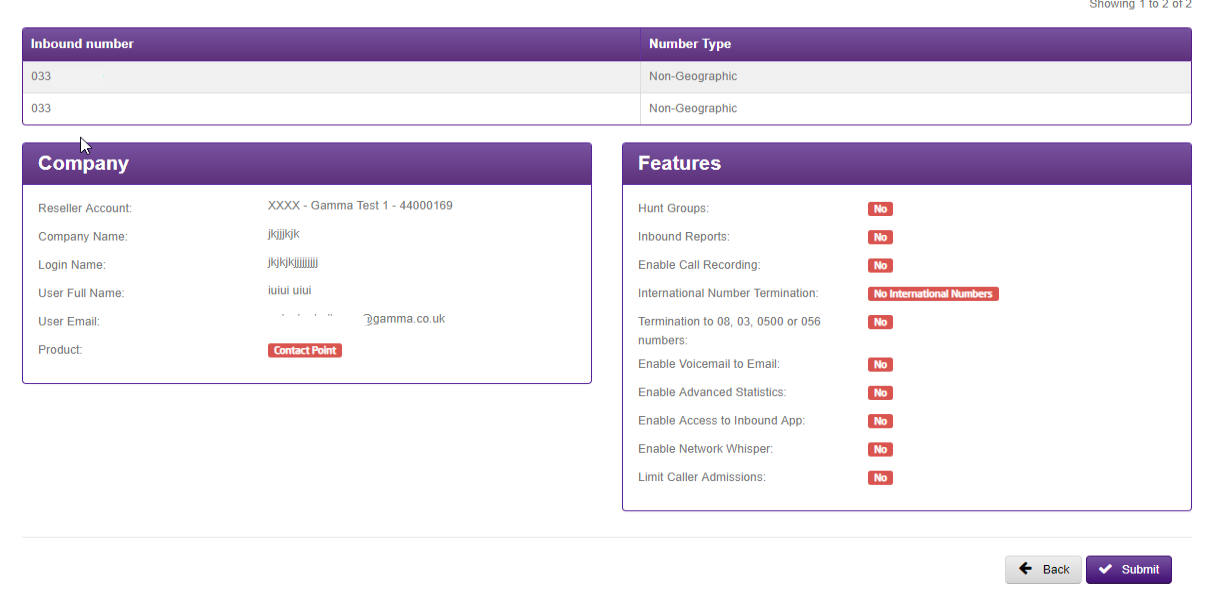
You have successfully created an account on MyInbound and allocated numbers to it. An e-mail will be sent shortly to the e-mail address provided confirming the logon
details, you can use these to log in at www.myinbound.com and create your first call plan.
Specific Number Selection #
To request a specific Geographic Number
If you would like to search for a specific geographic number, then you can user our Gamma Number Search under Help and Support on the Gamma Portal. This will allow you to search for new available numbers and also view numbers currently allocated to your account that are not in use.
For further instructions and charges, please see the Gamma Number Policy document which can be found on the Gamma Academy.
To request a specific Non- Geographic Number
If you require a specific non-geographic number then you should complete the Non-geographic Number Form on the Numbering Navigator. This is available by going to Help and Support and Numbering Navigator and selecting option 3 (I know what form I need) and then select the Non-geographic number form.
For further instructions, please see the numbers and porting guides.
