Date/Time #
Date/Time Description #
You can use the Date/Time control to define different call routing for different date ranges and different time ranges within those dates. For example, you might want to specify special handling for specific times during bank holidays. The call plan below illustrates a call plan that plays a unique announcement for a specific time during each public holiday (Good Friday and Easter day) which means that your message can be tailored to the holiday season if desired.
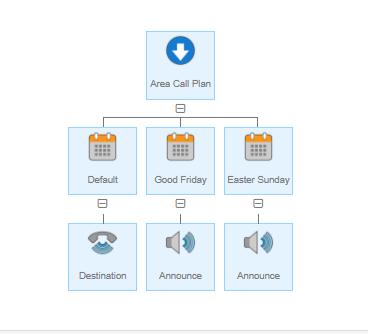
The above plan uses a different date control for Good Friday and Easter day, however, a single control can be used for the same function, as in the example below.
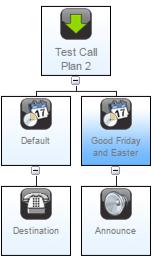
The date/time control used in the call plan above has all of the date and time ranges defined in a single control as shown below.
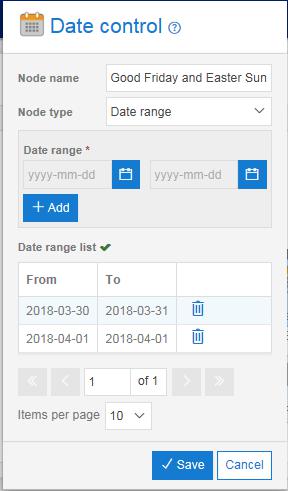
Each date and time range defined in a Date/Time control is only available within that specific control. If you want to use this Date/Time control across multiple call plans or numbers, then these could be used as part of Shared Values.
Date/Time Rules #
Each Date/Time control within a sibling group must be unique, that is you cannot have overlapping dates and times within a sibling group of Date/Time controls. Call plans will fail to validate if such structures are present.
The Date/Time control will not permit you to add start dates that are in the past, but you can pick the current date.
The Date/Time control will not allow you to select a Start Date that is after the End Date.
When using Date/Time controls there must always be a Date/Time with node type Default present.
There can be only one default Date/Time control for each sibling group of Date/Time controls. It may be possible during the call plan edit to have multiple Date/Time controls set to the Default node type but this will not validate until there is only one.
Start Time must be before the End Time within the Time range of the Day/Time control.
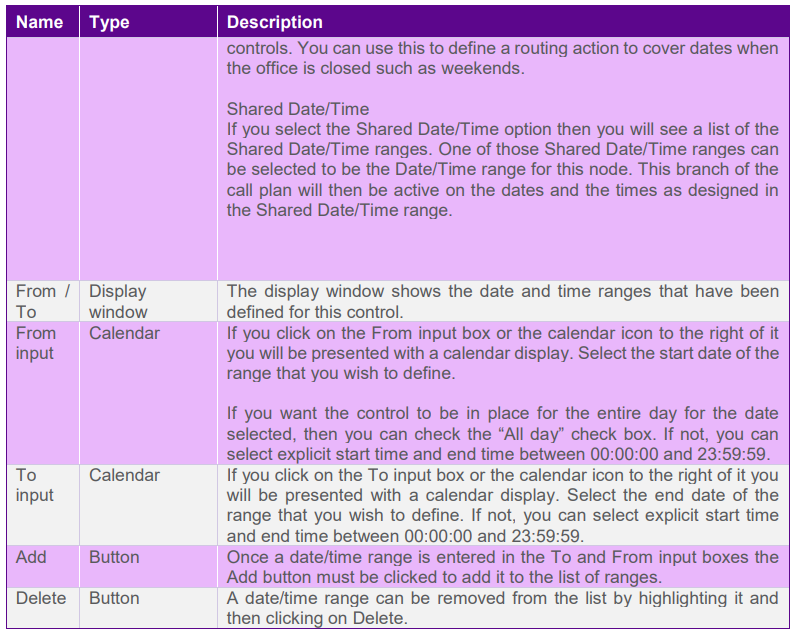
Date/Time Input Fields and Buttons #
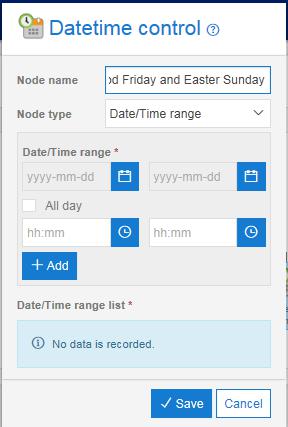
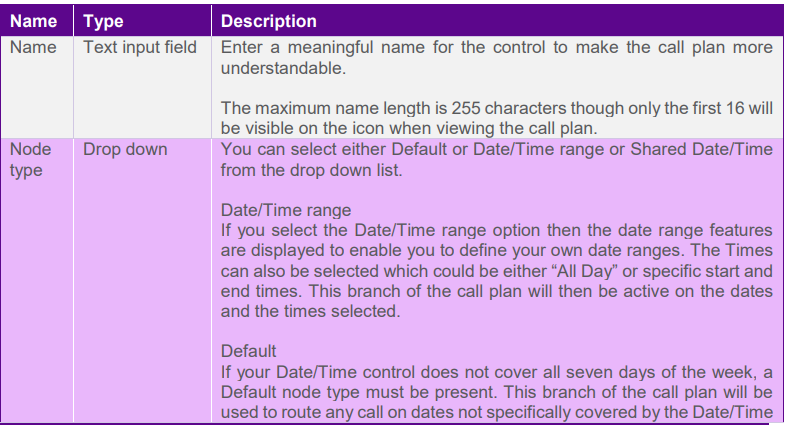
If you want to create a node which gives you the ability to set rules on a date and time basis then you can select the date/time control from the control features list. You will notice when you come to modify this that the node type is set to “Date/Time Range”
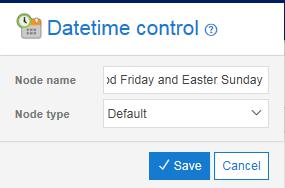
The screen shot below shows the Date/Time control properties box with the node type “Default” selected.
Day/Time #
Day/Time Description #
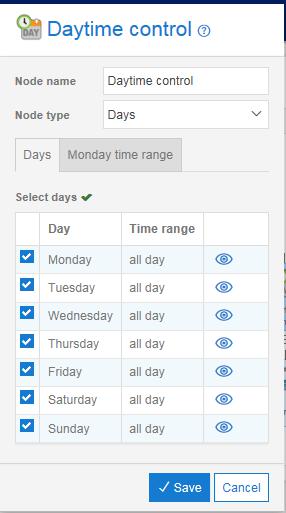
You can use the Day Time control to define different call routings for each day of the week and at specific time intervals.
The simple example below shows how the Default node type could be used to handle calls when the office is closed. Callers will routed to the Destination number from Monday to Friday between 09:00 and 17:00 but will be played an announcement on Saturday and Sunday and all other times on Monday to Friday.

Each day and time range defined in a Day/Time control is only available within that specific control. If you want to use this Day/Time control across multiple call plans or numbers, then these could be used as part of Shared Values.
Day/Time Rules #
Each Day/Time control within a sibling group must be unique, that is you cannot have overlapping days and times within a sibling group of Day/Time controls. Call plans will fail to validate if such structures are present.
Start Time must be before the End Time within the Time range of the Day/Time control.
A Day/Time control with Node type set to Default must be present if the day/time periods defined do not cover the whole 7 day period.
Day Time Input Fields and Buttons #
Shared Values #
Description #
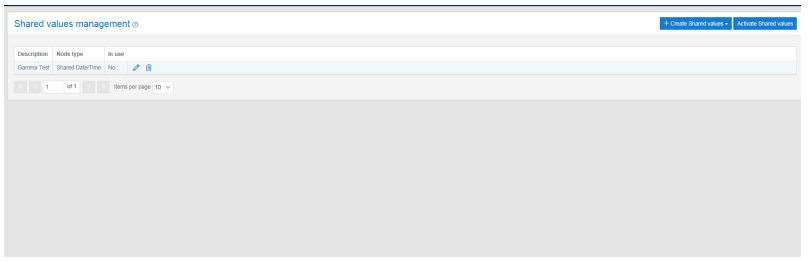
Shared values allow global schedules to be shared across many call plans. This saves users from having to make the same date/time or day/time change in many places. Schedules can be used within date/time or day/time nodes. The shared values management page can be used to configure these schedules and activate them across call plans.
Shared values management page #
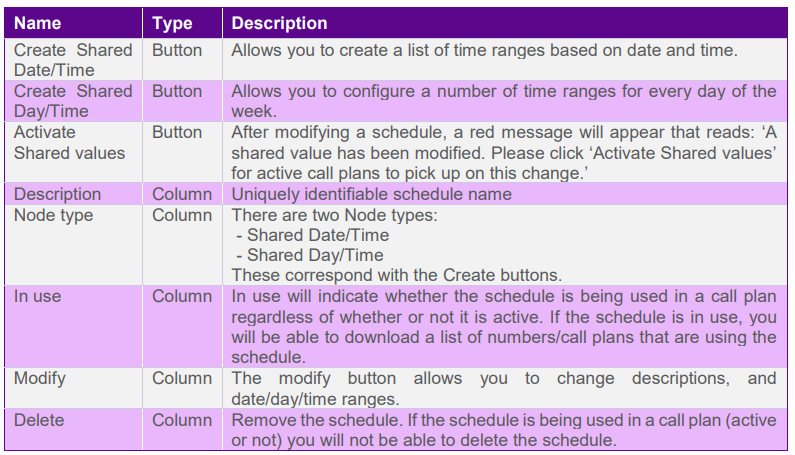
Creating/modifying a shared date/time #
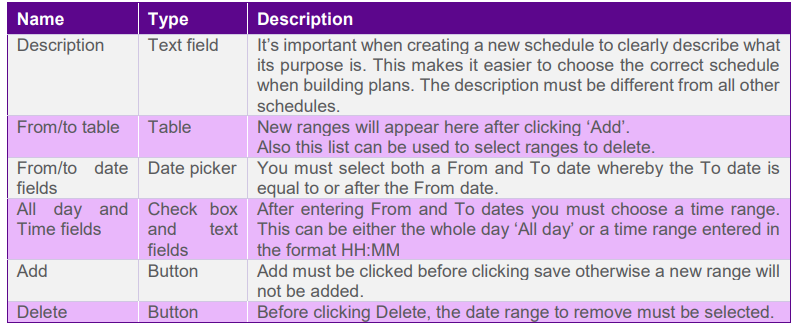
Clicking the ‘Create Shared Date/Time’ button or clicking the ‘modify’ icon next to a shared date/time schedule will pop up a dialog box that can be used to configure a list of date/time ranges.
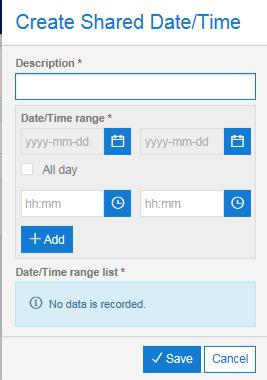
Clicking “Save” will create/modify the date/time schedule.
Creating/modifying a shared day/time #
Clicking the ‘Create Shared Day/Time’ button or clicking the ‘modify’ icon next to a shared day/time schedule will pop up a dialog box that can be used to configure a list of day/time ranges.
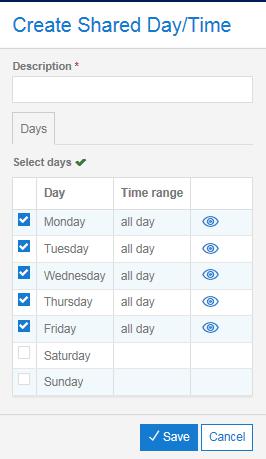
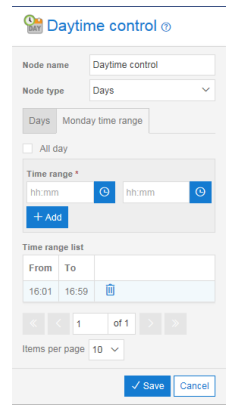
The Day/Time dialog is split into two tabs.
- Days, where you can ‘Select’ which days are to be used.
- Dynamic time range tab, where you can choose the whole day or enter a time range
Checking and highlighting a day changes the day on the second tab.
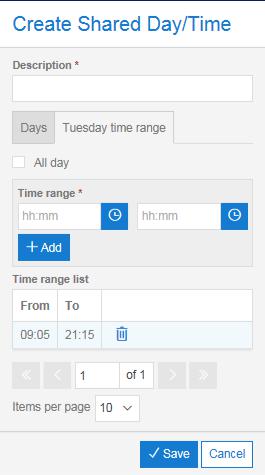
The specific day tab works in much the same way as the shared date/time dialog. If you don’t select ‘All day’ then you must enter from and to times before clicking “Add” and finally “Save”.
Using shared value schedules in call plans #
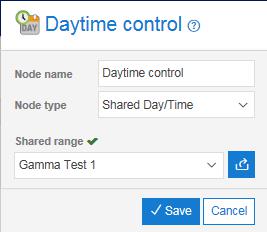
Shared values that have been created can be used in call plans when adding either a day/time or date/time node. Once you have added the node to your call plan, change the node type to “Shared day/time” or “shared date/time” depending on which node you are using. From here a “Shared Range” dropdown will appear, this drop down list will have all of your available shared values to select.
Activating the shared values #
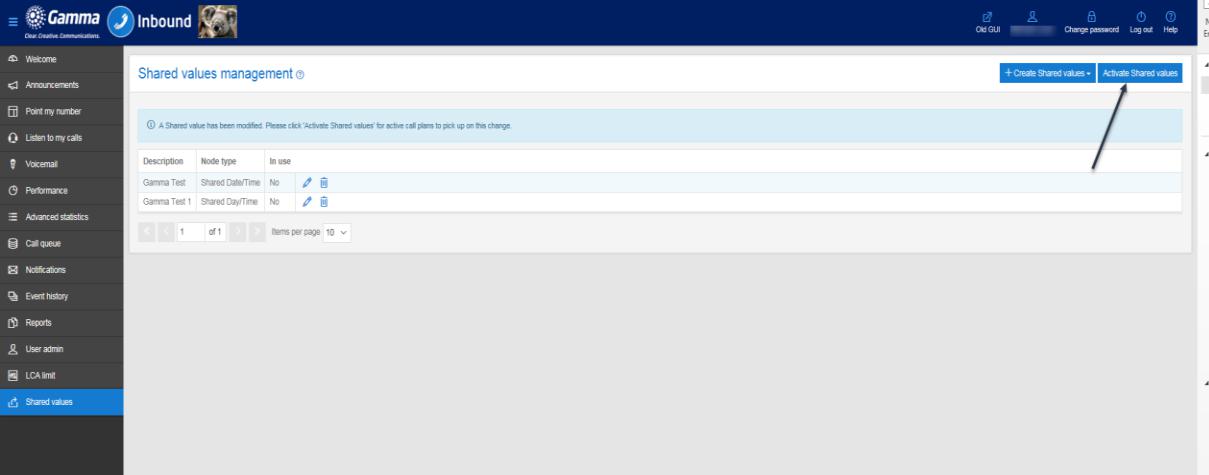
Once the shared values (Day/Time or Date/Time) are added to the respective call plans, they have to be activated by clicking the “Activate Shared values” button (located at the top right of the “Shared Values Management” page).
Time #
Time Description #
Use the Time control to define different call routings for different times of the day. For example, you can set up a call plan (like the one below) to route calls to your desk phone during working hours but to play an announcement outside of your work time.
In the example below Calls will be routed as follows:
- to an announcement on Saturday and Sunday;
- during the week calls will be routed as follows:
- those received during the time period defined in the “My working hours” Time control will route to a
Destination number
- outside of these hours callers will hear the weekday Out of hours announcement which could be the same as the default weekend announcement or different.
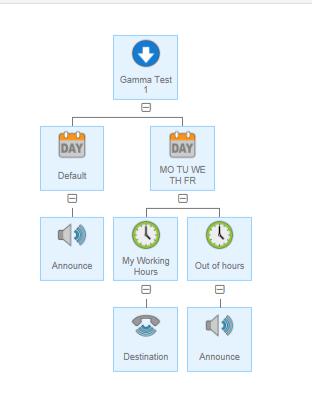
The time periods defined are specific to the individual control within the call plan and will not be available on other controls or other numbers that the company uses. That is, the time periods must be created for each Time control within each plan.
Time Rules #
You must not have overlapping time periods active within sibling Time controls. This may be permitted during edit of the call plan but it will be rejected when the plan is validated.
Start Time must be before the End Time.
A Time control with Node type set to Default must be present if the time periods defined do not cover the whole 24 hour period.
Each time control is active for only one of the time period.
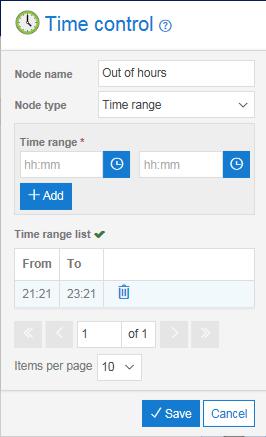
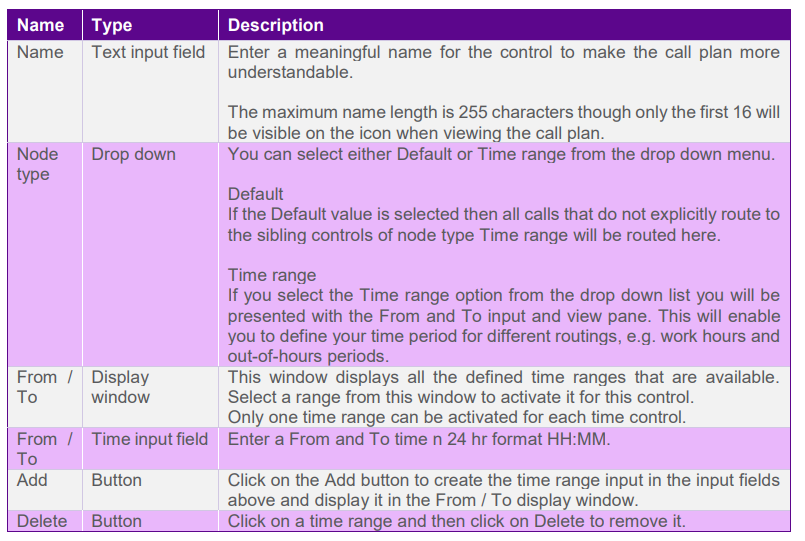
Time Input Fields and Buttons #
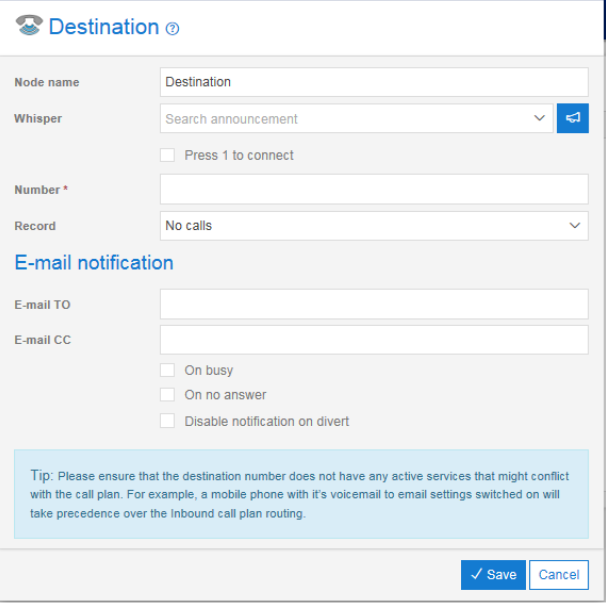
Destination #
Destination Access Restrictions:
Customer Customer must have subscribed to Call recording in order to be able to view the Call recording options.
Destination Description
Use the Destination control to define the final destination of incoming calls.
If your company subscribes to the Call recording service then the Destination control also controls any call recording features for the destination number.
Destination Tip
The destination number must not have any divert functionality turned on that will interfere with the Inbound call plan, e.g. divert to mobile.
Destination Rules
For all parent controls other than Call queue, you will not be permitted to add any control other than a Divert as a sibling of the Destination control.
If the parent control is a Call queue, then you may have Destination, Voicemail and Announce controls as siblings of a Destination. See the help pages on Call queue for more details.
A Destination control defines one of the possible termination points in a call plan and it cannot have any child controls attached to it.
You will only be able to access the call recording options if your company subscribes to the Call recording product. If you require this feature but do not have it then please contact your service provider.
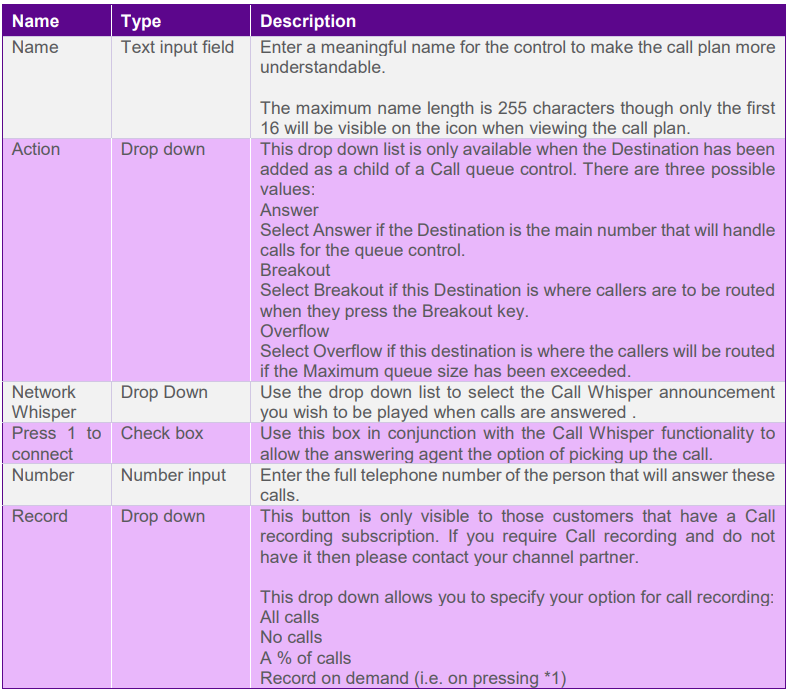
Destination Input Fields and Buttons #