
How to use custom fields #
The Inbound account administrator will have full access to create, modify and delete custom fields and to manage the data within the fields via the GUI or by means of the bulk download and upload function as described in the “How To Create Custom Fields” section of this document.
Normal users will be able view and use the custom fields to filter results wherever the “multiple number selection” appears on GUI, please see the “How to use custom fields to search and filter results” on in this user guide
An administrator will have the ability to add a new role “Enable custom field management” to other users that fall under their administration via the Admin Tab on the Inbound GUI. This will give a user the ability to act as an Administrator of the custom fields i.e. add and modify as well view and use the fields as described.
This service will be available only to Inbound accounts that are subscribed to the Advanced Statistics upgrade.
How To Create Custom Fields #
You will need to have subscribed to the Advanced Statistics on the Gamma portal to access the Custom fields.
Sign in and go to the ‘point my number’ screen on the Inbound porta, on the rop right hand corner of the screen you will see a button called “Manage Custom Fields”, when you select this button you will be presented with two options:
- Manage Custom Fields – this allows you to add, modify and delete custom fields
- Upload Custom Field – This allows you to bulk upload the custom field from a CSV template file
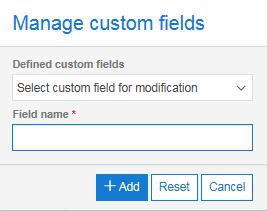
Select the Manage custom fields to view the pop up box, enter the title of the custom field you require and hit add. Once added to the database the Field name box will clear and you can enter further custom fields.
Please note it’s important that you plan the sequence in which you want to view the columns as they will be added to the point my screen in the order in which you create them. In the example below Forename was added 1st, then Surname, then Department and finally Location.
How to use custom fields to search and filter results
The data within the custom fields will be made available to refine and filter search results on the Multiple number selection popups as below based on the field name and value.
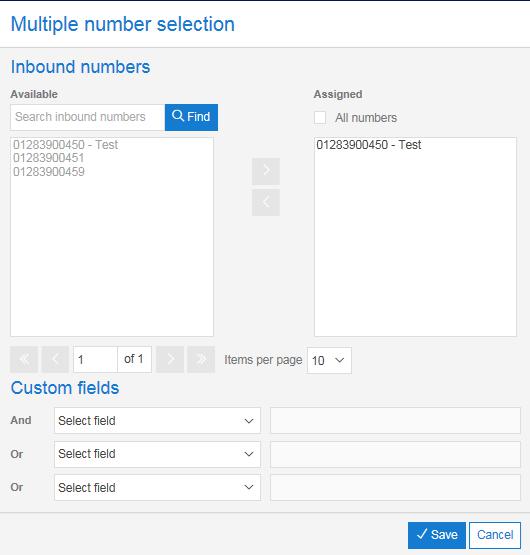
These search popups are found on the Listen to my calls, Voicemail, Performance, Advanced Statistics and View History tabs of the Inbound Platform.
